2022 FORD ESCAPE buttons
[x] Cancel search: buttonsPage 433 of 585
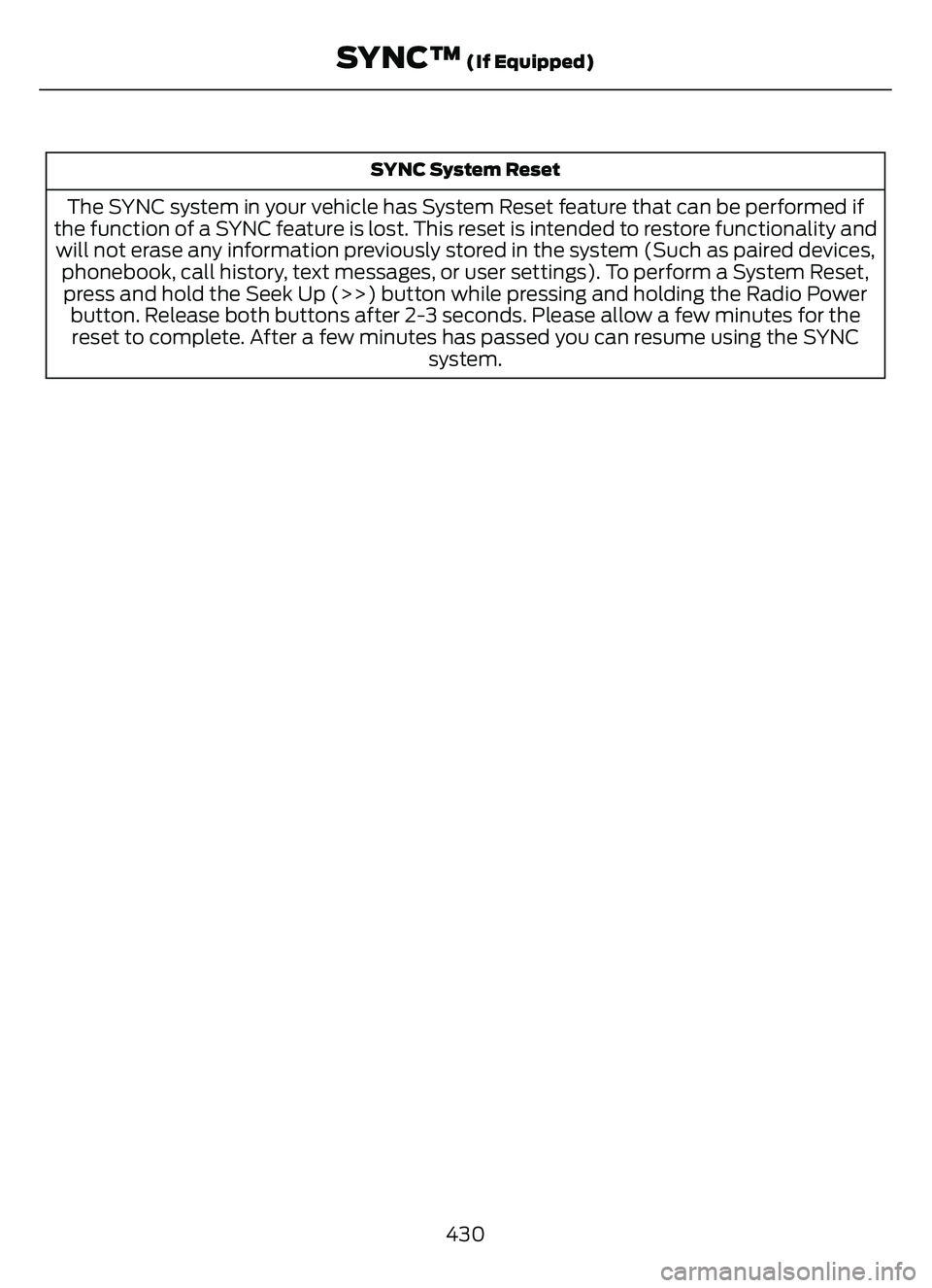
SYNC System Reset
The SYNC system in your vehicle has System Reset feature that can be performed if
the function of a SYNC feature is lost. This reset is intended to restore functionality and will not erase any information previously stored in the system (Such as paired devices, phonebook, call history, text messages, or user settings). To perform a System Reset,press and hold the Seek Up (>>) button while pressing and holding the Radio Power button. Release both buttons after 2-3 seconds. Please allow a few minutes for thereset to complete. After a few minutes has passed you can resume using the SYNC system.
430
SYNC™ (If Equipped)
Page 443 of 585

Description
Voice Command
The system does not confirm before placing a call.
Phone Confirmation Off
The system displays a short list of available commands.
Voice Command Lists On
The system does not display the list of commands.
Voice Command Lists Off
You can use the volume control to adjust
the volume of the system voice prompts.
While prompt is active, adjust the volume
control up or down to your desired setting.
Note: Depending on the current climate
control settings, the fan speed may
automatically go down while issuing voice
commands or while making and receiving
phone calls via SYNC to reduce the amount
of background noise in the vehicle. The fan
speed will automatically return to normal
operation once the voice session ends. You
can adjust the fan speed during a voice
session, simply press the fan buttons (or
turn the fan knob) to increase or decrease
the fan speed to the setting you prefer.
To disable this automatic fan speed
reduction feature during voice sessions,
press and hold the climate control AC and
Recirculated air buttons simultaneously,
release and then increase fan speed within
2 seconds. To re-enable this feature, repeat
the above sequence.
ENTERTAINMENT
A
B93 9E293491
Audio source. Select to choose
a different audio source.
A
Presets. Swipe left to view more
presets.
B
You can access these options using the
touchscreen or voice commands.
Sources
Press this button to select the source of
media you want to listen to.
440
SYNC™ 3 (If Equipped)
Page 444 of 585

Menu Item
AM
FM
1SIRIUS
CDThe name of the USB that is plugged in displays here.
USB
Bluetooth Stereo
If you have SYNC 3 compatible apps on your connected smart phone, they
display here as individual source selections.
Apps
1 This feature may not be available in all markets and requires an active subscription.
AM/FM Radio
Tuning a Station
You can use the tune or seek controls on
the radio bezel to select a station.
To tune a station using the
touchscreen, select:
Menu Item
Direct Tune
A pop up appears, allowing you to type in
the frequency of a station. You can only
enter a valid station for the source you are
currently listening to.
You can press the backspace button to
delete the previously entered number. Once you have entered the station's
call numbers, you can select:
Action and Descrip-
tion
Menu Item
Press to begin
playing the station
you have entered.
Enter
Press to exit
without changing
the station.
Cancel
Presets
To set a new preset, tune to the station
and then press and hold one of the
memory preset buttons. The audio mutes
briefly while the system saves the station
and then returns.
You may be able to add additional preset
pages using the settings option on the
feature bar.
441
SYNC™ 3 (If Equipped)
Page 445 of 585

SiriusXM® Satellite Radio (If
Activated)
Note: This feature may not be available in
all markets and requires an active
subscription.
E234451
SiriusXM satellite radio is a
subscription-based satellite radio service
that broadcasts a variety of music, sports,
news, weather, traffic and entertainment
programming. Your factory-installed
SiriusXM satellite radio system includes
hardware and a limited subscription term
that begins on the date of sale or lease of
your vehicle. See an authorized dealer for
availability. For more information on extended
subscription terms (a service fee is
required), the online media player and a
list of SiriusXM satellite radio channels,
and other features, please visit
www.siriusxm.com in the United States,
www.siriusxm.ca in Canada, or call
SiriusXM at 1-888-539-7474.
Note:
SiriusXM reserves the unrestricted
right to change, rearrange, add or delete
programming. This includes canceling,
moving or adding particular channels, and
its prices, at any time, with or without notice
to you. We are not responsible for any such
programming changes.
Note: This receiver includes the eCos
real-time operating system. eCos is
published under the eCos License.
The following buttons are available for SiriusXM:
Action and Description
Menu Item
Touch this button to see a list of available stations.
Browse
A pop-up appears, allowing you to type in the call numbers of
a station.
Direct Tune
Once you enter the stations call numbers, you can select:The system tunes to the station you select.
Enter
You exit the pop-up and the current station
continues to play.
Cancel
You can press the backspace button to delete the previous
number.
442
SYNC™ 3 (If Equipped)
Page 446 of 585

Action and Description
Menu Item
Replay audio on the current channel. You can replay approx-
imately 45 minutes of audio as long as you remain tuned to
the current station. Changing stations erases the previous
audio.
Replay
When you are in replay mode, you are not
able to select a different preset until you
return to live audio. Pressing this button
returns you to the live broadcast.
Live
Save the current song, artist, or team as a favorite. The system
alerts you when it plays again on any channel.
ALERT
Selecting this button allows you to enable and edit alerts.
Memory Presets
To set a preset, tune to the station then
press and hold one of the memory preset
buttons. The audio mutes briefly while the
system saves the station and returns once
the station is stored. You may be able to add additional preset
pages using the settings option on the
feature bar.
SiriusXM Satellite Radio Reception Factors and Troubleshooting
Potential Reception Issues
For optimal reception performance, keep the antenna clear
of snow and ice build-up and keep luggage and other
materials as far away from the antenna as possible.
Antenna obstructions
Hills, mountains, tall buildings, bridges, tunnels, freeway
overpasses, parking garages, dense tree foliage and thunder-
storms can interfere with your reception.
Terrain
When you pass a ground-based broadcast-repeating tower,
a stronger signal may overtake a weaker one and the audio
system may mute.
Station overload
Your display may show ACQUIRING... to indicate the interfer-
ence and the audio system may mute.
Satellite radio signal
interference
443
SYNC™ 3 (If Equipped)
Page 450 of 585

Potential Station IssuesAction
Cause
Issues
No action required. The station
is not available in your current
location.
The previously stored multicast
preset or direct tune is not
available in your current recep-
tion area.
Cannot access HD2 or
HD3 multicast channel
when recalling a preset
or from a direct tune.
Fill out the station issue form.
1Data service issue by the radio
broadcaster.
Text information does
not match currently
playing audio.
Fill out the station issue form.
1Data service issue by the radio
broadcaster.
There is no text
information shown for
currently selected
frequency.
1 You can find the form here:
Website
http://hdradio.com/stations/feedback
HD Radio Technology manufactured under
license from iBiquity Digital Corporation
and foreign patents. HD Radio and the HD
and HD Radio logos are proprietary
trademarks of DTS. The vehicle
manufacturer and DTS are not responsible
for the content sent using HD Radio
technology. Content may be changed,
added or deleted at any time at the station
owner's discretion.
CD (If Equipped)
Once you select this option, the system
returns you to the main audio screen.
The current audio information appears on
the screen.
The following buttons are also available:
Function
Button
You can use the browse button to select a track.
Browse
Select this button and a small number one displays to indicate
the track is set to repeat.
Repeat
447
SYNC™ 3 (If Equipped)
Page 451 of 585

Function
Button
For MP3 CDs, this button allows you to toggle through repeat
off, repeat one track (a small number one displays), and repeat
current folder (a small folder displays).
Select the shuffle symbol to have the audio on the disk play
in random order.
Shuffle
You can use the forward, reverse, pause or
play buttons to control the audio playback.
Bluetooth Stereo or USB
Bluetooth Stereo and USB allow you to
access media that you store on your
Bluetooth device or USB device such as
music, audio books or podcasts.
The following buttons are available for Bluetooth and USB:
Function
Button
Pressing the repeat button toggles the repeat setting through
three modes: repeat off (button not highlighted), repeat all
(button highlighted) and repeat track (button highlighted with
a small number one).
Repeat
Play the tracks in random order.
Shuffle
You can use the forward, reverse, pause or
play buttons to control the audio playback.
To get more information about the
currently playing track, press the cover art
or Info button. For some devices, SYNC 3 is able to
provide 30-second skip buttons when you
listen to audio books or podcasts. These
buttons allow you to skip forward or
backward within a track.
While playing audio from a USB device you
can look for certain music by selecting the
following:
Function
Button
If available, displays the list of tracks in the
Now Playing playlist.
Browse
This option, which is available under
browse, allows you to play all tracks or to
filter the available media into one of the
below categories.
New Search
Play All
448
SYNC™ 3 (If Equipped)
Page 464 of 585

Departure Times On and Off Switch
This switch is visible when you have at
least one departure time set. Use this
switch to turn all departure times on and
off. Switching departure times off does not
delete your settings.
Next Departure Times and Cabin
Temperature
Displays the next departure time and
associated cabin temperature setting.
Charge Time Settings
Follow these steps to set a preferred
charge time for a charging location.
1. Select Charge Preferences on theCharge Settings screen.
2. Select Charge Time Setup on the Edit Charge Preferences screen.
3. Select Add New Location on the Charge Times screen. You can also edit
settings for previously saved locations
from this screen.
4. Select an address from the Recent Charge Locations screen.
5. On the Confirm Location for Charge Times screen, you can edit the location
name and set a max charge level as
desired. Once you have your desired
location name and max charge level,
select Continue to Schedule.
Note: Charging will stop when your vehicle
reaches the max charge level.
6. Select WEEKDAY or WEEKEND on the Preferred Charge Times screen.
7. On the Select preferred WEEKDAY or WEEKEND Charge Times screen, use
the circular 24 hour clock to select your
charging time windows. You can select
up to two time windows by pressing
and dragging across the hour buttons. When you have selected your preferred
times then press Next to return to the
Preferred Charge Times screen. Repeat
for WEEKEND or WEEKDAY as desired.
Once you are done setting preferred
charge times, press Save.
Note: Selecting all or none of the 24 hours
results in any time of day given equal priority
for charging.
8. Your saved location now shows on the Charge Times screen. Select Done to
return to the main charge settings
screen. Whenever your vehicle is at a
saved charging location the charge
settings screen displays the location
name, and the charging times are
based on your Charge Time settings for
that location plus the next Departure
Time.
Note: Reaching your max charge level by
your next Departure Time is always the
priority. When Charge Times are set,
charging outside your preferred charging
time windows could be necessary in order
to finish by your next Departure Time.
Departure Time Settings
1. Select Charge Preferences on the Charge Settings screen.
2. Select Departure Time Setup on the Edit Charge Preferences screen.
3. Two time settings show for each day of the week on the Departure Times
schedule screen. Select any one.
4. On the Departure Time settings screen, set your desired departure time, cabin
temperature and days of the week to
repeat. Press Save.
5. Your settings are now shown on the Departure Times schedule screen.
Press Back two times to return to the
main charge settings screen. The next
departure time and cabin temperature
setting display.
461
SYNC™ 3 (If Equipped)