2022 CHEVROLET SILVERADO 2500 USB
[x] Cancel search: USBPage 160 of 441
Chevrolet Silverado 2500 HD/3500 HD Owner Manual (GMNA-Localizing-U.
S./Canada/Mexico-15546003) - 2022 - CRC - 5/5/21
Infotainment System 159
My Media Library
MyMedia is only available when more than
one indexed device is connected. It allows
access to content from all indexed media
sources. MyMedia will show as an available
source in the Source page.
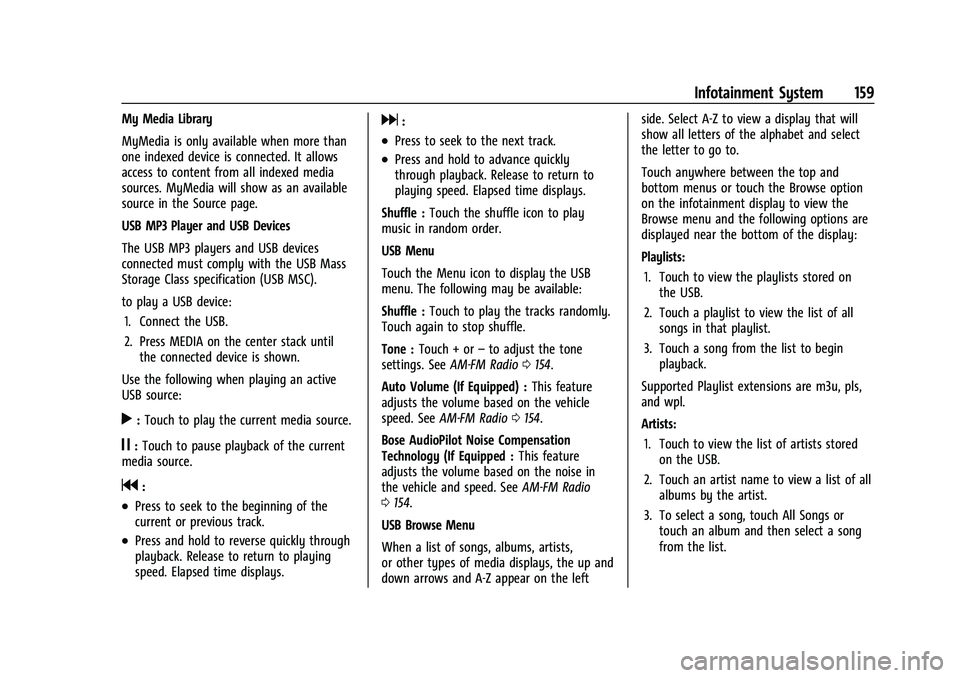
USB MP3 Player and USB Devices
The USB MP3 players and USB devices
connected must comply with the USB Mass
Storage Class specification (USB MSC).
to play a USB device:1. Connect the USB.
2. Press MEDIA on the center stack until the connected device is shown.
Use the following when playing an active
USB source:
r: Touch to play the current media source.
j: Touch to pause playback of the current
media source.
g:
.Press to seek to the beginning of the
current or previous track.
.Press and hold to reverse quickly through
playback. Release to return to playing
speed. Elapsed time displays.
d:
.Press to seek to the next track.
.Press and hold to advance quickly
through playback. Release to return to
playing speed. Elapsed time displays.
Shuffle : Touch the shuffle icon to play
music in random order.
USB Menu
Touch the Menu icon to display the USB
menu. The following may be available:
Shuffle : Touch to play the tracks randomly.
Touch again to stop shuffle.
Tone : Touch + or –to adjust the tone
settings. See AM-FM Radio 0154.
Auto Volume (If Equipped) : This feature
adjusts the volume based on the vehicle
speed. See AM-FM Radio 0154.
Bose AudioPilot Noise Compensation
Technology (If Equipped : This feature
adjusts the volume based on the noise in
the vehicle and speed. See AM-FM Radio
0 154.
USB Browse Menu
When a list of songs, albums, artists,
or other types of media displays, the up and
down arrows and A-Z appear on the left side. Select A-Z to view a display that will
show all letters of the alphabet and select
the letter to go to.
Touch anywhere between the top and
bottom menus or touch the Browse option
on the infotainment display to view the
Browse menu and the following options are
displayed near the bottom of the display:
Playlists:
1. Touch to view the playlists stored on the USB.
2. Touch a playlist to view the list of all songs in that playlist.
3. Touch a song from the list to begin playback.
Supported Playlist extensions are m3u, pls,
and wpl.
Artists: 1. Touch to view the list of artists stored on the USB.
2. Touch an artist name to view a list of all albums by the artist.
3. To select a song, touch All Songs or touch an album and then select a song
from the list.
Page 161 of 441

Chevrolet Silverado 2500 HD/3500 HD Owner Manual (GMNA-Localizing-U.
S./Canada/Mexico-15546003) - 2022 - CRC - 5/5/21
160 Infotainment System
Albums:1. Touch to view the albums on the USB.
2. Touch the album to view a list of all songs on the album.
3. Touch a song from the list to begin playback.
Songs: 1. Touch to display a list of all songs on the USB.
2. To begin playback, touch a song from the list.
Genres: 1. Touch to view the genres on the USB.
2. Touch a genre to view a list of artists.
3. Touch an artist to view albums by that artist.
4. Touch an album to view songs on the album.
5. Touch a song to start playback.
Podcasts, Composers, Audiobooks, and Folder
View (if equipped) are shown when the
More option is selected from near the
bottom of the display.
Podcasts: 1. Touch to view the podcasts on the USB. 2. Select a podcast.
3. Select an episode to start playback.
Composers: 1. Touch to view the composers on the USB.
2. Touch Composers to view a list of albums by that composer.
3. Touch an album to view a list of songs.
4. Touch a song from the list to begin playback.
Folder View: 1. Touch to view the directories on the USB.
2. Touch a folder to view a list of all files.
3. Touch a file from the list to begin playback.
Audiobooks: 1. Touch to view the audiobooks stored on the USB.
2. Touch an audiobook to get a list of chapters.
3. Touch the chapter from the list to begin playback.
When a list of songs, albums, artists,
or other types of media display, a vertical
keyboard appears on one side of the list and
a scroll bar on the other side. When using
the vertical keyboard, touch the beginning
character of the desired name to display the
zoom bubble of that character. Release the
finger from the infotainment display and
the zoom bubble disappears.
Touch the scroll bar to move the list up
and down.
File System and Naming
The songs, artists, albums, and genres are
taken from the file’s song information and
are only displayed if present. The radio
displays the file name as the track name if
the song information is not available.
Page 162 of 441
Chevrolet Silverado 2500 HD/3500 HD Owner Manual (GMNA-Localizing-U.
S./Canada/Mexico-15546003) - 2022 - CRC - 5/5/21
Infotainment System 161
Supported Apple Devices
To view supported devices in USA, see
my.chevrolet.com\learned.
Loss of Audio
If a phone currently paired over Bluetooth is
plugged in with a USB cable, the system will
automatically mute the phone audio.
Playback can be resumed by changing the
audio source from Bluetooth to USB cable.
Source USB from the Media icon on the
infotainment display to resume playback.
Other phones such as Android phones may
have a similar reaction.
Bluetooth Streaming Audio and Voice
Recognition
SeeBluetooth Audio 0161 for information
using voice recognition with Bluetooth
streaming audio.
Make sure all devices have the latest
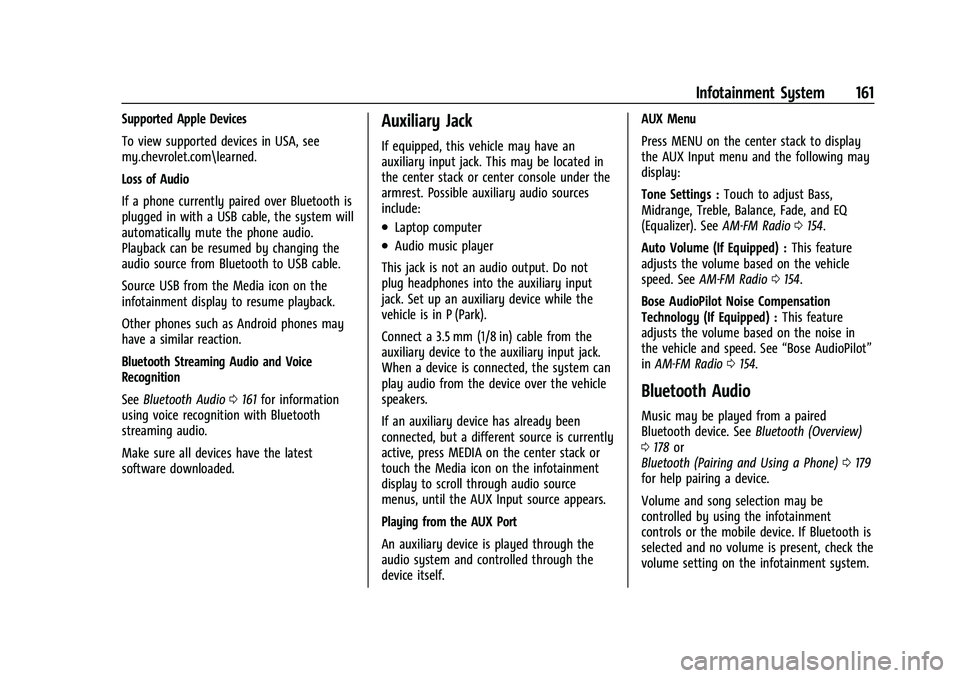
software downloaded.Auxiliary Jack
If equipped, this vehicle may have an
auxiliary input jack. This may be located in
the center stack or center console under the
armrest. Possible auxiliary audio sources
include:
.Laptop computer
.Audio music player
This jack is not an audio output. Do not
plug headphones into the auxiliary input
jack. Set up an auxiliary device while the
vehicle is in P (Park).
Connect a 3.5 mm (1/8 in) cable from the
auxiliary device to the auxiliary input jack.
When a device is connected, the system can
play audio from the device over the vehicle
speakers.
If an auxiliary device has already been
connected, but a different source is currently
active, press MEDIA on the center stack or
touch the Media icon on the infotainment
display to scroll through audio source
menus, until the AUX Input source appears.
Playing from the AUX Port
An auxiliary device is played through the
audio system and controlled through the
device itself. AUX Menu
Press MENU on the center stack to display
the AUX Input menu and the following may
display:
Tone Settings :
Touch to adjust Bass,
Midrange, Treble, Balance, Fade, and EQ
(Equalizer). See AM-FM Radio0154.
Auto Volume (If Equipped) : This feature
adjusts the volume based on the vehicle
speed. See AM-FM Radio 0154.
Bose AudioPilot Noise Compensation
Technology (If Equipped) : This feature
adjusts the volume based on the noise in
the vehicle and speed. See “Bose AudioPilot”
in AM-FM Radio 0154.
Bluetooth Audio
Music may be played from a paired
Bluetooth device. See Bluetooth (Overview)
0 178 or
Bluetooth (Pairing and Using a Phone) 0179
for help pairing a device.
Volume and song selection may be
controlled by using the infotainment
controls or the mobile device. If Bluetooth is
selected and no volume is present, check the
volume setting on the infotainment system.
Page 184 of 441

Chevrolet Silverado 2500 HD/3500 HD Owner Manual (GMNA-Localizing-U.
S./Canada/Mexico-15546003) - 2022 - CRC - 5/5/21
Infotainment System 183
.Touch#on the infotainment display,
next to a call, to end only that call.
Dual Tone Multi-Frequency (DTMF) Tones
The in-vehicle Bluetooth system can send
numbers during a call. This is used when
calling a menu-driven phone system. Use the
Keypad to enter the number.
Apple CarPlay and Android Auto
If equipped, Android Auto and/or Apple
CarPlay capability may be available through
a compatible smartphone. If available, the
Android Auto and Apple CarPlay icons will
change from gray to color on the Home
Page of the infotainment display.
To use Android Auto and/or Apple CarPlay:
For Wired Phone Projection
1. Download the Android Auto app to your smartphone from the Google Play store.
There is no app required for Apple
CarPlay.
2. Connect your Android phone or Apple iPhone by using the factory-provided
phone USB cable and plugging into a
USB data port. For best performance, it is
highly recommended to use the device’s
factory-provided USB cable, which should be replaced after significant wear to
maintain connection quality. Aftermarket
or third-party cables may not work.
3. When the phone is first connected to activate Apple CarPlay or Android Auto,
accept the terms and conditions on both
the infotainment system and the phone.
4. Follow the instructions on the phone.
The Android Auto and Apple CarPlay icons
on the Home Page will illuminate depending
on the smartphone. Android Auto and/or
Apple CarPlay may automatically launch
upon USB connection. If not, touch the
Android Auto or Apple CarPlay icon on the
Home Page to launch.
Press
{on the center stack to return to the
Home Page.
For Wireless Phone Projection
Verify your phone is wireless compatible by
visiting the Google Android Auto or Apple
CarPlay support page.
1. Download the Android Auto app to your smartphone from the Google Play store.
There is no app required for Apple
CarPlay. 2. For first time connection, there are two
ways to set up wireless projection:
.Connect your Android phone or Apple
iPhone by using the factory-provided
phone USB cable and plugging into a
USB data port. For best performance,
it is highly recommended to use the
device’s factory-provided USB cable,
which should be replaced after
significant wear to maintain
connection quality. Aftermarket or
third-party cables may not work.
.Connecting the phone over Bluetooth.
See Bluetooth (Overview) 0178 or
Bluetooth (Pairing and Using a Phone)
0 179.
3. Make sure wireless is turned on the phone for wireless projection to work.
4. When the phone is first connected to activate Apple CarPlay or Android Auto,
agree to the terms and conditions on
both the infotainment system and the
phone.
5. Follow the instructions on the phone.
The Android Auto and Apple CarPlay icons
on the Home Page will illuminate depending
on the smartphone. Android Auto and/or
Apple CarPlay may automatically launch
Page 344 of 441

Chevrolet Silverado 2500 HD/3500 HD Owner Manual (GMNA-Localizing-U.
S./Canada/Mexico-15546003) - 2022 - CRC - 5/5/21
Vehicle Care 343
FusesUsage
F22 Heated Steering Wheel
F23 MISC R/C
F24 Power Take Off/Reflective Light Auxiliary Display/
Instrument Panel Cluster/
Central Gateway Module/
Inside Rear View Mirror/
Overhead Console Module
Ignition
F25 Heating, Ventilation, and Air Conditioning Ignition/
Heating, Ventilation, and
Air Conditioning Auxiliary
F26 USB Ports/Special Equipment Option Retained
Accessory Power
F27 Accessory Power Outlet/ Retained Accessory Power
F28 Accessory Power Outlet/ Battery
F30 Sensing and Diagnostic Module/Parking Brake
F31 Body Control Module 4 Fuses
Usage
F32 Special Equipment Option/ Data Link Connection
F33 Body Control Module 8
F34 Cargo Lamp
F40 CGM –Central Gateway
Module
F41 Infotainment 1
F42 TCP –Telematics
Connectivity Platform
F43 –
F44 –
F45 Body Control Module 2
F46 Heating, Ventilation, and Air Conditioning/Battery 1
F47 Instrument Panel Cluster/ Battery
F48 Transmission Control Module
F49 Body Control Module 1 F50 –
F51 Battery 1
F52 Battery 2 Fuses
Usage
F53 –
F54 Sunroof F55 Driver Power Seat
F56 DC DC TRANS 1 F57 DC DC TRANS 2
F58 Infotainment 2
Circuit
Breakers Usage
1 Accessory Power Outlet 2
2 Accessory Power Outlet 1/ Cigarette Lighter
3 –
4 –
Relays Usage
K1 Run/Crank
K2 Retained Accessory Power/ Accessory 1
K4 –
K5 –
Page 436 of 441
Chevrolet Silverado 2500 HD/3500 HD Owner Manual (GMNA-Localizing-U.
S./Canada/Mexico-15546003) - 2022 - CRC - 5/5/21
Index 435
Odometer (cont'd)Trip . . . . . . . . . . . . . . . . . . . . . . . . . . . . . . . . . . . . . 111
Off-Road . . . . . . . . . . . . . . . . . . . . . . . . . . . . . . . . . .214 Driving . . . . . . . . . . . . . . . . . . . . . . . . . . . . . . . . 214
Recovery . . . . . . . . . . . . . . . . . . . . . . . . . . . . . . . 213
Oil Engine . . . . . . . . . . . . . . . . . . . . . . . . . . . . . . . . . . 311
Engine Oil Life System . . . . . . . . . . . . . . . . . 313
Engine Oil Pressure Gauge . . . . . . . . . . . . . . 112
Pressure Light . . . . . . . . . . . . . . . . . . . . . . . . . 122
Older Children, Restraints . . . . . . . . . . . . . . . . . .73
Online Owner Center . . . . . . . . . . . . . . . . . . . . . 411
OnStar . . . . . . . . . . . . . . . . . . . . . . . . . . . . . . . . . . . 419
OnStar Additional Information . . . . . . . . . . . .421
OnStar Emergency . . . . . . . . . . . . . . . . . . . . . . . .421
OnStar Overview . . . . . . . . . . . . . . . . . . . . . . . . . 420
OnStar Security . . . . . . . . . . . . . . . . . . . . . . . . . . .421
Operating Mode Overheated Engine Protection . . . . . . . . . 320
Operation Fog Lamps . . . . . . . . . . . . . . . . . . . . . . . . . . . . . 143
Outlets Power . . . . . . . . . . . . . . . . . . . . . . . . . . . . . . . . . 103
Overheated Engine Protection Operating Mode . . . . . . . . . . . . . . . . . . . . . . . 320
Overheating, Engine . . . . . . . . . . . . . . . . . . . . . .318
Overview . . . . . . . . . . . . . . . . . . . . . . . . . . . . . . . . 149
Instrument Panel . . . . . . . . . . . . . . . . . . . . . . . . 4P
ParkShifting Into . . . . . . . . . . . . . . . . . . . . . . . . . . . 233
Shifting Out of . . . . . . . . . . . . . . . . . . . . . . . . 234
Park Assist . . . . . . . . . . . . . . . . . . . . . . . . . . . 253, 261
Parking
Brake and P (Park) MechanismCheck . . . . . . . . . . . . . . . . . . . . . . . . . . . . . . . . 328
Extended . . . . . . . . . . . . . . . . . . . . . . . . . . . . . . 234
Over Things That Burn . . . . . . . . . . . . . . . . . 234
Parking or Backing Assistance Systems . . . . . . . . . . . . . . . . . . . . 253
Passenger Airbag Status Indicator . . . . . . . . . 115
Passenger Compartment Air Filter . . . . . . . 207
Passenger Sensing System . . . . . . . . . . . . . . . . 67
Perchlorate Materials Requirements, California . . . . . . . . . . . . . . . . . . . . . . . . . . . . . . 307
Personalization Vehicle . . . . . . . . . . . . . . . . . . . . . . . . . . . . . . . . . 131
Phone Apple CarPlay and Android Auto . . . . . . . 183
Bluetooth . . . . . . . . . . . . . . . . . . . . . . . . . . 178, 179
Pickup Conversion to Chassis Cab . . . . . . . . 305
Port USB . . . . . . . . . . . . . . . . . . . . . . . . . . . . . . . . . . . . 158
Positioning Vehicle . . . . . . . . . . . . . . . . . . . . . . . . . . . . . . . . . 172 Power
Door Locks . . . . . . . . . . . . . . . . . . . . . . . . . . . . . . 22
Mirrors . . . . . . . . . . . . . . . . . . . . . . . . . . . . . . . . . 36
Outlets . . . . . . . . . . . . . . . . . . . . . . . . . . . . . . . . 103
Protection, Battery . . . . . . . . . . . . . . . . . . . . . 147
Retained Accessory (RAP) . . . . . . . . . . . . . . 232
Seat Adjustment . . . . . . . . . . . . . . . . . . . . . . . . 48
Steering Fluid . . . . . . . . . . . . . . . . . . . . . . . . . . 320
Windows . . . . . . . . . . . . . . . . . . . . . . . . . . . . . . . 42
Power Assist Steps . . . . . . . . . . . . . . . . . . . . . . . . . 31
Pregnancy, Using Seat Belts . . . . . . . . . . . . . . .61
Privacy Vehicle Data Recording . . . . . . . . . . . . . . . . 418
Problems with Route Guidance . . . . . . . . . . . 172
Program Courtesy Transportation . . . . . . . . . . . . . . . 414
Prohibited Fuels . . . . . . . . . . . . . . . . . . . . . . . . . 269
Proposition 65 Warning, California . . . . . . . . . . . . . . . . . . . . . . . . . 324, 374, Back Cover
Publication Ordering Information . . . . . . . . 416
R
Radio
HD Radio Technology . . . . . . . . . . . . . . . . . . 156
Radio Data System (RDS) . . . . . . . . . . . . . . . . . 157
Radio Frequency Statement . . . . . . . . . . . . . . .417
Radio Reception . . . . . . . . . . . . . . . . . . . . . . . . . . 157
Page 439 of 441
Chevrolet Silverado 2500 HD/3500 HD Owner Manual (GMNA-Localizing-U.
S./Canada/Mexico-15546003) - 2022 - CRC - 5/5/21
438 Index
Text Telephone (TTY) Users . . . . . . . . . . . . . . . 411
Theft-Deterrent Systems . . . . . . . . . . . . . . . . . . .33Immobilizer . . . . . . . . . . . . . . . . . . . . . . . . . . . . . 33
Time . . . . . . . . . . . . . . . . . . . . . . . . . . . . . . . . . . . . . 103
Tires . . . . . . . . . . . . . . . . . . . . . . . . . . . . . . . . . . . . . 344 All-Season . . . . . . . . . . . . . . . . . . . . . . . . . . . . . 344
All-Terrain . . . . . . . . . . . . . . . . . . . . . . . . . . . . . 345
Buying New Tires . . . . . . . . . . . . . . . . . . . . . . 359
Chains . . . . . . . . . . . . . . . . . . . . . . . . . . . . . . . . . 362
Changing . . . . . . . . . . . . . . . . . . . . . . . . . . . . . . 364
Designations . . . . . . . . . . . . . . . . . . . . . . . . . . . 346
Different Size . . . . . . . . . . . . . . . . . . . . . . . . . . 360
Full-Size Spare . . . . . . . . . . . . . . . . . . . . . . . . . 374
If a Tire Goes Flat . . . . . . . . . . . . . . . . . . . . . 363
Inspection . . . . . . . . . . . . . . . . . . . . . . . . . . . . . 355
Pressure . . . . . . . . . . . . . . . . . . . . . . . . . . . . . . . 349
Pressure Light . . . . . . . . . . . . . . . . . . . . . . . . . . 121
Pressure Monitor Operation . . . . . . . . . . . 351
Pressure Monitor System . . . . . . . . . . . . . . 350
Rotation . . . . . . . . . . . . . . . . . . . . . . . . . . . . . . . 356
Sidewall Labeling . . . . . . . . . . . . . . . . . . . . . . 345
Terminology and Definitions . . . . . . . . . . . 347
Uniform Tire Quality Grading . . . . . . . . . . 360
Wheel Alignment and Tire Balance . . . . 361
Wheel Replacement . . . . . . . . . . . . . . . . . . . . 361
When It Is Time for New Tires . . . . . . . . . 358
Winter . . . . . . . . . . . . . . . . . . . . . . . . . . . . . . . . . 345
Top Tier Fuel . . . . . . . . . . . . . . . . . . . . . . . . . . . . 269 Tow/Haul Mode . . . . . . . . . . . . . . . . . . . . . . . . . 240
Towing
Driving Characteristics . . . . . . . . . . . . . . . . . 274
Equipment . . . . . . . . . . . . . . . . . . . . . . . . . . . . . 281
General Information . . . . . . . . . . . . . . . . . . . 273
Recreational Vehicle . . . . . . . . . . . . . . . . . . . 378
Trailer . . . . . . . . . . . . . . . . . . . . . . . . . . . . . . . . . 278
Trailer Sway Control (TSC) . . . . . . . . . . . . . 291
Vehicle . . . . . . . . . . . . . . . . . . . . . . . . . . . . . . . . 377
Traction Off Light . . . . . . . . . . . . . . . . . . . . . . . . . . . . . . . 120
Traction Control/Electronic Stability Control . . . . . . . . . . . . . . . . . . . . . . . . . . . . . . . . . 247
Trademarks and License Agreements . . . . . 193
Trailer Sway Control (TSC) . . . . . . . . . . . . . . . . . . . . 291
Tow Mirrors . . . . . . . . . . . . . . . . . . . . . . . . . . . . 34
Towing . . . . . . . . . . . . . . . . . . . . . . . . . . . . . . . . 278
Trailer Towing App . . . . . . . . . . . . . . . . . . . . . . . . . . . . . . . . . . . . 292
Trailering App . . . . . . . . . . . . . . . . . . . . . . . . . . . 292
Transfer Case
Four-Wheel Drive . . . . . . . . . . . . . . . . . . . . . . 240
Transmission Automatic . . . . . . . . . . . . . . . . . . . . . . . . . . . . . 235
Fluid, Automatic . . . . . . . . . . . . . . . . . . . . . . . 314
Transportation Program, Courtesy . . . . . . . 414 Transporting Items That Can
Catch Fire . . . . . . . . . . . . . . . . . . . . . . . . . . . . . . . 30
Trip Odometer . . . . . . . . . . . . . . . . . . . . . . . . . . . . 111
Truck Bed Camera Rearview Mirror . . . . . . . .41
Truck-Camper Loading Information . . . . . . . 225
Turn and Lane-Change Signals . . . . . . . . . . . .143
Turn Signal Bulb Replacement . . . . . . . . . . . . . . . . . . . . . . 332
U
Underseat Storage . . . . . . . . . . . . . . . . . . . . . . . . 97
Uniform Tire Quality Grading . . . . . . . . . . . . 360
Universal Remote System . . . . . . . . . . . . . . . . . 135Operation . . . . . . . . . . . . . . . . . . . . . . . . . . . . . . . 137
Programming . . . . . . . . . . . . . . . . . . . . . . . . . . 135
Updates Map Data . . . . . . . . . . . . . . . . . . . . . . . . . . . . . . . 173
Software . . . . . . . . . . . . . . . . . . . . . . . . . . . . . . . 154
USB Port . . . . . . . . . . . . . . . . . . . . . . . . . . . . . . . . . .158
Using the Navigation System . . . . . . . . . . . . 162
Using the System . . . . . . . . . . . . . . . . . . . . . . . . . 152
Using This Manual . . . . . . . . . . . . . . . . . . . . . . . . . .2
V
Vehicle Alarm System . . . . . . . . . . . . . . . . . . . . . . . . . . . 31
Canadian Owners . . . . . . . . . . . . . . . . . . . . . . . . . 1
Control . . . . . . . . . . . . . . . . . . . . . . . . . . . . . . . . . 211
Identification Number (VIN) . . . . . . . . . . . . 405