2022 CHEVROLET BOLT EV key
[x] Cancel search: keyPage 106 of 316
Chevrolet BOLT EV Owner Manual (GMNA-Localizing-U.S./Canada-
15082216) - 2022 - CRC - 6/25/21
Instruments and Controls 105
Valet Mode
This will lock the infotainment system and
steering wheel controls. It may also limit
access to vehicle storage locations,
if equipped.
To enable valet mode:1. Enter a four-digit code on the keypad.
2. Select Enter to go to the confirmation screen.
3. Re-enter the four-digit code.
Touch Lock or Unlock to lock or unlock the
system. Touch Back to go back to the
previous menu.
Page 111 of 316
Chevrolet BOLT EV Owner Manual (GMNA-Localizing-U.S./Canada-
15082216) - 2022 - CRC - 6/25/21
110 Lighting
Courtesy Lamps
The courtesy lamps come on when any door
is opened,
Kon the RKE transmitter is
pressed, or when the vehicle is powered off.
See Dome Lamps 0110.
Dome Lamps
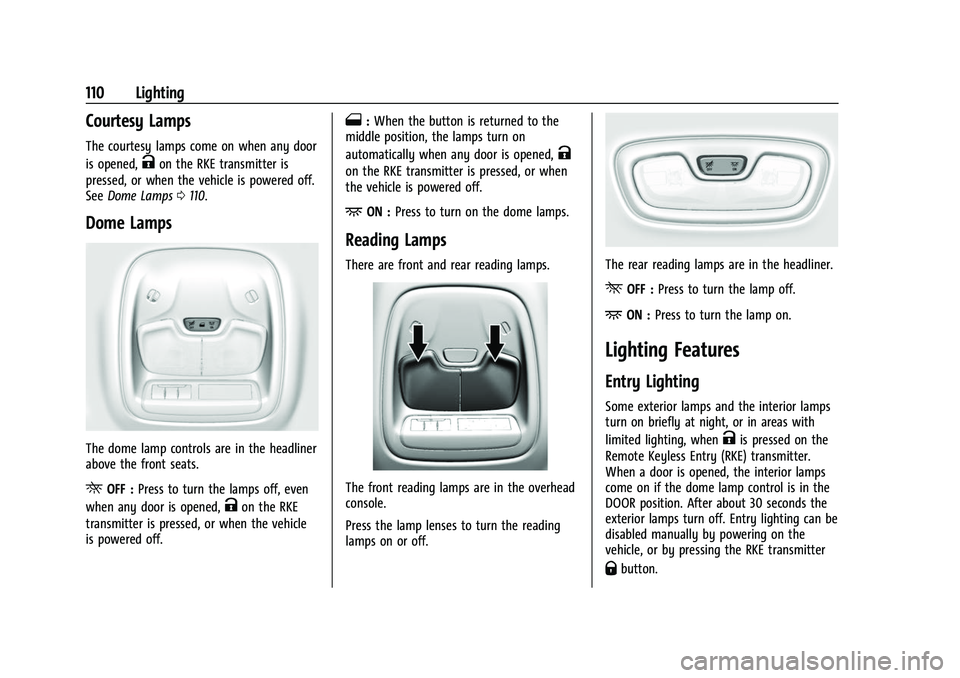
The dome lamp controls are in the headliner
above the front seats.
ROFF : Press to turn the lamps off, even
when any door is opened,
Kon the RKE
transmitter is pressed, or when the vehicle
is powered off.
1: When the button is returned to the
middle position, the lamps turn on
automatically when any door is opened,
K
on the RKE transmitter is pressed, or when
the vehicle is powered off.
+ON : Press to turn on the dome lamps.
Reading Lamps
There are front and rear reading lamps.
The front reading lamps are in the overhead
console.
Press the lamp lenses to turn the reading
lamps on or off.
The rear reading lamps are in the headliner.
*OFF : Press to turn the lamp off.
+ON :Press to turn the lamp on.
Lighting Features
Entry Lighting
Some exterior lamps and the interior lamps
turn on briefly at night, or in areas with
limited lighting, when
Kis pressed on the
Remote Keyless Entry (RKE) transmitter.
When a door is opened, the interior lamps
come on if the dome lamp control is in the
DOOR position. After about 30 seconds the
exterior lamps turn off. Entry lighting can be
disabled manually by powering on the
vehicle, or by pressing the RKE transmitter
Qbutton.
Page 112 of 316

Chevrolet BOLT EV Owner Manual (GMNA-Localizing-U.S./Canada-
15082216) - 2022 - CRC - 6/25/21
Lighting 111
This feature can be changed. See“Vehicle
Locator Lights” underVehicle Personalization
0 102.
Exit Lighting
Some exterior lamps and interior lamps turn
on when the vehicle is powered off.
The exterior and interior lamps remain on
for a set amount of time, then automatically
turn off. If equipped with Keyless Access,
the exterior lamps automatically turn on
when the driver door is opened after the
vehicle is powered off.
The interior lights turn on when the vehicle
is powered off.
The exterior lamps turn off immediately by
turning the exterior lamp control off.
This feature can be changed. See Vehicle
Personalization 0102.
Battery Power Protection
This feature helps prevent the battery from
being drained if the interior courtesy lamps
or reading lamps are accidentally left on.
If any of these lamps are left on, they
automatically turn off after 10 minutes if the
ignition is off. The lamps will not come back
on again until one of the following occurs:
.The vehicle is powered on.
.The doors are closed and then re-opened.
Battery Saver
The vehicle is equipped with electrical power
management (EPM). EPM monitors and
controls the charging system. The message
BATTERY SAVER ACTIVE displays on the
Driver Information Center (DIC) when the
EPM detects the battery may be draining
too quickly, the charge state needs to be
reset, or the Auxiliary Power Module failed.
If safe to do so, when BATTERY SAVER
ACTIVE displays, manually shut off
windshield wipers, communications
equipment, climate controls, etc. to slow the
battery from draining. See Automatic
Climate Control System 0148.
If the message still displays, fully charge the
vehicle. Once fully charged, unplug the
vehicle and let the vehicle sit an additional
8.5 hours or greater without being
interrupted to allow the Body Control
Module (BCM) to reset the battery to the
required state of charge.
The following may interrupt the vehicle:
.Charging the vehicle
.Battery Maintenance Mode
.Approach Detection is activated
.The Key Fob is left in the car or left in
close proximity of the vehicle
.Pressing buttons on the Remote Keyless
Entry (RKE) transmitter
.Opening the doors or tailgate
To reduce the occurrence of this alert, GM
recommends letting the vehicle sit
uninterrupted for 8.5 hours or greater on a
weekly basis.
If after completing this process the BATTERY
SAVER ACTIVE message remains, see your
dealer for service.
Exterior Lighting Battery Saver
The exterior lamps turn off about 10 minutes
after the vehicle is turned off, if the parking
lamps or headlamps have been manually
left on. This protects against draining the
battery. To restart the 10-minute timer, turn
the exterior lamp control to the
Oposition
and then back to the
;or2position.
To keep the lamps on for more than
10 minutes, the vehicle must be powered on.
Page 119 of 316
Chevrolet BOLT EV Owner Manual (GMNA-Localizing-U.S./Canada-
15082216) - 2022 - CRC - 6/25/21
118 Infotainment System
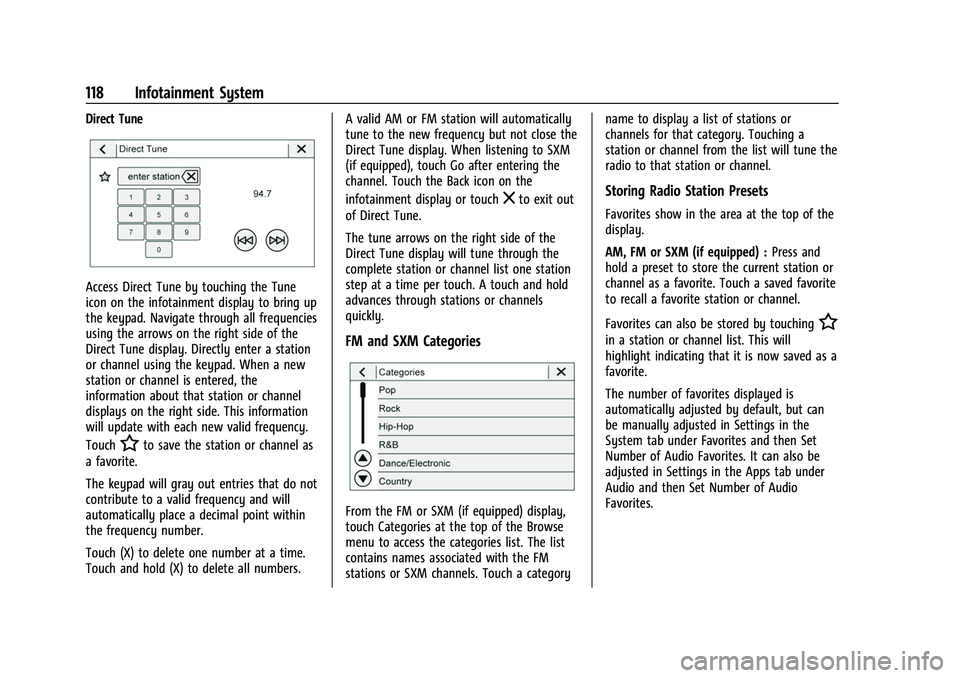
Direct Tune
Access Direct Tune by touching the Tune
icon on the infotainment display to bring up
the keypad. Navigate through all frequencies
using the arrows on the right side of the
Direct Tune display. Directly enter a station
or channel using the keypad. When a new
station or channel is entered, the
information about that station or channel
displays on the right side. This information
will update with each new valid frequency.
Touch
Hto save the station or channel as
a favorite.
The keypad will gray out entries that do not
contribute to a valid frequency and will
automatically place a decimal point within
the frequency number.
Touch (X) to delete one number at a time.
Touch and hold (X) to delete all numbers. A valid AM or FM station will automatically
tune to the new frequency but not close the
Direct Tune display. When listening to SXM
(if equipped), touch Go after entering the
channel. Touch the Back icon on the
infotainment display or touch
zto exit out
of Direct Tune.
The tune arrows on the right side of the
Direct Tune display will tune through the
complete station or channel list one station
step at a time per touch. A touch and hold
advances through stations or channels
quickly.
FM and SXM Categories
From the FM or SXM (if equipped) display,
touch Categories at the top of the Browse
menu to access the categories list. The list
contains names associated with the FM
stations or SXM channels. Touch a category name to display a list of stations or
channels for that category. Touching a
station or channel from the list will tune the
radio to that station or channel.
Storing Radio Station Presets
Favorites show in the area at the top of the
display.
AM, FM or SXM (if equipped) :
Press and
hold a preset to store the current station or
channel as a favorite. Touch a saved favorite
to recall a favorite station or channel.
Favorites can also be stored by touching
H
in a station or channel list. This will
highlight indicating that it is now saved as a
favorite.
The number of favorites displayed is
automatically adjusted by default, but can
be manually adjusted in Settings in the
System tab under Favorites and then Set
Number of Audio Favorites. It can also be
adjusted in Settings in the Apps tab under
Audio and then Set Number of Audio
Favorites.
Page 128 of 316

Chevrolet BOLT EV Owner Manual (GMNA-Localizing-U.S./Canada-
15082216) - 2022 - CRC - 6/25/21
Infotainment System 127
.Album type folders including types such
as albums and audiobooks.
There are no restrictions if the number of
files and albums is fewer than 12,000. When
the number of files connected to the system
is between 12,000 and 24,000, the content
cannot be accessed directly with one
command like “Play
The restriction is that the command “Play
Song” must be spoken first; the system will
then ask for the song name. The reply
command would be to say the name of the
song to play.
Similar limits exist for album content.
If there are more than 12,000 albums, but
fewer than 24,000, the content cannot be
accessed directly with one command like,
“Play
Album” must first be spoken; the system
will then ask for the album name. The reply
would be to say the name of the album
to play.
Once the number of files has exceeded
approximately 24,000, there is no support
for accessing the songs directly through
voice commands. There will still be access to
the media content by using commands for
playlists, artists, and genres. The access commands for playlists, artists,
and genres are prohibited after the number
of this type of media exceeds 12,000.
The system will provide feedback the first
time voice recognition is initiated if it has
become apparent that any of these limits
are reached during a device initializing
process.
Voice recognition performance will degrade
to some extent based on many factors when
adding large amounts of data to recognize.
If this is the case, perhaps accessing songs
through playlists or artist name would work
better.
Voice Recognition for the Phone
“Call
:Initiate a call to a
stored contact. The command may include
location if the contact has location numbers
stored.
“Call
Mobile,” or“On Other” :Initiate a call to a
stored contact and location at home, at
work, on mobile device, or on another
phone.
“Call
to a cell phone number of seven digits, 10
digits, or three digit emergency numbers. “Pair Phone”
:Begin the Bluetooth pairing
process. Follow the instructions on the
infotainment display.
“Redial” :Initiate a call to the last dialed
number.
“Switch Phone” :Select a different
connected cell phone for outgoing calls.
“Voice Keypad” :Begin a dialog to enter
special numbers like international numbers.
The numbers can be entered in groups of
digits with each group of digits being
repeated back by the system. If the group
of digits is not correct, the command
“Delete” will remove the last group of digits
and allow them to be re-entered. Once the
entire number has been entered, the
command “Call”will start dialing the
number.
Phone Assistant Voice Recognition
Press and holdgon the steering wheel
controls to pass through and launch Google
phone assistant or Siri.
For the low radio, whether connected by
Bluetooth or phone projection, the only
available voice recognition is either Siri
(iPhone) or the Google Assistant (Android).
Page 132 of 316
Chevrolet BOLT EV Owner Manual (GMNA-Localizing-U.S./Canada-
15082216) - 2022 - CRC - 6/25/21
Infotainment System 131
.While the active call is on the handset,
touch the Handset option to switch to the
hands-free mode.
Making a Call Using Contacts and Recent
Calls
Calls can be made through the Bluetooth
system using personal cell phone contact
information for all cell phones that support
the Phone Book feature. Become familiar
with the cell phone settings and operation.
Verify the cell phone supports this feature.
The Contacts menu accesses the phone book
stored in the cell phone.
The Recents menu accesses the recents call
list from your cell phone.
To make a call using the Contacts menu:1. Touch the Phone icon on the Home Page.
2. Touch Contacts.
3. The Contacts list can be searched by using the first character. Touch A-Z on
the infotainment display to scroll
through the list of names.
Touch the name to call.
4. Touch the desired contact number to call.
To make a call using the Recents menu: 1. Touch Phone on the Home Page. 2. Touch Recents.
3. Touch the name or number to call.
Making a Call Using the Keypad
To make a call by dialing the numbers:
1. Touch the Phone icon on the Home Page.
2. Touch Keypad and enter a phone number.
3. Touch
#on the infotainment display to
start dialing the number.
Searching Contacts Using the Keypad
To search for contacts using the keypad:
1. Touch the Phone icon on the Home Page.
2. Touch Keypad and enter partial phone numbers or contact names using the
digits on the keypad to search.
Results will show on the right side of the
display. Touch one to place a call.
Accepting or Declining a Call
When an incoming call is received, the
infotainment system mutes and a ring tone
is heard in the vehicle. Accepting a Call
There are two ways to accept a call:
.Pressgon the steering wheel controls.
.Touch Answer on the infotainment
display.
Declining a Call
There are two ways to decline a call:
.Pression the steering wheel controls.
.Touch Ignore on the infotainment display.
Call Waiting
Call waiting must be supported on the
Bluetooth cell phone and enabled by the
wireless service carrier to work.
Accepting a Call
Press
gto answer, then touch Switch on
the infotainment display.
Declining a Call
Press
ito decline, then touch Ignore on
the infotainment display
Page 133 of 316

Chevrolet BOLT EV Owner Manual (GMNA-Localizing-U.S./Canada-
15082216) - 2022 - CRC - 6/25/21
132 Infotainment System
Switching Between Calls (Call Waiting
Calls Only)
To switch between calls, touch Phone on the
Home Page to display Call View. While in
Call View, touch the call information of the
call on hold to change calls.
Three-Way Calling
Three-way calling must be supported on the
Bluetooth cell phone and enabled by the
wireless service carrier to work.
To start a three-way call while in a
current call:1. In the Call View, touch Add Call to add another call.
2. Initiate the second call by selecting from Recents, Contacts, or Keypad.
3. When the second call is active, touch the merge icon to conference the three-way
call together.
Ending a Call
.Pression the steering wheel controls.
.Touch#on the infotainment display,
next to a call, to end only that call.
Dual Tone Multi-Frequency (DTMF) Tones
The in-vehicle Bluetooth system can send
numbers during a call. This is used when
calling a menu-driven phone system. Use the
Keypad to enter the number.
Apple CarPlay and Android Auto
If equipped, Android Auto and/or Apple
CarPlay capability may be available through
a compatible smartphone. If available, the
Android Auto and Apple CarPlay icons will
change from gray to color on the Home
Page of the infotainment display.
To use Android Auto and/or Apple CarPlay:
For Wired Phone Projection
1. Download the Android Auto app to your smartphone from the Google Play store.
There is no app required for Apple
CarPlay.
2. Connect your Android phone or Apple iPhone by using the factory-provided
phone USB cable and plugging into a
USB data port. For best performance, it is
highly recommended to use the device’s
factory-provided USB cable, which should
be replaced after significant wear to
maintain connection quality. Aftermarket
or third-party cables may not work. 3. When the phone is first connected to
activate Apple CarPlay or Android Auto,
accept the terms and conditions on both
the infotainment system and the phone.
4. Follow the instructions on the phone.
The Android Auto and Apple CarPlay icons
on the Home Page will illuminate depending
on the smartphone. Android Auto and/or
Apple CarPlay may automatically launch
upon USB connection. If not, touch the
Android Auto or Apple CarPlay icon on the
Home Page to launch.
Press
{on the center stack to return to the
Home Page.
For Wireless Phone Projection
Verify your phone is wireless compatible by
visiting the Google Android Auto or Apple
CarPlay support page.
1. Download the Android Auto app to your smartphone from the Google Play store.
There is no app required for Apple
CarPlay.
2. For first time connection, there are two ways to set up wireless projection:
.Connect your Android phone or Apple
iPhone by using the factory-provided
phone USB cable and plugging into a
Page 140 of 316
Chevrolet BOLT EV Owner Manual (GMNA-Localizing-U.S./Canada-
15082216) - 2022 - CRC - 6/25/21
Infotainment System 139
Touch the controls on the infotainment
display to disable or enable.
.Privacy: Only show call alerts in the
instrument cluster.
Touch Off or On.
.Sort Contacts: Touch to sort by first or
last name.
.Re-sync Device Contacts:
This allows the device contacts to re-sync
if you are having difficulty accessing all of
the contacts on your cell phone.
.Delete All Vehicle Contacts: Touch to
delete all vehicle stored contacts.
.OnStar Phone TTY Mode: This enables
OnStar cell phone TTY mode.
Touch Disable or Enable.
SiriusXM
Touch and the following may display:
.Account Information: Displays the account
information and subscription information.
.Listener Options: Based on the current
vehicle profile selected. Touch and the
following may display:
.SiriusXM Favorites: Favorites shown
can be moved or deleted.
.Listener Settings: Selections include
hide explicit language, channels and
content, reset listening history, and
start songs at the beginning when
tuning to a music channel.
.System Settings: Enable or disable
SiriusXM location services. Also shows
radio ID.
.Contact SiriusXM: Displays radio ID and
phone number to call SiriusXM
Customer Care.
.SiriusXM Policies: Shows information on
the Customer Agreement and Privacy
Policy.
Vehicle
This menu allows adjustment of different
vehicle features. See Vehicle Personalization
0 102.
Personal
If equipped, this menu allows adjustment of
different user profile settings. See “Users”in
Using the System 0114 for information on
setting up user profiles. The menu may contain the following:
Name
Touch to edit your user name that will be
displayed in the vehicle.
Vehicle Account Information
Touch to view the vehicle account
information and to change the account
password.
An
“unverified user account” pop-up will
display until the account information
verification process has been completed on
the Internet. Check your registered e-mail
account for an activation e-mail to complete
the verification process.
Profile Picture
Touch to choose or change your profile
picture.
Profile Identifiers
Touch to have the vehicle recognize the
identifier you choose.
Touch Vehicle Key 1 and/or Vehicle Key 2.
If the Remote Keyless Entry (RKE)
transmitter is lost or stolen, see your dealer.