2022 CADILLAC XT5 phone
[x] Cancel search: phonePage 132 of 432

Cadillac XT5 Owner Manual (GMNA-Localizing-U.S./Canada/Mexico-
15227431) - 2022 - CRC - 8/11/21
INSTRUMENTS AND CONTROLS 131
Universal Remote System
Programming
If equipped, these buttons are in the
overhead console.
This system can replace up to three
remote control transmitters used to
activate devices such as garage door
openers, security systems, and home
automation devices. These
instructions refer to a garage door
opener, but can be used for other
devices.
Do not use the Universal Remote
system with any garage door opener
that does not have the stop andreverse feature. This includes any
garage door opener model
manufactured before April 1, 1982.
Read these instructions completely
before programming the Universal
Remote system. It may help to have
another person assist with the
programming process.
Keep the original hand-held
transmitter for use in other vehicles
as well as for future programming.
Erase the programming when vehicle
ownership is terminated. See
“Erasing
Universal Remote System Buttons”
later in this section.
To program a garage door opener,
park outside directly in line with and
facing the garage door opener receiver.
Clear all people and objects near the
garage door.
Make sure the hand-held transmitter
has a new battery for quicker and
more accurate transmission of the
radio-frequency signal.
Programming the Universal
Remote System
For questions or programming help,
see www.homelink.com/gm or call
1-800-355-3515. For calls placed
outside the U.S., Canada, or Puerto
Rico, international rates will apply and
may differ based on landline or mobile
phone.
Programming involves time-sensitive
actions, and may time out causing the
procedure to be repeated.
To program up to three devices:
1. Hold the end of the hand-held transmitter about 3 to 8 cm (1 to
3 in) away from the Universal
Remote system buttons with the
indicator light in view. The
hand-held transmitter was supplied
by the manufacturer of the garage
door opener receiver.
2. Press and release one of the three Universal Remote system buttons
to be programmed. Press and hold
the hand-held transmitter button.
Do not release the hand-held
transmitter button until the
indicator light changes from a slow
Page 133 of 432
Cadillac XT5 Owner Manual (GMNA-Localizing-U.S./Canada/Mexico-
15227431) - 2022 - CRC - 8/11/21
132 INSTRUMENTS AND CONTROLS
to a rapid flash or continuous light.
Then release the hand-held
transmitter button.
Some garage door openers may
require substitution of Step 2 with
the procedure under“Radio Signals
for Some Gate Operators ”later in
this section.
3. Press and hold the newly programmed Universal Remote
system button for five seconds
while watching the indicator light
and garage door activation.
.If the indicator light stays on
continuously or the garage door
moves when the button is
pressed, then programming is
complete. There is no need to
complete Steps 4–6.
.If the indicator light does not
come on or the garage door does
not move, a second button press
may be required. For a second
time, press and hold the newly
programmed button for
five seconds. If the indicator
light is continuously lit, or the
garage door moves,
programming is complete.
.If the indicator light flashes
rapidly and the garage door does
not move, continue with
programming Steps 4–6.
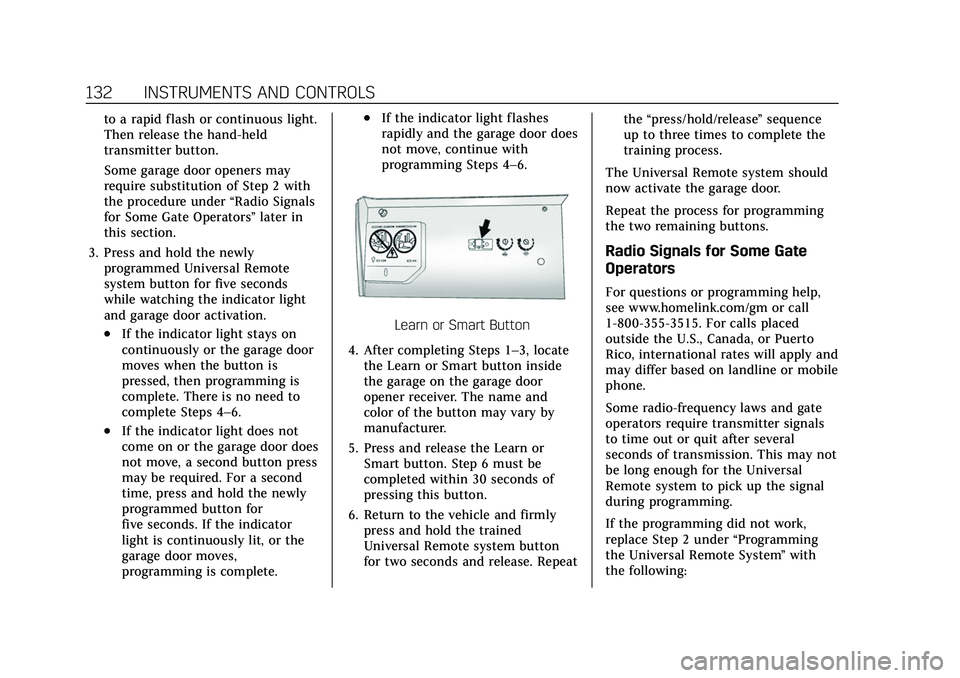
Learn or Smart Button
4. After completing Steps 1–3, locate the Learn or Smart button inside
the garage on the garage door
opener receiver. The name and
color of the button may vary by
manufacturer.
5. Press and release the Learn or Smart button. Step 6 must be
completed within 30 seconds of
pressing this button.
6. Return to the vehicle and firmly press and hold the trained
Universal Remote system button
for two seconds and release. Repeat the
“press/hold/release ”sequence
up to three times to complete the
training process.
The Universal Remote system should
now activate the garage door.
Repeat the process for programming
the two remaining buttons.
Radio Signals for Some Gate
Operators
For questions or programming help,
see www.homelink.com/gm or call
1-800-355-3515. For calls placed
outside the U.S., Canada, or Puerto
Rico, international rates will apply and
may differ based on landline or mobile
phone.
Some radio-frequency laws and gate
operators require transmitter signals
to time out or quit after several
seconds of transmission. This may not
be long enough for the Universal
Remote system to pick up the signal
during programming.
If the programming did not work,
replace Step 2 under “Programming
the Universal Remote System ”with
the following:
Page 142 of 432

Cadillac XT5 Owner Manual (GMNA-Localizing-U.S./Canada/Mexico-
15227431) - 2022 - CRC - 8/11/21
INFOTAINMENT SYSTEM 141
Infotainment System
Introduction
Introduction . . . . . . . . . . . . . . . . . . . . . . 141
Overview . . . . . . . . . . . . . . . . . . . . . . . . . . 142
Steering Wheel Controls . . . . . . . . . 144
Using the System . . . . . . . . . . . . . . . . . 144
Software Updates . . . . . . . . . . . . . . . . . 147
Radio
AM-FM Radio . . . . . . . . . . . . . . . . . . . . . 147
HD Radio Technology . . . . . . . . . . . . 149
Radio Data System (RDS) . . . . . . . . 150
Satellite Radio . . . . . . . . . . . . . . . . . . . . 150
Radio Reception . . . . . . . . . . . . . . . . . . 151
Multi-Band Antenna . . . . . . . . . . . . . 151
Audio Players
Avoiding Untrusted MediaDevices . . . . . . . . . . . . . . . . . . . . . . . . . . 152
USB Port . . . . . . . . . . . . . . . . . . . . . . . . . . 152
Bluetooth Audio . . . . . . . . . . . . . . . . . . 155
Navigation
Using the Navigation System . . . . 156
Maps . . . . . . . . . . . . . . . . . . . . . . . . . . . . . . 159
Navigation Symbols . . . . . . . . . . . . . . 159
Destination . . . . . . . . . . . . . . . . . . . . . . . 160
OnStar System . . . . . . . . . . . . . . . . . . . . 166
Global Positioning System (GPS) . . . . . . . . . . . . . . . . . . . 167 Vehicle Positioning . . . . . . . . . . . . . . . 167
Problems with Route
Guidance . . . . . . . . . . . . . . . . . . . . . . . . 168
If the System Needs Service . . . . . 168
Map Data Updates . . . . . . . . . . . . . . . 168
Database Coverage Explanations . . . . . . . . . . . . . . . . . . . . 169
Voice Recognition
Voice Recognition . . . . . . . . . . . . . . . . 169
Phone
Bluetooth (Overview) . . . . . . . . . . . . . 174
Bluetooth (Pairing and Using aPhone) . . . . . . . . . . . . . . . . . . . . . . . . . . . 175
Apple CarPlay and Android Auto . . . . . . . . . . . . . . . . . . . 179
Settings
Settings . . . . . . . . . . . . . . . . . . . . . . . . . . . 181
Teen Driver . . . . . . . . . . . . . . . . . . . . . . . 188
Trademarks and License
Agreements
Trademarks and LicenseAgreements . . . . . . . . . . . . . . . . . . . . . 192
Introduction
Read the following pages to become
familiar with the features.
{Warning
Taking your eyes off the road for
too long or too often while using
any infotainment feature can cause
a crash. You or others could be
injured or killed. Do not give
extended attention to infotainment
tasks while driving. Limit your
glances at the vehicle displays and
focus your attention on driving. Use
voice commands whenever possible.
The infotainment system has built-in
features intended to help avoid
distraction by disabling some features
when driving. These features may gray
out when they are unavailable. Many
infotainment features are also
available through the instrument
cluster and steering wheel controls.
Before driving:
.Become familiar with the operation,
center stack controls, steering wheel
controls, and infotainment display.
Page 143 of 432

Cadillac XT5 Owner Manual (GMNA-Localizing-U.S./Canada/Mexico-
15227431) - 2022 - CRC - 8/11/21
142 INFOTAINMENT SYSTEM
.Set up the audio by presetting
favorite stations, setting the tone,
and adjusting the speakers.
.Set up phone numbers in advance
so they can be called easily by
pressing a single control or by using
a single voice command.
See Distracted Driving 0210.
Active Noise Cancellation (ANC)
If equipped, ANC reduces engine noise
in the vehicle’s interior. ANC requires
the factory-installed audio system,
radio, speakers, amplifier (if
equipped), induction system, and
exhaust system to work properly.
Deactivation is required by your dealer
if related aftermarket equipment is
installed.
Overview
Infotainment System
The infotainment system is controlled
by using the infotainment display,
controls on the center console,
steering wheel controls, and voice
recognition.
1.>(Power and Mute)
.When off, press>to turn the
system on.
.Press and hold to turn the
power off.
.Press to mute/unmute the
system when on.
.When the power is on and the
system is not muted, a quick
status pane will display when
>is pressed. Pressing>will
mute the system and trigger
this pane to show a long press
is required to actually power
down the system.
2.{(Home Page)
.Press to go to the Home Page.
See “Home Page ”later in this
section.
Press to exit Android Auto or
Apple CarPlay. To enter back
into Android Auto or Apple
CarPlay, press and hold. See
Apple CarPlay and Android
Auto 0179.
Infotainment Controls on the
Console with Navigation Shown,
Radio without Navigation Similar
Page 144 of 432

Cadillac XT5 Owner Manual (GMNA-Localizing-U.S./Canada/Mexico-
15227431) - 2022 - CRC - 8/11/21
INFOTAINMENT SYSTEM 143
1.e(Radio/AUX)
.Press to change the audio
source or to open the“Now
Playing” screen.
2.7(Seek)
.Radio: Press and release to go
to the previous station or
channel. Press and hold to
fast seek the next strongest
previous station or channel.
SeeAM-FM Radio 0147.
.USB/Bluetooth: Press to seek
to the beginning of the
current or previous track.
Press and hold to quickly
reverse through a track.
Release to return to playing
speed. See USB Port0152 or
Bluetooth Audio 0155.
3.n(Power/Volume) Knob
.Press to turn the power on.
.Press and hold when the
system is on to turn the
power off and display
the time.
.Press to mute/unmute the
system when on.
.Turn to decrease or increase
the volume.
4.6(Seek)
.Radio: Press and release to go
to the next station or channel.
Press and hold to fast seek
the next strongest station or
channel.
.USB/Bluetooth: Press to seek
the next track. Press and hold
to fast forward through a
track. Release to return to
playing speed. See USB Port
0 152 or
Bluetooth Audio 0155.
5.l(Navigation) or6(Phone)
.Presslto access the
navigation menu or press
6to
access the phone menu.
6. Primary Knob
.Turn to highlight a feature.
Press to activate the
highlighted feature.
.If equipped, move right/left or
up/down to change the
highlighted area on the
display screen.
7.6(Phone) or{(Home Page)
.Press6to access the phone
menu or press
{to access
the Home Page. See “Home
Page ”later in this section.
8.0(Back)
.Press to return to the previous
display in a menu.
Home Page
The Home Page is where vehicle
application icons are accessed. Some
applications are disabled when the
vehicle is moving.
Swipe left or right across the display
to access the pages of icons.
Managing Home Page Icons
1. Touch and hold any of the Home Page icons to enter edit mode.
2. Continue holding the icon and drag it to the desired position.
3. Release your finger to drop the icon in the desired position.
4. To move an application to another page, drag the icon to the edge of
the display toward the
desired page.
Page 145 of 432

Cadillac XT5 Owner Manual (GMNA-Localizing-U.S./Canada/Mexico-
15227431) - 2022 - CRC - 8/11/21
144 INFOTAINMENT SYSTEM
5. Continue dragging and droppingapplication icons as desired.
Steering Wheel Controls
The infotainment steering wheel
controls can be used to control the
infotainment features displayed in the
instrument cluster.
When in Valet Mode, if equipped,
access to the infotainment functions
is disabled. See “Valet Mode,”under
Vehicle Personalization 0126.
g:Press to answer an incoming call
or start voice recognition. See
Bluetooth (Overview) 0174 or
Bluetooth (Pairing and Using a Phone)
0 175.
c:Press to decline an incoming call
or end a current call. Press to mute or
unmute the infotainment system
when not on a call.
SorT: Press the five-way control to
go to the previous or next menu on
the instrument cluster.
yorz: Press the five-way control
to go up or down in a list on the
instrument cluster. SEL :
Press to select a highlighted
menu item.
x+ orx− :Press to increase or
decrease the volume.
CorB: Press to go to the next or
previous favorite when listening to the
radio. Press to go to the next or
previous track when listening to a
media source.
Using the System
Audio
Touch the Audio icon to display the
active audio source page. Examples of
available sources may include AM,
FM, SXM (if equipped), MyMedia,
USB, and Bluetooth.
Phone
Touch the Phone icon to display the
Phone main page. See Bluetooth
(Overview) 0174 or
Bluetooth (Pairing and Using a Phone)
0 175.
Page 156 of 432

Cadillac XT5 Owner Manual (GMNA-Localizing-U.S./Canada/Mexico-
15227431) - 2022 - CRC - 8/11/21
INFOTAINMENT SYSTEM 155
recall a favorite audiobook. The first
chapter in the audiobook begins
to play.
Media Playback and Mute
USB playback will be paused if the
system is muted. If the steering wheel
mute control is pressed again,
playback will resume.
If the source is changed while in
mute, playback resumes and audio
will unmute.
Bluetooth Audio
Music may be played from a paired
Bluetooth device. SeeBluetooth
(Overview) 0174 or
Bluetooth (Pairing and Using a Phone)
0 175 for help pairing a device.
Volume and song selection may be
controlled by using the infotainment
controls or the mobile device.
If Bluetooth is selected and no volume
is present, check the volume setting
on both your mobile device and the
infotainment system. Music can be launched by touching
Bluetooth from the recent sources list
on the left of the display or by
touching the More option and then
touching the Bluetooth device.
To play music via Bluetooth:
1. Power on the device, and pair to connect the device.
2. Once paired, touch Audio from the Home Page, then touch Bluetooth
from the recent sources list on the
left of the display.
Bluetooth Sound Menu
See “Infotainment System Sound
Menu ”under AM-FM Radio 0147.
Manage Bluetooth Devices
From the Home Page: 1. Touch Audio.
2. Touch More.
3. Touch Bluetooth.
4. Touch Devices to add or delete devices.
When touching Bluetooth, the radio
may not be able to launch the audio
player on the connected device to start playing. When the vehicle is not
moving, use the mobile device to
begin playback.
All devices launch audio differently.
When selecting Bluetooth as a source,
the radio may show as paused on the
display. Press play on the device or
touch
pon the display to begin
playback.
Browse functionality will be provided
where supported by the Bluetooth
device. This media content will not be
part of the MyMedia source mode.
Some smartphones support sending
Bluetooth music information to
display on the radio. When the radio
receives this information, it will check
to see if any is available and display it.
For more information about supported
Bluetooth features, see
my.cadillac.com/learn.
Page 161 of 432

Cadillac XT5 Owner Manual (GMNA-Localizing-U.S./Canada/Mexico-
15227431) - 2022 - CRC - 8/11/21
160 INFOTAINMENT SYSTEM
The destination pin marks the
location of the final destination.
Touch the pin to view the destination
address or to add it or remove it from
the Favorites list. Hide the
information by touching the pin one
more time. It will automatically time
out if no action is taken.
If equipped, smart Points of Interest
(POIs) are places of interest for
parking and gas stations.
The progress bar provides an overview
of the route progress and may show
traffic and incidents along the way. As
the route proceeds, the vehicle icon
moves up the bar.
Touch the icon to zoom out on the
map and view the entire route. Touch
it again to return to the previous view.
View the drive time by touching the
estimated time of arrival (ETA).
Current Location
When the vehicle is parked and not in
a Navigation session, the user icon is
centered on the map view,
highlighting the current location.
Destination
Receiving Destination Directions
from Different Sources
Destinations can be received or
transferred from different sources to
the Nav application for route
guidance. If equipped, some of these
sources may include:
.Navigation from search results.
.OnStar Advisor destination
download.
.An address from the Contacts list.
.An application on the smartphone
that can send destinations to the
vehicle.
.An application downloaded to the
vehicle such as OnStar Services that
can send destinations to the
navigation system.
Waypoints
Add up to five waypoints, which are
additional destinations, along the
route. To add an additional stop or
waypoint:1. From active guidance, touch
}.