2022 CADILLAC ESCALADE light
[x] Cancel search: lightPage 159 of 508

Cadillac Escalade Owner Manual (GMNA-Localizing-U.S./Canada/Mexico-
15567102) - 2022 - CRC - 11/17/21
158 LIGHTING
All lamps will gradually fade out after
about 30 seconds.
Entry lighting can be disabled
manually by closing all doors, pressing
Qon the remote key, or starting the
vehicle.
This feature can be changed. See
“Vehicle Locator Lights” underVehicle
Personalization 0140.
Exit Lighting
Some exterior lamps and interior
lamps turn on when the driver door is
opened after the ignition is turned off.
The interior lights turn on when the
ignition is turned off.
The exterior and interior lamps
remain on for a set amount of time,
then automatically turn off.
The exterior lamps turn off
immediately by turning the exterior
lamp control off.
This feature can be changed. See
Vehicle Personalization 0140.
Battery Load Management
The vehicle has Electric Power
Management (EPM), which estimates
the battery's temperature and state of
charge. It then adjusts the voltage for
best performance and extended life of
the battery.
When the battery's state of charge is
low, the voltage is raised slightly to
quickly bring the charge back up.
When the state of charge is high, the
voltage is lowered slightly to prevent
overcharging. The voltmeter gauge or
the voltage display on the Driver
Information Center (DIC), if equipped,
may show the voltage moving up or
down. This is normal. If there is a
problem, an alert will be displayed.
The battery can be discharged at idle
if the electrical loads are very high.
This is true for all vehicles. This is
because the generator (alternator)
may not be spinning fast enough at
idle to produce all the power that is
needed for very high electrical loads.
A high electrical load occurs when
several of the following are on, such
as: headlamps, high beams, fog lamps, rear window defogger, climate control
fan at high speed, heated seats, engine
cooling fans, trailer loads, and loads
plugged into accessory power outlets.
EPM works to prevent excessive
discharge of the battery. It does this
by balancing the generator's output
and the vehicle's electrical needs.
It can increase engine idle speed to
generate more power, whenever
needed. It can temporarily reduce the
power demands of some accessories.
Normally, these actions occur in steps
or levels, without being noticeable. In
rare cases at the highest levels of
corrective action, this action may be
noticeable to the driver. If so, a DIC
message might be displayed and it is
recommended that the driver reduce
the electrical loads as much as
possible.
Battery Power Protection
This feature helps prevent the battery
from being drained, if the interior
courtesy lamps or reading lamps are
accidentally left on. If any of these
lamps are left on, they automatically
turn off after 10 minutes, if the
Page 160 of 508

Cadillac Escalade Owner Manual (GMNA-Localizing-U.S./Canada/Mexico-
15567102) - 2022 - CRC - 11/17/21
LIGHTING 159
ignition is off. The lamps will not
come back on again until one of the
following occurs:
.The ignition is turned on.
.The doors are closed and then
re-opened.
Exterior Lighting Battery
Saver
The exterior lamps turn off about
10 minutes after the ignition is turned
off, if the parking lamps or headlamps
have been manually left on. This
protects against draining the battery.
To restart the 10-minute timer, turn
the exterior lamp control to the
O
position and then back to the;or
2position.
To keep the lamps on for more than
10 minutes, the ignition must be on or
in ACC/ACCESSORY.
Page 163 of 508

Cadillac Escalade Owner Manual (GMNA-Localizing-U.S./Canada/Mexico-
15567102) - 2022 - CRC - 11/17/21
162 INFOTAINMENT SYSTEM
6. Primary Knob
.Turn to highlight a feature.
Press to activate the
highlighted feature.
.Move right/left or up/down to
change the highlighted area
on the display screen.
7.{(Home Page)
.Press to access the Home
Page. See“Home Page ”later in
this section.
.Press and hold to access the
Apple CarPlay or Android
Auto Phone Home screen,
if connected.
8.0(Back)
.Press to return to the previous
display in a menu.
Home Page
The Home Page is where vehicle
application icons or cards are
accessed. Some applications are
disabled when the vehicle is moving.
Swipe left or right across the display
or use the MFC to move the home
page. Move the knob right/left to
change the page or touch on one of the page count indicators at the
bottom of the screen to jump to a
specific page.
Managing Home Page Icons/Cards
1. Touch and hold any of the Home Page icons/cards to enter edit
mode. Edit mode is not available
when the vehicle is moving.
2. Continue holding the icon/card and drag it to the desired position.
3. Release your finger to drop the icon in the desired position.
4. To move an application to another page, drag the icon to the edge of
the display toward the desired
page. Cards must stay on the
first page.
5. Continue dragging and dropping application icons as desired.
6. Application cards on the first page can be replaced, moved or deleted
based on user preference while in
edit mode.
7. Touch Done to save changes or Cancel to not save and exit
edit mode. There will always be 10 icons per page
except on the last page. If an icon is
moved from the first page to the
second, then that icon from the
second page will replace the one
removed from the first.
Steering Wheel Controls
If equipped, some audio controls can
be adjusted at the steering wheel.
g:
Press to start voice recognition.
Press and hold to activate a connected
phones voice recognition. See Voice
Recognition 0192.
Page 169 of 508

Cadillac Escalade Owner Manual (GMNA-Localizing-U.S./Canada/Mexico-
15567102) - 2022 - CRC - 11/17/21
168 INFOTAINMENT SYSTEM
Manage Phones
Select to manage the vehicle
Bluetooth phone connections and
phone pairing.
Metadata Corrector
This feature, when on, will add and
correct information associated with
the media files on connected devices.
Touch Off or On.
Reset Music Index
Select to clear the metadata from the
connected USB devices.
Favorites
From the active audio source page,
choose
qFavorites from the list at
the left side to display a list of audio
favorites.
Favorites are stored by touching
H.
This will highlight indicating that it is
now saved as a favorite.
HD Radio Technology
If equipped, HD Radio is a free service
with features such as digital quality
sound, more stations available on a single frequency such as HD2 and
HD3, and display information such as
artist and song title.
From the Now Playing display, touch
the HD Radio icon to turn HD on
or off.
Station Access
To access HD Radio stations:
1. Tune the radio to the station. If HD Radio is turned on and the station
is broadcasting in HD Radio, the
radio will automatically tune to the
HD version of the current channel
(HD1) after several seconds. The
radio will also display icons
representing additional channels
(HD2, ...HD8), that may be
available. When the radio
successfully tunes to a HD station,
the HD logo will display and digital
audio will play.
2. Touch the display arrows or swipe the coverf low left/right to tune to
the previous or next HD Radio
station.
There may be a delay before the
station starts playing. The HD Radio station number is
indicated next to the HD logo.
HD Radio stations can be saved as
favorites.
For a list of all stations, see
www.hdradio.com.
HD Radio Troubleshooting
Digital Audio Delay :
Wait for the
signal to process. This can take
several seconds.
Volume Change, Audio Skip, Echo,
Digital Audio Lost : Station signal
strength may be weak, the station is
out of range, or the station may be
out of alignment. Verify proper
reception on another station.
If the HD Radio signal weakens while
listening to HD1, the radio will
automatically switch to the analog
version of the radio station.
If the HD Radio signal loses reception
while listening to stations HD2 to
HD8, the radio mutes until the signal
can be recovered or until the station is
changed.
Page 171 of 508
Cadillac Escalade Owner Manual (GMNA-Localizing-U.S./Canada/Mexico-
15567102) - 2022 - CRC - 11/17/21
170 INFOTAINMENT SYSTEM
Browsing Categories
Touch
(to show the following
categories:
.For You
.Music
.Sports
.News
.Talk
Touching a category will show the
channels associated with that
category.
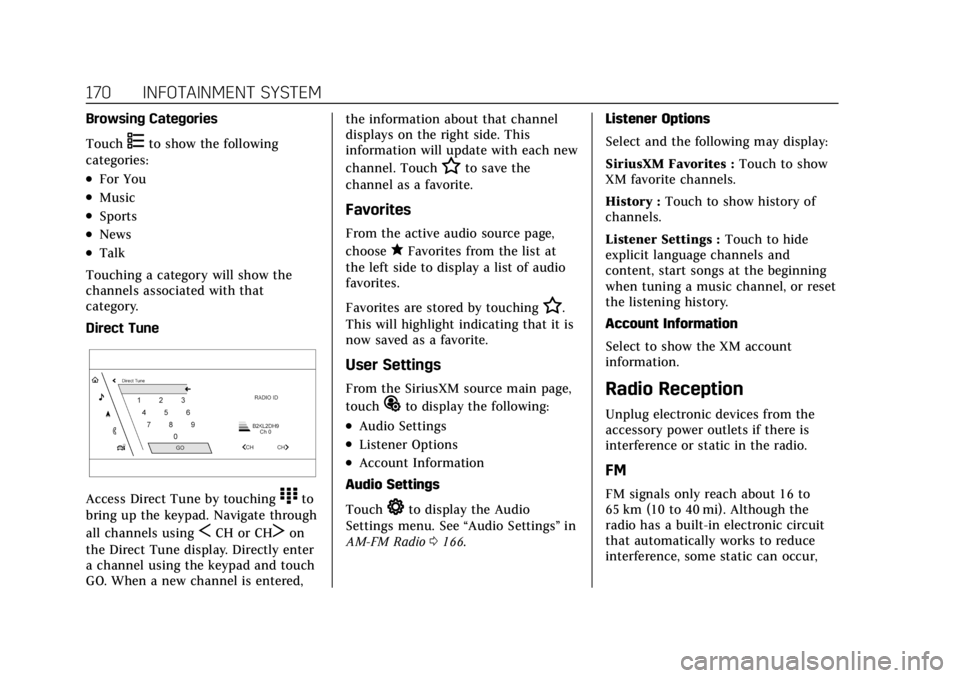
Direct Tune
Access Direct Tune by touching)to
bring up the keypad. Navigate through
all channels using
SCH or CHTon
the Direct Tune display. Directly enter
a channel using the keypad and touch
GO. When a new channel is entered, the information about that channel
displays on the right side. This
information will update with each new
channel. Touch
Hto save the
channel as a favorite.
Favorites
From the active audio source page,
choose
qFavorites from the list at
the left side to display a list of audio
favorites.
Favorites are stored by touching
H.
This will highlight indicating that it is
now saved as a favorite.
User Settings
From the SiriusXM source main page,
touch
%to display the following:
.Audio Settings
.Listener Options
.Account Information
Audio Settings
Touch
*to display the Audio
Settings menu. See “Audio Settings”in
AM-FM Radio 0166. Listener Options
Select and the following may display:
SiriusXM Favorites :
Touch to show
XM favorite channels.
History : Touch to show history of
channels.
Listener Settings : Touch to hide
explicit language channels and
content, start songs at the beginning
when tuning a music channel, or reset
the listening history.
Account Information
Select to show the XM account
information.
Radio Reception
Unplug electronic devices from the
accessory power outlets if there is
interference or static in the radio.
FM
FM signals only reach about 16 to
65 km (10 to 40 mi). Although the
radio has a built-in electronic circuit
that automatically works to reduce
interference, some static can occur,
Page 178 of 508

Cadillac Escalade Owner Manual (GMNA-Localizing-U.S./Canada/Mexico-
15567102) - 2022 - CRC - 11/17/21
INFOTAINMENT SYSTEM 177
Warning (Continued)
.Do not charge the battery at
temperatures above 45 °C (113 °F)
.Do not charge the battery if the
headphones are defective or
damaged
Caution
Do not store the headphones in
heat or direct sunlight. This could
damage the headphones and repairs
would not be covered by the vehicle
warranty. Storage in extreme cold
can weaken the batteries. Keep the
headphones stored in a cool, dry
place.
Batteries in this product should not be
disposed of with household waste.
Batteries should be recycled at an
appropriate facility. Contact local
authorities for details on recycling.
1. CH-Channel Select
2. Power
3. Volume
4. USB-C Charging Port
The RSI includes two new Bluetooth
wireless headphones. The headphones
are used to listen to various
multimedia. The wireless headphones
have a power button, channel select
button, and a volume control button.To use the included Bluetooth
Wireless Headphones:
.Press the POWER button for
one second to turn the headphones
on. The power indicator will
illuminate.
.While the headphones are powered
off, press and hold the power button
for two seconds to enter pairing
mode. The headphone name will
display as
“GM RSI BT HP.” See
“Pairing to RSI Screen ”below for
pairing instructions with RSI screen.
.To power off, press and hold the
power button for two seconds while
the power is on.
Paring to RSI Screen
Only two headphones can be active
per RSI Screen.
To pair a Bluetooth headphone to one
of the rear screens: 1. Touch the Headphone icon from the desired Rear Screen
Home Page.
2. Select Add New Headphones.
3. Make sure the Bluetooth headphone is in pairing mode.
Page 180 of 508

Cadillac Escalade Owner Manual (GMNA-Localizing-U.S./Canada/Mexico-
15567102) - 2022 - CRC - 11/17/21
INFOTAINMENT SYSTEM 179
HDMI
HDMI Connection
The RCP provides two HDMI ports to
mirror video devices.
Connect the external device to watch
the device content through the RSI
screen.
Touch the HDMI port that was
connected to the external device on
the home screen.
HDMI Playing View
HDMI playing view shows the video
content and includes:
.{(Home): Touch{to return to
the RSI Home selection screen.
.X(Headphones): TouchXto
access the Bluetooth Headphone
Setup menu. See “Settings”later in
this section.
.Share: Touch to share the screen
with the other rear screen. The
screen can be shared through the
connected device.
Rear Media App from the Home
Screen
The Rear Media App allows a front
user to control the Rear Seat Video
Screen sources. To access, touch the
Rear Media App icon from the
Home Page.
The Rear Screens may be powered on
or off from the Rear Media App.
Touch Screen 1 or Screen 2 to select a
screen. Touch summary to view both
Rear Screens together. Touching the
Power icon next to the highlighted
screen icon turns that screen on
or off. The audio for the rear users can be
muted by the front user by pressing
the mute icon associated with the left
or right rear screen on the Rear Video
App screen, or both rear screens by
pressing the MUTE ALL button.
The current source from the desired
Rear Screen can also be shown on the
other Rear Screen by pressing the
Share button on the lower right side
of the RSI Video App screens.
Source Selecting from the Rear
Media App
Sources may be selected for the
highlighted Rear Screen. Select
Sources from the Rear Media App
screen, then select from the list of
available sources shown on the RSI
Sources screen.
Page 182 of 508

Cadillac Escalade Owner Manual (GMNA-Localizing-U.S./Canada/Mexico-
15567102) - 2022 - CRC - 11/17/21
INFOTAINMENT SYSTEM 181
Rear Media Settings
From the Rear Media page, touch
Settings to access the settings menu.
The menu may contain the following:
Remember Screen Power Status
Select to have rear screens
automatically power on when the
vehicle is started.
Rear Screen Voice-Over
Select to have Video Voice Over for
the individual rear screens.
Allowed Applications
Select to choose which applications
are visible.
Account
Select to show the vehicle data plan.
Reset Rear Media
Select to reset the applications.
Rear MediaTerms of Use
Select to view the terms of use.
Privacy Statement
Select to view the Privacy statement.RSI Troubleshooting
No power :
The ignition might not be
on or in ACC/ACCESSORY.
There is no sound from the
headphones with the indicator light
on : Make sure the headphones have
sufficient charge. Plug the headphones
to a USB-C port to charge.
Check to see if headphones are paired
to the screens. Make sure that you are
listening in to the correct screen by
pressing the channel select button.
If the steps above do not work, then
unpair the headphones from the RSI
screens, turn the headphones off, turn
them back on and attempt to pair
them. See pairing procedures for the
Bluetooth headphone previously in
this section.
Video Distortion
Video distortion can occur when
operating cellular phones, scanners,
CB radios, Global Positioning Systems
(GPS), two-way radios, mobile faxes,
or walkie talkies. It might be necessary to turn off the
video player when operating one of
these devices in or near the vehicle.
Navigation
Using the Navigation
System
If equipped, launch the Nav
application by touching the Nav icon
on the Home Page or on the shortcut
tray near the left side of the
infotainment display.
When the Nav application is launched
for the first time, a product
walkthrough is available. Use of the
feature requires the Terms and
Conditions and the Privacy statement
to be confirmed. If available and
signed into a profile, it is also
suggested to enable and confirm
Personalized Navigation.
Personalized Navigation (If
Equipped)
If Personalized Navigation is available
and confirmed, this feature learns
preferences by remembering where