Page 210 of 656

208
uuAudio System uAudio Remote Controls
Features
Audio Remote Controls
Allow you to operate the audio system wh ile driving. The information is shown on
the multi-information display or head-up display*.
VOL
(+/VOL(- (Volume) Switch
Press Up: To increase the volume.
Press Down: To decrease the volume.
(Power) Button
Press to turn the audio system on and off.
Left Selector Wheel
• When selecting the audio mode
Press the APPS button, then roll up or down to select an item on the multi-
information display or head-up display
*, and then press the left selector wheel.
Move the left selector wheel to the right to display the Recents list, then scroll to
an item selected in the past and press the wheel.
1 Audio Remote Controls
Some modes appear only when an appropriate
device or medium is used.
Depending on the Bluetooth® device you connect,
some functions may not be available.
Press the (back) button for the multi-
information display or head-up display
* to go back to
the previous screen or cancel a command.
Press the APPS button to go back to the menu screen
of the multi-information di splay or head-up display
*.
Recents list is available when the following audio
mode is selected.
•FM Radio
•AM Radio•SiriusXM
•USB Audio
Models with head-up display
(Power) Button
VOL( +/VOL(-
(Volume) Switch
(back) ButtonLeft Selector
Wheel
APPS Button
Models with head-up display
* Not available on all models
22 ACURA TLX-31TGV6100.book 208 \b
Page 211 of 656

209
uuAudio System uAudio Remote Controls
Features
Roll up or down:
To cycle through the modes, roll up or down and then press the left selector
wheel:
After an audio mode is selected, the left selector wheel can be operated for the
following functions.
• When listening to the radio
Move to the right: To select the next favorite radio station or channel.
Move to the left: To select the previous favorite radio station or channel.
• When listening to an iPod, USB flash drive, Bluetooth® Audio, or Smartphone
Connection
Move to the right: To skip to the next song.
Move to the left: To go back to the beginning of the current or previous song.1Audio Remote Controls
You can customize the items on the multi-
information display or the head-up display
*.
2 Customizing the Meter or Head-Up
Display
* P. 225
You cannot operate the a udio functions while the
following functions are be ing operated on the multi-
information display or head-up display
*.•Mode selection by pressing APPS button
•Navigation*
•Phone
•Select Driving View*
•Customize Apps
Navigation*
Phone
Select Driving View*
Customize Apps
Audio Modes
(FM Radio , USB Audio , etc.)
* Not available on all models
22 ACURA TLX-31TGV6100.book 209 \b
Page 216 of 656
214
uuAudio System Basic Operation uAudio/Information Screen
Features
Audio/Information Screen
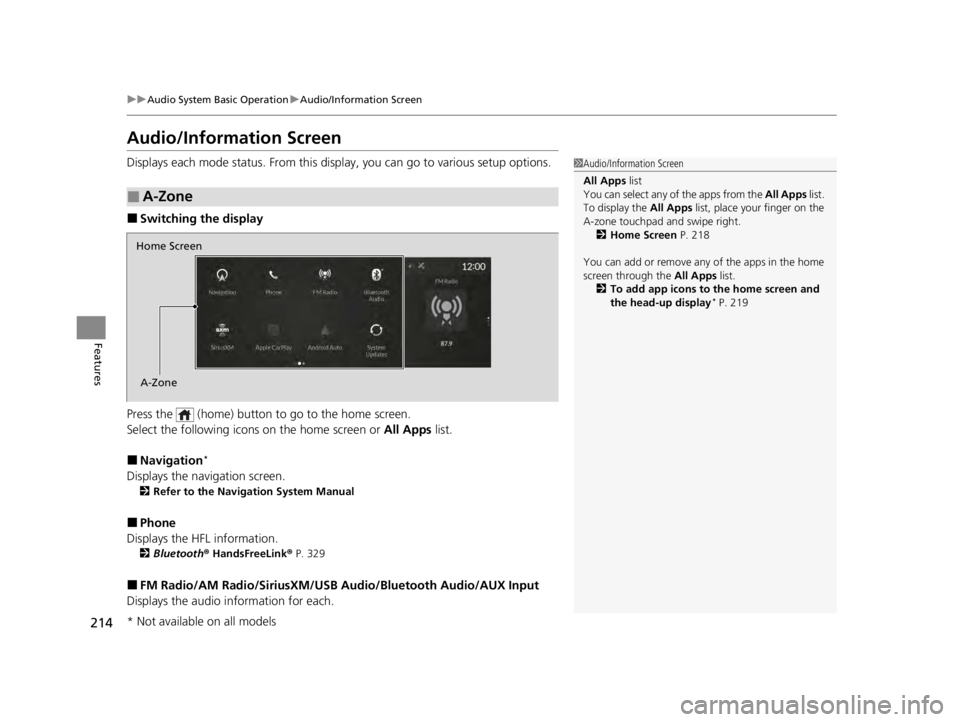
Displays each mode status. From this display, you can go to various setup options.
■Switching the display
Press the (home) button to go to the home screen.
Select the following icon s on the home screen or All Apps list.
■Navigation*
Displays the navigation screen.
2Refer to the Navigation System Manual
■Phone
Displays the HFL information.
2 Bluetooth ® HandsFreeLink ® P. 329
■FM Radio/AM Radio/SiriusXM/USB Audio/Bluetooth Audio/AUX Input
Displays the audio information for each.
■A-Zone
1Audio/Information Screen
All Apps list
You can select any of the apps from the All Apps list.
To display the All Apps list, place your finger on the
A-zone touchpad and swipe right. 2 Home Screen P. 218
You can add or remove any of the apps in the home
screen through the All Apps list.
2 To add app icons to the home screen and
the head-up display
* P. 219
Home Screen
A-Zone
* Not available on all models
22 ACURA TLX-31TGV6100.book 214 \b
Page 218 of 656
uuAudio System Basic Operation uAudio/Information Screen
216
Features
You can see the audio, HFL information, navigation mini map*, and clock
information on the B-zone using the B-zone touchpad.
■Switching the card
Swipe up or down on the B-zone touchpad to cycle through the following screen.
■B-Zone1 B-Zone
SiriusXM ® radio service notifications are displayed in
the B-zone.
B-Zone
1 Switching the card
The card in the B-zone wi ll change depending on the
screen displayed in the A-zone.
*1: Appears only when you set a destination on the
Apple CarPlay or Android Auto navigation function.
2 Apple CarPlay P. 268
2 Android Auto P. 272
Models without navigation systemNow Playing Audi–
Navigation*1
Clock
* Not available on all models
22 ACURA TLX-31TGV6100.book 216 \b
Page 235 of 656

233
uuAudio System Basic Operation uAdjusting the Sound
Features
Adjusting the Sound
1. Press the (home) button.
2. Select an audio source icon.
3. Select SOUND.
4. Select the setting you want.
3. Select MENU .
4. Select Sound Settings .
5. Select the setting you want.
Select an item from the following choices:
•Bass / Treble : Treble, Midrange, Bass
• Roof / Center Volume
*: Roof speaker,
center speaker
• Audio Zones & Balance / Fader
*: Driver
Only, Front Only, Rear Only, Full Vehicle,
Balance, Fader
• Balance / Fader
*: Balance, Fader
• Speed Volume Compensation: Speed
Volume Compensation (SVC)
• DTS Neural Surround
*: DTS Neural
SurroundTM
• Compressed Audio Enhancement*:
Enhancement for compressed audio quality
1 Adjusting the Sound
The SVC adjusts the volume level based on the
vehicle speed. As you go faster, audio volume
increases. As you slow down, audio volume
decreases.
You can also adjust the sound the following
procedure.
1. Press the (home) button.
2. Select Settings .
3. Select Sound .
Audio Zones & Balance / Fader
You can change where the sound comes from by
selecting one of the speaker options below:
•Full Vehicle: All the speakers emit sound. •Driver Only: Allows driver to listen to the audio
system while maintaini ng a quieter environment
for the other occupants.
•Front Only : Allows front seat occupants to listen
to the audio system while maintaining a quieter
environment for occupants in the rear.
•Rear Only: Allows rear seat o ccupants to listen to
the audio system while maintaining a quieter
environment for occupants in the front.
Reset to Default
Select to reset the followi ng settings from the pop-up
menu to their factory default.
•Bass / Treble
•Roof / Center Volume*
•Audio Zones & Balance / Fader*
•Balance / Fader*
USB Audio, AUX Input mode
FM Radio, AM Radio, Siri usXM, Bluetooth Audio mode
* Not available on all models
22 ACURA TLX-31TGV6100.book 233 \b
Page 238 of 656

236
uuAudio System Basic Operation uVoice Control Operation
FeaturesWhen the (talk) button is pressed, the
voice control sc reen appears.
For a complete list of commands, say “Help”
after the beep.
The system accepts free-form voice
commands.
See the following examples for
recommended voice commands.
■Voice Recognition Screen
These commands can only be used when a
phone is connected.
■Phone Commands
Dial by number
• Call
• Dial please
• Phone
Redial
• Redial
• Redial last number
• Call last number
Voicemail
• Call voicemail
• Dial voicemail
• Check voicemail
• Check mailbox
Contact by voice
• Call
• Call on his/her
please
• Make a call to
• Make a call to on
her/his
■Phone CommandsThe system only recognizes contact names
stored in the phonebook of your phone.
Phone commands are not available if using
Apple CarPlay.
■FM Commands
• Play FM radio
• Tune to <87.7-107.9> FM
• I want to listen to FM <87.7-107.9>
• Play FM <87.7-107.9>
■AM Commands
• Play AM radio
• Tune to <530-1710> AM
• I want to listen to AM <530-1710>
• Play AM <530-1710>
■Audio Commands
22 ACURA TLX-31TGV6100.book 236 \b
Page 239 of 656
237
uuAudio System Basic Operation uVoice Control Operation
Features
■Sirius XM Commands
• Play XM radio
• Play XM
• Listen to on XM
• Play XM Channel
• Tune to
• Listen to on the
satellite radio
■USB Commands
• Play USB
• Play iPod
• Play genre
• Play
• Play
• Play
• Play
■Bluetooth ® Audio Commands
• Play Bluetooth
■AUX Commands
• Play AUX
2 Refer to the Navigation System Manual
•Help
• Cancel
• Repeat
Help provides guidance for the current
screen.
You can search for the desired item on each
search screen with your voice.
• Next Page
• Previous Page
• Back
• Go to
• Select
*1: Models with navigation system
■Navigation Commands*1
■Standard Commands
■Letter Input Commands
■List Commands
22 ACURA TLX-31TGV6100.book 237 \b
Page 240 of 656
238
uuAudio System Basic Operation uPlaying AM/FM Radio
Features
Playing AM/FM Radio
Tune
Select to display the manual
input screen of radio
frequency.
MENU
Select to display the menu
screen.
Station List
Select to display the station list
screen.
Tune Up/Down Icons
Select or to search up
and down the selected band
for a station with a strong
signal.
Favorite Station Icons, Add
Favorite
Store a radio frequency as a
favorite station. Select Add
Favorite to store the station.
Swipe left or right on the A-
zone touchpad to display the
next or previous favorite
station.
VOL (Volume/Power) Knob
Push to turn the audio system on
and off. Turn to adjust the volume.
N (Seek/Skip) Button
Press or to search up
and down the selected band for a
station with a strong signal.
Scan
Select to scan each station
with a strong signal. icon
Select to display the
subchannel list screen.
22 ACURA TLX-31TGV6100.book 238 \b


