2021 TOYOTA PROACE CITY VERSO ignition
[x] Cancel search: ignitionPage 195 of 272
195
Bluetooth® audio system
10
Bluetooth® audio system
NOTIC E
The different functions and settings described vary according to the version and configuration of your vehicle.
WARNI NG
As a safety measure and because it requires sustained attention by the driver, the pairing
of a Bluetooth mobile telephone with the Bluetooth hands-free system of your audio system must be done with the vehicle stationary and the ignition on.
WARNI NG
Your audio system is coded in such a way that it will only operate in your vehicle.All work on the system must be carried out exclusively by a dealer or qualified workshop, to avoid any risk of electrocution, fire or mechanical faults.
NOTIC E
To avoid discharging the battery, the audio system may switch off after a few minutes if the engine is not running.
First steps
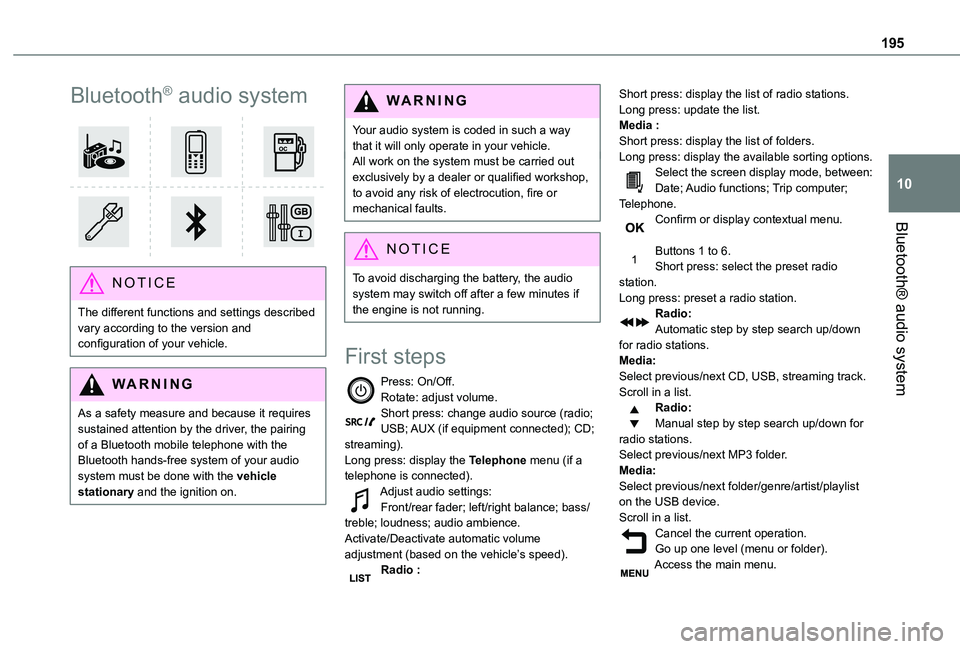
Press: On/Off.Rotate: adjust volume.Short press: change audio source (radio; USB; AUX (if equipment connected); CD; streaming).Long press: display the Telephone menu (if a telephone is connected).Adjust audio settings:Front/rear fader; left/right balance; bass/treble; loudness; audio ambience.Activate/Deactivate automatic volume adjustment (based on the vehicle’s speed).Radio :
Short press: display the list of radio stations.Long press: update the list.Media :Short press: display the list of folders.Long press: display the available sorting options.Select the screen display mode, between:Date; Audio functions; Trip computer; Telephone.Confirm or display contextual menu.
Buttons 1 to 6.Short press: select the preset radio station.Long press: preset a radio station.Radio:Automatic step by step search up/down for radio stations.Media:Select previous/next CD, USB, streaming track.Scroll in a list.Radio:Manual step by step search up/down for radio stations.
Select previous/next MP3 folder.Media:Select previous/next folder/genre/artist/playlist on the USB device.Scroll in a list.Cancel the current operation.Go up one level (menu or folder).Access the main menu.
Page 202 of 272
202
Connecting Apple® players
Connect the Apple® player to the USB port using a suitable cable (not supplied).Play starts automatically.Control is via the audio system.The classifications available are those of the portable device connected (artists / albums / genres / playlists).The version of software in the audio system may not be compatible with the generation of your Apple® player.
Information and advice
The CD player can play files with “.mp3”, “.wma”, “.wav” and “.aac” file extensions, with a bit rate of 32 to 320 Kbps.It also supports TAG mode (ID3 tag, WMA TAG).No other file types (“.mp”4, etc.) can be read.Files of the ".wma" type should be to the wma 9 standard.The sampling rates supported are 11, 22, 44 and 48 kHz.
Via the USB port, the system can play audio files with the extension ".mp3”, “.wma”, “.wav”, “.cbr”, \
“.vbr" with a bit rate of 32 to 320 Kbps.No other file types (“.mp4”, etc.) can be read.Files of the ".wma" type should be to the wma 9 standard.The sampling rates supported are 11, 22, 44 and 48 kHz.File names should have fewer than 20 characters, avoiding special characters (e.g.
« ? ; ù) so as to avoid any reading or display problems.In order to be able to play a burned CDR or CDRW, select standards ISO 9660 level 1, 2, or Joliet, if possible, when burning the CD.If the disc is burned in another format, it may not be played correctly.It is recommended that the same burning standard be always used on an individual disc, with the lowest speed possible (4x maximum) for the best acoustic quality.In the particular case of a multi-session CD, the Joliet standard is recommended.To protect the system, do not use a USB hub.
WARNI NG
Use only USB memory sticks formatted FAT 32 (File Allocation Table).
NOTIC E
It is recommended that you use genuine Apple® USB cables for correct operation.
Telephone
Pairing a Bluetooth®
telephone
WARNI NG
As a safety measure and because they require prolonged attention on the part of the
driver, the operations for pairing of the Bluetooth mobile telephone with the Bluetooth hands-free system of your audio system must be carried out with the vehicle stationary and the ignition on.
NOTIC E
Activate the telephone's Bluetooth function and ensure that it is "visible to all" (telephone configuration).
NOTIC E
The services available depend on the network, the SIM card and the compatibility of the Bluetooth telephone used.Check the instructions for your telephone and with your service provider for the services to which you have access.
Page 208 of 272
208
TOYOTA Connect Radio
Multimedia audio system -
Applications - Bluetooth®
telephone
NOTIC E
The functions and settings described vary
according to the vehicle version and configuration.
WARNI NG
For safety reasons and because they require sustained attention by the driver, the following operations must be carried out with the vehicle stationary and the ignition on:– Pairing the smartphone with the system in Bluetooth mode.– Using the smartphone.– Connection to the CarPlay®, MirrorLinkTM or Android Auto applications (certain applications interrupt their display while the vehicle is moving).– Changing the system settings and configuration.
NOTIC E
The system is protected in such a way that it will only operate in the vehicle.The Energy Economy Mode message is displayed when the system is about to enter the corresponding mode.
First steps
With the engine running, a press mutes the sound.With the ignition off, a press turns the system on.Increase or decrease the volume using the wheel or the "plus" or "minus" buttons (depending on the equipment).Use the buttons on either side of or below the touch screen for access to the menus, then press the virtual buttons in the touch screen.Depending on the model, use the "Source" or "Menu" buttons on the left of the touch screen for access to the menus, then press the virtual
buttons in the touch screen.At all times it is possible to display the rolling menus by pressing the screen briefly with three fingers.All of the touch areas of the screen are white.For pages with multiple tabs at the bottom of the screen, it is possible to switch between pages either by tapping the tab for the desired page, or by using a finger, sliding the pages to the left or to the right.
Press in the grey zone to go back up a level or to confirm.Press the back arrow to go back a level or confirm.
WARNI NG
The touch screen is of the "capacitive" type.To clean the screen, use a soft, non-abrasive cloth (e.g. spectacles cloth) with no additional
product.Do not use sharp objects on the screen.Do not touch the screen with wet hands.
Certain information is displayed permanently in the upper bar of the touch screen:– Air conditioning status information (depending on version), and direct access to the corresponding menu.– Radio Media and Telephone menu status information.– Privacy status information.– Access to the touch screen and digital instrument panel settings.Audio source selection (depending on equipment):– FM/DAB/AM radio stations (depending on equipment).– Telephone connected via Bluetooth and Bluetooth multimedia broadcast (streaming).– USB Memory stick.– Media player connected via the auxiliary socket (depending on equipment).
Page 214 of 272
214
Press in the shaded area to confirm.
NOTIC E
If "FM-DAB Follow-up" is activated, there may be a time offset of a few seconds when the system switches to "FM" analogue radio, and in some cases a change in volume.When the digital signal quality is restored, the
system automatically changes back to "DAB".
WARNI NG
If the "DAB" station being listened to is not available on "FM", or if "FM-DAB Follow-up" is not activated, the sound will cut out while the digital signal is too weak.
Media
USB port
Insert the USB memory stick into the USB port or connect the USB device to the USB port using a suitable cable (not supplied).
WARNI NG
To protect the system, do not use a USB hub.
The system builds playlists (in temporary memory); this operation can take from a few seconds to several minutes at the first connection.Reduce the number of non-music files and the number of folders to reduce the waiting time.Playlists are updated whenever the ignition is switched off or a USB memory stick is connected. The audio system memorises these lists, which will subsequently load faster if they have not been changed.
Selecting the source
Press Radio Media to display the main page.Press the "SOURCES" button.Select the source.
Bluetooth Streaming®
Streaming allows you to listen to the audio feed from your smartphone.The Bluetooth profile must be activated.First adjust the volume on the portable device (to a high level). Then adjust the volume of the system.If play does not start automatically, it may be necessary to start the audio playback from the smartphone.Control is from the portable device or by using the system's touch buttons.
NOTIC E
Once connected in Streaming mode, the smartphone is considered to be a media source.
Connecting Apple® players
Connect the Apple® player to the USB socket using a suitable cable (not supplied).Play starts automatically.Control is via the audio system.
Page 216 of 272
216
MirrorLinkTM smartphone
connection
NOTIC E
The "MirrorLinkTM" function requires a compatible smartphone and applications.
Telephone not connected by
Bluetooth®
When connecting a smartphone to the system, we recommend enabling Bluetooth® on the smartphone.Connect a USB cable. The smartphone charges when connected by a USB cable.From the system, press "Telephone" to display the main page.Press "MirrorLinkTM" to start the application in the system.Depending on the smartphone, it may be necessary to activate the "MirrorLinkTM" function.During the procedure, several screen pages relating to certain features are displayed.Accept to start and complete the connection.
Telephone connected by Bluetooth®
Connect a USB cable. The smartphone charges when connected by a USB cable.
From the system, press "Telephone" to display the main page.Press the "PHONE" button to display the secondary page.Press "MirrorLinkTM" to start the application in the system.Once the connection is established, a page is displayed, showing the applications already downloaded to the smartphone that are compatible with MirrorLinkTM technology.Access to the different audio sources remains available in the margin of the MirrorLinkTM display, using the touch buttons located in the upper bar.Access to the menus for the system is possible at any time using the dedicated buttons.
NOTIC E
There may be a pause before applications become available, depending on the quality of the network.
CarPlay® smartphone
connection
Connect a USB cable. The smartphone charges when connected by a USB cable.From the system, press Telephone to display the CarPlay® interface.OrIf the smartphone has already connected by Bluetooth®.
Connect a USB cable. The smartphone charges when connected by a USB cable.From the system, press "Telephone" to display the main page.Press the "PHONE" button to access the secondary page.Press "CarPlay" to display the CarPlay® interface.
NOTIC E
On connecting the USB cable, the CarPlay® function deactivates the system's Bluetooth® mode.
NOTIC E
When the USB cable is disconnected and the ignition is switched off then back on, the system will not automatically switch to Radio Media mode; the source must be changed manually.
The CarPlay® navigation can be accessed at any time by pressing the system's Navigation button.
Android Auto smartphone
connection
On the smartphone, download the Android Auto application.
Page 218 of 272
218
Select one or more profiles.
Press "OK" to confirm.
Depending on the type of telephone, you may by prompted to accept the transfer of contacts and messages.
NOTIC E
The ability of the system to connect just one profile depends on the telephone.All three profiles may connect by default.
NOTIC E
The profiles compatible with the system are: HFP, OPP, PBAP, A2DP, AVRCP, MAP and PAN.
Visit the Brand's website for more information (compatibility, additional help, etc.).
Automatic reconnection
On returning to the vehicle, if the last telephone connected is present again, it is automatically recognised and within about 30 seconds after switching on the ignition, the pairing is established automatically (Bluetooth activated).
To modify the connection profile:Press Telephone to display the main page.
Press the "PHONE" button to access the secondary page.Press "Bluetooth connection" to display the list of paired devices.Press the "Details" button for a paired device.Select one or more profiles.
Press "OK" to confirm.
Managing paired telephones
This function lets you connect or disconnect a device or delete a pairing.Press Telephone to display the main page.Press the "PHONE" button to access the secondary page.Press "Bluetooth connection" to display the list of paired devices.Press on the name of the telephone selected in the list to disconnect it.Press again to connect it.
Deleting a telephone
Press the basket at the top right of the screen to display a basket alongside the telephone chosen.Press the basket alongside the telephone chosen to delete it.
Receiving a call
An incoming call is announced by a ring and a superimposed display in the screen.Make a short press on the steering mounted PHONE button to accept an incoming call.AndMake a long press
on the steering mounted PHONE button to reject the call.OrPress "End call".
Making a call
WARNI NG
Using the telephone is not recommended while driving.Parking the vehicle.Make the call using the steering mounted controls.
Calling a new number
Press Telephone to display the main page. Enter the phone number using the digital keypad.Press "Call" to start the call.
Page 223 of 272
223
TOYOTA Connect Nav
12
TOYOTA Connect Nav
GPS navigation -
Applications - Multimedia
audio system - Bluetooth®
telephone
NOTIC E
The functions and settings described vary according to the vehicle version and configuration.
WARNI NG
For safety reasons and because they require sustained attention by the driver, the following operations must be carried out with the vehicle stationary and the ignition on:– Pairing the smartphone with the system in Bluetooth mode.– Using the smartphone.– Connection to the CarPlay®, MirrorLinkTM or Android Auto applications (certain applications interrupt their display while the vehicle is moving).– Watching a video (the video stops when the
vehicle starts to move again).– Changing the system settings and configuration.
NOTIC E
The system is protected in such a way that it will only operate in the vehicle.The Energy Economy Mode message is displayed when the system is about to enter the corresponding mode.
NOTIC E
System and map updates can be downloaded from the Brand’s website.The update procedure is also available on the website.
First steps
With the engine running, a press mutes the sound.With the ignition off, a press turns the system on.Increase or decrease the volume using the wheel or the "plus" or "minus" buttons (depending on the equipment).Use the menu buttons on either side of or below the touch screen for access to the menus, then press the virtual buttons in the touch screen.Depending on the model, use the "Source" or "Menu" buttons to access the rolling menus, then press the virtual buttons in the touch screen.Display the rolling menus at any time by pressing the screen briefly with three fingers.
All of the touch areas of the screen are white.Press the back arrow to go back a level.Press "OK" to confirm.
WARNI NG
The touch screen is of the "capacitive" type.To clean the screen, use a soft, non-abrasive cloth (e.g. spectacles cloth) with no additional product.
Do not use sharp objects on the screen.Do not touch the screen with wet hands.
Certain information is displayed permanently in the side bars or in the upper bar of the touch screen (depending on equipment):– Air conditioning status information (depending on version), and direct access to the corresponding menu.– Go directly to the audio source selection option, to view the list of radio stations (or list of titles depending on the source).– Go to the "Notifications" of messages, emails, map updates and, depending on the services, the navigation notifications.– Go to the settings for the touch screen and the digital instrument panel.Audio source selection (depending on equipment):– FM/DAB/AM radio stations (depending on equipment).– Telephone connected via Bluetooth and Bluetooth multimedia broadcast (streaming).
Page 236 of 272
236
NOTIC E
When the USB cable is disconnected and the ignition is switched off then back on, the system will not automatically switch to Radio Media mode; the source must be changed manually.
MirrorLinkTM smartphone
connection
NOTIC E
The "MirrorLinkTM" function requires a compatible smartphone and compatible applications.You can check that your telephone is compatible on the Brand's website (services).
When connecting a smartphone to the system, we recommend enabling Bluetooth® on the smartphone.Connect a USB cable. The smartphone charges when connected by a USB cable.From the system, press "Applications" to display the main page.Press "Connectivity" to access the "MirrorLinkTM” function.Press "MirrorLinkTM" to start the application in the system.
Depending on the smartphone, it may be necessary to activate the "MirrorLinkTM" function.During the procedure, several screen pages relating to certain features are displayed.Accept to start and complete the connection.Once the connection is established, a page is displayed, showing the applications already downloaded to the smartphone that are compatible with MirrorLinkTM technology.Access to the different audio sources remains available in the margin of the MirrorLinkTM display, using the touch buttons located in the upper bar.Access to the menus for the system is possible at any time using the dedicated buttons.
NOTIC E
There may be a pause before applications become available, depending on the quality of the network.
Android Auto smartphone
connection
NOTIC E
Install the "Android Auto" application on the smartphone via "Google Play".The "Android Auto" function requires the use of a compatible smartphone and applications.
Connect a USB cable. The smartphone charges when connected by a USB cable.From the system, press "Applications" to display the main page.Press "Connectivity" to access the "Android Auto” function.Press "Android Auto" to start the application in the system.During the procedure, several screen pages relating to certain features are displayed.Accept to start and complete the connection.Access to the different audio sources remains available in the margin of the Android Auto display, using the touch buttons located in the upper bar.Access to the menus for the system is possible at any time using the dedicated buttons.