2021 TOYOTA PROACE CITY Jack
[x] Cancel search: JackPage 168 of 272
168
Running out of fuel
(Diesel)
On vehicles fitted with Diesel engines, the fuel system must be primed if you run out of fuel.If the engine does not start first time, do not keep trying, but start the procedure again from the beginning.
NOTIC E
For more information on Misfuel prevention (Diesel), refer to the corresponding section.
With Euro 6.2/6.3 engines
► Switch on the ignition (without starting the engine).► Wait around 1 minute and switch off the ignition.► Operate the starter motor to start the engine.If the engine does not start at the first attempt, do not keep trying, but restart the procedure.
Tool kit
► For easier access, move the seat(s) forward.
Accessing the tools
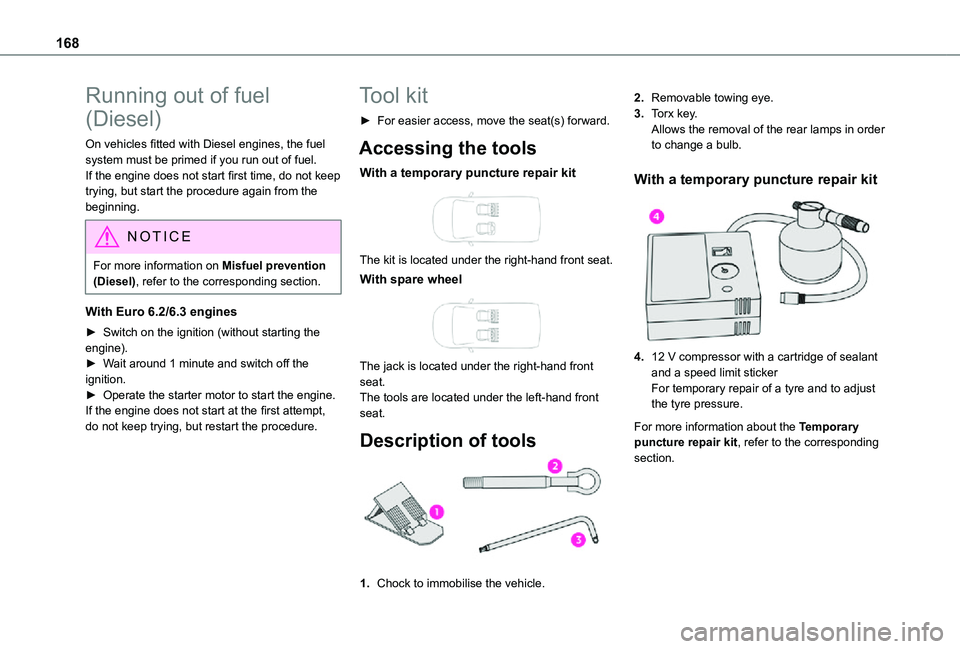
With a temporary puncture repair kit
The kit is located under the right-hand front seat.
With spare wheel
The jack is located under the right-hand front seat.The tools are located under the left-hand front seat.
Description of tools
1.Chock to immobilise the vehicle.
2.Removable towing eye.
3.Torx key.Allows the removal of the rear lamps in order to change a bulb.
With a temporary puncture repair kit
4.12 V compressor with a cartridge of sealant and a speed limit stickerFor temporary repair of a tyre and to adjust the tyre pressure.
For more information about the Temporary puncture repair kit, refer to the corresponding section.
Page 169 of 272
169
In the event of a breakdown
8
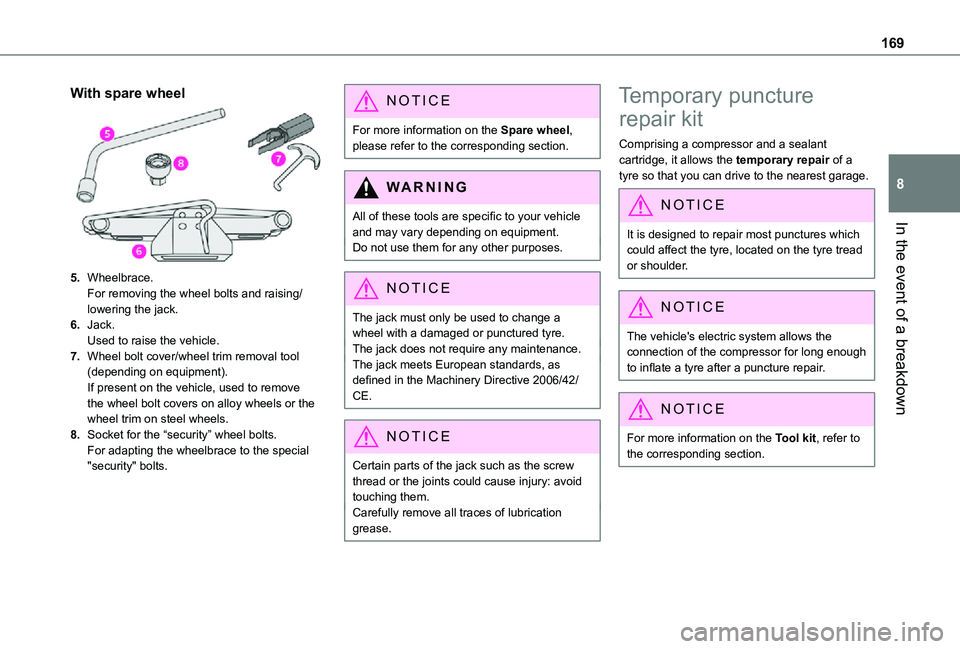
With spare wheel
5.Wheelbrace.For removing the wheel bolts and raising/lowering the jack.
6.Jack.Used to raise the vehicle.
7.Wheel bolt cover/wheel trim removal tool (depending on equipment).If present on the vehicle, used to remove the wheel bolt covers on alloy wheels or the wheel trim on steel wheels.
8.Socket for the “security” wheel bolts.For adapting the wheelbrace to the special "security" bolts.
NOTIC E
For more information on the Spare wheel, please refer to the corresponding section.
WARNI NG
All of these tools are specific to your vehicle and may vary depending on equipment.Do not use them for any other purposes.
NOTIC E
The jack must only be used to change a wheel with a damaged or punctured tyre.The jack does not require any maintenance.The jack meets European standards, as defined in the Machinery Directive 2006/42/CE.
NOTIC E
Certain parts of the jack such as the screw thread or the joints could cause injury: avoid touching them.Carefully remove all traces of lubrication grease.
Temporary puncture
repair kit
Comprising a compressor and a sealant cartridge, it allows the temporary repair of a tyre so that you can drive to the nearest garage.
NOTIC E
It is designed to repair most punctures which
could affect the tyre, located on the tyre tread or shoulder.
NOTIC E
The vehicle's electric system allows the connection of the compressor for long enough to inflate a tyre after a puncture repair.
NOTIC E
For more information on the Tool kit, refer to the corresponding section.
Page 172 of 272
172
Spare wheel
Procedure for changing a damaged wheel with the spare wheel using the tools provided with the vehicle.
NOTIC E
For more information on the Tool kit, refer to the corresponding section.
► Park the vehicle, taking care to avoid obstructing traffic, and apply the parking brake.► Follow the safety instructions (hazard warning lamps, warning triangle, wearing high visibility vest, etc.) according to the legislation in force in the country where you are driving.► Switch off the ignition.
Access to the spare wheel
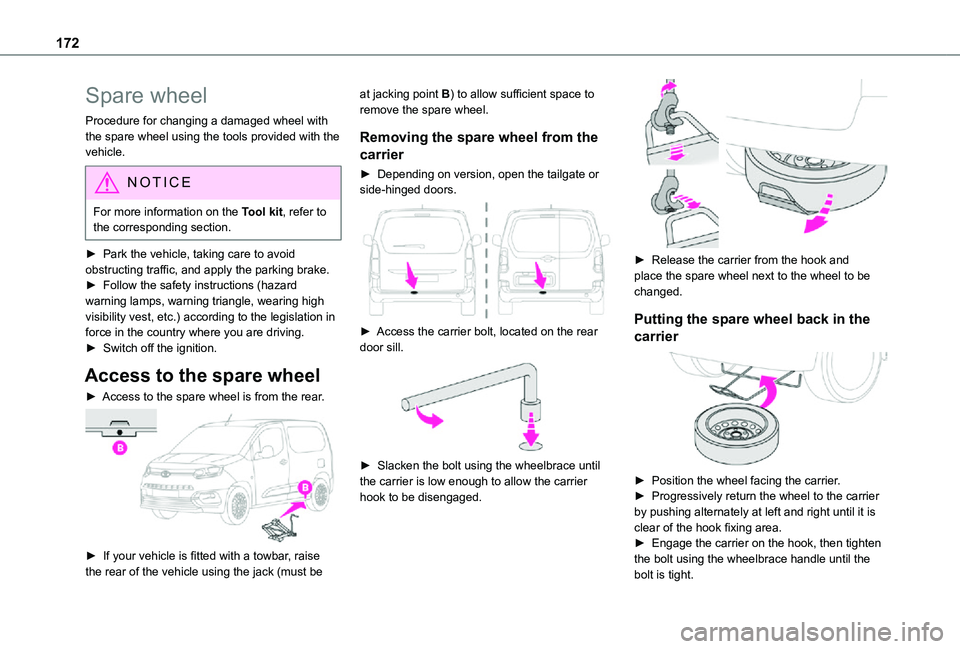
► Access to the spare wheel is from the rear.
► If your vehicle is fitted with a towbar, raise the rear of the vehicle using the jack (must be
at jacking point B) to allow sufficient space to remove the spare wheel.
Removing the spare wheel from the
carrier
► Depending on version, open the tailgate or side-hinged doors.
► Access the carrier bolt, located on the rear door sill.
► Slacken the bolt using the wheelbrace until the carrier is low enough to allow the carrier hook to be disengaged.
► Release the carrier from the hook and place the spare wheel next to the wheel to be changed.
Putting the spare wheel back in the
carrier
► Position the wheel facing the carrier.► Progressively return the wheel to the carrier by pushing alternately at left and right until it is clear of the hook fixing area.► Engage the carrier on the hook, then tighten the bolt using the wheelbrace handle until the bolt is tight.
Page 173 of 272
173
In the event of a breakdown
8
Removing a wheel
WARNI NG
Parking the vehicleImmobilise the vehicle where it does not obstruct traffic: the ground must be level, stable and non-slippery.With a manual gearbox, engage first gear to lock the wheels, apply the parking brake, unless it is programmed to be in automatic mode, and switch off the ignition.With an automatic gearbox, select mode P to lock the wheels, apply the parking brake, unless it is programmed to be in automatic mode, and switch off the ignition.Check for the fixed illumination of the parking brake warning lamps in the instrument panel.The occupants must get out of the vehicle and wait where they are safe.If necessary, place a chock under the wheel diagonally opposite the wheel to be changed.Never go underneath a vehicle raised using a
jack; use an axle stand.
NOTIC E
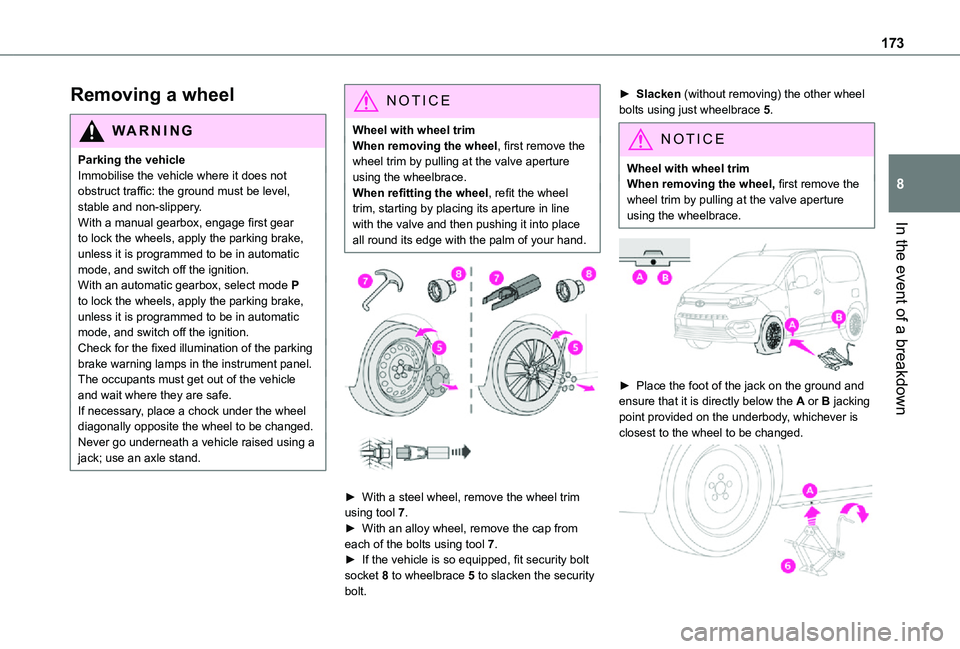
Wheel with wheel trimWhen removing the wheel, first remove the wheel trim by pulling at the valve aperture using the wheelbrace.When refitting the wheel, refit the wheel trim, starting by placing its aperture in line with the valve and then pushing it into place all round its edge with the palm of your hand.
► With a steel wheel, remove the wheel trim using tool 7.► With an alloy wheel, remove the cap from each of the bolts using tool 7.
► If the vehicle is so equipped, fit security bolt socket 8 to wheelbrace 5 to slacken the security bolt.
► Slacken (without removing) the other wheel bolts using just wheelbrace 5.
NOTIC E
Wheel with wheel trimWhen removing the wheel, first remove the wheel trim by pulling at the valve aperture using the wheelbrace.
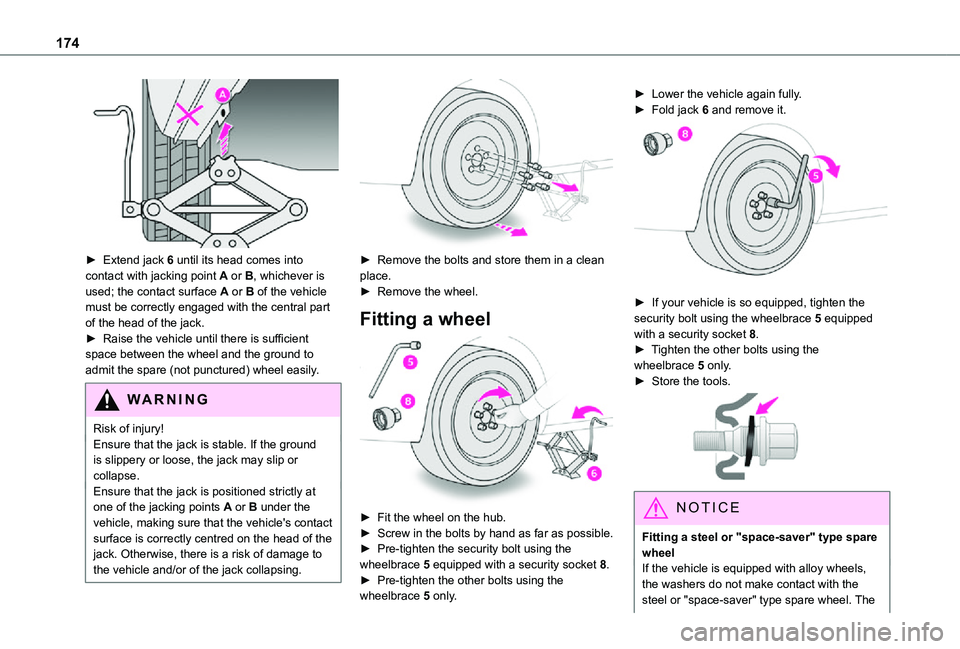
► Place the foot of the jack on the ground and ensure that it is directly below the A or B jacking point provided on the underbody, whichever is closest to the wheel to be changed.
Page 174 of 272
174
► Extend jack 6 until its head comes into contact with jacking point A or B, whichever is used; the contact surface A or B of the vehicle must be correctly engaged with the central part of the head of the jack.► Raise the vehicle until there is sufficient space between the wheel and the ground to admit the spare (not punctured) wheel easily.
WARNI NG
Risk of injury!
Ensure that the jack is stable. If the ground is slippery or loose, the jack may slip or collapse.Ensure that the jack is positioned strictly at one of the jacking points A or B under the vehicle, making sure that the vehicle's contact surface is correctly centred on the head of the jack. Otherwise, there is a risk of damage to the vehicle and/or of the jack collapsing.
► Remove the bolts and store them in a clean place.► Remove the wheel.
Fitting a wheel
► Fit the wheel on the hub.► Screw in the bolts by hand as far as possible.► Pre-tighten the security bolt using the wheelbrace 5 equipped with a security socket 8.► Pre-tighten the other bolts using the wheelbrace 5 only.
► Lower the vehicle again fully.► Fold jack 6 and remove it.
► If your vehicle is so equipped, tighten the security bolt using the wheelbrace 5 equipped with a security socket 8.► Tighten the other bolts using the wheelbrace 5 only.► Store the tools.
NOTIC E
Fitting a steel or "space-saver" type spare wheelIf the vehicle is equipped with alloy wheels, the washers do not make contact with the steel or "space-saver" type spare wheel. The
Page 203 of 272
203
Bluetooth® audio system
10
Connect a portable device (MP3 player, etc.) to the auxiliary jack socket using an audio cable (not supplied).
NOTIC E
Any additional devices connected to the system must comply with the standard applicable to the product and/or the standard IEC 60950-1.
Press the SOURCE button several times in succession and select "AUX".First adjust the volume on your portable device (to a high level). Then adjust the volume on your audio system. Controls are managed via the portable device.
WARNI NG
Do not connect the same device to both the auxiliary jack socket and the USB port at the same time.
CD player
Insert circular compact discs only.Some anti-pirating systems, on original discs or CDs copied using a personal recorder, may cause faults which are no reflection on the
quality of the original player.Insert a CD in the player, play begins automatically.
WARNI NG
External CD players connected via the USB port are not recognised by the system.
To play a disc which has already been inserted, press the SOURCE button several times in succession and select "CD".Press one of the buttons to select a track on the CD.Press the LIST button to display the list of tracks on the CD.Press and hold one of these buttons for fast forward or rewind.
Playing an MP3 compilation
Insert an MP3 compilation in the CD player.The audio equipment searches for all of the music tracks, which may take anything between a few seconds and several tens of seconds, before play begins.
WARNI NG
On a single disc, the CD player can read up to 255 MP3 files spread over 8 directory levels.However, it is advisable to keep to a limit of two levels to reduce the access time before the CD is played.The folder structure is not observed during playback.All of the files are displayed on a single level.
To play a disc which has already been inserted, press the SOURCE button several times in succession and select "CD".Press one of the buttons to select a folder on the CD.Press one of the buttons to select a track on the CD.Press the LIST button to display the list of directories of the MP3 compilation.Press and hold one of these buttons for fast forward or rewind.
Bluetooth® audio streaming
Streaming allows music files on the telephone to be played via the vehicle's loudspeakers.Connect the telephone.(Refer to the "Pairing a Bluetooth® telephone" section).Activate the streaming source by pressing SOURCE.In certain cases, play of the audio files must be initiated from the keypad.Audio files can be selected using the buttons on
the audio system control panel and the steering mounted controls. The contextual information can be displayed in the screen.If the telephone supports the function. The audio quality depends on the quality of transmission by the telephone.
Page 217 of 272
217
TOYOTA Connect Radio
11
Information and advice
The system supports USB mass storage devices, BlackBerry® devices or Apple® players via the USB ports. The adapter cable is not supplied.Devices are managed using the audio system controls.Other devices, not recognised on connection, must be connected to the auxiliary socket using a jack cable (not supplied) or via Bluetooth streaming, if compatible.
WARNI NG
To protect the system, do not use a USB hub.
The audio system will only play audio files with ".wav", ".wma", ".aac", ".ogg" and ".mp3" file extensions, at bit rates between 32 Kbps and 320 Kbps.It also supports VBR (Variable Bit Rate) mode.No other file types (".mp4", etc.) can be read.All ".wma" files must be standard WMA 9 files.The supported sampling rates are 11, 22, 44 and 48 KHz.To avoid reading and display problems, we recommend choosing file names less than 20 characters long that do not contain any special characters (e.g. “ ? . ; ù).Use only USB memory sticks in FAT32 format (File Allocation Table).
NOTIC E
We recommend using the original USB cable for the portable device.
Telephone
USB sockets
Depending on equipment, for more information on the USB sockets compatible with the CarPlay®, MirrorLinkTM or Android Auto applications, refer to the "Ease of use and comfort" section.
NOTIC E
The synchronisation of a smartphone allows users to display applications adapted to the CarPlay®, MirrorLinkTM or Android Auto technology of the smartphone on the vehicle screen. For the CarPlay® technology, the CarPlay® function must be activated on the smartphone beforehand.For the communication process between the smartphone and the system to work, it is essential in all cases that the smartphone is unlocked.As the principles and standards are constantly changing, it is recommended that you keep the smartphone's operating
system up-to-date, as well as the date and time of the smartphone and of the system.For the list of eligible smartphones, go to the Brand's national website.
MirrorLinkTM smartphone
connection
NOTIC E
The "MirrorLinkTM" function requires a compatible smartphone and applications.
Telephone not connected by
Bluetooth®
When connecting a smartphone to the system, we recommend enabling Bluetooth® on the smartphone.Connect a USB cable. The smartphone charges when connected by a USB cable.From the system, press "Telephone" to display the main page.Press "MirrorLinkTM" to start the application in the system.Depending on the smartphone, it may be necessary to activate the "MirrorLinkTM" function.During the procedure, several screen pages relating to certain features are displayed.Accept to start and complete the connection.
Page 243 of 272
243
TOYOTA Connect Nav
12
Control is from the portable device or by using the system's touch buttons.
NOTIC E
Once connected in streaming mode, the smartphone is considered to be a media source.
Connecting Apple® players
Connect the Apple® player to the USB port using a suitable cable (not supplied).Play starts automatically.Control is via the audio system.
NOTIC E
The classifications available are those of the portable device connected (artists/albums/genres/playlists/audio books/podcasts).The default classification used is by artist. To modify the classification used, return to the first level of the menu then select the desired classification (playlists for example) and confirm to go down through the menu to the desired track.
The version of software in the audio system may not be compatible with the generation of the
Apple® player.
Information and advice
The system supports USB mass storage devices, BlackBerry® devices and Apple® players via the USB ports. The adapter cable is not supplied.Devices are managed using the audio system controls.Other devices, not recognised on connection, must be connected to the auxiliary socket using a jack cable (not supplied) or via Bluetooth streaming, if compatible.The audio system will only play audio files with ".wma", ".aac", ".flac", ".ogg" and ".mp3" file extensions, at bit rates between 32 Kbps and 320 Kbps.It also supports VBR (Variable Bit Rate) mode.No other file types (".mp4", etc.) can be read.All ".wma" files must be standard WMA 9 files.The supported sampling rates are 32, 44 and 48 KHz.To avoid reading and display problems, we recommend choosing file names less than 20
characters long that do not contain any special characters (e.g. “ ? . ; ù).Use only USB memory sticks in FAT32 format (File Allocation Table).
NOTIC E
We recommend using the original USB cable for the portable device.
Telephone
Pairing a Bluetooth®
telephone
WARNI NG
The services available depend on the network, the SIM card and the compatibility of
the Bluetooth devices used. Consult the telephone user guide and the service provider to check which services are available.
NOTIC E
The Bluetooth function must be activated and the telephone configured as "Visible to all” (in the telphone settings).
To complete the pairing, whichever procedure is used (from the telephone or from the system), ensure that the code is the same in the system and in the telephone.
NOTIC E
If the pairing procedure fails, we recommend deactivating and then reactivating the Bluetooth function on the telephone.