2021 TOYOTA MIRAI steering wheel
[x] Cancel search: steering wheelPage 249 of 344

2537-4. Panoramic view monitor (vehicles with Toyota Teammate Advanced Park)
7
Peripheral monitoring system
Customize settings button
Settings such as the cornering view automatic display mode, vehicle body
color on the screen and the detec tion distance of Intuitive parking assist
can be changed. ( P.260)
Parking Support Brake*
When the system determines that the possibility of a collision with a
detected object is high, a warning message is displayed.
For details about the Parking Support Brake, refer to the “OWNE R’S MAN-
UAL”.
Rear Camera Detection
Displayed automatically wh en a pedestrian is detected.
For details about the Rear Camera Detection, refer to the “OWNE R’S MAN-
UAL”.
Rear camera detection function off indicator
Displayed or flashes when the rear camera detection function is disabled,
such as when it is malfunctioning.
*: If equipped
●A different screen is displayed w hen the Toyota Teammate Advanced Park
is activated. For details about t he Toyota Teammate Advanced Pa rk, refer
to the “OWNER’S MANUAL”.
Each time the guide line switching button is selected, the mode will
change as follows:
Estimated course line
Estimated course lines are displ ayed which move in accordance w ith
the operation of the steering wheel.
WA R N I N G
●When a sensor indicator on the intuitive parking assist display illumi-
nates in red or a buzzer sounds continuously, be sure to check the area
around the vehicle immediately a nd do not proceed any further until
safety has been ensured, otherwise an unexpected accident may o ccur.
●As the Rear Cross Traffic Alert display is displayed over the camera
view, it may be difficult to see the Rear Cross Traffic Alert d isplay
depending on the color and brigh tness of the surrounding area.
Guide lines displayed on the screen
G
H
I
J
Page 250 of 344

2547-4. Panoramic view monitor (vehicles with Toyota Teammate Adva nced Park)
Parking assist guide line
The steering wheel return points (parking assist guide lines) are dis-
played.
This mode is recommended for those who are comfortable with par k-
ing the vehicle without the aid of the estimated course lines.
Distance guide line
Only distance guide line is displayed.
This mode is recommended for those who are comfortable with par k-
ing the vehicle without the aid of the guide lines.
Distance guide lines
Shows distance in front of the vehicle.
• Display points approximately 3 ft. (1 m) from the edge of the bumper.
A
Page 251 of 344
2557-4. Panoramic view monitor (vehicles with Toyota Teammate Advanced Park)
7
Peripheral monitoring system
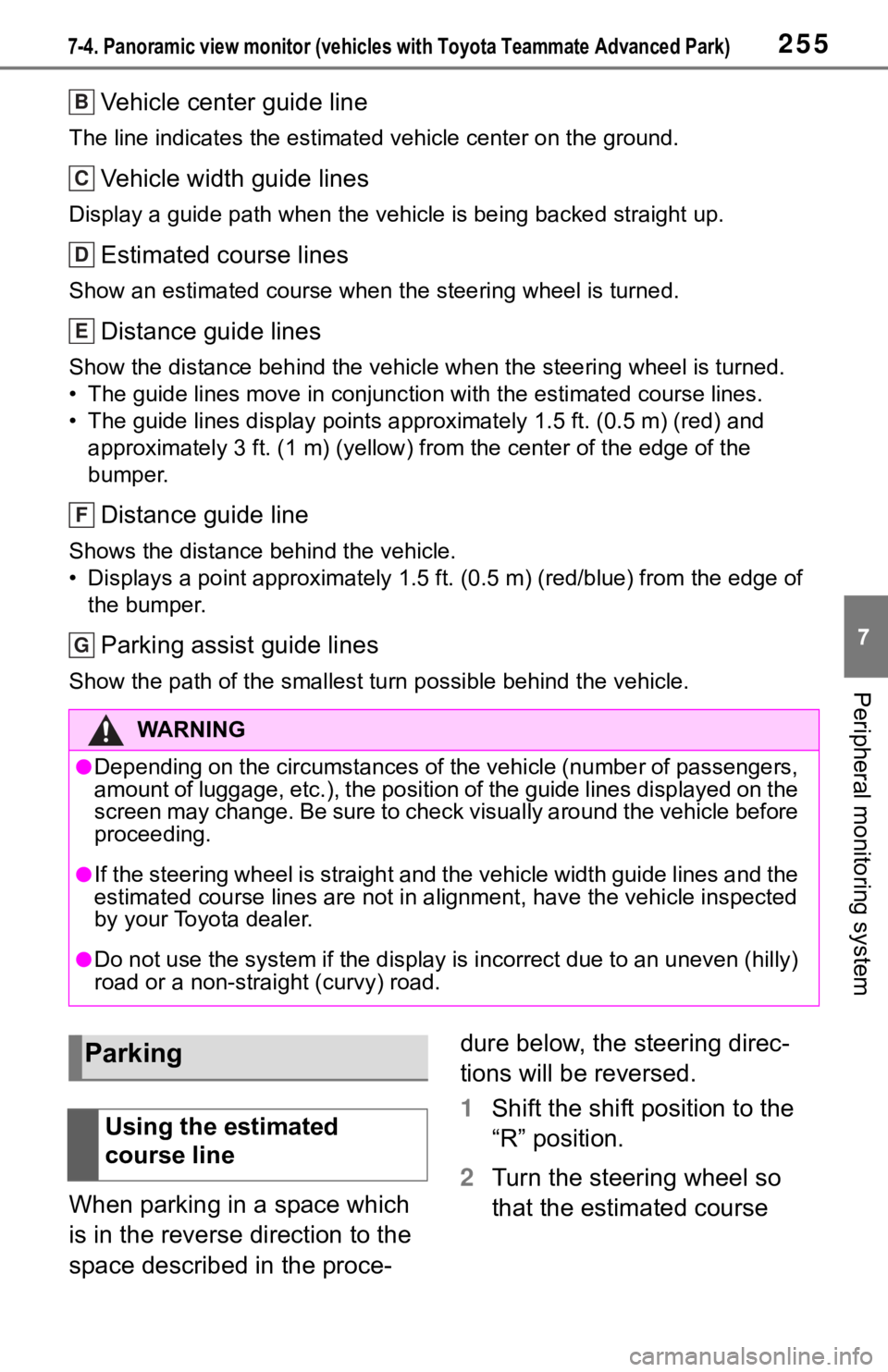
Vehicle center guide line
The line indicates the estimated vehicle center on the ground.
Vehicle width guide lines
Display a guide path when the vehicle is being backed straight up.
Estimated course lines
Show an estimated course when the steering wheel is turned.
Distance guide lines
Show the distance behind the vehicle when the steering wheel is turned.
• The guide lines move in conjunc tion with the estimated course lines.
• The guide lines display points approximately 1.5 ft. (0.5 m) (red) and
approximately 3 ft. (1 m) (yello w) from the center of the edge of the
bumper.
Distance guide line
Shows the distance behind the vehicle.
• Displays a point approximately 1.5 ft. (0.5 m) (red/blue) from the edge of
the bumper.
Parking assist guide lines
Show the path of the smallest tu rn possible behind the vehicle.
When parking in a space which
is in the reverse direction to the
space described in the proce- dure below, the steering direc-
tions will be reversed.
1
Shift the shift position to the
“R” position.
2 Turn the steering wheel so
that the estimated course
WA R N I N G
●Depending on the circumstances of the vehicle (number of passen gers,
amount of luggage, etc.), the position of the guide lines displ ayed on the
screen may change. Be sure to check visually around the vehicle before
proceeding.
●If the steering wheel is straight and the vehicle width guide l ines and the
estimated course lines are not in alignment, have the vehicle i nspected
by your Toyota dealer.
●Do not use the system if the display is incorrect due to an une ven (hilly)
road or a non-straight (curvy) road.
B
C
D
E
F
G
Parking
Using the estimated
course line
Page 252 of 344

2567-4. Panoramic view monitor (vehicles with Toyota Teammate Adva nced Park)
lines are within the parking
space, and back up slowly.
Estimated course lines
Parking space
3 When the rear position of the
vehicle has entered the park-
ing space, turn the steering
wheel so that the vehicle
width guide lines are within the left and right dividing lines
of the parking space.
Vehicle width guide line
4 Once the vehicle width guide
lines and the parking space
lines are parallel, straighten
the steering wheel and back
up slowly until the vehicle
has completely entered the
parking space.
5 Stop the vehicle in an appro-
priate place, and finish park-
ing.
When parking in a space which
is in the reverse direction to the
space described in the proce-
dure below, the steering direc-
tions will be reversed.
A
B
Using parking assist guide
line
A
Page 253 of 344

2577-4. Panoramic view monitor (vehicles with Toyota Teammate Advanced Park)
7
Peripheral monitoring system
1Shift the shift position to the
“R” position.
2 Back up until the parking
assist guide line meets the
edge of the left-hand dividing
line of the parking space.
Parking space dividing line
Parking assist guide line
3 Turn the steering wheel all
the way to the right, and back
up slowly.
4 Once the vehicle is parallel
with the parking space,
straighten the steering wheel
and back up slowly until the
vehicle has completely
entered the parking space.
5 Stop the vehicle in an appro-
priate place, and finish park-
ing.
A
B
Page 269 of 344

2737-4. Panoramic view monitor (vehicles with Toyota Teammate Advanced Park)
7
Peripheral monitoring system
The image is out of
alignment
The camera or sur-
rounding area has
received a strong
impact.Have the vehicle
inspected by your Toy-
ota dealer.
The guide lines are very
far out of alignment
The camera position is
out of alignment.Have the vehicle
inspected by your Toy-
ota dealer.
The vehicle is tilted.
(There is a heavy load
on the vehicle, tire
pressure is low due to
a tire puncture, etc.)
The vehicle is used on
an incline.If this happens due to
these causes, it does
not indicate a malfunc-
tion.
Back up while visually
checking the vehicle’s
surroundings.
The estimated course
lines move even though
the steering wheel is
straightThere is a malfunction
in the signals being out-
put by the steering sen-
sor.Have the vehicle
inspected by your Toy-
ota dealer.
Guide lines are not dis-
playedThe trunk is open.
Close the trunk.
If this does not resolve
the symptom, have the
vehicle inspected by
your Toyota dealer.
is displayed
12-volt battery has
been reinstalled.
The steering wheel
has been moved while
the 12-volt battery
was being reinstalled.
12-volt battery power
is low.
The steering sensor
has been reinstalled.
There is a malfunction
in the signals being
output by the steering
sensor.
Stop the vehicle, and
turn the steering wheel
as far as it will go to the
left and right.
If this does not resolve
the symptom, have the
vehicle inspected by
your Toyota dealer.
SymptomLikely causeSolution
Page 273 of 344

2778-1. Phone operation (Hands-free system for cellular phones)
8
Phone
●This system is not guaranteed to
operate with all Bluetooth®
devices.
●If your cellular phone does not
support Bluetooth®, this system
cannot function.
●In the following conditions, the
system may not function:
• The cellular phone is turned off.
• The current position is outside the communication area.
• The cellular phone is not con- nected.
• The cellular phone has a low bat-
tery.
●Depending on the type of Blue-
tooth® phone, some function is
not available.
●When using the hands-free sys-
tem or Bluetooth® audio and Wi-
Fi® hotspot functions at the same
time, the following problems may
occur:
• The Bluetooth
® connection may
be cut.
• Noise may be heard on the Blue-
tooth
® audio playback.
• A noise may be heard during
phone calls.
●Bluetooth® uses the 2.4 GHz fre-
quency band. If both a Wi-Fi® con-
nection and Bluetooth®
connection are being used simul-
taneously, each connection may
be affected.
●If a Bluetooth® device is attempt-
ing to connect to the vehicle while
another device is connected as a
Bluetooth
® audio device or con-
nected using the hands-free sys-
tem or Wi-Fi
® hotspot function, the
communication speed may
decrease or malfunctions may
occur, such as image distortion or
audio skipping. If a Bluetooth
®
device is connected to the system,
the interference it may cause will
be reduced. When carrying a
device with its Bluetooth
® connec-
tion enabled, make sure to regis-
ter it to the system and connect it
or disable its Bluetooth
® function.
●When a device is connected via
Bluetooth®, the Bluetooth® icon
on the status bar will be displayed
in blue. ( P. 1 6 )
Some basics
The hands-free system
enables calls to be made
and received without having
to take your hands off the
steering wheel.
This system supports Blue-
tooth
®. Bluetooth® is a wire-
less data system that
enables cellular phones to
be used without being con-
nected by a cable or placed
in a cradle.
The operating procedure of
the phone is explained here.
When an Apple CarPlay
connection is established,
phone functions will be per-
formed by Apple CarPlay
instead of the hands-free
system.
WA R N I N G
●While driving, do not operate a
cellular phone.
Page 275 of 344

2798-1. Phone operation (Hands-free system for cellular phones)
8
Phone
■Steering switch
By pressing the phone switch, a
call can be received or ended
without taking your hands off the
steering wheel.
Phone switch
• If the switch is pressed when the phone screen is not displayed,
the screen is displayed on the
multi-information display or sys-
tem screen. The phone screen
can be setup to be displayed on
the multi-informat ion display or
system screen. ( P.294)
• If the switch is pressed during a call, the call will end.
• If the switch is pressed when an incoming call is r eceived, the call
will be answered.
• If the switch is pressed during a call when a separate incoming
call is waiting, the waiting call will
be answered.
• If the switch is pressed when an Apple CarPlay connection is
established, the Apple CarPlay
phone application will be dis-
played on the system screen.
Volume control switch
• Press the “+” side to increase the volume.
• Press the “-” side to decrease the volume.
■Microphone
The microphone is used when
talking on the phone.
●The other party’s voice will be
heard from the front speakers.
The audio/vis ual system will be
muted during phone calls or when
hands-free voice commands are
used.
●Talk alternately with the other
party on the phone. If both parties
speak at the same time, the other
party may not hear what has been
said. (This is not a malfunction.)
●Keep call volume down. Other-
wise, the other party’s voice may
be audible outside the vehicle and
voice echo may increase. When
talking on the phone, speak
clearly towards the microphone.
●The other party may not hear you
clearly when:
• Driving on an unpaved road.
(Making excessive traffic noise.)
• Driving at high speeds.
• The roof or windows are open.
• The air conditioning vents are pointed towards the microphone.
• The sound of the air conditioning fan is loud.
• There is a negative effect on
sound quality due to the phone
and/or network being used.
Using the phone
switch/microphone
A
B