2021 RAM 1500 key fob
[x] Cancel search: key fobPage 248 of 496

246MULTIMEDIA
Doors & Locks
When the Doors & Locks button is pressed on the touchscreen, the system displays the options related to locking and unlocking the vehicle’s doors.Auto Dim High Beams — If Equipped
This setting will allow you to turn the Auto Dim High Beams on or off.
Steering Directed Lights — If Equipped This setting will turn the headlights with the steering wheel. The available
options are “On” or “Off”.
Setting Name
Description
Setting NameDescription
Auto Door Locks This setting will allow you to change if the doors lock automatically when
the vehicle reaches 12 mph (19 km/h).
Auto Unlock On Exit This setting will unlock the doors when any of the doors are opened from
the inside.
Flash Lights With Lock This setting will allow you to turn the flashing of the lights when the Lock
button is pushed on the key fob on or off.
Sound Horn With Lock This setting will sound the horn when the Lock button is pushed on the
key fob. The “Off” setting will not sound the horn when the Lock button is
pushed. The “1st Press” setting will sound the horn when the Lock button
is pushed once. The “2nd Press” setting will sound the horn when the
Lock button is pushed twice.
Sound Horn With Remote Start This setting will sound the horn when the remote start is activated from
the key fob.
21_DT_OM_EN_USC_t.book Page 246
Page 249 of 496
MULTIMEDIA247
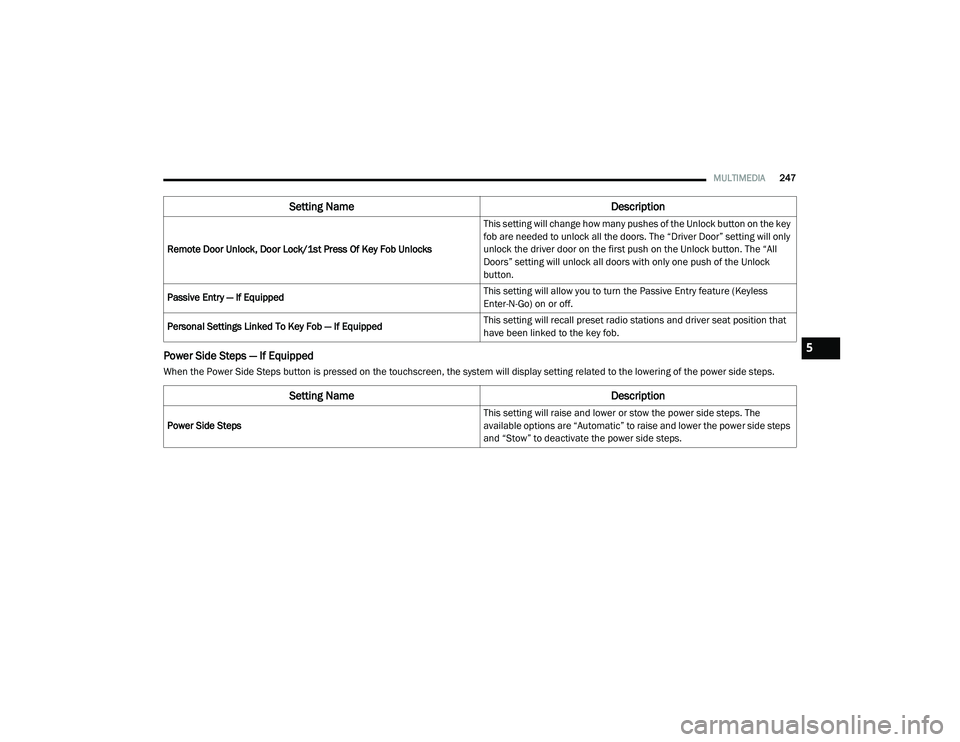
Power Side Steps — If Equipped
When the Power Side Steps button is pressed on the touchscreen, the system will display setting related to the lowering of the power side steps.Remote Door Unlock, Door Lock/1st Press Of Key Fob Unlocks
This setting will change how many pushes of the Unlock button on the key
fob are needed to unlock all the doors. The “Driver Door” setting will only
unlock the driver door on the first push on the Unlock button. The “All
Doors” setting will unlock all doors with only one push of the Unlock
button.
Passive Entry — If Equipped This setting will allow you to turn the Passive Entry feature (Keyless
Enter-N-Go) on or off.
Personal Settings Linked To Key Fob — If Equipped This setting will recall preset radio stations and driver seat position that
have been linked to the key fob.
Setting Name
Description
Setting NameDescription
Power Side Steps This setting will raise and lower or stow the power side steps. The
available options are “Automatic” to raise and lower the power side steps
and “Stow” to deactivate the power side steps.
5
21_DT_OM_EN_USC_t.book Page 247
Page 251 of 496

MULTIMEDIA249
Suspension/Air Suspension — If Equipped
When the Suspension/Air Suspension button is pressed on the touchscreen, the system will display settings related to the vehicle’s air suspension.Headlight Off Delay
This setting will allow you to set the amount of time the headlights remain
on after the vehicle has been turned off. The “+” will increase the amount
of time. The “-” will decrease the amount of time.
Auto Entry/Exit — If Equipped This setting will automatically lower the vehicle ride height for easier
entry and exit of the vehicle.
Setting Name
Description
Setting NameDescription
Sound Horn With Lower This setting will sound the horn when the Lower button is pressed on the
key fob.
Flash Lights With Lower This setting will flash the lights when the Lower button is pressed on the
key fob.
Display Suspension Messages This setting will display suspension messages in the Instrument Cluster
Display. The “All” setting will display all available messages. The
“Warnings Only” setting will only display warning messages.
Aero Mode
This setting will automatically adjust the vehicle ride height depending on
the vehicle speed.
Tire Jack Mode This setting will disable the air suspension system to assist in changing a
spare tire.
Transport Mode This setting will disable the air suspension system for flat towing.
5
21_DT_OM_EN_USC_t.book Page 249
Page 292 of 496

290MULTIMEDIA
activated your SiriusXM Guardian™
system). Enter the SiriusXM Guardian™
Security PIN on the keypad.
3. It may take 30 seconds or more for the command to go through to your vehicle.
4. A message will let you know if the command was received by your vehicle.
Using A Remote Command Through Your
Owner’s Site
1. Log on to your Owner’s Site using the username and password you used when
activating your SiriusXM Guardian™
services in your vehicle.
NOTE:
If you forgot your username or password, links
are provided on the website to help you retrieve
them.
2. If you have more than one vehicle registered into your Owner’s Site, select the
vehicle you want to send the command to by
clicking on its image along the top.
3. On your dashboard, you will see remote commands. Press the desired icon to
activate that feature. 4. You will then be asked to enter your
SiriusXM Guardian™ Security PIN (this is the
same four-digit code established when you
activated your SiriusXM Guardian™
system). Please enter your SiriusXM
Guardian™ Security PIN.
5. A message will appear on the screen to let you know if the command was received by
your vehicle.
Contacting SiriusXM Guardian™ Customer Care
(for example, in case of an accidental lock-out):
1. Contact SiriusXM Guardian™ Customer Care if you are unable to lock your vehicle
through the Uconnect App or your key fob.
2. For security purposes, the SiriusXM Guardian™ Customer Care agent will verify
your identity by asking for your four-digit
SiriusXM Guardian™ Security PIN.
3. After providing your SiriusXM Guardian™ Security PIN, you can ask them to perform a
remote command.
NOTE:
Anyone with access to your PIN may request
Remote Door Lock/Unlock. It is your responsi -
bility to protect your PIN appropriately.Remote Door Lock/Unlock
Description
The Remote Door Lock/Unlock feature provides
you the ability to lock or unlock the door on your
vehicle without the keys and from virtually any
distance.
Working Vehicle Conditions
The vehicle must in PARK or at a standstill.
The vehicle must be in an open area with cell
tower reception.
Your mobile device must have a cellular or
Wi-Fi connection.
Requirements
Vehicle must be properly equipped with the
SiriusXM Guardian™ system.
Vehicle must have an operable LTE (voice/
data) or 3G or 4G (data) network connection.
If using the Uconnect App to command your
vehicle, your device must be compatible and
be connected to an operable LTE (voice/
data) or 3G or 4G (data) network connection.
Vehicle must be registered with SiriusXM
Guardian™ and have an active subscription
that includes the applicable feature.
21_DT_OM_EN_USC_t.book Page 290
Page 293 of 496

MULTIMEDIA291
An ignition cycle is required for some remote
commands, such as Remote Vehicle Start
and Remote Door Lock/Unlock if following a
Remote Horn & Lights activation.
Your Remote Door Lock/Unlock request will
not be processed if the vehicle is in motion,
the ignition key is on or during an emergency
call.
NOTE:
All other remote services should be performed
via your Owner’s Site or through the Uconnect
App on your compatible device.
Remote Vehicle Start
Description
The Remote Vehicle Start feature provides you
with the ability to start the engine on your
vehicle without the keys and from virtually any
distance. Once started, the preset climate
controls in your vehicle can warm up or cool
down the interior.
You can also send a command to turn off an
engine that has been started using Remote
Vehicle Start. After 15 minutes, if you have not
entered your vehicle with the key, the engine
will shut off automatically. This remote function requires your vehicle to be
equipped with a factory-installed Remote Start
system.
You can set up push notifications every time a
command is sent to activate or cancel Remote
Start.
Working Vehicle Conditions
The vehicle must be off or in ACC mode.
The vehicle has been started with the key fob
within the last 14 days.
The vehicle must be in PARK or at a standstill.
The vehicle’s security system has been
armed and not triggered since the last
vehicle start.
The doors, hood, and trunk/liftgate are
closed.
The vehicle’s check engine light must be off.
The vehicle must have at least a quarter tank
of fuel, along with oil and battery power.
The vehicle’s hazard lights must be off.
If equipped, the vehicle must have an auto
-
matic transmission.
The vehicle must be in an open area with cell
tower reception.
Your mobile device must have a cellular or
Wi-Fi connection.
If the Panic button has been pressed, the
vehicle must be started at least once after
alarming the system.
NOTE:
The SiriusXM Guardian™ Customer Care agents
are not authorized for Remote Vehicle Start
services. Contact the Uconnect Care Team for
assistance
Remote Horn & Lights
Description
It is easy to locate a vehicle in a dark, crowded
or noisy parking area by activating the horn and
lights. It may also help if you need to draw
attention to your vehicle for any reason.
If you want, you can set up push notifications
every time a command is sent to turn on the
horn and lights.
5
21_DT_OM_EN_USC_t.book Page 291
Page 304 of 496

302MULTIMEDIA
CONNECTED SERVICES REMOTE DOOR
L
OCK/UNLOCK FAQS
1.
How long does it take to unlock or lock the
door?
Depending on various conditions, it
can take up to three minutes or more for
the request to get to your vehicle.
2. Which is faster, my key fob or the Uconnect
App? Your key fob will lock/unlock the door
more quickly, however its range is limited
and your Uconnect App comes in handy for
these and other situations.
3. Will my vehicle be safe if I lose my device?
People sometimes lose their mobile
devices, which is why security measures
have been engineered into the Uconnect
App. Asking for your username, password
and SiriusXM Guardian™ Security PIN are
required for the activation of Remote
services through your mobile device. It is
your responsibility to protect your
passwords and PINs.
4. Why can’t all mobile devices use the
Uconnect App? The Uconnect App is
compatible with most devices with the
Apple® and Android™ operating systems. The capabilities of these devices allow us to
remotely command your vehicle. Other
operating systems may be supported in the
future.
5. Why is the Uconnect App running slow? The
Uconnect App relies on a mobile network
connection from your device to send
commands to your vehicle which must have
an operable LTE (voice/data) or 3G, 4G
(data), or 5G (data) network connection. If
either your device or your vehicle is in an
area with below average coverage, it may
take longer to log in and send commands.
CONNECTED SERVICES ROADSIDE
A
SSISTANCE FAQS
1.
What is the phone number for roadside
assistance call? The phone number is:
US: 1-800-521-2779
Canada: 1-800-363-4869
2. If I am subscribed to SiriusXM Guardian™,
does it cover towing or other expenses
incurred by using roadside assistance? No,
however your new vehicle may include
Roadside Assistance Call services.
CONNECTED SERVICES SEND & GO
FAQ
S
1.
How long does it take to send the route and
destination to my vehicle?
Depending on
various conditions, it can take up to three
minutes for the request to get through to
your vehicle.
2. Can I cancel a route I sent to my vehicle?
Yes, once you enter your vehicle, and start
the engine, the pop-up message stating that
you have a new route will appear. There is
an exit button on the pop-up that will cancel
the route if selected.
3. Can I select a different route than the most
recent one I sent to my vehicle? Yes, once
you enter the vehicle, and start the engine,
the pop-up message offers a “Locations”
option. Once “Locations” is selected, you
can choose from a list of recently sent
destinations.
21_DT_OM_EN_USC_t.book Page 302
Page 305 of 496

MULTIMEDIA303
CONNECTED SERVICES VEHICLE FINDER
FAQ
S
1.
Can someone else locate my vehicle?
Your
vehicle may be located by anyone who has
your PIN and access to your account. It is
your responsibility to guard your PIN
accordingly. See the Uconnect and
SiriusXM Guardian™ terms of service for
more information.
2. How long does it take to sound my horn and
flash the lights? Depending on various
conditions, it can take three minutes or
more for the request to get through to your
vehicle.
3. How do I turn off the horn and lights after I
turn them on? If you are close enough to the
vehicle, you can use the key fob to turn off
the horn and lights by pressing the red
Panic button.
CONNECTED SERVICES STOLEN VEHICLE
A
SSISTANCE FAQS
1.
Can someone locate my vehicle?
To
enhance your privacy, and the privacy of
others using your vehicle, a stolen vehicle police report is required for you to activate
this service. You must involve local law
enforcement to have SiriusXM Guardian™
locate your vehicle. We may also locate the
vehicle for other law enforcement or
government agencies, subject to a valid
court order telling SiriusXM Guardian™ to
do so. We will also provide the service for
FCA entities to locate a vehicle that you
have purchased through them.
2. How will I know if my vehicle is recovered?
After you provide the SiriusXM Guardian™
Customer Care agent with the stolen vehicle
report, the agent will work together with law
enforcement to try to locate your vehicle. If
your vehicle is recovered, you will be
contacted by law enforcement.
3. Can SiriusXM Guardian™ lower my
insurance rates? Some insurance providers
offer lower rates on vehicles equipped with
systems that can deter auto theft. When
shopping for insurance, be sure to inform
the insurance provider of your SiriusXM
Guardian™ services subscription to find out
if the insurance provider can offer you a
lower rate. NOTE:
Neither FCA nor SiriusXM® are insurance
companies, and SiriusXM Guardian™ is not an
insurance product. You are responsible for
obtaining insurance coverage for your vehicle
and yourself.
CONNECTED SERVICES REMOTE VEHICLE
S
TART FAQS
1.
How long does it take to remotely start my
vehicle?
Depending on various conditions,
it can take three minutes or more for the
request to get through to your vehicle.
2. Which is faster, my key fob or the Uconnect
App? Your key fob will remote start your
vehicle more quickly. However its range is
limited. For example, when you are leaving
the stadium after the game, you can use the
Uconnect App to remote start your vehicle
and have the inside of your vehicle
comfortable by the time you get to it.
3. Will my vehicle be safe if I lose my wireless
device? People sometimes lose their
wireless devices, which is why security
measures have been engineered into the
Uconnect App. Asking for your username,
5
21_DT_OM_EN_USC_t.book Page 303
Page 306 of 496

304MULTIMEDIA
password and SiriusXM Guardian™ Security
PIN help to ensure that nobody can start
your vehicle if they happen to find your
device.
4. Can someone drive off with my vehicle
using the App? No. Driving your vehicle still
requires the keys to be in the vehicle. The
Remote Start feature simply starts the
engine to warm up or cool down the interior
before you arrive.
5. Can I stop a vehicle that is being driven with
the cancel Remote Vehicle Start command?
No. If the vehicle is in motion, the cancel
Remote Vehicle Start button will not stop
the vehicle.
6. Why can’t all mobile devices use the
Uconnect App? The Uconnect App has been
designed to work on most devices with the
Apple® and Android™ operating systems.
The capabilities of these devices allow us to
remotely command your vehicle. Other
operating systems may be supported in the
future.CONNECTED SERVICES REMOTE HORN
& L
IGHTS FAQS
1.
How long does it take to sound my horn and
flash the lights?
Depending on various
conditions, it can take three minutes or
more for the request to get through to your
vehicle.
2. Which is faster, my key fob or the Uconnect
App? Your key fob will sound the horn and
flash the lights quicker; however its range is
limited.
3. How do I turn off the horn and lights after I
turn them on? If you are close enough to the
vehicle, you can use the key fob to turn off
the horn and lights by pressing the red
Panic button. Otherwise, Remote Horn &
Lights will continue for a maximum of three
minutes.
4. Why can’t all mobile devices use the
Uconnect App? The Uconnect App has been
designed to work on most devices with the
Apple® and Android™ operating systems.
The capabilities of these devices allow us to
remotely command your vehicle. Other
operating systems may be supported in the
future.
CONNECTED SERVICES ACCOUNT FAQS
1.
How do I register for my SiriusXM
Guardian™ account? There are three ways
that you can register your SiriusXM
Guardian™ Account:
Push the Assist button. A call will be
placed to an agent who can assist in
registering your new account.
Press the Activate Services icon in the
Apps menu. Select the button to speak
with an agent, who can assist in regis -
tering your new account.
Press the Activate Services icon in the
Apps menu. Enter your email on the
touchscreen and then follow the prompts
from the provided email. You will receive
an email with an activation link that will
be good for 72 hours. Once you click the
activation link, you will be prompted to fill
out your information and accept Terms
and Conditions. Then, you will be directed
to the SiriusXM Guardian™ home page to
complete your profile and demo the
remote services.
21_DT_OM_EN_USC_t.book Page 304