2021 PEUGEOT BOXER change time
[x] Cancel search: change timePage 128 of 212
126
In the event of a breakdown
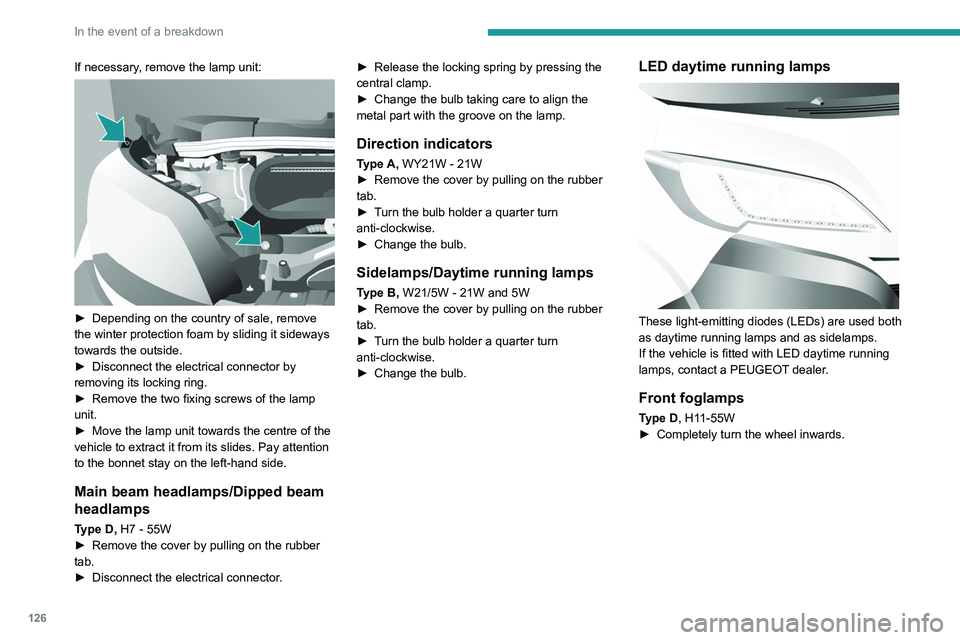
If necessary, remove the lamp unit:
► Depending on the country of sale, remove
the winter protection foam by sliding it sideways
towards the outside.
►
Disconnect the electrical connector by
removing its locking ring.
►
Remove the two fixing screws of the lamp
unit.
►
Move the lamp unit towards the centre of the
vehicle to extract it from its slides. Pay attention
to the bonnet stay on the left-hand side.
Main beam headlamps/Dipped beam
headlamps
Type D, H7 - 55W
► Remove the cover by pulling on the rubber
tab.
►
Disconnect the electrical connector
.►
Release the locking spring by pressing the
central clamp.
►
Change the bulb taking care to align the
metal part with the groove on the lamp.
Direction indicators
Type A, WY21W - 21W
► Remove the cover by pulling on the rubber
tab.
►
T
urn the bulb holder a quarter turn
anti-clockwise.
►
Change the bulb.
Sidelamps/Daytime running lamps
Type B, W21/5W - 21W and 5W
► Remove the cover by pulling on the rubber
tab.
►
T
urn the bulb holder a quarter turn
anti-clockwise.
►
Change the bulb.
LED daytime running lamps
These light-emitting diodes (LEDs) are used both
as daytime running lamps and as sidelamps.
If the vehicle is fitted with LED daytime running
lamps, contact a PEUGEOT dealer.
Front foglamps
Type D, H11-55W
► Completely turn the wheel inwards.
Page 166 of 212
164
Audio system
To protect the system, do not use a USB hub.
The system builds playlists (in temporary
memory); this operation can take from a
few seconds to several minutes at the first
connection.
Reduce the number of non-music files and the
number of folders to reduce the waiting time.
The playlists are updated every time the ignition
is switched off or a USB memory stick is
connected. The lists are memorised: if they are
not modified, the subsequent loading time will
be shorter.
USB socket
Located on the central console, this
socket is used only to power and
recharge the connected portable device.
Auxiliary socket (AUX)
Connect the portable device (e.g. MP3
player) to the auxiliary jack socket using
an audio cable (not supplied).
First adjust the volume on the portable device
(to a high level). Then adjust the volume of the
audio system.
Controls are managed via the portable device.
The functions of the device connected to the
"AUX" socket are managed directly by this
device: it is therefore not possible to change the
track/folder/playlist or control the start/ending/
pausing of playback using the controls on the
control panel or the steering-mounted controls.
Do not leave the cable of the portable
device plugged into the "AUX" socket after
disconnecting it, in order to avoid possible noise
from the speakers.
Information and advice
The system supports USB Mass Storage
devices, BlackBerry® devices or Apple® players
via the USB sockets. The adapter cable is not
supplied.
Other devices, not recognised by the system
during connection, must be connected to
the auxiliary socket using a Jack cable (not
supplied).
It is advisable to restrict file names to 20
characters, without using special characters (e.g.
" " ? . ; ù) so as to avoid any reading or display
problems.
Only use USB memory sticks formatted to FAT
32 (File Allocation Table).
To protect the system, do not use a USB hub.
The system does not support the simultaneous connection of two identical
devices (two memory sticks or two
Apple
® players) but it is possible to connect
one memory stick and one Apple® player at
the same time.
It is recommended that you use genuine
Apple® USB cables to guarantee correct
operation.
Connecting Apple® players
Connect the Apple® player to the USB
socket using a suitable cable (not
supplied).
Play starts automatically.
Control is via the audio system.
The classifications available are those of the portable device connected (artists/
albums/types/tracks/playlists/audio books/
podcasts).
The default classification is sorting by artist.
To change the classification used, return to
the first level of the menu and then select the
desired classification (playlists for example)
and confirm to browse the tree to the desired
track.
The audio system software version may
not be compatible with the generation of
your Apple
® player.
Page 174 of 212
172
Touch screen audio and telematics system
– Set the parameter.
– AUX vol. setting .
–
Set the parameters.
DAB (Digital Audio
Broadcasting) radio
Terrestrial Digital Radio
Digital radio
Digital radio provides higher quality
reception and also the graphical display
of current information on the radio station
being listened to.
The various "multiplexes/ensembles" offer
a choice of radio stations organised in
alphabetical order.
Press “RADIO” successively to display
the "DAB Radio".
Select the "Navigate" tab.
Select a list from the filters
offered: "All", "Types",
"Ensembles", then select a radio station.
Press the "Update" button to update the
list of "DAB Radio" stations received.
DAB/FM station tracking
"DAB" does not cover 100% of the
territory.
When the digital radio signal is poor, the
"AF"
(alternative frequency) option enables
you to continue listening to the same
station by automatically switching to the
corresponding
"FM" analogue station (if there
is one).
When the system switches to analogue
station, there is a delay of a few seconds
with sometimes a change in volume.
When the digital signal quality is restored, the
system automatically changes back to "DAB".
If the "DAB" station is not available, the
sound cuts out when the digital signal
quality becomes poor and the "AF"
alternative
frequency is crossed out.
Media
Press "MEDIA" to display the media
menus:
Briefly press on the 9 or : buttons to play the previous/next track.
Press and hold the buttons to fast-forward or
rewind the selected track.
Browse–
Browse by: Currently playing,
Artists,
Albums, Types, Songs, Playlists,
Audiobooks, Podcasts.
–
Browse and select the songs contained in the
active device.
–
The selection possibilities depend on the
device connected or the type of CD inserted.
Source
–
CD, AUX,
USB.
–
Select the desired audio source from those
available or insert a device intended for this
purpose; the system starts to play the sources
automatically
.
–
Bluetooth®.
–
Save a Bluetooth® audio device.
Information
–
Information.
–
V
iew the information about the track being
listened to.
Random
Press the button to play the songs on the CD,
USB, iPod or Bluetooth
® in random order.
Repeat
Press the button to activate this function.
Audio
–
Equalizer
.
–
Adjust the bass, medium and treble.
–
Balance/Fade
.
–
Adjust the balance of the front and rear
speakers, left and right.
–
Press the button in the centre of the arrows to
balance the settings.
–
V
olume/Speed.
Page 175 of 212
173
Touch screen audio and telematics system
12– Select the desired parameter; the option is
highlighted.
–
Loudness
.
–
Optimise the quality of low volume audio.
–
Automatic radio
.
–
Set the radio when starting up or recover the
active state when the ignition key was last turned
to ST
OP.
–
Radio switch-off delay .
–
Set the parameter
.
–
AUX vol. setting .
–
Set the parameters.
USB socket
Insert the USB memory stick or connect
the device to the USB socket in the
central storage space , provided for transferring
data to the system, using a suitable cable (not
supplied).
To protect the system, do not use a USB hub.
The system builds playlists (in temporary
memory); this operation can take from a
few seconds to several minutes at the first
connection.
Reduce the number of non-music files and the
number of folders to reduce the waiting time.
The playlists are updated every time the ignition
is switched off or a USB memory stick is
connected. The lists are memorised: if they are
not modified, the subsequent loading time will
be shorter.
USB socket
Located on the central console, this
socket is used only to power and
recharge the connected portable device.
Auxiliary socket (AUX)
Connect the portable device (e.g. MP3
player) to the auxiliary jack socket using
an audio cable (not supplied).
First adjust the volume on the portable device
(to a high level). Then adjust the volume of the
audio system.
Controls are managed via the portable device.
The functions of the device connected to the
"AUX" socket are managed directly by this
device: it is therefore not possible to change the
track/folder/playlist or control the start/ending/
pausing of playback using the controls on the
control panel or the steering-mounted controls.
Do not leave the cable of the portable
device plugged into the "AUX" socket after
disconnecting it, in order to avoid possible noise
from the speakers.
Selecting the source
Press on "MEDIA".
Select the "Source" tab to show the
rolling display of audio sources.
Select the source.
Use the play settings on the screen.
Press the "Rand." button and/or the
" Repeat" button to activate them, press again to
deactivate them.
Information and advice
The audio system will only play audio files with
".wav", ".wma" and ".mp3" file extensions, at bit
rates between 32 Kbps and 320 Kbps.
For audio files with ".aac", ".m4a", ".m4b" and
".mp4" file extensions, the supported sampling
rates are 8 - 96 kHz.
".m3u" and ".wpl" types are also supported.
The system does not manage devices with a
capacity greater than 64 GB.
It is advisable to restrict file names to 20
characters, without using special characters (e.g.
" " ? . ; ù) so as to avoid any reading or display
problems.
The system supports USB mass storage devices, BlackBerry® devices or Apple®
players via the USB sockets. The adapter
cable is not supplied.
Devices are managed using the audio system
controls.
Other devices, not recognised by the system
during connection, must be connected to
the auxiliary socket using a Jack cable (not
supplied).
Only use USB memory sticks formatted to FAT
32 (File Allocation Table).
Page 176 of 212
174
Touch screen audio and telematics system
To protect the system, do not use a USB hub.
The system does not support the simultaneous connection of two identical
devices (two memory sticks or two
Apple
® players) but it is possible to connect
one memory stick and one Apple® player at
the same time.
It is recommended that you use genuine
Apple® USB cables to guarantee correct
operation.
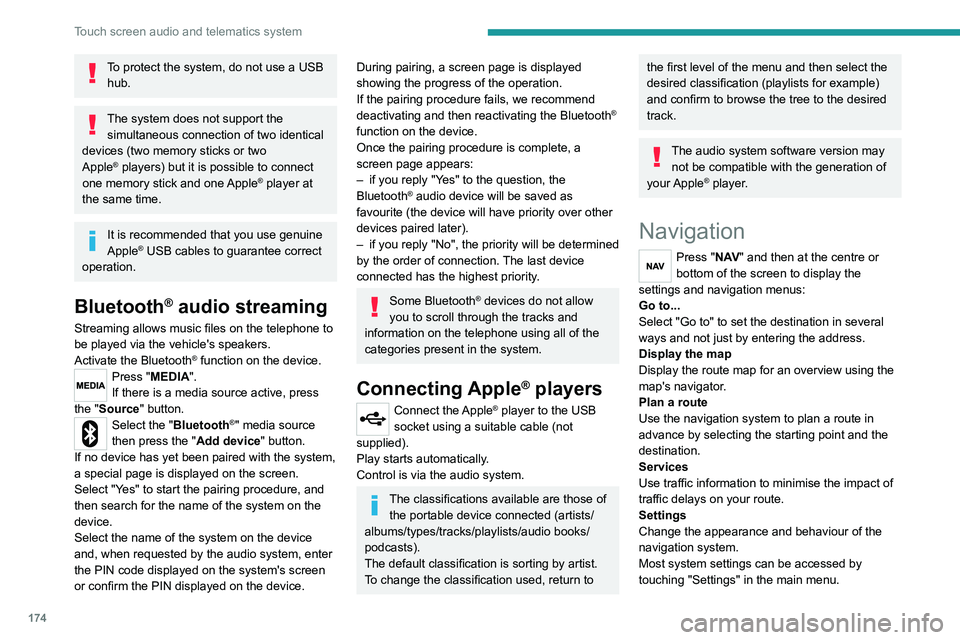
Bluetooth® audio streaming
Streaming allows music files on the telephone to
be played via the vehicle's speakers.
Activate the Bluetooth
® function on the device.Press "MEDIA".
If there is a media source active, press
the "Source" button.
Select the "Bluetooth®" media source
then press the "Add device" button.
If no device has yet been paired with the system,
a special page is displayed on the screen.
Select "Yes" to start the pairing procedure, and
then search for the name of the system on the
device.
Select the name of the system on the device
and, when requested by the audio system, enter
the PIN code displayed on the system's screen
or confirm the PIN displayed on the device.
During pairing, a screen page is displayed
showing the progress of the operation.
If the pairing procedure fails, we recommend
deactivating and then reactivating the Bluetooth
®
function on the device.
Once the pairing procedure is complete, a
screen page appears:
–
if you reply "Y
es" to the question, the
Bluetooth
® audio device will be saved as
favourite (the device will have priority over other
devices paired later).
–
if you reply "No", the priority will be determined
by the order of connection.
The last device
connected has the highest priority.
Some Bluetooth® devices do not allow
you to scroll through the tracks and
information on the telephone using all of the
categories present in the system.
Connecting Apple® players
Connect the Apple® player to the USB
socket using a suitable cable (not
supplied).
Play starts automatically.
Control is via the audio system.
The classifications available are those of the portable device connected (artists/
albums/types/tracks/playlists/audio books/
podcasts).
The default classification is sorting by artist.
To change the classification used, return to
the first level of the menu and then select the
desired classification (playlists for example)
and confirm to browse the tree to the desired
track.
The audio system software version may
not be compatible with the generation of
your Apple
® player.
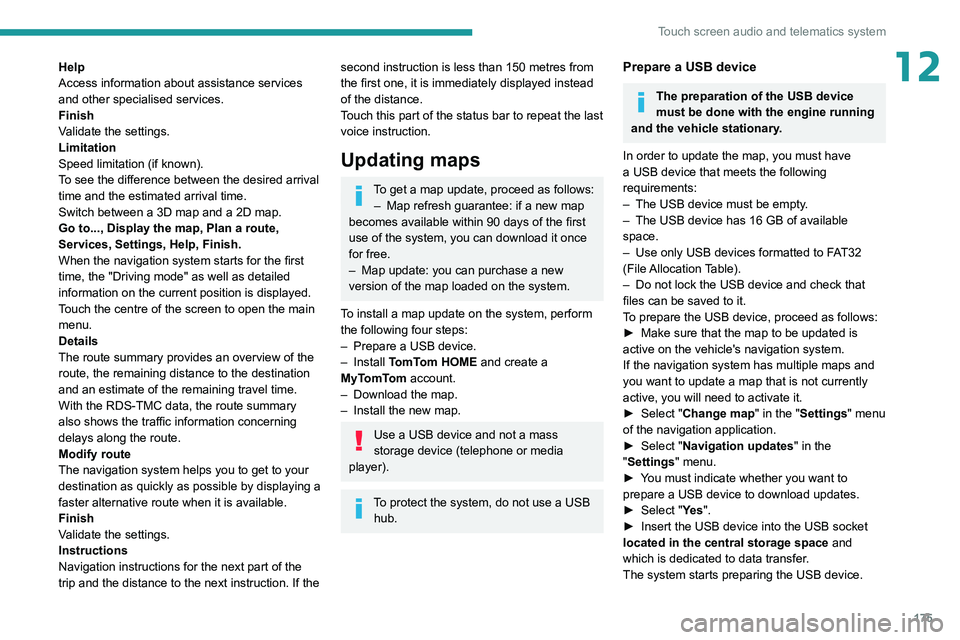
Navigation
Press "N AV " and then at the centre or
bottom of the screen to display the
settings and navigation menus:
Go to...
Select "Go to" to set the destination in several
ways and not just by entering the address.
Display the map
Display the route map for an overview using the
map's navigator.
Plan a route
Use the navigation system to plan a route in
advance by selecting the starting point and the
destination.
Services
Use traffic information to minimise the impact of
traffic delays on your route.
Settings
Change the appearance and behaviour of the
navigation system.
Most system settings can be accessed by
touching "Settings" in the main menu.
Page 177 of 212
175
Touch screen audio and telematics system
12Help
Access information about assistance services
and other specialised services.
Finish
Validate the settings.
Limitation
Speed limitation (if known).
To see the difference between the desired arrival
time and the estimated arrival time.
Switch between a 3D map and a 2D map.
Go to..., Display the map, Plan a route,
Services, Settings, Help, Finish.
When the navigation system starts for the first
time, the "Driving mode" as well as detailed
information on the current position is displayed.
Touch the centre of the screen to open the main
menu.
Details
The route summary provides an overview of the
route, the remaining distance to the destination
and an estimate of the remaining travel time.
With the RDS-TMC data, the route summary
also shows the traffic information concerning
delays along the route.
Modify route
The navigation system helps you to get to your
destination as quickly as possible by displaying a
faster alternative route when it is available.
Finish
Validate the settings.
Instructions
Navigation instructions for the next part of the
trip and the distance to the next instruction. If the second instruction is less than 150 metres from
the first one, it is immediately displayed instead
of the distance.
Touch this part of the status bar to repeat the last
voice instruction.
Updating maps
To get a map update, proceed as follows: – Map refresh guarantee: if a new map
becomes available within 90 days of the first
use of the system, you can download it once
for free.
–
Map update: you can purchase a new
version of the map loaded on the system.
T
o install a map update on the system, perform
the following four steps:
–
Prepare a USB device.
–
Install TomTom HOME and create a
MyTomTom account.
–
Download the map.
–
Install the new map.
Use a USB device and not a mass
storage device (telephone or media
player).
To protect the system, do not use a USB hub.
Prepare a USB device
The preparation of the USB device
must be done with the engine running
and the vehicle stationary.
In order to update the map, you must have
a USB device that meets the following
requirements:
–
The USB device must be empty
.
–
The USB device has 16 GB of available
space.
–
Use only USB devices formatted to F
AT32
(File Allocation Table).
–
Do not lock the USB device and check that
files can be saved to it.
T
o prepare the USB device, proceed as follows:
►
Make sure that the map to be updated is
active on the vehicle's navigation system.
If the navigation system has multiple maps and
you want to update a map that is not currently
active, you will need to activate it.
►
Select "
Change map" in the "Settings" menu
of the navigation application.
►
Select "
Navigation updates" in the
"Settings" menu.
►
Y
ou must indicate whether you want to
prepare a USB device to download updates.
►
Select "
Ye s".
►
Insert the USB device into the USB socket
located in the central storage space
and
which is dedicated to data transfer.
The system starts preparing the USB device.
Page 186 of 212
184
ALPINE® X902D system
ALPINE® X902D system
Multimedia audio system -
Bluetooth
® telephone- GPS
navigation
For safety reasons, the driver must only
carry out operations that require close
attention with the vehicle stationary.
When the engine is switched off and to
prevent discharging of the battery, the
system switches off after activation of energy
economy mode.
For further information, refer to the
ALPINE user guide at:
https://www.alpine-europe.com
First steps
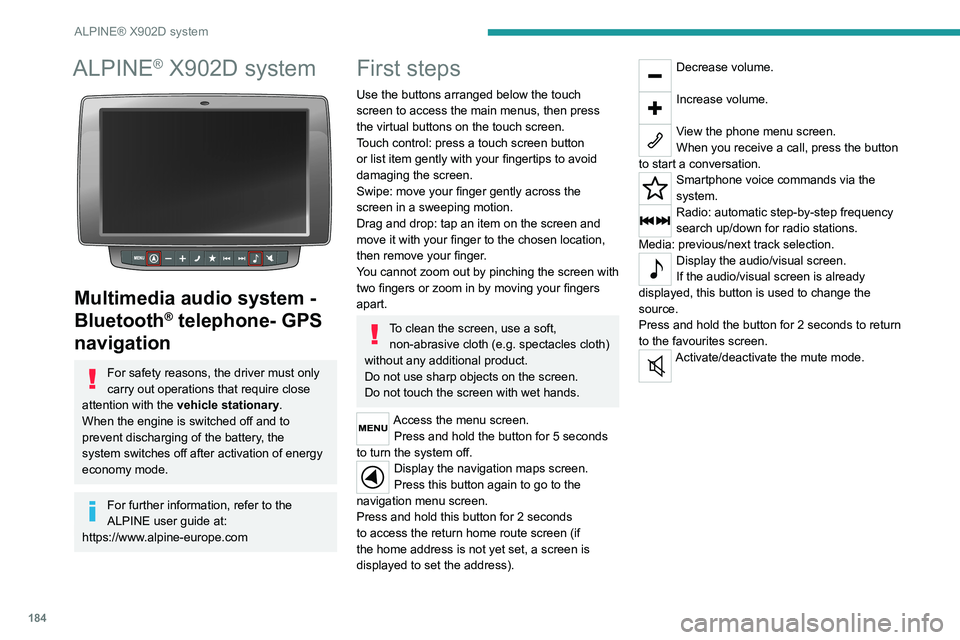
Use the buttons arranged below the touch
screen to access the main menus, then press
the virtual buttons on the touch screen.
Touch control: press a touch screen button
or list item gently with your fingertips to avoid
damaging the screen.
Swipe: move your finger gently across the
screen in a sweeping motion.
Drag and drop: tap an item on the screen and
move it with your finger to the chosen location,
then remove your finger.
You cannot zoom out by pinching the screen with
two fingers or zoom in by moving your fingers
apart.
To clean the screen, use a soft, non-abrasive cloth (e.g. spectacles cloth)
without any additional product.
Do not use sharp objects on the screen.
Do not touch the screen with wet hands.
Access the menu screen. Press and hold the button for 5 seconds
to turn the system off.
Display the navigation maps screen.
Press this button again to go to the
navigation menu screen.
Press and hold this button for 2 seconds
to access the return home route screen (if
the home address is not yet set, a screen is
displayed to set the address).
Decrease volume.
Increase volume.
View the phone menu screen.
When you receive a call, press the button
to start a conversation.
Smartphone voice commands via the
system.
Radio: automatic step-by-step frequency
search up/down for radio stations.
Media: previous/next track selection.
Display the audio/visual screen.
If the audio/visual screen is already
displayed, this button is used to change the
source.
Press and hold the button for 2 seconds to return
to the favourites screen.
Activate/deactivate the mute mode.
Page 189 of 212

187
Event data recorders
14Recording event data
Electronic control units are installed in your
vehicle. These control units process data
received from the vehicle's sensors, for example,
or data they generate themselves or exchange
with each other. Some of these control units are
required for the correct operation of your vehicle,
some others assist you while driving (driving or
manoeuvring aids), while others provide comfort
or infotainment functions.
The following contains general information about
how data is processed within the vehicle.
You will find additional information about the
specific data which is downloaded, stored
and transmitted to third parties and what it is
used for in your vehicle under the keyword
"Data protection". This information is directly
associated with the references for the functions
in question contained in the corresponding
vehicle handbook, or in the general terms and
conditions of sale.
This information is also available online.
Vehicle operating data
The control units process the data used for the
operation of the vehicle.
This data includes, for example:
–
Information about the state of the vehicle
(e.g.
speed, travel time, lateral acceleration,
wheel rotation rate, fastened seat belts display).
–
Environmental conditions (e.g.
temperature,
rain sensor, distance sensor). As a general rule, this data is temporary, is
not stored for longer than one operating cycle
and is only used within the vehicle itself. The
control units often record this data (including the
vehicle's key). This function allows either the
temporary or permanent storage of information
about the state of the vehicle, stresses on
components, servicing requirements, as well as
events and technical errors.
Depending on the vehicle's equipment level, the
data stored is as follows:
–
Operating state of system components
(e.g.
filling level, tyre pressures, battery charge
status).
–
Faults and malfunctions in important system
components (e.g.
lamps, brakes).
–
System reactions in specific driving situations
(e.g.
deployment of an airbag, triggering of
stability control and braking systems).
–
Information about events which have
damaged the vehicle.
–
For electric and rechargeable hybrid vehicles,
the traction battery charge level and the
estimated driving range.
In particular circumstances (e.g.
if the vehicle
has detected a malfunction), it may be necessary
to record data which would otherwise simply not
be stored.
When taking your vehicle in for servicing
(e.g.
repairs, maintenance), the stored operating
data may be read along with the vehicle's
identification number and used if necessary.
The personnel working for the servicing network (e.g.
garages, manufacturers) or third parties
(e.g. roadside assistance agents) may read
the vehicle's data. This also applies to work
carried out under warranty and quality assurance
measures.
This data is generally read via the OBD
(On-Board Diagnostics) port fitted by law to
the vehicle. It is used to report on the technical
state of the vehicle or its components and
facilitates the diagnosis of malfunctions, in
compliance with warranty obligations and for
quality improvement. This data, in particular the
information relating to stress on components,
technical events, operator errors and other
malfunctions, is sent to the Manufacturer, if
necessary, along with the vehicle's identification
number. The Manufacturer's liability may also be
engaged. The Manufacturer may also use the
operating data taken from the vehicle for product
recalls. This data may also be used to check the
customer's warranty and any claims made under
warranty.
Any malfunctions stored in the vehicle may be
reset by an after-sales service company during
servicing or repair work, or at your request.
Comfort and infotainment
functions
Comfort settings and personalised settings
may be saved in the vehicle and modified or
reinitialised at any time.