2021 PEUGEOT 508 stop start
[x] Cancel search: stop startPage 198 of 292
196
In the event of a breakdown
Before disconnecting the battery:
► Close all openings (doors, boot, windows,
roof).
► Switch off all electricity-consuming devices
(audio system, wipers, lamps, etc.).
► Switch off the ignition and wait for 4 minutes.
After accessing the battery, it is only necessary
to disconnect the (+) terminal.
Quick-release terminal clamp
Disconnecting the (+) terminal
► Depending on equipment, lift the plastic cover
on the (+) terminal.
► Raise lever A fully to release clamp B.
► Remove clamp B by lifting it off.
► Refit the plastic cover to the (+) terminal, if
the vehicle has one.
►
Allow the engine to run for at least
30
minutes, with the vehicle stationary, so that
the battery reaches an adequate state of charge.
Driving immediately without having
reached a sufficient level of charge may
affect some of the vehicle's functionalities.
Automatic gearbox
Never try to start the engine by pushing
the vehicle.
Charging the battery using a
battery charger
For optimum service life of the battery, it is
essential to maintain an adequate state of
charge.
In some circumstances, it may be necessary to
charge the battery:
–
When using the vehicle mainly for short
journeys.
–
If the vehicle is to be taken off the road for
several weeks.
Consult a PEUGEOT
dealer or a qualified
workshop.
To charge the vehicle's battery yourself, use only a charger compatible with
lead-acid batteries with a nominal voltage of
12
V.
Follow the instructions provided by the
manufacturer of the charger.
Never reverse polarities.
It is not necessary to disconnect the
battery.
►
Switch the ignition off.
►
Switch off all electrical consumers (audio
system, lighting, wipers, etc.).
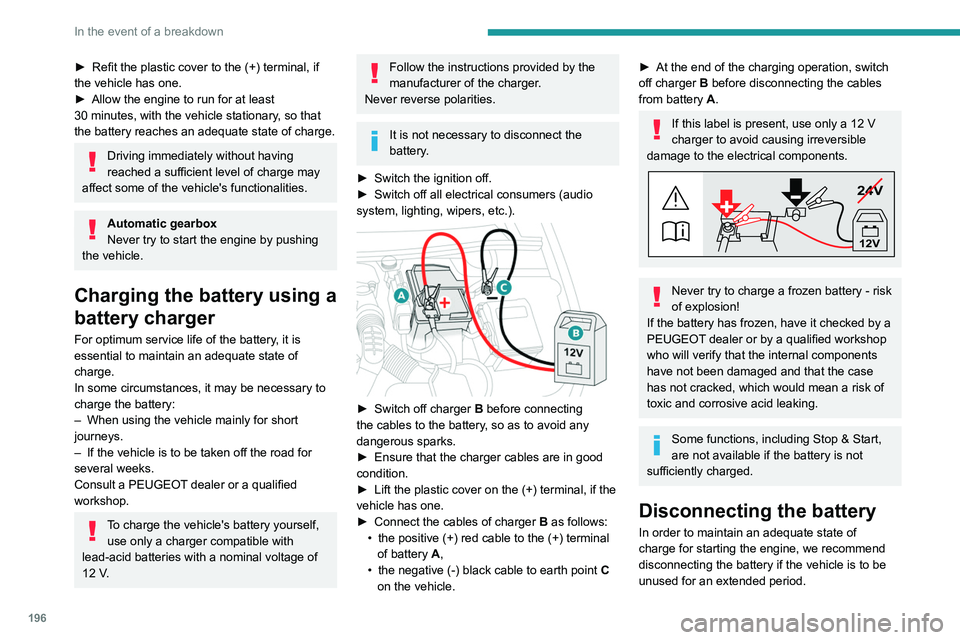
► Switch off charger B before connecting
the cables to the battery, so as to avoid any
dangerous sparks.
►
Ensure that the charger cables are in good
condition.
►
Lift the plastic cover on the (+) terminal, if the
vehicle has one.
►
Connect the cables of charger B
as follows:
•
the positive (+) red cable to the (+) terminal
of battery
A,
•
the negative (-) black cable to earth point C
on the vehicle.
► At the end of the charging operation, switch
off charger B
before disconnecting the cables
from battery A.
If this label is present, use only a 12 V
charger to avoid causing irreversible
damage to the electrical components.
24V
12V
Never try to charge a frozen battery - risk
of explosion!
If the battery has frozen, have it checked by a
PEUGEOT dealer or by a qualified workshop
who will verify that the internal components
have not been damaged and that the case
has not cracked, which would mean a risk of
toxic and corrosive acid leaking.
Some functions, including Stop & Start,
are not available if the battery is not
sufficiently charged.
Disconnecting the battery
In order to maintain an adequate state of
charge for starting the engine, we recommend
disconnecting the battery if the vehicle is to be
unused for an extended period.
Page 199 of 292
197
In the event of a breakdown
8Before disconnecting the battery:
► Close all openings (doors, boot, windows,
roof).
►
Switch off all electricity-consuming devices
(audio system, wipers, lamps, etc.).
►
Switch off the ignition and wait for 4
minutes.
After accessing the battery, it is only necessary
to disconnect the (+) terminal.
Quick-release terminal clamp
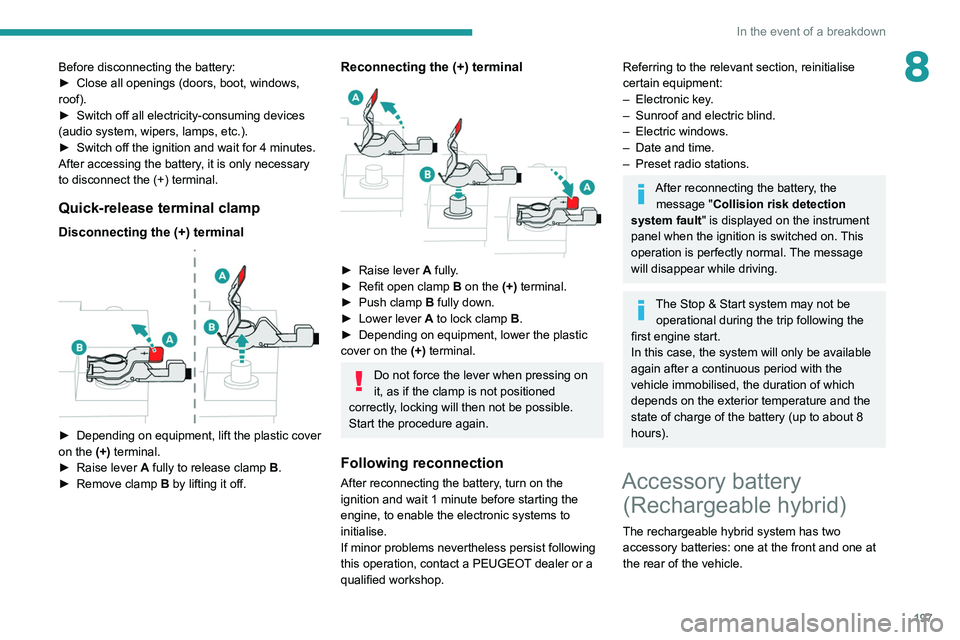
Disconnecting the (+) terminal
► Depending on equipment, lift the plastic cover
on the (+) terminal.
►
Raise lever
A
fully to release clamp
B
.
►
Remove clamp
B
by lifting it off.
Reconnecting the (+) terminal
► Raise lever A fully.
► Refit open clamp B on the (+) terminal.
►
Push clamp
B fully down.
►
Lower lever
A
to lock clamp B.
►
Depending on equipment, lower the plastic
cover on the
(+) terminal.
Do not force the lever when pressing on
it, as if the clamp is not positioned
correctly, locking will then not be possible.
Start the procedure again.
Following reconnection
After reconnecting the battery, turn on the
ignition and wait 1 minute before starting the
engine, to enable the electronic systems to
initialise.
If minor problems nevertheless persist following
this operation, contact a PEUGEOT dealer or a
qualified workshop.
Referring to the relevant section, reinitialise
certain equipment:
–
Electronic key
.
–
Sunroof and electric blind.
–
Electric windows.
–
Date and time.
–
Preset radio stations.
After reconnecting the battery, the message "Collision risk detection
system fault" is displayed on the instrument
panel when the ignition is switched on. This
operation is perfectly normal. The message
will disappear while driving.
The Stop & Start system may not be operational during the trip following the
first engine start.
In this case, the system will only be available
again after a continuous period with the
vehicle immobilised, the duration of which
depends on the exterior temperature and the
state of charge of the battery (up to about 8
hours).
Accessory battery (Rechargeable hybrid)
The rechargeable hybrid system has two
accessory batteries: one at the front and one at
the rear of the vehicle.
Page 226 of 292
224
PEUGEOT Connect Nav
PEUGEOT Connect Nav
GPS navigation -
Applications - Multimedia
audio system - Bluetooth
®
telephone
The functions and settings described
vary according to the vehicle version and
configuration, as well as the country of sale.
For safety reasons and because they
require sustained attention by the driver,
the following operations must be carried out
with the vehicle stationary and the ignition
on:
–
Pairing the smartphone with the system via
Bluetooth.
–
Using the smartphone.
– Connecting to the CarPlay® or Android
Auto applications (certain applications stop
displaying when the vehicle is moving).
–
W
atching a video (the video stops when the
vehicle starts to move again).
–
Changing the system settings and
configuration.
AM and DAB radio are not available on Hybrid vehicles.
The system is protected so that it only operates in the vehicle.
The message Energy economy mode is
displayed when the system is about to go into
standby.
System and map updates can be
downloaded from the Brand's website.
The update procedure is also available there.
The system’s Open Source Software (OSS) source codes are available at the
following addresses:
https://www.groupe-psa.com/fr/oss/
https://www.groupe-psa.com/en/oss/
First steps
With the engine running, a press mutes
the sound.
With the ignition off, a press turns the system on.
Increase or decrease the volume using
the wheel or the "plus" or "minus" buttons
(depending on the equipment).
Use the menu buttons on either side of or below
the touch screen for access to the menus, then
press the virtual buttons in the touch screen.
Depending on the model, use the "Source" or
"Menu" buttons to access the rolling menus, then
press the virtual buttons in the touch screen.
Display the rolling menus at any time by pressing
the screen briefly with three fingers.
All of the touch areas of the screen are white.
Press the back arrow to go back a level.
Press "OK" to confirm.
The touch screen is of the "capacitive" type.
To clean the screen, use a soft, non-abrasive
cloth (e.g. spectacles cloth) with no additional
product.
Do not use sharp objects on the screen.
Do not touch the screen with wet hands.
Certain information is displayed permanently
in the side bars or in the upper bar of the touch
screen (depending on equipment):
–
Air conditioning status information (depending
on version), and direct access to the
corresponding menu.
–
Go directly to the audio source selection
option, to view the list of radio stations (or list of
titles depending on the source).
Page 230 of 292
228
PEUGEOT Connect Nav
step. There's more information available in
"novice" mode. You can set the dialogue mode to
"expert" when you feel comfortable.
Global voice commands
Voice commands
Set dialogue mode as novice - expert
Select user 1 / Select profile John
Increase temperature
Decrease temperature
Help messages
There are lots of topics I can help you with.
You can say: "help with phone", "help with
navigation", "help with media" or "help with
radio". For an overview on how to use voice
controls, you can say "help with voice controls".
Say "yes" if I got that right. Otherwise, say "no"
and we'll start that again.
"Navigation" voice
commands
Voice commands
Navigate home
Navigate to work
Navigate to preferred address, Tennis club
Navigate to contact, John Miller
Navigate to address 11 regent street, London
Help messages To plan a route, say "navigate to" followed by the
address, the contact name or an intersection. For
example, "navigate to address 11 Regent Street,
London", "navigate to contact, John Miller",
or "navigate to intersection of Regent Street,
London". You can specify if it's a preferred
address, or a Point of Interest. For example, say
"navigate to preferred address, Tennis club", or
"navigate to POI Heathrow Airport in London".
Or, you can just say, "navigate home". To see
Points of Interest on a map, you can say things
like "show POI hotels in Banbury". For more
information say "help with points of interest" or
"help with route guidance".
To choose a destination, say something like
"navigate to line three" or "select line two". If you
can't find the destination but the street's right,
say for example "select the street in line three".
To move around a displayed list, you can say
"next page" or "previous page". You can undo
your last action and start over by saying "undo",
or say "cancel" to cancel the current action.
Voice commands
Tell me the remaining distance
Tell me the remaining time
Tell me the arrival time
Stop route guidance
Help messages
You can say "stop" or "resume route guidance".
To get information about your current route, you
can say "tell me the remaining time", "remaining
distance" or "arrival time". To learn more
commands, try saying "help with navigation".
Voice commands
Show POI ''hotel'' at the destination
Show nearby POI petrol station
Navigate to POI Heathrow Airport in London
Navigate to POI petrol station along the route
Help messages
To see points of interest on a map, you can
say things like "show hotels in Banbury", "show
nearby parking", "show hotel at the destination"
or "show petrol station along the route". If you
prefer to navigate directly to a point of interest,
you can say "navigate to nearby petrol station".
If you feel you are not being well understood,
try to say the word "POI" in front of the point
of interest. For example say "navigate to POI
restaurant at the destination".
To choose a POI, say something like "select
line 2". If you've searched for a Point of Interest
and don't see the one you're after, you can filter
further by saying something like "select POI in
line 2", or "select the city in line 3". You can also
scroll through the list by saying "next page" or
"previous page".
Depending on the country, give
destination (address) instructions in the
language configured for the system.
"Radio Media" voice
commands
Voice commands
Turn on source radio - Streaming Bluetooth
- …
Help messages
You can select an audio source by saying "turn
on source" followed by the device name. For
example, "turn on source, Streaming Bluetooth",
or "turn on source, radio". Use the command
"play" to specify the type of music you'd like to
hear. You can choose between "song", "artist",
or "album". Just say something like "play artist,
Madonna", "play song, Hey Jude", or "play
album, Thriller".
Voice commands
Tune to channel BBC Radio 2
Tune to 98.5 FM
Tune to preset number five
Help messages
You can pick a radio station by saying "tune to"
and the station name or frequency. For example
"tune to channel Talksport" or "tune to 98.5
FM". To listen to a preset radio station, say for
example "tune to preset number five".
* This function is available only if the telephone connected to the system supports downloadi\
ng of contacts and recent calls and the corresponding
download has been performed.
Page 242 of 292
240
PEUGEOT Connect Nav
Selecting the source
Press Radio Media to display the main
page.
Select "SOURCES".
Select the source.
Watching a video
Depending on equipment/Depending on version/
Depending on country.
Insert a USB memory stick in the USB port.
Video control commands are accessible
only through the touch screen.
Press Radio Media to display the main
page.
Select "SOURCES".
Select Video to start the video.
To remove the USB memory stick, press the pause button to stop the video, then
remove the memory stick.
The system can play video files in the MPEG-4
Part 2, MPEG-2, MPEG-1, H.264, H.263, VP8,
WMV and RealVideo formats.
Streaming Bluetooth®
Streaming allows you to listen to the audio feed
from your smartphone.
The Bluetooth profile must be activated.
First adjust the volume on the portable device (to
a high level).
Then adjust the volume of the audio system.
If play does not start automatically, it may be
necessary to start the audio playback from the
smartphone.
Control is from the portable device or by using
the system's touch buttons.
Once connected in streaming mode, the
smartphone is considered to be a media
source.
Connecting Apple® players
Connect the Apple® player to the USB port using
a suitable cable (not supplied).
Play starts automatically.
Control is via the audio system.
The classifications available are those of the portable device connected (artists/
albums/genres/playlists/audio books/
podcasts).
The default classification used is by artist. To
modify the classification used, return to the
first level of the menu then select the desired
classification (playlists for example) and
confirm to go down through the menu to the
desired track.
The version of software in the audio system may
not be compatible with the generation of the
Apple
® player.
Information and advice
The system supports USB mass storage
devices, BlackBerry® devices and Apple® players
via the USB ports. The adapter cable is not
supplied.
Devices are managed using the audio system
controls.
Other devices, not recognised on connection,
must be connected to the auxiliary socket using
a jack cable (not supplied) or via Bluetooth
streaming, if compatible.
The audio system will only play audio files with
".wma", ".aac", ".flac", ".ogg" and ".mp3" file
extensions, at bit rates between 32 Kbps and
320 Kbps.
It also supports VBR (Variable Bit Rate) mode.
No other file types (".mp4", etc.) can be read.
All ".wma" files must be standard WMA 9 files.
The supported sampling rates are 32, 44 and
48 KHz.
To avoid reading and display problems, we
recommend choosing file names less than 20
characters long that do not contain any special
characters (e.g. “ ? .
; ù).
Use only USB memory sticks in FAT32 format
(File Allocation Table).
We recommend using the original USB
cable for the portable device.
Telephone
Pairing a Bluetooth®
telephone
The services available depend on the
network, the SIM card and the
compatibility of the Bluetooth devices used.
Consult the telephone user guide and the
service provider to check which services are
available.
The Bluetooth function must be activated and the telephone configured as "Visible
to all” (in the telphone settings).
To complete the pairing, whichever procedure is
used (from the telephone or from the system),
ensure that the code is the same in the system
and in the telephone.
If the pairing procedure fails, we
recommend deactivating and then
reactivating the Bluetooth function on the
telephone.
Procedure from the telephone
Select the system name in the list of
detected devices.
In the system, accept the connection request
from the telephone.
Page 248 of 292

246
PEUGEOT Connect Nav
► Activate the audible warning in the
"Navigation" menu and check the voice volume
in the sound settings.
The system does not suggest a detour
around an incident on the route.
The route settings do not take account of
TMC
messages.
►
Configure the "T
raffic info" function in the
route settings list (None, Manual or Automatic).
I am receiving a "Danger zone" alert which is
not on my route.
As well as providing guided navigation, the
system announces all "Danger areas" positioned
in a cone located in front of the vehicle. It may
provide an alert for "Danger areas" located on
nearby or parallel roads.
►
Zoom the map to show the exact location
of the "Danger area".
You can select "On the
route" to stop receiving warnings or decrease the
warning duration.
Certain traffic jams along the route are not
indicated in real time.
On starting, a few minutes may elapse before
the system begins to receive traffic information.
►
W
ait until traffic information is being received
correctly (traffic information icons shown on the
map).
In certain countries, only major routes
(motorways, etc.) are listed for the traffic
information.
This is perfectly normal. The system is
dependent on the traffic information available.
The altitude is not displayed. On starting, GPS initialisation may take up to
3 minutes to receive more than 4 satellites
correctly.
►
W
ait until the system has started up
completely so that there is GPS coverage by at
least 4
satellites.
Depending on the geographical environment
(tunnel, etc.) or the weather, the conditions of
reception of the GPS signal may vary.
This behaviour is normal. The system is
dependent on the GPS signal reception
conditions.
My navigation is no longer connected.
During start-up and in certain geographical
areas, the connection may be unavailable.
►
Check that the online services are activated
(settings, contract).
Radio
The reception quality of the radio station
being listened to gradually deteriorates or
the station presets are not working (e.g.
no
sound, "87.5" MHz is displayed).
The vehicle is too far from the selected station’s
transmitter, or no transmitter is present in the
geographical area.
►
Activate the "RDS" function by means of the
short-cut menu to enable the system to check
whether there is a more powerful transmitter in
the geographical area.
The aerial is missing or damaged (e.g.
when
going through a car wash or in an underground
car park). ►
Have the aerial checked by a dealer
.
The surrounding area (e.g. hill, building, tunnel,
underground car park, etc.) is blocking reception,
including in RDS tracking mode.
This is a perfectly normal phenomenon, and is
not indicative of an audio system malfunction.
I cannot find some radio stations in the list of
stations received.
The name of the radio station changes.
The station is no longer received or its name has
changed in the list.
Some radio stations send other information
in place of their name (the title of the song for
example).
The system interprets these details as the station
name.
►
Press "Update list" in the "Radio stations"
secondary menu.
Media
Playback of my USB memory stick starts only
after a very long wait (around 2 to 3 minutes).
Some files supplied with the memory stick may
greatly slow down access to reading the memory
stick (multiplication by 10 of the cataloguing
time).
►
Delete the files supplied with the memory
stick and limit the number of sub-folders in the
file structure on the memory stick.
There may be an extended pause after
inserting a USB stick.
The system reads a variety of data (folder, title,
artist, etc.). This can take from a few seconds to
a few minutes.
This is perfectly normal.
Some characters in information about the
currently playing media may not be displayed
correctly.
The audio system is unable to process certain
types of character.
► Use standard characters to name tracks and
folders.
Playback of streaming files does not start.
The connected device does not automatically
launch playback.
► Start playback from the device.
Track names and playing times are not
displayed on the audio streaming screen.
The Bluetooth profile does not allow the transfer
of this information.
Telephone
I am unable to connect my Bluetooth
telephone.
The telephone's Bluetooth function may be
switched off or the device may not be visible.
► Check that the telephone has Bluetooth
switched on.
► Check in the telephone settings that it is
"visible to all".
► Deactivate then reactivate the telephone’s
Bluetooth function.
The Bluetooth telephone is not compatible with
the system.
Page 258 of 292

256
Alphabetical index
Reminder, lighting on 69
Remote control
27–31
Remote functions
168
Remotely operable functions
(Rechargeable hybrid)
26, 58
Removing a wheel
189–190
Removing the mat
62
Replacing bulbs
191–194
Replacing fuses
194
Replacing the air filter
177
Replacing the oil filter
177
Replacing the passenger compartment
filter
177
Reservoir, screenwash
176
Reset trip
23
Rev counter
10
Reversing camera
117, 144–146
Reversing lamps
193–194
Roof bars
170–171
Running out of fuel (Diesel)
183
S
Safety, children 86, 89–97
Saturation of the particle filter (Diesel)
177
Screen, cold climate
172
Screen menu map
218
Screenwash
76
Screenwash, front
76
Screenwash, rear
76
SCR (Selective Catalytic Reduction)
20, 178
Seat angle
45
Seat belts 84–85, 91
Seat belts, rear
84
Seat, rear bench
50
Seats, electric
46–47
Seats, front
45–47
Seats, heated
47
Seats, rear
50–51, 89
Selector, gear
106–109
Sensors (warnings)
11 7
Serial number, vehicle
210
Service indicator
18, 22
Servicing
18, 176, 178
Settings, equipment
24
Settings, system
221, 244
Shield, snow
172
Sidelamps
70, 192–194
Side parking sensors
143
Silent vehicle warning sound (Rechargeable
hybrid)
80
Ski flap
64
Smartphone
26, 60
Snow chains
115, 172
Snow screen
172
Socket, 12 V accessory
59, 63, 67
Socket, auxiliary
217, 239
Socket, Jack
239
Speakers
61
Speed limiter
120–123, 125
Speed limit recognition
118–119
Speedometer
10, 118
Sport mode
111 – 11 2
Spotlamps, side
72
Stability control (ESC)
82–83Starting a Diesel engine 157
Starting/Stopping the vehicle
101
Starting the engine
101–102
Starting the vehicle
102, 106–109
Starting using another battery
103, 195
State of charge, battery
25
Station, radio
214–215, 238
Steering mounted controls, audio
212, 225
Steering wheel, adjustment
48
Stickers, customising ~ Stickers,
expressive
181
Stopping the vehicle
102, 106–109
Stop & Start
23, 52, 55, 113–115, 157, 173, 177, 197
Storage
59, 61–64
Storage box
68
Storage compartments
59
Storage wells
64, 68
Storing driving positions
47
Stowing rings
64, 67
Sunroof, panoramic
42–43
Sunshine sensor
52
Sun visor
59
Suspension
178
Suspension with variable vibration
reduction
111
Switching off the engine
101
Synchronising the remote control
33
T
Tables of engines 208