Page 195 of 482
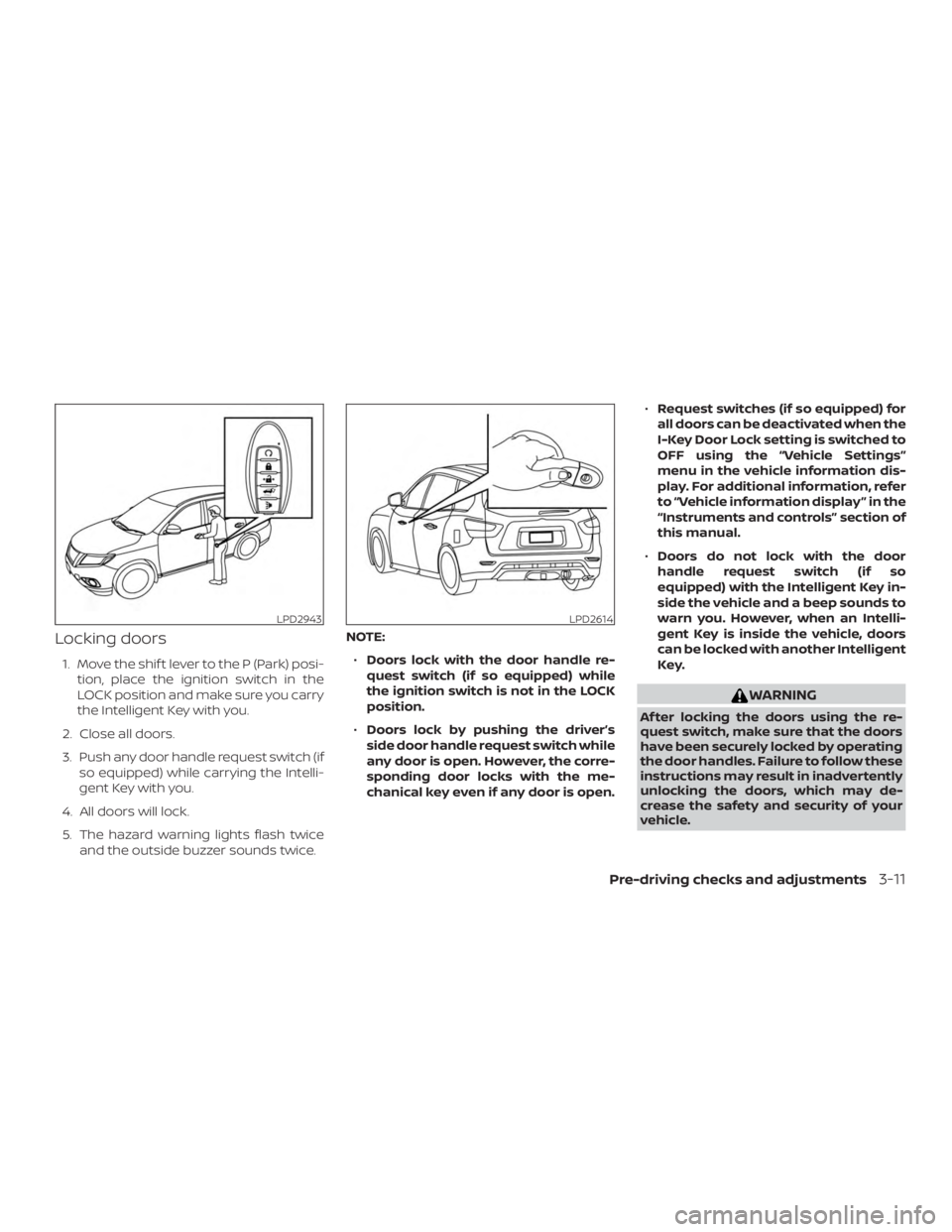
Locking doors
1. Move the shif t lever to the P (Park) posi-tion, place the ignition switch in the
LOCK position and make sure you carry
the Intelligent Key with you.
2. Close all doors.
3. Push any door handle request switch (if so equipped) while carrying the Intelli-
gent Key with you.
4. All doors will lock.
5. The hazard warning lights flash twice and the outside buzzer sounds twice. NOTE:
∙ Doors lock with the door handle re-
quest switch (if so equipped) while
the ignition switch is not in the LOCK
position.
∙ Doors lock by pushing the driver’s
side door handle request switch while
any door is open. However, the corre-
sponding door locks with the me-
chanical key even if any door is open. ∙
Request switches (if so equipped) for
all doors can be deactivated when the
I-Key Door Lock setting is switched to
OFF using the “Vehicle Settings”
menu in the vehicle information dis-
play. For additional information, refer
to “Vehicle information display ” in the
“Instruments and controls” section of
this manual.
∙ Doors do not lock with the door
handle request switch (if so
equipped) with the Intelligent Key in-
side the vehicle and a beep sounds to
warn you. However, when an Intelli-
gent Key is inside the vehicle, doors
can be locked with another Intelligent
Key.
Page 230 of 482
WARNING
∙ Failure to follow the warnings and in-structions for proper use of the Rear-
View Monitor system could result in
serious injury or death.
∙ RearView Monitor is a convenience feature and is not a substitute for
proper backing. Always turn and look
out the windows and check mirrors to
be sure that it is safe to move before
operating the vehicle. Always back up
slowly.
∙ The system is designed as an aid to the driver in showing large stationary
objects directly behind the vehicle, to
help avoid damaging the vehicle.
∙ The distance guide line and the ve- hicle width line should be used as a
reference only when the vehicle is on a
level paved surface. The distance
viewed on the monitor is for reference
only and may be different than the
actual distance between the vehicle
and displayed objects.
Page 233 of 482
Backing up behind a projecting
object
The position�Cis shown farther than the
position
�Bin the display. However, the po-
sition
�Cis actually at the same distance as
the position
�A. The vehicle may hit the object when backing up to the position
�A
if the object projects over the actual back-
ing up course.
HOW TO PARK WITH PREDICTED
COURSE LINES
Page 235 of 482
ADJUSTING THE SCREEN
To adjust the Display ON/OFF, Brightness,
Contrast, Black Level, Tint, and Color of the
RearView Monitor, press the SETTING but-
ton with the RearView Monitor on. Select
one of the items and change the value by
touching the “+” or “-” key or by turning the
multi-function controller.
NOTE:
Do not adjust the Brightness, Contrast,
Black Level, Tint, and Color of the RearView
Monitor while the vehicle is moving. Make
sure the parking brake is firmly applied.
HOW TO TURN ON AND OFF
PREDICTED COURSE LINES
To toggle on and off the predicted course
lines while in the P (Park) position:1. Press the SETTING button.
2. Touch the “Camera” or “Camera/Sonar” key.
3. Touch the “Camera” key.
4. Touch the “Predicted Course Lines” key to turn the feature on or off.
REARVIEW MONITOR SYSTEM
LIMITATIONS
Page 236 of 482
∙ When washing the vehicle with highpressure water, be sure not to spray it
around the camera. Otherwise, water
may enter the camera unit causing
water condensation on the lens, a
malfunction, fire or an electric shock.
∙ Do not strike the camera. It is a preci- sion instrument. Otherwise, it may
malfunction or cause damage result-
ing in a fire or an electric shock.
The following are operating limitations and
do not represent a system malfunction: ∙ When the temperature is extremely high or low, the screen may not clearly
display objects.
∙ When strong light directly shines on the camera, objects may not be displayed
clearly.
∙ Vertical lines may be seen in objects on the screen. This is due to strong re-
flected light from the bumper.
∙ The screen may flicker under fluores- cent light.
∙ The colors of objects on the RearView Monitor may differ somewhat from the
actual color of objects. ∙ Objects on the monitor may not be
clear in a dark environment.
∙ There may be a delay when switching between views.
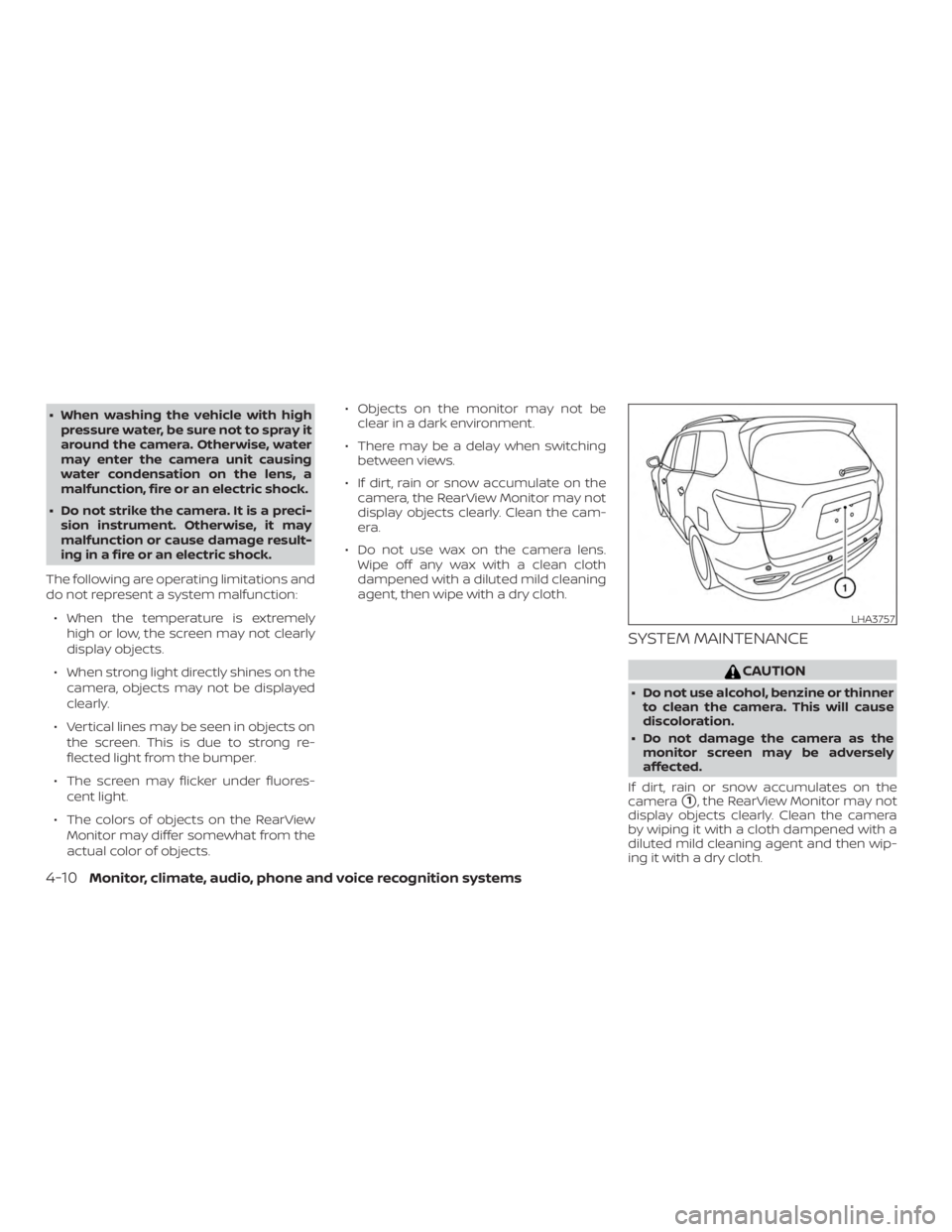
∙ If dirt, rain or snow accumulate on the camera, the RearView Monitor may not
display objects clearly. Clean the cam-
era.
∙ Do not use wax on the camera lens. Wipe off any wax with a clean cloth
dampened with a diluted mild cleaning
agent, then wipe with a dry cloth.
SYSTEM MAINTENANCE
Page 239 of 482
the Intelligent Around View Monitor, the
icons and the messages may not be dis-
played immediately.
When the camera is first activated with the
bird’s-eye view in the display, a red icon (if so
equipped) will flash on the screen. This in-
dicates that the sonar system is activated.
For additional information on the rear so-
nar system, refer to “Rear Sonar System
(RSS)” in the “Starting and driving” section of
this manual.
The screen displayed on the Intelligent
Around View Monitor will automatically re-
turn to the previous screen 3 minutes af ter
the CAMERA or CAMERA
Page 241 of 482
Bird’s-eye view
The bird’s-eye view shows the overhead
view of the vehicle, which helps confirm the
vehicle position and the predicted course
to a parking space.
The vehicle icon
�1shows the position of
the vehicle. Note that the apparent dis-
tance between objects viewed in the bird’s-
eye view may differ somewhat from the
actual distance to the vehicle.
The areas that the cameras cannot cover
�2are indicated in black. Af ter the ignition switched is placed in the
ON position, the non-viewable area
�2is
highlighted in yellow for 3 seconds af ter the
birds-eye view is displayed.
In addition, the non-viewable corners are
displayed in red and will blink for the first
3 seconds
�3to remind the driver to be
cautious.
Page 243 of 482
Backing up near a projecting
object
The predicted course lines�Ado not touch
the object in the display. However, the ve-
hicle may hit the object if it projects over
the actual backing up course.
Backing up behind a projecting
object
The position�Cis shown farther than the
position
�Bin the display. However, the po-
sition
�Cis actually at the same distance as
the position
�A. The vehicle may hit the object when backing up to the position
�A
if the object projects over the actual back-
ing up course.
HOW TO PARK WITH PREDICTED
COURSE LINES


