2021 NISSAN FRONTIER apple
[x] Cancel search: applePage 238 of 492
USB (Universal Serial Bus)
connection port
CAUTION
• Do not force the USB device into the
USB port. Inserting the USB device
tilted or up-side-down into the port
may damage the port. Make sure
that the USB device is connected cor-
rectly into the USB port.
• Do not grab the USB port cover (if so
equipped) when pulling the USB de-
vice out of the port. This could dam-
age the port and the cover.
• Do not leave the USB cable in a place
where it can be pulled unintention-
ally. Pulling the cable may damage
the port. The vehicle is not equipped with a USB de-
vice. USB devices should be purchased
separately as necessary.
This system cannot be used to format USB
memory devices. To format a USB device,
use a personal computer.
In some jurisdictions, the USB device for the
front seats plays only sound without im-
ages for regulatory reasons, even when the
vehicle is parked.
This system supports various USB
memory devices, USB hard drives and
iPod® players. Some USB devices may not
be supported by this system.
• Partitioned USB devices may not play
correctly.
• Some characters used in other lan- guages (Chinese, Japanese, etc.) may not
appear properly in the display. Using Eng-
lish language characters with a USB de-
vice is recommended.
General notes for USB use
• For additional information, refer to your device manufacturer's owner informa-
tion regarding the proper use and care of
the device. Notes for iPod® use
iPod® is a trademark of Apple Inc., regis-
tered in the U.S. and other countries.
• Improperly plugging in the iPod® may
cause a check mark to be displayed on
and off (flickering). Always make sure that
the iPod® is connected properly.
• An iPod® nano (1st Generation) may re- main in fast forward or rewind mode if it is
connected during a seek operation. In
this case, please manually reset the
iPod®.
• An iPod® nano (2nd Generation) will con- tinue to fast-forward or rewind if it is dis-
connected during a seek operation.
• An incorrect song title may appear when the Play Mode is changed while using an
iPod® nano (2nd Generation).
• Audiobooks may not play in the same order as they appear on an iPod®.
• Large video files cause slow responses in an iPod®. The vehicle center display may
momentarily black out, but will soon re-
cover.
• If an iPod® automatically selects large video files while in the shuffle mode, the
vehicle center display may momentarily
black out, but will soon recover.
4-42Monitor, climate, audio, phone and voice recognition systems
Page 257 of 492
CAUTION
• Do not force the USB device into the
USB port. Inserting the USB device
tilted or up-side-down into the port
may damage the port. Make sure
that the USB device is connected cor-
rectly into the USB port.
• Do not grab the USB port cover (if so
equipped) when pulling the USB de-
vice out of the port. This could dam-
age the port and the cover.
• Do not leave the USB cable in a place
where it can be pulled unintention-
ally. Pulling the cable may damage
the port.
For additional information, refer to your de-
vice manufacturer’s owner information re-
garding the proper use and care of the
device.
To connect an iPod® to the vehicle so that
the iPod® can be controlled with the audio
system controls and display screen, use
the USB connection port located on the
center console below the heater and air
conditioner controls. Connect the iPod®-
specific end of the cable to the iPod® and
the USB end of the cable to the USB con-
nection port on the vehicle. If your iPod®
supports charging via a USB connection, its battery will be charged while connected to
the vehicle with the ignition switch in the
ON position. The port is illuminated for bet-
ter visibility when the headlight switch is in
the ON position.
While connected to the vehicle, the iPod®
can only be operated by the vehicle audio
controls.
To disconnect the iPod® from the vehicle,
remove the USB end of the cable from the
USB connection port on the vehicle, then
remove the cable from the iPod®.
* iPod® is a trademark of Apple Inc., regis-
tered in the U.S. and other countries.
Compatibility
The following models are compatible:
• iPod® Classic 5th generation (firmware
version 1.3.0 or later)
• iPod® Classic 6th generation (firmware version 2.0.1 or later)
• iPod® Classic 7th generation (firmware version 2.0.4 or later)
• iPod® Touch 2nd generation (firmware version 4.2.1 or later)*
• iPod® Touch 3rd generation (firmware version 5.1 or later) • iPod® Touch 4th generation (firmware
version 5.1 or later)
• iPod® nano - 1st generation (firmware version 1.3.1 or later)
• iPod® nano - 2nd generation (firmware version 1.1.3 or later)
• iPod® nano - 3rd generation (firmware version 1.1.3 or later)
• iPod® nano - 4th generation (firmware version 1.0.4 or later)
• iPod® nano - 5th generation (firmware version 1.0.2 or later)
• iPod® nano - 6th generation (firmware version 1.1 or later)
• iPhone® 3G (firmware version 4.2.1 or later)
• iPhone® 3GS (firmware version 5.1 or later)
• iPhone® 4 (firmware version 5.1 or later)
• iPhone® 4S (firmware version 5.1 or later)
* Some features of this iPod® may not be
fully functional.
Make sure that your iPod® firmware is up-
dated to the version indicated above.
Monitor, climate, audio, phone and voice recognition systems4-61
Page 260 of 492
CAUTION
• Do not force the USB device into the
USB port. Inserting the USB device
tilted or up-side-down into the port
may damage the port. Make sure
that the USB device is connected cor-
rectly into the USB port.
• Do not grab the USB port cover (if so
equipped) when pulling the USB de-
vice out of the port. This could dam-
age the port and the cover.
• Do not leave the USB cable in a place
where it can be pulled unintention-
ally. Pulling the cable may damage
the port.
For additional information, refer to your de-
vice manufacturer’s owner information re-
garding the proper use and care of the
device.
To connect an iPod® to the vehicle so that
the iPod® can be controlled with the audio
system controls and display screen, use
the USB port located on the instrument
panel. Connect the iPod®-specific end of
the cable to the iPod® and the USB end of
the cable to the USB port on the vehicle. If
your iPod® supports charging via a USB
connection, its battery will be charged while connected to the vehicle with the ig-
nition switch in the ACC or ON position.
While connected to the vehicle, the iPod®
can only be operated by the vehicle audio
controls.
To disconnect the iPod® from the vehicle,
remove the USB end of the cable from the
USB port on the vehicle, then remove the
cable from the iPod®.
* iPod® is a trademark of Apple Inc., regis-
tered in the U.S. and other countries.
Compatibility
The following models are compatible:
• iPod® Classic 5th generation (firmware
version 1.3.0 or later)
• iPod® Classic 6th generation (firmware version 2.0.1 or later)
• iPod® Classic 7th generation (firmware version 2.0.4 or later)
• iPod® Touch 2nd generation (firmware version 4.2.1 or later)*
• iPod® Touch 3rd generation (firmware version 5.1 or later)
• iPod® Touch 4th generation (firmware version 5.1 or later)
• iPod® nano - 1st generation (firmware version 1.3.1 or later) • iPod® nano - 2nd generation (firmware
version 1.1.3 or later)
• iPod® nano - 3rd generation (firmware version 1.1.3 or later)
• iPod® nano - 4th generation (firmware version 1.0.4 or later)
• iPod® nano - 5th generation (firmware version 1.0.2 or later)
• iPod® nano - 6th generation (firmware version 1.1 or later)
• iPhone® 3G (firmware version 4.2.1 or later)
• iPhone® 3GS (firmware version 5.1 or later)
• iPhone® 4 (firmware version 5.1 or later)
• iPhone® 4S (firmware version 5.1 or later)
* Some features of this iPod® may not be
fully functional.
Make sure that your iPod® firmware is up-
dated to the version indicated above.
4-64Monitor, climate, audio, phone and voice recognition systems
Page 269 of 492
APPLICATION DOWNLOAD
Once connected, the NissanConnect® App
will search your phone to determine which
compatible applications are currently in-
stalled. The user will then choose which
apps they want to bring into their vehicle
from the list of apps within the “Manage My
Apps” section of the NissanConnect® App
on their smartphone. The vehicle will then
download the in-vehicle interface for each
of these compatible applications. Once
downloaded, the user can access their se-
lected smartphone applications through
the vehicle touch-screen. For additional in-
formation, refer to www.nissanusa.com/
connect or www.nissan.ca/en/connect or
www.nissan.ca/fr/connect regarding ap-
plication availability.Apple Siri® Eyes Free personal assistant
can be accessed from the vehicle. Siri Eyes
Free can be accessed in Siri Eyes Free
mode to reduce user distraction. In this
mode, Siri Eyes Free is available for interac-
tion by voice control. Af ter connecting a
compatible Apple device by using
Bluetooth®, Siri Eyes Free can be activated
from the
button on the steering
wheel.
Siri® is a trademark of Apple Inc., registered
in the U.S. and other countries.
• Some Siri Eyes Free functions, such as displaying pictures or opening apps, may
not be available while driving.
• For getting best results, always update your device to the latest sof tware version.
• Keep the interior of the vehicle as quiet as possible. Close the windows to eliminate
the surrounding noises (traffic noises, vi-
bration sounds, etc.), which may prevent
the system from recognizing the voice
commands correctly.
• For functions that can be used in Siri Eyes Free, please refer to the Apple website.
REQUIREMENTS
Siri® is only available on the iPhone® 4S or
later. Devices released before iPhone® 4S
are not supported by the Siri® Eyes Free
system. Visit www.apple.com/ios/siri for
details about device compatibility.
Siri must be enabled on the phone. Please
check phone settings.
If the device has a lock screen, Siri must be
accessible from the lock screen. Please
check phone settings.
For best results, always update your device
to the latest sof tware version.
SIRI® EYES FREE (models without
Navigation System) (if so equipped)
Monitor, climate, audio, phone and voice recognition systems4-73
Page 272 of 492
Apple Siri® Eyes Free personal assistant
can be accessed from the vehicle. Siri Eyes
Free can be accessed in Siri Eyes Free
mode to reduce user distraction. In this
mode, Siri Eyes Free is available for interac-
tion by voice control. Af ter connecting a
compatible Apple device by using
Bluetooth®, Siri Eyes Free can be activated
from the
button on the steering
wheel.
Siri® is a trademark of Apple Inc., registered
in the U.S. and other countries.
• Some Siri Eyes Free functions, such as displaying pictures or opening apps, may
not be available while driving.
• For best results, always update your de- vice to the latest sof tware version.
• Keep the interior of the vehicle as quiet as possible. Close the windows to eliminate
the surrounding noises (traffic noises, vi-
bration sounds, etc.), which may prevent
the system from recognizing the voice
commands correctly.
• For functions that can be used in Siri Eyes Free, please refer to the Apple website.
REQUIREMENTS
Siri® is only available on the iPhone® 4S or
later. Devices released before iPhone® 4S
are not supported by the Siri® Eyes Free
system. Visit www.apple.com/ios/siri for
details about device compatibility.
Siri must be enabled on the phone. Please
check phone settings.
If the device has a lock screen, Siri must be
accessible from the lock screen. Please
check phone settings.
For best results, always update your device
to the latest sof tware version.
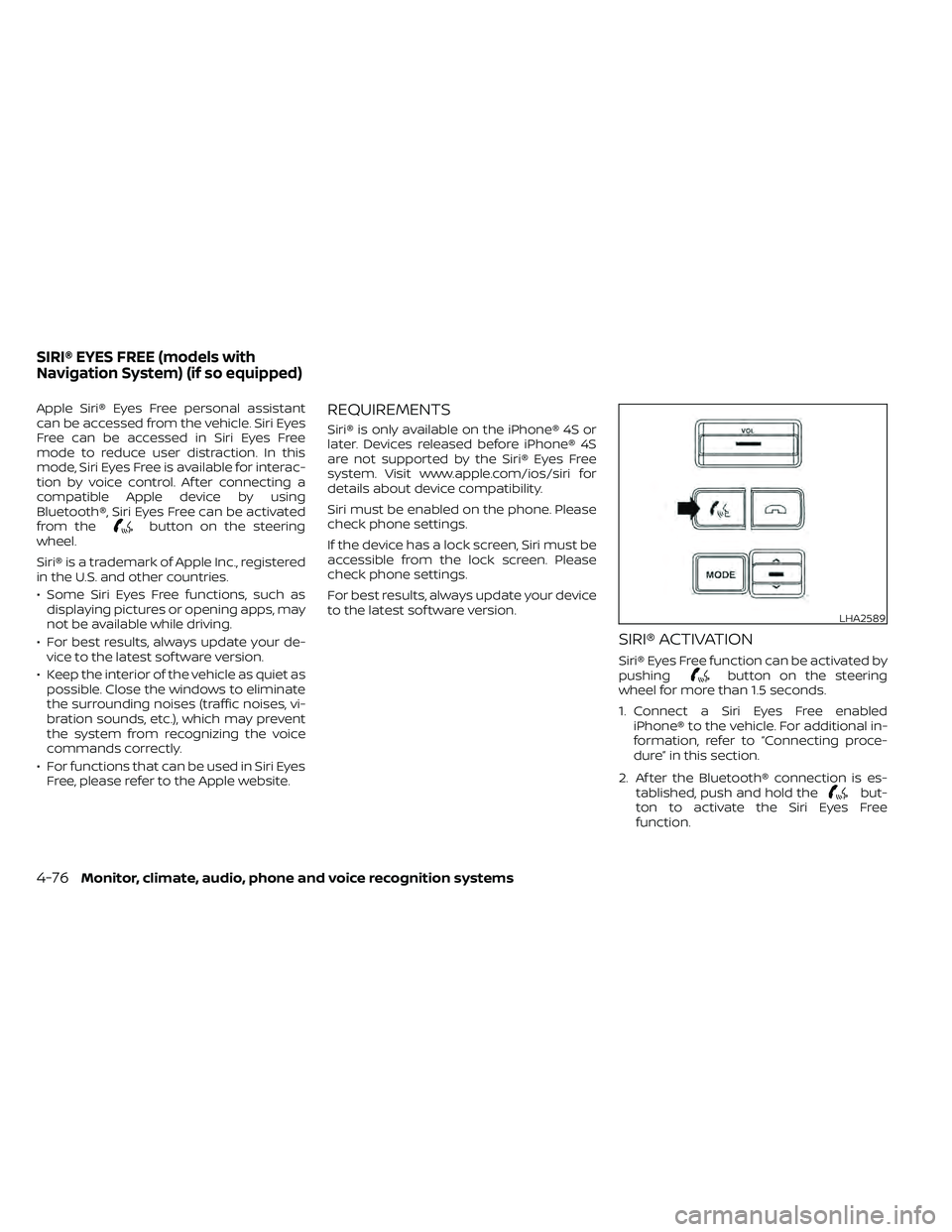
SIRI® ACTIVATION
Siri® Eyes Free function can be activated by
pushingbutton on the steering
wheel for more than 1.5 seconds.
1. Connect a Siri Eyes Free enabled iPhone® to the vehicle. For additional in-
formation, refer to “Connecting proce-
dure” in this section.
2. Af ter the Bluetooth® connection is es- tablished, push and hold the
but-
ton to activate the Siri Eyes Free
function.
LHA2589
SIRI® EYES FREE (models with
Navigation System) (if so equipped)
Page 287 of 492
Reading a received text message
1. Press and hold the
button on the
steering wheel for less than 1.5 seconds.
2. Say “Read Text” af ter the tone.
The display will show a list of 20 messages
with the sender and delivery time. Touch
the “Next” key on the screen to view all mes-
sages. To view a text message press the
button on the steering wheel and
speak the number item list on the screen.
The following options will be available:
• Play Speak this command to have the system
say the message.
• Reply Speak this command to send a text mes-
sage response to the sender of the text
message.
• Call Speak this command to call the sender.
• Previous Speak this command to move to the pre-
vious text message (if available).
•Next Speak this command to move to the next
text message (if available). Siri® Eyes Free (if so equipped)
If a connected phone is equipped with Siri®,
it can also be used to create custom mes-
sages that are sent through the phone. For
additional information, refer to “Siri® Eyes
Free (models without Navigation System)”
in this section.
NOTE:
Text messages are only displayed if the
vehicle speed is less than 5 mph (8 km/h).
NOTE:
For Apple iPhones®, text messages can
only be sent through Siri.
Text messaging using the control
panel
Display received message list
1. Press the
button on the control
panel.
2. Touch the “Text Message” key on the screen
3. Touch an item on the list to read or reply to the message.
Up to 100 messages can be stored in the
message list. Received message screen
Touching the “Read” key on the incoming
message notification screen or selecting a
message from the message list will show
the details of the received message on the
display.
Available actions:
•Prev.
Touch this key to read the previous mes-
sage.
•Next Touch this key to read the next message.
• Play/Stop Touch the “Play ” key to have the hands-
free phone system read out the received
message. Touch the “Stop” key to stop
reading.
• Call If the sender of the message is registered
in the phonebook, touch the “Call” key to
make a call to the sender.
• Reply A reply message can be selected from
the predefined list or by a custom mes-
sage.
Monitor, climate, audio, phone and voice recognition systems4-91
Page 298 of 492
Reading a received text message:
1. Press the
button on the steering
wheel.
2. Say “Phone” af ter the tone.
3. Say “Read Text” af ter the tone.
The text message, sender and delivery
time are shown on the screen. Use the
buttons to scroll through all text mes-
sages if more than one are available. Press
the
button to exit the text message
screen. Press thebutton to access
the following options for replying to the text
message:
• Call Back Speak this command to call the sender of
the text message using the Bluetooth®
Hands-Free Phone System. • Send Text
Speak this command to send a text mes-
sage response to the sender of the text
message.
• Read Text Speak this command to read the text
message again.
• Previous Text Speak this command to move to the pre-
vious text message (if available).
• Next Text Speak this command to move to the next
text message (if available). Siri® Eyes Free (if so equipped)
If a connected phone is equipped with Siri®,
it can also be used to create custom mes-
sages that are sent through the phone. For
additional information, refer to “Siri® Eyes
Free (models with Navigation System)” in
this section.
NOTE:
Text messages are only displayed if the
vehicle speed is less than 5 mph (8 km/h).
NOTE:
For Apple iPhones®, text messages can
only be sent through Siri.
4-102Monitor, climate, audio, phone and voice recognition systems
Page 307 of 492
“Made for iPod”, “Made for iPhone” and
“Made for iPad” mean that an electronic
accessory has been designed to connect
specifically to iPod, iPhone or iPad, respec-
tively, and has been certified by the devel-
oper to meet Apple performance stan-
dards. Apple is not responsible for the
operation of this device or its compliance
with safety and regulatory standards.
Please note that the use of this accessory
with iPod, iPhone or iPad may affect wire-
less performance.
iPad, iPhone, iPod classic, iPod nano, iPod
shuffle and iPod touch are trademarks of
Apple Inc., registered in the U.S. and other
countries. Lightning is a trademark of
Apple Inc.
iPod®/IPHONE®
Monitor, climate, audio, phone and voice recognition systems4-111