2021 NISSAN ARMADA USB
[x] Cancel search: USBPage 566 of 603

WARNING
•It is unlawful in most jurisdictions for
a person to drive a motor vehicle
which is equipped with a television
monitor or screen that is visible, di-
rectly or indirectly, to the driver while
operating the vehicle. In the interest
of safety, the unit should never be
installed where it will be directly or
indirectly visible, by the operator of
the motor vehicle.
•If your vehicle is equipped with a
wireless rear seat audio system or
any other wireless infrared device,
make sure it is powered off when op-
erating the RSI system. If both sys-
tems are powered on at the same
time, the two systems may obstruct
each other, possibly creating unde-
sirable audio interference through
the wireless headphones.
•For safety reasons when changing
discs, it is recommended that the ve-
hicle is not in motion, and that you do
not allow children to unfasten safety
belts to change discs or make any
adjustments to the system. System
adjustments can be accomplished
using the remote control, while
safety belts remain fastened.•Enjoy your RSI system but remember
that safety of all passengers remains
the number one priority. Devices in-
stalled in the USB, HDMI, or head-
phone jack may protrude and create
a potential eye impact hazard for un-
belted passengers during a vehicle
accident. To reduce the risk of injury,
use only SD cards (hidden on lef t side
of driver side monitor) or low-profile
USB storage devices.
CAUTION
•Do not touch the inner pins of the
jacks on the front panel. Electrostatic
discharge may cause permanent
damage to the device.
•The LCD display screen is not touch-
screen. Do not put pressure or add
suction cups on the screen.
•Caution children to avoid touching or
scratching the screen, as it may be-
come dirty or damaged.•Be sure to run the vehicle engine
while using the system. Using this
system without running the engine
can result in battery drain. To avoid
the risk of battery drain, please re-
member to turn off the system when
the vehicle is not in use.
WELCOME
Thank you for purchasing this advanced
Rear Seat Infotainment (RSI) system with
built-in Wi-Fi. Before operating this system,
read this section thoroughly and retain it
for future reference.
System features
• Twin 8-inch Color TFT-LCD Panels with
1024x600 Resolution
• Internal Wi-Fi Network
• Bluetooth® 4.1 Audio Streaming
• Miracast®/Smart View Capability
• SmartStream Content Sharing
• USB 2.0 Port, SDXC Card Input
• HDMI 1.4 Input with MHL 2.0 Support
• Exclusive Slingplayer® Application
• 3.5mm Stereo Headphone Output
• Front Panel Capacitive Touch Controls
• Infrared Wireless Headphones
REAR SEAT INFOTAINMENT (RSI) (if
so equipped)
Page 568 of 603

Audio options
Wireless headphones
Each monitor includes a built-in dual chan-
nel infrared transmitter for use with wire-
less headphones. The wireless head-
phones must be used within a line of sight
from the transmitter as infrared signals, like
visible light, travel only in a straight line.
How to use the wireless headphones
When placing the headphones on your
head, make sure to observe the lef t and
right orientation. The headphones must be
oriented correctly (facing forward) to re-
ceive the audio signal. Press the
(power) button on the headphones,
then select channel “A” to listen to monitor
A, or channel “B” to listen to monitor B. Ad-
just the audio level using the volume con-
trol on each headphone.
Wired headphones
There is a 3.5mm stereo headphone out-
put on each monitor which can be used
with most standard stereo headphones
(wired headphones sold separately).
Bluetooth® streaming audio
To listen to audio throughout the entire ve-
hicle, the system includes the ability tostream audio over a Bluetooth® connec-
tion to the vehicle’s stereo system.
When monitor A is selected as the source
to stream from, the audio output to the
wireless and wired headphones will be dis-
abled (only on monitor A). To use the wire-
less or wired headphones with monitor A,
you must turn off the Bluetooth® stream-
ing feature. To enable/disable Bluetooth®
streaming, navigate to the “SETTINGS”
menu, or press
on the remote control
during content playback. For additional in-
formation, see “Settings” in this section.
Media compatibility
For a list of compatible media formats for
this system, see “Storage device format-
ting” in this section.
• The metadata or file information of some
audio and video files may not be correctly
displayed.
• It is not possible to play content that is
protected by DRM (Digital Rights Manage-
ment).
• There may be a delay before playback
begins when using USB flash drives or SD
cards with complex folder hierarchies or
many files.• Some audio, video, and image files may
be incompatible with this system due to
file characteristics, file format, recording
sof tware used, directory structure,
and/or the type of audio/video encoding
used.
Storage device formatting
This system is compatible with several
types of formatting for USB flash drives and
SD cards. Refer to the documentation that
comes with your storage device for more
details on how to format.
FAT32 - USB and SDHC
Good for smaller capacity storage devices,
but individual files on the drive must be
<4GB. This format is good for music and
images.
EX-FAT - USB and SDXC
Better choice for larger capacity storage
devices with files that are >4GB. This format
is better for larger files such as full-length
movies.
NTFS - USB and SDXC
Best choice for very large capacity storage
devices - with no limitations on file size. This
format can be used for all file sizes.
Page 571 of 603
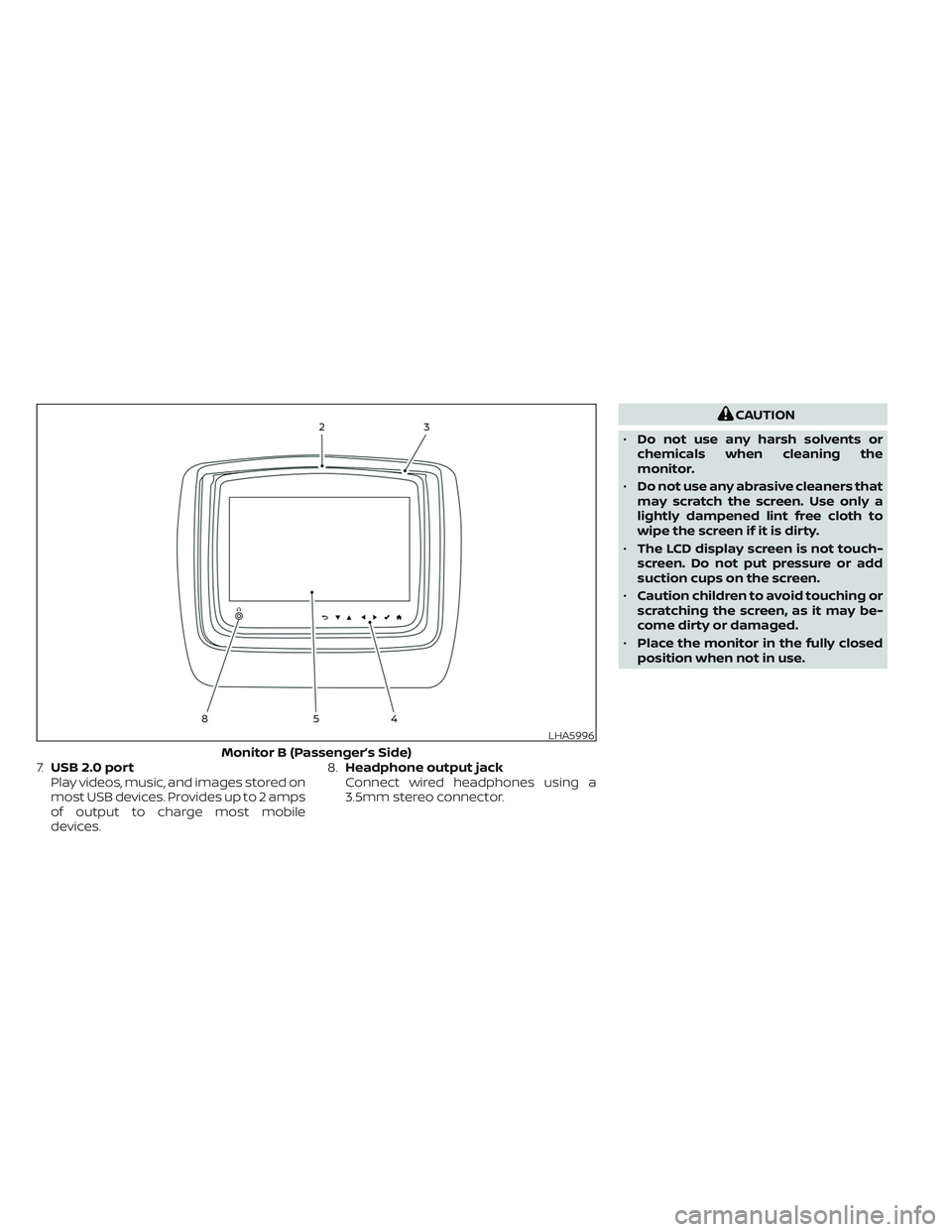
7.USB 2.0 port
Play videos, music, and images stored on
most USB devices. Provides up to 2 amps
of output to charge most mobile
devices.8.Headphone output jack
Connect wired headphones using a
3.5mm stereo connector.
CAUTION
•Do not use any harsh solvents or
chemicals when cleaning the
monitor.
•Do not use any abrasive cleaners that
may scratch the screen. Use only a
lightly dampened lint free cloth to
wipe the screen if it is dirty.
•The LCD display screen is not touch-
screen. Do not put pressure or add
suction cups on the screen.
•Caution children to avoid touching or
scratching the screen, as it may be-
come dirty or damaged.
•Place the monitor in the fully closed
position when not in use.
LHA5996
Monitor B (Passenger’s Side)
Page 575 of 603
CAUTION
•Always ensure that the batteries are
inserted with the positive and nega-
tive terminals in the correct direction
as shown in the battery
compartment.
•Different types of batteries have dif-
ferent characteristics. Do not mix dif-
ferent types.
•Do not mix old and new batteries.
Mixing old and new batteries will
shorten battery life and/or cause
chemical leaks from the old
batteries.
•When batteries fail to function, re-
place them immediately.
•Keep the batteries out of the reach of
children. In case the batteries are ac-
cidentally swallowed, immediately
consult a doctor. Also, when dispos-
ing of used batteries, please comply
with governmental regulations or
environmental public institution
rules that apply in your country/area.
•Remove the batteries if the head-
phones are not used for a month or
longer.
GENERAL OPERATION
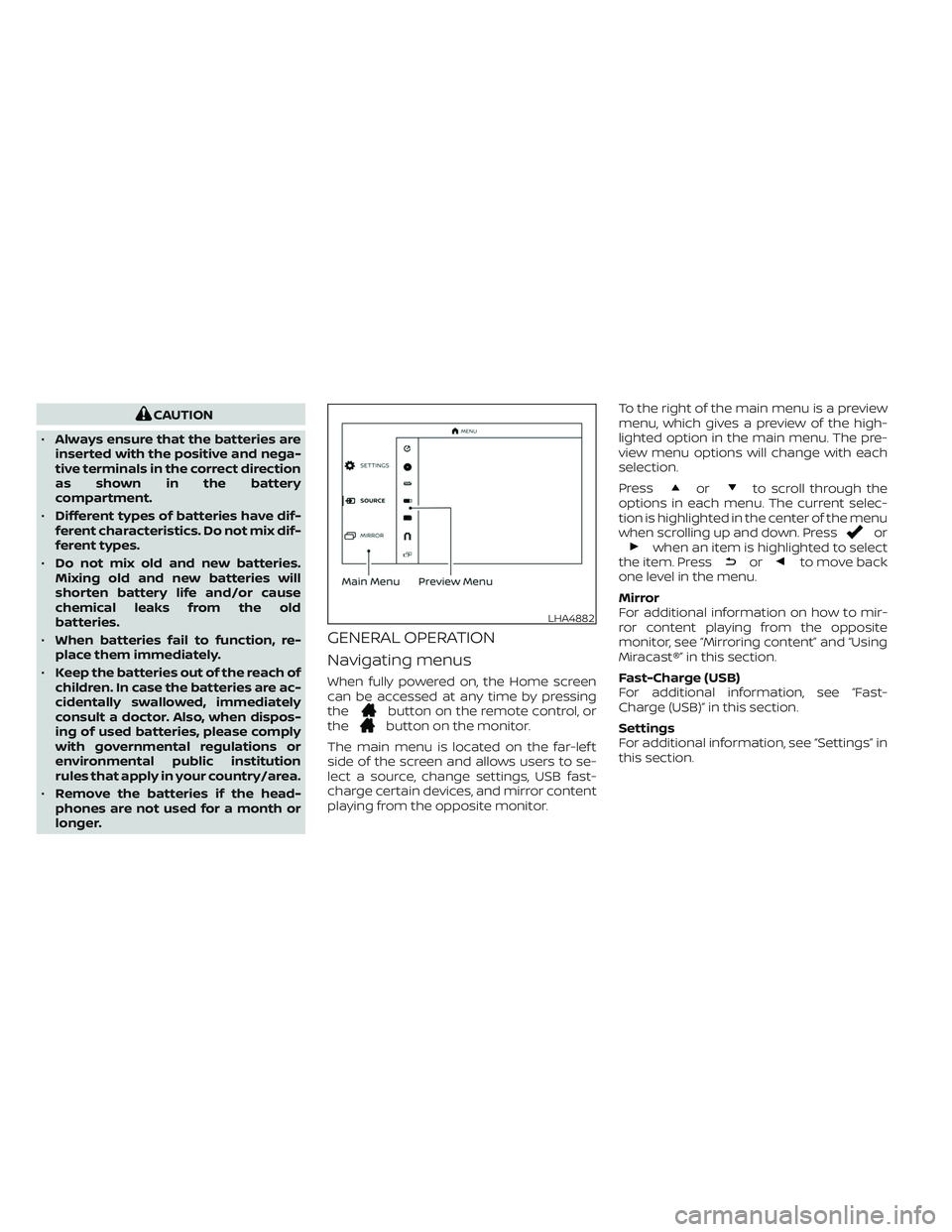
Navigating menus
When fully powered on, the Home screen
can be accessed at any time by pressing
the
button on the remote control, or
thebutton on the monitor.
The main menu is located on the far-lef t
side of the screen and allows users to se-
lect a source, change settings, USB fast-
charge certain devices, and mirror content
playing from the opposite monitor.To the right of the main menu is a preview
menu, which gives a preview of the high-
lighted option in the main menu. The pre-
view menu options will change with each
selection.
Press
orto scroll through the
options in each menu. The current selec-
tion is highlighted in the center of the menu
when scrolling up and down. Press
orwhen an item is highlighted to select
the item. Pressorto move back
one level in the menu.
Mirror
For additional information on how to mir-
ror content playing from the opposite
monitor, see “Mirroring content” and “Using
Miracast®” in this section.
Fast-Charge (USB)
For additional information, see “Fast-
Charge (USB)” in this section.
Settings
For additional information, see “Settings” in
this section.
LHA4882
Page 576 of 603

Sources
The following sources can be accessed
from the main menu:
HDMI
Play content from an external audio/video
source.
USB
Play videos, music, and images stored on
most USB devices.
SD CARD
Play videos, music, and images stored on
most SD cards.Slingplayer®
Stream content wirelessly from a Slingbox®
(sold separately) to the RSI system. *Re-
quires external internet connection.
Miracast®
Stream content wirelessly from a Miracast-
enabled device to the RSI system.
SmartStream
Stream content wirelessly between mobile
devices and to the RSI system. *Requires
compatible UPnP application to be in-
stalled on the mobile device. For additional
information, see “SmartStream” in this sec-
tion.
NOTE:
The top lef t corner of the screen in-
cludes a graphic representation that
shows the navigational path of the
current menu. For example: Home >
Source > HDMI.VIDEO OPERATION
Volume control
Volume level can be adjusted by pressingorany time video is playing, or by
selecting the volume icon in the playback
controls menu.
LHA4883LHA4885
Page 578 of 603
NOTE:
HDMI connected devices are indepen-
dent and must be controlled directly
from the source device.
MHL connection
The system also allows mobile devices
supporting Mobile High-Definition Link
(MHL) to be connected. An MHL-to-HDMI
cable is required (sold separately).
Mobile High-Definition Link (MHL) is an in-
dustry standard mobile audio/ video inter-
face that allows connection of smart-
phones, tablets, and other portable
consumer electronics devices to the sys-
tem. MHL transports high-quality uncom-
pressed audio and video from a mobile
source device to the system and at the
same time provides power to recharge the
device.
NOTE:
MHL connected devices are independent
and must be controlled directly from the
source device.
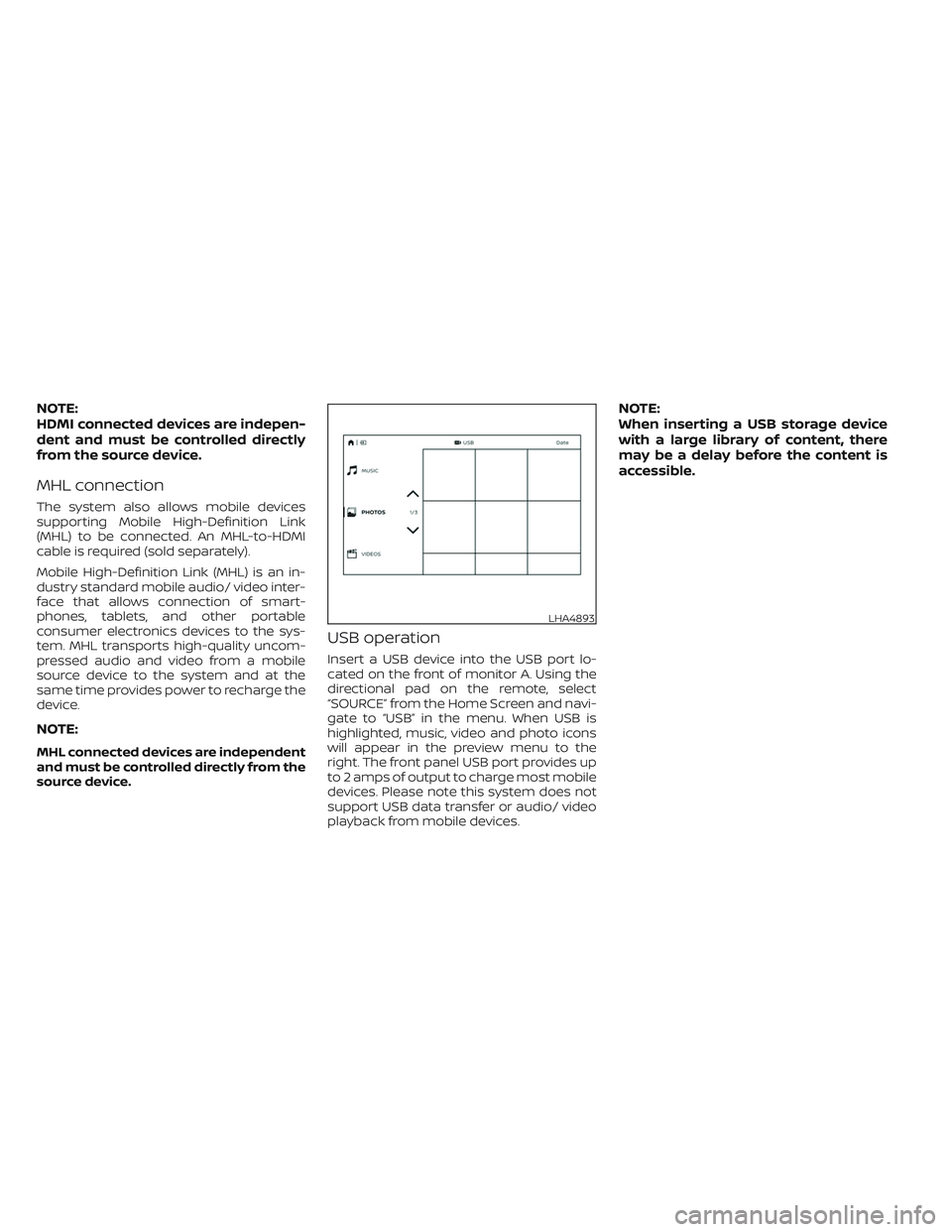
USB operation
Insert a USB device into the USB port lo-
cated on the front of monitor A. Using the
directional pad on the remote, select
“SOURCE” from the Home Screen and navi-
gate to “USB” in the menu. When USB is
highlighted, music, video and photo icons
will appear in the preview menu to the
right. The front panel USB port provides up
to 2 amps of output to charge most mobile
devices. Please note this system does not
support USB data transfer or audio/ video
playback from mobile devices.
NOTE:
When inserting a USB storage device
with a large library of content, there
may be a delay before the content is
accessible.
LHA4893
Page 579 of 603
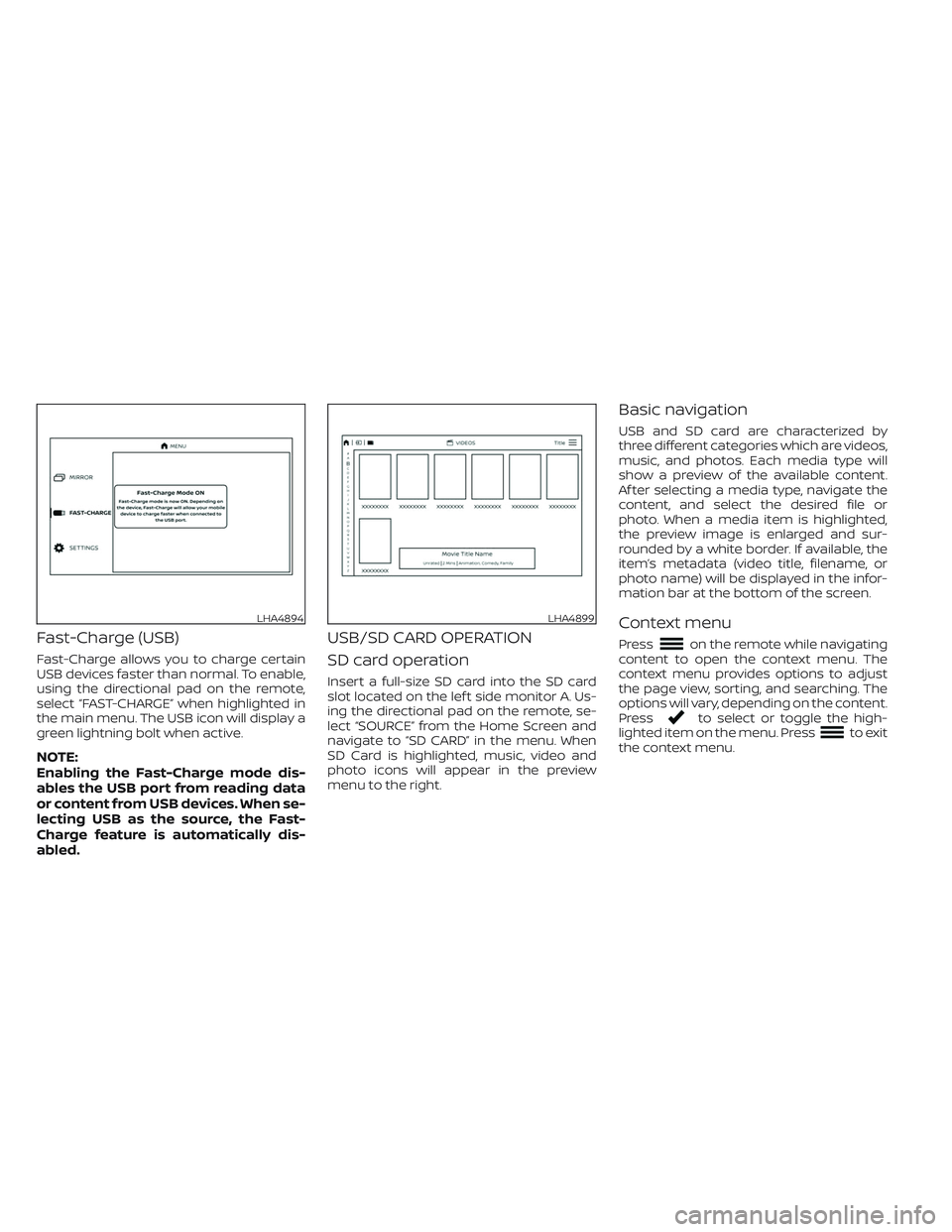
Fast-Charge (USB)
Fast-Charge allows you to charge certain
USB devices faster than normal. To enable,
using the directional pad on the remote,
select “FAST-CHARGE” when highlighted in
the main menu. The USB icon will display a
green lightning bolt when active.
NOTE:
Enabling the Fast-Charge mode dis-
ables the USB port from reading data
or content from USB devices. When se-
lecting USB as the source, the Fast-
Charge feature is automatically dis-
abled.
USB/SD CARD OPERATION
SD card operation
Insert a full-size SD card into the SD card
slot located on the lef t side monitor A. Us-
ing the directional pad on the remote, se-
lect “SOURCE” from the Home Screen and
navigate to “SD CARD” in the menu. When
SD Card is highlighted, music, video and
photo icons will appear in the preview
menu to the right.
Basic navigation
USB and SD card are characterized by
three different categories which are videos,
music, and photos. Each media type will
show a preview of the available content.
Af ter selecting a media type, navigate the
content, and select the desired file or
photo. When a media item is highlighted,
the preview image is enlarged and sur-
rounded by a white border. If available, the
item’s metadata (video title, filename, or
photo name) will be displayed in the infor-
mation bar at the bottom of the screen.
Context menu
Presson the remote while navigating
content to open the context menu. The
context menu provides options to adjust
the page view, sorting, and searching. The
options will vary, depending on the content.
Press
to select or toggle the high-
lighted item on the menu. Pressto exit
the context menu.
LHA4894LHA4899
Page 581 of 603
Sorting — videos
Using the directional pad on the remote,
select “SORTING” to select between Title,
Rating, Year, Filename, or Genre.
Sorting — music
Using the directional pad on the remote,
select “SORTING” to select between Artist,
Album, Year, Filename, Song, or Genre.
Sorting — photos
Using the directional pad on the remote,
select “SORTING” to select between Date or
Filename.
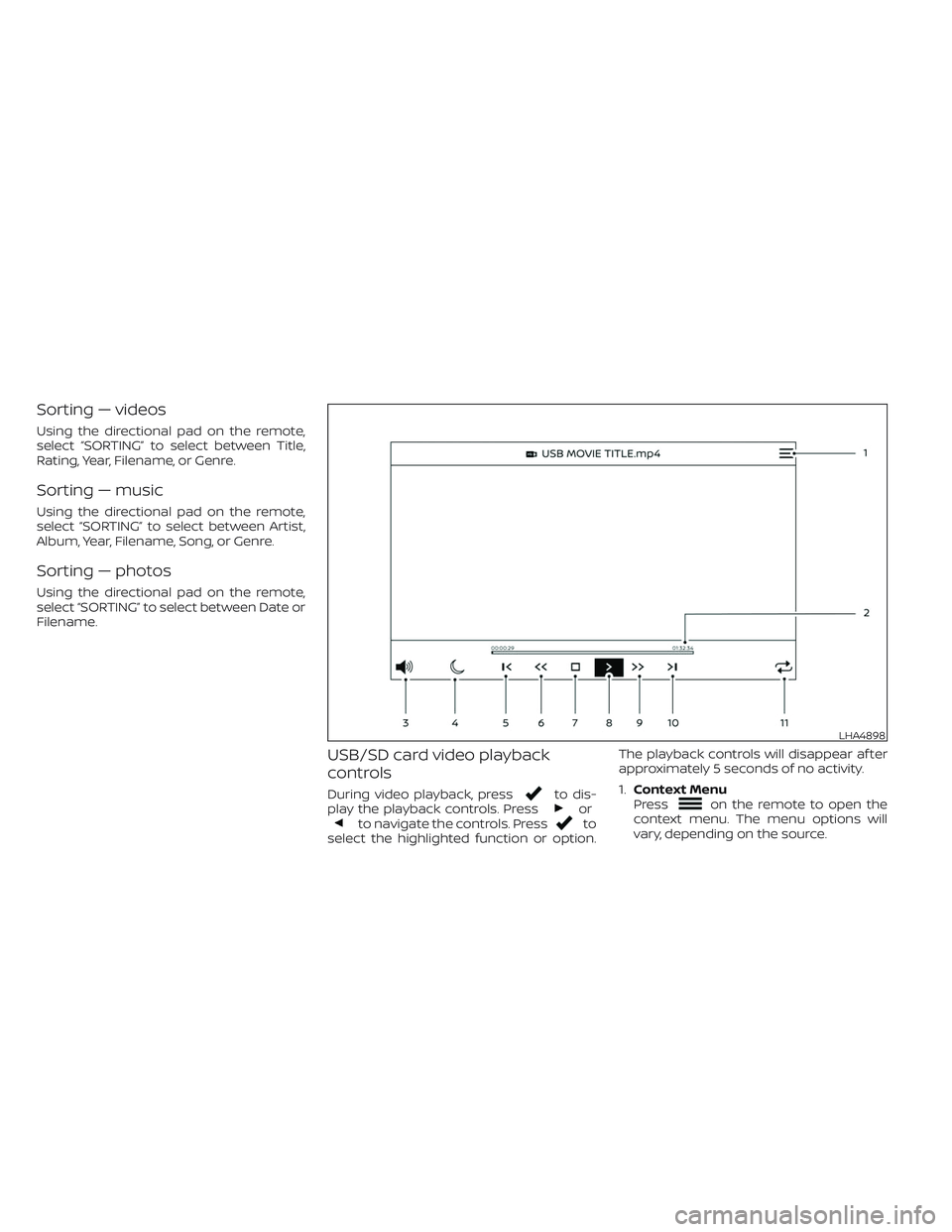
USB/SD card video playback
controls
During video playback, pressto dis-
play the playback controls. Pressorto navigate the controls. Pressto
select the highlighted function or option.The playback controls will disappear af ter
approximately 5 seconds of no activity.
1.Context Menu
Press
on the remote to open the
context menu. The menu options will
vary, depending on the source.
LHA4898