2021 MERCEDES-BENZ GLE COUPE navigation
[x] Cancel search: navigationPage 10 of 525
1
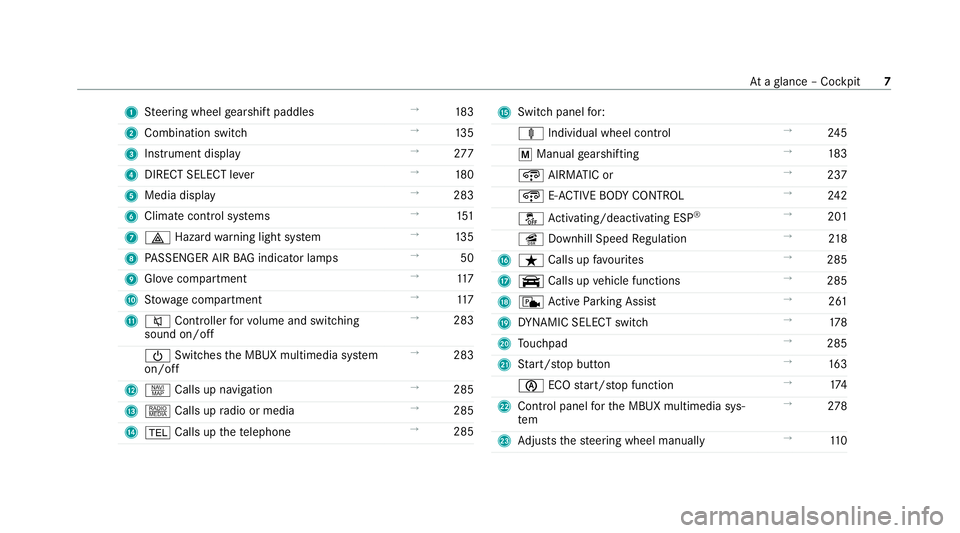
Steering wheel gearshift paddles →
183
2 Combination swit ch →
13 5
3 Instrument display →
277
4 DIRECT SELECT le ver →
180
5 Media display →
283
6 Climate contro l systems →
151
7 002F Hazardwa rning light sy stem →
13 5
8 PASSENGER AIR BAG indicator lamps →
50
9 Glovecompa rtment →
11 7
A Stow age compartment →
11 7
B 0063 Controller forvo lume and switching
sound on/off →
283
00D0 Switches the MBUX multimedia sy stem
on/off →
283
C z Calls up navigation →
285
D | Calls up radio or media →
285
E 002B Calls up thete lephone →
285 F
Swit chpanel for:
ä Individual wheel control →
24 5
0063 Manual gearshifting →
183
¿ AIRMATIC or →
237
¿ E-AC TIVE BODY CONTROL →
24 2
00BB Activating/deactivating ESP ®
→
201
î Downhill Speed Regulation →
218
G ß Calls up favo urites →
285
H y Calls up vehicle functions →
285
I c Active Parking Assist →
261
J DYNA MIC SELECT switch →
178
K Touchpad →
285
L Start/ stop button →
16 3
00D6 ECOstart/ stop function →
174
M Control panel forth e MBUX multimedia sys‐
tem →
278
N Adjusts thesteering wheel manually →
11 0 At
aglance – Cockpit 7
Page 40 of 525
data can also be used
toexamine the cus tom‐
er's warranty and guarantee claims.
Fa ult memories in theve hicle can be reset by a
service outlet or at your requ est as part of repair
or maintenance work.
Con venience and inf otainment functions
Yo u can store con venience settings and individ‐
ual settings in theve hicle and change or reset
th em at any time.
Depending on theve hicle equipment, this
includes thefo llowing settings, forex ample:
R seat and steering wheel positions
R suspension and climate control settings
R individual settings, such as interior lighting
Depending on the selected equipment, you can
import data into vehicle inf otainment functions
yo urself.
Depending on theve hicle equipment, this
includes thefo llowing data, forex ample:
R multimedia data, such as music, films or pho‐
to sfo r playback in an integrated multimedia
sy stem R
address book data for use in connection with
an integrated hands-free sy stem or an inte‐
grated navigation sy stem
R entered navigation destinations
R data about the use of Internet services
These data for con venience and inf otainment
functions may be sa ved locally in theve hicle or
th ey may be located on a device which you ha ve
connected totheve hicle, such as a smartphone,
USB flash drive or MP3 pla yer.If yo u ha ve
entered these data yourself, you can dele tethem
at any time.
This data is transmit ted from theve hicle tothird
parties only at your requ est. This applies, in par‐
ticular, when you use online services in accord‐
ance with the settings that you ha veselected.
Smartphone integ ration (e.g. Android Autoor
Apple CarPlay ®
)
If yo ur vehicle is accordingly equipped, you can
connect your smartphone or ano ther mobile end
device totheve hicle. You can then control them
by means of the control elements integrated in
th eve hicle. Images and audio from the smart‐ phone can be output via
the multimedia sy stem.
Cer tain information is simultaneously transfer‐
re dto yo ur smartphone. Depending on the type
and integration, this includes position data, day/
night mode and other general vehicle statuses.
Fo r more information please consult the Owner's
Manual of theve hicle/inf otainment sy stem.
This integration allo wsthe use of selected
smartphone apps, such as navigation or music
pla yer apps. There is no fur ther interaction
between the smartphone and theve hicle; in par‐
ticular, vehicle data is not directly accessible.
The type of additional data processing is de ter‐
mined bythe pr ovider of the app being used.
Which settings you can make, if an y,depends on
th e specific app and the operating sy stem of
yo ur smartphone. Online services
Wi
reless network connection
If yo ur vehicle has a wireless network connec‐
tion, it enables data tobe exc hanged between
yo ur vehicle and additional sy stems. The wire‐
less network connection is made possible bythe Gene
ral no tes 37
Page 50 of 525
R
There are no objects between the seat, door
and door pillar (B-pillar).
R There are no hard objects, e.g. coat hangers,
hanging on the grab handles or coat hooks.
R There are no accessory parts, such as mobile
navigation devices, mobile phones or cup
holders, within the deployment area of an air‐
bag, e.g. on the cockpit, on the door, on the
side window or on the side trim.
In addition, no connecting cables, tensioning
st ra ps or retaining stra ps must be routed or
attached totheve hicle within the deploy‐
ment area of an airbag. Alw ays comply with
th e accessory manufacturer's ins tallation
instructions and, in particular, the no tes on
suitable places for ins tallation.
R There are no heavy, sharp-edged or fragile
objects in the poc kets of your clo thing. Store
such objects in a suitable place. Limited pr
otection pr ovided byairbags &
WARNING Risk of injury duetomodifi‐
cations tothe co ver of an airbag
If yo u modify the co ver of an airbag or af fix
objects such as sticke rs to it,the airbag may
no longer function cor rectl y. #
Never modify the co ver of an airbag and
do not af fix objects toit. The ins
tallation location of an airbag is identified
by the AIRB AGsymbol (/ page 45). &
WARNING Risk of injury or death dueto
th e use of unsuitable seat co vers
Due tounsuitable seat co vers,th e airbags
cann otprotect vehicle occupants as inten‐
ded.
In addition, the operation of the automatic
front passenger airbag shutoff could be
re stricted. #
You should on lyuse seat co vers that
ha ve been appr oved forth e cor respond‐
ing seats byMercedes-Benz. &
WARNING Risk of injury duetomalfunc‐
tioning sensors in the door
The function of the airbags can be impaired
due tomodifications or incor rect wo rkper‐
fo rm ed on the doors or door trim, or if the
doors are damaged. #
Never modify the doors or parts of the
doors. #
Alw ays ha vewo rkon the doors or door
trim car ried out at a qualified specialist
wo rkshop. &
WARNING Risk of injury duetodeplo yed
airbag
A deplo yed airbag no longer of fers any pro‐
te ction. Occupant saf
ety47
Page 180 of 525
R
Ifth ere is glare, e.g. from oncoming traf fic,
di re ct sunlight or reflections.
R Ifth ere is dirt on the windscreen in the area
of the multifunction camera or the camera is
mis ted up, damaged or obscured.
R Ifro ad signs are hard todetect, e.g. due to
dirt, snow or insuf ficient lighting, or because
th ey are obscured.
R Ifth e information on the navigation sy stem's
digital map is incor rect or out of date.
R If signs are ambiguous, e.g. road signs in
ro adwor ksor in adjacent lanes. DY
NA MIC SELECT switch Fu
nction of theDY NA MIC SELECT switch *
NO
TEMercedes-AMG vehicles #
Obser vethe no tes in the Supplement.
Yo u could otherwise failto recognise
dangers. *
NO
TEPlug-in hybrid #
Obser vethe no tes in the Supplement.
Yo u could otherwise failto recognise
dangers. %
Depending on the engine and equipment,
th eve hicle has dif fere nt drive programs.
Use theDY NA MIC SELECT switch tochange
between thefo llowing drive programs.
The drive prog ram selected appears in the multi‐
function display of the on-board computer.
= Individual
R Individual settings
B Sport+
R Particular lysporty driving
R Emphasises theve hicle's ownove rste ering
and under steering characteristics for a more
active driving style
R Only suitable for good road conditions, a dry
ro ad sur face and a clear stre tch of road C
Sport
R Continues toofferst ability but with a sporty
setup
R Allo wsthe sporty driver a more active driving
st yle
R Only suitable for good road conditions, a dry
ro ad sur face and a clear stre tch of road
A Comfort
R Comfor table and economical driving
R Balance between traction and stability
R Recommended for all road conditions
; Eco
R Particularly economical driving
R Balance between traction and stability
R Recommended for all road conditions
N Curve
R Onlyavailable forve hicles with E‑ACTIVE
BO DY CONTROL
R Comfor table driving with cur veinclination
function Driving and parking
17 7
Page 232 of 525
This is displa
yed continuously if theve hicle is in
a country where Speed Limit Assist is not sup‐
por ted. Speed Limit Assist is not available in all
countries.
Sy stem limits
The sy stem may be impaired or may not function
in thefo llowing situations:
R Ifth ere is poor visibility, e.g. due toinsuf fi‐
cient illumination of thero ad, if there are
highly variable shade conditions or in rain,
sno w,fog or heavy spr ay.
R Ifth ere is glare, e.g. from oncoming traf fic,
di re ct sunlight or reflections.
R Ifth e windscreen in the area of the multi‐
function camera is dirty, or if the camera is
mis ted up, damaged or co vered.
R Ifth e tra ffic signs are hard todetect, e.g. due
to dirt, snow or insuf ficient lighting, or
because they are co vered. R
Ifyo u turn sharply when passing traf fic signs
outside the camera's field of vision.
Setting Speed Limit Assist
Multimedia sy stem:
4 © 5
Settings 5
Assistance
5 Speed Limit Assist
Ad justing the type of warning #
Select Visual & audible ,Visual orNone.
Ad justing the warning threshold
This value de term ines the speed at which a
wa rning is issued when exceeded. #
Select Warning threshold. #
Set the desired speed.
% If one of thefo llowing sy stems is activated,
th e speed de tected can be manually adop ted
as the speed limit:
R Active Dis tance Assi stDISTRONIC
R Cruise control
R Variable limiter
Fu rther information (/ page214). Tr
af fic Sign Assist Fu
nction of Traf fic Sign Assist
Tr af fic Sign Assi stdetects traf fic signs wi th the
multifunction camera (/ page198). It assi sts
yo uby displaying de tected speed limits and
ove rtaking restrictions in the instrument clus ter.
Obser vethe no tes on driving sy stems and your
re sponsibility; you may otherwise failto recog‐
nise dangers (/ page 198).
Since Traf fic Sign Assi stalso uses the data
st ored in the navigation sy stem, it can update
th e display in thefo llowing situations without
de tecting traf fic signs.
If th e sy stem de tects that you are driving on to a
section of road in the wrong direction of trav el, it
triggers a warning.
The camera also de tects traf fic signs wi th a
re striction indicated byan additional sign (e.g.
when wet). These are only displa yed if a restric‐
tion applies or if the sy stem cann otclearly de ter‐
mine whe ther there striction applies. Driving and park
ing229
Page 234 of 525
Sy
stem limits
The sy stem may be impaired or may not function
particular lyin thefo llowing situations:
R Ifth ere is poor visibility, e.g. due toinsuf fi‐
cient illumination of thero ad, if there are
highly variable shade conditions or in rain,
sno w,fog or heavy spr ay.
R Ifth ere is glare, e.g. from oncoming traf fic,
di re ct sunlight or reflections.
R Ifth e windscreen in the area of the multi‐
function camera is dirty, or if the camera is
mis ted up, damaged or co vered.
R Ifth e tra ffic signs are hard todetect, e.g. due
to dirt, snow or insuf ficient lighting, or
because they are co vered.
R Ifth e information in the navigation sy stem's
digital map is incor rect or out-of-da te.
R Ifth e signs are ambiguous, e.g. road signs in
ro adwor ksor in adjacent lanes.
R Ifyo u turn sharply when passing traf fic signs
outside the camera's field of vision. Setting
Traf fic Sign Assist
Requ irements:
R Only vehicles with Driving Assistance
Pa ckage:
Ac tive Dis tance Assi stDISTRONIC and ECO
Assi stmust be activated forth e automatic
adoption of speed limits.
Multimedia sy stem:
4 © 5
Settings 5
Assistance
5 Traffic Sign Assist
Ac tivating or deactivating automatic adop‐
tion of speed limits (only vehicles with Driv‐
ing Assistance Package) #
Select Adopt limit. #
Switch the function on or off.
The speed limits de tected byTraf fic Sign
Assi stare automatically adop tedby Active
Dis tance Assi stDISTRONIC.
% If one of thefo llowing sy stems is activated,
th e de tected speed can be manually adop ted
as the speed limit:
R Active Dis tance Assi stDISTRONIC R
Cruise control
R Variable limiter
Fu rther information about Active Dis tance
Assi stDISTRONIC: (/ page 214).
Displaying de tected traf fic signs in the
medi a display #
Select Display in head unit. #
Switch the function on or off.
Setting the type of warning #
Select Visual & audible ,Visual orOff .
Setting thewa rning threshold
This value de term ines the speed at which a
wa rning is issued when exceeded. #
Select Warning threshold. #
Set the desired speed. Driving and parking
231
Page 280 of 525
Instrument display
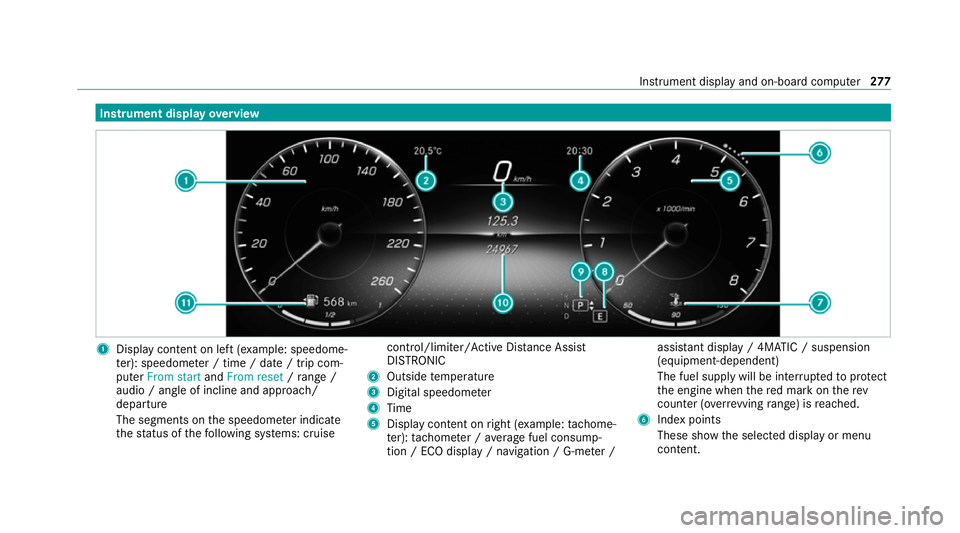
overview 1
Display con tent on le ft(exa mp le: speedome‐
te r): speedome ter / time / date / trip com‐
puter From start andFrom reset /range /
audio / angle of incline and approa ch/
departure
The segments on the speedome ter indica te
th est atus of thefo llowing sy stems: cruise control/limiter/Active Dis
tance Assi st
DISTRONIC
2 Outside temp erature
3 Digital speedome ter
4 Time
5 Display content on right (e xamp le:tac home‐
te r): tach ome ter / average fuel consump‐
tion / ECO display / navigation / G-me ter / assi
stant display / 4MATIC / suspension
(equipment-dependent)
The fuel supply will be inter rupted toprotect
th e engine when there d mark on therev
counter (o verrev ving range) is reached.
6 Index points
These show the selected display or menu
conte nt. Instrument displ
ayand on-board computer 277
Page 282 of 525
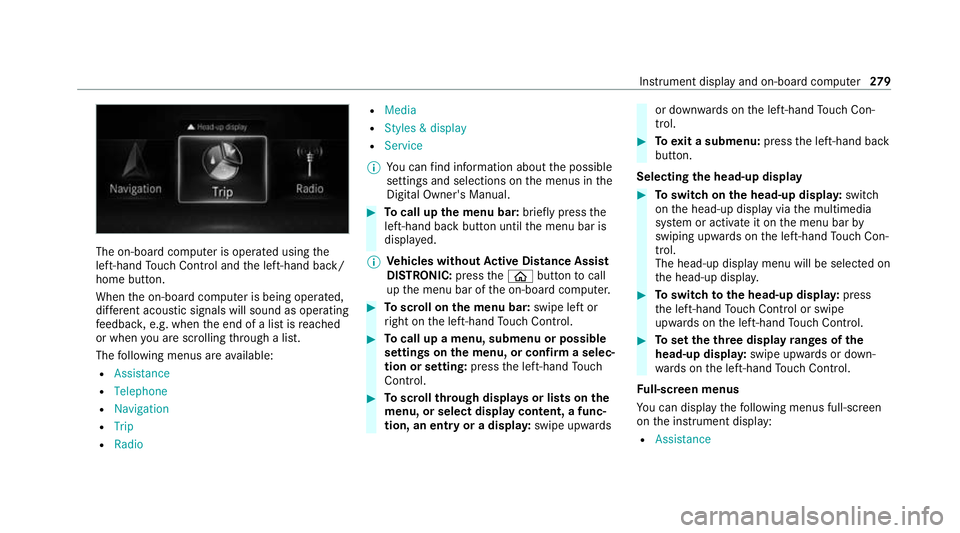
The on-board computer is operated using
the
left-hand Touch Control and the left-hand back/
home button.
When the on-board computer is being operated,
dif fere nt acoustic signals will sound as operating
fe edbac k,e.g. when the end of a list is reached
or when you are sc rolling thro ugh a list.
The following menus are available:
R Assistance
R Telephone
R Navigation
R Trip
R Radio R
Media
R Styles & display
R Service
% You can find information about the possible
settings and selections on the menus in the
Digital Owner's Manual. #
Tocall up the menu bar: briefly pressthe
left-hand back button until the menu bar is
displa yed.
% Ve
hicles without Active Di stance Assist
DISTRO NIC:press the00E2 button tocall
up the menu bar of the on-board computer. #
Toscroll on the menu bar: swipe left or
ri ght on the left-hand Touch Control. #
Tocall up a menu, submenu or possible
settings on the menu, or confirm a selec‐
tion or setting: pressthe left-hand Touch
Control. #
Toscroll through displa ysor lists on the
menu, or select display content, a func‐
tion, an entry or a displa y:swipe upwards or down
wards on the left-hand Touch Con‐
trol. #
Toexit a submenu: pressthe left-hand back
button.
Selecting the head-up display #
Toswitch on the head-up displa y:switch
on the head-up display via the multimedia
sy stem or activate it on the menu bar by
swiping upwards on the left-hand Touch Con‐
trol.
The head-up displ aymenu will be selected on
th e head-up displa y. #
Toswitch tothe head-up displa y:press
th e left-hand Touch Control or swipe
upwards on the left-hand Touch Control. #
Toset theth ree display ranges of the
head-up displa y:swipe upwards or down‐
wa rds on the left-hand Touch Control.
Fu ll-screen menus
Yo u can displ aythefo llowing menus full-screen
on the instrument display:
R Assistance Instrument display and on-board computer
279