2021 LINCOLN CORSAIR remote
[x] Cancel search: remotePage 69 of 638

WARNING: If the battery
compartment does not securely close, stop
using the remote control and replace it as
soon as possible. In the meantime, keep
the remote control away from children.
Failure to follow this instruction could result
in personal injury or death.
Note: Refer to local regulations before you
dispose of the remote control batteries.
Note: Do not wipe off any grease on the
battery terminals or on the back surface of
the circuit board.
Note: Replacing the remote control battery
does not erase the programmed key from
your vehicle. The remote control operates
as normal.
A message appears in the information
display when the remote control battery is
low.
See Information Messages (page 137).
The remote control uses one coin-type
three-volt lithium battery, CR2450, or
equivalent. 1.
Push the release button and pull the key
blade out. 2. Twist a thin coin under the tab hidden
behind the key blade head to remove
the battery cover.
66
Corsair (CTF) Canada/United States of America, enUSA, Edition date: 202007, First-Printing Keys and Remote ControlsE305199 E303824
Page 70 of 638
3.
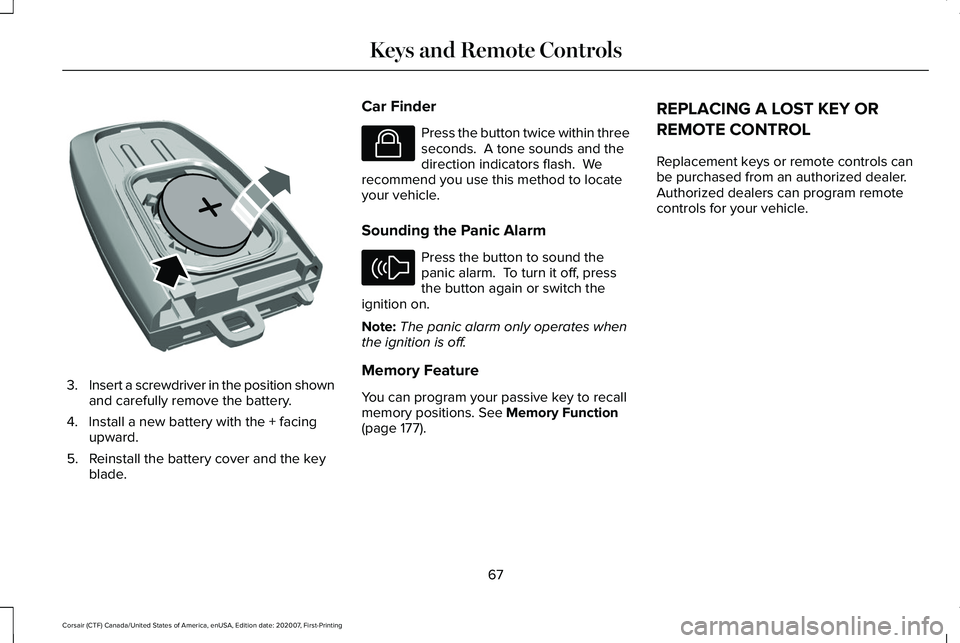
Insert a screwdriver in the position shown
and carefully remove the battery.
4. Install a new battery with the + facing upward.
5. Reinstall the battery cover and the key blade. Car Finder Press the button twice within three
seconds. A tone sounds and the
direction indicators flash. We
recommend you use this method to locate
your vehicle.
Sounding the Panic Alarm Press the button to sound the
panic alarm. To turn it off, press
the button again or switch the
ignition on.
Note: The panic alarm only operates when
the ignition is off.
Memory Feature
You can program your passive key to recall
memory positions. See Memory Function
(page 177). REPLACING A LOST KEY OR
REMOTE CONTROL
Replacement keys or remote controls can
be purchased from an authorized dealer.
Authorized dealers can program remote
controls for your vehicle.
67
Corsair (CTF) Canada/United States of America, enUSA, Edition date: 202007, First-Printing Keys and Remote ControlsE218402 E138623 E138624
Page 71 of 638

WHAT IS PHONE AS A KEY
Phone as a Key allows you to use your phone
in place of a passive key.
You can use your phone for the following
functions:
•
Remote locking and unlocking.
• Passive entry and exit.
• Passive start and drive the vehicle.
• Remote start.
• Memory function recall.
PHONE AS A KEY LIMITATIONS
Limitations can vary based on the make and
model of your phone, phone location and
physical obstructions.
The following items could impact Phone as
a Key performance or prevent functionality
in some cases:
• The typical operating range for Phone as
a Key is 131 ft (40 m). •
Your Bluetooth connection is not
enabled, is disrupted, or out of range.
• Your Phone as a Key is not active or
enabled on at least one phone.
• Your vehicle battery has depleted.
• Your phone battery has depleted.
• Interference from other devices using
radio frequencies or physical
obstructions.
• Your phone is too close to metal objects
or other electronic devices.
Note: Do not leave a duplicate coded key
in the vehicle. Always take your keys and
phone and lock all doors when leaving the
vehicle.
PROGRAMMING YOUR PHONE
To program your smartphone as Phone as a
Key:
1. Visit your device's app store to download
the Lincoln Way app. 2.
Create or sign-in to the Lincoln Way app
and add the vehicle identification number
to your account.
3. Once you add the vehicle identification number, follow the prompts in the Lincoln
Way app to complete the Sync Connect
Authorization process.
4. After the vehicle authorizes, you can setup Phone as a Key following the
prompts in the Lincoln Way app.
5. After Phone as a Key is setup, you can setup the Backup Start Passcode by
following the prompts on your
touchscreen.
Note: Keep your new Backup Start Passcode
with you in case of an emergency.
Resetting Phone as a Key
If the Phone as a Key belongs to your
account, you can delete it from your phone.
If not, reset Phone as a Key using the
following steps:
1. Press Settings on the touchscreen.
2. Press
General.
3. Press
Reset.
68
Corsair (CTF) Canada/United States of America, enUSA, Edition date: 202007, First-Printing Phone as a Key
Page 73 of 638

5. Press the brake pedal and the ignition
button within 20 seconds to start the
vehicle.
6. If your vehicle does not start, repeat steps 1-5.
PHONE AS A KEY –
TROUBLESHOOTING
Phone as a Key – Frequently Asked
Questions
How can I tell if my vehicle has Phone as a
Key? The touchscreen shows the Phone as a
Key reset option if your vehicle has
Phone as a Key. If you have registered
your vehicle through the Lincoln Way
app, a control button appears on the
home screen of the Lincoln Way app. What happens if I cannot unlock the vehicle
with Phone as a Key?
Attempt to move your phone closer to
the vehicle. Check that the Lincoln Way
app is still running and that the Phone
as a Key control screen shows
connected. If the phone is connected,
attempt to press the remote unlock
button in the Lincoln Way app. If the
phone is not connected or the remote
unlock button does not work in the
Lincoln Way app, attempt to force close
and restart the app.
Why do I get a No Key Detected message
in the instrument cluster display when I am
using Phone as a Key and my phone is in
the car? Your phone ’s Bluetooth connection has
been disrupted or is not connected. Try
reconnecting your phone's Bluetooth
connection. Move the phone closer to
the center of the vehicle near the cup
holder or center console. Verify your
Phone as a Key is still active, enabled
and has not been revoked. What do I do if my phone is lost, damaged,
or the battery has depleted?
Use the Backup Start Passcode that you
created to protect you in the event that
you lose your phone, damage it, or the
battery depletes. See Using the
Backup Start Passcode (page 69).
How many phones can I use for Phone as
a Key? You can program and activate up to four
phones with Phone as a Key to your
vehicle.
How does a valet drive my car if I only use
my Phone as a Key? Have the valet use the temporary valet
passcode that you created when using
valet mode. See Using the Valet Mode
(page
69).
70
Corsair (CTF) Canada/United States of America, enUSA, Edition date: 202007, First-Printing Phone as a Key
Page 74 of 638

I uninstalled my Lincoln Way app and
reinstalled it. Why am I not able to get a
new Phone as a Key?
Remove the Phone as a Key that was
previously associated with your phone
or reset Phone as a Key from your
vehicle, and then request a new Phone
as a Key. See Programming Your
Phone (page 68).
Why can I not remotely start the vehicle
with my Phone as a Key? Using the Lincoln Way app, verify your
Phone as a Key setup is complete and
enabled via Bluetooth connection on at
least one phone. If Bluetooth has
connected but Phone as a Key setup is
not complete, complete the setup of
your Phone as a Key, as prompted from
the Lincoln Way app.
See Programming
Your Phone (page 68).
71
Corsair (CTF) Canada/United States of America, enUSA, Edition date: 202007, First-Printing Phone as a Key
Page 77 of 638
2. Using your touchscreen, press Menu.
3. Press
Settings.
4. Press
Vehicle.
5. Press
MyKey.
6. Press
Clearing All MyKeys.
7. Press
Yes to clear all MyKeys from your
vehicle. CHECKING MYKEY SYSTEM
STATUS
You can find information about the distance
traveled using a MyKey, and the number of
admin keys and MyKeys created for your
vehicle.
1. Switch the ignition on.
2. Press
Settings on the touchscreen.
3. Press
Vehicle Settings.
4. Press
MyKey. 5. Press
MyKey Information.
6. Switch the ignition off.
USING MYKEY WITH REMOTE
START SYSTEMS
MyKey is not compatible with unapproved,
aftermarket remote start systems. If you
choose to install a remote start system, see
an authorized dealer for an approved remote
start system.
MYKEY – TROUBLESHOOTING
MyKey – Information Messages Description
Message
Displays when trying to create a MyKey and there is no admin key in the backup position.
See
Creating a MyKey (page 73).
Place Key in Backup Location
Displays when trying to create a MyKey with a key already designated as a MyKey.
Key is Already a MyKey
Displays to confirm that you have a restricted key after you switch the ignition off.
This Key restricted at Next Key Cycle.
Label Key as MyKey
74
Corsair (CTF) Canada/United States of America, enUSA, Edition date: 202007, First-Printing MyKey™
Page 79 of 638

LOCKING AND UNLOCKING
You can use the power door lock or the
remote control to lock and unlock your
vehicle.
Power Door Locks
The power door lock is on the driver and
front passenger door panels.
Unlock
A
LockB Door Lock Indicator
An LED on each door window trim lights
when you lock the door. It remains on for up
to five minutes after you switch the ignition
off.
Switch Inhibitor
When you electronically lock your vehicle,
the power door lock and interior luggage
compartment release switch will no longer
operate after 20 seconds. You must unlock
your vehicle with the remote control,
intelligent access or keyless keypad, or
switch the ignition on, to restore function to
these switches. You can switch this feature
on or off from the touchscreen. See Settings
(page 526).
Remote Control
You can use the remote control at any time.
The luggage compartment release button
only works when your vehicle speed is less
than
3 mph (5 km/h). Unlocking the Doors (Two-Stage Unlock) Press the button to unlock the
driver door. Press the button again
within three seconds to unlock all
doors. The direction indicators will flash.
Press and hold both the lock and unlock
buttons on the remote control for four
seconds to disable or enable two-stage
unlocking. Disabling two-stage unlocking
allows all vehicle doors to unlock with one
press of the button. The direction indicators
will flash twice to indicate a change to the
unlocking mode. The unlocking mode
applies to the remote control, keyless entry
keypad and intelligent access.
Intelligent access at the driver door will
unlock all doors when you disable two-stage
unlocking.
Locking the Doors Press the button to lock all the
doors. The direction indicators will
flash.
76
Corsair (CTF) Canada/United States of America, enUSA, Edition date: 202007, First-Printing Doors and LocksE309203 E138629 E138623
Page 80 of 638

Press the button again within three seconds
to confirm that all the doors are closed. The
doors lock again, a tone sounds and the
direction indicators flash if all the doors and
the luggage compartment are closed.
Mislock
If any door or the luggage compartment is
open, or if the hood is open on vehicles with
an anti-theft alarm or remote start, a tone
sounds and the direction indicators will not
flash. You can switch this feature on or off
from the touchscreen. See Settings (page
526).
Audible and Visual Locking Confirmation
If audible and visual locking confirmation is
configurable, you can turn it on or off from
the touchscreen.
See Settings (page 526).
Mechanical Key
The intelligent access key also contains a
removable key blade that you can use to lock
and unlock your vehicle.
See Remote
Control (page 64). Turn the top of the key toward the front of
your vehicle once to lock all doors.
Turn the top of the key toward the rear of
your vehicle once to unlock the driver door
only.
Locking and Unlocking the Doors with the
Key Blade
If the central locking function does not
operate, lock the doors using the key blade
in the door handle lock cylinder.
Locking with the Key Blade
Insert the key blade into the driver door
handle lock cylinder, turn the key up toward
the front of your vehicle to lock.Unlocking with the Key Blade
Insert the key blade into the driver door
handle lock cylinder, turn the key down
toward the rear of your vehicle to unlock.
Opening a Rear Door from Inside
Pull the interior door handle twice to unlock
and open a rear door. The first pull unlocks
the door and the second pull will unlatch the
door.
Activating Intelligent Access
General Information
You can unlock and lock the vehicle without
taking the keys out of your pocket or purse
when your intelligent access key is within
3 ft (1 m)
of your vehicle. Intelligent access
uses a sensor on the back of the door handle
for unlocking and a separate sensor on the
face of each door handle for locking.
The system will not function if:
• Your vehicle battery has no charge.
• The key battery has no charge.
• The key frequencies are jammed.
77
Corsair (CTF) Canada/United States of America, enUSA, Edition date: 202007, First-Printing Doors and LocksE310901