2021 LEXUS RC350 instrument cluster
[x] Cancel search: instrument clusterPage 76 of 400

762-1. Instrument cluster
using a tire pressure gauge.
Select to display the following naviga-
tion system-linked information.
Route guidance
Compass display (heading-up dis-
play)
Select to enable selection of an audio
source or track on the display using the
meter control switches.
Select to display the operational status
of the following systems:
LDA (Lane Departure Alert with
steering control) ( P.169)
Dynamic radar cruise control with
full-speed range ( P.176)
Select to display warning messages
and measures to be taken if a malfunc-
tion is detected. ( P.303)
The settings of the following items can
be changed using the meter control
switches.
For functions that can be enabled or
disabled, the function switches between on and off each time is
pressed.
■LDA (Lane Departure Alert
with steering control) ( P.169)
Select to set up the following items.
Steering Assist
Select to enable/dis able steering wheel
assistance.
Alert
Select to set a vibrator or buzzer as the
notification method used to warn the
driver.
Sensitivity
Select to set the warning sensitivity.
Sway warning
Select to enable/disable the vehicle sway
warning.
Sway sensitivity
Select to set the vehicle sway warning sen-
sitivity.
■PCS (Pre-Collision System)
( P.162)
Select to set up the following items.
PCS
Select to enable/disable the pre-collision
system.
Warning sensitivity
Select to change the warning timing.
■Speed indicator (F SPORT mod-
els) ( P.68)
Select to set up the following items.
Speed Indicator
Select to enable/disable the speed indica-
tor.
Navigation system-linked dis-
play (if equipped)
Audio system-linked display
Driving assist system information
Warning message display
Settings display
Page 77 of 400

772-1. Instrument cluster
2
Vehicle status information and indicators
Speed Setting*
Select to set the desired vehicle speed at
which the speed indicato r will begin to be
displayed.
*: Always observe the legal speed limit when driving on public roads.
■Clock ( P.66)
Select to switch between 12-hour dis-
play and 24-hour display.
■Vehicle Settings
Scheduled Maintenance ( P.248)
Select to reset th e message indicating
maintenance is required , after the required
maintenance is performed.
Oil maintenance ( P.260)
Select to reset the en gine oil maintenance
information (message indicating mainte-
nance is required and distance until the
next oil change) after engine oil mainte-
nance is performed.
■Meter settings
Language
Select to change the language on the dis-
play.
Units
Select to change the units of measure dis-
played.
Eco Driving Indicator Light
( P.74)
Select to enable/disable the Eco Driving
Indicator Light.
Switch settings (except F
SPORT models)
Displays a procedure to register a desired
screen to
.
You can register 1 screen as a shortcut, which can be displayed by pressing
.
Drive information screen ( P.73)
Select to choose between 2 items that will
be displayed on each drive information
screen (“Drive info 1”, “Drive Info 2” and
“Drive Info 3”) respectively.
Pop-up display ( P.70)
Select to enable/disable the pop-up dis-
play.
• Intersection guidance (if equipped)
• Incoming calls
• Audio Feedback (F SPORT)
• Volume Feedback (F SPORT)
• Brightness adjustment
Color (except F SPORT models)
Select to set the color of the cursor on the
multi-information display.
Needle (F SPORT models)
Select to set the tachometer needle color.
Rev indicator (F SPORT models)
( P.69)
• Select to enable/disable the Rev indica-
tor.
• Select to set the desired engine speed at which the Rev indicator will begin to be
displayed.
Rev peak (F SPORT models)
( P.69)
Select to enable/disable the Rev peak.
Default setting
Select to reset the meter display settings to
the default setting.
Page 78 of 400

782-1. Instrument cluster
■Background color of the indicator/shift
position display area (except F SPORT
models)
The background color of the indicator/shift
position display area is changed according
to the driving mode as follows ( P.199):
●Eco drive mode: Blue
●Sport mode: Red
■G-force display (if equipped)
The G-force values may not be zero even
when the vehicle is parked, such as when it
is parked on an incline.
■Suspension of the settings display
●Some settings cannot be changed while
driving. When changi ng settings, park
the vehicle in a safe place.
●If a warning message is displayed, opera-
tion of the settings display will be sus-
pended.
WARNING
■Caution for use while driving
●When operating the multi-information
display while driving, pay extra atten-
tion to the safety of the area around the
vehicle.
●Do not look continuously at the
multi-information di splay while driving
as you may fail to see pedestrians,
objects on the road, etc. ahead of the
vehicle.
■Cautions during setting up the dis-
play
As the engine needs to be running
during setting up the display, ensure that
the vehicle is parked in a place with ade-
quate ventilation. In a closed area such as
a garage, exhaust gases including harm-
ful carbon monoxide (CO) may collect
and enter the vehicle. This may lead to
death or a serious health hazard.
NOTICE
■While setting up the display
To prevent battery discharge, ensure that
the engine is running while setting up the
display features.
Page 79 of 400

792-1. Instrument cluster
2
Vehicle status information and indicators
Center Display
“MENU” button
Touchpad
■Trip information
Press the “MENU” button on the
Remote Touch, then select on the menu screen, and then select “ECO”.
If a screen other than “Trip Information”
is displayed, select
“Trip Information”.
Resetting the consumption data
Fuel consumption in the past 15
minutes
Current fuel consumption
Average vehicle speed since the
engine was started.
Elapsed time since the engine was
started.
Cruising range
Average fuel consumption for the past
15 minutes is divided by color into past
averages and averages attained since
the engine switch was last turned to
IGNITION ON mode. Use the dis-
played average fuel consumption as a
reference.
The image is an example only, and may
vary slightly from actual conditions.
■History
Press the “MENU” button on the
Remote Touch, then select on the
menu screen, and then select “ECO”.
If a screen other than “History” is dis-
played, select “History”.
Fuel consumption informa-
tion
Fuel consumption information can
be displayed on the Center Display.
Vehicles with a 10.3-inch display:
The fuel consumption information
can be displayed and operated on
the side display.
System components
Consumption
A
B
C
A
B
C
D
E
F
Page 80 of 400

802-1. Instrument cluster
Best recorded fuel consumption
Latest fuel consumption
Previous fuel consumption record
Resetting the history data
Updating the latest fuel consump-
tion data
The average fuel consumption history
is divided by color into past averages
and the average fuel consumption
since the last updated. Use the dis-
played average fuel consumption as a
reference.
The image is an example only, and may
vary slightly from actual conditions.
■Updating the history data
Update the latest fuel consumption by
selecting “Updat e” to measure the current
fuel consumption again.
■Resetting the data
The fuel consumption data can be deleted
by selecting “Clear”.
■Cruising range
Displays the estimated maximum distance
that can be driven with the quantity of fuel
remaining.
This distance is comp uted based on your
average fuel consumption.
As a result, the actual distance that can be
driven may differ from that displayed.
Display the vehicle information on the
side display ( P.214), and then select
or to display the desired
screen.
The image is an example only, and may
vary slightly from actual conditions.
■Trip information (type A)
Displays the average fuel consumption
for the past 10 minutes in 1 minute
intervals, as well as the cruising range.
Use the displayed average fuel consump-
tion as a reference.
■Trip information (type B)
Displays the cruising range, latest fuel
consumption and the amount of time
elapsed since the engine was started.
Use the displayed average fuel consump-
tion as a reference.
A
B
C
D
E
Using the side display (vehicles
with a 10.3-inch display)
Page 81 of 400
812-1. Instrument cluster
2
Vehicle status information and indicators
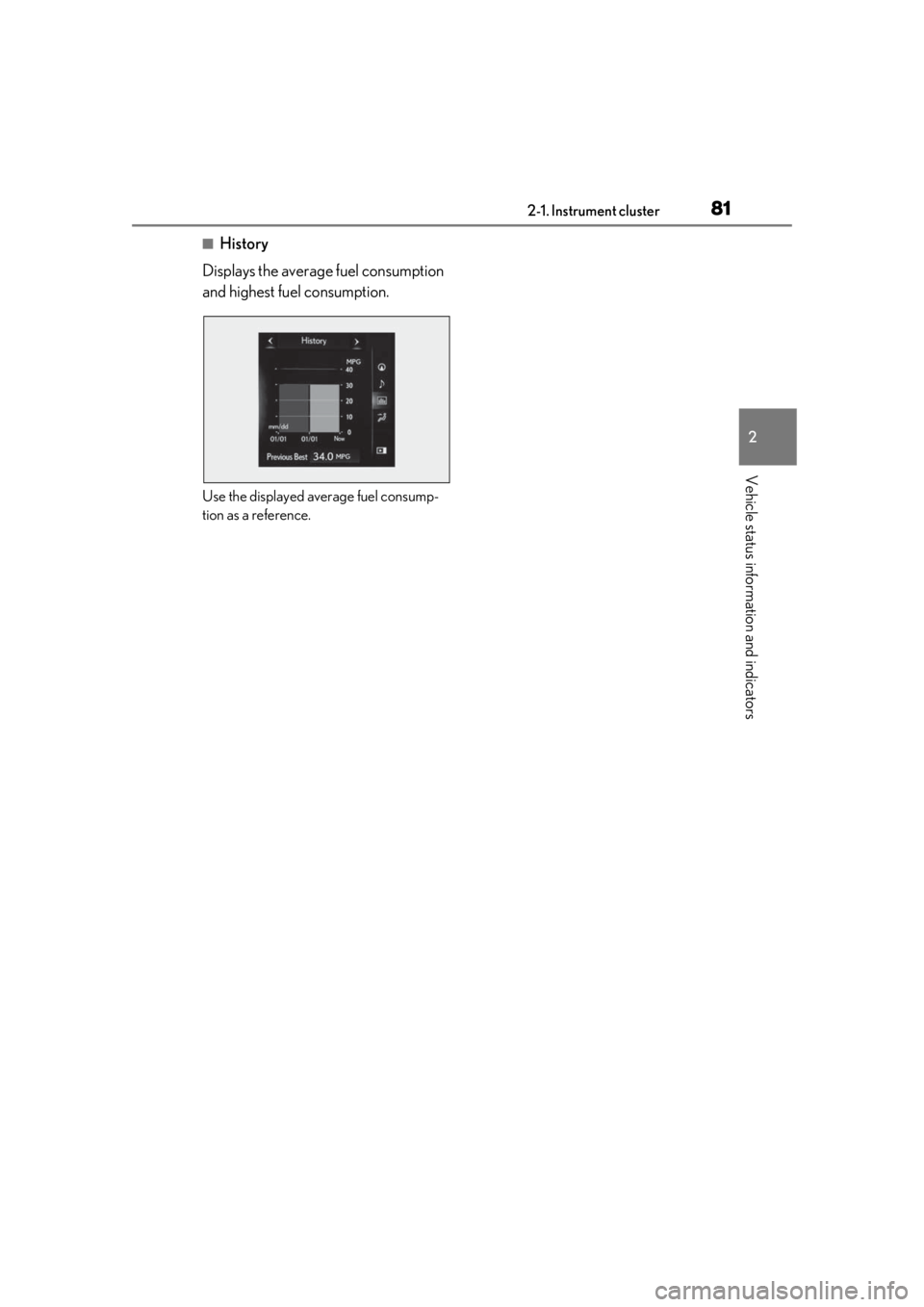
■History
Displays the average fuel consumption
and highest fuel consumption.
Use the displayed average fuel consump-
tion as a reference.
Page 82 of 400

822-1. Instrument cluster
Page 113 of 400

1133-5. Opening, closing the windows and moon roof
3
Before driving
If you release the switch while the window is
moving, start again from the beginning.
If the window reverses and cannot be fully
closed or opened, have the vehicle
inspected by your Lexus dealer.
■Door lock linked window operation
●The power windows can be opened and
closed using the mechanical key.*
( P.318)
●The power windows can be opened using
the wireless remote control.* ( P.88)
*: These settings must be customized at
your Lexus dealer.
■Power windows open warning buzzer
A buzzer sounds and a message is shown
on the multi-information display in the
instrument cluster when the engine switch
is turned off and the driver’s door is opened
with the power windows open.
■Customization
Some functions can be customized.
( P.351)
This function can be used to prevent
children from accidentally opening or
closing a passenger window.
Press the switch.
The indicator will come on and the pas-
WARNING
Observe the following precautions.
Failure to do so may result in death or
serious injury.
■Closing the windows
●The driver is responsible for all the
power window operations, including
the operation for the passengers. In
order to prevent accidental operation,
especially by a child, do not let a child
operate the power windows. It is possi-
ble for children an d other passengers
to have body parts caught in the power
window. Also, when riding with a child,
it is recommended to use the window
lock switch. ( P.113)
●Check to make sure that all passen-
gers do not have any part of their body
in a position where it could be caught
when a window is being operated.
●When using the wireless remote con-
trol or mechanical key and operating
the power windows, operate the
power window after checking to make
sure that there is no possibility of any
passenger having any of their body
parts caught in the window. Also do
not let a child operate window by the
wireless remote control or mechanical
key. It is possible for children and other
passengers to get caught in the power
window.
●When exiting the vehicle, turn the
engine switch off, carry the key and
exit the vehicle along with the child.
There may be accidental operation,
due to mischief, etc., that may possibly
lead to an accident.
■Jam protection function
●Never use any part of your body to
intentionally activa te the jam protec-
tion function.
●The jam protection function may not
work if something gets jammed just
before the window is fully closed. Be
careful not to get any part of your body
jammed in the window.
■Catch protection function
●Never use any part of your body or
clothing to intentionally activate the
catch protection function.
●The catch protection function may not
work if something gets caught just
before the window is fully opened. Be
careful not to get any part of your body
or clothing caught in the window.
Preventing accidental operation
(window lock switch)
A