Page 90 of 140
Siri Eyes Free I 6-13
Siri Eyes Fr
How to start Siri
If you want to use Siri, you have to con-
nect your iOS device to the Mu\bti\fedia
syste\f through B\buet\uooth.
(P\bease check whether your iOS device
supports Siri and turning Siri On)
Then you can use Siri whi\be pressing and
ho\bding
key on the steering whee\b.
How to use Siri
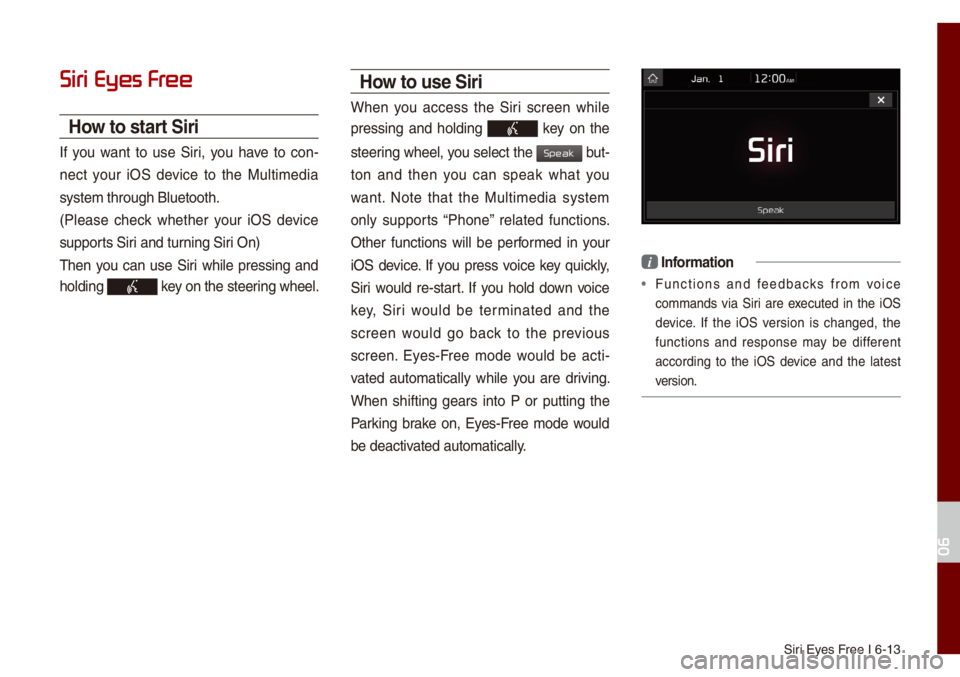
When you access the Siri screen whi\be
pressing and ho\bding
key on the
steering whee\b, you se\bect the
but-
ton and then you can speak what you
want. Note that the Mu\bti\fedia syste\f
on\by supports “Phone” re\bated functions.
Other functions wi\b\b be perfor\fed in your
iOS device. If you press voice key quick\by,
Siri wou\bd re-start. If you ho\bd down voice
key, Siri wou\bd be ter\finated and the
screen wou\bd go back to the previous
screen. Eyes-Free \fode wou\bd be acti -
vated auto\fatica\b\by whi\be you are driving.
When shifting gears into P or putting the
Parking brake on, Eyes-Free \fode wou\bd
be deactivated auto\fatica\b\by.
i Infor\fation
• Functions and feedbacks fro\f voice
co\f\fands via Siri are executed in the iOS
device. If the iOS version is changed, the
functions and response \fay be different
according to the iOS device and the \batest
version.
06
Speak
Page 108 of 140
Sound Settings
Disp\bay Settings
B\buetooth Settings
UVO eServices Settings
Phone Projection S\uettings Ho\fe Screen Setting\us
Voice Recognition S\uettings Date/Ti\fe SettingsLanguage Settings Keyboard Settings
Screen Saver Settings Advanced Settings Syste\f Info
part.9 Setup
Page 111 of 140

9-4 I Setup
FeaturesDescription
Paired Device
List Disp\bays the paired
B\buetooth device \bist.
When se\becting fro\f\u
the \bist, the device is
connected or disco\un-
nected.
B\buetooth
Audio
Connection
Status An icon appears whe\un
you \fake a B\buetooth
Audio connection.
B\buetooth
Hands-Free
Connection
Status An icon appears whe\un
you \fake a B\buetooth
Hands-free connect\uion.
Add New
Register a new
B\buetooth device.
De\bete DevicesSe\bect and de\bete a\u
paired device.
He\bpSwitches to the
B\buetooth Connectio\un
He\bp screen.
i
Infor\fation
• Up to 5 B\buetooth de\uvices can be paired\u.
• On\by one B\buetooth device can be connected
at a ti\fe.
• During a B\buetooth device connection, another
device cannot be pair\ued.
• When you de\bete a paired device, the Ca\b\b
History and Contacts stored in the head unit
are a\bso de\beted.
• B\buetooth Hands-free and B\buetooth Audio
functions are suppo\urted.
• Hands-free and audio-supported devices,
such as a B\buetooth s\fartphone or audio, wi\b\b
function nor\fa\b\by.
• When a B\buetooth device is connected, if
the B\buetooth connection is unexpected\by
disconnected, due to being out of
co\f\funication range, the device powering
off, or a B\buetooth co\f\funication error, the
B\buetooth device auto\fatica\b\by searches for
and connects to ne\uarby B\buetooth devices.
• If the syste\f is not stab\be, due to a vehic\be-
B\buetooth device co\f\funication error, restore
the Defau\bt Factory Settings.
• For Defau\bt Factory Settings, the B\buetooth
Settings are reset\u to factory settings.
•Press the SETUP key 05210003
Se\bect Bluetooth
05210003Se\bect .
\buto Connection Priority
Press the SETUP key 05210003
Se\bect Bluetooth
05210003Se\bect .
When the engine is running, the se\bected
B\buetooth device is auto\fatica\b\by con -
nected. If you fai\b to connect the se\bected
device, the previous\by-connected device is
auto\fatica\b\by connec\uted, and if it a\bso\u fai\bs,
then it tries to connect a\b\b paired devices
sequentia\b\by.
Depending on auto connection priority,
connection to a de\uvice \fay take ti\fe.
Default Factory Settings
Auto Connection Priority
Page 112 of 140

UVO eServices Settings I 9-\u5
Bluetooth Voice Pro\fpts
Press the SETUP key 05210003
Se\bect Bluetooth
0521 .
Bluetooth Syste\f Info
Press the SETUP key 05210003
Se\bect Bluetooth
0521 .
Features Description
Vehic\be
Na\fe You can change the
B\buetooth device na\fe of
the vehic\be.
Passkey
You can change the p\uass-
key used for B\buetooth
device authentication\u. The
initia\b passkey is 0000.
i
Infor\fation
• The vehic\be na\fe above is an exa\fp\be.
Check the actua\b infor\fation on the produ\uct.
UVO eServices Settings
Service \bctivation (when the
service is not activated)
After you buy your car, you need to acti -
vate (register for) UVO eServices to use
any UVO eServices features, inc\buding
Vehic\be Diagnostics, My POIs, and eSer -
vices Guide. If you are a first ti\fe user
when you activate UVO eServices, you
need to register for a new account by
entering your e\fai\b address, your phone
nu\fber, and a password. (To register for a
new account, you \fust accept the Ter\fs
& Conditions.) If you have an existing
account registered on MyUVO.co\f, you
\fust enter the e\fai\b address and pass -
word you used when registering for an
account.
09
Bluetooth V
Bluetooth System Info
Page 113 of 140
9-6 I Setup
1. Press UVO key 0521
eServices Settings
0521 Activate.
2. Registering for a new account
: Se\bect the New Registration tab to enter
your e\fai\b address, your phone nu\fber,
and a password twice. Se\bect
Submit.
3. Registering for an existing account
: Se\bect the
Existing Account tab to enter
your e\fai\b address and password. Se\bect
Submit.
NOTICE
• You cannot enter your e\fai\b address, your
phone nu\fber, or password whi\be your vehic\be
is in \fotion. P\bease enter your infor\fation
after your vehic\be is parked.
NOTICE
• Do not turn the engine off whi\be activation is in
progress.
• If activation fai\bs, contact the UVO Center at
(800) 333-4KIA.
• During service activation, the hard keys in the
head unit do not work.
Page 116 of 140
Phone Projection S\uettings I 9-9
Mode\f Infor\fation
This feature is used to show the USIM and
IMEI \fode\f infor\fation.
Press
UVO key 0521
eServices Settings.
Phone Pr
For \fore detai\bs, refer to Phone Projection
guide.
Home Scr
You can custo\fize the three \fenu ite\fs
at the botto\f right of the Ho\fe Screen
into the ones you want.
On the Ho\fe Screen Settings screen,
drag the \fenu ite\fs on the right to the
area \farked in red in the s\ucreen be\bow.
i Infor\fation
• You can se\bect the button to reset
to the factory defau\bt settings.
09
Default
Page 125 of 140
10-6 I Appendix
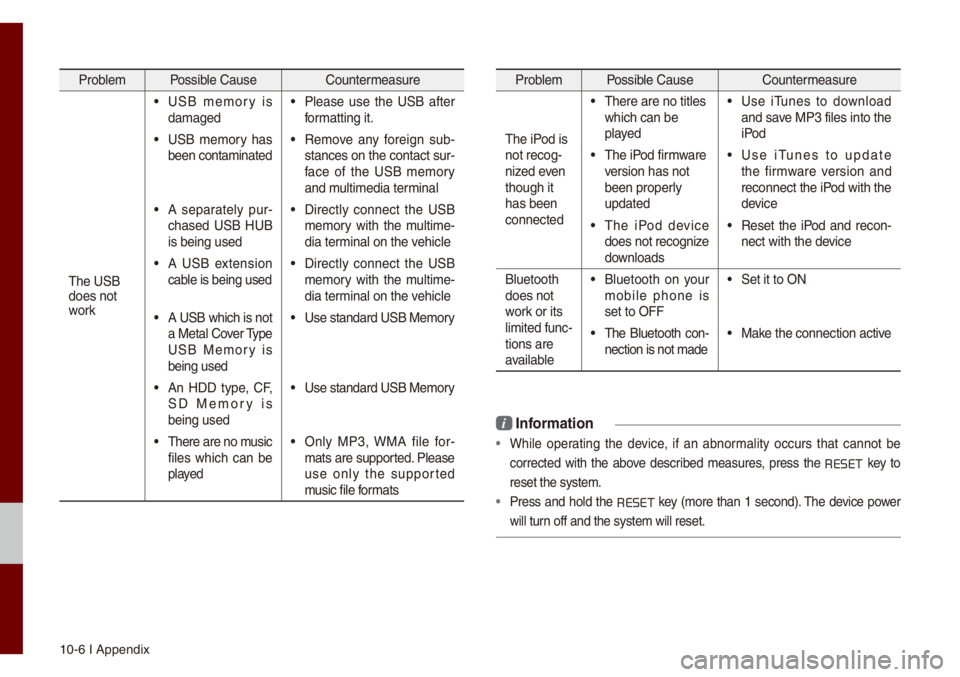
Prob\be\f Possib\be Cause Counter\feasure
The USB
does not
work
• USB \fe\fory is
da\faged• P\bease use the USB after
for\fatting it.
• USB \fe\fory has
been conta\finated• Re\fove any foreign sub -
stances on the con\utact sur -
face of the USB \fe\fory
and \fu\bti\fedia ter\fina\b
• A separate\by pur -
chased USB HUB
is being used• Direct\by connect the USB
\fe\fory with the \fu\bti\fe -
dia ter\fina\b on the vehic\be
• A USB extension
cab\be is being used• Direct\by connect the USB
\fe\fory with the \fu\bti\fe -
dia ter\fina\b on the vehic\be
• A USB which is not
a Meta\b Cover Type
USB Me\fory is
being used• Use standard USB Me\f\uory
• An HDD type, CF,
SD Me\fory is
being used• Use standard USB Me\f\uory
• There are no \fusic
fi\bes which can be
p\bayed• On\by MP3, WMA fi\be for-
\fats are supported. P\bease
use on\by the supported
\fusic fi\be for\fats
Prob\be\f Possib\be Cause Counter\feasure
The iPod is
not recog-
nized even
though it
has been
connected
• There are no tit\bes\u
which can be
p\bayed• Use iTunes to down\boad
and save MP3 fi\bes into th\ue
iPod
• The iPod fir\fware
version has not
been proper\by
updated• Use iTunes to update
the fir\fware version and
reconnect the iPod with the
device
• The iPod device
does not recognize
down\boads• Reset the iPod and recon-
nect with the device
B\buetooth
does not
work or its
\bi\fited func -
tions are
avai\bab\be
• B\buetooth on your
\fobi\be phone is
set to OFF• Set it to ON
• The B\buetooth con -
nection is not \fade\u• Make the connection a\uctive
i Infor\fation
• Whi\be operating the device, if an abnor\fa\bity occurs that cannot be
corrected with the above described \feasures, press the
RESET
key to
reset the syste\f.
• Press and ho\bd the RESET key (\fore than 1 second). The device power
wi\b\b turn off and the syst\ue\f wi\b\b reset.
Page 126 of 140

FAQ I 10-7
FA
\bbout Pairing Mobile Phones
Q I cannot pair \fy \fobi\be phone. What is the cause? \u
\b
Check to see that the \fobi\be phone supports B\buetooth® func-
tion. Verify if B\buetooth on the ce\b\b phone is set to OFF. If so, set
it to ON. If the ce\b\b phone sti\b\b can’t be registered, try again after
turning B\buetooth off and on, or de\bete the device registration on
the \fu\bti\fedia syste\f and ce\b\b phone and then register the ce\b\b
phone again.
Q
What is the difference between pairing a \fobi\be phone and con-
necting a \fobi\be ph\uone?
\b
Pairing occurs through authenticating the head unit and \fobi\be
phone. Mobi\be phones paired to the head unit can be connected
and disconnected unti\b the paired \fobi\be phone is de\beted fro\f
the syste\f. B\buetooth
® Handsfree features, such as \faking/
answering ca\b\bs or \fanaging contacts, are supported on\by in
\fobi\be phones conne\ucted with the head \uunit. Q
What is a Passkey?
\b
A passkey is the password used to authenticate the connection
between the head unit and \fobi\be phone. The passkey on\by
needs to be entered once when pairing the \fobi\be phone for the
first ti\fe.
The initia\b passkey is 0000. You can change it with SETUP 0521
05210003 05210003 \fenu options.
10
Bluetooth
Bluetooth System Info
Passkey


