Page 177 of 300

8-7
0000
A
A diagnosis result provided by this service is only an estimated result based on the signals
from your vehicle. Visit a Kia Motors dealership for a detailed diagnosis.\
0000
A
When a critical diagnostics issue is detected on your vehicle, an automa\
tic diagnosis
starts when a warning light illuminates on the instrument cluster. You are notified of the
diagnosis result.
0000
A
Your preferred dealership must be registered on Owners.kia.com for you to schedule a
maintenance service with it.
Checking maintenance service intervals (if equipped)
You can see information about the intervals for the last and next maintenance services. This
feature can help you maintain your vehicle on a regular basis.
1 On the All Menus screen, press UVO >
Maintenance.
2 Check the maintenance information.
0000
A
You can see the distance driven and the number of days remaining before the
vehicle should receive maintenance again. Use the information to determine when to
perform the next maintenance service.
0000
A
To reset the information, press Reset Service Intervals.
0000
A
To access the online user's manual on the Maintenance screen, press >
User's
Manual on Web (QR Code) and then scan the displayed QR code.
Contacting the UVO Center
You can contact a UVO Center representative directly to request help or make inquiries about
using the UVO services.
Perform any of the following methods:
\225 On the All Menus screen, press UVO
>
Virtual Assistant.
\225 Press the [] button on the vehicle.
0000
A
To end the call, press End on the screen or press the [
] button.
0000
A
This feature is not available during a Bluetooth call.
Page 179 of 300

8-9
Route guidance service (if equipped)
Use a more convenient, accurate route guidance service through the UVO route guidance
service.
Finding the route to the destination by manual entry
You can enjoy fast and accurate route guidance based on real-time traffic data and
forecasting traffic information collected by the UVO Center.
Using the UVO quick route guidance
You can use the quick navigation service based on real-time traffic information analyzed by
the UVO Center.
1 Set the destination on the navigation system.
2 From the list of routes, select the UVO route.
Quick route guidance starts by the UVO Center.
0000AThe screen may differ depending on the vehicle model and specifications.
0000
A
While navigation is active, you can reroute to the UVO suggested route if you are
following the alternate route.
0000
A
The road information by the UVO may differ from actual road conditions. Be sure to drive
according to actual road conditions and regulations.
0000
A
The estimated time of arrival and remaining time to destination are calculated based on
the traffic conditions. The calculated times may differ depending on the change in traffic
conditions.
0000
A
Depending on the map update time, guidance on a new road may not match actual road
conditions.
Guidance to destination service (if equipped)
If you park your vehicle at a distance of more than 200 m away from the destination, you can
continue to use the route guidance to the destination from your smartphone.
Page 251 of 300
9-71
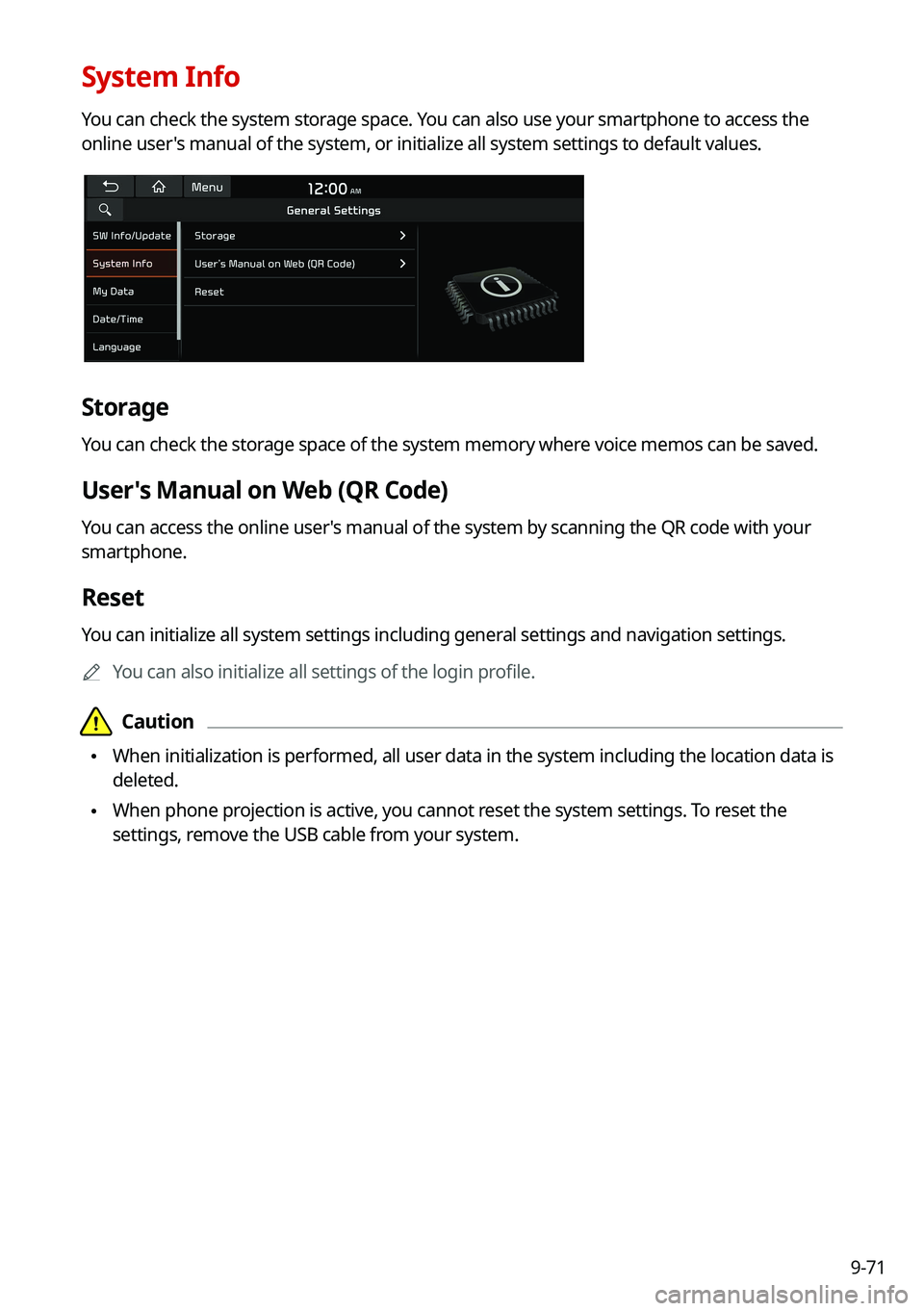
System Info
You can check the system storage space. You can also use your smartphone to access the
online user's manual of the system, or initialize all system settings to default values.
Storage
You can check the storage space of the system memory where voice memos can be saved.
User's Manual on Web (QR Code)
You can access the online user's manual of the system by scanning the QR code with your
smartphone.
Reset
You can initialize all system settings including general settings and navigation settings.0000
A
You can also initialize all settings of the login profile.
\334\334Caution
\225When initialization is performed, all user data in the system including the location data is
deleted.
\225When phone projection is active, you cannot reset the system settings. To reset the
settings, remove the USB cable from your system.
Page 252 of 300
9-72
My Data
You can import location data from a USB device to the system, or export the data on the
system to a USB device.0000
A
When importing or exporting the location data, you can use only the USB device
formatted in exFAT, FAT16/32 or NTFS.
Import Address Book from USB Device
You can import the location data on a USB device to the system.
0000
A
The previous location data on the system is to be deleted.
0000
A
While importing from a navigation system that uses a different coordinate system, the
locations may appear differently.
Export Address Book to USB Device
You can export the location data on the system to a USB device.
0000
A
The location data on the USB device is deleted.
Date/Time
You can set the system date and time automatically or manually. You can also set the time
display mode.
Page 253 of 300

9-73
GPS Time
After receiving the time from GPS, it sets the system date and time automatically.0000
A
To manually set the date and time, uncheck GPS Time, press the current date and time
below GPS Time, and then set the date and time.
24 Hours
The system time is displayed in the 24-hour format.
0000
A
For example, when 24 Hours is checked and the current time is 01:08 pm, the system
screen displays the time as "13:08." When the checkbox is deselected, the time display
changes to "01:08 PM."
Daylight Saving Time
Displays the system time in the format of Daylight Saving Time.
Language
You can set the system display language.
0000
A
Once the language has been changed, it takes a while to apply the new language to the
system. The notification pop-up window appears as soon as the new language is applied
to the system. When you wait a while or press anywhere outside the pop-up window, the
window automatically disappears.
0000
A
When you change the system language, it does not affect the display of other unique
data such as MP3 music file name.
0000
A
Depending on the system language, the Bluetooth phone message view and voice
recognition may not be supported.
Page 255 of 300
9-75
Configuring the general system settings
(Type2)
You can configure general settings for date, time, language, and the like. You can also check
information of the system.
1 On the All Menus screen, press Setup >
General.
The general settings screen appears.
2 Configure the settings required:
0000
A
Press >
Search for Settings or press and enter a keyword to search for a
setting item. You can also search for a setting item by voice.
SW Info/Update
You can see the versions of system components. You can also update the system to the latest
version.
0000A
For details on how to update the system software: > see "How to Update the Map and
Software for your Infotainment System."
System Info
You can check the system storage space. You can also use your smartphone to access the
online user's manual of the system.
Page 256 of 300

9-76
Storage
You can check the storage space of the system memory where voice memos can be saved.
User's Manual on Web (QR Code)
You can access the online user's manual of the system by scanning the QR code with your
smartphone.
My Data
You can import location data from a USB device to the system, or export the data on the
system to a USB device.0000
A
When importing or exporting the location data, you can use only the USB device
formatted in exFAT, FAT16/32 or NTFS.
Import Address Book/Previous Destinations from USB
You can import registered location and destination information, saved on your USB storage
device, to the system.
0000
A
Previous information saved on the system will be deleted.
0000
A
While importing from a navigation system that uses a different coordinate system, the
locations may appear differently.
Export Address Book/Previous Destinations to USB
You can export registered location and destination information, saved on the system, to your
USB storage device.
0000
A
Previous information saved on the USB storage device will be deleted.
Page 257 of 300
9-77
Date/Time
You can set the system date and time automatically or manually. You can also set the time
display mode.
GPS Time
After receiving the time from GPS, it sets the system date and time automatically.0000
A
To manually set the date and time, uncheck GPS Time, press the current date and time
below GPS Time, and then set the date and time.
Time Format
Change the system time display format.
0000
A
For example, when 24 Hours is checked and the current time is 01:08 pm, the system
screen displays the time as "13:08." When 12 Hours is checked, the time display changes
to "01:08 PM."
Daylight Saving Time
Displays the system time in the format of Daylight Saving Time.