2021 HYUNDAI SANTA FE user settings
[x] Cancel search: user settingsPage 219 of 636
05
5-75
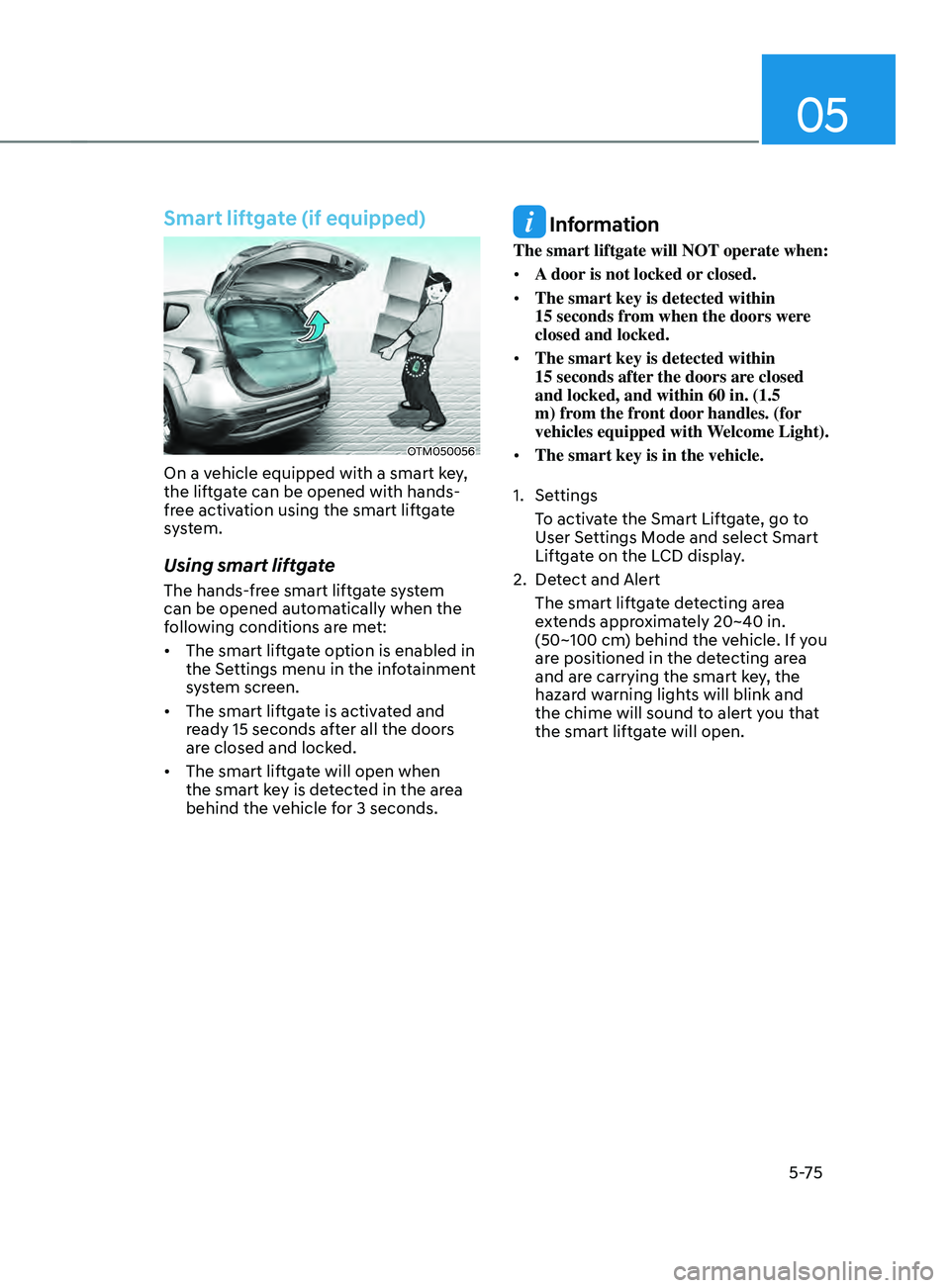
Smart liftgate (if equipped)
OTM050056
On a vehicle equipped with a smart key,
the liftgate can be opened with hands-
free activation using the smart liftgate
system.
Using smart liftgate
The hands-free smart liftgate system
can be opened automatically when the
following conditions are met:
• The smart liftgate option is enabled in
the Settings menu in the infotainment
system screen.
• The smart liftgate is activated and
ready 15 seconds after all the doors
are closed and locked.
• The smart liftgate will open when
the smart key is detected in the area
behind the vehicle for 3 seconds.
Information
The smart liftgate will NOT operate when:
• A door is not locked or closed.
• The smart key is detected within
15
seconds fr
om when the doors were
closed and locked.
• The smart key is detected within
15
seconds after
the doors are closed
and locked, and within 60 in. (1.5
m) from the front door handles. (for
vehicles equipped with Welcome Light).
• The smart key is in the vehicle.
1.
Settings
T
o activate the Smart Liftgate, go to
User Settings Mode and select Smart
Liftgate on the LCD display.
2.
Det
ect and Alert
The smart liftgate detecting area
extends approximately 20~40 in.
(50~100 cm) behind the vehicle. If you
are positioned in the detecting area
and are carrying the smart key, the
hazard warning lights will blink and
the chime will sound to alert you that
the smart liftgate will open.
Page 224 of 636
Convenient features
5-80
OTMA050019
The Head-Up Display is an optional
feature that allows the driver to view
information projected onto a transparent
screen while still keeping your eyes
safely on the road ahead while driving.
Head-up display settings
OIK047152N
• Head-up display can be enabled from
the Settings menu in the User Settings
mode on the instrument cluster LCD
display. Select:
-Setup → H
ead-Up
Displa
y
→ E
nable
Head-Up Displa
y
• After turning on the head-up
display, you can change the settings
of ‘Display Height’ and ‘Content
Selection’ of the Head-Up Display.
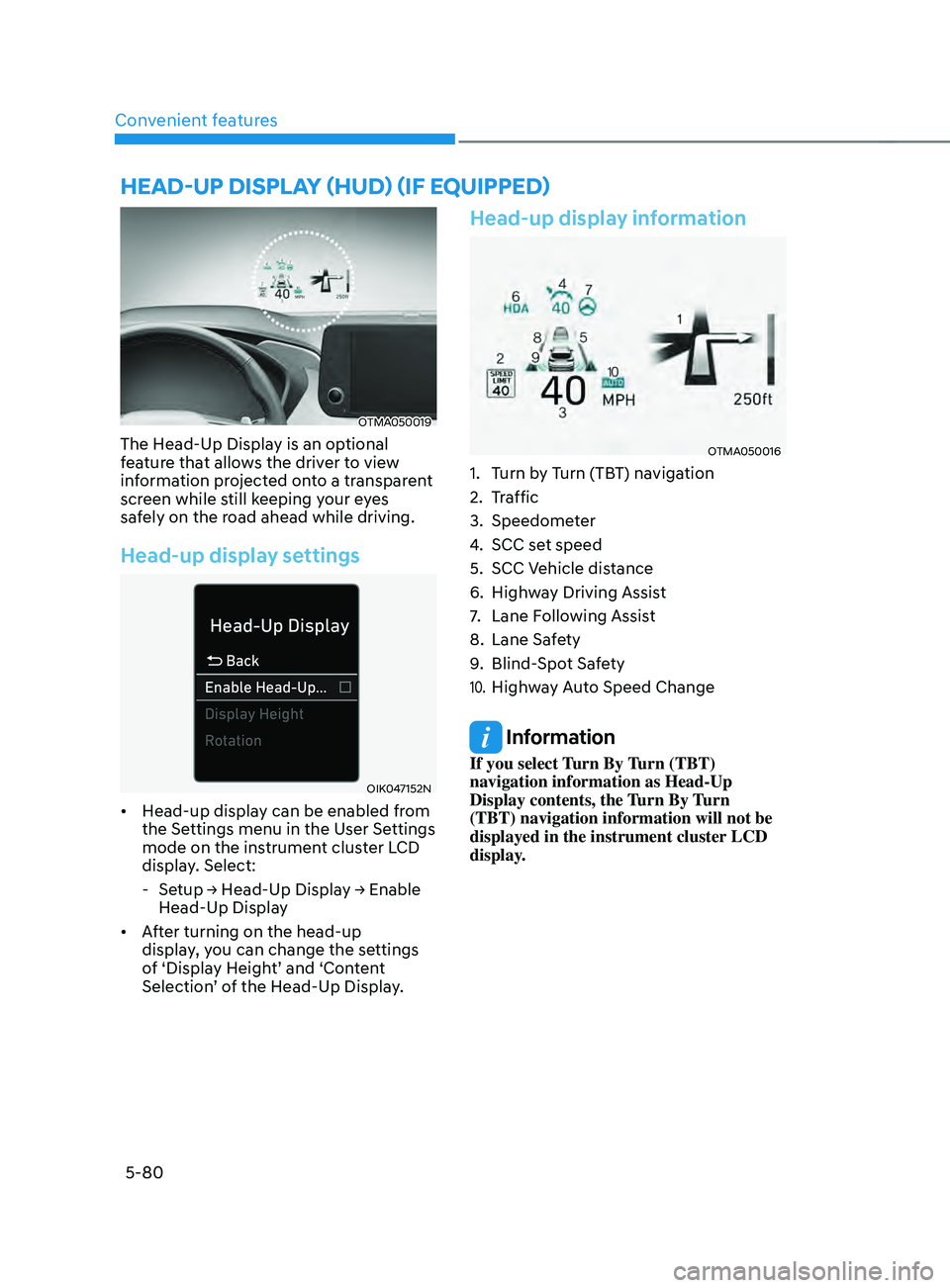
Head-up display information
OTMA050016
1. Turn by Turn (TBT) navigation
2.
Tr
affic
3.
Speedomet
er
4.
SCC set speed
5.
SCC Vehicle dis
tance
6.
Highw
ay Driving Assist
7.
Lane Follo
wing Assist
8.
Lane Saf
ety
9.
Blind-Spo
t Safety
10. Highway Auto Speed Change
Information
If you select Turn By Turn (TBT)
navigation information as Head-Up
Display contents, the Turn By Turn
(TBT) navigation information will not be
displayed in the instrument cluster LCD
display.
hEAD-Up DIspLAY (hUD) (IF EQUIppED)
Page 229 of 636
05
5-85
Headlamp delay function
(if equipped)
If you place the ignition switch to the
ACC position or the OFF position with
the headlamps ON, the headlamps (and/
or position lamps) remain on for about
5 minutes. However, if the driver’s door
is opened and closed, the headlamps
are turned off after 15 seconds. Also,
with the vehicle off if the driver’s door is
opened and closed, the headlamps (and/
or position lamps) are turned off after 15
seconds.
The headlamps (and/or position lamps)
can be turned off by pressing the lock
button on the remote key or smart key
twice or turning the headlamp switch to
the OFF or AUTO position.
You can enable the headlamp delay
function
b
y
selecting ‘Se
tup
→ U
ser
Settings → Ligh
ts
→ H
eadlight
Dela
y.
NOTICE
If the driver exits the vehicle through
another door besides the driver
door, the battery saver function
does not operate and the headlamp
delay function does not turn OFF
automatically.
This may cause the battery to
discharge. To avoid battery discharge,
turn OFF the headlamps manually from
the headlamp switch before exiting the
vehicle.
Traffic change (if equipped)
The low beam light distribution is
asymmetric. If you go abroad to a
country with opposite traffic direction,
this asymmetric part will dazzle
oncoming car driver.
To prevent dazzle, ECE regulation
demand several technical solutions (ex.
automatic change system, adhesive
sheet, down aiming). These headlamps
are designed not to dazzle opposite
drivers.
You can activate or deactivate the Traffic
Change feature from the User Settings
mode
on the L
CD
displa
y.
Go t
o
‘Ligh
ts
→ Tr
avel Mode’.
For more details, refer to “LCD Display”
In chapter 4.
Page 236 of 636
Convenient features
5-92
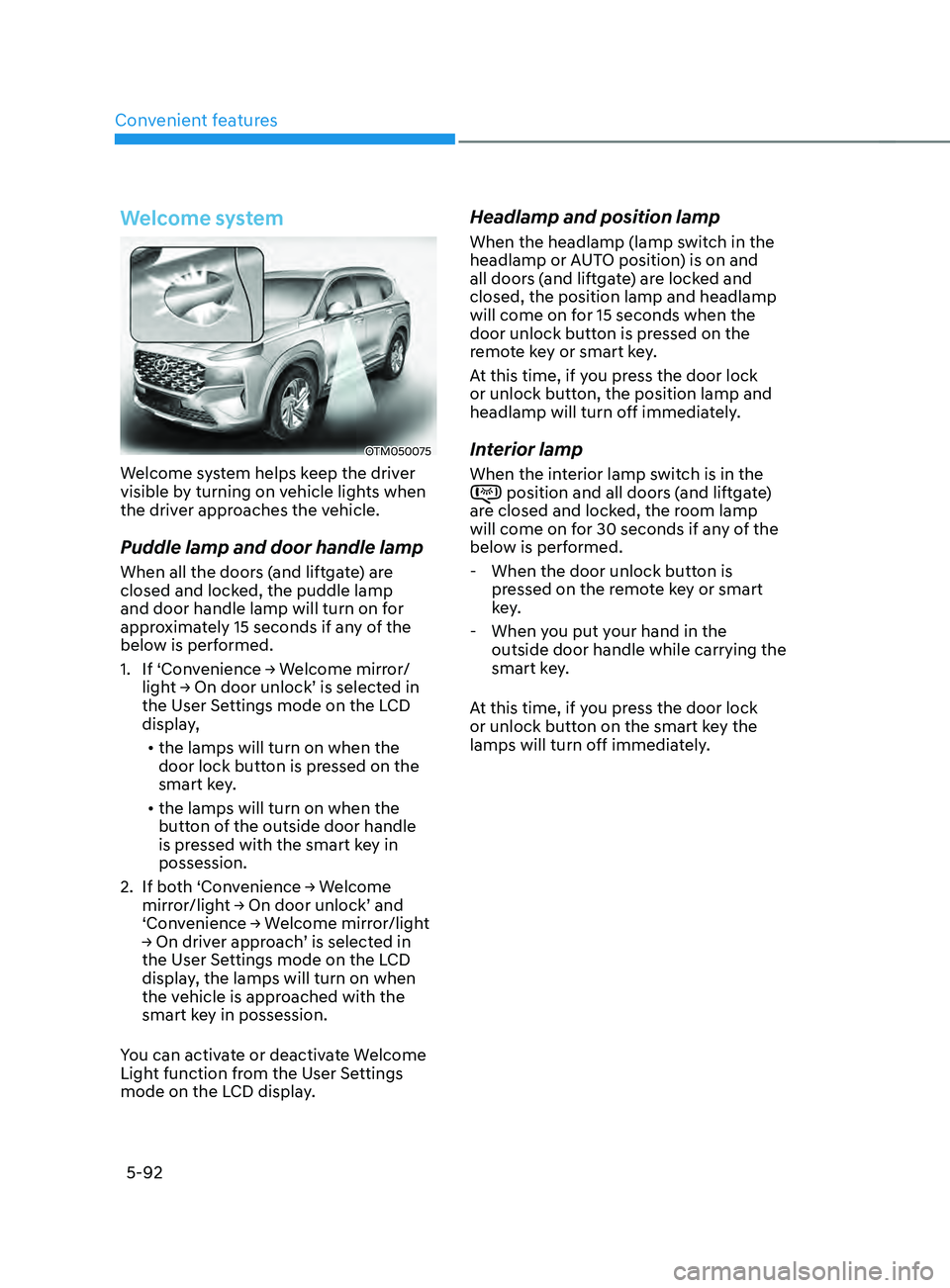
Welcome system
OTM050075
Welcome system helps keep the driver
visible by turning on vehicle lights when
the driver approaches the vehicle.
Puddle lamp and door handle lamp
When all the doors (and liftgate) are
closed and locked, the puddle lamp
and door handle lamp will turn on for
approximately 15 seconds if any of the
below is performed.
1.
If ‘Con
venience
→ W
elcome
mirr
or/
light
→ On door unlock’ is select
ed
in the User Se
ttings mode on the LCD
display,
• the lamps will turn on when the
door lock button is pressed on the
smart key.
• the lamps will turn on when the
button of the outside door handle
is pressed with the smart key in
possession.
2.
If bo
th
‘Con
venience
→ W
elcome
mirror/ligh
t
→ On door unlock’ and ‘Conv
enience
→ W
elcome
mirr
or/light
→ On driv
er
appr
oach’
is select
ed
in the User Se
ttings mode on the LCD
display, the lamps will turn on when
the vehicle is approached with the
smart key in possession.
You can activate or deactivate Welcome
Light function from the User Settings
mode on the LCD display.
Headlamp and position lamp
When the headlamp (lamp switch in the
headlamp or AUTO position) is on and
all doors (and liftgate) are locked and
closed, the position lamp and headlamp
will come on for 15 seconds when the
door unlock button is pressed on the
remote key or smart key.
At this time, if you press the door lock
or unlock button, the position lamp and
headlamp will turn off immediately.
Interior lamp
When the interior lamp switch is in the position and all doors (and liftgate)
are closed and locked, the room lamp
will come on for 30 seconds if any of the
below is performed.
- When the door unlock button is pr
essed on the remote key or smart
key.
- When you put y
our hand in the
outside door handle while carrying the
smart key.
At this time, if you press the door lock
or unlock button on the smart key the
lamps will turn off immediately.
Page 404 of 636
Driver assistance system
7-22
Information
• You may change settings from the
instrument cluster (User Settings) or
infotainment system (Vehicle Settings),
whichever option that is provided with
your vehicle. For more details, see
"User Settings" section in chapter 4, or
"Vehicle Settings" section in supplied
Infotainment Manual.
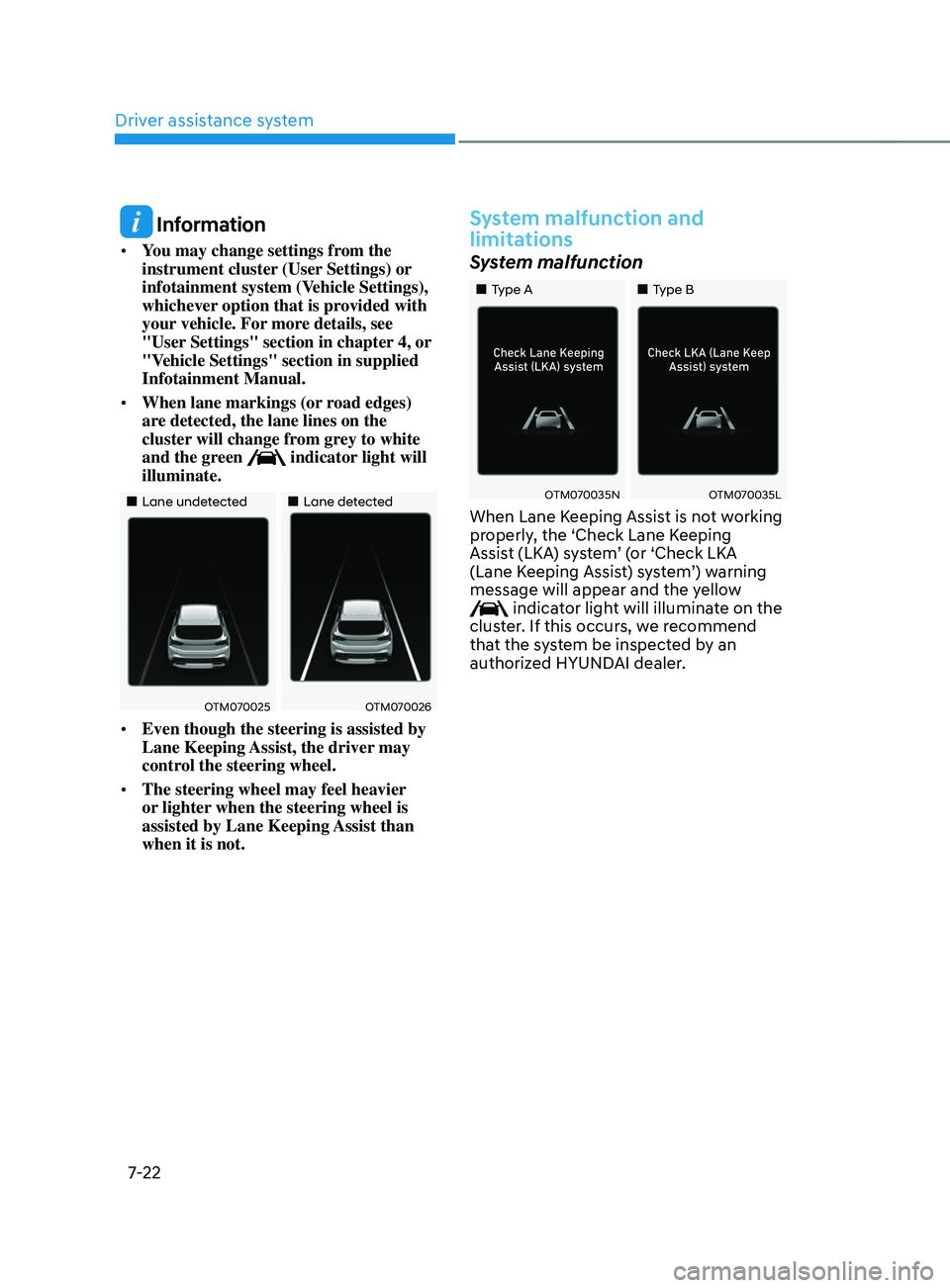
• When lane markings (or road edges)
are detected, the lane lines on the
cluster will change from grey to white
and the green
indicator light will
illuminate.
„„Lane undetected „„Lane detected
OTM070025OTM070026
• Even though the steering is assisted by
Lane Keeping Assist, the driver may
control the steering wheel.
• The steering wheel may feel heavier
or lighter when the steering wheel is
assisted by Lane Keeping Assist than
when it is not.
System malfunction and
limitations
System malfunction
„„Type A „„Type B
OTM070035NOTM070035L
When Lane Keeping Assist is not working
properly, the ‘Check Lane Keeping
Assist (LKA) system’ (or ‘Check LKA
(Lane Keeping Assist) system’) warning
message will appear and the yellow
indicator light will illuminate on the
cluster. If this occurs, we recommend
that the system be inspected by an
authorized HYUNDAI dealer.
Page 429 of 636
07
7-47
• The driver’s attention level is displayed
on the scale of 1 to 5. The lower the
level is, the more inattentive the driver
is.
• The level decreases when the driver
does not take a break for a certain
period of time.
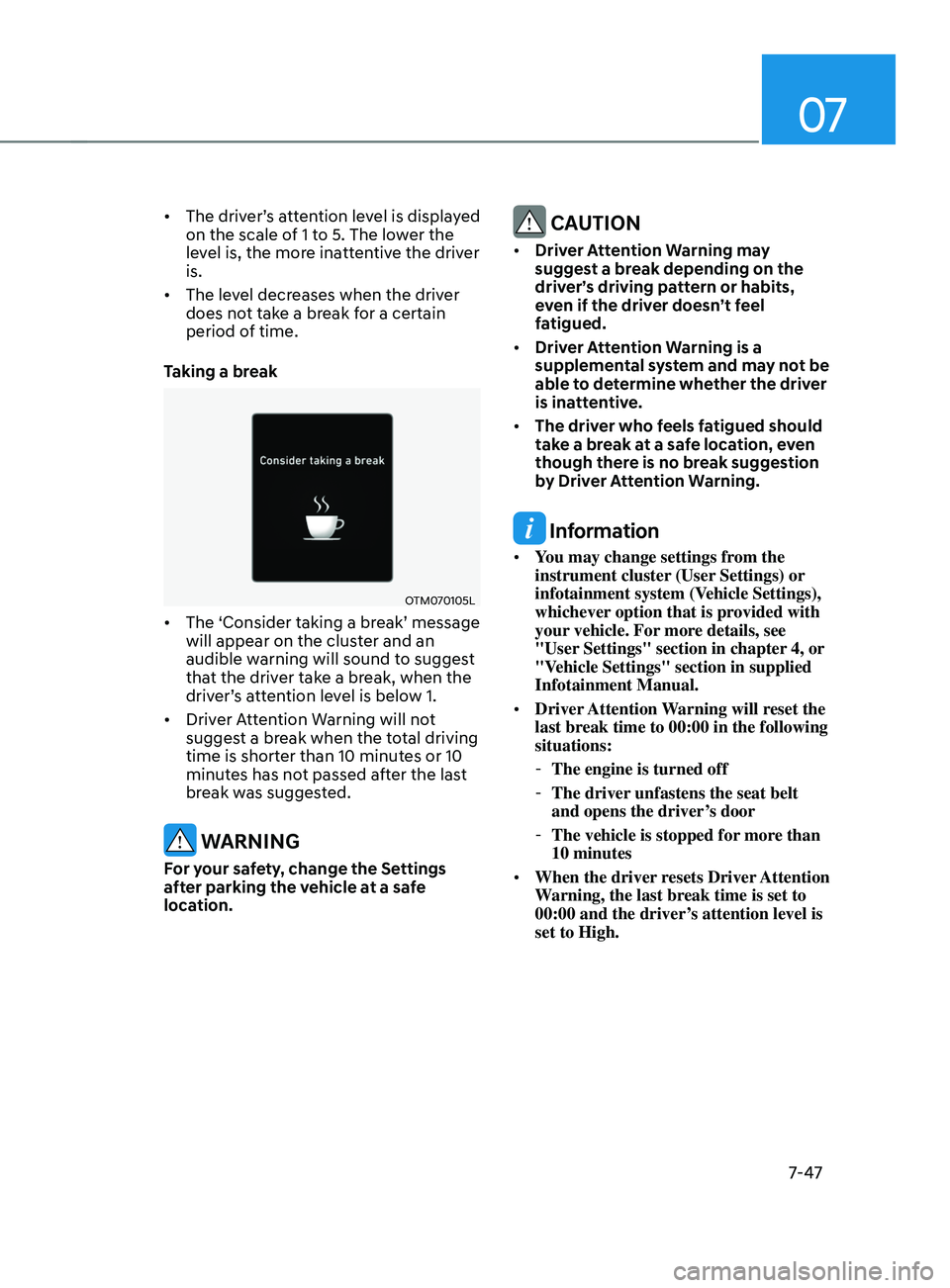
Taking a break
OTM070105L
• The ‘Consider taking a break’ message
will appear on the cluster and an
audible warning will sound to suggest
that the driver take a break, when the
driver’s attention level is below 1.
• Driver Attention Warning will not
suggest a break when the total driving
time is shorter than 10 minutes or 10
minutes has not passed after the last
break was suggested.
WARNING
For your safety, change the Settings
after parking the vehicle at a safe
location.
CAUTION
• Driver Attention Warning may
suggest a break depending on the
driver’s driving pattern or habits,
even if the driver doesn’t feel
fatigued.
• Driver Attention Warning is a
supplemental system and may not be
able to determine whether the driver
is inattentive.
• The driver who feels fatigued should
take a break at a safe location, even
though there is no break suggestion
by Driver Attention Warning.
Information
• You may change settings from the
instrument cluster (User Settings) or
infotainment system (Vehicle Settings),
whichever option that is provided with
your vehicle. For more details, see
"User Settings" section in chapter 4, or
"Vehicle Settings" section in supplied
Infotainment Manual.
• Driver Attention Warning will reset the
last break time to 00:00 in the following
situations:
-The engine is turned off
-The driver unfastens the seat belt
and opens the driver
’s door
-The vehicle is stopped for mor
e than
10 minutes
• When the driver resets Driver Attention
Warning, the last break time is set to
00:00 and the driver’s attention level is
set to High.
Page 462 of 636
Driver assistance system
7-80
Information
• You may change settings from the
instrument cluster (User Settings) or
infotainment system (Vehicle Settings),
whichever option that is provided with
your vehicle. For more details, see
"User Settings" section in chapter 4, or
"Vehicle Settings" section in supplied
Infotainment Manual.
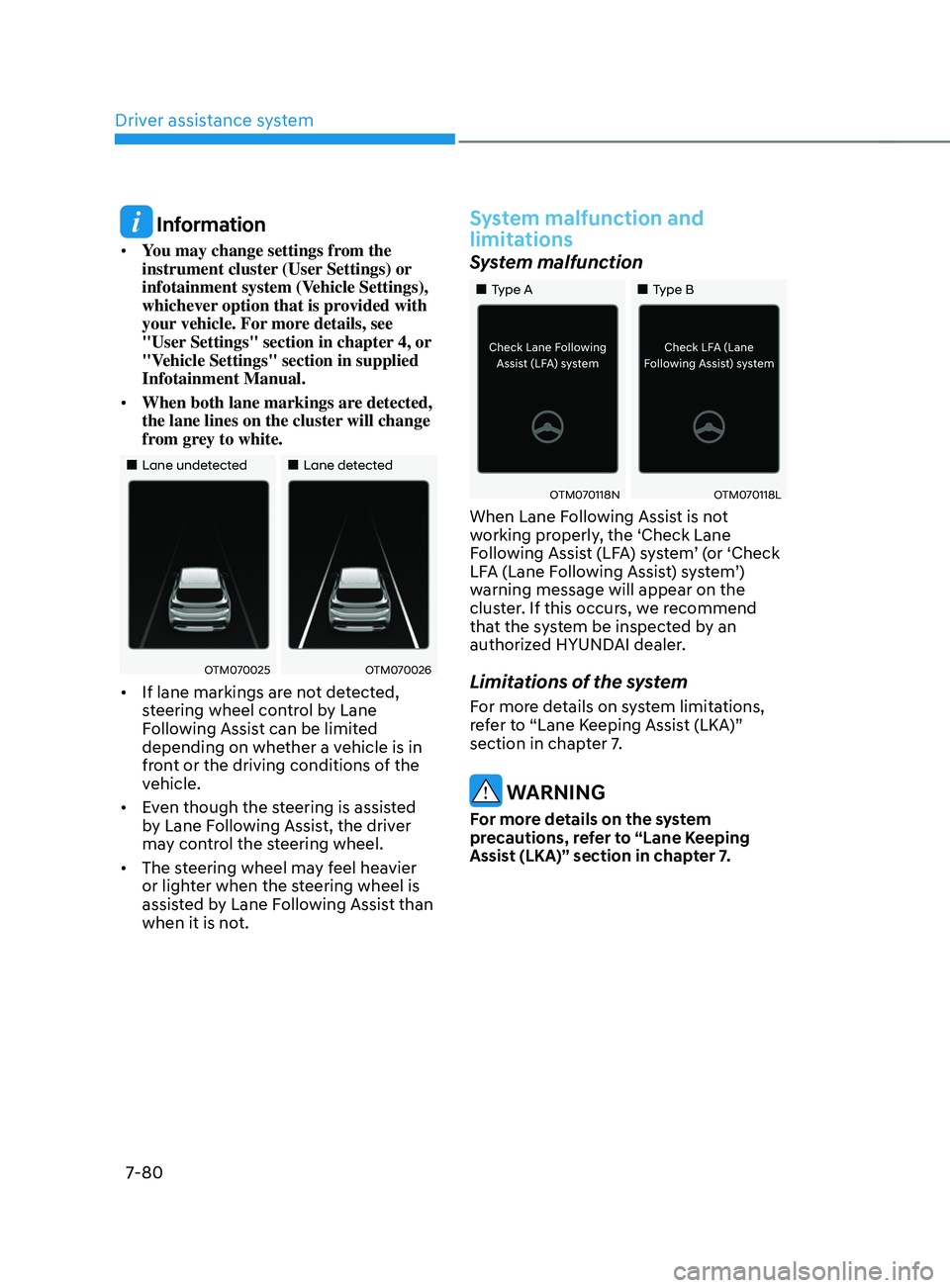
• When both lane markings are detected,
the lane lines on the cluster will change
from grey to white.
„„Lane undetected „„Lane detected
OTM070025OTM070026
• If lane markings are not detected,
steering wheel control by Lane
Following Assist can be limited
depending on whether a vehicle is in
front or the driving conditions of the
vehicle.
• Even though the steering is assisted
by Lane Following Assist, the driver
may control the steering wheel.
• The steering wheel may feel heavier
or lighter when the steering wheel is
assisted by Lane Following Assist than
when it is not.
System malfunction and
limitations
System malfunction
„„Type A „„Type B
OTM070118NOTM070118L
When Lane Following Assist is not
working properly, the ‘Check Lane
Following Assist (LFA) system’ (or ‘Check
LFA (Lane Following Assist) system’)
warning message will appear on the
cluster. If this occurs, we recommend
that the system be inspected by an
authorized HYUNDAI dealer.
Limitations of the system
For more details on system limitations,
refer to “Lane Keeping Assist (LKA)”
section in chapter 7.
WARNING
For more details on the system
precautions, refer to “Lane Keeping
Assist (LKA)” section in chapter 7.
Page 527 of 636
08
8-9
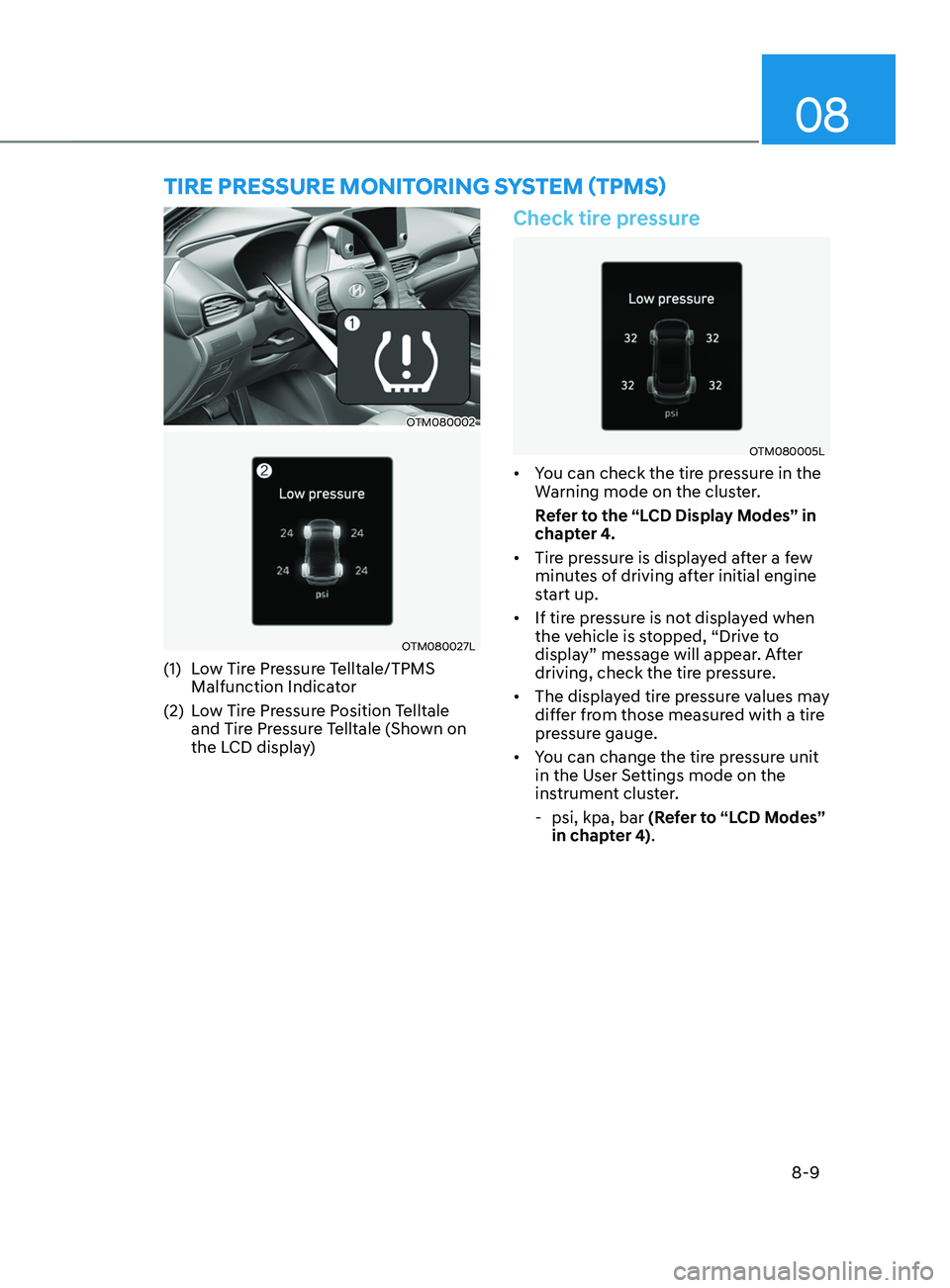
OTM080002
OTM080027L
(1) Low Tire Pressure Telltale/TPMS
Malfunction Indicator
(2)
Lo
w Tire Pressure Position Telltale
and Tire Pressure Telltale (Shown on
the LCD display)
Check tire pressure
OTM080005L
• You can check the tire pressure in the
Warning mode on the cluster.
Refer to the “LCD Display Modes” in
chapter 4.
• Tire pressure is displayed after a few
minutes of driving after initial engine
start up.
• If tire pressure is not displayed when
the vehicle is stopped, “Drive to
display” message will appear. After
driving, check the tire pressure.
• The displayed tire pressure values may
differ from those measured with a tire
pressure gauge.
• You can change the tire pressure unit
in the User Settings mode on the
instrument cluster.
- psi, kpa, bar (R
efer to “LCD Modes”
in chapter 4).
TIRE pREssURE mOnITORIng sYsTEm (Tpms)