2021 HYUNDAI SANTA FE mode button
[x] Cancel search: mode buttonPage 127 of 636
04
4-29
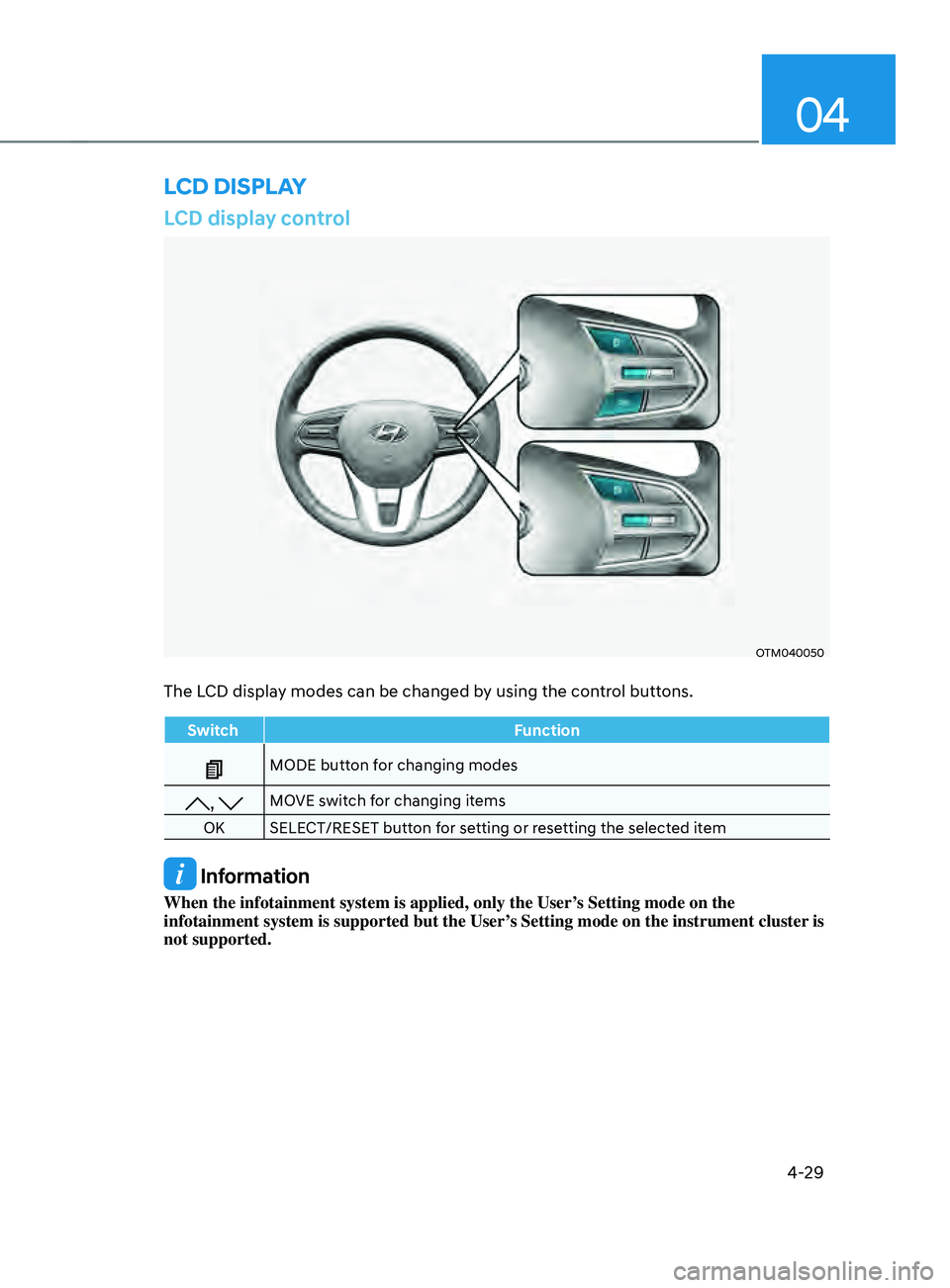
LCD display control
OTM040050
The LCD display modes can be changed by using the control buttons.
SwitchFunction
MODE button for changing modes
, MOVE switch for changing items
OK SELECT/RESET button for setting or resetting the selected item
Information
When the infotainment system is applied, only the User’s Setting mode on the
infotainment system is supported but the User’s Setting mode on the instrument cluster is
not supported.
LCD DISPLAY
Page 131 of 636
04
4-33
OTM080005L
Tire Pressure
This mode displays information related to
Tire Pressure.
For more details, refer to "Tire Pressure
Monitoring System (TPMS)" in chapter
8.
User settings mode
OTM040060L
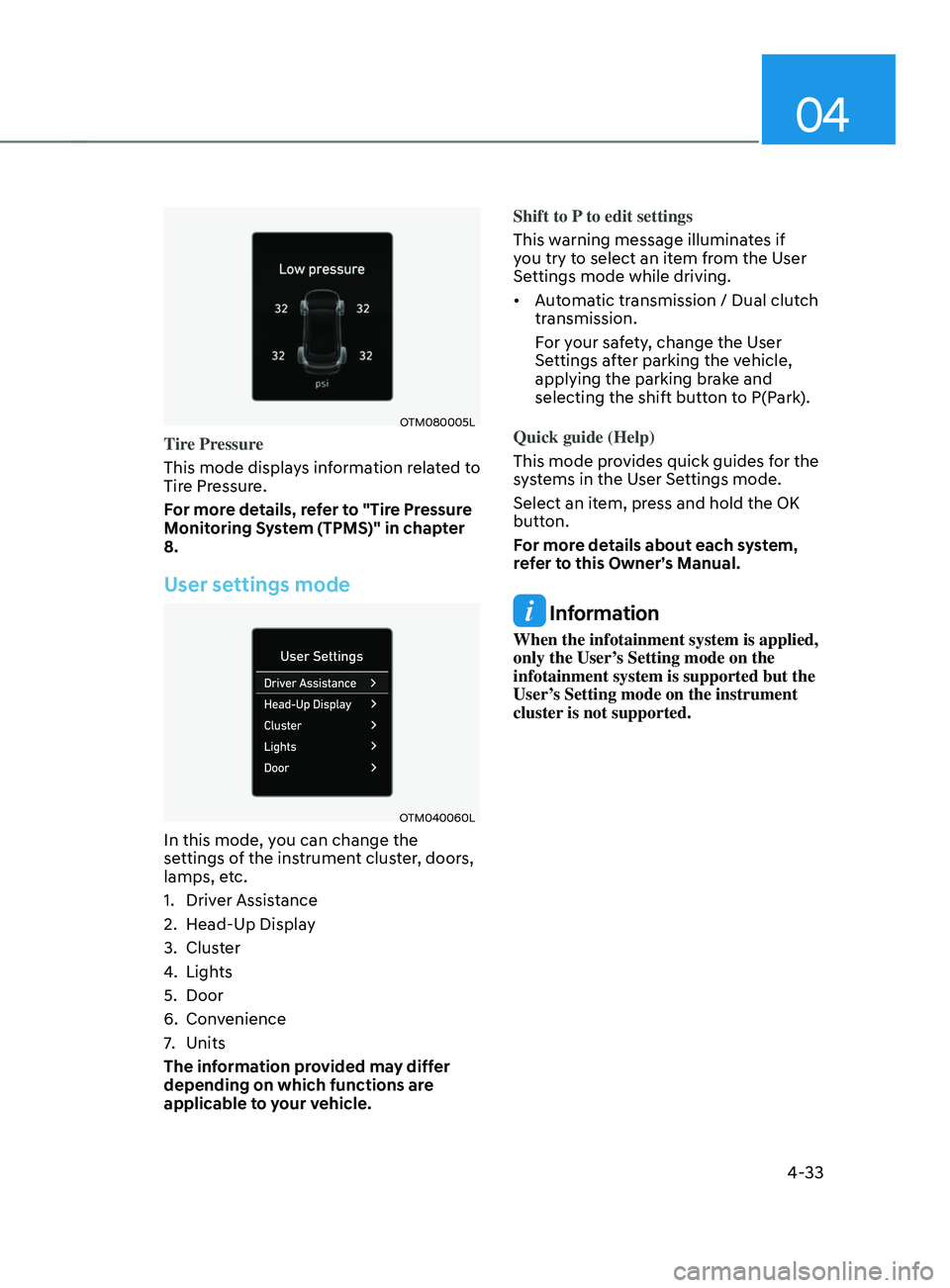
In this mode, you can change the
settings of the instrument cluster, doors,
lamps, etc.
1.
Driver Assis
tance
2.
Head-Up Displa
y
3.
Clust
er
4.
Lights
5.
Door
6.
Conv
enience
7.
Units
The inf
ormation provided may differ
depending on which functions are
applicable to your vehicle. Shift to P to edit settings
This warning message illuminates if
you try to select an item from the User
Settings mode while driving.
•
Automatic transmission / Dual clutch
transmission.
For your safety, change the User
Settings after parking the vehicle,
applying the parking brake and
selecting the shift button to P(Park).
Quick guide (Help)
This mode provides quick guides for the
systems in the User Settings mode.
Select an item, press and hold the OK
button.
For more details about each system,
refer to this Owner’s Manual.
Information
When the infotainment system is applied,
only the User’s Setting mode on the
infotainment system is supported but the
User’s Setting mode on the instrument
cluster is not supported.
Page 149 of 636
05
5-5
Remote key (if equipped)
OPD046001
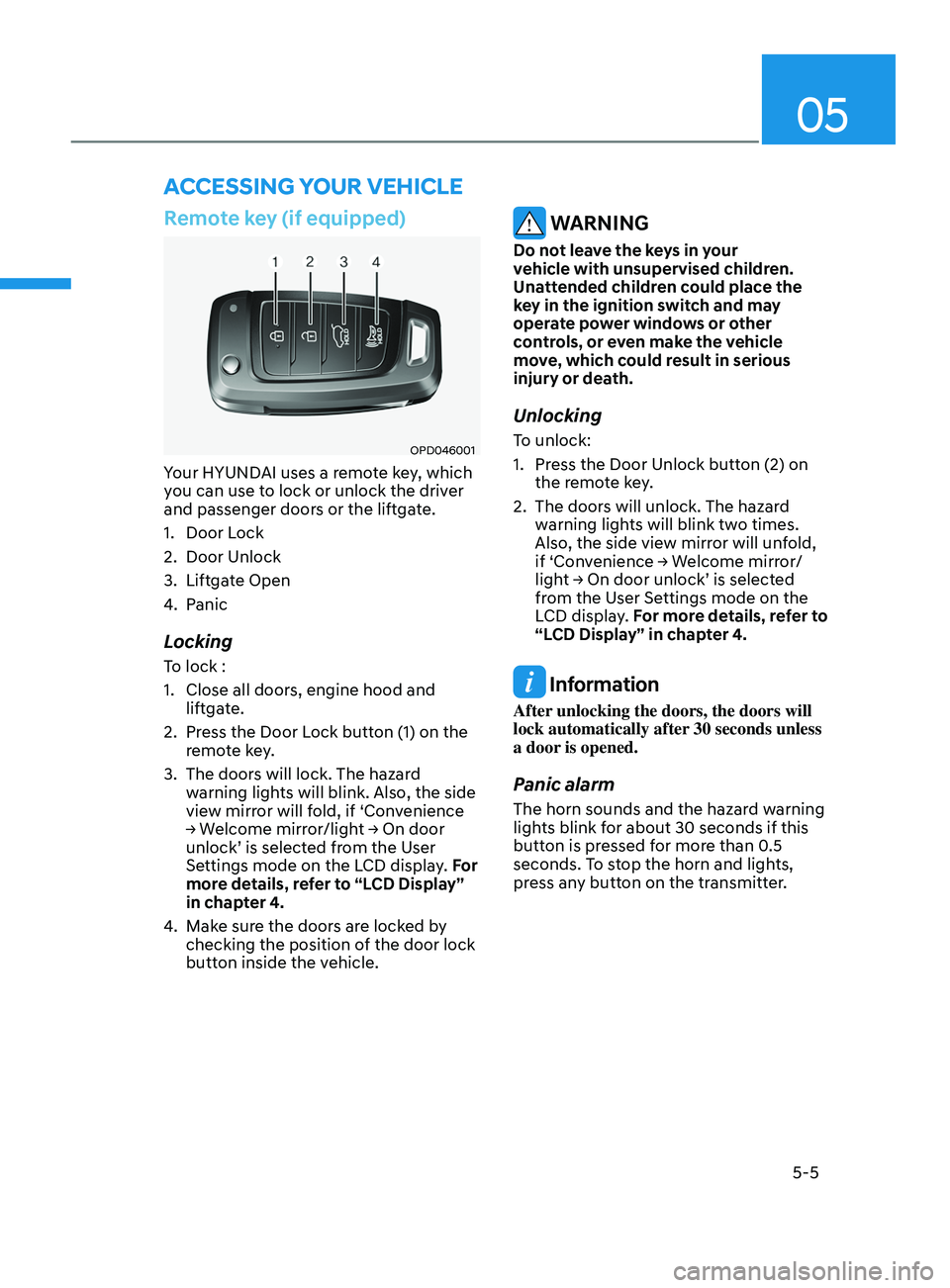
Your HYUNDAI uses a remote key, which
you can use to lock or unlock the driver
and passenger doors or the liftgate.
1.
Door Lock
2.
Door Unlock
3.
Liftga
te Open
4.
Panic
Locking
To lock :
1.
Close all doors, engine hood and
lift
gate.
2.
Press the Door L
ock button (1) on the
remote key.
3.
The doors will lock. The hazar
d
warning lights will blink. Also, the side
view mirror will fold, if ‘Convenience
→
W
elcome
mirr
or/light
→ On door unlock’ is selected fr
om the User
Settings mode on the LCD display. For
more details, refer to “LCD Display”
in chapter 4.
4.
Make sur
e the doors are locked by
checking the position of the door lock
button inside the vehicle.
WARNING
Do not leave the keys in your
vehicle with unsupervised children.
Unattended children could place the
key in the ignition switch and may
operate power windows or other
controls, or even make the vehicle
move, which could result in serious
injury or death.
Unlocking
To unlock:
1.
Press the Door Unlock butt
on (2) on
the remote key.
2.
The doors will unlock. The hazar
d
warning lights will blink two times.
Also, the side view mirror will unfold,
if
‘Con
venience
→ W
elcome
mirr
or/
light
→ On door unlock’ is select
ed
from the U
ser Settings mode on the
LCD display. For more details, refer to
“LCD Display” in chapter 4.
Information
After unlocking the doors, the doors will
lock automatically after 30 seconds unless
a door is opened.
Panic alarm
The horn sounds and the hazard warning
lights blink for about 30 seconds if this
button is pressed for more than 0.5
seconds. To stop the horn and lights,
press any button on the transmitter.
ACCESSING Y OUR VEHICLE
Page 153 of 636
05
5-9
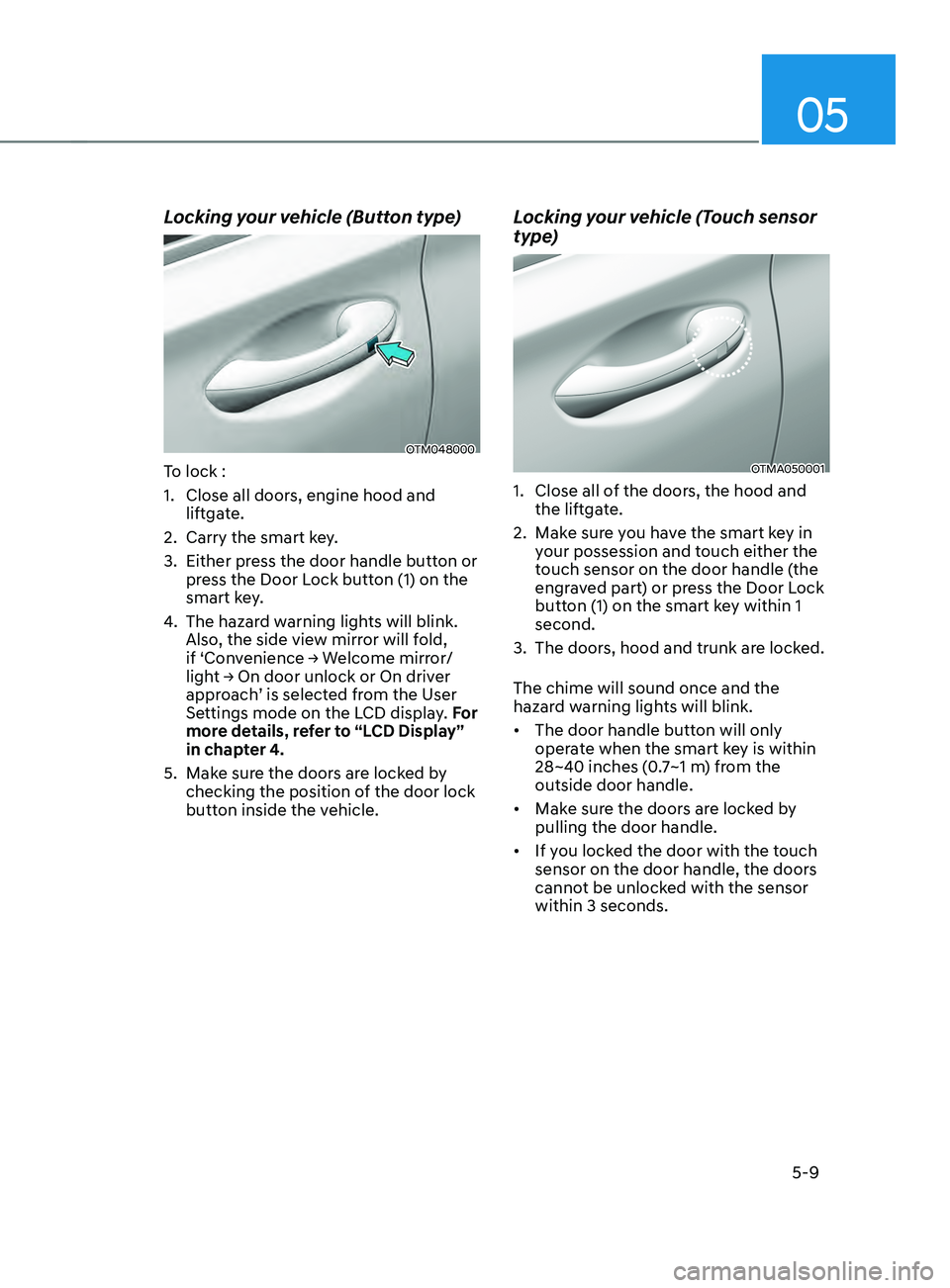
Locking your vehicle (Button type)
OTM048000
To lock :
1.
Close all doors, engine hood and
lift
gate.
2.
Carry the smart ke
y.
3.
Either press the door handle butt
on or
press the Door Lock button (1) on the
smart key.
4.
The hazard w
arning lights will blink.
Also, the side view mirror will fold,
if
‘Con
venience
→ W
elcome
mirr
or/
light
→ On door unlock or On driv
er
approach
’ is selected from the User
Settings mode on the LCD display. For
more details, refer to “LCD Display”
in chapter 4.
5.
Make sur
e the doors are locked by
checking the position of the door lock
button inside the vehicle.
Locking your vehicle (Touch sensor
type)
OTMA050001
1. Close all of the door s, the hood and
the liftgate.
2.
Make sur
e you have the smart key in
your possession and touch either the
touch sensor on the door handle (the
engraved part) or press the Door Lock
button (1) on the smart key within 1
second.
3.
The doors, hood and trunk ar
e locked.
The chime will sound once and the
hazard warning lights will blink.
• The door handle button will only
operate when the smart key is within
28~40 inches (0.7~1 m) from the
outside door handle.
• Make sure the doors are locked by
pulling the door handle.
• If you locked the door with the touch
sensor on the door handle, the doors
cannot be unlocked with the sensor
within 3 seconds.
Page 154 of 636
Convenient features
5-10
Even though you press the outside
door handle button, the doors will not
lock and the chime will sound for three
seconds if any of the following occur:
• The Smart Key is in the vehicle.
• The Engine Start/Stop button is in
ACC or ON position.
• Any door except the liftgate is open.
CAUTION
When you leave your vehicle with
the smart key, make sure to press the
button on the front door handle or
touch the touch sensor on the front
door handle to lock the doors after
close all of the doors, the hood and the
trunk. If you do not press the button
or touch the touch sensor firmly, the
doors might not be locked so please use
caution.
WARNING
Do not leave the Smart Key in your
vehicle with unsupervised children.
Unattended children could press the
Engine Start/ Stop button and may
operate power windows or other
controls, or even make the vehicle
move, which could result in serious
injury or death.
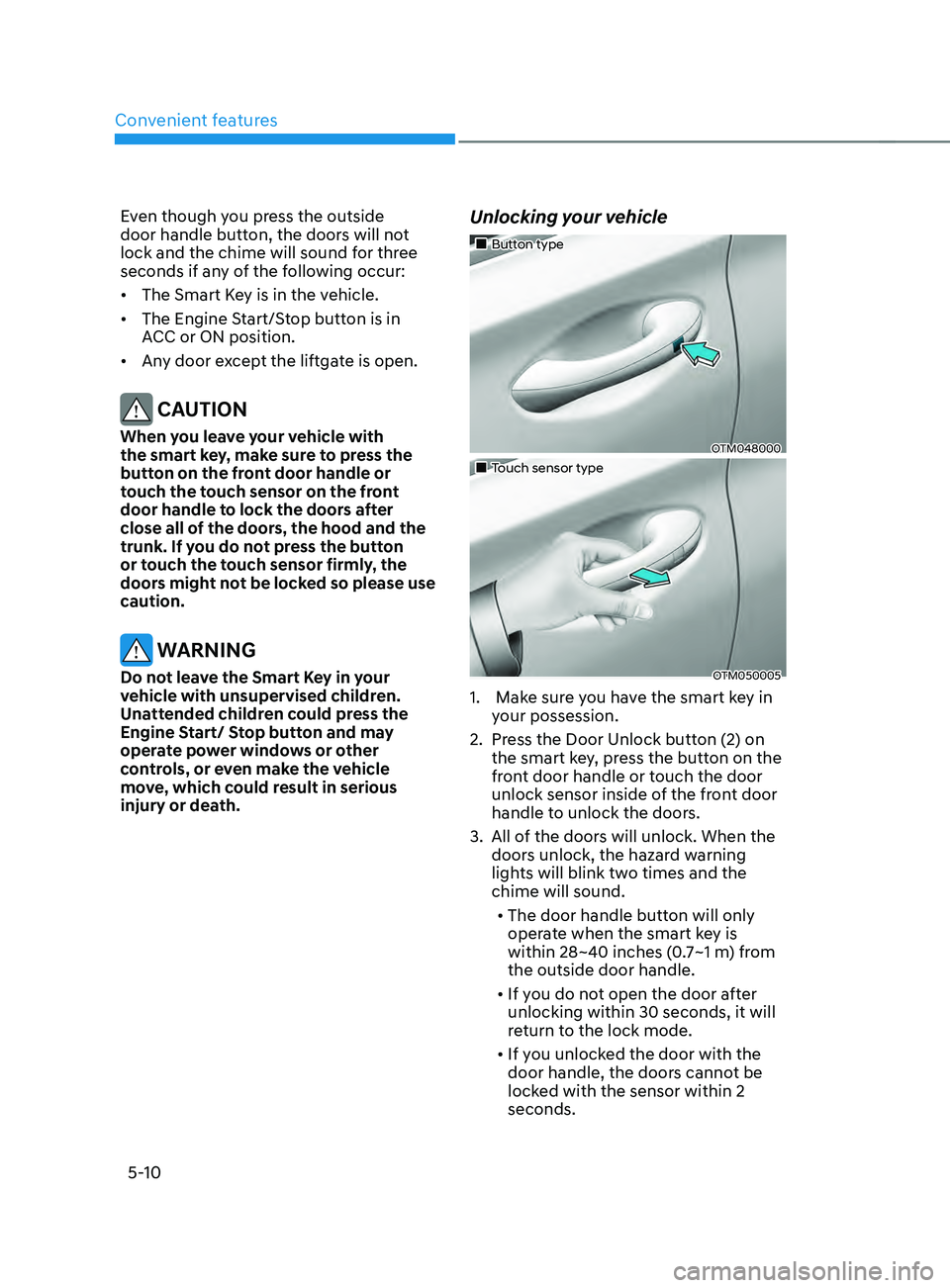
Unlocking your vehicle
„„Button type
OTM048000
„„Touch sensor type
OTM050005
1. Make sure you have the smart key in
y
our possession.
2.
Press the Door Unlock butt
on (2) on
the smart key, press the button on the
front door handle or touch the door
unlock sensor inside of the front door
handle to unlock the doors.
3.
All of the door
s will unlock. When the
doors unlock, the hazard warning
lights will blink two times and the
chime will sound.
• The door handle button will only
operate when the smart key is
within 28~40 inches (0.7~1 m) from
the outside door handle.
• If you do not open the door after
unlocking within 30 seconds, it will
return to the lock mode.
• If you unlocked the door with the
door handle, the doors cannot be
locked with the sensor within 2
seconds.
Page 159 of 636
05
5-15
Hyundai Digital Key
Digital Key Application
To use Hyundai Digital Key mobile app,
you should install Hyundai digital key
application. Search ‘Hyundai digital key’
in the Google Play Store and download
the app. Please refer to the detailed
manual of the digital key app. The option
can be found under the following app
menu:
Menu → Application Info → Tutorial
Please note the manual before using the
app.
ÃThis service is only av
ailable for
Android smartphones. Please confirm
supported/compatible devices on our
website.
WARNING
For used vehicle
If any of the digital key (smartphone key
or card key) is already registered when
you press ON button after unlocking the
doors, the message ‘Digital key(s) active’
appears on the instrument cluster once.
If you buy a used vehicle, you should
confirm the message and delete the
registered smartphone key and card key.
In addition, please notify the Hyundai
Customer Care Center.
If the card key does not work properly,
please delete the card key and register
the smartphone key and re-register the
card key.
For vehicle maintenance
If you need to have your Digital Key
System repaired or replaced please
ensure you Smartphone Key is still active.
You may have to pair your phone again.
In the case, re-initialize your Digital Keys
using the Hyundai Digital Key mobile app.
Digital key (smartphone) NFC
function
You can use the Digital Key NFC (Near
Field Communication) function after turn
your smartphone NFC settings on. And
you should unlock & turn on smartphone
screen to use it.
à To change the NF
C mode of the
smartphone, please refer to the
smartphone manual or contact
to the customer service center of
smartphone manufacturers.
Page 160 of 636
Convenient features
5-16
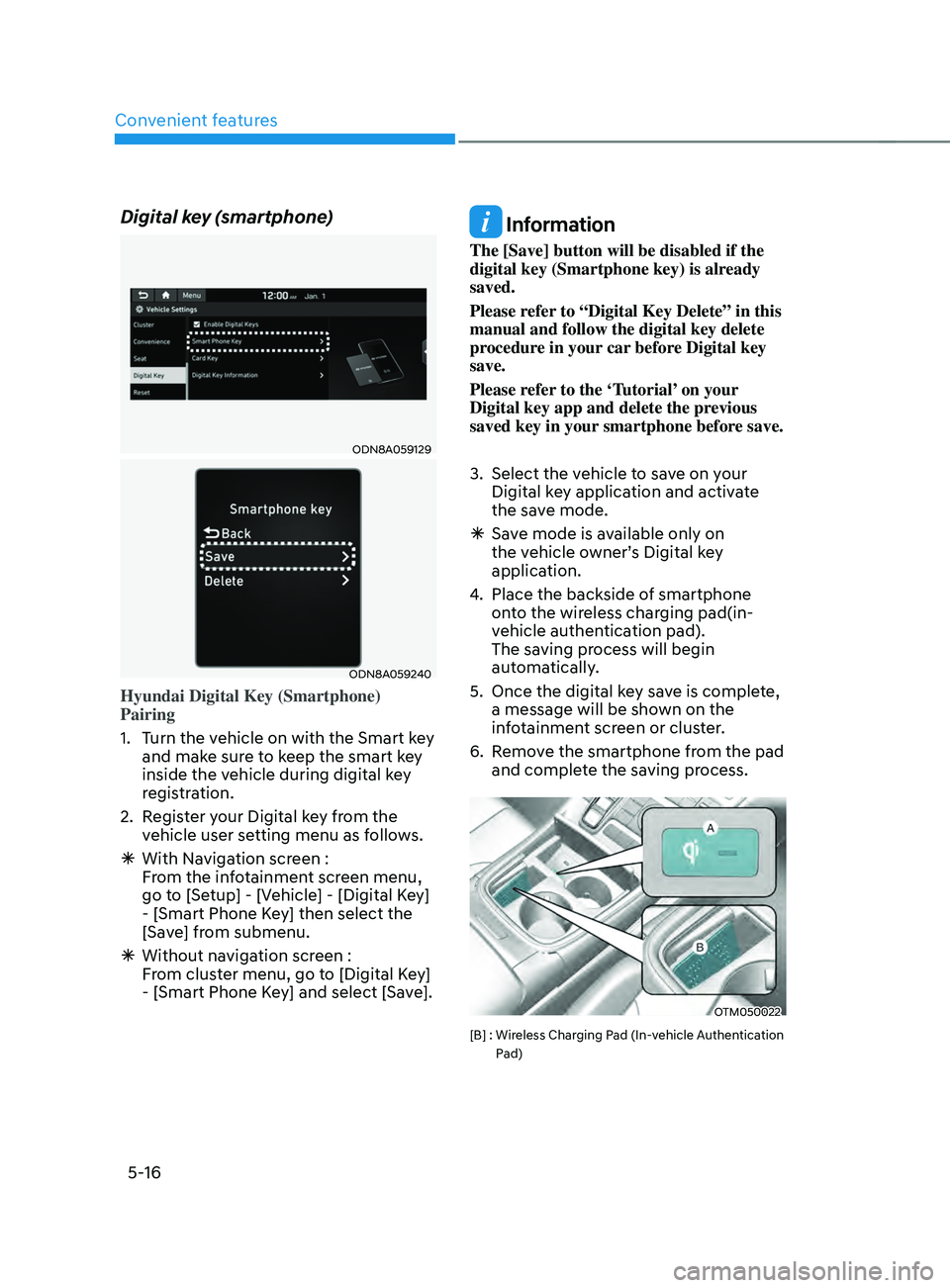
Digital key (smartphone)
ODN8A059129
ODN8A059240
Hyundai Digital Key (Smartphone)
Pairing
1.
Turn the v
ehicle on with the Smart key
and make sure to keep the smart key
inside the vehicle during digital key
registration.
2.
Regis
ter your Digital key from the
vehicle user setting menu as follows.
à With Naviga
tion screen :
From the infotainment screen menu,
go to [Setup] - [Vehicle] - [Digital Key]
- [Smart Phone Key] then select the
[Save] from submenu.
à Without naviga
tion screen :
From cluster menu, go to [Digital Key]
- [Smart Phone Key] and select [Save].
Information
The [Save] button will be disabled if the
digital key (Smartphone key) is already
saved.
Please refer to “Digital Key Delete” in this
manual and follow the digital key delete
procedure in your car before Digital key
save.
Please refer to the ‘Tutorial’ on your
Digital key app and delete the previous
saved key in your smartphone before save.
3.
Select the vehicle t
o save on your
Digital key application and activate
the save mode.
à Sav
e mode is available only on
the vehicle owner’s Digital key
application.
4.
Place the backside o
f smartphone
onto the wireless charging pad(in-
vehicle authentication pad).
The saving process will begin
automatically.
5.
Once the digital ke
y save is complete,
a message will be shown on the
infotainment screen or cluster.
6.
Remo
ve the smartphone from the pad
and complete the saving process.
OTM050022
[B] : Wireless Charging Pad (In-vehicle Authentication
P
ad)
Page 163 of 636
05
5-19
After unlock the door or start up the
vehicle with digital key, even though
the driver tries to lock the doors by the
central door lock switch, the door lock
will be once locked and immediately
released at the moment of door closed.
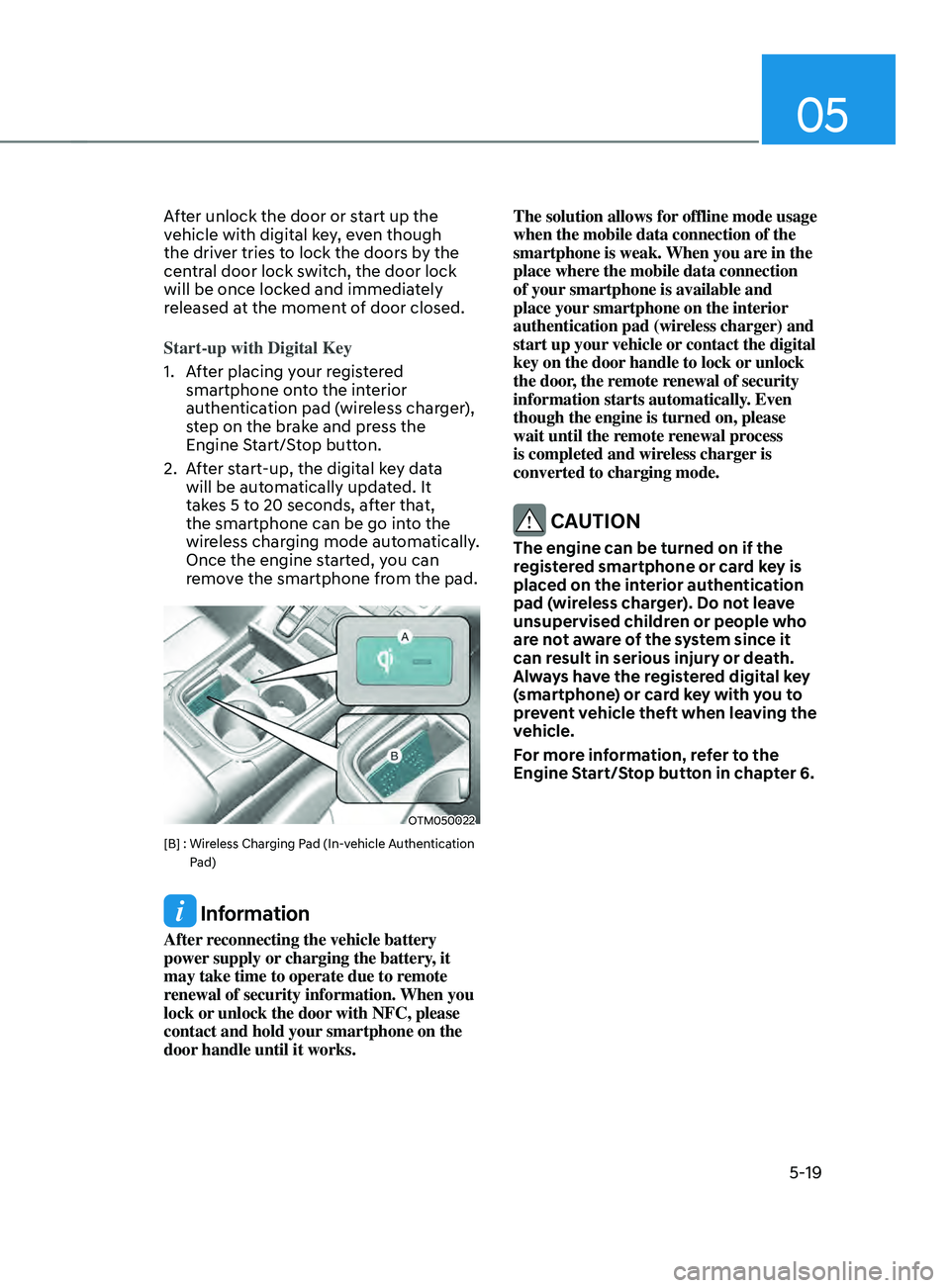
Start-up with Digital Key
1.
Aft
er placing your registered
smartphone onto the interior
authentication pad (wireless charger),
step on the brake and press the
Engine Start/Stop button.
2.
Aft
er start-up, the digital key data
will be automatically updated. It
takes 5 to 20 seconds, after that,
the smartphone can be go into the
wireless charging mode automatically.
Once the engine started, you can
remove the smartphone from the pad.
OTM050022
[B] : Wireless Charging Pad (In-vehicle Authentication
P
ad)
Information
After reconnecting the vehicle battery
power supply or charging the battery, it
may take time to operate due to remote
renewal of security information. When you
lock or unlock the door with NFC, please
contact and hold your smartphone on the
door handle until it works. The solution allows for offline mode usage
when the mobile data connection of the
smartphone is weak. When you are in the
place where the mobile data connection
of your smartphone is available and
place your smartphone on the interior
authentication pad (wireless charger) and
start up your vehicle or contact the digital
key on the door handle to lock or unlock
the door, the remote renewal of security
information starts automatically. Even
though the engine is turned on, please
wait until the remote renewal process
is completed and wireless charger is
converted to charging mode.
CAUTION
The engine can be turned on if the
registered smartphone or card key is
placed on the interior authentication
pad (wireless charger). Do not leave
unsupervised children or people who
are not aware of the system since it
can result in serious injury or death.
Always have the registered digital key
(smartphone) or card key with you to
prevent vehicle theft when leaving the
vehicle.
For more information, refer to the
Engine Start/Stop button in chapter 6.