2021 HYUNDAI SANTA FE HYBRID navigation
[x] Cancel search: navigationPage 178 of 598
![HYUNDAI SANTA FE HYBRID 2021 Owners Manual Convenient features
5-20
3. Register the NFC card key on the
User’s Settings menu after turning on
the vehicle.
ÃWith Navigation screen : From the
infotainment screen menu, go to
[Setup] - [Ve](/manual-img/35/56184/w960_56184-177.png "HYUNDAI SANTA FE HYBRID 2021 Owners Manual Convenient features
5-20
3. Register the NFC card key on the
User’s Settings menu after turning on
the vehicle.
ÃWith Navigation screen : From the
infotainment screen menu, go to
[Setup] - [Ve")
Convenient features
5-20
3. Register the NFC card key on the
User’s Settings menu after turning on
the vehicle.
ÃWith Navigation screen : From the
infotainment screen menu, go to
[Setup] - [Vehicle] - [Digital Key] -
[Card Key] then select the [Save] from
submenu.
ÃWithout navigation screen : From
cluster menu, go to [Digital Key] -
[Card Key] and select [Save].
The [Save] button will be disabled if
the digital key (Card key) is already
saved.
Please refer to “Digital Key Delete” in
this manual and follow the digital key
delete procedure in your car before
Digital key save.
4. Place the NFC card key onto the
interior authentication pad (wireless
charger). The saving process will
begin automatically.
5. If the key is enrolled, the message
will be displayed on the infotainment
screen or instrument cluster.
• Once the card key registration mode
is activated, the process should be
completed within 5 minutes. After
then, you should reactivate once
again for registration.
• For the digital key(card key) saving,
the smart key(fob) must be exist inside
of vehicle.
• Once a Card key is registered, it
cannot be reuse onto another vehicle.
ODN8A059243
ODN8A059132
Digital key (Card key) deletion
You should have the smart key to delete
the digital key (card key) so please carry
around the key.
1. Get on the vehicle with the smart key.
2. Delete the NFC card key on the User’s
Settings menu after turning on the
engine.
ÃWith Navigation screen : From the
infotainment screen menu, go to
[Setup] - [Vehicle] - [Digital Key] -
[Card Key] then select the [Delete]
from submenu.
ÃWithout navigation screen : From
cluster menu, go to [Digital Key] -
[Card Key] and select [Delete].
If there is no saved digital key(card key),
[Delete] menu will not be activated.
Page 181 of 598
05
5-23
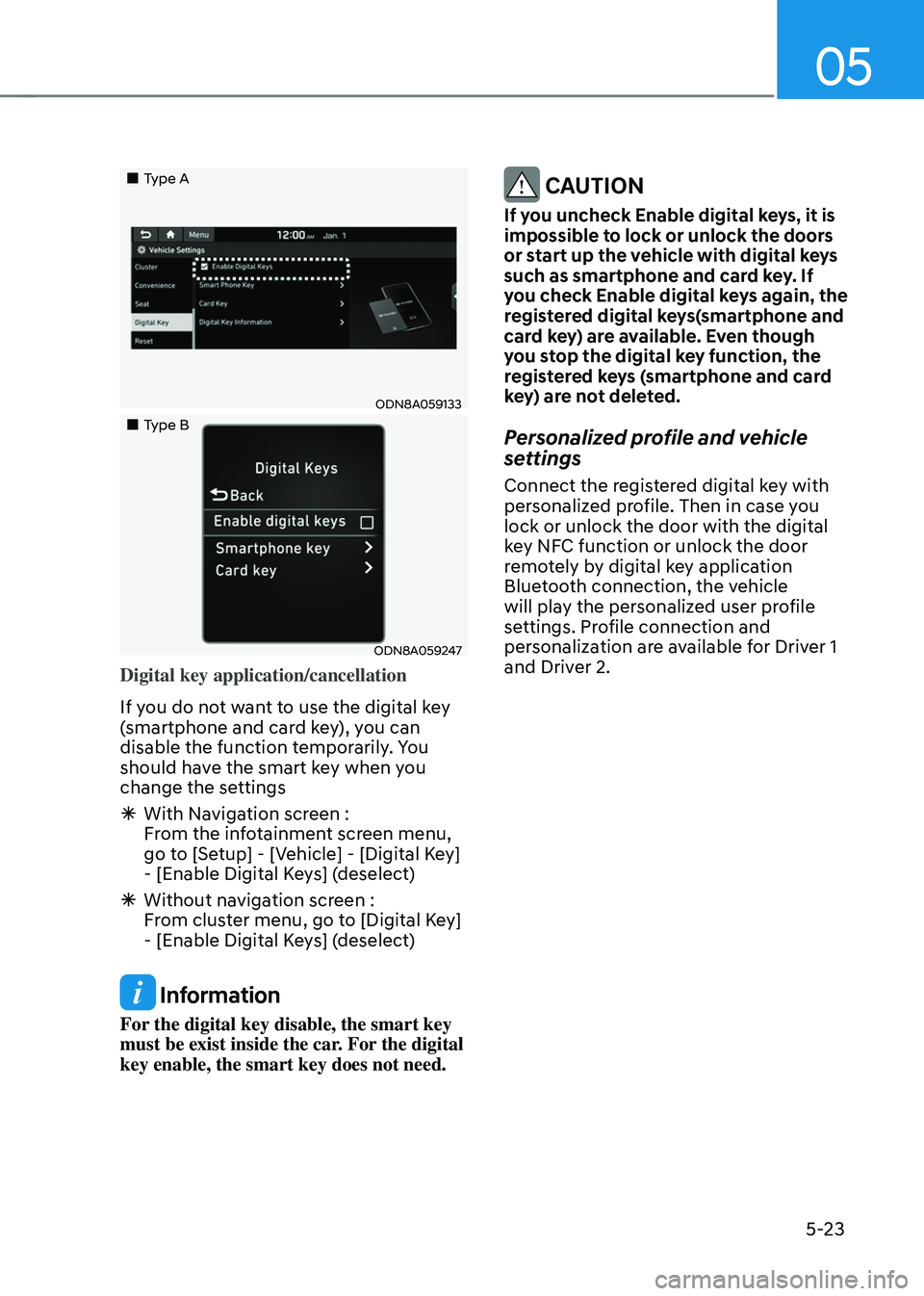
„„Type A
ODN8A059133
„„Type B
ODN8A059247
Digital key application/cancellation
If you do not want to use the digital key
(smartphone and card key), you can
disable the function temporarily. You
should have the smart key when you
change the settings
ÃWith Navigation screen :
From the infotainment screen menu,
go to [Setup] - [Vehicle] - [Digital Key]
- [Enable Digital Keys] (deselect)
ÃWithout navigation screen :
From cluster menu, go to [Digital Key]
- [Enable Digital Keys] (deselect)
Information
For the digital key disable, the smart key
must be exist inside the car. For the digital
key enable, the smart key does not need.
CAUTION
If you uncheck Enable digital keys, it is
impossible to lock or unlock the doors
or start up the vehicle with digital keys
such as smartphone and card key. If
you check Enable digital keys again, the
registered digital keys(smartphone and
card key) are available. Even though
you stop the digital key function, the
registered keys (smartphone and card
key) are not deleted.
Personalized profile and vehicle
settings
Connect the registered digital key with
personalized profile. Then in case you
lock or unlock the door with the digital
key NFC function or unlock the door
remotely by digital key application
Bluetooth connection, the vehicle
will play the personalized user profile
settings. Profile connection and
personalization are available for Driver 1
and Driver 2.
Page 184 of 598
Convenient features
5-26
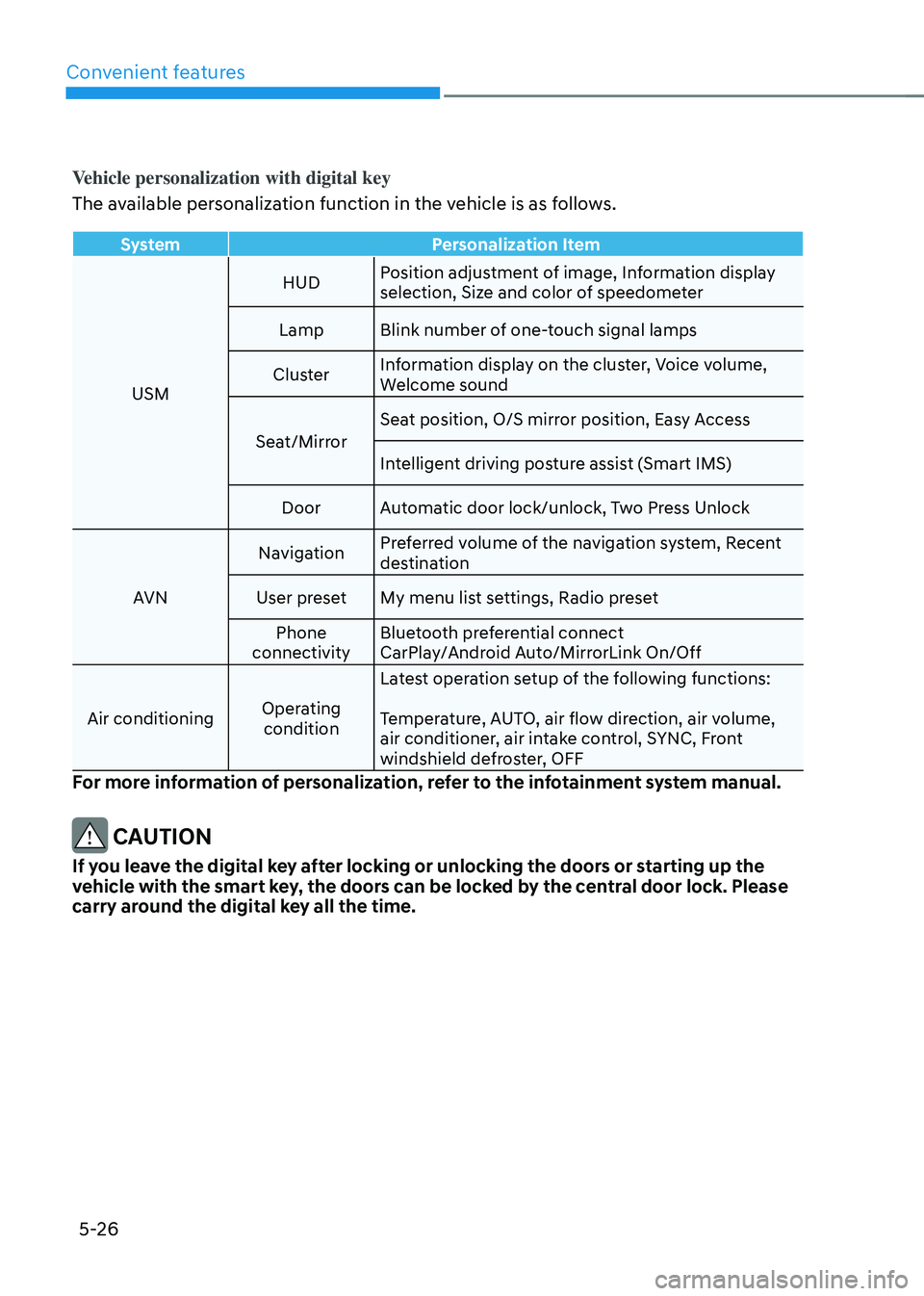
Vehicle personalization with digital key
The available personalization function in the vehicle is as follows.
SystemPersonalization Item
USM HUD
Position adjustment of image, Information display
selection, Size and color of speedometer
Lamp Blink number of one-touch signal lamps
Cluster Information display on the cluster, Voice volume,
Welcome sound
Seat/Mirror Seat position, O/S mirror position, Easy Access
Intelligent driving posture assist (Smart IMS)
Door Automatic door lock/unlock, Two Press Unlock
AVN Navigation
Preferred volume of the navigation system, Recent
destination
User preset My menu list settings, Radio preset
Phone
connectivity Bluetooth preferential connect
CarPlay/Android Auto/MirrorLink On/Off
Air conditioning Operating
condition Latest operation setup of the following functions:
Temperature, AUTO, air flow direction, air volume,
air conditioner, air intake control, SYNC, Front
windshield defroster, OFF
For more information of personalization, refer to the infotainment system manual.
CAUTION
If you leave the digital key after locking or unlocking the doors or starting up the
vehicle with the smart key, the doors can be locked by the central door lock. Please
carry around the digital key all the time.
Page 234 of 598
Convenient features
5 -76
HEAD-UP DISPLAY (HUD) (IF EQUIPPED)
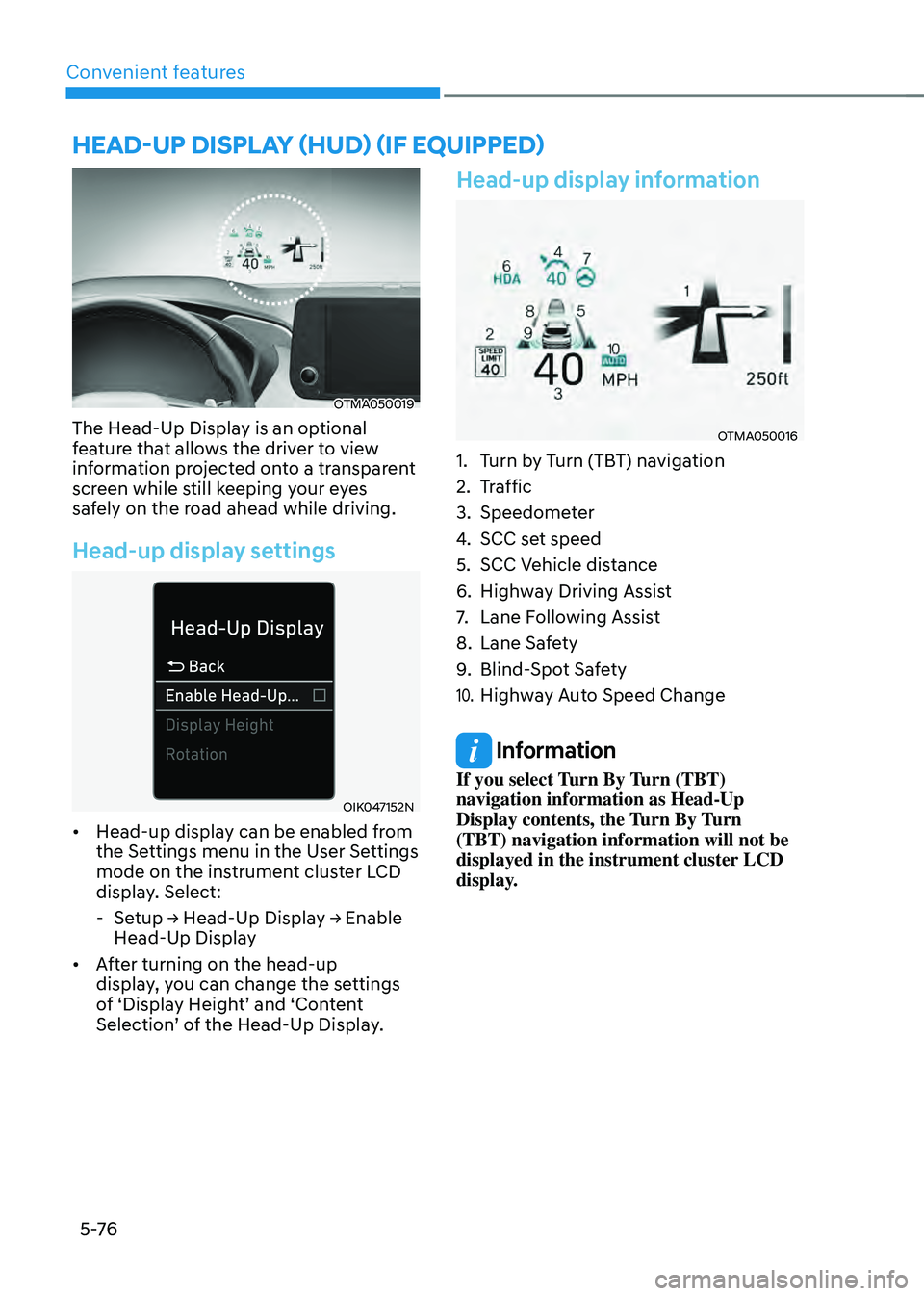
OTMA050019
The Head-Up Display is an optional
feature that allows the driver to view
information projected onto a transparent
screen while still keeping your eyes
safely on the road ahead while driving.
Head-up display settings
OIK047152N
• Head-up display can be enabled from
the Settings menu in the User Settings
mode on the instrument cluster LCD
display. Select:
-Setup → Head-Up Display → Enable
Head-Up Display
• After turning on the head-up
display, you can change the settings
of ‘Display Height’ and ‘Content
Selection’ of the Head-Up Display.
Head-up display information
OTMA050016
1. Turn by Turn (TBT) navigation
2. Traffic
3. Speedometer
4. SCC set speed
5. SCC Vehicle distance
6. Highway Driving Assist
7. Lane Following Assist
8. Lane Safety
9. Blind-Spot Safety
10. Highway Auto Speed Change
Information
If you select Turn By Turn (TBT)
navigation information as Head-Up
Display contents, the Turn By Turn
(TBT) navigation information will not be
displayed in the instrument cluster LCD
display.
Page 301 of 598
06
6-17
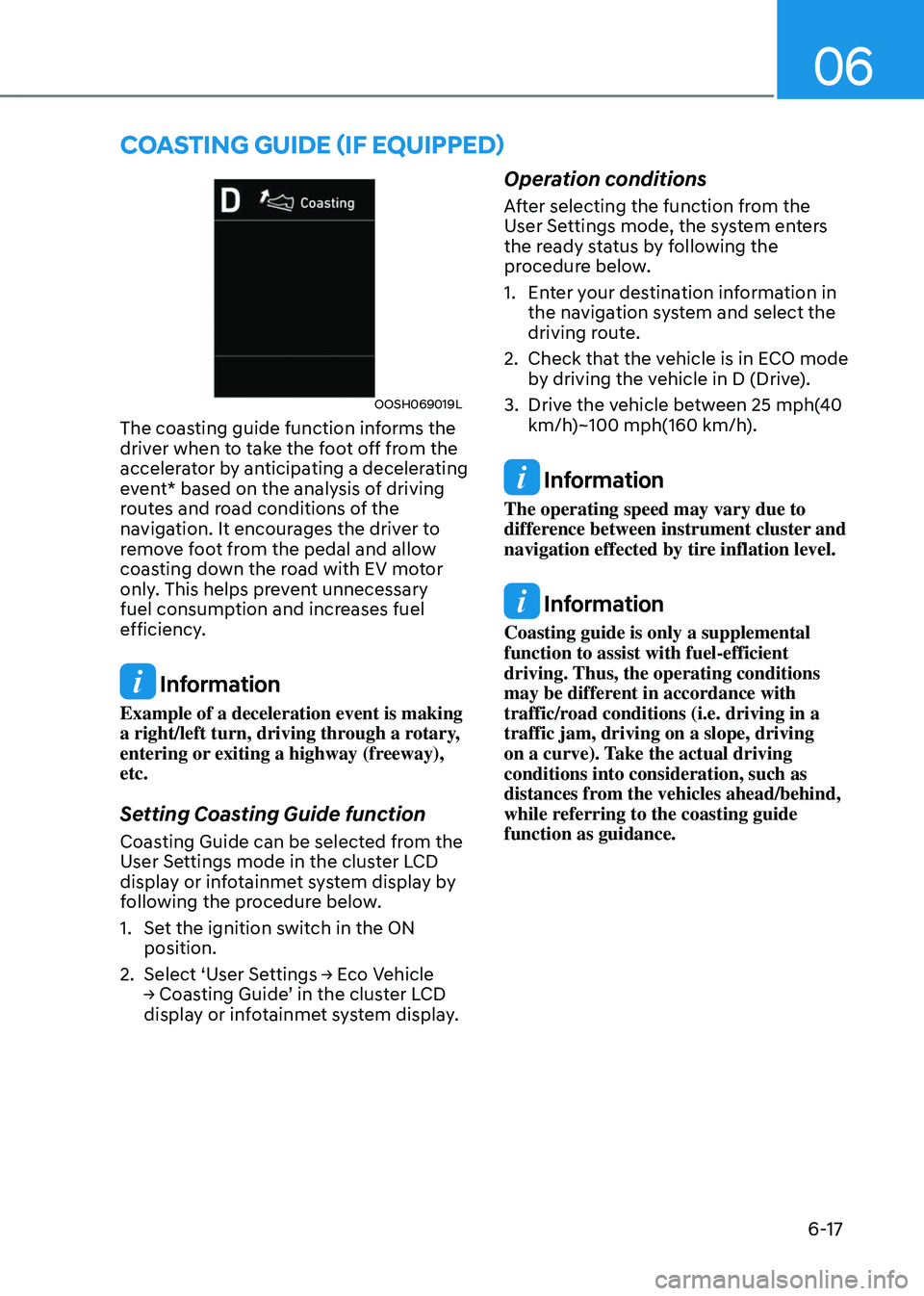
OOSH069019L
The coasting guide function informs the
driver when to take the foot off from the
accelerator by anticipating a decelerating
event* based on the analysis of driving
routes and road conditions of the
navigation. It encourages the driver to
remove foot from the pedal and allow
coasting down the road with EV motor
only. This helps prevent unnecessary
fuel consumption and increases fuel
efficiency.
Information
Example of a deceleration event is making
a right/left turn, driving through a rotary,
entering or exiting a highway (freeway),
etc.
Setting Coasting Guide function
Coasting Guide can be selected from the
User Settings mode in the cluster LCD
display or infotainmet system display by
following the procedure below.
1. Set the ignition switch in the ON
position.
2. Select ‘User Settings → Eco Vehicle → Coasting Guide’ in the cluster LCD display or infotainmet system display.
Operation conditions
After selecting the function from the
User Settings mode, the system enters
the ready status by following the
procedure below.
1. Enter your destination information in
the navigation system and select the
driving route.
2. Check that the vehicle is in ECO mode
by driving the vehicle in D (Drive).
3. Drive the vehicle between 25 mph(40
km/h)~100 mph(160 km/h).
Information
The operating speed may vary due to
difference between instrument cluster and
navigation effected by tire inflation level.
Information
Coasting guide is only a supplemental
function to assist with fuel-efficient
driving. Thus, the operating conditions
may be different in accordance with
traffic/road conditions (i.e. driving in a
traffic jam, driving on a slope, driving
on a curve). Take the actual driving
conditions into consideration, such as
distances from the vehicles ahead/behind,
while referring to the coasting guide
function as guidance.
COASTING GUIDE (IF EQUIPPED)
Page 354 of 598

Driving SafetyForward Collision–Avoidance Assist (FCA) (Sensor fusion) ...................................7-2
Lane Keeping Assist (LKA) ........................................................................\
...............7-18
Blind-Spot Collision-Avoidance Assist (BCA) ........................................................7-25
Safe Exit Assist (SEA) ........................................................................\
......................7-39
Driver Attention Warning (DAW) ........................................................................\
....7-45
Blind-Spot View Monitor (BVM) ........................................................................\
.......7-51
Driving ConvenienceSmart Cruise Control (SCC) ........................................................................\
............7-53
Navigation-Based Smart Cruise Control (NSCC) ..................................................7-7 0
Lane Following Assist (LFA)
........................................................................\
..............7-7 7
Highway Driving Assist (HDA) ........................................................................\
.........7-81
Parking SafetyRear View Monitor (RVM) ........................................................................\
................7-88
Surround View Monitor (SVM) ........................................................................\
.......7-92
Rear Cross-Traffic Collision-Avoidance Assist (RCCA) .........................................7-97
Reverse Parking Distance Warning (PDW) ...........................................................7-108
Forward/Reverse Parking Distance Warning (PDW) ............................................7-111
Reverse Parking Collision-Avoidance Assist (PCA) ................................................7-115
Remote Smart Parking Assist (RSPA) ....................................................................7-123
Declaration of conformity ........................................................................\
...................7-136
7.Driver assistance system
Driver assistance system
7
Page 423 of 598
Driver assistance system
7-7 0
Navigation-based Smart Cruise Control
will help automatically adjust vehicle
speed when driving on highways (or
motorways) by using road information
from the navigation system while Smart
Cruise Control is operating.
Information
• Navigation-based Smart Cruise Control
is available only on controlled access
road of certain highways.
ÃControlled access road indicates
roads with limited entrances and
exits that allow uninterrupted high
speed traffic flow. Only passenger
cars and motorcycles are allowed on
controlled access roads.
• Additional highways may be expanded
by future navigation updates.
Information
Navigation-based Smart Cruise Control
operates on main roads of highways (or
motorways), and does not operate on
interchanges or junctions.
Highway Curve Zone Auto Slowdown
If vehicle speed is high, Highway Curve
Zone Auto Slowdown function will
temporarily decelerate your vehicle
or limit acceleration to help you drive
safely on a curve based on the curve
information from the navigation.
Highway Set Speed Auto Change
Highway Set Speed Auto Change
function automatically changes Smart
Cruise Control set speed based on
the speed limit information from the
navigation.
System settings
Setting functions for the system
OTM070192N
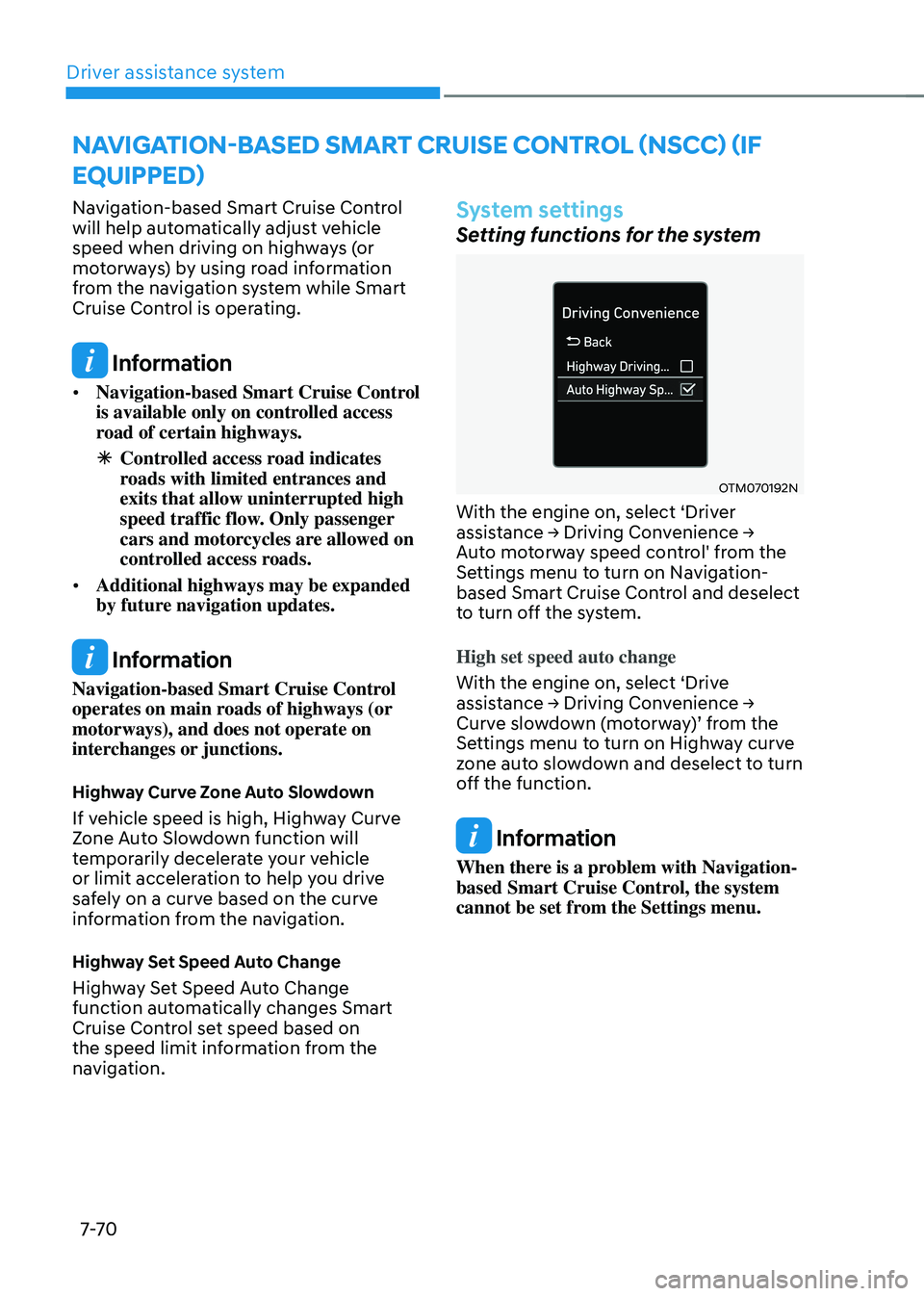
With the engine on, select ‘Driver assistance → Driving Convenience → Auto motorway speed control' from the
Settings menu to turn on Navigation-
based Smart Cruise Control and deselect
to turn off the system.
High set speed auto change
With the engine on, select ‘Drive
assistance → Driving Convenience → Curve slowdown (motorway)’ from the Settings menu to turn on Highway curve
zone auto slowdown and deselect to turn
off the function.
Information
When there is a problem with Navigation-
based Smart Cruise Control, the system
cannot be set from the Settings menu.
NAVIGATION-BASED SMART CRUISE CONTROL (NSCC) (IF
EQUIPPED)
Page 424 of 598
07
7-7 1
System operation
Operating conditions
Navigation-based Smart Cruise Control
is ready to operate if all of the following
conditions are satisfied:
• Smart Cruise Control is operating
• Driving on main roads of highways (or
motorways)
Information
For more details on how to operate Smart
Cruise Control, refer to “Smart Cruise
Control (SCC)” section in chapter 7.
System display and control
When Navigation-based Smart Cruise
Control operates, it will be displayed on
the cluster as follows:
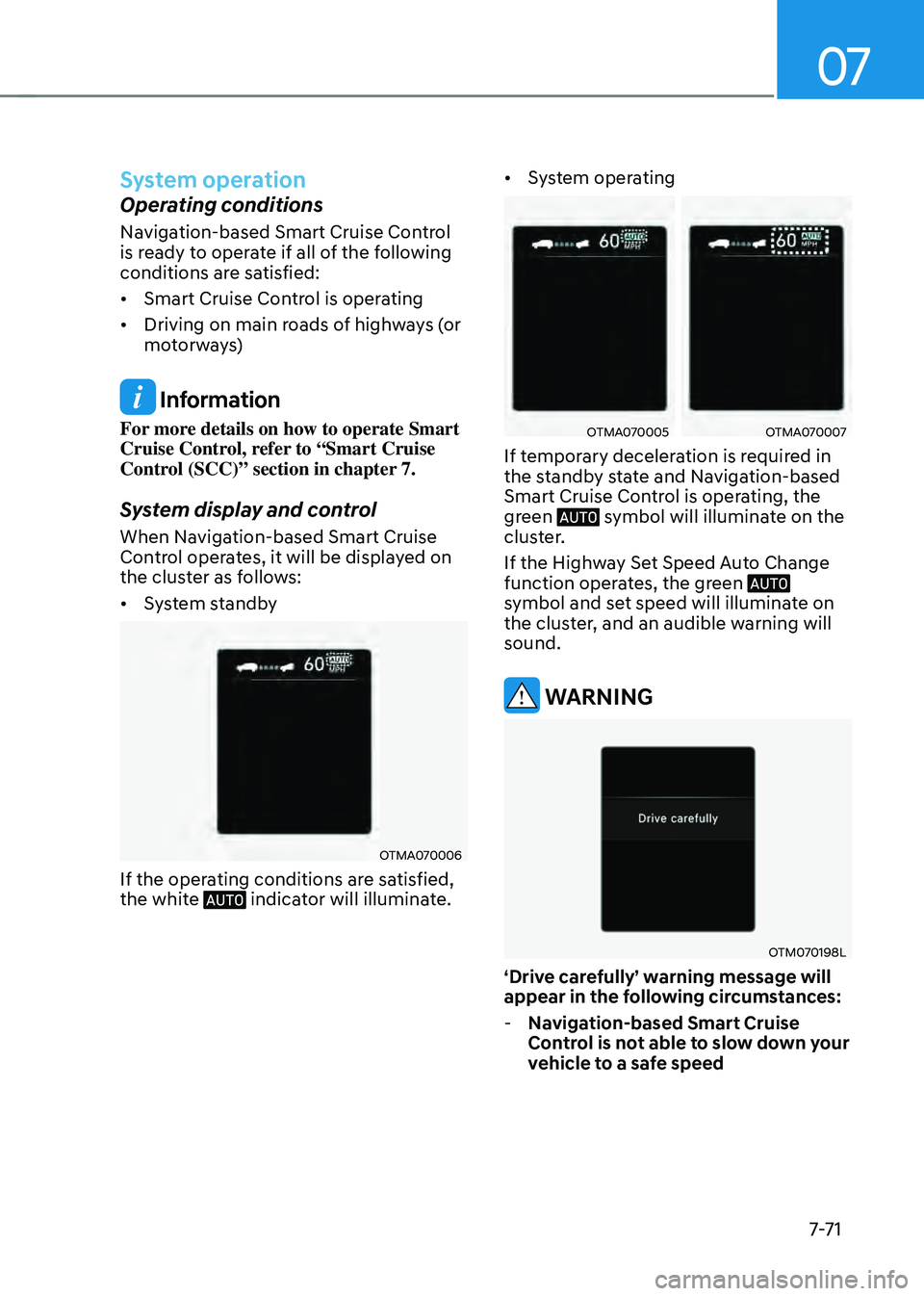
• System standby
OTMA070006
If the operating conditions are satisfied,
the white indicator will illuminate.
• System operating
OTMA070005OTMA070007
If temporary deceleration is required in
the standby state and Navigation-based
Smart Cruise Control is operating, the
green
symbol will illuminate on the cluster.
If the Highway Set Speed Auto Change
function operates, the green
symbol and set speed will illuminate on
the cluster, and an audible warning will
sound.
WARNING
OTM070198L
‘Drive carefully’ warning message will
appear in the following circumstances:
-Navigation-based Smart Cruise
Control is not able to slow down your
vehicle to a safe speed