2021 FORD TRANSIT settings
[x] Cancel search: settingsPage 400 of 509

AppLink Issues
Possible Solution(s)
Possible Cause(s)
Issue
SYNC in order to find
AppLink-capable apps on your device. iPhone users must also connect to
SYNC's USB port with an Apple USB cable.
Ensure you have down-
loaded and installed the latest version of the app
from your phone's app store.
Ensure the app is running on your phone. Some apps
AppLink-enabled apps are
not installed and running on your mobile device.
My phone is connected, but
I still cannot find any apps. require you to register or
login on the app on the
phone before using them with AppLink. Also, some may have a Ford SYNC
setting, so check the app's
settings menu on the phone.
Closing and restarting apps may help SYNC find the
application if you cannot
discover it inside the vehicle. On an Android device, if
apps have an Exit or Quit
Sometime apps do not
properly close and re-open their connection to SYNC, over ignition cycles, for example.
My phone is connected, my
app(s) are running, but I still cannot find any apps. option, select that then
restart the app. If the app
does not have that option,
you can also manually Force Close the app by going to
the phone's settings menu,
selecting Apps. then finding the particular app andchoosing Force stop.
Remember to restart the
app afterwards, then select Find New Apps on SYNC.
397
2021 Transit (TTH) Canada/United States of America, MK3J 19A321 AA enUSA, Edition date: 202010, Second-Printing SYNC™
Page 402 of 509
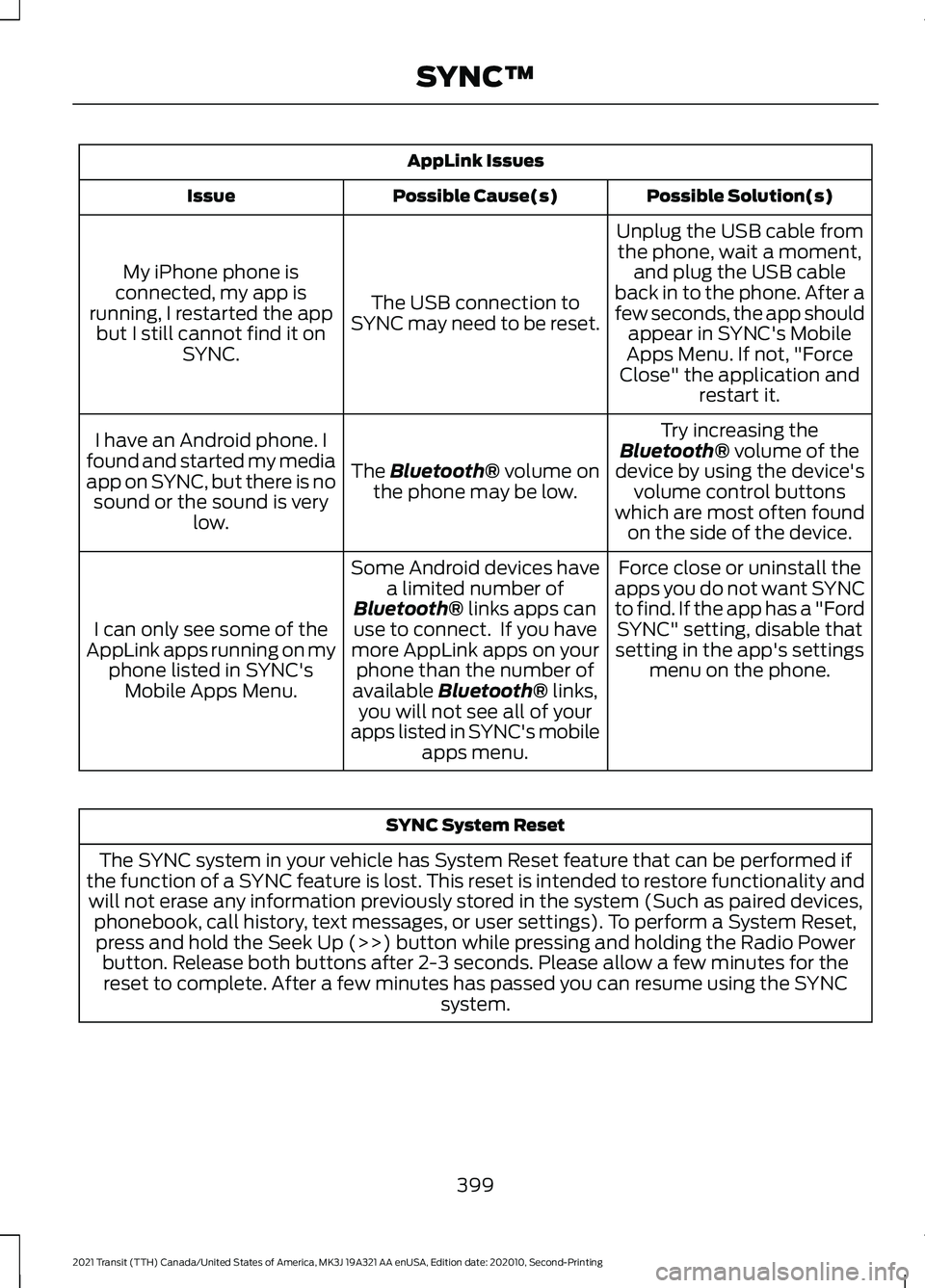
AppLink Issues
Possible Solution(s)
Possible Cause(s)
Issue
Unplug the USB cable fromthe phone, wait a moment, and plug the USB cable
back in to the phone. After a
few seconds, the app should appear in SYNC's Mobile
Apps Menu. If not, "Force
Close" the application and restart it.
The USB connection to
SYNC may need to be reset.
My iPhone phone is
connected, my app is
running, I restarted the app but I still cannot find it on SYNC.
Try increasing the
Bluetooth® volume of the
device by using the device's volume control buttons
which are most often found on the side of the device.
The Bluetooth® volume on
the phone may be low.
I have an Android phone. I
found and started my media
app on SYNC, but there is no sound or the sound is very low.
Force close or uninstall the
apps you do not want SYNC
to find. If the app has a "Ford SYNC" setting, disable that
setting in the app's settings menu on the phone.
Some Android devices have
a limited number of
Bluetooth®
links apps can
use to connect. If you have
more AppLink apps on your phone than the number of
available
Bluetooth® links,
you will not see all of your
apps listed in SYNC's mobile apps menu.
I can only see some of the
AppLink apps running on my phone listed in SYNC'sMobile Apps Menu. SYNC System Reset
The SYNC system in your vehicle has System Reset feature that can be performed if
the function of a SYNC feature is lost. This reset is intended to restore functionality and will not erase any information previously stored in the system (Such as paired devices, phonebook, call history, text messages, or user settings). To perform a System Reset,press and hold the Seek Up (>>) button while pressing and holding the Radio Power button. Release both buttons after 2-3 seconds. Please allow a few minutes for thereset to complete. After a few minutes has passed you can resume using the SYNC system.
399
2021 Transit (TTH) Canada/United States of America, MK3J 19A321 AA enUSA, Edition date: 202010, Second-Printing SYNC™
Page 403 of 509

GENERAL INFORMATION
WARNING: Driving while distracted
can result in loss of vehicle control, crash
and injury. We strongly recommend that
you use extreme caution when using any
device that may take your focus off the
road. Your primary responsibility is the
safe operation of your vehicle. We
recommend against the use of any
hand-held device while driving and
encourage the use of voice-operated
systems when possible. Make sure you
are aware of all applicable local laws
that may affect the use of electronic
devices while driving.
About SYNC
The system allows you to interact with the
entertainment, information and
communication systems on your vehicle
using voice commands and a touchscreen.
The system provides easy interaction with
audio, phone, navigation, mobile apps and
settings.
Note: You can switch the system on and
use it for up to an hour without switching
the ignition on.
Note: You can use the system after you
switch the ignition off for up to 10 minutes
or until you open a door.
Note: For your safety, some features are
speed-dependent. Their use is limited to
when your vehicle speed is less than 3 mph
(5 km/h). Using the Touchscreen
Status bar.
A
Home screen.
B
Clock. See Settings (page 427).
C
Outside air temperature.
D
Feature bar.
E
Status Bar Cell phone microphone muted.
Audio system muted.
Software update installed.
Wi-Fi connected.
Cell phone roaming.
Text message received.
400
2021 Transit (TTH) Canada/United States of America, MK3J 19A321 AA enUSA, Edition date: 202010, Second-Printing SYNC™ 3E293823
Page 404 of 509

Automatic crash notification
system off.
Cell phone network signal
strength.
Vehicle data sharing on.
Vehicle location sharing on.
Vehicle data and vehicle location
sharing on.
Wireless charger active.
Feature Bar Select to use the radio, a USB, a
media player or a Bluetooth
device. See Entertainment
(page 408). Select to adjust climate settings
Select to make calls and access
the phonebook on your cell
phone. See
Phone (page 418).
Select to use the navigation
system.
See Navigation (page
419). Select to search for and use
compatible apps on your iOS or
Android device. See Apps (page
425
). Select to adjust system settings.
See
Settings (page 427).
Cleaning the Touchscreen
See
Cleaning the Interior (page 305). Updating the System
Updating the System Using a USB Drive
Downloading an Update
1. Go to the SYNC update page on the
local Ford website.
2. Download the update.
Note: The website notifies you if an update
is available.
3. Insert a USB drive into your computer.
Note: The USB drive needs to be empty and
meet the minimum requirements detailed
on the website.
4. Follow the instructions provided to download the update to the USB drive.
Installing an Update
Note: You can use the system when an
installation is in progress.
1. Disconnect all other USB devices from
the USB ports.
2. Connect the USB drive with the update
to a USB port.
Note: Installation starts automatically
within 10 minutes.
Updating the System Using a Wi-Fi
Network Connection
Connecting to a Wi-Fi Network Select the settings option on the
feature bar.
1. Select
Automatic Updates.
2. Select
System Wi-Fi.
3. Switch
System Wi-Fi on.
4. Select
Available Wi-Fi Networks.
5. Select an available Wi-Fi network.
Note: Enter the network password to
connect to a secure network.
401
2021 Transit (TTH) Canada/United States of America, MK3J 19A321 AA enUSA, Edition date: 202010, Second-Printing SYNC™ 3 E100027 E283811 E280315 E280315
Page 405 of 509

Switching Automatic System Updates
On
Select the settings option on the
feature bar.
1. Select Automatic Updates.
2. Switch
Automatic System Updates
on.
The system is now set to check for and
receive system updates when it is
connected to a Wi-Fi network.
Note: You can use the system when a
download is in progress.
Note: If the system is disconnected from
the Wi-Fi network when a download is in
progress, the download continues the next
time the system is connected to a Wi-Fi
network.
Additional Information and
Assistance
For additional information and assistance,
we recommend that you contact an
authorized dealer or refer to the local Ford
website. USING VOICE RECOGNITION
The system allows you to interact with the
entertainment, information and
communication systems on your vehicle
using voice commands. This allows you
to keep your hands on the steering wheel
and focus on what is in front of you. Press the voice control button
on the steering wheel and wait
for the voice prompt.
Note: Press the voice control button again
to interrupt a voice prompt and begin
speaking.
Note: Turn the volume control when a voice
prompt plays to adjust the volume.
Note: Press and hold the voice control
button on the steering wheel to use Siri on
your iOS device.
The following voice commands are
designed to help you from any screen:
• List of Commands
• Help
The following tables list some of the more
frequently used voice commands. For a
complete list of voice commands, refer to
our website.
General Description
Voice Command
Get a list of voice commands for a specific feature. 1
___ List of Commands
Cancel an active voice session.
Cancel
Get a list of voice commands for a specific feature. 1
___ Help
Return to the previous screen.
Go back
Go to the main menu.
Main Menu
402
2021 Transit (TTH) Canada/United States of America, MK3J 19A321 AA enUSA, Edition date: 202010, Second-Printing SYNC™ 3E280315 E142599
Page 411 of 509

Voice Settings
Description
Voice Command
Go to the voice settings menu.
Voice Settings
Switch long voice prompts on.
Interaction Mode Novice
Switch short voice prompts on.
Interaction Mode Advanced
Switch call confirmation on. The system prompts
you to confirm before making a call.
Phone Confirmation On
Switch call confirmation off. The system does not
prompt you to confirm before making a call.
Phone Confirmation Off
Switch the display of voice commands on.
Voice Command Lists On
Switch the display of voice commands off.
Voice Command Lists Off
Automatic Blower Motor Speed
Reduction
If necessary, the system decreases the
blower motor speed when you are using
voice commands to reduce the amount of
background noise in your vehicle. It returns
to normal when you are done.
Switching Automatic Blower Motor
Speed Reduction Off
Simultaneously press the A/C and
recirculated air buttons. ENTERTAINMENT Audio source. Select to choose
a different audio source.
A
Presets. Swipe left to view more
presets.
B
You can access these options using the
touchscreen or voice commands.
408
2021 Transit (TTH) Canada/United States of America, MK3J 19A321 AA enUSA, Edition date: 202010, Second-Printing SYNC™ 3A
BE293491
Page 412 of 509

Sources
Press this button to select the source of
media you want to listen to.Menu Item
AM
FM 1
SIRIUS
CD
The name of the USB that is plugged in displays here.
USB
Bluetooth Stereo
If you have SYNC 3 compatible apps on your connected smart phone, they
display here as individual source selections.
Apps
1 This feature may not be available in all markets and requires an active subscription.
AM/FM Radio
Tuning a Station
You can use the tune or seek controls on
the radio bezel to select a station.
To tune a station using the
touchscreen, select: Menu Item
Direct Tune
A pop up appears, allowing you to type in
the frequency of a station. You can only
enter a valid station for the source you are
currently listening to.
You can press the backspace button to
delete the previously entered number. Once you have entered the station's
call numbers, you can select: Action and Descrip-
tion
Menu Item
Press to begin
playing the station
you have entered.
Enter
Press to exit
without changing
the station.
Cancel
Presets
To set a new preset, tune to the station
and then press and hold one of the
memory preset buttons. The audio mutes
briefly while the system saves the station
and then returns.
You may be able to add additional preset
pages using the settings option on the
feature bar.
409
2021 Transit (TTH) Canada/United States of America, MK3J 19A321 AA enUSA, Edition date: 202010, Second-Printing SYNC™ 3
Page 414 of 509

Action and Description
Menu Item
Replay audio on the current channel. You can replay approx-
imately 45 minutes of audio as long as you remain tuned to
the current station. Changing stations erases the previous
audio.
Replay
When you are in replay mode, you are not
able to select a different preset until you
return to live audio. Pressing this button
returns you to the live broadcast.
Live
Save the current song, artist, or team as a favorite. The system
alerts you when it plays again on any channel.
ALERT
Selecting this button allows you to enable and edit alerts.
Memory Presets
To set a preset, tune to the station then
press and hold one of the memory preset
buttons. The audio mutes briefly while the
system saves the station and returns once
the station is stored. You may be able to add additional preset
pages using the settings option on the
feature bar.
SiriusXM Satellite Radio Reception Factors and Troubleshooting Potential Reception Issues
For optimal reception performance, keep the antenna clear
of snow and ice build-up and keep luggage and other
materials as far away from the antenna as possible.
Antenna obstructions
Hills, mountains, tall buildings, bridges, tunnels, freeway
overpasses, parking garages, dense tree foliage and thunder-
storms can interfere with your reception.
Terrain
When you pass a ground-based broadcast-repeating tower,
a stronger signal may overtake a weaker one and the audio
system may mute.
Station overload
Your display may show ACQUIRING... to indicate the interfer-
ence and the audio system may mute.
Satellite radio signal
interference
411
2021 Transit (TTH) Canada/United States of America, MK3J 19A321 AA enUSA, Edition date: 202010, Second-Printing SYNC™ 3