2021 FORD ESCAPE lane assist
[x] Cancel search: lane assistPage 261 of 589

Intelligent Adaptive Cruise Control
Limitations
The speed limit information provided by
the navigation map data could be
inaccurate or out of date.
The system may not detect and read
speed limit signs with conditional
information, for example, when a sign is
flashing, during specific time ranges, or
when children are present.
Note:
The system does not set the vehicle
speed to speed limits shown with a
supplementary traffic sign.
Under certain conditions, the system may
not adjust the vehicle speed until after your
vehicle passes the speed limit.
Switching Intelligent Mode On and
Off
1. Press Settings on the touchscreen.
2. Press
Driver Assistance.
3. Press
Cruise Control.
4. Press
Intelligent.
Adjusting the Set Speed Tolerance
You can set a permanent speed tolerance
that is above or below the detected speed
limit.
1. Press
Settings on the touchscreen.
2. Press
Driver Assistance.
3. Press
Cruise Control.
4. Press
Intelligent.
5. Press
Tolerance.
6. Use
+ and - to set the tolerance.
Note: You cannot set the tolerance more
than 19 mph (30 km/h) above or below the
recognized speed. Intelligent Adaptive Cruise Control
Alerts
If you increase the set speed beyond the
speed limit or speed limit plus a positive
tolerance value, the set speed indicator
flashes.
The warning does not occur if:
•
You override the set speed using the
accelerator pedal.
• The vehicle speed exceeds the set
speed due to being on a downhill slope.
Intelligent Adaptive Cruise Control
Indicators The set speed limit displays next to the
detected speed limit in the instrument
cluster.
ADAPTIVE CRUISE CONTROL
– TROUBLESHOOTING
Adaptive Cruise Control –
Information Messages - Vehicles
With: Lane Centering
Note:
Depending on your vehicle options
and instrument cluster type, not all
messages display or are available.
258
Escape (CTC) Canada/United States of America, Vehicles Built From: 02-11-2020, enUSA, Edition date: 202011, First-Printing Adaptive Cruise Control
(If Equipped)E337564
Page 262 of 589
Note:
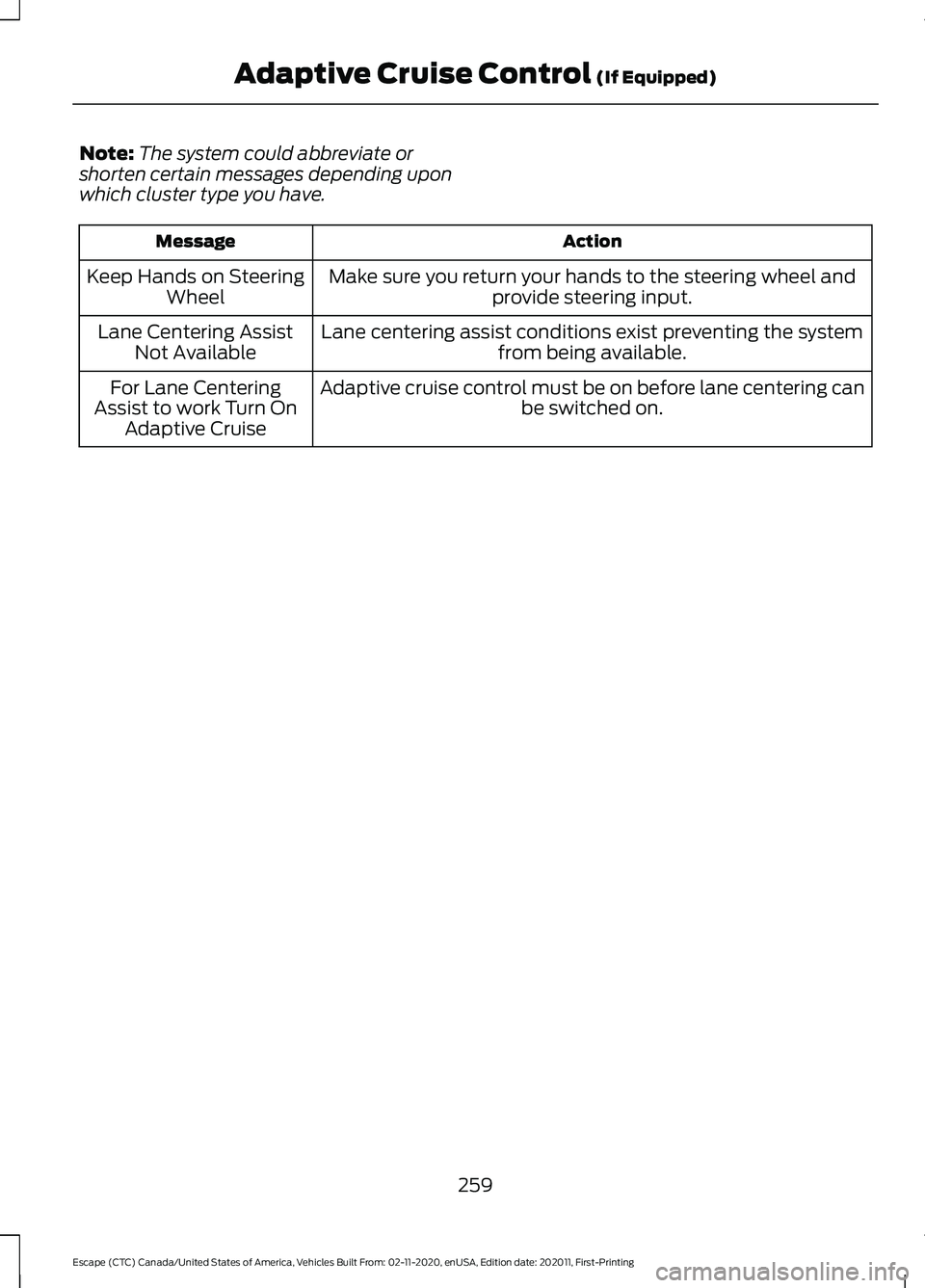
The system could abbreviate or
shorten certain messages depending upon
which cluster type you have. Action
Message
Make sure you return your hands to the steering wheel andprovide steering input.
Keep Hands on Steering
Wheel
Lane centering assist conditions exist preventing the system from being available.
Lane Centering Assist
Not Available
Adaptive cruise control must be on before lane centering can be switched on.
For Lane Centering
Assist to work Turn On Adaptive Cruise
259
Escape (CTC) Canada/United States of America, Vehicles Built From: 02-11-2020, enUSA, Edition date: 202011, First-Printing Adaptive Cruise Control (If Equipped)
Page 269 of 589

WHAT IS THE LANE KEEPING
SYSTEM
The lane keeping system alerts you by
providing temporary steering assistance
or steering wheel vibration when it detects
an unintended lane departure.
HOW DOES THE LANE
KEEPING SYSTEM WORK
The lane keeping system uses a forward
looking camera mounted on the windshield
to monitor vehicle movement within the
travel lane.
When the camera detects a drift out of the
travel lane, the lane keeping system alerts
the driver by vibrating the steering wheel,
or aids the driver by providing a small
steering input to move the vehicle back
into the travel lane.
The driver can select one of three modes:
•
Alert (If Equipped)
• Aid
• Alert + Aid
LANE KEEPING SYSTEM
PRECAUTIONS WARNING: You are responsible for
controlling your vehicle at all times. The
system is designed to be an aid and does
not relieve you of your responsibility to
drive with due care and attention. Failure
to follow this instruction could result in
the loss of control of your vehicle,
personal injury or death. WARNING: The system will not
operate if the sensor cannot track the
road lane markings. WARNING:
The sensor may
incorrectly track lane markings as other
structures or objects. This can result in
a false or missed warning. WARNING:
In cold and severe
weather conditions the system may not
function. Rain, snow and spray can all
limit sensor performance. WARNING:
The system may not
operate properly if the sensor is blocked.
Keep the windshield free from
obstruction. WARNING:
If damage occurs in the
immediate area surrounding the sensor,
have your vehicle checked as soon as
possible. WARNING:
The system may not
correctly operate if your vehicle is fitted
with a suspension kit not approved by
us. WARNING:
Large contrasts in
outside lighting can limit sensor
performance.
LANE KEEPING SYSTEM
LIMITATIONS
The lane keeping system only operates
when the vehicle speed is greater than
40 mph (64 km/h)
.
The system works when the camera can
detect at least one lane marking.
The lane keeping system may not correctly
operate in any of the following conditions:
• The lane keeping system does not
detect at least one lane marking.
• You switch the turn signal on.
266
Escape (CTC) Canada/United States of America, Vehicles Built From: 02-11-2020, enUSA, Edition date: 202011, First-Printing Lane Keeping System
Page 270 of 589

•
You apply direct steering, accelerate
fast or brake hard.
• The vehicle speed is less than 40 mph
(64 km/h).
• The anti-lock brake, stability control or
traction control system activates.
• The lane is too narrow.
• Something is obscuring the camera or
it is unable to detect the lane markings
due to environment, traffic or vehicle
conditions.
The lane keeping system may not correct
lane positioning in any of the following
conditions:
• High winds.
• Uneven road surfaces.
• Heavy or uneven loads.
• Incorrect tire pressure.
SWITCHING THE LANE
KEEPING SYSTEM ON AND
OFF To activate the lane keeping
system, press the button on the
steering wheel.
To deactivate the lane keeping system,
press the button again.
Note: When switching the system on or off
a message appears in the information and
entertainment display to show the status.
Note: The system stores the on or off
setting until manually changed, unless it
detects a MyKey ™. If the system detects a
MyKey ™, it defaults to the last setting for
that MyKey ™.
Note: If the system detects a MyKey ™,
pressing the button does not affect the on
or off status of the system. You can only
change the mode and intensity settings. SWITCHING THE LANE
KEEPING SYSTEM MODE
The lane keeping system has different
settings that you can view or adjust using
the information display.
The system stores the last known selection
for each of these settings. You do not need
to readjust your settings each time you
switch on the system.
To change the lane keeping system mode,
use the touchscreen:
1. Press
Settings on the touchscreen.
2. Press
Driver Assistance.
3. Press
Lane-Keeping System.
4. Press
Lane-Keeping Mode.
5. Select a mode.
Note: The system remembers the last
setting when you start your vehicle. If the
system detects a MyKey ™, it defaults to the
last setting for that MyKey ™.
ALERT MODE
What Is Alert Mode
Alert mode vibrates the steering wheel
when it detects an unintended lane
departure.
267
Escape (CTC) Canada/United States of America, Vehicles Built From: 02-11-2020, enUSA, Edition date: 202011, First-Printing Lane Keeping SystemE334922
Page 271 of 589
How Does Alert Mode Work
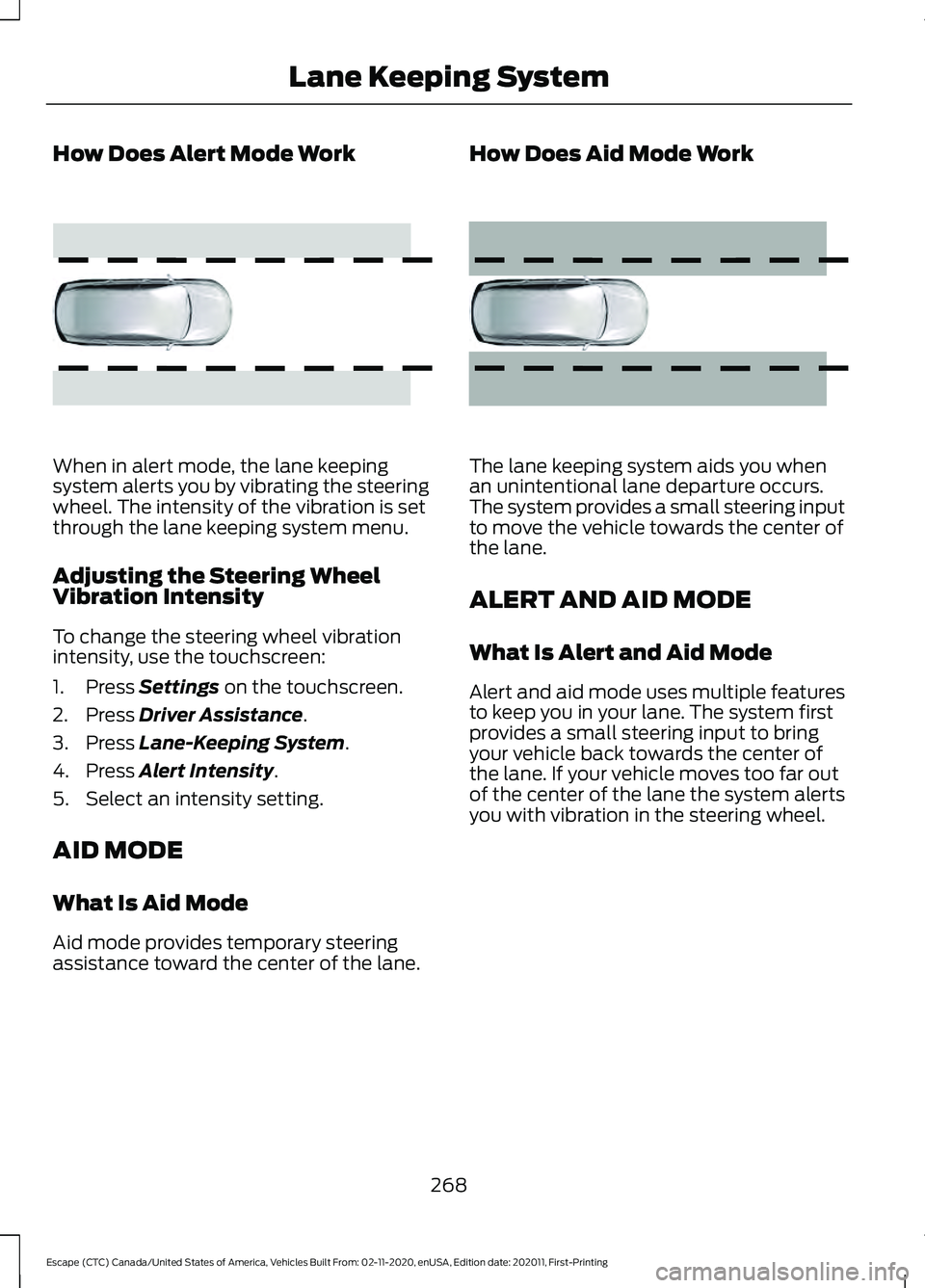
When in alert mode, the lane keeping
system alerts you by vibrating the steering
wheel. The intensity of the vibration is set
through the lane keeping system menu.
Adjusting the Steering Wheel
Vibration Intensity
To change the steering wheel vibration
intensity, use the touchscreen:
1. Press Settings on the touchscreen.
2. Press
Driver Assistance.
3. Press
Lane-Keeping System.
4. Press
Alert Intensity.
5. Select an intensity setting.
AID MODE
What Is Aid Mode
Aid mode provides temporary steering
assistance toward the center of the lane. How Does Aid Mode Work
The lane keeping system aids you when
an unintentional lane departure occurs.
The system provides a small steering input
to move the vehicle towards the center of
the lane.
ALERT AND AID MODE
What Is Alert and Aid Mode
Alert and aid mode uses multiple features
to keep you in your lane. The system first
provides a small steering input to bring
your vehicle back towards the center of
the lane. If your vehicle moves too far out
of the center of the lane the system alerts
you with vibration in the steering wheel.
268
Escape (CTC) Canada/United States of America, Vehicles Built From: 02-11-2020, enUSA, Edition date: 202011, First-Printing Lane Keeping SystemE165515 E165516
Page 276 of 589

WHAT IS BLIND SPOT
INFORMATION SYSTEM
Blind spot information system detects
vehicles that may have entered the blind
spot zone.
HOW DOES BLIND SPOT
INFORMATION SYSTEM WORK
Blind spot information system uses
sensors on both sides of your vehicle,
detecting rearward from the exterior
mirrors to approximately 13 ft (4 m)
beyond the rear bumper. The detection
area extends to approximately 59 ft (18 m)
beyond the rear bumper when the vehicle
speed is greater than
30 mph (48 km/h)
to alert you of faster approaching vehicles. BLIND SPOT INFORMATION
SYSTEM PRECAUTIONS
WARNING:
Do not use the blind
spot information system as a
replacement for using the interior and
exterior mirrors or looking over your
shoulder before changing lanes. The
blind spot information system is not a
replacement for careful driving. WARNING:
The system may not
operate properly during severe weather
conditions, for example snow, ice, heavy
rain and spray. Always drive with due
care and attention. Failure to take care
may result in a crash.
Note: Blind spot information system does
not prevent contact with other vehicles. It
does not detect parked vehicles,
pedestrians, animals or other infrastructure.
BLIND SPOT INFORMATION
SYSTEM LIMITATIONS
Blind spot information system does not
operate in park (P) or reverse (R).
The system may not alert you if a vehicle
quickly passes through the detection zone.
BLIND SPOT INFORMATION
SYSTEM REQUIREMENTS
Blind spot information system turns on
when all the following occur:
• You start your vehicle.
• You shift into drive (D).
• The vehicle speed is greater than
6 mph (10 km/h)
.
SWITCHING BLIND SPOT
INFORMATION SYSTEM ON
AND OFF
To switch blind spot information system
on or off, use the touchscreen:
1. Press
Settings on the touchscreen.
2. Press
Driver Assistance.
3. Switch
Blind Spot Information
System on or off.
273
Escape (CTC) Canada/United States of America, Vehicles Built From: 02-11-2020, enUSA, Edition date: 202011, First-Printing Blind Spot Information SystemE255695
Page 287 of 589
Switching Automatic Emergency
Braking On and Off
To switch the system on or off, use the
touchscreen:
1. Press Settings on the touchscreen.
2. Press
Driver Assistance.
3. Press
Pre-Collision Assist.
4. Press
Active Braking.
5. Switch the feature on or off.
EVASIVE STEERING ASSIST
(If Equipped)
What Is Evasive Steering Assist
If your vehicle is rapidly approaching a road
user, evasive steering assist helps you steer
around the road user.
After you turn the steering wheel in an
attempt to avoid a crash with the road
user, the system applies additional steering
torque to help you steer around the road
user. After you pass the road user, the
system applies steering torque when you
turn the steering wheel to steer back into
the lane. The system deactivates after you
fully pass the road user.
Note: Road users are defined as obstacles
encountered on the road that the system is
able to detect. See
Pre-Collision Assist
Precautions (page 279). Evasive Steering Assist
Limitations
Evasive steering assist only activates when
all the following occur:
•
Automatic emergency braking and
evasive steering assist are on.
• The system detects a road user ahead
and starts to apply the brakes.
• You significantly turn the steering
wheel to steer around a road user.
Note: The system does not automatically
steer around a road user. If you do not turn
the steering wheel, the system does not
activate.
Note: The system does not activate if the
distance to the road user ahead is too small
and the system cannot avoid a crash.
Switching Evasive Steering Assist
On and Off
To switch the system on or off, use the
touchscreen:
1. Press
Settings on the touchscreen.
2. Press
Driver Assistance.
3. Press
Pre-Collision Assist.
4. Press
Evasive Steering.
5. Switch the feature on or off.
Note: If you switch automatic emergency
braking off, evasive steering assist turns off.
Note: Automatic emergency braking and
evasive steering assist turn on every time
you switch the ignition on.
284
Escape (CTC) Canada/United States of America, Vehicles Built From: 02-11-2020, enUSA, Edition date: 202011, First-Printing Pre-Collision Assist
Page 472 of 589

Action and Description
Menu Item
Touch this button to view the nearby weather, current weather,
or the five-day forecast for the chosen area.
Weather
Select to see the weather map,
which can show storms, radar
information, charts and winds.
Map
Select to choose from a listing of
weather locations.
Area
Touch this button to view scores and schedules from a variety
of sports. You can also save up to 10 favorite teams for easier
access. The score automatically refreshes when a game is in
progress.
Sports Info
Touch this button to view ski conditions for a specific area.
Ski Conditions
SETTINGS Press the button to enter the
settings menu.
Once you select a tile, press the
button next to a menu item to
view an explanation of the
feature or setting.
Sound
Select this tile to adjust the sound settings.
Clock
Select this tile to adjust the clock settings.
Bluetooth
Select this tile to switch Bluetooth on and
off and adjust the settings.
Phone
Select this tile to connect, disconnect, and
manage the connected device settings. Audio
Select this tile to adjust the audio settings.
Driver Assist (If Equipped)
Select this tile to adjust Driver Assist
features like Parking Aids, Lane Keeping
System, Pedestrian Detection, and
Auto-Start-Stop.
Vehicle
Select this tile to adjust vehicle settings
like windows, alarm, lighting, and MyKey
settings.
FordPass
Select this tile to adjust the FordPass
settings
General
Select this tile to adjust settings like
language, measurement units, or to reset
the system.
911 Assist
(If Equipped)
Select this tile to switch 911 Assist on and
off.
469
Escape (CTC) Canada/United States of America, Vehicles Built From: 02-11-2020, enUSA, Edition date: 202011, First-Printing SYNC™ 3
(If Equipped)E280315 E268570