2021 CHEVROLET TAHOE Wireless
[x] Cancel search: WirelessPage 7 of 433

Chevrolet Tahoe/Suburban Owner Manual (GMNA-Localizing-U.S./Canada/
Mexico-13690484) - 2021 - CRC - 8/21/20
6 Introduction
19.Wireless Charging 099.
20. ENGINE START/STOP. See Ignition
Positions 0226.
21. Steering Wheel Controls 0144.
22. Horn 095.
23. Hood Release. See Hood0310.
24. Steering Wheel Adjustment 094.
25. Cruise Control 0251.
Adaptive Cruise Control (Advanced) 0253
(If Equipped).
Forward Collision Alert (FCA) System
0 267 (If Equipped).
Heated Steering Wheel 094 (If
Equipped).
26. Trailer Brake Control Panel (If Equipped). SeeTowing Equipment 0287. 27. Data Link Connector (DLC) (Out of View).
SeeMalfunction Indicator Lamp (Check
Engine Light) 0110.
28. Exterior Lamp Controls 0133.
Instrument Panel Illumination Control
0 137.
29. Driver Mode Control 0245.
Automatic Transfer Case Knob (If
Equipped). See Four-Wheel Drive 0236.
Four Corner Air Suspension System 0248
(If Equipped).
Page 94 of 433

Chevrolet Tahoe/Suburban Owner Manual (GMNA-Localizing-U.S./Canada/
Mexico-13690484) - 2021 - crc - 8/17/20
Instruments and Controls 93
Instruments and Controls
Controls
Steering Wheel Adjustment . . . . . . . . . . . . 94
Steering Wheel Controls . . . . . . . . . . . . . . . 94
Heated Steering Wheel . . . . . . . . . . . . . . . . . 94
Horn . . . . . . . . . . . . . . . . . . . . . . . . . . . . . . . . . . . 95
Windshield Wiper/Washer . . . . . . . . . . . . . . 95
Rear Window Wiper/Washer . . . . . . . . . . . 96
Compass . . . . . . . . . . . . . . . . . . . . . . . . . . . . . . . 97
Clock . . . . . . . . . . . . . . . . . . . . . . . . . . . . . . . . . . . 98
Power Outlets . . . . . . . . . . . . . . . . . . . . . . . . . . 98
Wireless Charging . . . . . . . . . . . . . . . . . . . . . . 99
Warning Lights, Gauges, and Indicators
Warning Lights, Gauges, andIndicators . . . . . . . . . . . . . . . . . . . . . . . . . . . . 101
Instrument Cluster . . . . . . . . . . . . . . . . . . . . . 102
Speedometer . . . . . . . . . . . . . . . . . . . . . . . . . . 105
Odometer . . . . . . . . . . . . . . . . . . . . . . . . . . . . . 105
Trip Odometer . . . . . . . . . . . . . . . . . . . . . . . . . 105
Tachometer . . . . . . . . . . . . . . . . . . . . . . . . . . . . 105
Fuel Gauge . . . . . . . . . . . . . . . . . . . . . . . . . . . . 105
Engine Oil Pressure Gauge . . . . . . . . . . . . 106
Engine Coolant Temperature Gauge . . . 107
Voltmeter Gauge . . . . . . . . . . . . . . . . . . . . . . 107
Seat Belt Reminders . . . . . . . . . . . . . . . . . . . 108
Airbag Readiness Light . . . . . . . . . . . . . . . . 108
Passenger Airbag Status Indicator . . . . . 109
Charging System Light . . . . . . . . . . . . . . . . . 110 Malfunction Indicator Lamp (Check
Engine Light) . . . . . . . . . . . . . . . . . . . . . . . . . 110
Brake System Warning Light . . . . . . . . . . . 111
Electric Parking Brake Light . . . . . . . . . . . . 112
Service Electric Parking Brake Light . . . . . 112
Antilock Brake System (ABS) Warning Light . . . . . . . . . . . . . . . . . . . . . . . . . . . . . . . . . 112
Four-Wheel-Drive Light . . . . . . . . . . . . . . . . . 113
Hill Descent Control Light . . . . . . . . . . . . . . 113
Lane Keep Assist (LKA) Light . . . . . . . . . . . 113
Vehicle Ahead Indicator . . . . . . . . . . . . . . . . 113
Pedestrian Ahead Indicator . . . . . . . . . . . . . 114
Traction Off Light . . . . . . . . . . . . . . . . . . . . . . 114
Traction Control System (TCS)/Electronic Stability Control Light . . . . . . . . . . . . . . . . 114
Electronic Stability Control (ESC) Off Light . . . . . . . . . . . . . . . . . . . . . . . . . . . . . . . . . 115
Engine Coolant Temperature Warning Light . . . . . . . . . . . . . . . . . . . . . . . . . . . . . . . . . 115
Driver Mode Control Light . . . . . . . . . . . . . 115
Four Corner Air Suspension Light . . . . . . 116
Tire Pressure Light . . . . . . . . . . . . . . . . . . . . . 116
Engine Oil Pressure Light (Uplevel Cluster) . . . . . . . . . . . . . . . . . . . . . . . . . . . . . . . 117
Low Fuel Warning Light . . . . . . . . . . . . . . . . 117
Security Light . . . . . . . . . . . . . . . . . . . . . . . . . . 117
High-Beam On Light . . . . . . . . . . . . . . . . . . . 118
Lamps On Reminder . . . . . . . . . . . . . . . . . . . 118
Cruise Control Light . . . . . . . . . . . . . . . . . . . . 118
Door Ajar Light . . . . . . . . . . . . . . . . . . . . . . . . 118
Information Displays
Driver Information Center (DIC) . . . . . . . . 119
Head-Up Display (HUD) . . . . . . . . . . . . . . . . 121
Vehicle Messages
Vehicle Messages . . . . . . . . . . . . . . . . . . . . . . 124
Engine Power Messages . . . . . . . . . . . . . . . 124
Vehicle Speed Messages . . . . . . . . . . . . . . . 124
Vehicle Personalization
Vehicle Personalization . . . . . . . . . . . . . . . . 124
Universal Remote System
Universal Remote System . . . . . . . . . . . . . 129
Universal Remote System Programming . . . . . . . . . . . . . . . . . . . . . . . . 129
Universal Remote System Operation . . . 131
Page 100 of 433

Chevrolet Tahoe/Suburban Owner Manual (GMNA-Localizing-U.S./Canada/
Mexico-13690484) - 2021 - crc - 8/17/20
Instruments and Controls 99
When the ignition is on, power to the 110
Volt outlet is enabled after the
-
button is pressed, seeInstrument Panel
Overview 04for button location. A green
indicator light on the button indicates when
the 110 Volt outlet is enabled. 110 Volt
power is supplied to the outlet when it is
enabled and electrical equipment is plugged
into that outlet. One power outlet can be
used with electrical equipment that uses a
maximum of 400 watts. Ensure that all
connected devices do not exceed 400 watts.
The power outlet can be turned off by
pressing the
-button. An indicator light on the outlet illuminates
when the system is enabled and no system
fault is detected. The outlet will not provide
power when the ignition is off, the
-
button is not pressed, or the plug is not
fully seated into the outlet. The outlet does
not operate while the engine is starting. If a
USB powered streaming device is being
used, it is suggested to use a USB Port for
power, see
USB Port0152. If uninterrupted
power supply is required while driving,
disable the auto-stop feature, see Stop/Start
System 0229.
If equipment is connected using more than
400 watts or a system fault is detected, a
protection circuit shuts off the power supply
and the indicator light will flash.
Do not use a power outlet with a missing or
damaged cover.
The power outlet is not designed for the
following, and may not work properly if
they are plugged in:
.Equipment with high initial peak wattage,
such as compressor-driven refrigerators
and electric power tools
.Other equipment requiring an extremely
stable power supply, such as
microcomputer-controlled electric blankets
and touch sensor lamps
.Medical equipment
Wireless Charging
The system operates at 145 kHz and
wirelessly charges one Qi compatible
smartphone. The power output of the
system is capable of charging at a rate up
to 3 amp (15 W), as requested by the
compatible smartphone. See Radio
Frequency Statement 0409.
{Warning
Wireless charging can affect the
operation of an implanted pacemaker or
other medical devices. If you have one, it
is recommended to consult with your
doctor before using the wireless charging
system.
The vehicle must be on, in ACC/ACCESSORY,
or Retained Accessory Power (RAP) must be
active. The wireless charging feature may
not correctly indicate charging when the
Page 101 of 433

Chevrolet Tahoe/Suburban Owner Manual (GMNA-Localizing-U.S./Canada/
Mexico-13690484) - 2021 - crc - 8/17/20
100 Instruments and Controls
vehicle is in RAP or during Bluetooth phone
calls. SeeRetained Accessory Power (RAP)
0 229.
The operating temperature is −20 °C (−4 °F)
to 60 °C (140 °F) for the charging system
and 0 °C (32 °F) to 35 °C (95 °F) for the
phone.
{Warning
Remove all objects from the charging pad
before charging your compatible
smartphone. Objects, such as coins, keys,
rings, paper clips, or cards, between the
smartphone and charging pad will
become very hot. On the rare occasion
that the charging system does not detect
an object, and the object gets wedged
between the smartphone and charger,
remove the smartphone and allow the
object to cool before removing it from
the charging pad, to prevent burns.
To charge a compatible smartphone:
1. Remove all objects from the charging pad. The system may not charge if there
are any objects between the smartphone
and charging pad.
2. Place the smartphone face up at the bottom edge of the charge pad.
To maximize the charge rate, ensure the
smartphone is fully seated and centered
in the holder with nothing under it.
A thick smartphone case may prevent
the wireless charger from working,
or may reduce the charging performance.
See your dealer for additional
information. 3. A green
}will appear on theVon
the infotainment display. This indicates
that the smartphone is properly
positioned and charging. If a smartphone
is placed on the charging pad and
}
does not display, remove the
smartphone from the pad, turn it
180 degrees, and wait three seconds
before placing/aligning the smartphone
on the pad again.
4. If
}turns yellow, ensure that the
charging pad is clear of any objects and
that the smartphone is capable of
wireless charging before re-positioning it.
If
}does not illuminate, the
smartphone may need to re-positioned.
The smartphone may become warm
during charging. This is normal. In
warmer temperatures, the speed of
charging may be reduced.
Software Acknowledgements
Certain Wireless Charging Module product
from LG Electronics, Inc. ("LGE") contains the
open source software detailed below. Refer
to the indicated open source licenses (as are
included following this notice) for the terms
and conditions of their use.
Page 157 of 433
Chevrolet Tahoe/Suburban Owner Manual (GMNA-Localizing-U.S./Canada/
Mexico-13690484) - 2021 - crc - 8/17/20
156 Infotainment System
if equipped. Select Turn-by-Turn Directions
from the Services tab of the OnStar app to
call an Advisor or select a recent or favorite
destination. Touch the navigation icons to
select home, address or place. A destination
transfer from OnStar will show the detail
view of the destination when it is
transferred from OnStar to the Navigation
application. See www.onstar.com for a
coverage map. Services vary by model. Map
coverage is available in the United States,
Puerto Rico, and Canada.
Wi-Fi Hotspot
Touch to display the Settings page, which
shows the configurations for the vehicle
hotspot and allows them to be changed.
For more information, see www.onstar.com.
Rear Seat Infotainment
Rear Seat Infotainment (RSI)
System
If equipped, the system includes two rear
USB-C ports, two HDMI ports, two wireless
headphones, and video touchscreen displays
in back of the driver and passenger seats.The RSI system may not operate properly
until the temperature is above
−20 °C (−4 °F)
and below 55 °C (131 °F).
System Operation
To use:
1. Double-tap anywhere on either screen to Power On and view the Home screen.
2. Touch
}on the status bar to turn off
the screen.
The screens can be turned on and off
through each individual touchscreen
independently from the other and through
front seat control.
Playback of any media playing through that
specific screen is paused when the screen is
turned off.
Screens can be locked via front seat control.
If Remember Screen Power Status was
selected in the settings, the screens will
return to the same Power Status as when
the vehicle was turned off. See “Remember
Screen Power Status” later in this section.
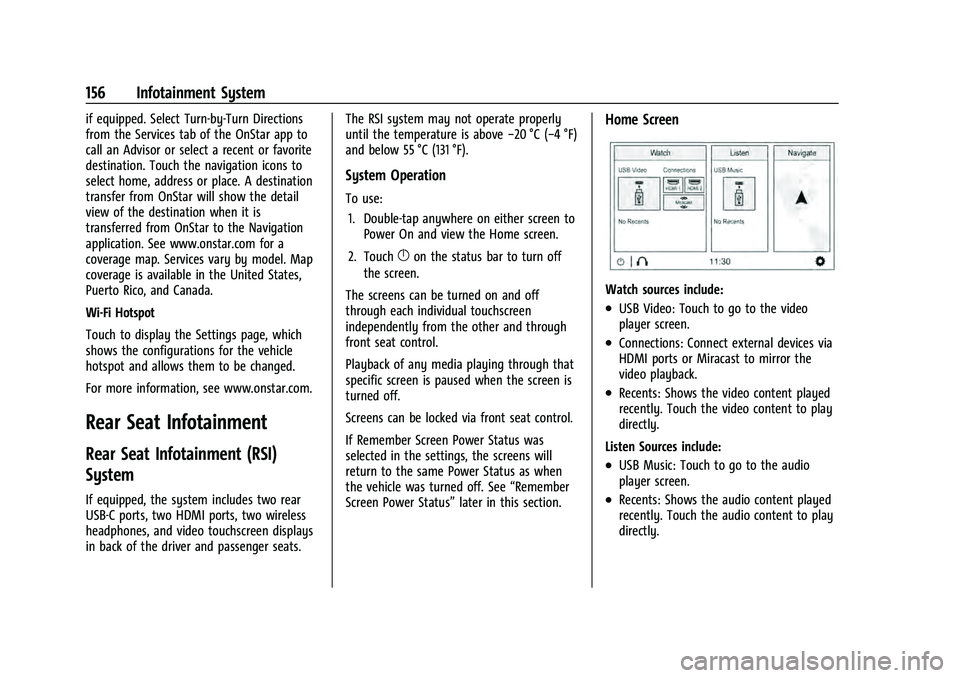
Home Screen
Watch sources include:
.USB Video: Touch to go to the video
player screen.
.Connections: Connect external devices via
HDMI ports or Miracast to mirror the
video playback.
.Recents: Shows the video content played
recently. Touch the video content to play
directly.
Listen Sources include:
.USB Music: Touch to go to the audio
player screen.
.Recents: Shows the audio content played
recently. Touch the audio content to play
directly.
Page 164 of 433
Chevrolet Tahoe/Suburban Owner Manual (GMNA-Localizing-U.S./Canada/
Mexico-13690484) - 2021 - crc - 8/17/20
Infotainment System 163
.porj(Play or Pause): Touchpto play
or touch
jto pause depending on the
current selection.
.Listen: Touch Listen to hear the audio
source on the vehicle speakers.
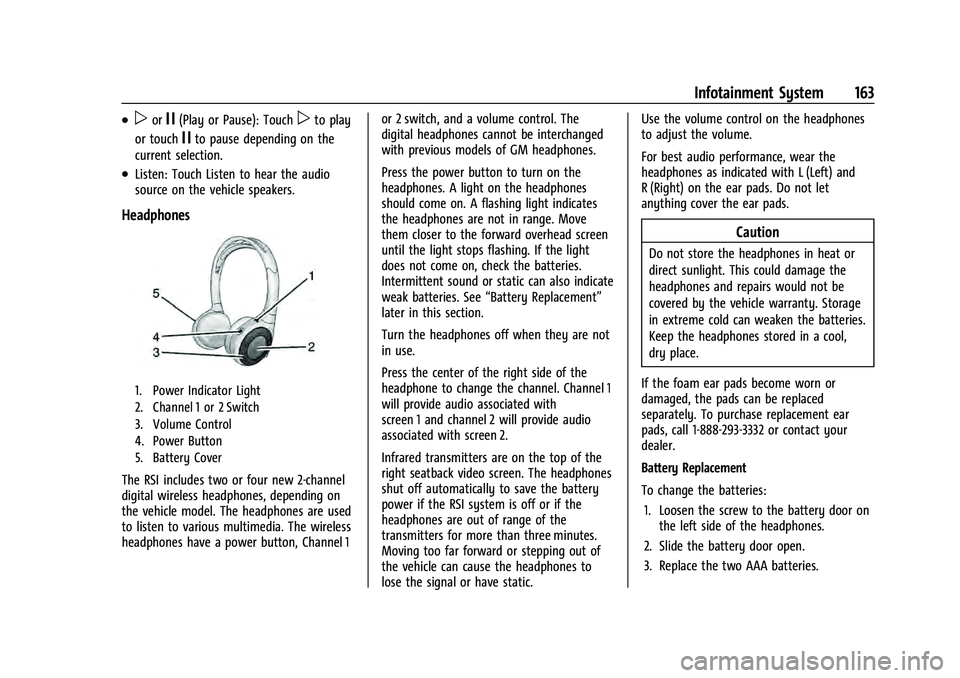
Headphones
1. Power Indicator Light
2. Channel 1 or 2 Switch
3. Volume Control
4. Power Button
5. Battery Cover
The RSI includes two or four new 2-channel
digital wireless headphones, depending on
the vehicle model. The headphones are used
to listen to various multimedia. The wireless
headphones have a power button, Channel 1 or 2 switch, and a volume control. The
digital headphones cannot be interchanged
with previous models of GM headphones.
Press the power button to turn on the
headphones. A light on the headphones
should come on. A flashing light indicates
the headphones are not in range. Move
them closer to the forward overhead screen
until the light stops flashing. If the light
does not come on, check the batteries.
Intermittent sound or static can also indicate
weak batteries. See
“Battery Replacement”
later in this section.
Turn the headphones off when they are not
in use.
Press the center of the right side of the
headphone to change the channel. Channel 1
will provide audio associated with
screen 1 and channel 2 will provide audio
associated with screen 2.
Infrared transmitters are on the top of the
right seatback video screen. The headphones
shut off automatically to save the battery
power if the RSI system is off or if the
headphones are out of range of the
transmitters for more than three minutes.
Moving too far forward or stepping out of
the vehicle can cause the headphones to
lose the signal or have static. Use the volume control on the headphones
to adjust the volume.
For best audio performance, wear the
headphones as indicated with L (Left) and
R (Right) on the ear pads. Do not let
anything cover the ear pads.
Caution
Do not store the headphones in heat or
direct sunlight. This could damage the
headphones and repairs would not be
covered by the vehicle warranty. Storage
in extreme cold can weaken the batteries.
Keep the headphones stored in a cool,
dry place.
If the foam ear pads become worn or
damaged, the pads can be replaced
separately. To purchase replacement ear
pads, call 1-888-293-3332 or contact your
dealer.
Battery Replacement
To change the batteries: 1. Loosen the screw to the battery door on the left side of the headphones.
2. Slide the battery door open.
3. Replace the two AAA batteries.
Page 165 of 433

Chevrolet Tahoe/Suburban Owner Manual (GMNA-Localizing-U.S./Canada/
Mexico-13690484) - 2021 - crc - 8/17/20
164 Infotainment System
4. Replace the battery door and tighten thescrew.
Remove the batteries if the headphones will
not be used for a long time.
RSI Troubleshooting
No power : The ignition might not be on or
in ACC/ACCESSORY.
There is no sound from the headphones
with the indicator light on : If the batteries
are good, make sure the headphones are
programmed to the correct screen and on
the correct channel for the screen being
viewed.
Sometimes the wireless headphone audio
cuts out or buzzes : Check for obstructions,
low batteries, reception range, and
interference from cell phone towers or from
cellular telephone use in the vehicle. Check
that the headphones are on correctly using
the L (Left) and R (Right) on the
headphones. Check that the headphones are
positioned properly with the headband
across the top of the head.
Newer mobile phones and tablets emit
infrared light for features like face and iris
detection. This infrared light can interfere
with both the headphone operation. If your headphones experience static or dropouts,
place your mobile device away from the
rear seat displays.
I lost the headphones :
See your dealer for
assistance.
Video Distortion
Video distortion can occur when operating
cellular phones, scanners, CB radios, Global
Positioning Systems (GPS), two-way radios,
mobile faxes, or walkie talkies.
It might be necessary to turn off the video
player when operating one of these devices
in or near the vehicle.
Navigation
Using the Navigation System
If equipped, launch the Nav application by
touching the Nav icon on the Home Page or
on the shortcut tray near the bottom of the
infotainment display.
When the Nav application is launched for
the first time, a product walkthrough is
available. Use of the feature requires the
Terms and Conditions and the Privacy statement to be confirmed. If available and
signed into a profile, it is also suggested to
enable and confirm Predictive Navigation.
Predictive Navigation (If Equipped)
If Predictive Navigation is available and
confirmed, this feature learns preferences by
remembering where the vehicle has been.
It uses the locations and navigation history
to personalize routes and results.
Predictive Navigation may learn elements
such as:
.Personalized routes based on preferred
streets.
.Search results that provide best matches
at the top of the list.
.Predictive traffic.
.Local map content updating.
Predictive Navigation can also be enabled or
disabled at a later time by touching
A
(Options). While in Options, touch Settings,
then Map and Navigation Settings, and then
Predictive Navigation. See Settings0187.
Page 186 of 433

Chevrolet Tahoe/Suburban Owner Manual (GMNA-Localizing-U.S./Canada/
Mexico-13690484) - 2021 - crc - 8/17/20
Infotainment System 185
.Pressgon the steering wheel controls.
.Touch Answer on the infotainment
display.
Declining a Call
There are two ways to decline a call:
.Pression the steering wheel controls.
.Touch Ignore on the infotainment display.
Call Waiting
Call waiting must be supported on the
Bluetooth cell phone and enabled by the
wireless service carrier to work.
Accepting a Call
Press
gto answer, then touch Switch on
the infotainment display.
Declining a Call
Press
ito decline, then touch Ignore on
the infotainment display
Switching Between Calls (Call Waiting
Calls Only)
To switch between calls, touch Phone on the
Home Page to display Call View. While in
Call View, touch the call information of the
call on hold to change calls.
Three-Way Calling
Three-way calling must be supported on the
Bluetooth cell phone and enabled by the
wireless service carrier to work.
To start a three-way call while in a
current call:
1. In the Call View, touch Add Call to add another call.
2. Initiate the second call by selecting from Recents, Contacts, or Keypad.
3. When the second call is active, touch the merge icon to conference the three-way
call together.
Ending a Call
.Pression the steering wheel controls.
.Touch#on the infotainment display,
next to a call, to end only that call.
Dual Tone Multi-Frequency (DTMF) Tones
The in-vehicle Bluetooth system can send
numbers during a call. This is used when
calling a menu-driven phone system. Use the
Keypad to enter the number.
Apple CarPlay and Android Auto
If equipped, Android Auto and/or Apple
CarPlay capability may be available through
a compatible smartphone. If available, the
Android Auto and Apple CarPlay icons will
change from gray to color on the Home
Page of the infotainment display.
To use Android Auto and/or Apple CarPlay:
For Wired Phone Projection
1. Download the Android Auto app to your smartphone from the Google Play store.
There is no app required for Apple
CarPlay.
2. Connect your Android phone or Apple iPhone by using the factory-provided
phone USB cable and plugging into a
USB data port. For best performance, it is
highly recommended to use the device’s
factory-provided USB cable. Aftermarket
or third-party cables may not work.
3. When the phone is first connected to activate Apple CarPlay or Android Auto,
accept the terms and conditions on both
the infotainment system and the phone.
4. Follow the instructions on the phone.