2021 CHEVROLET EXPRESS CARGO remote start
[x] Cancel search: remote startPage 221 of 296

Chevrolet Express Owner Manual (GMNA-Localizing-U.S./Canada/Mexico-
14583525) - 2021 - CRC - 12/9/20
220 Vehicle Care
.The TPMS sensor matching process was
not done or not completed successfully
after rotating the tires. The malfunction
light and the DIC message should go off
after successfully completing the sensor
matching process. See "TPMS Sensor
Matching Process" later in this section.
.One or more TPMS sensors are missing or
damaged. The malfunction light and the
DIC message should go off when the
TPMS sensors are installed and the sensor
matching process is performed
successfully. See your dealer for service.
.Replacement tires or wheels do not match
the original equipment tires or wheels.
Tires and wheels other than those
recommended could prevent the TPMS
from functioning properly. SeeBuying
New Tires 0223.
.Operating electronic devices or being near
facilities using radio wave frequencies
similar to the TPMS could cause the TPMS
sensors to malfunction.
If the TPMS is not functioning properly, it
cannot detect or signal a low tire pressure
condition. See your dealer for service if the
TPMS malfunction light and DIC message
come on and stay on.
TPMS Sensor Matching Process
Each TPMS sensor has a unique
identification code. The identification code
needs to be matched to a new tire/wheel
position after rotating the vehicle’s tires or
replacing one or more of the TPMS sensors.
Also, the TPMS sensor matching process
should be performed after replacing a spare
tire with a road tire containing the TPMS
sensor. The malfunction light and the DIC
message should go off at the next ignition
cycle. The sensors are matched to the tire/
wheel positions, using a TPMS relearn tool,
in the following order: driver side front tire,
passenger side front tire, passenger side rear
tire, and driver side rear. See your dealer for
service or to purchase a relearn tool.
A TPMS relearn tool can also be purchased.
See Tire Pressure Monitor Sensor Activation
Tool at www.gmtoolsandequipment.com or
call 1-800-GM TOOLS (1-800-468-6657).
There are two minutes to match the first
tire/wheel position, and five minutes overall
to match all four tire/wheel positions. If it
takes longer, the matching process stops
and must be restarted.
The TPMS sensor matching process is: 1. Set the parking brake. 2. Turn the ignition on without starting the
vehicle. See Ignition Positions 0135.
3. Press the Remote Keyless Entry (RKE) transmitter's
QandKbuttons at the
same time for approximately
five seconds. The horn sounds twice to
signal the receiver is in relearn mode
and TIRE LEARNING ACTIVE message
displays on the DIC screen.
If the vehicle does not have RKE, press
the Driver Information Center (DIC)
vehicle information button until the
PRESS VTO RELEARN TIRE POSITIONS
message displays. The horn sounds twice
to signal the receiver is in relearn mode
and TIRE LEARNING ACTIVE message
displays on the DIC screen.
4. Start with the driver side front tire.
5. Place the relearn tool against the tire sidewall, near the valve stem. Then press
the button to activate the TPMS sensor.
A horn chirp confirms that the sensor
identification code has been matched to
this tire and wheel position.
6. Proceed to the passenger side front tire, and repeat the procedure in Step 5.
7. Proceed to the passenger side rear tire, and repeat the procedure in Step 5.
Page 239 of 296

Chevrolet Express Owner Manual (GMNA-Localizing-U.S./Canada/Mexico-
14583525) - 2021 - CRC - 12/9/20
238 Vehicle Care
To avoid the possibility of the vehicles
rolling, set the parking brake firmly on
both vehicles involved in the jump start
procedure. Put an automatic transmission
in P (Park) or a manual transmission in
Neutral before setting the parking brake.
Caution
If any accessories are left on or plugged
in during the jump starting procedure,
they could be damaged. The repairs
would not be covered by the vehicle
warranty. Whenever possible, turn off or
unplug all accessories on either vehicle
when jump starting.
3. Turn the ignition off on both vehicles. Unplug unnecessary accessories plugged
into the cigarette lighter or the accessory
power outlet. Turn off the radio and all
lamps that are not needed. This will
avoid sparks and help save both
batteries. And it could save the radio!
4. Open the hoods and locate the positive (+) and negative (−) terminal
locations of the other vehicle.
On your van, use the unpainted radio
antenna bracket as a remote negative (−)
terminal.
{Warning
Using a match near a battery can cause
battery gas to explode. People have been
hurt doing this, and some have been
blinded. Use a flashlight if you need
more light.
Battery fluid contains acid that can burn
you. Do not get it on you. If you
accidentally get it in your eyes or on
your skin, flush the place with water and
get medical help immediately.
{Warning
Fans or other moving engine parts can
injure you badly. Keep your hands away
from moving parts once the engine is
running.
5. Check that the jumper cables do not have loose or missing insulation. If they
do, you could get a shock. The vehicles
could be damaged too.
Before you connect the cables, here are
some basic things you should know.
Positive (+) will go to positive (+) or to a
remote positive (+) terminal if the vehicle has one. Negative (−) will go to an
unpainted metal part or to a remote
negative (−) terminal if the vehicle has
one. On your van, use the unpainted
radio antenna bracket as a remote
negative (−) terminal.
Do not connect positive (+) to
negative (−) or you will get a short that
would damage the battery and maybe
other parts too. And do not connect the
negative (−) cable to the negative (−)
terminal on the dead battery because
this can cause sparks.
Page 240 of 296

Chevrolet Express Owner Manual (GMNA-Localizing-U.S./Canada/Mexico-
14583525) - 2021 - CRC - 12/9/20
Vehicle Care 239
6. Connect the red positive (+) cable to thepositive (+) terminal of the dead battery.
Use a remote positive (+) terminal if the
vehicle has one. Do not let the other end
touch metal. Connect it to the
positive (+) terminal of the good battery.
Use a remote positive (+) terminal if the
vehicle has one.
7. Now connect the black negative (−) cable to the negative (−) terminal of the good
battery. Use a remote negative (−)
terminal if the vehicle has one.
Do not let the other end touch anything
until the next step. The other end of the
negative (−) cable does not go to the
dead battery. It goes to a heavy,
unpainted metal engine part or to a
remote negative (−) terminal on the
vehicle with the dead battery. On your
van, use the unpainted radio antenna
bracket as a remote negative (−)
terminal.
8. Connect the other end of thenegative (−) cable to the negative (−)
terminal location on the vehicle with the
dead battery. On your van, use the
unpainted radio antenna bracket as a
remote negative (−) terminal.
Caution
The vehicle uses the unpainted radio
antenna bracket as a remote negative (-)
terminal. Move the antenna coaxial cable
out of the way before clamping the
negative jumper cable to the fixed
antenna bracket. Avoid touching the
negative cable clamp to the air
conditioning line. Failure to do either of
(Continued)
Caution (Continued)
these could damage the vehicle. The
repairs would not be covered by the
vehicle warranty.
9. Now start the vehicle with the good battery and run the engine for a while.
10. Try to start the vehicle that had the dead battery. If it will not start after a
few tries, it probably needs service.
Caution
If the jumper cables are connected or
removed in the wrong order, electrical
shorting may occur and damage the
vehicle. The repairs would not be covered
by the vehicle warranty. Always connect
and remove the jumper cables in the
correct order, making sure that the cables
do not touch each other or other metal.
Jumper Cable Removal
Reverse the sequence exactly when
removing the jumper cables.
After starting the disabled vehicle and
removing the jumper cables, allow it to idle
for several minutes.
Page 270 of 296

Chevrolet Express Owner Manual (GMNA-Localizing-U.S./Canada/Mexico-
14583525) - 2021 - CRC - 12/9/20
Customer Information 269
In the U.S., anyone driving the vehicle is
covered. In Canada, a person driving the
vehicle without permission from the owner
is not covered.
Roadside Assistance is not a part of the New
Vehicle Limited Warranty. General Motors
North America and Chevrolet reserve the
right to make any changes or discontinue
the Roadside Assistance program at any
time without notification.
General Motors North America and Chevrolet
reserve the right to limit services or
payment to an owner or driver if they
decide the claims are made too often, or the
same type of claim is made many times.
Services Provided
.Emergency Fuel Delivery:Delivery of
enough fuel for the vehicle to get to the
nearest service station.
.Lock-Out Service: Service to unlock the
vehicle if you are locked out. A remote
unlock may be available if you have
OnStar. For security reasons, the driver
must present identification before this
service is given.
.Emergency Tow from a Public Road or
Highway: Tow to the nearest Chevrolet
dealer for warranty service, or if the vehicle was in a crash and cannot be
driven. Assistance is not given when the
vehicle is stuck in the sand, mud,
or snow.
.Flat Tire Change:
Service to change a flat
tire with the spare tire. The spare tire,
if equipped, must be in good condition
and properly inflated. It is the owner's
responsibility for the repair or
replacement of the tire if it is not covered
by the warranty.
.Battery Jump Start: Service to jump start
a dead battery.
.Trip Interruption Benefits and Assistance:
If your trip is interrupted due to a
warranty event, incidental expenses may
be reimbursed within the Powertrain
warranty period. Items considered are
reasonable and customary hotel, meals,
rental car, or a vehicle being delivered
back to the customer, up to 500 miles.
Services Not Included in Roadside
Assistance
.Impound towing caused by violation of
any laws
.Legal fines
.Mounting, dismounting, or changing of
snow tires, chains, or other traction
devices
Service is not provided if a vehicle is in an
area that is not accessible to the service
vehicle or is not a regularly traveled or
maintained public road, which includes ice
and winter roads. Off-road use is not
covered.
Services Specific to Canadian-Purchased
Vehicles
.Fuel Delivery: Reimbursement is up to
7 liters. If available, diesel fuel delivery
may be restricted. Propane and other
fuels are not provided through this
service.
.Lock-Out Service: Vehicle registration is
required.
.Trip Interruption Benefits and Assistance:
Must be over 150 km from where your
trip was started to qualify.
Pre-authorization, original detailed
receipts, and a copy of the repair orders
are required. Once authorization has been
received, the Roadside Assistance advisor
will help to make arrangements and
explain how to receive payment.
Page 279 of 296
Chevrolet Express Owner Manual (GMNA-Localizing-U.S./Canada/Mexico-
14583525) - 2021 - CRC - 12/9/20
278 OnStar
.Receive a Diagnostic check of the vehicle's
key operating systems.
.Receive Roadside Assistance.
.Manage Wi-Fi Settings, if equipped.
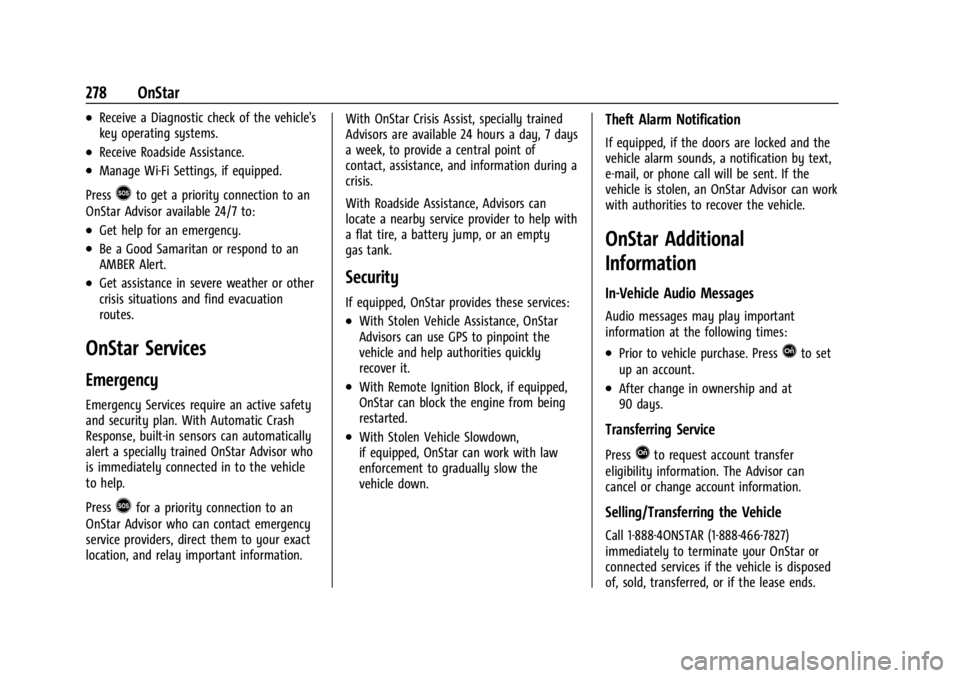
Press
>to get a priority connection to an
OnStar Advisor available 24/7 to:
.Get help for an emergency.
.Be a Good Samaritan or respond to an
AMBER Alert.
.Get assistance in severe weather or other
crisis situations and find evacuation
routes.
OnStar Services
Emergency
Emergency Services require an active safety
and security plan. With Automatic Crash
Response, built-in sensors can automatically
alert a specially trained OnStar Advisor who
is immediately connected in to the vehicle
to help.
Press
>for a priority connection to an
OnStar Advisor who can contact emergency
service providers, direct them to your exact
location, and relay important information. With OnStar Crisis Assist, specially trained
Advisors are available 24 hours a day, 7 days
a week, to provide a central point of
contact, assistance, and information during a
crisis.
With Roadside Assistance, Advisors can
locate a nearby service provider to help with
a flat tire, a battery jump, or an empty
gas tank.
Security
If equipped, OnStar provides these services:
.With Stolen Vehicle Assistance, OnStar
Advisors can use GPS to pinpoint the
vehicle and help authorities quickly
recover it.
.With Remote Ignition Block, if equipped,
OnStar can block the engine from being
restarted.
.With Stolen Vehicle Slowdown,
if equipped, OnStar can work with law
enforcement to gradually slow the
vehicle down.
Theft Alarm Notification
If equipped, if the doors are locked and the
vehicle alarm sounds, a notification by text,
e-mail, or phone call will be sent. If the
vehicle is stolen, an OnStar Advisor can work
with authorities to recover the vehicle.
OnStar Additional
Information
In-Vehicle Audio Messages
Audio messages may play important
information at the following times:
.Prior to vehicle purchase. PressQto set
up an account.
.After change in ownership and at
90 days.
Transferring Service
PressQto request account transfer
eligibility information. The Advisor can
cancel or change account information.
Selling/Transferring the Vehicle
Call 1-888-4ONSTAR (1-888-466-7827)
immediately to terminate your OnStar or
connected services if the vehicle is disposed
of, sold, transferred, or if the lease ends.
Page 281 of 296

Chevrolet Express Owner Manual (GMNA-Localizing-U.S./Canada/Mexico-
14583525) - 2021 - CRC - 12/9/20
280 OnStar
Languages
The vehicle can be programmed to respond
in multiple languages. Press
Qand ask for
an Advisor. Advisors are available in English,
Spanish, and French. Available languages
may vary by country.
Potential Issues
OnStar cannot perform Remote Door Unlock
or Stolen Vehicle Assistance after the vehicle
has been off continuously for 10 days
without an ignition cycle. If the vehicle has
not been started for 10 days, OnStar can
contact Roadside Assistance or a locksmith
to help gain access to the vehicle.
Global Positioning System (GPS)
.Obstruction of the GPS can occur in a
large city with tall buildings; in parking
garages; around airports; in tunnels and
underpasses; or in an area with very
dense trees. If GPS signals are not
available, the OnStar system should still
operate to call OnStar. However, OnStar
could have difficulty identifying the exact
location.
.In emergency situations, OnStar can use
the last stored GPS location to send to
emergency responders. A temporary loss of GPS can cause loss of
the ability to send a Turn-by-Turn
Navigation route. The Advisor may give a
verbal route or may ask for a call back after
the vehicle is driven into an open area.
Cellular and GPS Antennas
Cellular reception is required for OnStar to
send remote signals to the vehicle. Do not
place items over or near the antenna to
prevent blocking cellular and GPS signal
reception.
Unable to Connect to OnStar Message
If there is limited cellular coverage or the
cellular network has reached maximum
capacity, this message may come on. Press
Qto try the call again or try again after
driving a few miles into another
cellular area.
Vehicle and Power Issues
OnStar services require a vehicle electrical
system, wireless service, and GPS satellite
technologies to be available and operating
for features to function properly. These
systems may not operate if the battery is
discharged or disconnected.
Add-on Electrical Equipment
The OnStar system is integrated into the
electrical architecture of the vehicle. Do not
add any electrical equipment. See Add-On
Electrical Equipment 0176. Added electrical
equipment may interfere with the operation
of the OnStar system and cause it to not
operate.
Vehicle Software Updates
OnStar or GM may remotely deliver
software updates or changes to the vehicle
without further notice or consent. These
updates or changes may enhance or
maintain safety, security, or the operation
of the vehicle or the vehicle systems.
Software updates or changes may affect or
erase data or settings that are stored in the
vehicle, such as saved navigation
destinations or pre-set radio stations.
Neither OnStar nor GM is responsible for
any affected or erased data or settings.
These updates or changes may also collect
personal information. Such collection is
described in the OnStar privacy statement or
separately disclosed at the time of
installation. These updates or changes may
also cause a system to automatically
communicate with GM servers to collect
information about vehicle system status,
Page 284 of 296

Chevrolet Express Owner Manual (GMNA-Localizing-U.S./Canada/Mexico-
14583525) - 2021 - CRC - 12/9/20
Connected Services 283
PressQ, then ask the Advisor to download
directions to the vehicle’s navigation system,
if equipped. After the call ends, the
navigation screen will provide prompts to
begin driving directions. Routes that are sent
to the navigation screen can only be
canceled through the navigation system.
See www.onstar.com (U.S.) or www.onstar.ca
(Canada).
Connections
The following services help with staying
connected.
For coverage maps, see www.onstar.com
(U.S.) or www.onstar.ca (Canada).
Ensuring Security
.Change the default passwords for the
Wi-Fi hotspot and myChevrolet mobile
application. Make these passwords
different from each other and use a
combination of letters and numbers to
increase the security.
.Change the default name of the SSID
(Service Set Identifier). This is your
network’s name that is visible to other
wireless devices. Choose a unique name
and avoid family names or vehicle
descriptions. Wi-Fi Hotspot (If Equipped)
The vehicle may have a built-in Wi-Fi
hotspot that provides access to the Internet
and web content at 4G LTE speed. Up to
seven mobile devices can be connected.
A data plan is required. Use the in-vehicle
controls only when it is safe to do so.
1. To retrieve Wi-Fi hotspot information, press
=to open the OnStar app on the
infotainment display, then select Wi-Fi
Hotspot. On some vehicles, touch Wi-Fi
or Wi-Fi Settings on the screen.
2. The Wi-Fi settings will display the Wi-Fi hotspot name (SSID), password, and on
some vehicles, the connection type
(no Internet connection, 3G, 4G, 4G LTE),
and signal quality (poor, good, excellent).
The LTE icon shows connection to Wi-Fi.
It is possible that the icon may not
illuminate even though the vehicle has
an active connection.
3. To change the SSID or password, press
Qor call 1-888-4ONSTAR to connect
with an Advisor. On some vehicles, the
SSID and password can be changed in
the Wi-Fi Hotspot menu. After initial set-up, your vehicle’s Wi-Fi
hotspot will connect automatically to your
mobile devices. Manage data usage by
turning Wi-Fi on or off on your mobile
device, using the myChevrolet mobile app,
or by contacting an OnStar Advisor. On
some vehicles, Wi-Fi can also be managed
from the Wi-Fi Hotspot menu.
MyChevrolet Mobile App (If Available)
Download the myChevrolet mobile app to
compatible Apple and Android smartphones.
Chevrolet users can access the following
services from a smartphone:
.Remotely start/stop the vehicle,
if factory-equipped.
.Lock/unlock doors, if equipped with
automatic locks.
.Activate the horn and lamps.
.Check the vehicle’s fuel level, oil life,
or tire pressure, if factory-equipped with
the Tire Pressure Monitor System.
.Send destinations to the vehicle.
.Locate the vehicle on a map
(U.S. market only).
.Turn the vehicle's Wi-Fi hotspot on/off,
manage settings, and monitor data
consumption, if equipped.
.Locate a dealer and schedule service.
Page 285 of 296

Chevrolet Express Owner Manual (GMNA-Localizing-U.S./Canada/Mexico-
14583525) - 2021 - CRC - 12/9/20
284 Connected Services
.Request Roadside Assistance.
.Set a parking reminder with pin drop,
take a photo, make a note, and set a
timer.
.Connect with Chevrolet on social media.
Features are subject to change. For
myChevrolet mobile app information and
compatibility, see my.chevrolet.com.
An active OnStar or connected service plan
may be required. A compatible device,
factory-installed remote start, and power
locks are required. Data rates apply. See
www.onstar.com for details and system
limitations.
Remote Services
Contact an OnStar Advisor to unlock the
doors or sound the horn and flash the
lamps.
Marketplace
OnStar Advisors can provide offers from
restaurants and retailers on your route, help
locate hotels, or book a room. These services
vary by market.
Diagnostics
By monitoring and reporting on the vehicle's
key systems, OnStar Advanced Diagnostics,
if equipped, provides a way to keep up on
maintenance. Capabilities vary by model.
See www.onstar.com for details and system
limitations. Features are subject to change.
For updates on feature capabilities, see
my.chevrolet.com. Message and data rates
may apply.