2021 CHEVROLET CORVETTE C8 wheel
[x] Cancel search: wheelPage 90 of 339

Chevrolet Corvette Owner Manual (GMNA-Localizing-U.S./Canada/Mexico-
14622938) - 2021 - CRC - 9/22/20
Instruments and Controls 89
If the light comes on while driving, stop as
soon as it is safely possible and turn off the
vehicle. Then start the engine again to reset
the system. If the ABS light stays on,
or comes on again while driving, the vehicle
needs service. A chime may also sound
when the light comes on steady.
If the ABS light is the only light on, the
vehicle has regular brakes, but the antilock
brakes are not functioning.
If both the ABS and the brake system
warning light are on, the vehicle's antilock
brakes are not functioning and there is a
problem with the regular brakes. See your
dealer for service.
SeeBrake System Warning Light 087.
Performance Shifting Light
If equipped, this light may display green
when Sport Mode is activated and certain
driving conditions are met. Sport Mode
detects when the vehicle is being driven in a competitive manner, and adjusts the shifting
of the gears accordingly. See
Driver Mode
Control 0207.
Traction Off Light
This light comes on briefly while starting
the engine. If it does not, have the vehicle
serviced by your dealer. If the system is
working normally, the indicator light then
turns off.
The traction off light comes on when the
Traction Control System (TCS) has been
turned off by pressing and releasing the
TCS/Stability Control button.
This light and the Electronic Stability Control
(ESC) OFF light come on when ESC is
turned off.
If the TCS is off, wheel spin is not limited.
Adjust driving accordingly.
See Traction Control/Electronic Stability
Control 0205.
Traction Control System (TCS)/
Electronic Stability Control Light
If equipped, the Electronic Stability Control
(ESC) or TCS indicator/warning light comes
on briefly when the engine is started.
If the light does not come on, have the
vehicle serviced by your dealer. If the
system is working normally, the indicator
light turns off.
If the light is on and not flashing, the TCS,
and potentially the ESC system have been
disabled.
If the indicator/warning light is on and
flashing, the TCS and/or the ESC system is
actively working.
See Traction Control/Electronic Stability
Control 0205.
Page 93 of 339

Chevrolet Corvette Owner Manual (GMNA-Localizing-U.S./Canada/Mexico-
14622938) - 2021 - CRC - 9/22/20
92 Instruments and Controls
Information Displays
Driver Information Center (DIC)
The Info application is only available when
the ignition is on. The displays show the
status of many vehicle systems.
SorT:Press to move left or right
between the interactive display zones in the
cluster. Press the thumbwheel to select.
yorz: Use the thumbwheel to scroll up
or down in a list. Press the thumbwheel to
select.
DIC Info Pages
The following is the list of all possible DIC
info displays. Depending on the vehicle,
some may not be available.
Trip 1 or 2/Average Speed/Average Fuel
Economy : Trip displays the current distance
traveled, in either kilometers (km) or
miles (mi), since the trip odometer was last
reset. The trip odometer can be reset by
pressing and holding the thumbwheel while
this display is active.
Average Speed displays the average speed of
the vehicle in kilometers per hour (km/h) or
miles per hour (mph). This average is
calculated based on the various vehicle
speeds recorded since the last reset of this
value. The average speed can be reset by
pressing and holding the thumbwheel while
this display is active.
Average Fuel Economy displays the
approximate average liters per
100 kilometers (L/100 km) or miles per
gallon (mpg). This number is calculated
based on the number of L/100 km (mpg)
recorded since the last time this menu item
was reset. This number reflects only the
approximate average fuel economy that the
vehicle has right now, and will change as driving conditions change. The Average Fuel
Economy can be reset by pressing and
holding the thumbwheel while this display
is active.
Oil Life :
Displays an estimate of the oil's
remaining useful life. If REMAINING OIL
LIFE 99% is displayed, that means 99% of
the current oil life remains.
When the remaining oil life is low, the
CHANGE ENGINE OIL SOON message will
appear on the display. The oil should be
changed as soon as possible. See Engine Oil
0 238. In addition to the engine oil life
system monitoring the oil life, additional
maintenance is recommended in the
Maintenance Schedule. See Maintenance
Schedule 0293.
The Oil Life display must be reset after each
oil change. It will not reset itself. Do not
reset the Oil Life display accidentally at any
time other than when the oil has just been
changed. It cannot be reset accurately until
the next oil change. To reset, see Engine Oil
Life System 0241.
Tire Pressure : Displays the approximate
pressures of all four tires. Tire pressure is
displayed in either kilopascal (kPa) or in
pounds per square inch (psi). If the pressure
is low, the value for that tire is shown in
Page 94 of 339

Chevrolet Corvette Owner Manual (GMNA-Localizing-U.S./Canada/Mexico-
14622938) - 2021 - CRC - 9/22/20
Instruments and Controls 93
amber. SeeTire Pressure Monitor System
0 269 and
Tire Pressure Monitor Operation 0270.
Transmission Fluid Life : Displays an
estimate of the fluid's remaining useful life.
If REMAINING FLUID LIFE 99% is displayed,
that means 99% of the current fluid life
remains.
When the remaining fluid life is low, the
CHANGE TRANSMISSION FLUID SOON
message will appear on the display. The
fluid should be changed as soon as possible.
See Dual Clutch Transmission Fluid Life
System 0242. In addition to the
Transmission Fluid Life system monitoring
the fluid life, additional maintenance is
recommended in the Maintenance Schedule.
See Maintenance Schedule 0293.
The Fluid Life display must be reset after
each fluid change. It will not reset itself. Do
not reset the Fluid Life display accidentally
at any time other than when the fluid has
just been changed. It cannot be reset
accurately until the next fluid change. To
reset the Transmission Fluid Life system,
press and hold SEL for several seconds while
the Fluid Life display is active. Fuel Economy :
Displays the average fuel
economy, the best fuel economy over the
selected distance, and a bar graph showing
instantaneous fuel economy. Pressing the
thumbwheel will open a menu to change
the selected distance or reset the current
values.
Timer/Fuel Used : This display can be used
as a timer. To start/stop the timer, press the
thumbwheel while this display is active and
then select the start/stop the timer. The
display will show the amount of time that
has passed since the timer was last reset. To
reset the timer to zero, press the
thumbwheel to access the menu while this
display is active.
Fuel Used displays the approximate liters (L)
or gallons (gal) of fuel that have been used
since last reset. The fuel used can be reset
by pressing the thumbwheel and selecting
Reset Fuel Used in the menu.
Economy Trend : Shows the instantaneous
fuel economy and current gas mileage.
Speed Limit : Displays sign information,
which comes from a roadway database in
the on-board navigation. Engine Hours/Lifetime Revs :
Displays the
total number of hours the engine has run.
It also shows total engine revolutions
divided by 10,000.
Head-Up Display (HUD)
{Warning
If the HUD image is too bright, or too
high in your field of view, it may take
you more time to see things you need to
see when it is dark outside. Be sure to
keep the HUD image dim and placed low
in your field of view.
If equipped with HUD, some information
concerning the operation of the vehicle is
projected onto the windshield.
The HUD information appears as an image
focused out toward the front of the vehicle.
Caution
If you try to use the HUD image as a
parking aid, you may misjudge the
distance and damage your vehicle. Do not
use the HUD image as a parking aid.
Page 95 of 339
Chevrolet Corvette Owner Manual (GMNA-Localizing-U.S./Canada/Mexico-
14622938) - 2021 - CRC - 9/22/20
94 Instruments and Controls
The HUD information can be displayed in
various languages. The speedometer reading
and other numerical values can be displayed
in either English or metric units.
The language selection is changed through
the radio and the units of measurement is
changed through the instrument cluster. See
Vehicle Personalization097 and “Settings”
under Instrument Cluster 079.
The HUD may display different alerts and
information for vehicles equipped with these
features:
.Speedometer
.Tachometer
.Manual Paddle Shift Gear Indicator
These displays on the HUD are for use
when using the manual paddle shift
controls to shift the transmission. See
“Manual Paddle Shift” inDual Clutch
Transmission 0197.
.G-Force Gauge
.Upcoming Maneuver from On-Board
Navigation
.Upcoming Maneuver from OnStar
.Incoming Call
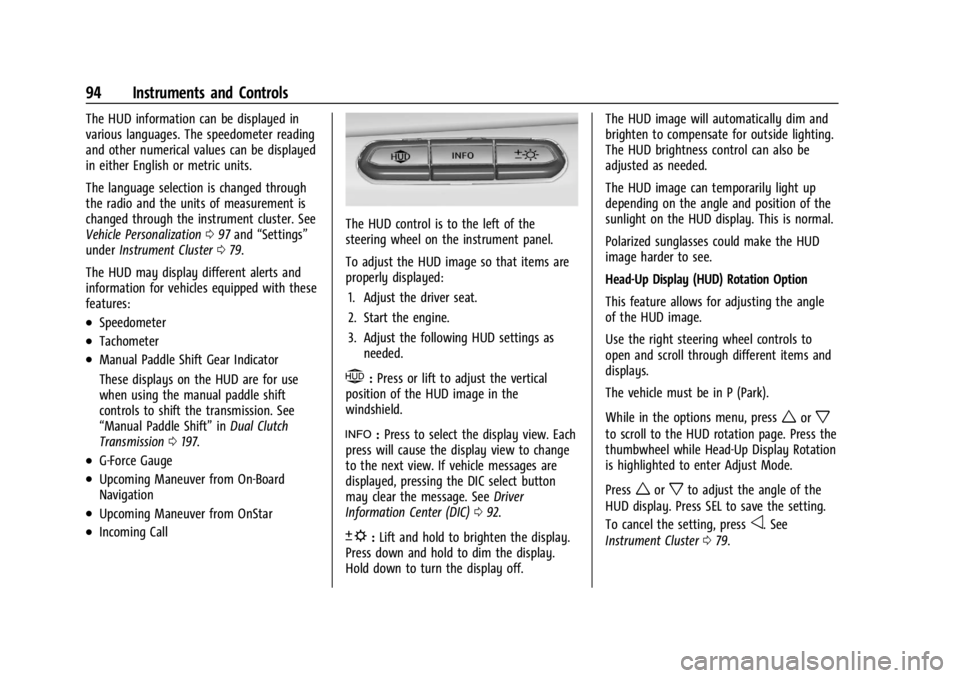
The HUD control is to the left of the
steering wheel on the instrument panel.
To adjust the HUD image so that items are
properly displayed:
1. Adjust the driver seat.
2. Start the engine.
3. Adjust the following HUD settings as needed.
$:Press or lift to adjust the vertical
position of the HUD image in the
windshield.
!: Press to select the display view. Each
press will cause the display view to change
to the next view. If vehicle messages are
displayed, pressing the DIC select button
may clear the message. See Driver
Information Center (DIC) 092.
D:Lift and hold to brighten the display.
Press down and hold to dim the display.
Hold down to turn the display off. The HUD image will automatically dim and
brighten to compensate for outside lighting.
The HUD brightness control can also be
adjusted as needed.
The HUD image can temporarily light up
depending on the angle and position of the
sunlight on the HUD display. This is normal.
Polarized sunglasses could make the HUD
image harder to see.
Head-Up Display (HUD) Rotation Option
This feature allows for adjusting the angle
of the HUD image.
Use the right steering wheel controls to
open and scroll through different items and
displays.
The vehicle must be in P (Park).
While in the options menu, press
worx
to scroll to the HUD rotation page. Press the
thumbwheel while Head-Up Display Rotation
is highlighted to enter Adjust Mode.
Press
worxto adjust the angle of the
HUD display. Press SEL to save the setting.
To cancel the setting, press
o. See
Instrument Cluster 079.
Page 100 of 339

Chevrolet Corvette Owner Manual (GMNA-Localizing-U.S./Canada/Mexico-
14622938) - 2021 - CRC - 9/22/20
Instruments and Controls 99
can be turned off by using the heated seat
buttons on the center stack. SeeHeated and
Ventilated Front Seats 044.
If equipped with Auto Heated Steering
Wheel, this feature will turn on when the
Auto Heated Seats turn on.
Touch Off or On.
Auto Defog
This setting, when set to On, will
automatically react to temperature and
humidity conditions that may cause fogging.
Touch Off or On.
Auto Rear Defog
This setting automatically turns the rear
window defogger on when it is cold outside.
Touch Off or On.
Collision / Detection Systems
Touch and the following may display:
.Park Assist
.Side Blind Zone Alert
.Rear Cross Traffic Alert Park Assist
This allows the feature to be turned on or
off. See
Assistance Systems for Parking or
Backing 0221.
Touch Off or On.
Side Blind Zone Alert
This allows this feature to be turned on or
off. See Side Blind Zone Alert (SBZA) 0224.
Touch Off or On.
Rear Cross Traffic Alert
This setting specifies if an alert will display
when the vehicle detects approaching rear
cross traffic when in R (Reverse). See
Assistance Systems for Parking or Backing
0 221.
Touch Off or On.
Comfort and Convenience
Touch and the following may display:
.Chime Volume
.Reverse Tilt Mirror
.Remote Mirror Folding
Chime Volume
This setting determines the chime volume
level. Touch the controls on the infotainment
system to adjust the volume.
Reverse Tilt Mirror
When on, the driver, passenger, or both
driver and passenger outside mirrors will tilt
downward when the vehicle is shifted into
R (Reverse) to improve visibility of the
ground near the rear wheels. They may
move from their tilted position when the
vehicle is shifted out of R (Reverse) or
turned off. See
Reverse Tilt Mirrors 026.
Touch Off, On - Driver and Passenger, On -
Driver, or On - Passenger.
Remote Mirror Folding
When on, the outside mirrors will
automatically fold or unfold when the
Qor
Kon the remote key is pressed. See
Folding Mirrors 025.
Touch Off or On.
Lighting
Touch and the following may display:
.Vehicle Locator Lights
.Exit Lighting
Page 101 of 339

Chevrolet Corvette Owner Manual (GMNA-Localizing-U.S./Canada/Mexico-
14622938) - 2021 - CRC - 9/22/20
100 Instruments and Controls
Vehicle Locator Lights
This setting flashes the vehicle’s headlamps
and taillamps when
Kis pressed on the
remote key.
Touch Off or On.
Exit Lighting
This setting specifies how long the
headlamps stay on after the vehicle is
turned off and exited.
Touch Off, 30 Seconds, 60 Seconds,
or 120 Seconds.
Power Door Locks
Touch and the following may display:
.Auto Door Unlock
.Delayed Door Lock
Auto Door Unlock
This setting allows selection of which doors
will automatically unlock when the vehicle is
shifted into P (Park).
Touch Off, All Doors, or Driver Door.
Delayed Door Lock
This setting delays the locking of the vehicle
doors.
Touch Off or On.
Remote Lock, Unlock, and Start
Touch and the following may display:
.Remote Unlock Light Feedback
.Remote Lock Feedback
.Remote Door Unlock
.Remote Start Auto Cool Seats
.Remote Start Auto Heat Seats
.Remote Window Operation
.Passive Door Unlock
.Passive Door Lock
.Remote Left in Vehicle Alert
.Remote Removed from Vehicle Alert
Remote Unlock Light Feedback
This setting flashes the exterior lamps when
the vehicle is unlocked with the remote key.
Touch Off or Flash Lights.
Remote Lock Feedback
This setting specifies how the vehicle
responds when the vehicle is locked with
the remote key.
Touch Off, Lights and Horn, Lights Only,
or Horn Only. Remote Door Unlock
This setting specifies whether all doors,
or just the driver door, unlock when pressing
Kon the remote key.
Touch All Doors or Driver Door.
Remote Start Auto Cool Seats
This setting automatically turns on the
ventilated seats when using the remote
start function on warm days. See Heated
and Ventilated Front Seats 044 and
Remote Vehicle Start 012.
Touch Off or On.
Remote Start Auto Heat Seats
This setting automatically turns on the
heated seats when using the remote start
function on cold days. See Heated and
Ventilated Front Seats 044 and
Remote Vehicle Start 012.
If equipped with Auto Heated Steering
Wheel, this feature will turn on when the
Remote Start Auto Heat Seats turn on.
Touch Off or On.
Page 102 of 339

Chevrolet Corvette Owner Manual (GMNA-Localizing-U.S./Canada/Mexico-
14622938) - 2021 - CRC - 9/22/20
Instruments and Controls 101
Remote Window Operation
When enabled, this feature allows the
windows to be opened remotely when
pressing and holding
Kon the remote key.
See Remote Keyless Entry (RKE) System
Operation 07.
Touch Off or On.
Passive Door Unlock
This setting specifies which doors unlock
when using the button on the driver door
handle to unlock the vehicle.
Touch Off, All Doors, or Driver Door Only.
Passive Door Lock
This setting specifies if the vehicle will
automatically lock, or lock and provide an
alert after all the doors are closed, and you
walk away from the vehicle with the remote
key. See Remote Keyless Entry (RKE) System
Operation 07.
Touch Off, On with Horn Chirp, or On.
Remote Left in Vehicle Alert
This feature sounds an alert when the
remote key is left in the vehicle.
Touch Off or On. Remote Removed from Vehicle Alert
This feature beeps the horn 3 times when
exiting a running vehicle with the
remote key.
Touch Off or On.
Ride Height
Touch and the following may display:
Location Based Auto Lift
This setting enables the Front Lift to
automatically raise or lower when the
vehicle is near GPS stored locations. See
Front Lift System
0213.
Touch Off or On.
Seating Position
Touch and the following may display:
.Seat Entry Memory
.Seat Exit Memory
Seat Entry Memory
This feature automatically recalls the
previously stored 1 or 2 button positions
when the ignition is changed from off to on.
See Memory Seats 041.
Touch Off or On. Seat Exit Memory
This feature automatically recalls the
previously stored exit button positions when
the ignition is changed from on to off if the
driver door is open or opened. See
Memory
Seats 041.
Touch Off or On.
Teen Driver
See Teen Driver 0159.
Valet Mode
This will lock the infotainment system and
steering wheel controls. It may also limit
access to vehicle storage locations,
if equipped.
To enable valet mode:
1. Enter a four-digit code on the keypad.
2. Touch Enter to go to the confirmation screen.
3. Re-enter the four-digit code.
Touch Lock or Unlock to lock or unlock the
system. Touch Back to go back to the
previous menu.
Page 111 of 339

Chevrolet Corvette Owner Manual (GMNA-Localizing-U.S./Canada/Mexico-
14622938) - 2021 - CRC - 9/22/20
110 Infotainment System
Infotainment System
Introduction
Introduction . . . . . . . . . . . . . . . . . . . . . . . . . . . 110
Overview . . . . . . . . . . . . . . . . . . . . . . . . . . . . . . . 111
Steering Wheel Controls . . . . . . . . . . . . . . . 113
Using the System . . . . . . . . . . . . . . . . . . . . . . 114
Software Updates . . . . . . . . . . . . . . . . . . . . . . 116
Radio
AM-FM Radio . . . . . . . . . . . . . . . . . . . . . . . . . . 116
HD Radio Technology . . . . . . . . . . . . . . . . . . 118
Radio Data System (RDS) . . . . . . . . . . . . . . 119
Satellite Radio . . . . . . . . . . . . . . . . . . . . . . . . . 119
Radio Reception . . . . . . . . . . . . . . . . . . . . . . . . 119
Diversity Antenna System . . . . . . . . . . . . . 120
Audio Players
Avoiding Untrusted Media Devices . . . . 120
USB Port . . . . . . . . . . . . . . . . . . . . . . . . . . . . . . 120
Auxiliary Jack . . . . . . . . . . . . . . . . . . . . . . . . . . 123
Bluetooth Audio . . . . . . . . . . . . . . . . . . . . . . . 123
OnStar System
OnStar System . . . . . . . . . . . . . . . . . . . . . . . . 124
Navigation
Using the Navigation System . . . . . . . . . . 125
Maps . . . . . . . . . . . . . . . . . . . . . . . . . . . . . . . . . . 128
Navigation Symbols . . . . . . . . . . . . . . . . . . . 128
Destination . . . . . . . . . . . . . . . . . . . . . . . . . . . . 129OnStar System . . . . . . . . . . . . . . . . . . . . . . . . 134
Global Positioning System (GPS) . . . . . . . 135
Vehicle Positioning . . . . . . . . . . . . . . . . . . . . . 135
Problems with Route Guidance . . . . . . . . 136
If the System Needs Service . . . . . . . . . . . 136
Map Data Updates . . . . . . . . . . . . . . . . . . . . 136
Database Coverage Explanations . . . . . . . 136
Voice Recognition
Voice Recognition . . . . . . . . . . . . . . . . . . . . . . 137
Performance Data Recorder (PDR)
Performance Data Recorder (PDR) . . . . . . 142
Phone
Bluetooth (Overview) . . . . . . . . . . . . . . . . . . 147
Bluetooth (Pairing and Using a
Phone) . . . . . . . . . . . . . . . . . . . . . . . . . . . . . . . 147
Apple CarPlay and Android Auto . . . . . . . 151
Settings
Settings . . . . . . . . . . . . . . . . . . . . . . . . . . . . . . . . 153
Teen Driver . . . . . . . . . . . . . . . . . . . . . . . . . . . . 159
Trademarks and License Agreements
Trademarks and License Agreements . . . . . . . . . . . . . . . . . . . . . . . . . . 162
Introduction
Read the following pages to become familiar
with the features.
{Warning
Taking your eyes off the road for too
long or too often while using any
infotainment feature can cause a crash.
You or others could be injured or killed.
Do not give extended attention to
infotainment tasks while driving. Limit
your glances at the vehicle displays and
focus your attention on driving. Use voice
commands whenever possible.
The infotainment system has built-in
features intended to help avoid distraction
by disabling some features when driving.
These features may gray out when they are
unavailable. Many infotainment features are
also available through the instrument cluster
and steering wheel controls.