2021 BUICK ENCORE page 76
[x] Cancel search: page 76Page 137 of 313

Buick Encore Owner Manual (GMNA-Localizing-U.S./Canada-14607636) -
2021 - CRC - 8/18/20
136 Infotainment System
contained on the original; and (2) not to
export the Product or the Software in
contravention of applicable export
control laws.
EXCEPT TO THE EXTENT OTHERWISE
REQUIRED BY APPLICABLE LAW, QSSC AND
ITS LICENSORS PROVIDE THE SOFTWARE ON
AN "AS IS" BASIS, WITHOUT WARRANTIES OR
CONDITIONS OF ANY KIND, EITHER EXPRESS
OR IMPLIED INCLUDING, WITHOUT
LIMITATION, ANY WARRANTIES OR
CONDITIONS OF TITLE, NON-INFRINGEMENT,
MERCHANTABILITY OR FITNESS FOR A
PARTICULAR PURPOSE. ANY WARRANTIES OR
OTHER PROVISIONS OFFERED BY THE
MANUFACTURER OR ITS DISTRIBUTOR(S)
THAT DIFFER FROM THIS LICENSE ARE
OFFERED BY THE MANUFACTURER OR ITS
DISTRIBUTOR(S) ALONE AND NOT BY QSSC,
ITS AFFILIATES OR THEIR LICENSORS. YOU
ASSUME ANY RISKS ASSOCIATED WITH YOUR
USE OF THE SOFTWARE UNDER THIS LICENSE.
EXCEPT TO THE EXTENT OTHERWISE
REQUIRED BY APPLICABLE LAW (SUCH AS IN
THE CASE OF DELIBERATE OR GROSSLY
NEGLIGENT ACTS), IN NO EVENT SHALL QSSC,
ITS AFFILIATES OR THEIR LICENSORS BE
LIABLE TO YOU UNDER ANY LEGAL THEORY,
WHETHER IN TORT (INCLUDING NEGLIGENCE),CONTRACT OR OTHERWISE, FOR DAMAGES,
INCLUDING ANY DIRECT, INDIRECT, SPECIAL,
INCIDENTAL, OR CONSEQUENTIAL DAMAGES
OF ANY CHARACTER ARISING AS A RESULT OF
THIS LICENSE OR OUT OF THE USE OR
INABILITY TO USE THE PRODUCT (INCLUDING
BUT NOT LIMITED TO DAMAGES FOR LOSS
OF GOODWILL, WORK STOPPAGE, PRODUCT
FAILURE OR MALFUNCTION, OR ANY AND ALL
OTHER COMMERCIAL DAMAGES OR LOSSES),
EVEN IF QSSC, ITS AFFILIATES OR THEIR
LICENSORS HAVE BEEN ADVISED OF THE
POSSIBILITY OF SUCH DAMAGES.
WMA
This product is protected by certain
intellectual property rights of Microsoft. Use
or distribution of such technology outside of
this product is prohibited without a license
from Microsoft.
For more information on the Software,
including any open source software license
terms (and available source code) as well as
copyright attributions applicable to the
Runtime Configuration indicated above,
please contact the Manufacturer or contact
QSSC at 175 Terence Matthews Crescent,
Kanata, Ontario, Canada K2M 1W8
([email protected]).
Linotype
Helvetica is a trademark of Linotype Corp.
registered in the U.S. Patent and Trademark
Office and may be registered in certain
other jurisdictions in the name of Linotype
Corp. or its licensee Linotype GmbH.
Usage in text form of each of the Licensed
Trademarks is:
The trademark attribution requirements for
the Licensed Trademarks may be viewed at
http://www.linotype.com/2061-19414/
trademarks.html.
END USER NOTICE
The marks of companies displayed by this
product to indicate business locations are
the marks of their respective owners. The
use of such marks in this product does not
imply any sponsorship, approval,
or endorsement by such companies of this
product.
Introduction
Read the following pages to become familiar
with the features.
Page 139 of 313
Buick Encore Owner Manual (GMNA-Localizing-U.S./Canada-14607636) -
2021 - CRC - 8/18/20
138 Infotainment System
Overview (7 Inch Screen)
Infotainment System
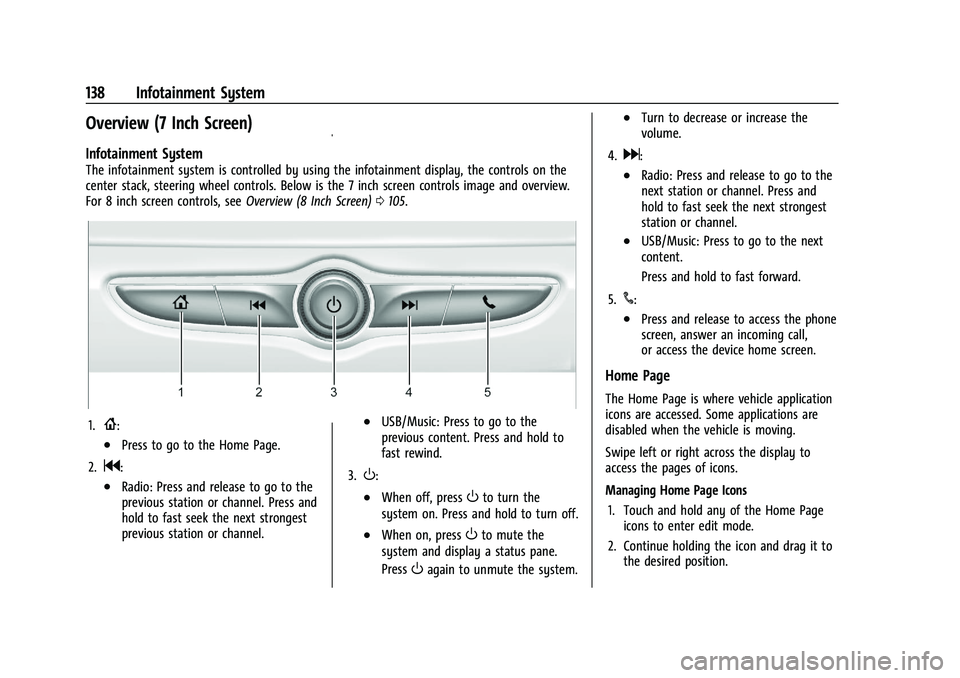
The infotainment system is controlled by using the infotainment display, the controls on the
center stack, steering wheel controls. Below is the 7 inch screen controls image and overview.
For 8 inch screen controls, seeOverview (8 Inch Screen)0105.
1.{:
.Press to go to the Home Page.
2.
g:
.Radio: Press and release to go to the
previous station or channel. Press and
hold to fast seek the next strongest
previous station or channel.
.USB/Music: Press to go to the
previous content. Press and hold to
fast rewind.
3.
O:
.When off, pressOto turn the
system on. Press and hold to turn off.
.When on, pressOto mute the
system and display a status pane.
Press
Oagain to unmute the system.
.Turn to decrease or increase the
volume.
4.
d:
.Radio: Press and release to go to the
next station or channel. Press and
hold to fast seek the next strongest
station or channel.
.USB/Music: Press to go to the next
content.
Press and hold to fast forward.
5.
#:
.Press and release to access the phone
screen, answer an incoming call,
or access the device home screen.
Home Page
The Home Page is where vehicle application
icons are accessed. Some applications are
disabled when the vehicle is moving.
Swipe left or right across the display to
access the pages of icons.
Managing Home Page Icons 1. Touch and hold any of the Home Page icons to enter edit mode.
2. Continue holding the icon and drag it to the desired position.
Page 140 of 313

Buick Encore Owner Manual (GMNA-Localizing-U.S./Canada-14607636) -
2021 - CRC - 8/18/20
Infotainment System 139
3. Release your finger to drop the icon inthe desired position.
4. To move an application to another page, drag the icon to the edge of the display
toward the desired page.
5. Continue dragging and dropping application icons as desired.
Steering Wheel Controls
If equipped, some audio controls can be
adjusted at the steering wheel.
b/g:For vehicles with Bluetooth, press
to interact with those systems.
$/i: Press to decline an incoming call,
to end speech recognition, or to end a
current call. Press to silence the vehicle
speakers while using the infotainment
system. Press again to turn the sound on.
For vehicles with Bluetooth systems, press
to reject an incoming call or end a
current call.
_SRC^: Press to select an audio source.
Toggle up or down to select the next or
previous favorite radio station, MP3 track,
USB file, iPod/iPhone song, or Bluetooth
music.
Toggle and hold up or down to fast forward
or reverse the radio stations, MP3 tracks,
USB files, iPod/iPhone songs, or Bluetooth
music.
+
x− :Press + or −to increase or decrease
the volume.
Using the System
Infotainment Display Icons
Infotainment display icons show when
available. When a function is unavailable,
the icon may gray out. When a function is
selected, the icon may highlight.
Audio
Touch the Audio icon to display the active
audio source page. Examples of available
sources are AM, FM, SXM (if equipped),
MyMedia, USB, AUX, and Bluetooth.
Phone
Phone icon to display the Phone main page.
See Bluetooth (Overview for 7 Inch Screen)
0 149 or
Bluetooth (Pairing and Using a Phone for 7
Inch Screen) 0149.
Wi-Fi Hotspot
If equipped, touch the Users icon to display
the Wi-Fi Hotspot menu.
Settings
Touch the Settings icon to display the
Settings menu. See Settings (7 Inch Screen)
0 154.
Apple CarPlay
Touch the Apple CarPlay icon to activate
Apple CarPlay if equipped, after a supported
device is connected. See Apple CarPlay and
Android Auto 0153.
Page 141 of 313

Buick Encore Owner Manual (GMNA-Localizing-U.S./Canada-14607636) -
2021 - CRC - 8/18/20
140 Infotainment System
Android Auto
Touch the Android Auto icon to activate
Android Auto if equipped, after a supported
device is connected. SeeApple CarPlay and
Android Auto 0153.
OnStar Services
If equipped, touch the OnStar icon to display
the OnStar Services and Account pages.
Climate
If equipped, touch the Climate icon to
display the Climate main page.
Camera
If equipped, touch the Camera icon to access
the camera application.
SiriusXM
If equipped, touch the SiriusXM icon to
display the SiriusXM radio service.
Shortcut Tray
The shortcut tray is near the bottom of the
display. It shows up to four applications.
Infotainment Display Features
Infotainment display features show on the
display when available. When a feature is
unavailable, it may gray out. When a
feature is touched, it may highlight.
Infotainment Gestures
Use the following finger gestures to control
the infotainment system.
Touch/Tap
Touch/Tap is used to select an icon or
option, activate an application, or change
the location inside a map. Touch and Hold
Touch and hold can be used to start another
gesture, or to move or delete an application.
Drag
Drag is used to move applications on the
Home Page, or to pan the map. To drag the
item, it must be held and moved along the
display to the new location. This can be
Page 142 of 313

Buick Encore Owner Manual (GMNA-Localizing-U.S./Canada-14607636) -
2021 - CRC - 8/18/20
Infotainment System 141
done up, down, right, or left. This feature is
only available when vehicle is parked and
not in motion.
Nudge
Nudge is used to move items a short
distance on a list or a map. To nudge, hold
and move the selected item up or down to
a new location.
Fling or Swipe
Fling or swipe is used to scroll through a
list, pan the map, or change page views. Do
this by placing a finger on the display then
moving it rapidly up and down or right
and left.
Cleaning High Gloss Surfaces and Vehicle
Information and Radio Displays
For vehicles with high gloss surfaces or
vehicle displays, use a microfiber cloth to
wipe surfaces. Before wiping the surface
with the microfiber cloth, use a soft bristle
brush to remove dirt that could scratch the
surface. Then use the microfiber cloth by
gently rubbing to clean. Never use window
cleaners or solvents. Periodically hand wash
the microfiber cloth separately, using mild
soap. Do not use bleach or fabric softener.
Rinse thoroughly and air dry before
next use.
Radio
AM-FM Radio (7 Inch Screen)
Playing the Radio
From the Home Page, touch the Audio icon
to display the active audio source page.
Choose from the three most recently used
sources listed at the left side of the displayor touch the More icon to display a list of
available sources. Examples of available
sources are AM, FM, SXM (if equipped),
MyMedia (if available), USB, AUX (if
equipped), and Bluetooth.
Infotainment System Sound Menu
From any of the audio source main pages,
touch Sound to display the following:
Equalizer :
Touch to adjust Bass, Midrange,
and Treble using the options on the
infotainment display.
Fade/Balance : Touch to adjust by using the
controls on the infotainment display or by
tapping/dragging the crosshair.
Page 146 of 313
Buick Encore Owner Manual (GMNA-Localizing-U.S./Canada-14607636) -
2021 - CRC - 8/18/20
Infotainment System 145
My Media Library
MyMedia is only available when more than
one indexed device is connected. It allows
access to content from all indexed media
sources. MyMedia will show as an available
source in the Source page.
USB MP3 Player and USB Devices
The USB MP3 players and USB devices
connected must comply with the USB Mass
Storage Class specification (USB MSC).
To play a USB device:1. Connect the USB.
2. Touch Audio from the Home Page.
3. Touch More and then touch the USB device.
Use the following when playing an active
USB source:
p: Touch to play the current media
source.
j: Touch to pause playback of the current
media source.
7:
.Touch to seek to the beginning of the
current or previous track.
.Touch and hold to reverse quickly
through playback. Release to return to
playing speed. Elapsed time displays.
6:
.Touch to seek to the next track.
.Touch and hold to advance quickly
through playback. Release to return to
playing speed. Elapsed time displays.
Shuffle : Touch the shuffle icon to play
music in random order.
USB Sound Menu
See “Infotainment System Sound Menu”
under AM-FM Radio (7 Inch Screen) 0141.
USB Browse Menu
When a list of songs, albums, artists,
or other types of media displays, the up and
down arrows and A-Z appear on the left
side. Select A-Z to view a display that will
show all letters of the alphabet and select
the letter to go to.
Touch the up and down arrows to move the
list up and down. Touch Browse and the following may
display:
Playlists:
1. Touch to view the playlists stored on the USB.
2. Touch a playlist to view the list of all Songs in that playlist.
3. Touch a song from the list to begin playback.
Supported Playlist extensions are m3u, pls.
Artists: 1. Touch to view the list of artists stored on the USB.
2. Touch an artist name to view a list of all albums by the artist.
3. To select a song, touch All Songs or touch an album and then touch a song
from the list.
Songs: 1. Touch to display a list of All Songs on the USB.
2. To begin playback, touch a song from the list.
Albums: 1. Touch to view the albums on the USB.
Page 148 of 313
Buick Encore Owner Manual (GMNA-Localizing-U.S./Canada-14607636) -
2021 - CRC - 8/18/20
Infotainment System 147
Podcasts :TouchHnext to any podcast to
store the podcast as a favorite. Touch a
saved favorite to recall a favorite podcast.
The podcast begins to play.
Audiobooks : Touch
Hnext to any
audiobook to store the audiobook as a
favorite. Touch a saved favorite to recall a
favorite audiobook. The first chapter in the
audiobook begins to play.
Media Playback and Mute
USB playback will be paused if the system is
muted. If the steering wheel mute control is
pressed again, playback will resume.
If the source is changed while in mute,
playback resumes and audio will unmute.
Auxiliary Jack
This vehicle has an auxiliary input jack in
the center console. Possible auxiliary audio
sources include:
.Laptop computer
.Audio music player
This jack is not an audio output. Do not
plug headphones into the auxiliary input
jack. Set up an auxiliary device while the
vehicle is in P (Park). Connect a 3.5mm (1/8 in) cable from the
auxiliary device to the auxiliary input jack.
When a device is connected, the system can
play audio from the device over the vehicle
speakers.
If an auxiliary device has already been
connected, but a different source is currently
active, touch More and then touch AUX to
make the source active.
Shuffle and Browse are not available in the
AUX source menu.
Bluetooth Audio
Music may be played from a paired
Bluetooth device. See
Bluetooth (Overview
for 7 Inch Screen) 0149 or
Bluetooth (Pairing and Using a Phone for 7
Inch Screen) 0149 for help pairing a device.
Volume and song selection may be
controlled by using the infotainment
controls or the mobile device. If Bluetooth is
selected and no volume is present, check the
volume setting on the infotainment system.
Music can be launched by touching
Bluetooth from the recent sources list on
the left of the display or by touching the
More option and then touching the
Bluetooth device. To play music via Bluetooth:
1. Power on the device, and pair to connect the device.
2. Once paired, touch Audio from the Home Page, then touch Bluetooth from the
recent sources list on the left of the
display.
Bluetooth Sound Menu
See “Infotainment System Sound Menu”
under AM-FM Radio (7 Inch Screen) 0141.
Manage Bluetooth Devices
From the Home Page: 1. Touch Audio.
2. Touch More.
3. Touch Bluetooth.
4. Touch Devices to add or delete devices.
When touching Bluetooth, the radio may
not be able to launch the audio player on
the connected device to start playing. When
the vehicle is not moving, use the mobile
device to begin playback.
All devices launch audio differently. When
selecting Bluetooth as a source, the radio
may show as paused on the display. Press
play on the device or touch
pon the
display to begin playback.
Page 149 of 313

Buick Encore Owner Manual (GMNA-Localizing-U.S./Canada-14607636) -
2021 - CRC - 8/18/20
148 Infotainment System
Browse functionality will be provided where
supported by the Bluetooth device. This
media content will not be part of the
MyMedia source mode.
Some smartphones support sending
Bluetooth music information to display on
the radio. When the radio receives this
information, it will check to see if any is
available and display it. For more
information about supported Bluetooth
features, see my.buick.com/learn.
OnStar System
OnStar System (7 Inch Screen)
4G LTE
If equipped with 4G LTE, up to seven
devices, such as smartphones, tablets, and
laptops, can be connected to high-speed
Internet through the vehicle’s built-in Wi-Fi
hotspot.
Call 1-888-4ONSTAR (1-888-466-7827) to
connect to an OnStar Advisor for assistance.
See www.onstar.com for vehicle availability,
details, and system limitations. Service and
connectivity may vary by make, model,
year, carrier, availability, and conditions. 4G
LTE service is available in select markets. 4GLTE performance is based on industry
averages and vehicle systems design. Some
services require a data plan.
The OnStar App
If equipped, the infotainment system has
OnStar controls in the embedded OnStar app
on the Home Page. Most OnStar functions
that can be performed with the buttons can
be done using the app. To open the app,
touch the OnStar icon on the Home Page.
App updates require a corresponding service
plan. Features vary by region and model.
Features are subject to change. For more
information, see my.buick.com/learn or
press
Q.
Services
The Services tab displays the default view
for the app. Use this page to launch the
available OnStar services. Touch a service to
open its display. Touch Wi-Fi to launch the
connections manager. Turn-by-Turn and
Advisor Call are the other tiled options. Account
The Account tab displays a snapshot of the
account linked with the vehicle. If there is
no such account, this tab will show all
values as
——. The call advisor call icon will
be active even if there is no active account.
Advisor Call
Selecting Advisor Call is the same as
pressing
Qor calling 1-888-4ONSTAR
(1-888-466-7827). The X option in the upper
right corner of the screen does not end the
call, but returns to the previous screen.
Turn-by-Turn Directions
With a connected plan, an OnStar Advisor
can download a destination to the vehicle or
its embedded navigation system,
if equipped. Select Turn-by-Turn Directions
from the Services tab of the OnStar app to
call an Advisor or select a recent or favorite
destination. Touch the navigation icons to
select home, address or place. A destination
transfer from OnStar will show the detail
view of the destination when it is
transferred from OnStar to the Navigation
application. See www.onstar.com for a
coverage map. Services vary by model. Map
coverage is available in the United States,
Puerto Rico, and Canada.