2021 BUICK ENCLAVE ad blue
[x] Cancel search: ad bluePage 171 of 369

Buick Enclave Owner Manual (GMNA-Localizing-U.S./Canada/Mexico-
14637843) - 2021 - CRC - 12/9/20
170 Infotainment System
.Reset Music Index: This allows the music
index to be reset if you are having
difficulty accessing all of the media
content on your device.
Touch Yes or No.
Climate
If equipped, touch and the following may
display:
.Auto Fan Speed: This setting specifies the
amount of airflow when the climate
control fan setting is Auto Fan.
Touch Low, Medium, or High.
.Air Quality Sensor: This setting switches
the system into Recirculation Mode based
on the quality of the outside air.
Touch Off, Low Sensitivity, or High
Sensitivity.
.Auto Cooled Seats: This setting
automatically turns on and regulates the
ventilated seats when the cabin
temperature is warm.
Touch the controls on the infotainment
display to disable or enable.
.Auto Heated Seats: This setting
automatically turns on and regulates the
heated seats when the cabin temperature is cool. The auto heated seats can be
turned off by using the heated seat
controls on the center stack.
Touch the controls on the infotainment
display to disable or enable.
.Auto Defog: This setting automatically
turns the front defogger on when the
vehicle engine is started.
Touch the controls on the infotainment
display to disable or enable.
.Auto Rear Defog: This setting
automatically turns the rear window
defogger on when the vehicle engine is
started.
Touch the controls on the infotainment
display to disable or enable.
.Ionizer: This setting purifies the air in the
interior of the vehicle..
Touch the controls on the infotainment
display to disable or enable.
Navigation
Touch and the following may display:
.Set Up My Places
.Map Preferences
.Route Preferences
.Navigation Voice Control
.Traffic Preferences
.Alert Preferences
.Manage History
.Predictive Navigation
.About
See Using the Navigation System 0143.
Phone
Touch and the following may display:
.My Number: Displays the cell phone
number of the Bluetooth connected
device.
.Active Call View: Shows active call display
when answering a call.
Touch the controls on the infotainment
display to disable or enable.
.Privacy: Only show call alerts in the
instrument cluster.
Touch Off or On.
.Sort Contacts: Touch to sort by first or
last name.
.Re-sync Device Contacts: Allows the device
contacts to re-sync if you are having
difficulty accessing all of the contacts on
your cell phone.
.Delete All Vehicle Contacts: Touch to
delete all vehicle stored contacts.
Page 177 of 369

Buick Enclave Owner Manual (GMNA-Localizing-U.S./Canada/Mexico-
14637843) - 2021 - CRC - 12/9/20
176 Infotainment System
dts.com/patents. HD Radio and the HD, HD
Radio, and“ARC”logos are registered
trademarks or trademarks of iBiquity Digital
Corporation in the United States and/or
other countries.
Bluetooth
The Bluetooth word mark and logos are
owned by the Bluetooth SIG, Inc. and any
use of such marks by General Motors is
under license. Other trademarks and trade
names are those of their respective owners.
Java
Java is a registered trademark of Oracle
and/or its affiliates.
Schedule I: Gracenote EULA
Music recognition technology and related
data are provided by Gracenote. Gracenote
is the industry standard in music recognition
technology and related content delivery. For
more information see www.gracenote.com. Music-related data from Gracenote, Inc.,
copyright © 2000 to present Gracenote.
Gracenote Software, copyright © 2000 to
present Gracenote. One or more patents
owned by Gracenote may apply to this
product and service. See the Gracenote
website for a non-exhaustive list of
applicable Gracenote patents. Gracenote,
CDDB, MusicID, MediaVOCS, the Gracenote
logo and logotype, and the "Powered by
Gracenote" logo are either registered
trademarks or trademarks of Gracenote in
the United States and/or other countries.
Gracenote Terms of Use
This application or device contains software
from Gracenote, Inc. of Emeryville, California
("Gracenote"). The software from Gracenote
(the "Gracenote Software") enables this
application to do disc or file identification
and obtain music-related information,
including name, artist, track, and title
information ("Gracenote Data") from online
servers or embedded databases (collectively,
"Gracenote Servers") and to perform other
functions. You may use Gracenote Data only
by means of the intended End-User
functions of this application or device.
This application or device may contain
content belonging to Gracenote’s providers.
If so, all of the restrictions set forth herein
with respect to Gracenote Data shall also
apply to such content and such content
providers shall be entitled to all of the
benefits and protections set forth herein
that are available to Gracenote.
You agree that you will use Gracenote Data,
the Gracenote Software, and Gracenote
Servers for your own personal
non-commercial use only. You agree not to
assign, copy, transfer or transmit the
Gracenote Software or any Gracenote Data
to any third party. YOU AGREE NOT TO USE
OR EXPLOIT GRACENOTE DATA, THE
GRACENOTE SOFTWARE, OR GRACENOTE
SERVERS, EXCEPT AS EXPRESSLY PERMITTED
HEREIN.
You agree that your non-exclusive license to
use the Gracenote Data, the Gracenote
Software, and Gracenote Servers will
terminate if you violate these restrictions.
If your license terminates, you agree to
cease any and all use of the Gracenote Data,
the Gracenote Software, and Gracenote
Servers. Gracenote reserves all rights in
Gracenote Data, the Gracenote Software,
and the Gracenote Servers, including all
Page 225 of 369

Buick Enclave Owner Manual (GMNA-Localizing-U.S./Canada/Mexico-
14637843) - 2021 - CRC - 12/9/20
224 Driving and Operating
The ACC indicator displays on the
instrument cluster and Head-Up Display
(HUD), if equipped. When ACC is turned on,
the indicator will be lit white. When ACC is
active, the indicator will turn green.
Be mindful of speed limits, surrounding
traffic speeds, and weather conditions when
selecting the set speed.
Resuming a Set Speed
If ACC is set at a desired speed and then the
brakes are applied, ACC is disengaged
without erasing the set speed from memory.
To begin using ACC again, press RES+ up
briefly.
.If the vehicle is moving more than 5 km/h
(3 mph), it returns to the previous set
speed .
.If the vehicle is stopped with the brake
pedal applied, press RES+ and release the
brake pedal. ACC will hold the vehicle
until RES+ or the accelerator pedal is
pressed.
A green ACC indicator and the set speed
display on the instrument cluster. The
vehicle ahead indicator may be flashing if a
vehicle ahead was present and moved. See
“Approaching and Following a Vehicle” later
in this section. Once ACC has resumed, the vehicle speed
will increase to the set speed under the
following conditions:
.There is no vehicle ahead.
.The vehicle ahead is beyond the selected
following gap.
.The vehicle speed is not being limited
because of a sharp turn.
Increasing Speed While ACC is at a Set Speed
If ACC is already activated, do one of the
following:
.Use the accelerator to get to the higher
speed. Briefly press and release SET– and
release the accelerator pedal. The vehicle
will now cruise at the higher speed.
When the accelerator pedal is pressed,
ACC will not brake because it is
overridden. While overridden, the ACC
indicator will turn blue on the instrument
cluster and HUD, if equipped.
.Press and hold up RES+ until the desired
set speed is displayed, then release it.
.To increase vehicle speed in small
increments, press RES+ briefly. For each
press, the vehicle goes about 1 km/h
(1 mph) faster.
.To increase vehicle speed in larger
increments, hold RES+. While holding RES
+, the vehicle speed increases to the next
5 km/h (5 mph) step, then continues to
increase by 5 km/h (5 mph) at a time.
The set speed can also be increased while
the vehicle is stopped.
.If stopped with the brake applied, press
RES+ until the desired set speed is
displayed.
.If ACC is holding the vehicle at a stop and
there is another vehicle directly ahead,
pressing RES+ will increase the set speed.
.Pressing RES+ when there is no longer a
vehicle ahead or the vehicle ahead is
pulling away and the brake is not applied
will cause the ACC to resume.
When it is determined that there is no
vehicle ahead or the vehicle ahead is beyond
the selected following gap, then the vehicle
speed will increase to the set speed.
Reducing Speed While ACC is at a Set Speed
If ACC is already activated, do one of the
following:
.Use the brake to get to the desired lower
speed. Release the brake and press SET–.
The vehicle will now cruise at the lower
speed.
Page 228 of 369

Buick Enclave Owner Manual (GMNA-Localizing-U.S./Canada/Mexico-
14637843) - 2021 - CRC - 12/9/20
Driving and Operating 227
Notification to Resume ACC
ACC will maintain a following gap behind a
detected vehicle and slow your vehicle to a
stop behind that vehicle.
If the stopped vehicle ahead has driven
away and ACC has not resumed, the vehicle
ahead indicator will flash as a reminder to
check traffic ahead before proceeding. In
addition, the left and right sides of the
Safety Alert Seat, if equipped, will pulse
three times, or three beeps will sound. See
“Alert Type”and“Adaptive Cruise Go
Notifier” in“Collision/Detection Systems”
under Vehicle Personalization 0114.
When the vehicle ahead drives away, ACC
resumes automatically if the stop was brief.
If necessary, press RES+ or the accelerator
pedal to resume ACC. If stopped for more
than two minutes or if the driver door is
opened and the driver seat belt is
unbuckled, the ACC automatically applies the
Electric Parking Brake (EPB) to hold the
vehicle. The EPB status light will turn on.
See Electric Parking Brake 0215. To release
the EPB, press the accelerator pedal.
A DIC warning message may display
indicating to shift to P (Park) before exiting
the vehicle. See Vehicle Personalization
0 114.{Warning
If ACC has stopped the vehicle, and if ACC
is disengaged, turned off, or canceled, the
vehicle will no longer be held at a stop.
The vehicle can move. When ACC is
holding the vehicle at a stop, always be
prepared to manually apply the brakes.
{Warning
Leaving the vehicle without placing it in
P (Park) can be dangerous. Do not leave
the vehicle while it is being held at a
stop by ACC. Always place the vehicle in
P (Park) and turn off the ignition before
leaving the vehicle.
ACC Override
If using the accelerator pedal while ACC is
active, the ACC indicator turns blue on the
instrument cluster and in the HUD,
if equipped, to indicate that automatic
braking will not occur. ACC will resume
operation when the accelerator pedal is not
being pressed.
{Warning
The ACC will not automatically apply the
brakes if your foot is resting on the
accelerator pedal. You could crash into a
vehicle ahead of you.
Curves in the Road
{Warning
On curves, ACC may not detect a vehicle
ahead in your lane. You could be startled
if the vehicle accelerates up to the set
speed, especially when following a vehicle
exiting or entering exit ramps. You could
lose control of the vehicle or crash. Do
not use ACC while driving on an entrance
or exit ramp. Always be ready to use the
brakes if necessary.
{Warning
On curves, ACC may respond to a vehicle
in another lane, or may not have time to
react to a vehicle in your lane. You could
crash into a vehicle ahead of you, or lose
control of your vehicle. Give extra (Continued)
Page 255 of 369

Buick Enclave Owner Manual (GMNA-Localizing-U.S./Canada/Mexico-
14637843) - 2021 - CRC - 12/9/20
254 Driving and Operating
If the vehicle is not equipped with a 7-pin
trailer connector, the body harness has
provisions to connect a trailer harness and a
7-pin trailer connector which is available
through your dealer.
Use only a round, seven-wire connector with
flat blade terminals meeting SAE J2863
specifications for proper electrical
connectivity.
The seven-wire harness contains the
following trailer circuits:1 Stop/Turn
Signal Left Yellow/Blue
2 Tail/Parking
Lamps Gray/Brown 3 Reverse Lamps White/Green
4 Battery Feed Red/Green
5
Stop/Turn
Signal Right Green/Brown
6 Electric Trailer
Brake* Blue
7 Ground Black
* Circuit powered by electric trailer brake
control wiring provisions.Electric Trailer Brake Control Wiring
Provisions
Wiring provisions for an aftermarket electric
trailer brake controller are included with the
vehicle as part of the trailer wiring package.
The harness contains the following circuits: Electric Trailer
Brakes Blue
Battery Feed Red/Green or
Red/Blue
Brake Apply Signal White/Blue
Ground Black Refer to the aftermarket electric trailer brake
controller owner's manual to determine wire
color coding of the electric trailer brake
controller. The wire colors on the brake
controller may be different from the vehicle.
The electric trailer brake controller should be
installed by your dealer or a qualified
service center.
If equipped, there are four blunt cut wires
inside the front driver side instrument panel.
It will be necessary to have a technician
connect the 12-volt power to the engine
compartment fuse block.
Trailer Lamps
Always check all trailer lamps are working at
the beginning of each trip, and periodically
on longer trips.
Turn Signals When Towing a Trailer
When properly connected, the trailer turn
signals will illuminate to indicate the vehicle
is turning, changing lanes, or stopping.
When towing a trailer, the arrows on the
instrument cluster will illuminate even if the
trailer is not properly connected or the bulbs
are burned out.
Page 348 of 369

Buick Enclave Owner Manual (GMNA-Localizing-U.S./Canada/Mexico-
14637843) - 2021 - CRC - 12/9/20
Customer Information 347
Transport Canada
Motor Vehicle Safety Directorate
Defect Investigations and Recalls
Division
80 Noel Street
Gatineau
,QC J8Z 0A1
Reporting Safety Defects to
General Motors
In addition to notifying NHTSA (or Transport
Canada) in a situation like this, notify
General Motors.
In the U.S., call 1-800-521-7300, or write:
Buick Customer Assistance Center
P.O. Box 33136
Detroit, MI 48232–5136
In Canada, call 1-800-263-3777 (English) or
1-800-263-7854 (French), or write:
General Motors of Canada Company
Customer Care Centre, Mail Code:
CA1-163-005
1908 Colonel Sam Drive
Oshawa, Ontario L1H 8P7
In Mexico, call 800-200-28425 or
800-466-0818.In other Central America and Caribbean
Countries, call 52-555-901-2369.
Vehicle Data Recording and
Privacy
The vehicle has a number of computers that
record information about the vehicle’s
performance and how it is driven or used.
For example, the vehicle uses computer
modules to monitor and control engine and
transmission performance, to monitor the
conditions for airbag deployment and
deploy them in a crash, and, if equipped, to
provide antilock braking to help the driver
control the vehicle. These modules may
store data to help the dealer technician
service the vehicle or to help GM improve
safety or features. Some modules may also
store data about how the vehicle is
operated, such as rate of fuel consumption
or average speed. These modules may retain
personal preferences, such as radio presets,
seat positions, and temperature settings.
Cybersecurity
GM collects information about the use of
your vehicle including operational and safety
related information. We collect thisinformation to provide, evaluate, improve,
and troubleshoot our products and services
and to develop new products and services.
The protection of vehicle electronics systems
and customer data from unauthorized
outside electronic access or control is
important to GM. GM maintains appropriate
security standards, practices, guidelines and
controls aimed at defending the vehicle
and the vehicle service ecosystem against
unauthorized electronic access, detecting
possible malicious activity in related
networks, and responding to suspected
cybersecurity incidents in a timely,
coordinated and effective manner. Security
incidents could impact your safety or
compromise your private data. To minimize
security risks, please do not connect your
vehicle electronic systems to unauthorized
devices or connect your vehicle to any
unknown or untrusted networks (such as
Bluetooth, WIFI or similar technology). In
the event you suspect any security incident
impacting your data or the safe operation of
your vehicle, please stop operating your
vehicle and contact your dealer.
Page 350 of 369
Buick Enclave Owner Manual (GMNA-Localizing-U.S./Canada/Mexico-
14637843) - 2021 - CRC - 12/9/20
OnStar 349
OnStar
OnStar Overview
OnStar Overview . . . . . . . . . . . . . . . . . . . . . . 349
OnStar Services
Emergency . . . . . . . . . . . . . . . . . . . . . . . . . . . . 350
Security . . . . . . . . . . . . . . . . . . . . . . . . . . . . . . . 350
OnStar Additional Information
OnStar Additional Information . . . . . . . . 350
OnStar Overview
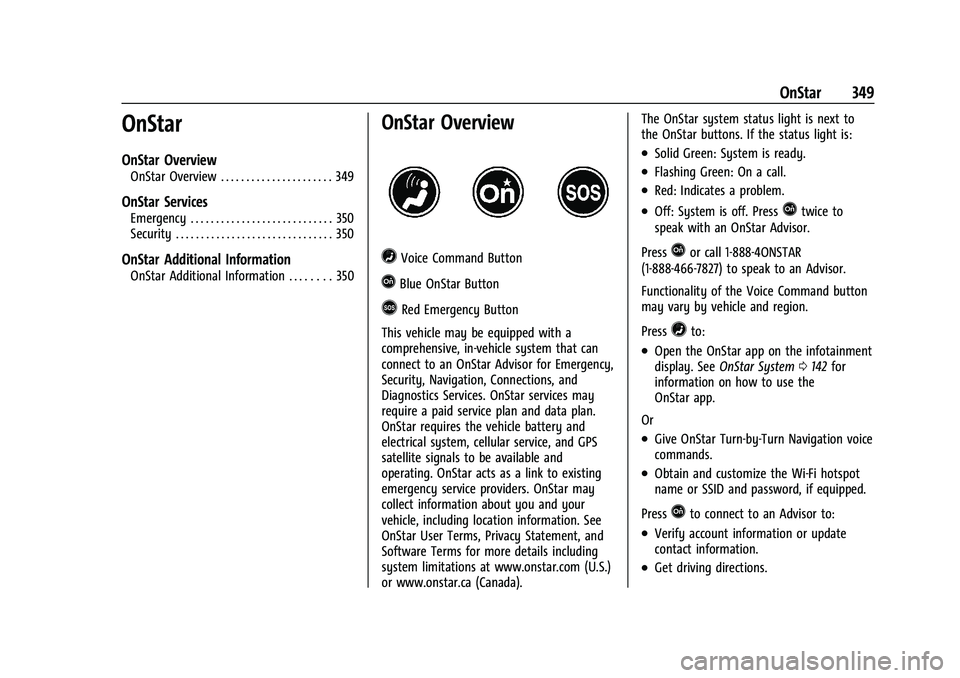
=Voice Command Button
QBlue OnStar Button
>Red Emergency Button
This vehicle may be equipped with a
comprehensive, in-vehicle system that can
connect to an OnStar Advisor for Emergency,
Security, Navigation, Connections, and
Diagnostics Services. OnStar services may
require a paid service plan and data plan.
OnStar requires the vehicle battery and
electrical system, cellular service, and GPS
satellite signals to be available and
operating. OnStar acts as a link to existing
emergency service providers. OnStar may
collect information about you and your
vehicle, including location information. See
OnStar User Terms, Privacy Statement, and
Software Terms for more details including
system limitations at www.onstar.com (U.S.)
or www.onstar.ca (Canada). The OnStar system status light is next to
the OnStar buttons. If the status light is:
.Solid Green: System is ready.
.Flashing Green: On a call.
.Red: Indicates a problem.
.Off: System is off. PressQtwice to
speak with an OnStar Advisor.
Press
Qor call 1-888-4ONSTAR
(1-888-466-7827) to speak to an Advisor.
Functionality of the Voice Command button
may vary by vehicle and region.
Press
=to:
.Open the OnStar app on the infotainment
display. See OnStar System 0142 for
information on how to use the
OnStar app.
Or
.Give OnStar Turn-by-Turn Navigation voice
commands.
.Obtain and customize the Wi-Fi hotspot
name or SSID and password, if equipped.
Press
Qto connect to an Advisor to:
.Verify account information or update
contact information.
.Get driving directions.
Page 358 of 369

Buick Enclave Owner Manual (GMNA-Localizing-U.S./Canada/Mexico-
14637843) - 2021 - CRC - 12/9/20
Index 357
IndexA
Accessories and Modifications . . . . . . . . . . . 258
Accessory Power . . . . . . . . . . . . . . . . . . . . . . . . . 207
Adaptive Cruise Control . . . . . . . . . . . . . . . . . . . 221
Add-On Electrical Equipment . . . . . . . . . . . . . 256
Additional InformationOnStar . . . . . . . . . . . . . . . . . . . . . . . . . . . . . . . . . 350
Additional Maintenance and Care . . . . . . . . 328
Adjustments Lumbar, Front Seats . . . . . . . . . . . . . . . . . . . . 36
Agreements Trademarks and License . . . . . . . . . . . . . . . 174
Air Cleaner/Filter, Engine . . . . . . . . . . . . . . . . 265
Air Conditioning . . . . . . . . . . . . . . . . . . . . . 183, 187
Air Filter Life System . . . . . . . . . . . . . . . . . . . . . . . . . . . . 265
Air Filter, Passenger Compartment . . . . . . . 188
Air Vents . . . . . . . . . . . . . . . . . . . . . . . . . . . . . . . . 188
Airbag System Check . . . . . . . . . . . . . . . . . . . . . . . . . . . . . . . . . . . 62
How Does an Airbag Restrain? . . . . . . . . . . 56
Passenger Sensing System . . . . . . . . . . . . . . 57
What Makes an Airbag Inflate? . . . . . . . . . 56
What Will You See after an AirbagInflates? . . . . . . . . . . . . . . . . . . . . . . . . . . . . . . 56
When Should an Airbag Inflate? . . . . . . . . 55
Where Are the Airbags? . . . . . . . . . . . . . . . . 54 Airbags
Adding Equipment to the Vehicle . . . . . . . 61
Passenger Status Indicator . . . . . . . . . . . . . 101
Readiness Light . . . . . . . . . . . . . . . . . . . . . . . . 100
Servicing Airbag-Equipped Vehicles . . . . . . 61
System Check . . . . . . . . . . . . . . . . . . . . . . . . . . . 52
Alarm
Vehicle Security . . . . . . . . . . . . . . . . . . . . . . . . 25
Alert Lane Change . . . . . . . . . . . . . . . . . . . . . . . . . . . 240
Side Blind Zone (SBZA) . . . . . . . . . . . . . . . . . 240
All-Season Tires . . . . . . . . . . . . . . . . . . . . . . . . . . 286
All-Wheel Drive . . . . . . . . . . . . . . . . . . . . . . 214, 273
AM-FM Radio . . . . . . . . . . . . . . . . . . . . . . . . . . . . . 135
Antenna Multi-band . . . . . . . . . . . . . . . . . . . . . . . . . . . . . 138
Antilock Brake System (ABS) . . . . . . . . . . . . . . 215 Warning Light . . . . . . . . . . . . . . . . . . . . . . . . . 104
Appearance Care Exterior . . . . . . . . . . . . . . . . . . . . . . . . . . . . . . . . 314
Interior . . . . . . . . . . . . . . . . . . . . . . . . . . . . . . . . 318
Apple CarPlay and Android Auto . . . . . . . . . 164
Assistance Program, Roadside . . . . . . . . . . . . .341
Assistance Systems for Driving . . . . . . . . . . 235
Assistance Systems for Parking and Backing . . . . . . . . . . . . . . . . . . . . . . . . . . . . . . . . . 231
Audio Bluetooth . . . . . . . . . . . . . . . . . . . . . . . . . . . . . . . 141