2021 AUDI TT ad blue
[x] Cancel search: ad bluePage 135 of 280
8S1012721BE
Telephone
— Bluetooth settings: see > page 7192.
— Online settings*: see > page 192.
— Wi-Fi settings”: see > page 146.
— Telephone settings: see > page 139.
Favorites
Requirement: a phone number or contact must
be stored as a favorite > page 134.
Select and confirm a favorite in the favorites list.
Directory
Requirement: you must have at least one contact
stored in your cell phone.
Select and confirm a phone number from the di-
rectory > page 137.
Enter number
— Entering a phone number as a sequence of
numbers: enter a phone number using the
number speller.
— Entering the phone number as a sequence of
letters: select and confirm ABC above the num-
ber speller. Enter a sequence of letters using
the letter speller, for example AUDISERVICE.
— Dialing a phone number: select and confirm &,
or push the control knob downward. Select and
confirm OK.
— Deleting individual characters: select and con-
firm &.
— Deleting all characters entered at once: turn
the control knob with the character selection to
l] and press and hold the control knob, or se-
lect: right control button > Clear input field.
Tone sequences (DTMF) can be entered directly
into the speller during a phone call.
Accepting or ending a call
Applies to: vehicles with telephone
> Accepting a call: select and confirm Answer.
> Declining a call: select and confirm Decline.
> Muting the active call: select and confirm
Mute.
> Ending a phone call/cancel dialing: select and
confirm End call.
> Accepting another call: see > page 7133.
@) Tips
The radio or media playback is muted during a
phone call.
During a phone call
Applies to: vehicles with telephone
Requirement: there must be a call in progress.
> Press the right control button.
The following options may be possible during a
call depending on the mobile device being used
and the type of connection:
— Making an additional call: select: Find contact
> Call list/Directory/Favorites > an entry from
the list.
— Accepting an incoming call when there is an
active call and a call on hold: select Replace.
The active call is replaced with the incoming
call.
— Answering an additional call: if there is an in-
coming call while another call is active, you can
select Answer to put the existing call on hold
and answer the incoming call. If you select De-
cline, the incoming call will be declined.
Additional functions include:
Mute: if you select and confirm this function, the
other person on the phone cannot hear you. You
will still be able to hear the other person. To turn
the microphone back on, select and confirm Un-
mute.
Hold call/Resume: you can place the existing call
on hold and resume it again. To resume the call,
select and confirm the call you would like to re-
sume.
Transfer call to mobile device”: select and con-
firm Transfer call to mobile device to transfer
the existing call from the MMI to your cell phone.
Switch to hands-free mode*: Requirement: you
must have a phone call in progress on your cell
phone. Select and confirm Switch to hands-free
mode to transfer the call from your cell phone to
the MMI.
Swap call: alternate between two phone calls
while one of the calls is on hold. Selecting End
133
Page 136 of 280
Telephone
call will end the active phone call. A phone call
on hold can be resumed using the right control
button > Resume.
Add to conference: a party on hold and up to five
active parties (depending on the network) can be
added to a conference call. To make an additional
call, put all participants in the current conference
call on hold using the right control button > Hold
conference. Press the left control button. Select
and confirm Call list/Directory/Favorites > an
entry from the list. You can add called contacts
to the conference using the right control button
> Add to conference. Resume takes all parties off
hold.
Multi-party calling: select the right control but-
ton > Telephone settings > Call options. When
the function is switched on M, you can accept an
additional call using Answer or decline a call us-
ing Decline. When the function is switched off,
you can Replace or Decline a call.
Connection manager: see > page 190.
Telephone settings: see > page 139.
@ Tips
—To be notified of an incoming call during a
phone call, the call waiting function in your
mobile device must be switched on when
using the Handsfree profile.
— When leaving the vehicle, the Bluetooth
connection to the mobile device will auto-
matically disconnect. Depending on your
mobile device, phone calls in progress may
be automatically redirected from the MMI to
your mobile device so that you can continue
the call on your phone.
Making an emergency call
Applies to: vehicles with telephone
> Select: [MENU] button > Telephone > left con-
trol button > Dial number > Enter emergency
call number (for example, 911) > OK.
Z\ WARNING
— Because your phone works with radio sig-
nals, a connection cannot be guaranteed un-
134
der all circumstances. Do not rely on only
your phone when it comes to essential com-
munication (such as a medical emergency).
— Always follow the instructions given by the
emergency personnel during an emergency
call and only end the call when they instruct
you to do so.
(i) Tips
Emergency numbers are not the same every-
where. Find out which emergency number is
used in your current location.
Favorites
Applies to: vehicles with telephone
Up to 50 contacts, in addition to the voicemail
number, can be stored in any order in the favor-
ites list:
Opening a menu
> Select: [MENU] button > Telephone > left con-
trol button.
Storing an existing phone number as a
favorite:
>» Select and confirm Call list/Directory.
> Select a contact or phone number from the list.
> Select: right control button > Store as favorite.
» Enter a name for the favorite or select a sug-
gestion.
> Select and confirm Save.
Renaming stored favorites
> Select: Favorites > a favorite from the list.
> Select the right control button > Rename favor-
ite.
Moving stored favorites
> Select: Favorites > a favorite from the list.
> Select the right control button > Move favorite.
> Select and confirm the location of the selected
favorite.
Deleting a stored favorite
>» Select: Favorites > a favorite from the list.
» Select: right control button > Delete favorite >
Delete this entry or Delete all entries.
Page 137 of 280
8S1012721BE
Telephone
Messages
Text messages
Applies to: cell phones with Bluetooth Message Access Profile
(MAP)
Depending on the mobile device being used and
the mobile network contract, you may be able to
receive and send text messages using the MMI.
Requirement: your mobile device must be con-
nected to the MMI via Bluetooth Message Access
Profile (Bluetooth MAP) > page 128.
> Select: [MENU] button > Telephone > left con-
trol button > text message (myPhone)/text
message (secondary phone)*.
Inbox
Displays all received text messages.
Sent
Displays all sent text messages.
Outbox
Displays all text messages to be sent.
Drafts
Displays all text messages that have not yet been
sent and stored text messages.
Deleted
Displays all deleted text messages.
Write text message
Applies to: cell phones with Bluetooth Message Access Profile
(MAP)
> Select: [MENU] button > Telephone > left con-
trol button > text message (myPhone)/text
message (secondary phone)*.
Write new text message
Select and confirm the desired template from the
list. Enter a recipient. Select and confirm Send.
Reply*
Select and confirm the desired template from the
list. Select and confirm Send.
1) Not available in all languages.
Message options
Applies to: cell phones with Bluetooth Message Access Profile
(MAP)
> Select: [MENU] button > Telephone > left con-
trol button > text message (MyPhone)/text
message (secondary phone)* > Inbox/Sent/
Outbox > right control button.
The following options may be available depend-
ing on the selected menu.
Reply*
A reply can be sent for the selected message in
the Inbox.
Forward
The selected text message can be forwarded to a
different recipient.
Send again*
The selected text message can be resent.
Delete this text message*
The selected text message can be deleted.
Read out!)
You can have the MMI read an open text mes-
sage.
Text messaging settings*
To display when a new text message is received,
enable the Text message notifications. New text
messages are indicated with an envelope Min
the Infotainment system display status line.
Connection manager
See > page 190.
Bluetooth settings
See > page 192.
Online settings*
See > page 192.
Wi-Fi settings*
See > page 146.
135
Page 138 of 280
Telephone
Telephone settings
See > page 139.
@) Tips
Messages that are deleted in the MMI are also
deleted in the mobile device automatically.
Applies to: cell phones with Bluetooth Message Access Profile
(MAP)
Depending on the type of mobile device being
used, you may be able to receive and send e-
mails through the MMI.
Requirement: your mobile device must be con-
nected to the MMI via Bluetooth Message Access
Profile (Bluetooth MAP) > page 128.
> Select: [MENU] button > Telephone > left con-
trol button > e-mail (myPhone)/e-mail (secon-
dary phone)*.
Write new e-mail
— Using a template: select and confirm the de-
sired template from the list.
— Enter one or more recipients.
— Select and confirm Send.
Inbox
All received e-mails are displayed.
Sent
All sent e-mails are displayed.
Outbox
All e-mails that will be sent are displayed.
Drafts
All saved e-mails that have not been sent yet are
displayed.
©) Note
Read the information about Audi connect, and
be sure to note the connectivity costs section
=> page 1417.
136
G) Tips
To ensure that your sent e-mails are received,
connect your cell phone to the Wi-Fi hotspot*
in the vehicle so that the e-mail app on your
cell phone continues to have Internet access.
If you are still not receiving e-mails even
though you have a successful connection,
then contact your e-mail service provider or
your cell phone service provider.
Message options
Applies to: cell phones with Bluetooth Message Access Profile
(MAP)
> Select: [MENU] button > Telephone > left con-
trol button > e-mail (myPhone)/e-mail (secon-
dary phone)* > Inbox/Sent/Outbox > right con-
trol button.
The following options may be available depend-
ing on the selected menu.
Store as template
Ten e-mail templates are stored in the MMI. You
can save up to 10 additional templates of your
own.
— Create an e-mail.
— Select and confirm Store as template.
Resume last edited e-mail
The last e-mail in progress can be resumed.
Reply*
A reply can be sent for the selected e-mail in the
Inbox.
Reply all*
A reply can be sent for the selected e-mail in the
Inbox and it will be sent to all of the entered re-
cipients.
Forward
The selected e-mail can be forwarded to a differ-
ent recipient.
Page 139 of 280
8S1012721BE
Telephone
Delete this message*
The selected e-mail can be deleted.
Read out!)
You can have the MMI read an open e-mail.
E-mail settings*
To display when a new e-mail is received, activate
the E-mail notifications. New e-mails are indicat-
ed with an envelope & in the Infotainment sys-
tem display status line.
Connection manager
See > page 190.
Bluetooth settings
See > page 192.
Online settings*
See > page 192.
Wi-Fi settings*
See > page 146.
Telephone settings
See > page 139.
@) Tips
Messages that are deleted in the MMI are also
automatically deleted in the connected cell
phone.
Listening to voicemail
Applies to: vehicles with telephone
> Select: [MENU] button > Telephone > left con-
trol button. Select and confirm Call list/Direc-
tory/Favorites > Voicemail.
Requirement: there must be no voicemail num-
ber stored.
> Entering the voicemail number: enter the de-
sired number. Select and confirm OK.
Requirement: a voicemail number must be stor-
ed.
1) Not available in all languages.
> Dialing the voicemail number: select and con-
firm Voicemail.
@) Tips
This service must be set up and activated in
advance by the cell phone service provider.
Directory
Coy oYTal rem an Meleacelaly
Applies to: vehicles with telephone
After connecting the cell phone, the contacts in it
are automatically imported into the MMI.
Requirement: you must have at least one contact
stored in your cell phone.
> Select: [MENU] button > Telephone > left con-
trol button > Directory.
> Calling a contact: select and confirm a contact
from the directory. The phone numbers for your
selected contact are displayed. Select and con-
firm a phone number to start a call.
> Free text search for a contact: see > page 138.
The contacts will be displayed. You can change
the sort order > page 139, Sort order.
Gi) Tips
— Check for a possible request to synchronize
on your cell phone. Requests to synchronize
the directory must be confirmed so that
your cell phone contacts can be loaded into
the MMI.
—The directory from the cell phone with the
active connection will always be displayed.
— The contacts from the mobile device may
not be transferred in alphabetical order. If
there are too many entries, contacts with
different first letters may be missing in the
MMI.
—The contacts in the local MMI memory are
always visible and can be accessed by other
users.
137
Page 141 of 280
8S1012721BE
Telephone
@) Tips
— For more information about the myAudi ac-
count, visit my.audi.com.
—The imported contacts are stored in the lo-
cal memory of the directory.
—A maximum of 1,000 contacts can be im-
ported. You can check the directory memory
capacity at any time > page 139.
— Contacts that were downloaded from a mo-
bile device cannot be exported.
— There should be no other files or folders on
the storage medium containing the contacts
to be imported.
Additional settings
Telephone settings
Applies to: vehicles with telephone
> Select: [MENU] button > Telephone > right con-
trol button > Telephone settings.
Call options*
Multi-party calling: can be switched on or off.
Ringtone and volume settings!)
Using the Mute telephone function, you can
switch the ringtone playback through the MMI
speaker on and off. You can play the ringtones us-
ing the Ringtone function. Select and confirm an
entry from the list. For the Ringtone volume/
Message volume settings, see > page 193. The
Microphone input level can be adjusted during a
phone call using the control knob.
@ Tips
— Several mobile devices can be paired with
the MMI, but only two* mobile devices can
be actively connected.
—To delete all paired Bluetooth devices, the
Bluetooth function can be reset to the fac-
tory default settings > page 190.
1) Depends on the connected cell phone.
Additional options
Applies to: vehicles with telephone
> Select: [MENU] button > Telephone > right con-
trol button.
— Connection manager: see > page 190.
— Bluetooth settings: see > page 192.
— Online settings*: see > page 192.
— Wi-Fi settings*: see > page 146.
Contact settings
Applies to: vehicles with telephone
> Select: [MENU] button > Telephone > left con-
trol button > Directory > right control button >
Contact settings.
Memory capacity
Shows the Memory capacity for the directory.
You can manage up to 17000 contacts with the
directory. You can load up to 4000 contacts from
your cell phone into each directory. You can also
import up to 1000 contacts from a storage de-
vice.
Sort order
You can sort the contacts in your directory alpha-
betically according to Last name or First name.
Import contacts/Export contacts
See > page 138.
Download directory
To update the contacts in the MMI, you can man-
ually download your mobile device contacts. De-
pending on the mobile device, you may need to
disconnect and reconnect the Bluetooth connec-
tion to update the contacts.
Hide contacts without phone number
When this function is switched on, grayed-out
contacts that have no phone numbers stored for
them will be hidden in the directory.
139
Page 142 of 280
Telephone
Safety belt microphone
Applies to: vehicles with safety belt microphone
z 8 8 | z| | |
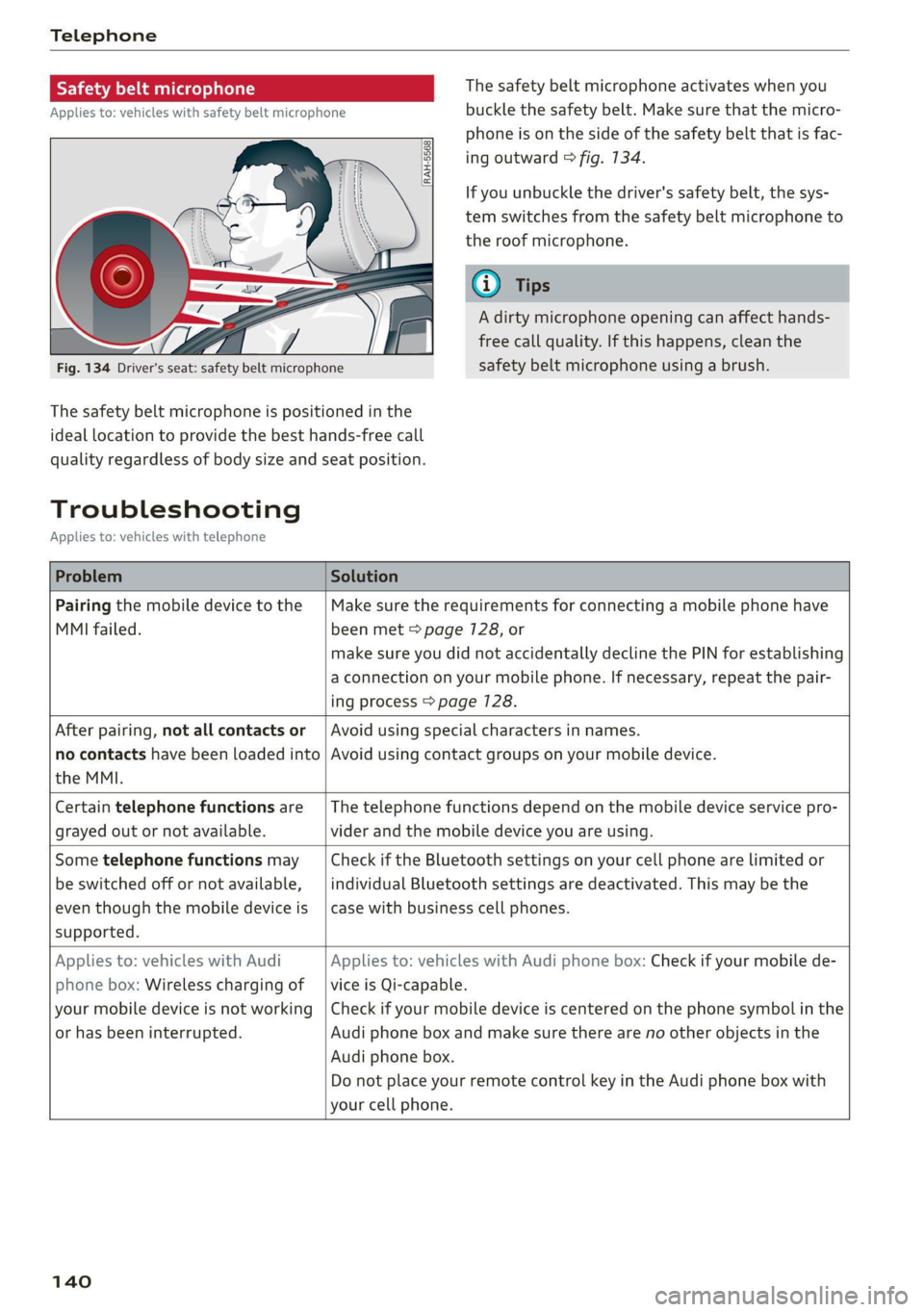
Fig. 134 Driver's seat: safety belt microphone
The safety belt microphone is positioned in the
ideal
location to provide the best hands-free call
quality regardless of body size and seat position.
The safety belt microphone activates when you
buckle the safety belt. Make sure that the micro-
phone is on the side of the safety belt that is fac-
ing outward > fig. 134.
If you unbuckle the driver's safety belt, the sys-
tem switches from the safety belt microphone to
the roof microphone.
@ Tips
A dirty microphone opening can affect hands-
free call quality. If this happens, clean the
safety belt microphone using a brush.
Troubleshooting
Applies to: vehicles with telephone
Problem Solution
Pairing the mobile device to the
MMI failed.
Make sure the requirements for connecting a mobile phone have
been met > page 7128, or
make sure you did not accidentally decline the PIN for establishing
a connection on your mobile phone. If necessary, repeat the pair-
ing process > page 128.
After pairing, not all contacts or
no contacts have been loaded into
the MMI.
Avoid using special characters in names.
Avoid using contact groups on your mobile device.
Certain telephone functions are
grayed out or not available.
The telephone functions depend on the mobile device service pro-
vider and the mobile device you are using.
Some telephone functions may
be switched off or not available,
even though the mobile device is
supported.
Check if the Bluetooth settings on your cell phone are limited or
individual Bluetooth settings are deactivated. This may be the
case with business cell phones.
Applies to: vehicles with Audi
phone box: Wireless charging of
your mobile device is not working
or has been interrupted.
Applies to: vehicles with Audi phone box: Check if your mobile de-
vice is Qi-capable.
Check if your mobile device is centered on the phone symbol in the
Audi phone box and make sure there are no other objects in the
Audi phone box.
Do not place your remote control key in the Audi phone box with
your cell phone.
140
Page 174 of 280
Media
Requirement: the copying process must be active
in the background.
> Showing the copying process: select: right
control button > Copying in progress.
When importing, the audio files are automatical-
ly sorted into the media center categories based
on the stored additional information > page 178.
The copied video files* are stored in the media
center under the Videos* category.
Playing the Jukebox
Requirement: the Jukebox must contain audio/
video* files > page 171, Adding files to the Juke-
box.
The Jukebox is accessed and operated through
the MMI@) & page 177, fig. 154.
Displaying Jukebox memory capacity
> Select: right control button > Jukebox memory
capacity. Information about the Jukebox mem-
ory capacity and the number of stored tracks is
displayed.
Deleting tracks from the Jukebox!)
Requirement: the Jukebox must contain audio/
video files*.
> Select an entry from the Jukebox media center.
> Select: right control button > Delete from juke-
box > This entry or Entire list.
The status of the deleting process is shown in the
MMI. Jukebox playback stops during the deleting
Process and starts again automatically once the
deletion is complete.
@) Note
Do not import audio/video files* when the en-
gine is turned off because this will drain the
vehicle battery.
@ Tips
— Tracks from audio CDs cannot be imported
to the Jukebox for legal reasons.
1) Not in the Playback view.
172
— Files that have already been imported are
automatically recognized and cannot be
copied to the Jukebox again.
— It is not possible to play audio/video* files in
the CD/DVD* drive while importing them.
— The Jukebox does not provide an export
function due to legal reasons.
— Files or tracks without additional stored in-
formation are listed as Unknown. Audi rec-
ommends adding additional information
(such as ID3 tags) to audio files.
— Reset the Jukebox to the factory default set-
tings when selling your vehicle > page 190.
Bluetooth audio player
Applies to: vehicles with Bluetooth audio player
With the Bluetooth audio player, you can play
music wirelessly from your Bluetooth-capable de-
vice (such as a cell phone) through the MMI.
Requirement: the vehicle must be stationary and
the ignition must be switched on. The Bluetooth
settings will open on your mobile device during
the connection setup. The Bluetooth function
and visibility of the MMI > page 192 and mobile
device must be switched on. The Bluetooth audio
player > page 192 must be switched on in the
MMI.
Connecting a Bluetooth device
> Press the [MEDIA] button.
> Press the left control button until the sources
overview is displayed.
> Select and confirm Bluetooth audio player @)
=> page 177, fig. 155.
> If necessary, select and confirm: Not connected
> Connect Bluetooth audio player. The Blue-
tooth device search starts. Follow the instruc-
tions in the MMI.
> Select and confirm the desired Bluetooth de-
vice from the list. The MMI generates a PIN for
the connection.
> Select and confirm Yes.
>» Enter the PIN for connecting on your Bluetooth
device, or if the PIN is already displayed on your
Bluetooth device, confirm it on the Bluetooth
>