2021 AUDI Q2 towing
[x] Cancel search: towingPage 136 of 364

Parking aids
Parking aids
General notes
Applies to: vehicles with rear parking aid/parking system
plus/reversing camera/park assist
Various systems are available to help you when
parking or manoeuvring in tight spaces, depend
ing on the equipment fitted on your vehicLe.
The rear parking aid gives an acoustic warning if
there are any obstacles behind the car
cépage
135.
When you are parking, the parking system plus
warns you acoustically and optically about obsta
cles detected in front of and behind the vehicLe
^page
135.
The reversing camera uses the infotainment sys
tem display to show a picture of the area behind
the vehicle captured by the camera. This picture
helps you to park the vehicle parallel or perpen
dicular to the roadside. In addition, you are assis
ted by the functions of the parking system plus
^>page
137.
The park assist helps you to find suitable parking
spaces, to manoeuvre the vehicLe into spaces par
allel or perpendicular to the roadside and to drive
out of spaces parallel to the kerb
^>page
139. It
also includes the functions of the parking system
plus
^page
135 and additionally monitors the
area at the side of the vehicle
(f) ^page
135,
Fig. 124.
A
WARNING
- Always watch the road and the area sur
rounding the vehicLe. The electronic systems
cannot replace the full concentration of the
driver. The driver is always responsible for
safety during parking and all other manoeu
vres.
- Please note that certain surfaces, such as
clothing fabrics, cannot be detected or dis
played by the system - risk of accident!
- The sensors and cameras have bLind spots in
which neither people nor objects are regis
tered.
It is particularly important to ensure
that there are no small children or animals
near the vehicLe - risk of accident!
- Always keep a close watch on the area
around the vehicLe and make full use of the
rear-view mirrors.
- Impacts or damage to the radiator grille,
bumper, wheel arches or underbody can
cause misalignment of the sensors. This can
impair the effectiveness of the parking aids.
Have the systems checked by a qualified
workshop.
(T)
CAUTION
- The system may not always be able to de
tect objects such as the following:
- Chains, trailer draw bars, posts or fences
- Objects above the sensors, such as wall
protrusions, etc.
- Objects with certain surfaces or struc
tures,
such as wire fences or powder snow
- As your car moves closer to low obstacles,
they may disappear from the sensors' field
of vision. Please note
that
you will no longer
be warned about these obstacles.
- Remember to maintain sufficient clearance
from the kerb to avoid damaging the wheel
rims.
(T)
Note
- In certain situations, a warning may be giv
en by the system even if there is no obstacle
within range of the sensors. This can be
caused by the following, for instance:
- Certain road surfaces or long grass
- External ultrasound sources, e.g. from
street cleaning vehicles
- Heavy rain or snow or dense exhaust
fumes
-To familiarise yourself with the system, we
recommend
that
you practise parking in a
quiet location or a car park. The weather
and light conditions should be good.
- You can change the display and adjust the
volume and pitch of the beeps
^>page
143.
- Please refer to the notes on the use of a
towing bracket
^page
144.
- There is a slight delay in the picture dis
played on the infotainment display. •
134
Page 141 of 364

Parking aids
CO
â
rN
IV
rN
•-i
00
Towing mode
Applies to: vehicles with reversing camera and towing bracket
This view helps you to position the vehicle in
front of a
trailer.
Fig.
132 Infotainment display:
Rear
view
Important: The Trailer view must be selected
*$page
143.
*•
You can now position your vehicle in front of
the trailer
=*/^
in General notes on page 137,
•=>(T)
in General notes on page 138. The orange
orientation line indicates the anticipated path
of the tow-bar. You can use the blue Lines to es
timate the distance to the trailer hitch.
Park assist
Description
Applies to: vehicles with park assist
The park assist helps the driver to manoeuvre
the vehicle into and out of parking spaces.
Fig.
133 Diagram:
(Â)
parking in reverse parallel to the
roadside, ® parking in reverse perpendicular to the
road
side
Fig.
134 Diagram: (c) parking forwards perpendicular to
the roadside without driving past, © parking forwards per
pendicular to the roadside after driving past
The park assist helps you to find suitable parking
spaces and to manoeuvre the vehicLe into them.
You can reverse into a parking space either paral
lel
(Â)
or perpendicular
(§)
to the roadside or drive
forwards out of a parallel space. In addition, you
can drive forwards into a perpendicular parking
space if you have already positioned the front of
the vehicle in the space (c) or have already driven
past the space (5). In the case of
(5),
the vehicle
reverses
(T),
manoeuvres into the correct position
and drives forwards into the parking space
@.
The parking space can be located between two
vehicles or behind one vehicle. The park assist
takes over the steering while the driver is parking
the vehicle in the usual way.
The park assist includes the functions of the
parking system plus
^>page
135, which assists
you during the parking manoeuvre.
The park assist sensors are located on the sides
of the front and rear bumpers. Please ensure that
the sensors are kept free of stickers, deposits and
any other substances which could impair the
function of the system. Notes on cleaning
^>
page 312.
In short parking spaces, the parking aid warning
tone will sound continuously when the vehicLe is
less than approx. 0.20 m away from the obstacle.
Stop moving immediately!
WARNING
- Please observe the safety warnings
•=>
A in
General notes on page 134.
139
Page 145 of 364

Parking aids
CO
<
o
rN
iv
rN
t-H
o
< 00
Park assist: currently unavailable. Continue
steering vehicle!
The park assist cannot be used to park the
vehi
cle.
Try repeating the parking manoeuvre or
switching the ignition off and on again.
3 Park assist: ended. Please take over steering
and continue driving
The park assist has finished manoeuvring the ve
hicle out of the parking space. Please take over
the steering.
Park assist: cancelled. Space too small. Con
tinue steering vehicle!
The park assist cannot be used to park the vehicle
in this space. Park the vehicle without using the
park assist or look for a bigger space.
Park assist: cancelled. Obstacle detected.
Please take over steering.
The park assist has interrupted the parking ma
noeuvre to avoid a collision between the vehicle
and an obstacLe.
Park assist: ended
3 Park assist: ended. Please take over steer
ing.
The park assist has finished the parking manoeu
vre.
Park assist: stabilisation control (ESC) input
The parking space indicated has been rejected be
cause the ESC has intervened.
Park assist: currently unavailable. Towing
mode
The park assist cannot be used to park the vehicle
when towing a trailer.
1
Park assist: not stopped long enough
After you select reverse gear, the vehicle has to
remain stationary for
a
moment so that the park
assist can activate the steering. Follow the direc
tions given in the display.
3
Park assist: cancelled. Assist function un
available for leaving parking space. Space too
small
The assist function is unable to automatically
steer the vehicle out of the parking space be
cause the space is too small. Manoeuvre the
vehi
cle out of the parking space without using the
park assist.
Park assist: cancelled. Continue steering ve
hicle!
The park assist has interrupted the parking ma
noeuvre.
Settings for parking aid
Applies
to: vehicles with rear parking aid/parking system
plus/reversing
camera/park assist
You
can change the settings for these functions
on the infotainment system.
•
Select the following on the infotainment sys
tem:
|MENU[
button > Car
>
left control button
> Driver assist
>
Parking aid. Or:
•
Select the right control button* on the infotain
ment system when the parking aid is activated.
End*
- To cancel the parking aid
Activate automatically - To switch automatic ac
tivation on/off
Front volume* - Volume for the front and side*
zones
Rear volume - Volume for the rear zone
In-car
entertainment fader - The volume of the
current audio or video source is reduced when the
parking aid is switched on.
You will hear
a
short test tone each time you
make a new setting.
Trailer view* - To display the trailer view
- Some of the menus can only be called up via
the right control button when the parking
aid is activated.
- The volume and automatic activation set
tings are automatically stored and assigned
to the remote control key in use.
143
Page 146 of 364

Parking aids
Fault warnings
Applies to: vehicles with rear parking aid/parking system
plus/reversing camera/park assist
[3
Rear parking aid: fault. Obstacles cannot be
detected
O
Front parking aid: fault. Obstacles cannot be
detected
O
Parking aid: fault. Obstacles cannot be de
tected
If any of these messages appears, a system
mal
function has occurred. The LED in the
P*A
button
will flash in addition when the system is activa
ted.
The corresponding message will then only
appear when you activate the parking aid
man
ually with the button.
[3
Rear parking aid: obstacle detection limited
The rear cross-traffic assist*
^>page
130, Rear
cross-traffic assist is not available. Either the ESC
is switched off or the radar sensors may be ob
structed by a bicycle rack, stickers, leaves, snow
or similar objects. Switch on the ESC or, if neces
sary, clean the area in front of the sensors
^>page
128, Fig. 120. If this message remains
displayed,
drive to a qualified workshop soon and
have the fault rectified.
Parking system plus* / park assist*
If a sensor or loudspeaker malfunctions, the
f&L
symbol will be shown on the infotainment dis
play in front of or behind the vehicle. If
a
rear
sensor malfunctions, obstacles will only be dis
played in zones
(A)
and
(B)
<^>page
135, Fig. 124.
If a front sensor malfunctions, obstacles will only
be displayed in zones (?) and (5).
Towing bracket
Applies to: vehicles with rear parking aid/parking system
plus/reversing camera/park assist and towing bracket
When the trailer socket is connected, the rear
and side* parking sensors are NOT activated
when you select reverse gear or press the
P*A
but
ton.
This results in the following restrictions:
Rear parking
aid*
There is no distance warning.
Parking system plus* / park assist*
There is no rear or side* distance warning. How
ever, the system will still give a warning when
obstacles are detected while driving forwards.
The proximity graphic will switch over to towing
mode.
Reversing camera*
There is no rear or side* distance warning. How
ever, the system will still give a warning when
obstacles are detected while driving forwards.
The proximity graphic will switch over to towing
mode.
The image of the reversing camera will
then be shown without orientation lines and blue
area markings.
(T) Note
Towing brackets which are not factory-fitted
can restrict or impair the function of the park
ing aid.
144
Page 147 of 364

Intelligent technology
CO
< o rN
iv
rN
t-H
o < 00
Intelligent technology
Electronic stabilisation
control (ESC)
Description
The electronic stabilisation control (ESC) increa
ses the car's stability. It reduces the tendency to
skid and improves the stability and roadholding
of the vehicle. The ESC detects critical handling
situations, such as understeer, oversteer and
wheelspin
on the driven wheels. It stabilises the
vehicle by braking individual wheels or by reduc
ing the engine torque. The indicator
lamp^
in
the instrument cluster starts flashing as soon as
the ESC intervenes.
The following systems are integrated in the ESC:
Anti-lock brake system (ABS)
ABS prevents the wheels from locking up under
braking until the vehicle has reached a virtual
standstill.
You can continue to steer the vehicle
even when the brakes are on
full.
Keep your foot
on the brake pedal and do not pump the brakes.
You will feel the brake pedal puLsate while the
anti-lock brake system is working.
Brake assist system
The brake assist system can shorten the braking
distance. The braking force is automatically boos
ted if
you
press the brake pedal quickly in an
emergency. You must keep pressing the brake
pedal until the danger has passed. On
vehides
with adaptive cruise control*, the response of the
brake assist system will be more sensitive if you
are too close to the vehicLe in front.
Traction control system (ASR)
In the event of
wheelspin,
the traction control
system reduces the engine torque to match the
amount of grip available. This helps the car to
start moving, accelerate or climb a gradient.
Electronic differential lock (EDL)
When the EDL detects wheelspin, it brakes the
spinning wheel and directs the power to the
oth
er driven wheel (or wheels on quattro* versions).
This function is not available at high speeds.
To prevent the disc brake of the braked wheel
from overheating, the EDL cuts out automatically
if subjected to excessive loads. The vehicLe can
still be driven. The EDL will switch on again auto
matically when the brake has cooled down.
Steering recommendation
The ESC helps to stabilise the vehicle by changing
the steering wheel torque.
Trailer stabilisation system
Applies to: vehicles with trailer stabilisation system
Trailers have a tendency to sway. If the
ESC
de
tects that the trailer is swaying and this is affect
ing the towing vehicLe, it will automatically brake
the vehicle in order to stabilise the trailer
^>page
97.
Selective wheel torque control
Selective wheel torque control intervenes when
cornering by braking the wheel(s) on the inside of
the bend individually as required. This enables
precision cornering.
Multicollision brake assist system
The "multicollision brake assist system" can help
to reduce the risk of skidding and further
colli
sions during an accident. If the airbag control
unit detects that
a
collision has taken place up
wards of
a
certain speed, the vehicle is braked by
the
ESC.
The vehicle will not be braked automatically if:
- the driver presses the accelerator,
- or the
ESC,
the brake system or the vehicle's
electrical system are not fully functional.
WARNING
- The grip provided by the ESC and the inte
grated systems is still subject to the physi
cal limits of adhesion. Always bear this in
mind,
especially on wet or sLippery roads. If
you notice the systems cutting in, you
should reduce your speed immediately to
suit the road and traffic conditions. Do not
let
the extra safety provided tempt you into
taking any risks when driving - this can
cause accidents.
145
Page 221 of 364
Navigation
CO
â
rN
rN
t-H
O
<
Other settings
Navigation settings
Applies
to:
vehicles with navigation system
•
Press
the |NAV/MAP|
button repeatedly until
the Enter destination menu
is
displayed
o
page
207,
Fig.
172.
•
Select: right control button
>
Navigation set
tings.
Depending
on the
function seLected,
you can use
the following settings:
Display alternative routes
When this function
is
switched
on
|vj,
up to
three
route suggestions
are
displayed
on the map
^>page
216,
Alternative routes.
Fuel warning
When
the
fuel gauge
is in the
reserve zone,
a
message will appear when this function
is on
[vf.
A list
of
nearby filling stations will
be
displayed
when you confirm this message. When
you
select
one
of
the filling stations,
the
route
to its
loca
tion will
be
calculated based
on the
current
posi
tion
of
your
car.
Trailer mode*
Trailer mode
is
switched
off
when
the
vehicle
leaves
the
factory.
When this function
is
switched
on
|vf,
the MMI
will take
the
speed limit
for
vehicles towing
a
trailer into account and
the
calculated arrival
time will
be
adjusted accordingly. Trailer mode
is
indicated
on the
map's legend menu
by the
sym
bol-*!.
Personal route assist*1)
The personal route assist function
is
switched
off
by default
in the
factory settings.
When this function
is
activated
EÎ,
your trips
are
recorded
and
destinations
are
suggested by
the
MMI system
^>page
214.
Arrival notification*
The arrival notification
is
switched
off
when
the
vehicle leaves
the
factory.
When this function
is
switched
on
@f,
the MMI
will inform
you
when
you are
approaching selec
ted special destinations (e.g. imported myAudi
special destinations). You
can
also have a sound
played using
the
Play notification tone function.
Delete myAudi special destinations*11
Destinations that you import from your myAudi
account
to
your
MMI are
automatically saved.
You
can
delete them individually
or all at
once.
Presentation mode
Use
the
Presentation mode
to
plan
and
"drive"
a
journey effectively without
the
need
to
move
the
vehicle. You
can
choose your start Location
man
ually (Select start location)
if, for
example,
you
would like
to
calculate a route starting from
a
different position than
the
current position
of the
vehicle. Start
the
Presentation mode
to
simulate
a route guidance.
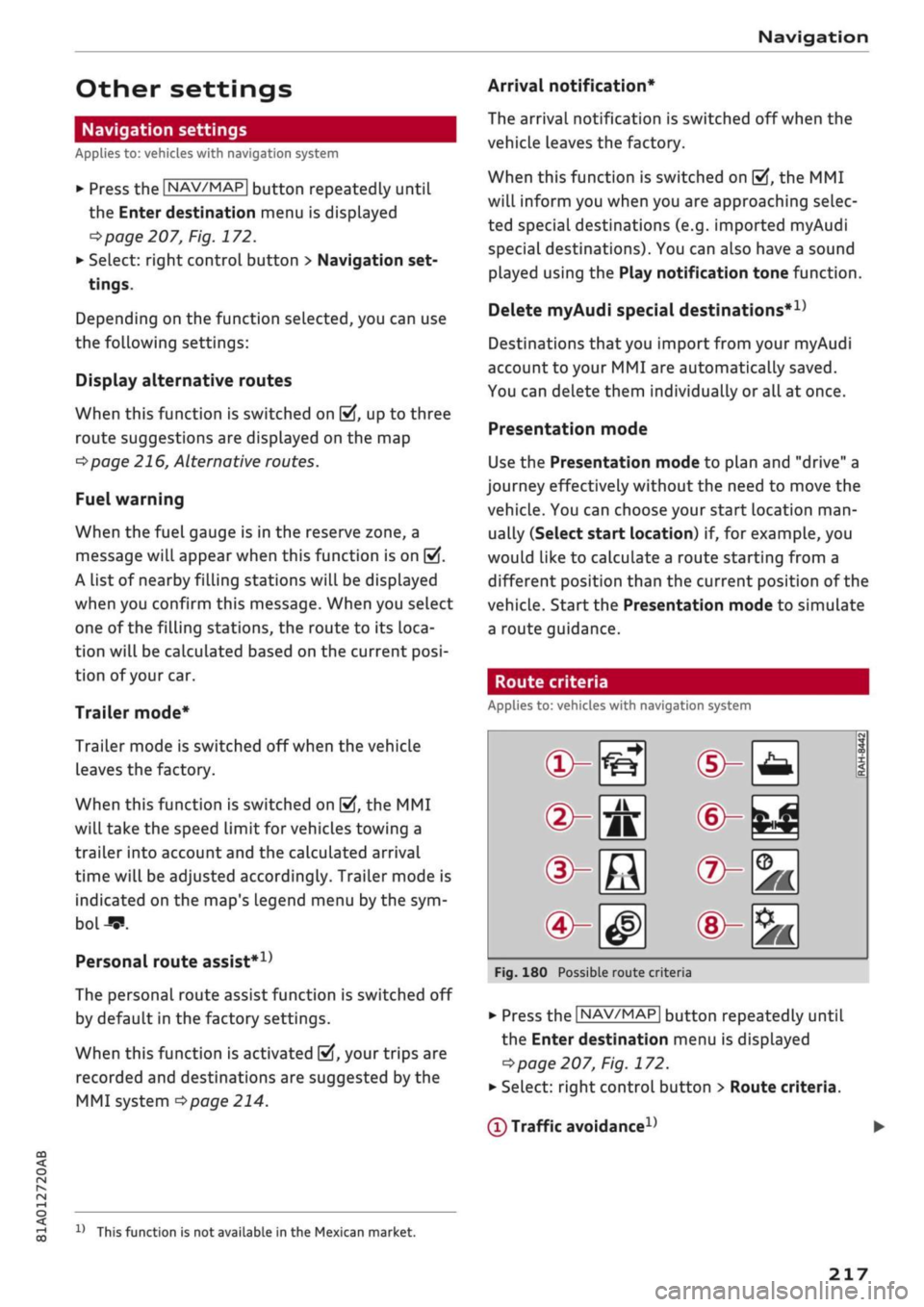
Route criteria
Applies
to:
vehicles with navigation system
®-«?
dHft
d^e
(S^#
Fig.
180
Possible route crite
1 1
1
®-feJ
®-fc
®-3K
ria
•
Press
the |NAV/MAP|
button repeatedly until
the Enter destination menu
is
displayed
=>page
207,
Fig.
172.
•
Select: right control button > Route criteria.
(T)
Traffic avoidance
D
x)
This function
is
not
available
in the
Mexican market.
217
Page 276 of 364

Safe driving
positioning, move the front passenger's seat as
far upwards as possibLe using the seat's height
adjustment. After installing the child seat on the
front passenger's seat, move the front passen
ger's backrest forward until it makes contact
with the child seat.
A WARNING
- Please refer to the important safety notes
•=>
A in Safety notes for using child seats on
page 268,
•=>
A in Child seat categories on
page 269 and the instructions provided by
the child seat manufacturer.
- Never install
a
rearward-facing child seat on
the front passenger's seat unless the front
passenger's airbag has been deactivated -
this can result in potentially fatal injuries to
the
child.
Pedal area
Pedals
The
pedals must always be free to move and
must never be obstructed by floor mats or any
objects in the footwell.
•
Make sure that none of the pedals is obstructed
and all of the pedals can be pressed all the way
down to the floor.
•
Make sure that all pedals are able to return
freely to their original positions.
Only use floor mats which Leave the pedal area
free and can be securely fastened in the footwell.
If one of the brake circuits should
fail,
increased
brake pedal travel will be required to bring the
vehicle safely to a stop.
A WARNING
Any obstructions that restrict pedal travel can
cause loss of vehicLe control and lead to
criti
cal traffic situations.
- Never place objects in the driver's footwell.
Such objects could move under the pedals
and interfere with their proper function. In
the event of sudden braking or
a
change of
direction,
you would not be able to use the
pedals. This could result in a loss of control
and possibly cause an accident.
Floor mats on the driver's side
Use
only floor mats which can be securely fas
tened in the footwell and do not obstruct the
pedals.
•
Make sure that floor mats are securely fastened
and cannot interfere with the pedals
o /\.
Use only floor mats that leave the pedal area un
obstructed and are firmly secured to prevent
them from slipping. You can obtain suitable floor
mats from your dealer or a specialist retailer.
A WARNING
Any obstructions that restrict pedal travel can
cause Loss of vehicle control and increase the
risk of serious personal injury.
- Always make sure that floor mats are prop
erly secured.
- Never lay or
instaLl
additional floor mats or
other floor coverings over the existing floor
mats;
this would restrict the pedal area and
possibly obstruct the pedals, which could
cause an accident.
Stowing Luggage
safely
Luggage compartment
Fig.
214 Heavy items should be placed as far forwards as
possible (example).
All Luggage and other objects must be safely se
cured in the Luggage compartment. To maintain
safe handling on the
road,
please observe the
fol
lowing points: •
272
Page 314 of 364

Wheels
more tyres, the driver is alerted by an indicator
lamp
0H ar|d a
message in the instrument cluster
display. If only one tyre is affected, the display
will indicate its position.
Each time you change a tyre, change the wheels
round or change the tyre pressures on your
vehi
cle (e.g. when switching from partial load to full
load and vice-versa), you must store the new tyre
pressures in the menu display
<=>page
311.
Mon
itoring of the tyre pressures is based on the tyre
pressures you have stored. The inflation pres
sures recommended for your vehicle are given on
the tyre pressure sticker
opage
307, Fig. 253.
The rolling circumference and vibration can
change and cause a tyre pressure warning if:
- The inflation pressure in one or more tyres is
too low.
- The tyre has suffered structural damage.
- The wheels were changed or the tyre pressures
were changed and the new tyre pressures were
not stored
<>page
311.
- The vehicLe load is not balanced (more load on
one side).
- There is more load on the wheels of one of the
axles (e.g. when towing a trailer or driving up
or down a gradient).
- You are driving with snow chains.
- You are driving with the temporary spare
wheel*.
- Only one wheel of an axle has been changed.
Indicator lamps
flfl - Loss of pressure on one or more tyres
o
A-
Check and change or repair the tyre(s). Check and
adjust the tyre pressures again on all four
wheels. Then store the tyre pressures in the
menu dispLay
opage
311.
IIJ'f.1
(Tyre pressure loss indicator) Tyre pressure:
System fault!.
If llil'f>1
appears and the indicator
LampBH in the
instrument cluster dispLay flashes
for approx. one minute and then remains lit after
you have switched on the ignition or while you
are driving, there is a fault in the system. Check
and adjust the tyre pressures for all four tyres
and store the
new
tyre pressures
•=>page
311. If
the indicator lamp does not go out or if it comes
on again after
a
short time, drive to a qualified
workshop without delay and have the fault
recti
fied.
®
No
- If
a
malfunction occurs in the ESC/ABS sys
tem,
the tyre pressure loss indicator may al
so be out of action.
-When driving with snow chains, a system
malfunction can occur.
-The tyre pressure Loss indicator on your Audi
is specially matched to "Audi Genuine Tyres"
^>page
305. We recommend that you use
these tyres.
- The tyre pressure Loss indicator can only
monitor the pressures of the tyres fitted on
the car. For this reason please regularly
check the tyre pressure of the spare wheel
in the luggage compartment so it can be
used if required.
A
WARNING
- If the tyre pressure loss indicator appears in
the instrument cluster display, slow down
immediately and avoid any severe braking or
steering manoeuvres. As soon as you can do
so safely, stop and check the tyres and the
tyre pressures.
- It is the driver's responsibility to ensure that
the tyre pressures are correct. For this rea
son you must check the tyre pressures
regu
larly.
- Under certain conditions (e.g. driving at
high speeds, on ice and snow or on poor
road surfaces) the tyre pressure loss indica
tor may not appear immediately.
- The use of run-flat tyres on your vehicLe is
NOT authorised! Unauthorised use can cause
an accident or damage your vehicle.
310