2021 AUDI Q2 All weather
[x] Cancel search: All weatherPage 118 of 364

Driver assist systems
• To reactivate the cruise control and accelerate
back up to the target speed, move the lever to
position©.
Interrupting the cruise control while
stationary
Applies to: vehicles with automatic gearbox
•
Push the Lever away from you to position ©.
The message ACC: standby will appear.
•
To reactivate the cruise control, press the brake
pedal and pull the Lever towards you to position
©•
A WARNING
It is dangerous to activate the cruise control
and accelerate back up to a target speed
which is too high for the current
road,
traffic
or weather conditions - risk of accident!
Setting the distance
Applies to: vehicles with Audi adaptive cruise control
DISTAN»
Fig.
108 Control lever: Setting the distance
*•
To display the current distance setting, briefly
press the rocker switch
OFig.
108.
>
To increase or reduce the distance by one level,
briefly press the rocker switch up or down
again.
The distance between the two vehicles
will be shown on the instrument cluster dis
play.
When you draw closer to a vehicle in front, the
adaptive cruise control matches your speed to
that vehicle by applying the brakes, and then
maintains a constant distance (which you can ad
just in the settings). If the vehicle in front accel
erates, the adaptive cruise control will also accel
erate up to the target speed you have specified.
The higher the speed, the higher the distance
•=> A-
We recommend using the distance 3 set
ting.
You will then be following the general rec
ommendations of automobile clubs, traffic au
thorities, etc.
The actual distance maintained by the adaptive
cruise control may be longer or shorter, depend
ing on the traffic situation and the driving style
of the driver in front.
If you change the gap, the new setting will be
shown briefly on the instrument cluster display,
e.g.
fcjfor distance 3. This only happens when
the adaptive cruise control display is not visible in
the instrument cluster
^>page
113, Fig. 105.
Distance 1: This setting is equivalent to a dis
tance of approximately 28 metres at a speed of
100 km/h (time-based distance of approximately
1 second).
Distance 2: This setting is equivalent to a dis
tance of approximately 36 metres at a speed of
100 km/h (time-based distance of approximately
1.3 seconds).
Distance 3: This setting is equivalent to a dis
tance of approximately
50
metres at a speed of
100 km/h (time-based distance of approximately
1.8 seconds).
Distance 4: This setting is equivalent to a dis
tance of approximately 67 metres at a speed of
100 km/h (time-based distance of approximately
2.4 seconds).
Distance 5: This setting is equivalent to a dis
tance of approximately 100 metres at a speed of
100 km/h (time-based distance of approximately
3.6 seconds).
A WARNING
When setting the distance, the driver is re
sponsible for adhering to the locally applica
ble laws and regulations.
©
Your personal settings are stored automati
cally and assigned to the remote control key
which is being used.
116
Page 120 of 364

Driver assist systems
both sides of the lane you are in
^page
124.
The early setting must be selected for the
steering input on the infotainment system
^>page
126.
•
The adaptive cruise control must be switched
on and activated
^page
113.
Switching the traffic jam assist on/off
•
Press the button
^>Fig.
110 to switch the sys
tem on/off.
Always switch off the traffic jam assist in the
following situations:
- In situations requiring extra care and attention
from the driver.
- In poor weather, for instance in snow or heavy
rain.
- In poor road conditions.
- In roadwork areas.
-In city traffic.
Indicator lamps
|
and
||
-
Traffic
jam assist is switched on. Ve
hicle detected in front. The system is controlling
your vehicle as it moves
^Fig.
111.
If the driver does not take over the steering after
being prompted with several severity levels, the
traffic jam assist
wilL
be switched off and the
emergency assist will be activated
^>page
126.
A
WARNING
Always leave your hands on the steering
wheel and be ready to steer at all times. It is
always the driver's responsibility to keep in
the traffic lane and to assess the traffic situa
tion and take appropriate care. Please observe
the safety warnings
^A in
General notes on
page 112. Never use the traffic jam assist in
the following situations - risk of accident!
- On off-road terrain or unsealed roads.
- In city traffic or roadwork areas.
-On twisty roads.
- In narrow traffic lanes.
- In unpredictable traffic situations, e.g. at
intersections or toll gates.
118
© Note
The system does not always keep the vehicle
in the centre of the lane.
Distance indicator and
distance warning
Applies to: vehicles with Audi adaptive cruise control
This
function measures the distance to the
vehi
cle in front in time units and shows the result on
the instrument cluster display.
Fig.
112 Instrument cluster: Distance indicator/warning
Description
This function measures the distance to the
vehi
cle in front in time units at speeds above approxi
mately
65
km/h.
•
Switch to the adaptive cruise control display in
the instrument cluster
^>page
15.
A warning lamp|| will appear if the distance is
below the threshold.
Setting speed limit warning
The infotainment system is used to set, alter or
cancel the speed limit warning.
•
Select the following on the infotainment sys
tem:
|MENU|
button
>
Car
>
left control button
> Driver assist
>
Distance warning.
A
WARNING
- Please observe the safety warnings
General notes on page 112.
- As the driver you are always
•=>A''n
responsible for
adhering to the locally applicable la
regulations.
ws and
Page 126 of 364

Driver assist systems
the lane markings or may respond incorrect-
iy.
- In certain circumstances, for instance if
visi
bility is poor, the setting for the steering in
put may temporarily be switched from "ear
ly"
to "late"
«.
- In certain driving conditions, such as ruts in
the road surface, adverse cambers or side
winds, the assistance provided by the steer
ing correction may be insufficient to keep
the vehicle in the middle of the lane.
- For safety reasons, the active lane assist
must not be used in poor weather or in
diffi
cult or slippery road conditions (such as ice,
fog,
loose grit or gravel, heavy
rain,
snow,
etc.) - risk of accident!
Switching on/off
Applies to: vehicles with Audi active lane assist
Fig.
114 Turn signal lever: Button for active lane assist
--•
In
s^\
l'fV
A
Fig.
115 Wind
sist
SSS1M
screen:
Ca
o
o
o o
5
^Aw ^
mera
window for active lane as-
•
Press the button
^Fig.
114 to switch the sys
tem on/off. The indicator lamp in the instru
ment cluster will light up or go out.
Analogue in
strument clus
ter
Green lines
7
V
-
Yellow lines
•/
V
Audi virtual
cockpit/head-
up display*
Green Line(s)
(left/right)
7
V
Red line
(Left/right)
7 V
Grey Line(s)
(left/right)
7 V
Meaning on
corresponding
side
The active Lane
assist is
switched on
and ready to
warn.
The active lane
assist warns
you before you
cross the Lane
demarcation.
In addition,
the steering
wheel vibrates
slightly.
The active Lane
assist is
switched on
but not ready
to warn.
The system may be switched on but not ready to
warn due to the following reasons:
- There are no Lane markings.
- The system cannot detect the relevant lane
markings (e.g. temporary markings for road
works or markings obscured by snow, dirt, rain
or adverse light).
- The vehicle's speed is below 65 km/h, the
speed at which the lane assist system is activa
ted (the threshold may vary in different export
markets).
- The traffic lane is too narrow or too wide.
- The bend is too tight.
- You have taken your hands off the steering
wheel.
- Make sure that the camera window
^>Fig.
115
is not covered with stickers or
similar objects. Notes on cleaning
^>page
312.
l)
This function is not available on all export versions.
124
Page 130 of 364

Driver assist systems
General notes
Applies to: vehicles with Audi side assist
•IB
in—
Fig.
119 Driving situations
Fig.
120 Rear of
vehicle:
Location of the sensors
The side assist is active above a speed of
about 15 km/h.
0
Vehicles approaching from behind
In certain cases, a vehicle
is
judged to be critical
in the event of
a
lane change even if it is still
some distance away. The faster a vehicle ap
proaches, the earlier the warning will appear on
the exterior mirror.
(2) Vehicles moving at a similar speed
The warning lamp in the relevant exterior mirror
will warn you of vehicles that are moving with the
flow of traffic at about the same speed as you if
they are judged to be critical in the event of
a
lane change. In all cases, the side assist will give
a warning for the vehicles it has detected at the
latest when they enter the "blind spot".
(§)
Other vehicles being overtaken
When you are overtaking another vehicle slowly,
with a speed differential of Less than about
15 km/h, the warning lamp in the exterior mirror
will light up as soon as the other vehicle enters
your blind spot.
If
you
are overtaking another vehicle quickly,
with a speed differential of more than about
15 km/h, the warning lamp will not light up.
System limitations
The radar sensors are designed for normal lane
widths and monitor the lanes immediately to the
left and right of your vehicle. In certain situations
the warning lamp on one of the exterior mirrors
may light up even if no vehicle is travelling in an
area that could be critical in the event of
a
lane
change. For example:
- When you are travelling in a narrow Lane or
when you are not travelling in the centre of the
lane.
In this case the system may monitor an
other lane and register a vehicle that is nor in
fact travelling in an adjacent lane.
- When you are driving into a bend. The side as
sist may react to a vehicle two lanes away.
- If the system detects other objects (such as
crash barriers, etc).
- In poor weather conditions. The functionality of
the side assist is then restricted.
The radar sensors
^>Fig.
120 must not be ob
structed by stickers, bicycle racks, deposits or any
other substances which could impair the function
of the system. The side assist must not be used
when towing a trailer. For notes on cleaning,
please refer to
^>page
312.
WARNING
- Always watch the road and the area sur
rounding the vehicle. The side assist feature
is not
a
substitute for the full concentration
of the driver. The driver is always responsi
ble for the safety of Lane changes and other
manoeuvres.
128
Page 131 of 364

Driver assist systems
CO
rN
r>
rN
•-i
00
- In certain situations, the system may not
function properly, or the functionality of the
system may be restricted. For example:
- If other vehicles are approaching very
quickly, or if
you
are overtaking other
vehicles quickly. The warning lamp may
not light up
intime.
- In poor weather conditions, such as heavy
rain,
snow or road spray.
- If
you
are travelling in very wide lanes, in
tight bends or over crests. The system
may not detect vehicles in the adjacent
lane because they are outside the area
covered by the sensors.
© CAUTION
Impacts or damage to the bumper, wheel
arches or underbody can cause misalignment
of the sensors. This can impair the functional
ity of the system. Have the systems checked
by
a
qualified workshop.
The warning lamps on the exterior mirrors
may not be properly visible if tinted foil is af
fixed to the side windows on the driver's or
passenger's side.
Switching on/off
Applies to: vehicles with Audi side assist
The
system can be switched on and off
on
the in
fotainment system.
The warning Lamps in the exterior mirrors light
up briefly each time the ignition is switched on to
indicate that the system is activated.
•
Select the following on the infotainment sys
tem:
|MENU|
button > Car
>
left control button
> Driver assist
>
Audi side assist. SeLect off to
switch off the system.
Adjusting brightness of warning lamp
Applies to: vehicles with Audi side assist
The
brightness of the warning lamp can be ad
justed on the infotainment system.
•
Select the following on the infotainment sys
tem:
|MENU|
button > Car
>
left controL button
> Driver assist
>
Audi side assist.
The brightness of the warning lamp in both the
information and warning modes is regulated au
tomatically according to the ambient Light Level.
If
you
are in very dark
or
very Light surroundings
when you adjust the brightness of the warning
lamp,
the automatic brightness control may al
ready have reached the lowest or the brightest
setting.
In such a case it is possible
that
you
won't notice a difference while you are adjusting
the brightness or that you will only notice it once
the light surroundings have changed.
Please adjust the brightness of the warning lamp
for the information mode so that it does not dis
tract you while you are looking at the road in
front. When you change the brightness, the
warning lamp on the exterior mirror will light up
briefly with the intensity set for the information
mode.
The intensity of the lamp in the warning
mode is Linked to the intensity in the information
mode and is adjusted automatically.
© Note
- The side assist is not active while the set
tings are being adjusted.
- Your personal settings are stored automati
cally and assigned to the remote control key
which is being used.
129
Page 136 of 364

Parking aids
Parking aids
General notes
Applies to: vehicles with rear parking aid/parking system
plus/reversing camera/park assist
Various systems are available to help you when
parking or manoeuvring in tight spaces, depend
ing on the equipment fitted on your vehicLe.
The rear parking aid gives an acoustic warning if
there are any obstacles behind the car
cépage
135.
When you are parking, the parking system plus
warns you acoustically and optically about obsta
cles detected in front of and behind the vehicLe
^page
135.
The reversing camera uses the infotainment sys
tem display to show a picture of the area behind
the vehicle captured by the camera. This picture
helps you to park the vehicle parallel or perpen
dicular to the roadside. In addition, you are assis
ted by the functions of the parking system plus
^>page
137.
The park assist helps you to find suitable parking
spaces, to manoeuvre the vehicLe into spaces par
allel or perpendicular to the roadside and to drive
out of spaces parallel to the kerb
^>page
139. It
also includes the functions of the parking system
plus
^page
135 and additionally monitors the
area at the side of the vehicle
(f) ^page
135,
Fig. 124.
A
WARNING
- Always watch the road and the area sur
rounding the vehicLe. The electronic systems
cannot replace the full concentration of the
driver. The driver is always responsible for
safety during parking and all other manoeu
vres.
- Please note that certain surfaces, such as
clothing fabrics, cannot be detected or dis
played by the system - risk of accident!
- The sensors and cameras have bLind spots in
which neither people nor objects are regis
tered.
It is particularly important to ensure
that there are no small children or animals
near the vehicLe - risk of accident!
- Always keep a close watch on the area
around the vehicLe and make full use of the
rear-view mirrors.
- Impacts or damage to the radiator grille,
bumper, wheel arches or underbody can
cause misalignment of the sensors. This can
impair the effectiveness of the parking aids.
Have the systems checked by a qualified
workshop.
(T)
CAUTION
- The system may not always be able to de
tect objects such as the following:
- Chains, trailer draw bars, posts or fences
- Objects above the sensors, such as wall
protrusions, etc.
- Objects with certain surfaces or struc
tures,
such as wire fences or powder snow
- As your car moves closer to low obstacles,
they may disappear from the sensors' field
of vision. Please note
that
you will no longer
be warned about these obstacles.
- Remember to maintain sufficient clearance
from the kerb to avoid damaging the wheel
rims.
(T)
Note
- In certain situations, a warning may be giv
en by the system even if there is no obstacle
within range of the sensors. This can be
caused by the following, for instance:
- Certain road surfaces or long grass
- External ultrasound sources, e.g. from
street cleaning vehicles
- Heavy rain or snow or dense exhaust
fumes
-To familiarise yourself with the system, we
recommend
that
you practise parking in a
quiet location or a car park. The weather
and light conditions should be good.
- You can change the display and adjust the
volume and pitch of the beeps
^>page
143.
- Please refer to the notes on the use of a
towing bracket
^page
144.
- There is a slight delay in the picture dis
played on the infotainment display. •
134
Page 165 of 364

Speech dialogue system
• Telephone
• Audi connect
• Navigation
• Directory
• Radio
• Media
• Sound
• Help
• Help Speech Dialogue System
• Help Telephone
• Help Audi connect
• Help Navigation
• Help
Map
• Help Radio
• Help Media
SIIPCMI
Enter number
• Delete number
/
Correction
Directory
Call (XY)
• business
/
private
/
land line
/
mobile
NAVIGi
mm
• Navigate
to (XY)
• Start
/
stop route guidance
• Directory
• Last destinations
• Navigation favourites
• Drive home
• Enter address
• Enter country
/
town
/
street
• Exclude route
/
Exclude route
for
(XY)
km / m
• Favourites
• Call
(XY)
• Enter number
• Redial
• Read
new
text message
• Drive
me to (XY)
• Enter address
• Stop route guidance
•
Map
• Line
(XY)
• Next page
/
previous page
• Cancel
• Online destinations
•
No, I
meant
(XY)
• Correction
Call list
Redial
Call mailbox
Enter PIN
/
delete
PIN
Telephone favourites
Exclude next route section
/
Exclude
next street
Manual
/
Automatic traffic
avoidance
Route list
Calculate alternative routes
Online destinations
Special destinations
Map
Day
map /
Night
map
2D driving position
map / 2D
north position
map / 3D map /
Destination
map /
Overview
map
Flight information
/
Train information
City events
Online news
Twitter
^iuiDit(5.Q:NiNE:(aH
• Audi connect
• Travel information
/
Parking information
• Fuel prices
• Weather
RADIO MEDIA
RADIO MEDIA
• Radio favourites
• FM
and DAB
•FM/DAB/AM
• Station (XY)
/
Frequency
(XY)
• Ensemble
(XY)
• Traffic programme
on / off
Jukebox
CD/DVD
SD card
1 /
SD card
2
Audi music interface
/
iPod
/
USB
/
Bluetooth
/
Wi-Fi/Medium
(XY)
Media favourites
/
Artists
/
Albums
/
Genres
/
Tracks
/
Playlists
/
Videos
Folder
up
Random playback
on / off
Fig.
157
Overview
of
commands
00
163
Page 168 of 364
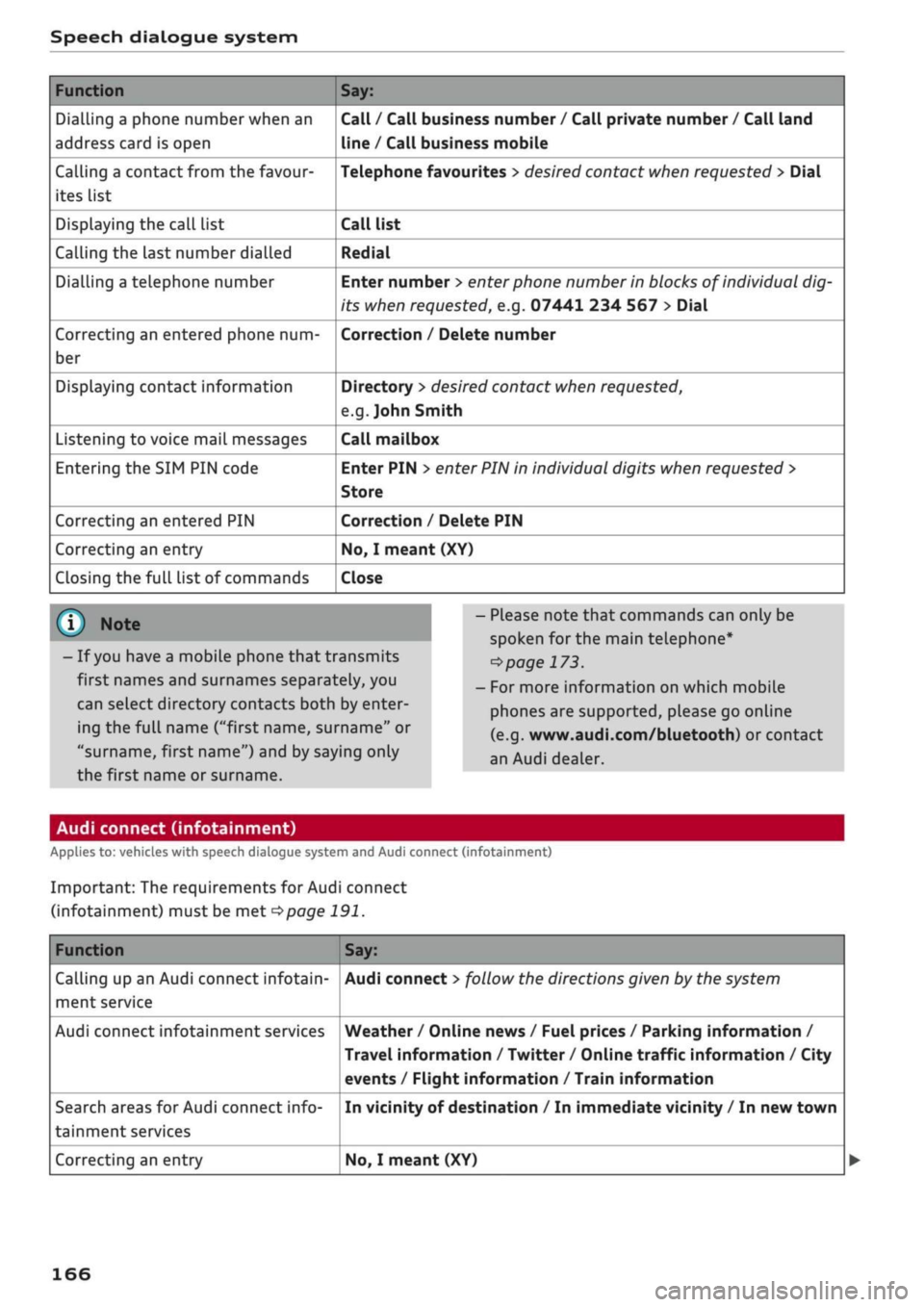
Speech dialogue system
Function
Dialling a phone number when an
address card is open
Calling a contact from the favour
ites list
Displaying the call list
Calling the last number dialled
Dialling a telephone number
Correcting an entered phone num
ber
Displaying contact information
Listening to voice mail messages
Entering the SIM PIN code
Correcting an entered PIN
Correcting an entry
Closing the full List of commands
Say:
Call / Call business number / Call private number / Call land
line / Call business mobile
Telephone favourites
>
desired contact when requested
>
Dial
Call list
Redial
Enter number
>
enter phone number in blocks of individual dig
its when requested, e.g. 07441 234
567
> Dial
Correction / Delete number
Directory
>
desired contact when requested,
e.g.
John Smith
Call mailbox
Enter PIN
>
enter PIN in individual digits when requested >
Store
Correction / Delete PIN
No,
I meant (XY)
Close
© Note
- If
you
have a mobile phone that transmits
first names and surnames separately, you
can select directory contacts both by enter
ing the full name
("first
name, surname" or
"surname, first name") and by saying only
the first name or surname.
- Please note that commands can only be
spoken for the main teLephone*
^>page
173.
- For more information on which mobile
phones are supported, please go online
(e.g.
www.audi.com/bluetooth) or contact
an Audi dealer.
Audi connect (infotainment)
Applies to: vehicles with speech dialogue system and Audi connect (infotainment)
Important: The requirements for Audi connect
(infotainment) must be met
^>page
191.
Function
Calling up an Audi connect infotain
ment service
Audi connect infotainment services
Search areas for Audi connect info
tainment services
Correcting an entry
Say:
Audi connect
>
follow the directions given by the system
Weather / Online news / Fuel prices / Parking information /
Travel information / Twitter / Online traffic information / City
events / Flight information / Train information
In vicinity of destination / In immediate vicinity / In new town
No,
I meant (XY)
166