2021 AUDI E-TRON wheel
[x] Cancel search: wheelPage 174 of 308

Parking and maneuvering
Symbol/Descrip-
tion
Description
psp
Switch between 3D surroundings and Surroundings
Front corner
or Display selection
bar
This view makes it easier to drive out of tight parking spaces or areas and
intersections with poor visibility. It shows an almost 180° panorama view
in front of the vehicle.
Front
This view assists you in using the full area for maneuvering in front of the
vehicle.
Surroundings
This view helps you to maneuver and position the vehicle more precisely.
The area around the vehicle is shown using the camera images. The vehi-
cle image is shown by the system > A\.
Rear
This view assists you in using the full area for maneuvering behind the ve-
hicle. This is the rearview camera image.
Rear corner
This view can assist you when driving out of tight parking spaces or areas
with poor visibility. It shows an almost 180° panorama view behind the
vehicle.
Front tires
This view helps you to see the distance between the front tires and the
curb and the steering wheel angle when parking.
Rear tires
This view helps you to detect the distance between the rear wheels and
the curb when parking.
3D surroundings
In these views, you can see the areas surrounding the vehicle in 3D when
parking. The vehicle surrounding views are created from the camera im-
©f$;/@/e|
®
|o/e
|e]
e@
|e
ages and sensor data. The vehicle image is shown by the system > A\.
ZA\ WARNING
— Observe the safety precautions and note the
limits of the assist systems, sensors, and
cameras > page 129.
— The Surroundings and 3D surroundings are
created from the individual camera images.
The vehicle image is shown by the system.
Objects and obstacles above the camera are
not displayed.
@) Note
Only use the images provided by the camera
on the rear of the vehicle when the luggage
compartment lid is completely closed. Make
sure any objects you may have mounted on
the luggage compartment lid do not block the
rearview camera.
@) Tips
— Depending on the selected gear, it will auto-
matically switch between the Front and
172
Rear views. If you switch the view manually,
the automatic front/rear camera change will
be temporarily deactivated.
— When first activated while a forward gear is
engaged, the Front corner is displayed.
Page 181 of 308
4KE012721BF
Telephone
— The charging time and temperature will vary
depending on the mobile device being used.
Mobile device reminder signal
Applies to: vehicles with Audi phone box
When the device reminder signal is switched on,
you will be notified that your mobile device is still
in the Audi phone box when you leave the vehicle.
Requirement: your mobile device must be located
in the Audi phone box (if Qi-capable) or connect-
ed to the Audi music interface with a USB adapt-
er, and the Audi smartphone interface must be
active or your iPhone must be connected to the
MMI via Bluetooth and charging using a USB
adapter connected to the Audi music interface.
> Applies to: MMI: Select on the home screen:
SETTINGS > General > Reminder signal and
mobile device charging.
The following settings may be available, depend-
ing on vehicle equipment:
— Signal tone
— Off
Spoken cue
this setting is switched on at the factory.
Mobile device notes: reminder, charge level
When this function is switched on, the charge
status of your mobile device is displayed. You will
also be reminded not to forget your mobile de-
vice when leaving the vehicle.
Using the telephone
Accessing the telephone functions
Applies to: vehicles with telephone
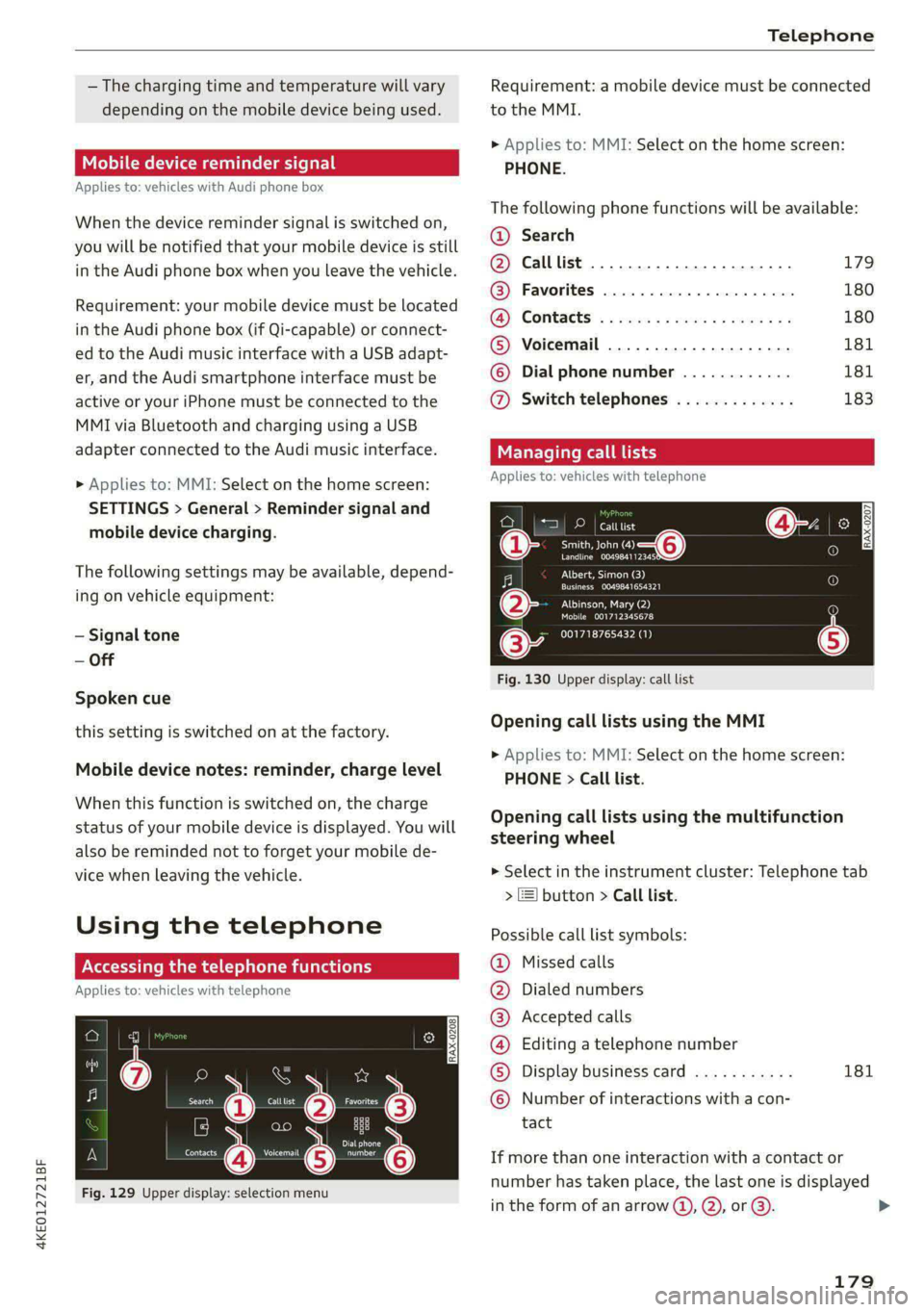
rence?
Daa
Nerecunt Gis
Fig. 129 Upper display: selection menu
Requirement: a mobile device must be connected
to the MMI.
> Applies to: MMI: Select on the home screen:
PHONE.
The following phone functions will be available:
@® Search
@ Calllist 20.0.0... eee. 179
@ Favorites ................0.00. 180
(@) Contacts: « ¢ esos ss cores ay cows yes 180
® Voicemail ..................2. 181
© Dial phone number ............ 181
@ Switch telephones ............. 183
Managing call
Applies to: vehicles with telephone
eae
Treas oT o—@
Landline 004984112345
Albert, Simon (3)
Cree acer)
PILE lea ea
Mobile 001712345678
001718765432 (1)
Fig. 130 Upper display: call list
Opening call lists using the MMI
> Applies to: MMI: Select on the home screen:
PHONE > Call list.
Opening call lists using the multifunction
steering wheel
> Select in the instrument cluster: Telephone tab
> ] button > Call list.
Possible call list symbols:
Missed calls
Dialed numbers
Accepted calls
Editing a telephone number
Display business card 181
QOOOCOLO Number of interactions with a con-
tact
If more than one interaction with a contact or
number has taken place, the last one is displayed
in the form of an arrow (4), Q), or @).
179
>
Page 182 of 308
Telephone
Press and hold a contact or a phone number in
the list until the Options menu appears.
Depending on your mobile device, the following
options may be available:
— Save as a shortcut > page 21, Shortcuts.
— Store as favorite > page 180.
— Send text message > page 183.
— Send e-mail > page 184.
Edit number
Edit a phone number before dialing it.
Show history
Requirement: you must have had more than one
interaction with a contact.
All interactions with a contact or a number are
displayed.
Managing favorites
Applies to: vehicles with telephone
You can store contacts for all connected mobile
devices as shortcuts in the favorites list.
Selecting favorites using the MMI
» Applies to: MMI: Select on the home screen:
PHONE > Favorites.
Opening favorites using the multifunction
steering wheel
> Select in the instrument cluster: Telephone tab
> EE] button > Favorites.
Storing favorites
> Press YY > page 181 in the business card, or
> Press Store as favorite in the options
=>page 179.
Deleting favorites
> Press Ww © page 181 in the business card, or
> Select: Favorites > Z > one or multiple favor-
ites or Select all > Delete > (Done).
@ Tips
The favorites can only be edited via the MMI.
180
Managing the directory
Applies to: vehicles with telephone
You can manage up to four directories in the
MMI.
Requirement: a mobile device must be connected
to the MMI.
Opening the directory
> Applies to: MMI: Select on the home screen:
PHONE > Contacts.
The contacts will be displayed. You can change
the sort order > page 183, Sort order.
Deleting imported contacts
Requirement: you must have imported at least
one contact > page 183.
> Select: Contacts > Z > one or more text mes-
sages > Delete > (Done). The imported contacts
are deleted.
Directory options
> Press and hold a contact in the directory until
the Options menu appears.
Depending on your mobile device, the following
options may be available:
— Store as favorite > page 180.
— Send contact: you can select Text message or
E-mail > page 183.
— Send text message > page 183.
— Send e-mail > page 184.
— Save as a shortcut > page 21, Shortcuts.
Gi) Tips
— Pay attention to any synchronization
prompts on your mobile device when down-
loading contacts.
—The contacts from the mobile device may
not be transferred in alphabetical order. If
there are too many entries, contacts with
different first letters may be missing in the
MMI.
— Only the contacts from the active connected
mobile device are displayed.
Page 183 of 308
4KE012721BF
Telephone
— The contacts in the local MMI memory are
always visible and can be accessed by other
users.
— After switching off the ignition and exiting
the vehicle, the mobile device directory will
be loaded when the MMI is started again if
the mobile device is within range and the
Bluetooth function is switched on in the mo-
bile device and the MMI.
— Only the contacts in the local MMI memory
can be deleted.
Opening business cards
Applies to: vehicles with telephone
The business card shows you details about a con-
tact.
> To open a business card, press on a contact in
the directory, or
> Press © in the call list ©) > page 179, fig. 130.
Possible options in the business card:
> Call: press on a phone number.
> Storing a favorite: press W.
> Deleting a favorite: press W.
> Sending a text message: press {1.
>» Starting navigation: press on an address.
> Sending an e-mail: press on an e-mail address.
> Send contact: you can select Text message or
E-mail > page 183.
» Save as a shortcut > page 21, Shortcuts.
Listening to voicemail
Applies to: vehicles with telephone
> Applies to: MMI: Select on the home screen:
PHONE > Voicemail.
Requirement: there must be no voicemail num-
ber stored.
> Entering the voicemail number: enter the de-
sired number. Press OK.
Requirement: a voicemail number must be stor-
ed.
> Dialing the voicemail number: press Voice-
mail. The call begins immediately.
@) Tips
This service must be set up and activated by
the mobile phone service provider.
Dialing a telephone number
Applies to: vehicles with telephone
Depending on the vehicle equipment, you may
have the following options for dialing a phone
number:
— Using text input in the MMI > page 22.
— Using voice operation > page 25.
Call options
Applies to: vehicles with telephone
> To accept or end a call, press the @ button on
the multifunction steering wheel. Operating
=> page 12 and > page 28.
Depending on your mobile device, the following
options may be available in the MMI when there
is an incoming call:
— Answer
— Decline
— Message
If you exit the vehicle during a phone call, the
Bluetooth connection will be disconnected. De-
pending on your mobile device, phone calls in
progress may be automatically transferred from
the MMI to your mobile device.
G) Tips
The radio or media playback is muted during a
phone call.
PTT Tae RW urea]
Applies to: vehicles with telephone
Depending on your mobile device and the type of
connection, the following options may be availa-
ble during a call:
— End call
— Mute
181
Page 196 of 308

Navigation
Navigation
Opening navigation
Applies to: vehicles with navigation system
Fig. 133 Route guidance not started
The navigation system directs you to your desti-
nation, around traffic incidents, and on alterna-
tive routes, if desired.
Opening navigation
>» Applies to: MMI: Press NAVIGATION on the
home screen.
After accessing the navigation for the first time,
the map is displayed.
Opening navigation using the multifunction
steering wheel
> Applies to: multifunction steering wheel: Select
the Navigation tab in the instrument cluster.
> To display navigation when route guidance has
started, select in the instrument cluster: the
button > Map.
The following functions are available in the MMI:
@ Open the Select destination menu
=> page 196, fig. 134.
@ Open the intelligent search > page 195.
@ Switch between the map and the menu:
press A repeatedly until the desired function
is displayed.
You can find additional information about the
map update at > page 200, Map operation.
ZA\ WARNING
— The demands of traffic require your full at-
tention. Always read the chapter > page 17,
Traffic safety information.
— The route calculated by the navigation sys-
tem is a driving recommendation. Follow
194
the traffic regulations that are applicable in
the country where you are operating the ve-
hicle. In the event that the driving directions
contradict traffic regulations, always follow
the traffic regulations applicable in the
country where you are operating the vehicle
to reduce the risk of an accident.
() Note
Read the information about Audi connect, and
be sure to note the connectivity costs section
=>@ in General information on page 186.
(i) Tips
— Snow and obstructions on the GPS antenna
or trees and large buildings can impair sat-
ellite reception and affect the system's abil-
ity to determine the vehicle position. Sever-
al deactivated or malfunctioning satellites
can also interrupt GPS reception and affect
the system's ability to determine the vehicle
position.
— Because street names sometimes change,
the names stored in the MMI may in rare
cases differ from the actual street name.
— Applies to: multifunction steering wheel:
Depending on the selected function, opera-
tion using the upper display may be re-
quired.
— Applies to: vehicles with Audi connect Info-
tainment: Depending on the country and ve-
hicle equipment, additional services may be
available.
— An additional indicator will appear in the
head-up display.
myAudi navigation
Applies to: vehicles with Audi connect Infotainment
MMI navigation works seamlessly with the myAu-
di app.
Your destinations (favorites, last destinations)
are synchronized through your myAudi account.
All important destinations can be displayed in
the vehicle and in the myAudi app.
Page 198 of 308

Navigation
Check the spelling of the term that was
searched or check the search area
=> page 195.
— Distances to points of interest are displayed
as a straight-line distance from your current
location. The actual distance from your cur-
rent location to the point of interest is up-
dated automatically. The list of points of in-
terest that were found is not resorted when
this happens.
Select destinati
Applies to: vehicles with navigation system
eer er
RAX-0146 cr) m
& wv
A Last
need Cee
a)
Fig. 134 Menu: select destination
Opening a menu
Applies to: MMI
> Press NAVIGATION on the home screen.
> If the map is displayed, press aa (1) > page 194,
fig. 133.
The following functions are available > fig. 134:
© Last destinations 196
@® Favorites ...............000008 196
@® Contacts ..................0., 196
@ Received destns. & routes ....... 197
Loading previous destinations
Applies to: vehicles with navigation system
Your last destinations and routes can be loaded
directly as a navigation destination.
As soon as you start route guidance, the destina-
tion is automatically saved in the last destina-
tions. Your previous destinations are marked with
the © symbol.
If you use myAudi navigation, your previous des-
tinations will be synchronized with your myAudi
account > page 194.
196
Accessing previous destinations
> Applies to: MMI: Select on the home screen:
NAVIGATION > (Ga) > Last destinations > select
a destination > Start.
> Applies to: multifunction steering wheel: Select
in the instrument cluster: Navigation tab > [=]
button > Last destinations > a destination.
Deleting previous destinations
> Applies to: MMI: Select on the home screen:
NAVIGATION > (88) > Last destinations > Z >
select one or more entries or Select all > Delete
> (Done).
Gi) Tips
The last route will be automatically deleted
from the list if you start a new route guidance
after canceling the route.
Setting a favorite as the destination
Applies to: vehicles with navigation system
You can access frequent destinations in the favor-
ites. You can quickly and easily start route guid-
ance using the home address or business address
function.
Requirement: a favorite must be stored
=> page 201.
> Applies to: MMI: Select on the home screen:
NAVIGATION > (G8) > Favorites > select a desti-
nation > Start.
> Applies to: multifunction steering wheel: Select
in the instrument cluster: Navigation tab >
button > Favorites > a destination.
Yaad deme aee eRe dir tliry
Applies to: vehicles with MMI and navigation system
You can navigate directly to contacts.
Requirement: a contact must have an address
stored.
> Applies to: MMI: Select on the home screen:
NAVIGATION > (8) > Contacts > a contact.
> Press on the address for a contact.
> Press on a suggested address. The Details
menu will be displayed.
> Press Start.
Page 200 of 308

Navigation
Selecting map content (such as POIs) as the
destination
Requirement: map content must be displayed
=> page 205.
> Press on map content on the map (for example,
fib.
Selecting the destination
> Select: F4 > Start.
Route guidance will be activated and the map will
be displayed > page 199, fig. 136.
Stopovers and route plan
Applies to: vehicles with navigation system
You can enter additional destinations during ac-
tive route guidance.
Entering a stopover
Requirement: route guidance must be active.
> Enter a destination > page 195.
Displaying stopovers or the route plan
All destinations are listed in the route plan.
> Press on fin the side menu on the map
=> page 199, fig. 136.
Editing stopovers
> Press on Pin the side menu on the map
=> page 199, fig. 136.
> Adding a stopover: Select: Add destination >
select a destination > Add to route.
> Moving a stopover: press Z. Touch the > sym-
bol and move the entry to the desired position.
Press Done.
> Deleting a stopover: Select: Z > one or more
entries or Select all > Delete > (Done).
Ce eels
Applies to: vehicles with navigation system and e-tron route
planner
The MMI includes the charging stations along the
route, if the destination cannot be reached with
the current battery charge level.
Requirement: the e-tron route planner must be
switched on > page 205.
198
Entering a destination using e-tron route
planner
> Enter a destination.
If the destination is out of range, a fast route
with stopovers for charging is automatically sug-
gested.
> To start the suggested route guidance, press
Accept.
> To display the route, press F) > page 199,
fig. 136 in the map side menu.
The destination is located outside of the
range
The F! symbol will be displayed if the destination
in the current route plan cannot be reached.
> Press on on the map. The route plan will be
displayed.
> Press e-tron route planner to calculate an al-
ternative route with suitable charging stations.
In the e-tron route planner, the following items
will be shown for each destination: the calculated
arrival time and the estimated battery charge
level at arrival (6 and after charging >, as well as
the suggested charging duration s= and the dis-
tance from the current location.
Gi) Tips
— The calculated arrival time at the destina-
tion incorporates the suggested time for
charging at the stopovers.
— The e-tron route planner continuously calcu-
lates the fastest route while taking into ac-
count the charging times at various charg-
ing stations. Therefore, a route with multi-
ple charging stops could be faster than a
route with fewer charging stops.
Stopping route guidance
Applies to: vehicles with navigation system
Requirement: route guidance must be active and
the map must be displayed.
> Applies to: MMI: Press BX > page 199, fig. 136.
> Applies to: multifunction steering wheel: Select
in the instrument cluster: Navigation tab >
button > Cancel route guidance.
Page 207 of 308

4KE012721BF
Navigation
information at regular intervals to the traf
fic data provider. You can switch off data
transfer at any time > page 283.
— The online traffic information network is
not available in all countries, and the cover-
age is not nationwide.
Settings
Applies to: vehicles with navigation system
You can adjust the navigation system settings in
the instrument cluster and in the MMI display
separately. The settings depend on the country
and vehicle equipment.
Accessing settings
> Applies to: MMI: Select on the home screen:
NAVIGATION > ©}.
Accessing settings using the multifunction
steering wheel
> Applies to: multifunction steering wheel: Select
in the instrument cluster: Navigation tab >
button.
Please note that a setting applied to the multi-
function steering wheel is only valid for the in-
strument cluster map.
Map settings
Satellite map: see > page 202.
Traffic: you can display current traffic informa-
tion on the map.
— Free flowing traffic
— Traffic obstructions
— Traffic incidents
Map colors
— Automatic: the map display adapts to the light-
ing conditions (for example, by changing from
day to night when driving through a tunnel).
— Day or Night
Map orientation
— 2D heading-up map/2D north-up map: the
current vehicle position is displayed. The map is
oriented in the direction of travel or to the
north.
— 3D heading-up map: the current vehicle posi-
tion is shown on a three-dimensional map and
is aligned to the direction of travel.
— Overview: the entire route from the vehicle po-
sition to the destination or the next stopover is
displayed on the map. The map is oriented to
the north.
Automatic zoom
— On: the map scale is adapted automatically de-
pending on the type of road being traveled (ex-
pressway, highway, other roads) so that you al-
ways have an optimal overview of the road
ahead. When route guidance is active, the scale
is adjusted automatically for a better detailed
view when there are upcoming maneuvers.
— Intersection: when route guidance is active, the
scale is adjusted automatically for a better de-
tailed view when there are upcoming maneu-
vers.
— Off
MMI map contents/Map content: you can switch
the display of additional information (such as
POIs) on the map in the upper display on or off.
Voice guidance
Voice guidance: you can adjust the navigation
prompts. With the Traffic setting, the MMI will
only give prompts if there are traffic incidents on
your route.
Voice guidance during phone call
Entertainment fader during navigation: the au-
dio playback volume is temporarily lowered when
navigation prompts are active.
Route criteria
You can adjust which route criteria should be al-
lowed or avoided for the route calculation.
HOV/carpool lanes
Highways
Toll roads
Ferries
e-tron route planner
This function can be switched on and off.
205