2021 AUDI A8 charging
[x] Cancel search: chargingPage 147 of 362

4N0012721BF
High-voltage system
g or attac g the cable
icles with Audi charging system
Applies to:
B4G-0681 Nn?
— Only change cables in a dry environment.
— The Audi charging system may only be used
as a complete unit consisting of the power
cables, the control unit, and the vehicle ca-
ble. Depending on the country, the total
length of the power cable, control panel and
vehicle cable may be restricted, for example
to 24.6 feet (7.5 m) in the USA. Audi recom-
Fig. 106 Control unit: removing and attaching the cable
Requirements:
> The charging process for the high-voltage bat-
tery must be ended > page 135.
> The vehicle charging connector must be re-
moved from the vehicle charging port.
> The power cable must be removed from the
socket.
Loosening the cable
» If necessary, loosen the screw @) using the
screwdriver provided.
> Lift the lever @ all the way up.
> Pull the connector @) out just until you feel re-
sistance.
> Close the lever @ until it is resting on the con-
nector @).
» Remove the connector (2) completely.
Attaching the cable
> Lift the lever @ up slightly.
> Insert the connector (2) into the control unit
just until you feel resistance.
> Lift the lever @ all the way up.
> Insert the connector (2) all the way into the
control unit.
> Close the lever @).
> Tighten the screw @) using the screwdriver pro-
vided.
A WARNING
— Note the warnings for charging > A in
Charging on page 135.
— Before switching a cable, always unplug the
power cable from the socket.
mends using only cables approved by Audi.
Gi) Tips
The power cable with the power connector for
industrial sockets and the Audi charging sys-
tem control unit are designed to work togeth-
er. Changing the power cable to another con-
nector type may reduce the available charging
power of the entire system. Limitations on
the ability to transfer power (current capacity)
depending on the phase and the number of
available phases may affect the available
charging power.
Wall clip
Applies to: vehicles with plug-in hybrid drive and wall mount
clip
RAZ-0638,
Fig. 107 Wall mount clip: securing the Audi charging sys-
tem
Securing the Audi charging system
> First insert the control unit in the bottom tabs
on the wall mount clip and then into the upper
tabs.
> Push the control unit in the direction of the ar-
row toward the rear > fig. 107 and let it lock in-
to place.
> Wrap the excess length of cable around the
charging connector mount @) when you are not
charging the high-voltage battery.
145
>
Page 148 of 362

High-voltage system
> Plug the power cable into the socket (2).
> After charging, you can hook the vehicle charg-
ing connector to the charging connector mount
©.
Locking and unlocking the Audi charging
system
> You can lock or unlock the Audi charging sys-
tem using the key provided by turning it to the
lock position @) or the unlock position ©).
Removing the Audi charging system
> Remove the power cable connector from the
socket @).
> Unwind the cable from the charging connector
mount (4).
> To loosen the control unit from the bracket,
push the locking mechanism @) upward.
ZA WARNING
Observe the safety precautions in the assem-
bly instructions for the wall mount clip.
146
Page 167 of 362
4N0012721BF
Driver assistance
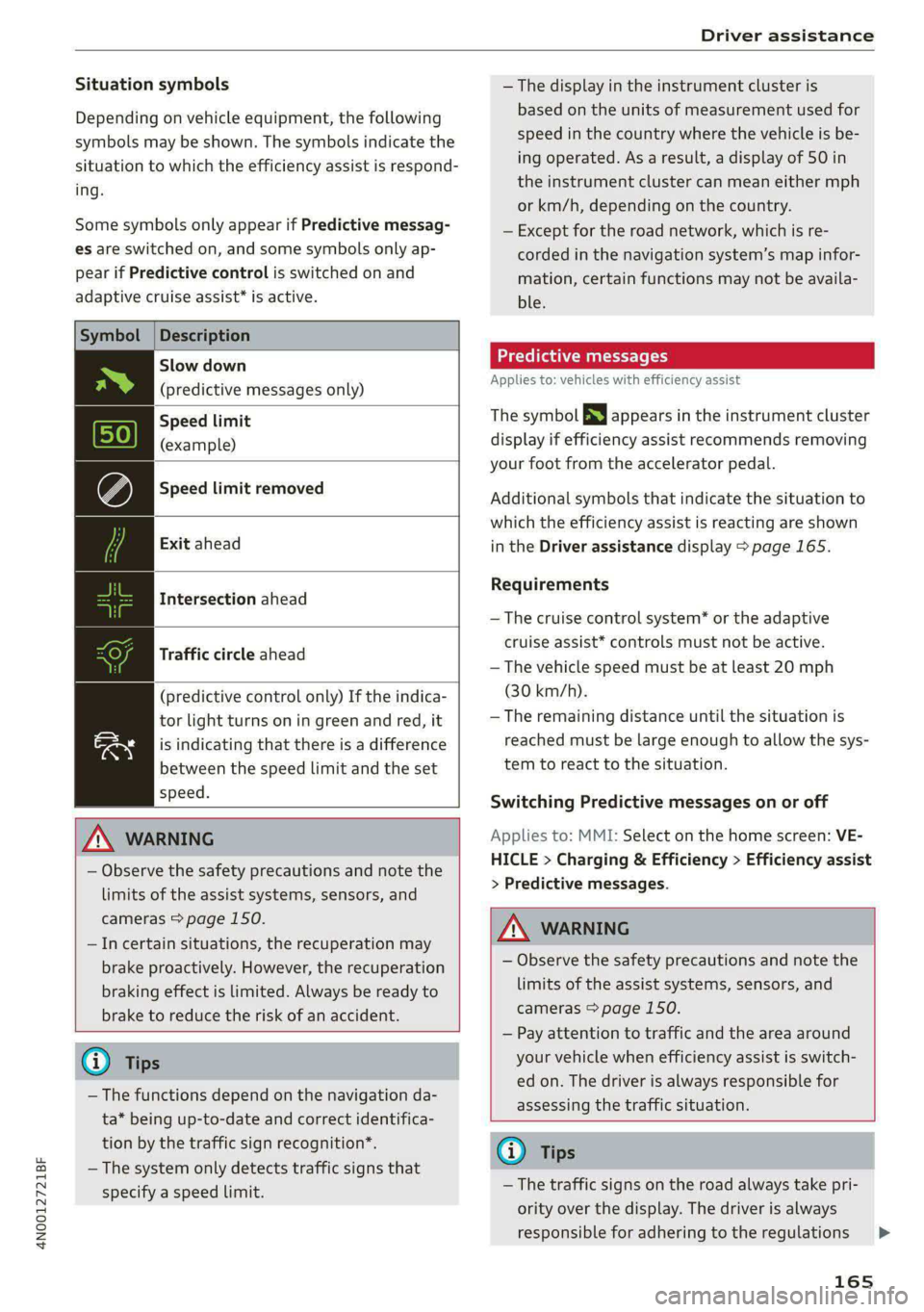
Situation symbols
Depending on vehicle equipment, the following
symbols may be shown. The symbols indicate the
situation to which the efficiency assist is respond-
ing.
Some symbols only appear if Predictive messag-
es are switched on, and some symbols only ap-
pear if Predictive control is switched on and
adaptive cruise assist* is active.
Description
Slow down
(predictive messages only)
Speed limit
(example)
Speed limit removed
Exit ahead
Intersection ahead
Traffic circle ahead
(predictive control only) If the indica-
tor light turns on in green and red, it
is indicating that there is a difference
between the speed limit and the set
speed.
ZA WARNING
— Observe the safety precautions and note the
limits of the assist systems, sensors, and
cameras > page 150.
—Incertain situations, the recuperation may
brake proactively. However, the recuperation
braking effect is limited. Always be ready to
brake to reduce the risk of an accident.
@ Tips
— The functions depend on the navigation da-
ta* being up-to-date and correct identifica-
tion by the traffic sign recognition*.
— The system only detects traffic signs that
specify a speed limit.
— The display in the instrument cluster is
based on the units of measurement used for
speed in the country where the vehicle is be-
ing operated. As a result, a display of 50 in
the instrument cluster can mean either mph
or km/h, depending on the country.
— Except for the road network, which is re-
corded in the navigation system’s map infor-
mation, certain functions may not be availa-
ble.
Predictive messages
Applies to: vehicles with efficiency assist
The symbol BS appears in the instrument cluster
display if efficiency assist recommends removing
your foot from the accelerator pedal.
Additional symbols that indicate the situation to
which the efficiency assist is reacting are shown
in the Driver assistance display > page 165.
Requirements
— The cruise control system* or the adaptive
cruise assist* controls must not be active.
— The vehicle speed must be at least 20 mph
(30 km/h).
— The remaining distance until the situation is
reached must be large enough to allow the sys-
tem to react to the situation.
Switching Predictive messages on or off
Applies to: MMI: Select on the home screen: VE-
HICLE > Charging & Efficiency > Efficiency assist
> Predictive messages.
ZA\ WARNING
— Observe the safety precautions and note the
limits of the assist systems, sensors, and
cameras > page 150.
— Pay attention to traffic and the area around
your vehicle when efficiency assist is switch-
ed on. The driver is always responsible for
assessing the traffic situation.
G) Tips
— The traffic signs on the road always take pri-
ority over the display. The driver is always
responsible for adhering to the regulations
165
Page 214 of 362

Telephone
— This is a CONSUMER device.
— BEFORE USE, you MUST REGISTER THIS DE-
VICE with your wireless provider and have
your provider’s consent. Most wireless pro-
viders consent to the use of signal boosters.
Some providers may not consent to the use
of this device on their network. If you are
unsure, contact your service provider.
— You MUST operate this device with approved
antennas and cables as specified by the
manufacturer. Antennas MUST be installed
at least 20 cm (8 inches) from any person.
— You MUST cease operating this device im-
mediately if requested by the FCC or a li-
censed wireless service provider.
— WARNING: E911 location information may
not be provided or may be inaccurate for
calls served by using this device.
@) Note
Applicable to Canada
In Canada, operation of a Zone Enhancer,
such as an Audi phone box, is subject to the
following requirements of the Innovation,
Science and Economic Development Canada
(ISED):
— This is a CONSUMER device.
— BEFORE USE, you MUST meet all require-
ments set out in CPC-2-1-05. At the time of
printing this user manual, the CPC-2-1-05
client procedures circular of ISED Canada
was available at the following web page:
http://www.ic.gc.ca/eic/site/smt-gst.
nsf/eng/sf08942.html.
— You MUST operate this device with approved
antennas and cables as specified by the
manufacturer. Antennas MUST NOT be in-
stalled within 20 cm of any person.
— You MUST cease operating this device im-
mediately if requested by ISED or a licensed
wireless service provider.
— WARNING: £911 location information may
not be provided or may be inaccurate for
calls served by using this device.
@ Tips
The system complies with United States FCC
regulations and ISED regulations > page 341.
212
Making phone calls using the exterior
antenna
Applies to: vehicles with Audi phone box
With the Audi phone box, you can make calls us-
ing the exterior antenna on the vehicle. Using the
external antenna helps when there is a low signal
and also provides better reception quality.
Requirement: the ignition must be switched on.
Applies to: vehicles with front Audi phone box
» Fold open the holder for the Audi phone box (4)
=> page 211, fig. 153.
> To make phone calls through the vehicle's exte-
rior antenna using your mobile device, lay your
device with the rear side against the phone
symbol (2) in the center of the Audi phone box
and holder (@).
Applies to: vehicles with Audi phone box in the rear
> To make phone calls through the vehicle's exte-
rior antenna using your mobile device, lay your
device on the phone symbol @) > page 211,
fig. 154 in the center of the Audi phone box
with the display facing up.
Charging the battery using the USB input
Applies to: vehicles with Audi phone box
You can charge your mobile device using a special
USB adapter with the Audi phone box
=> page 252.
Requirement: the ignition must be switched on.
> To charge your mobile device via USB, connect it
to the USB input @ °% page 211,
fig. 153/> page 211, fig. 154.
G) Tips
— You can purchase a USB adapter from an au-
thorized Audi dealer or authorized Audi
Service Facility, or at specialty stores.
— Audi recommends using Audi Genuine Ac-
cessories. Audi has verified their reliability,
safety, and suitability.
Page 215 of 362

4N0012721BF
Telephone
Charging a mobile device wirelessly
Applies to: vehicles with Audi phone box
Depending on vehicle equipment, you may be
able to charge your mobile device wirelessly with
the Audi phone box.
Requirement: the ignition must be switched on.
Your mobile device must meet the Qi standard.
> Make sure that the wireless charging function is
switched on:
>» Applies to: MMI: Select on the home screen:
SETTINGS > General > Reminder signal and
mobile device charging.
> Applies to: vehicles without Audi phone box in
the rear: Switch the Mobile device wireless
charging function on.
> Applies to: vehicles without Audi phone box in
the rear: Switch the Mobile device wireless
charging in front or Mobile device wireless
charging in rear function on.
Applies to: vehicles with front Audi phone box
> Fold open the holder for the Audi phone box (@)
=> page 211, fig. 153.
> To charge your mobile device wirelessly, lay
your device with the rear side against the 9
symbol @) between the Audi phone box and
holder @).
Applies to: vehicles with Audi phone box in the rear
> To charge your mobile device wirelessly, lay it
on the @ symbol @ > page 211, fig. 154 in the
center of the Audi phone box with the display
facing up.
ZA WARNING
— The mobile device may become hot during
wireless charging. Pay attention to the tem-
perature of your mobile device and be care-
ful when removing it from the Audi phone
box.
— An alternating magnetic field is used for
wireless charging. Maintain a minimum dis-
tance of approximately 2.4 inches (6 cm) to
the Audi phone box charging plate. The
thresholds for prolonged exposure at this
distance comply with ICNIRP1998. There-
fore, interactions such as irritation of senso-
ry organs, malfunctions of active implants
(such as pacemakers, infusion pumps, or
neurostimulators) or effects on passive im-
plants (such as prosthetic limbs) is highly
unlikely. If you have an implant, consult a
medical specialist if you have any questions.
You can also switch the function for wireless
charging in the Audi phone box on or off
separately for the front* and rear*. You can
continue to charge your mobile device using
a cable connection.
@ Tips
—The maximum charging output is 5 W.
— The charging time and temperature will vary
depending on the mobile device being used.
Mobile device reminder signal
Applies to: vehicles with Audi phone box
When the device reminder signal is switched on,
you will be notified that your mobile device is still
in the Audi phone box when you leave the vehicle.
Requirement: your mobile device must be located
in the Audi phone box (if Qi-capable) or connect-
ed to the Audi music interface with a USB adapt-
er, and the Audi smartphone interface must be
active or your iPhone must be connected to the
MMI via Bluetooth and charging using a USB
adapter
connected to the Audi music interface.
> Applies to: MMI: Select on the home screen:
SETTINGS > General > Reminder signal and
mobile device charging.
The following settings may be available, depend-
ing on vehicle equipment:
— Signal tone
— Off
Spoken cue
this setting is switched on at the factory.
Mobile device notes: reminder, charge level
When this function is switched on, the charge
status of your mobile device is displayed. You will
also be reminded not to forget your mobile de-
vice when leaving the vehicle.
213
Page 223 of 362
4N0012721BF
Telephone
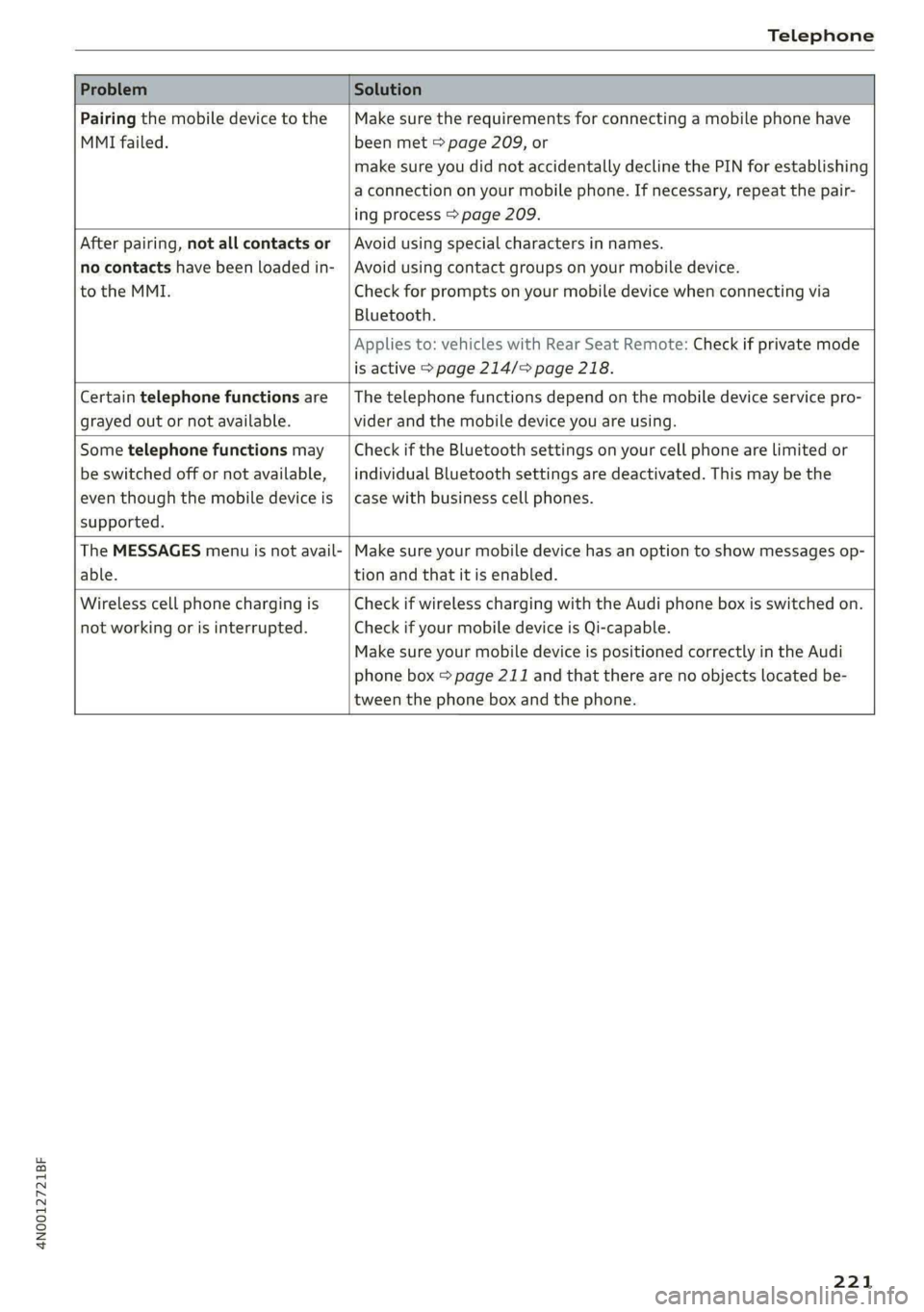
Problem Solution
Pairing the mobile device to the
MMI failed.
Make sure the requirements for connecting a mobile phone have
been met > page 209, or
make sure you did not accidentally decline the PIN for establishing
a connection on your mobile phone. If necessary, repeat the pair-
ing process = page 209.
After pairing, not all contacts or
no contacts have been loaded in-
to the MMI.
Avoid using special characters in names.
Avoid using contact groups on your mobile device.
Check for prompts on your mobile device when connecting via
Bluetooth.
Applies to: vehicles with Rear Seat Remote: Check if private mode
is active > page 214/> page 218.
Certain telephone functions are
grayed out or not available.
The telephone functions depend on the mobile device service pro-
vider and the mobile device you are using.
Some telephone functions may
be switched off or not available,
even though the mobile device is
supported.
Check if the Bluetooth settings on your cell phone are limited or
individual Bluetooth settings are deactivated. This may be the
case with business cell phones.
The MESSAGES menu is not avail-
able.
Make sure your mobile device has an option to show messages op-
tion and that it is enabled.
Wireless cell phone charging is
not working or is interrupted.
Check if wireless charging with the Audi phone box is switched on.
Check if your mobile device is Qi-capable.
Make sure your mobile device is positioned correctly in the Audi
phone box > page 211 and that there are no objects located be-
tween the phone box and the phone.
221
Page 226 of 362

Audi connect
> To display the weather for your current loca-
tion, press on the location that is marked with
the crosshairs.
Requirement: route guidance must be active.
> To display the weather at your destination,
press on the location that is marked with the
flag PB.
Adding a location: select: WEATHER > Gu > Ina
new city > a location.
Removing a location: select: WEATHER > 44 > Z
> one or more locations or Select all > Delete.
Online news
> Applies to: MMI: Select on the home screen:
NEWS.
Access to the calendar
Requirement: the myAudi app must be installed
and open on your mobile device. Access to your
calendar must be enabled on your mobile device.
You must be logged into the myAudi app with
your myAudi login data and you must have select-
ed your vehicle. The Wi-Fi function on your mo-
bile device and the MMI must be enabled and
your mobile device must be paired to the MMI
Wi-Fi hotspot > page 225, Wi-Fi.
You can display the your mobile device calendar
on the MMI.
> Applies to: MMI: Select on the home screen:
CALENDAR.
ZA\ WARNING
Always follow the information found in > A\
in General information on page 222.
©) Note
Always follow the information found in >@ in
General information on page 222.
224
Audi connect vehicle
control services
Services
Applies to: vehicles with Audi connect vehicle control
Using Audi connect vehicle control services, you
can perform tasks such as viewing data about
your vehicle or control vehicle functions remote-
ly.
You can view and use services available for your
vehicle at my.audi.com or through the myAudi
app.
Information about the services and the corre-
sponding app was accurate at the time this man-
ual was printed. The scope of services depends
on the country and equipment. There may be
changes over the service life of the vehicle.
Z\ WARNING
— Always follow the information found in > AA
in General information on page 222.
— Driver messages, text messages, and illumi-
nated warning and indicator lights in the ve-
hicle always take priority over information
from the Audi connect services. The infor-
mation displayed by the Audi connect serv-
ices should not cause you to take safety
risks. This can result in the vehicle breaking
down in traffic and to serious injuries or ac-
cidents.
— Applies to: vehicles with plug-in hybrid
drive: Only perform the Audi connect cli-
mate control functions if your vehicle was
shut off correctly and the ignition is switch-
ed off.
— Applies to: vehicles with plug-in hybrid
drive: Only perform charging functions on
the high-voltage battery if the vehicle is
shut off correctly, is connected to a suitable
socket ,and if the ignition is switched off.
G) Tips
— Accessing specific data or controlling func-
tions remotely depends on the charge level
of the vehicle battery. Therefore, these
Page 254 of 362
Media
» Applies to: MMI: Select on the home screen:
MEDIA > Source > Amazon Alexa.
@) Note
Read the information about Audi connect, and
be sure to note the connectivity costs section
> page 222.
Multimedia connections
USB adapter cable
[RAH-9202
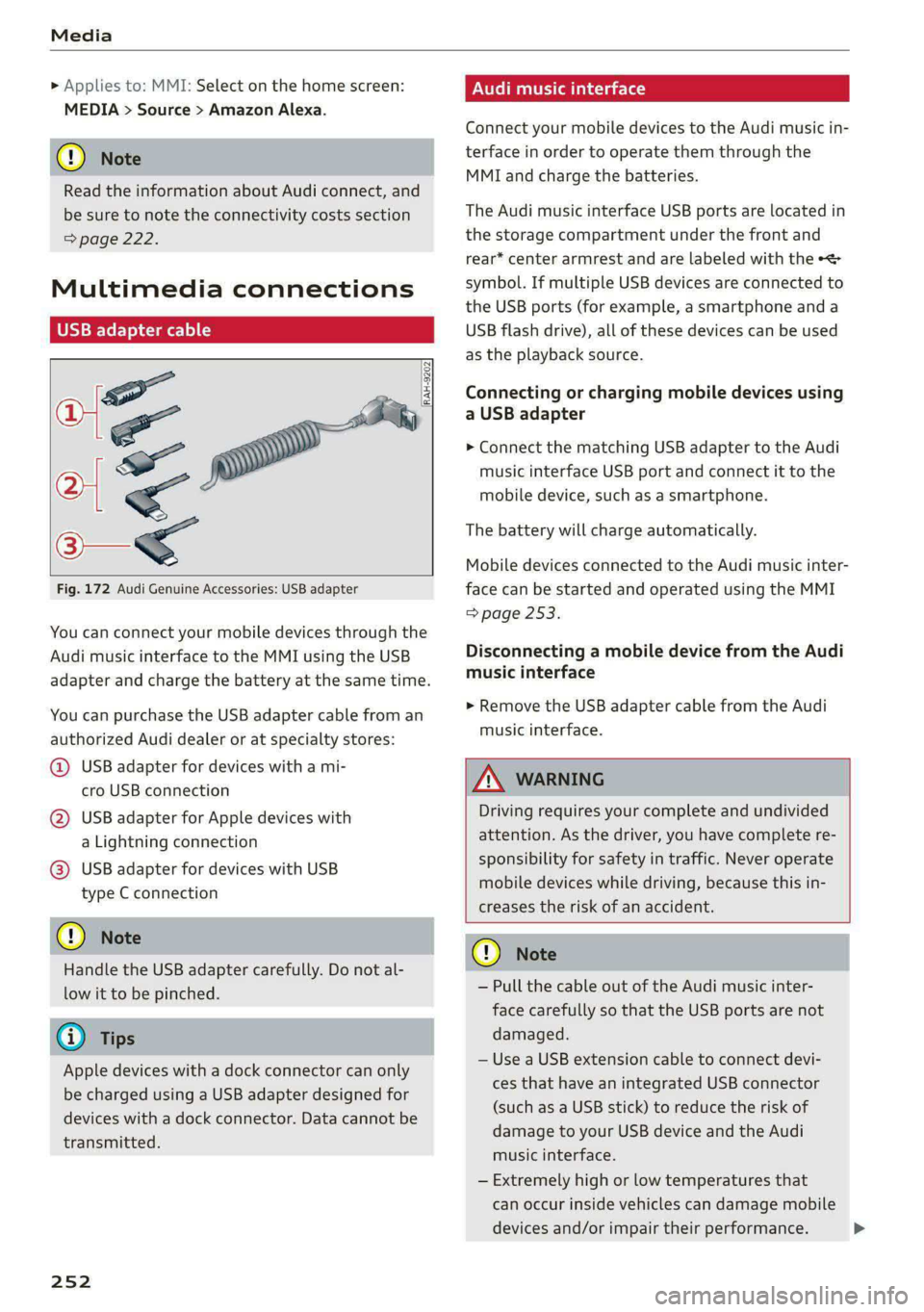
Fig. 172 Audi Genuine Accessories: USB adapter
You can connect your mobile devices through the
Audi music interface to the MMI using the USB
adapter and charge the battery at the same time.
You can purchase the USB adapter cable from an
authorized Audi dealer or at specialty stores:
@ USB adapter for devices with a mi-
cro USB connection
@ USB adapter for Apple devices with
a Lightning connection
@ USB adapter for devices with USB
type C connection
@) Note
Handle the USB adapter carefully. Do not al-
low it to be pinched.
G) Tips
Apple devices with a dock connector can only
be charged using a USB adapter designed for
devices with a dock connector. Data cannot be
transmitted.
252
ONU reat em Tale)
Connect your mobile devices to the Audi music in-
terface in order to operate them through the
MMI and charge the batteries.
The Audi music interface USB ports are located in
the storage compartment under the front and
rear* center armrest and are labeled with the +<
symbol. If multiple USB devices are connected to
the USB ports (for example, a smartphone and a
USB flash drive), all of these devices can be used
as the playback source.
Connecting or charging mobile devices using
a USB adapter
> Connect the matching USB adapter to the Audi
music interface USB port and connect it to the
mobile device, such as a smartphone.
The battery will charge automatically.
Mobile devices connected to the Audi music inter:
face can be started and operated using the MMI
=> page 253.
Disconnecting a mobile device from the Audi
music interface
> Remove the USB adapter cable from the Audi
music interface.
ZA\ WARNING
Driving requires your complete and undivided
attention. As the driver, you have complete re-
sponsibility for safety in traffic. Never operate
mobile devices while driving, because this in-
creases the risk of an accident.
@) Note
— Pull the cable out of the Audi music inter-
face carefully so that the USB ports are not
damaged.
— Use a USB extension cable to connect devi-
ces that have an integrated USB connector
(such as a USB stick) to reduce the risk of
damage to your USB device and the Audi
music interface.
— Extremely high or low temperatures that
can occur inside vehicles can damage mobile
devices and/or impair their performance.