2020 VOLVO XC90 TWIN ENGINE steering
[x] Cancel search: steeringPage 439 of 693
STARTING AND DRIVING
}}
* Option/accessory.437
Individual
Customizes drive mode to personal prefer- ences.
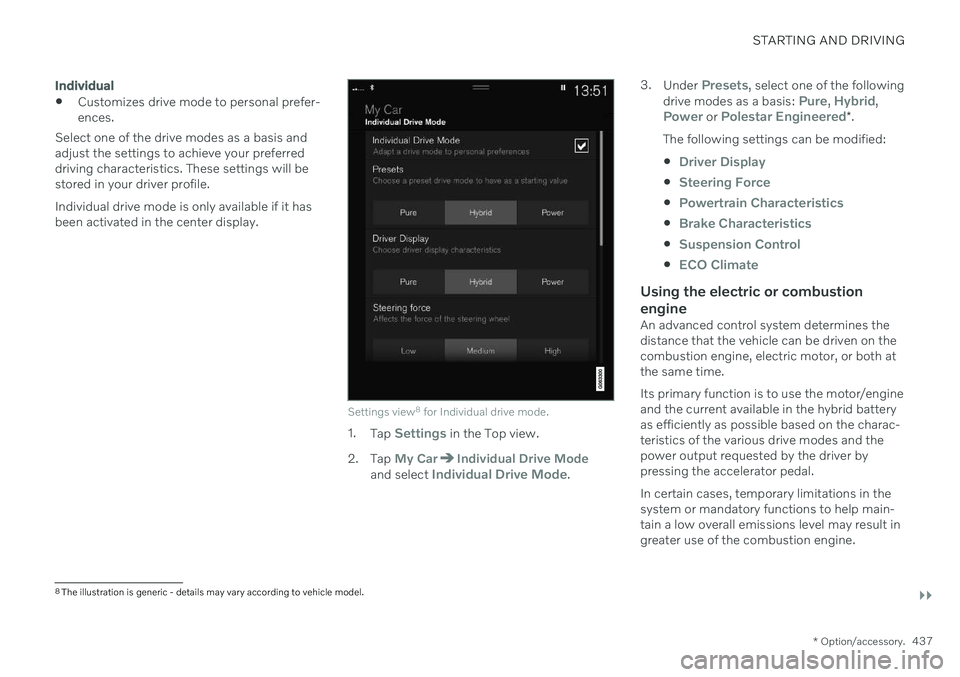
Select one of the drive modes as a basis andadjust the settings to achieve your preferreddriving characteristics. These settings will bestored in your driver profile. Individual drive mode is only available if it has been activated in the center display.
Settings view 8
for Individual drive mode.
1. Tap Settings in the Top view.
2. Tap
My CarIndividual Drive Modeand select Individual Drive Mode. 3.
Under
Presets, select one of the following
drive modes as a basis: Pure, Hybrid,Power or Polestar Engineered* .
The following settings can be modified:
Driver Display
Steering Force
Powertrain Characteristics
Brake Characteristics
Suspension Control
ECO Climate
Using the electric or combustion engine
An advanced control system determines the distance that the vehicle can be driven on thecombustion engine, electric motor, or both atthe same time. Its primary function is to use the motor/engine and the current available in the hybrid batteryas efficiently as possible based on the charac-teristics of the various drive modes and thepower output requested by the driver bypressing the accelerator pedal. In certain cases, temporary limitations in the system or mandatory functions to help main- tain a low overall emissions level may result in greater use of the combustion engine.
8 The illustration is generic - details may vary according to vehicle model.
Page 447 of 693

STARTING AND DRIVING
445
Hill Descent Control
The function for assisting when driving down- hill (HDC 12
) is a low-speed function with
increased engine braking. The function makes it possible to increase or decrease thevehicle's speed on steep downhill gradientsby only using the accelerator pedal, withoutapplying the brakes. The function is included in the
Off Road drive
mode.
HDC is designed for driving on rough roads at low speeds and downhill gradients with slip-pery or otherwise difficult road surfaces. Thedriver does not need to use the brake pedalbut can instead focus on steering.
WARNING
HDC is only intended to be a supplemen- tary braking aid and it does not function inall situations. The driver is always ultimately responsible for operating the vehicle in a safe manner.
FunctionHill Descent Control allows the vehicle to move forward or backward at very low speedsassisted by the brake system. The driver canincrease the speed by pressing the acceleratorpedal. When the accelerator pedal is released, the vehicle will return to very low speedregardless of how steep the hill is and withoutthe brakes needing to be applied. The brakelights will illuminate when the function is acti-vated. The driver can brake to stop or slow the vehi- cle at any time by depressing the brake pedal. HDC is activated along with Low Speed Con- trol (LSC
13
), which facilitates and improves
traction and control on rough and slippery sur- faces. The system is intended to be used atlow speeds, up to approximately 40 km/h (25mph).
To keep in mind when using HDC
If the function is switched off while drivingon a steep downhill gradient, brakingeffect will be gradually reduced.
HDC can be used in gear positions
D and
R , and in manual gears 1 or 2.
It is not possible to manually shift to thirdgear or higher when HDC is active.
NOTE
When LSC with HDC is activated in theOff Road drive mode, the feel of the accel-
erator pedal and engine response will change.
NOTE
This drive mode is not designed to be used for normal street driving.
NOTE
The function is deactivated when driving at high speeds and must be reactivated atlower speeds if so desired.
Related information
Activating and deactivating Hill Descent Control using the function button (p. 446)
Changing drive mode (p. 438)
Low Speed Control (p. 443)
All Wheel Drive (AWD) (p. 431)
12
Hill Descent Control
13 Low Speed Control
Page 449 of 693

STARTING AND DRIVING
* Option/accessory.447
Preconditioning
Whenever possible, precondition the vehi- cle before driving by connecting thecharging cable to an electrical outlet.
Avoid parking the vehicle somewherewhere the interior will become too hot ortoo cold while the vehicle is parked. If pos-sible, park the vehicle in a climate-con-trolled garage.
During a short drive after passenger com-partment preconditioning, turn off thepassenger compartment fan or the airconditioning in a hot climate.
If preconditioning is not possible when itis cold outside, use seat and steeringwheel heating first. Avoid heating theentire passenger compartment to reducethe amount of current being taken fromthe hybrid battery.
Driving
Choose the Pure drive mode to help mini-
mize electric power consumption.
Maintain a steady speed and a generous following distance to traffic ahead to mini-mize braking. This drive mode has thelowest power consumption.
Balance energy requirements using theaccelerator pedal. Use the indicator on theinstrument panel to see available electricpower and avoid starting the combustion engine unnecessarily. The electric motor is more effective than the combustion engine, especially at low speeds.
When braking is necessary, brake gentlyusing the brake pedal. This will helprecharge the hybrid battery. A regenerativefunction is integrated in the brake pedaland can be augmented by the electricmotor's braking capacity when the gearselector is in mode
B.
Higher speeds increase energy consump-tion - air resistance increases with speed.
Activate the
Hold function in the Function
view at high speeds when traveling farther than is possible using the hybrid battery'scapacity.
Whenever possible, avoid using the
Charge function to charge the hybrid bat-
tery. Charging the battery using the com- bustion engine increases fuel consump-tion and carbon dioxide emissions.
In a cold climate, reduce heating of thewindshield/rear window, mirrors, seatsand the steering wheel.
Maintain the correct pressure in the tiresand check pressure regularly.
The type of tires used could affect energyconsumption - consult a retailer for adviceon suitable tires.
Remove unnecessary items from the vehi-cle - the heavier the load, the higher thefuel consumption.
Roof loads increase air resistance andincrease fuel consumption. Remove roofboxes, ski racks, etc. that are not in use.
Avoid driving with the windows open.
Do not keep the vehicle still on an upwardgradient by using the accelerator pedal.Use the brakes instead.
Related information
Drive-E
‒ purer driving pleasure (p. 30)
Energy distribution in hybrid mode using map data
* (p. 439)
Factors affecting electric motor range (p. 448)
Hybrid gauge (p. 89)
Checking tire pressure (p. 553)
Page 463 of 693
STARTING AND DRIVING
}}
* Option/accessory.461
medical help immediately if eyes are affected.
Never expose the battery to open flameor electric spark. Do not smoke nearthe battery. Failure to follow theinstructions for jump starting can leadto injury.
NOTE
The vehicle cannot be started if the hybrid battery is discharged.
Related information
Starting the vehicle (p. 412)
Ignition modes (p. 415)
Adjusting the steering wheel (p. 206)
Selecting ignition mode (p. 416)
Retractable hitch
*
The retractable hitch is designed to be used to tow a trailer or mount a bicycle holder. Thehitch can be easily retracted or extended asneeded. When retracted, the hitch is com-pletely concealed.
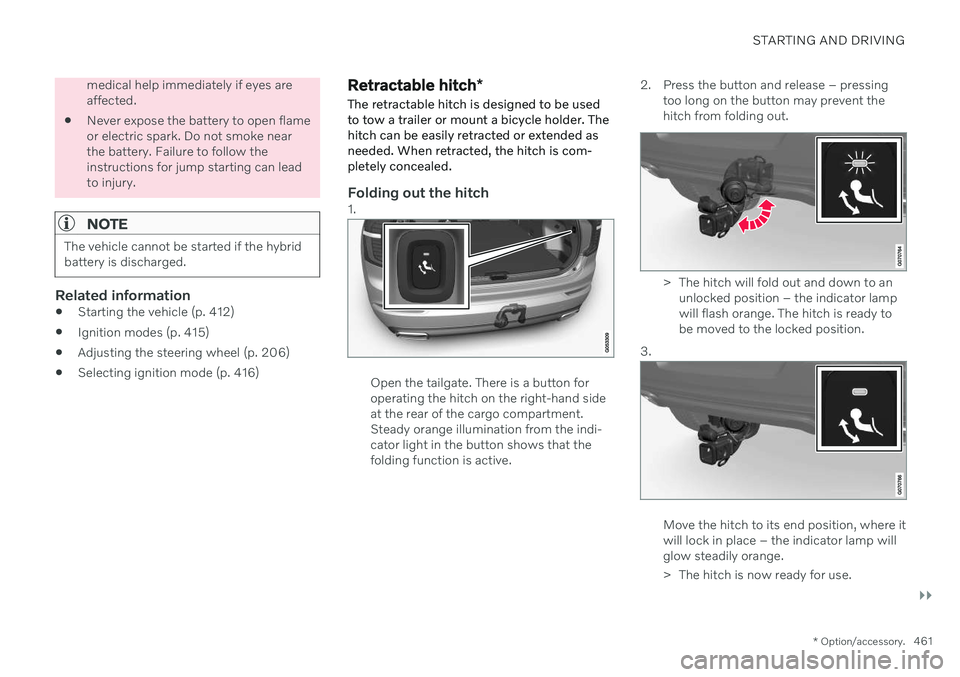
Folding out the hitch1.
Open the tailgate. There is a button for operating the hitch on the right-hand sideat the rear of the cargo compartment.Steady orange illumination from the indi-cator light in the button shows that thefolding function is active. 2. Press the button and release – pressing
too long on the button may prevent thehitch from folding out.
> The hitch will fold out and down to anunlocked position – the indicator lamp will flash orange. The hitch is ready tobe moved to the locked position.
3.
Move the hitch to its end position, where it will lock in place – the indicator lamp willglow steadily orange.
> The hitch is now ready for use.
Page 469 of 693

STARTING AND DRIVING
* Option/accessory.467
Trailer Stability Assist *
Trailer Stability Assist (TSA 16
) is a function
designed to help stabilize a vehicle that is towing a trailer when the vehicle and trailerhave begun to sway. The function is part of the Electronic Stability Control system ESC 17
.
Reasons for swayingA vehicle towing a trailer may begin to sway for various reasons. Normally this only occursat high speeds. However, if the trailer is over-loaded or unevenly distributed, e.g. too farback, there is a risk of swaying even at lowspeeds. Swaying may be caused by factors such as:
The vehicle and trailer are hit by a sudden, strong crosswind.
The vehicle and trailer are traveling on anuneven road or over a bump.
Sudden movements of the steering wheel.
Once swaying has begun, it can be difficult orimpossible to stop it. This makes the vehicleand trailer difficult to control and there is a riskof swerving into oncoming traffic or driving offthe road.
Trailer Stability Assist functionTrailer Stability Assist continuously monitorsthe vehicle's movements, particularly lateral movements. If swaying is detected, the brakesare applied individually on the front wheels,which has a stabilizing effect on the vehicleand trailer. This is often enough to enable thedriver to regain control of the vehicle. If the Trailer Stability Assist function's first attempt is not adequate to stop the swayingmotion, the brakes are applied on all wheelsand engine power is temporarily reduced. Asthe swaying motion begins to decrease andthe vehicle and trailer have once againbecome stable, TSA stops regulating thebrakes/engine power and the driver regainscontrol of the vehicle.
NOTE
Trailer Stability Assist is deactivated if the driver selects the sport mode by deactivat- ing
ESC in the center display's menu sys-
tem.
Trailer Stability Assist may not intervene if the driver tries to compensate for the swayingmotion by moving the steering wheel rapidly,because the system will then not be able todetermine if it is the trailer or the driver caus-ing the swaying. When Trailer Stability Assistis activated, the ESC symbolis displayed in the instrumentpanel.
Related information
Driving with a trailer (p. 465)
Electronic Stability Control (p. 281)
16
Trailer Stability Assist
17 Electronic Stability Control
Page 470 of 693

STARTING AND DRIVING
* Option/accessory.
468
Checking trailer lights
When connecting a trailer, make sure that all of the lights on the trailer are functioningbefore starting to drive.
Trailer turn signals and brake lightsIf one or more of the turn signals or brake lights on the trailer is not working, a symboland message will be displayed in the instru-ment panel. The other lights on the trailermust be checked manually by the driver beforethe vehicle is driven.
Symbol Message
Trailer turn indicator Right
turn indicator malfunction
Trailer turn indicator Left
turn indicator malfunction
Trailer brake light Malfunc-
tion
If any of the trailer's turn signal lights is not working, the turn signal symbol in the instru-ment panel will also flash more quickly thannormal.
Trailer rear fog lightWhen a trailer is connected, the vehicle's rearfog light may not illuminate and rear fog lightfunctionality is instead transferred to the trailer. If this is the case, check to see if thetrailer is equipped with a rear fog light beforeactivating the vehicle's fog lights when drivingwith a trailer to help ensure safe operation.
Checking trailer lights
*
Automatic check
When the trailer has been connected to the vehicle's electrical system, its lights can bechecked by automatically activating them.This function helps the driver check that thetrailer's lights are functioning correctly beforestarting to drive. In order to perform this check, the vehicle must be switched off.
1. When a trailer is connected to the towbar,
the message
Automatic Trailer Lamp
Check will appear in the instrument panel.
2. Acknowledge the message by pressing the O button on the right-side steering
wheel keypad.
> The light check will begin.
3. Get out of the vehicle to perform the check.
> All of the lights on the trailer will beginflashing, and then illuminate separately one at a time.
4. Visually check that all of the trailer's lights are functioning correctly. 5. After a short time, all of the trailer's lights
will start flashing again.
> The light check is completed.
Disabling the automatic check
The automatic light check can be disabled in the center display. 1.Tap
Settings in the Top view.
2. Tap
My CarLights and Lighting.
3. Deselect
Automatic Trailer Lamp
Check.
Manual check
If the automatic check has been disabled, the check can be started manually. 1. Tap
Settings in the Top view.
2. Tap
My CarLights and Lighting.
3. Select
Manual Trailer Lamp Check.
> The light check will begin. Get out of the vehicle to perform the check.
Related information
Driving with a trailer (p. 465)
Page 480 of 693

AUDIO, MEDIA AND INTERNET
* Option/accessory.
478
Audio, media and Internet
The audio and media system consists of a media player and a radio. A cellular phone canalso be connected through Bluetooth to usehands-free functions or play music in thevehicle. When the vehicle is connected to theInternet, it is also possible to use apps to playmedia.
Audio and media overview
The functions can be controlled using voice commands, the steering wheel keypad or thecenter display. The number of speakers andamplifiers varies depending on the audio sys-tem installed in the vehicle.
System updates
The audio and media system is continuously improved. It is recommended to download system updates as soon as they are available.
Related information
Media player (p. 499)
Radio (p. 482)
Phone (p. 515)
Internet-connected vehicle
* (p. 524)
Apps (p. 480)
Voice Control (p. 148)
Ignition modes (p. 415)
Driver distraction (p. 41)
Handling system updates via DownloadCenter (p. 600)
License agreement for audio and media(p. 533)
Handling system updates via DownloadCenter (p. 600)
Sound settings
Sound reproduction quality is preset but can also be adjusted.
The system's volume is normally adjusted using the volume control below the center dis-play or the right-side steering wheel keypad.This applies, for example, when playing musicor the radio or during phone calls and activetraffic messages.
Sound reproductionThe audio system is precalibrated using digitalsignal processing. This calibration takes intoaccount speakers, amplifiers, passenger com-partment acoustics, listener position, etc. foreach combination of vehicle model and audiosystem. There is also a dynamic calibrationthat takes into account the volume control set-ting and the vehicle's speed.
Personal settingsDifferent settings are available in Top view under
SettingsSound depending on the
vehicle's sound system.
Premium Sound * (Bowers & Wilkins)
Tone - setting for e.g. bass, treble, equal-
izer, etc.
Balance - balance between right/left and
front/rear speakers.
System Volumes – adjusts volume in the
various systems of the car, e.g. Voice
Page 484 of 693

||
AUDIO, MEDIA AND INTERNET
* Option/accessory.
482
Update certain apps
1.
Open the Download Center app in App
view.
2. Select
Application updates to open a list
of all available updates.
3. Find the desired app and select
Install.
> The update will begin.
Related information
Apps (p. 480)
Download apps (p. 481)
Deleting apps (p. 482)
Handling system updates via Download Center (p. 600)
Internet-connected vehicle
* (p. 524)
Deleting apps
When the vehicle is connected to the Inter- net, it is possible to uninstall apps.
If the app is being used, it must be closed before it can be uninstalled. 1. Open the
Download Center app in App
view.
2. Select Application updates to open a list
of all installed apps.
3. Find the desired app and select
Uninstallto begin uninstalling the app.
> When the app has been uninstalled, it
will be removed from the list.
Related information
Apps (p. 480)
Download apps (p. 481)
Updating apps (p. 481)
Handling system updates via Download Center (p. 600)
Internet-connected vehicle
* (p. 524)
Radio
The radio can receive broadcasting from the FM waveband with HD Radio ™ Technology
and SiriusXM ®
Satellite radio *. When the
vehicle has an Internet connection, it is alsopossible to listen to web radio.
The radio can be controlled using voice commands, theright-side steering wheel key-pad or the center display.
Related information
Starting the radio (p. 483)
Changing waveband and radio station (p. 484)
Storing radio channels in the Radio favor-ites app (p. 485)