2020 TOYOTA PROACE VERSO buttons
[x] Cancel search: buttonsPage 350 of 418
350
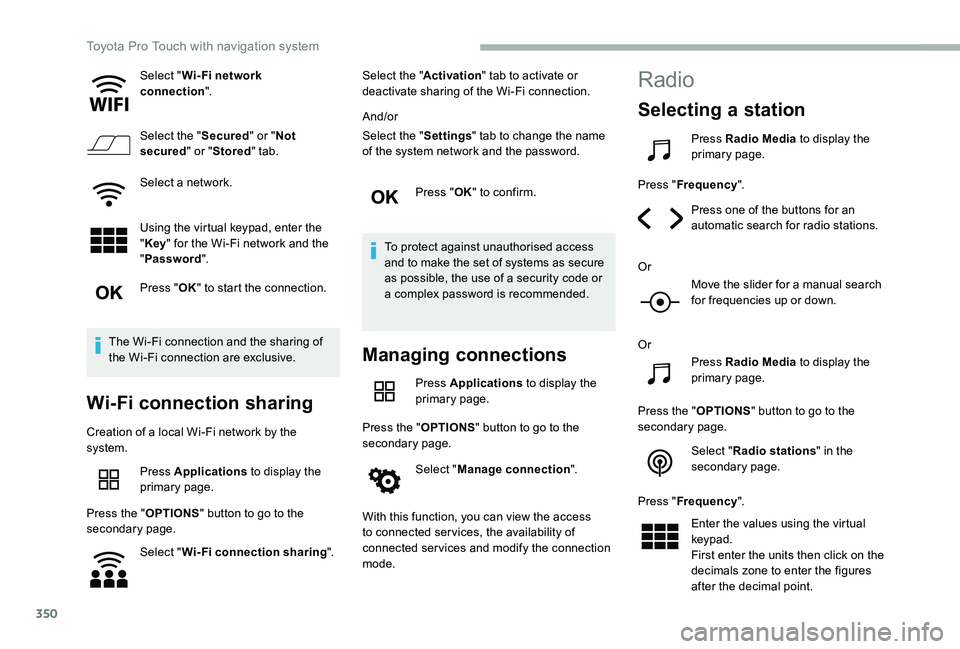
Select "Wi- Fi network connection".
Select the "Secured" or "Not secured" or "Stored" tab.
Select a network.
Using the virtual keypad, enter the "Key" for the Wi-Fi network and the
"Password".
Press "OK" to start the connection.
The Wi-Fi connection and the sharing of the Wi-Fi connection are exclusive.
Wi-Fi connection sharing
Creation of a local Wi-Fi network by the system.
Press Applications to display the primary page.
Press the "OPTIONS" button to go to the secondary page.
Select "Wi-Fi connection sharing".
Select the "Activation" tab to activate or deactivate sharing of the Wi-Fi connection.
And/or
Select the "Settings" tab to change the name of the system network and the password.
Press "OK" to confirm.
To protect against unauthorised access and to make the set of systems as secure as possible, the use of a security code or a complex password is recommended.
Managing connections
Press Applications to display the primary page.
Press the "OPTIONS" button to go to the secondary page.
Select "Manage connection".
With this function, you can view the access to connected ser vices, the availability of connected services and modify the connection mode.
Radio
Selecting a station
Press Radio Media to display the primary page.
Press "Frequency".
Press one of the buttons for an automatic search for radio stations.
Or
Move the slider for a manual search for frequencies up or down.
Or
Press Radio Media to display the primary page.
Press the "OPTIONS" button to go to the secondary page.
Select "Radio stations" in the secondary page.
Press "Frequency".
Enter the values using the virtual keypad.First enter the units then click on the decimals zone to enter the figures after the decimal point.
Toyota Pro Touch with navigation system
Page 351 of 418
351
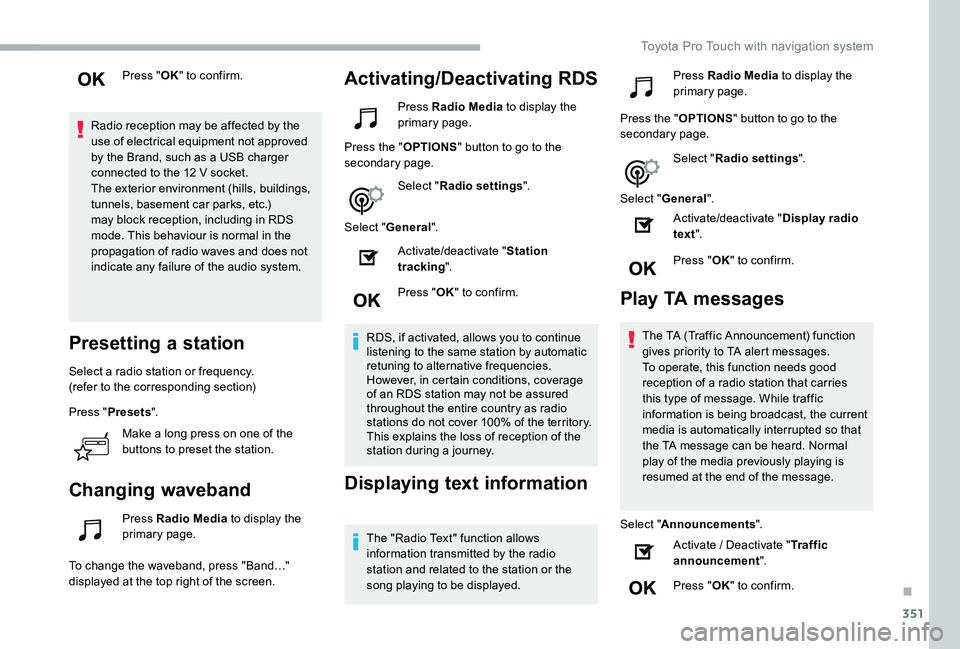
Press "OK" to confirm.
Radio reception may be affected by the use of electrical equipment not approved by the Brand, such as a USB charger connected to the 12 V socket.The exterior environment (hills, buildings, tunnels, basement car parks, etc.) may block reception, including in RDS mode. This behaviour is normal in the propagation of radio waves and does not indicate any failure of the audio system.
Presetting a station
Select a radio station or frequency.(refer to the corresponding section)
Press "Presets".
Make a long press on one of the
buttons to preset the station.
Changing waveband
Press Radio Media to display the primary page.
To change the waveband, press "Band…" displayed at the top right of the screen.
Activating/Deactivating RDS
Press Radio Media to display the primary page.
Press the "OPTIONS" button to go to the secondary page.
Select "Radio settings".
Select "General".
Activate/deactivate "Station tracking".
Press "OK" to confirm.
RDS, if activated, allows you to continue listening to the same station by automatic retuning to alternative frequencies. However, in certain conditions, coverage of an RDS station may not be assured throughout the entire country as radio stations do not cover 100% of the territory. This explains the loss of reception of the station during a journey.
Displaying text information
The "Radio Text" function allows information transmitted by the radio station and related to the station or the song playing to be displayed.
Press Radio Media to display the primary page.
Press the "OPTIONS" button to go to the secondary page.
Select "Radio settings".
Select "General".
Activate/deactivate "Display radio text".
Press "OK" to confirm.
Play TA messages
The TA (Traffic Announcement) function gives priority to TA alert messages. To operate, this function needs good reception of a radio station that carries this type of message. While traffic information is being broadcast, the current media is automatically interrupted so that
the TA message can be heard. Normal play of the media previously playing is resumed at the end of the message.
Select "Announcements".
Activate / Deactivate "Traffic announcement".
Press "OK" to confirm.
.
Toyota Pro Touch with navigation system
Page 353 of 418

353
Auxiliary socket (AUX)
Depending on equipment
This source is only available if "Auxiliary input" has been checked in the audio settings.
Connect a portable device (MP3 player, etc.) to the auxiliary Jack socket using an audio cable (not supplied).
First adjust the volume on the portable device (to a high level). Then adjust the volume of the audio system.Management of the controls is via the portable device.
CD player
Depending on equipment
Insert the CD in the player.
Selecting the source
Press Radio Media to display the primary page.
Select "Source".
Choose the source.
Watching a video
Insert a USB memory stick in the USB socket.
Select "Sources".
Select Video to start the video.
To remove the USB memory stick, press the pause button to stop the video, then remove the memory stick.
Bluetooth® audio streaming
Streaming allows you to listen to music from your smartphone.
The Bluetooth profile must be activated ; first adjust the volume on the portable device (to a high level).Then adjust the volume of the audio system.
If play does not start automatically, it may be necessary to start the audio playback from the telephone.Control is from the portable device or by using the system's touch buttons.
Once connected in streaming mode, the telephone is considered to be a media source.
Connecting Apple® players
Connect the Apple® player to the USB port using a suitable cable (not supplied).Play starts automatically.
Control is via the audio system.
The classifications available are those of the portable device connected (artists/albums/genres/playlists/audio books/podcasts).The default classification used is by artist. To modify the classification used, return to the first level of the menu then select the desired classification (playlists for example) and confirm to go down through the menu to the desired track.
The version of software in the audio system may not be compatible with the generation of
the Apple® player.
Video control commands are accessible only through the touch screen.
Press Radio Media to display the
primary page.
.
Toyota Pro Touch with navigation system
Page 367 of 418
367
To y o t a P r o To u c h
Multimedia audio system -
Applications - Bluetooth®
telephone
The various functions and settings described differ according to the version and configuration of the vehicle.
For safety reasons and because they require continued attention on the part of the driver, the following operations must be carried out with the vehicle stationary and the ignition on:- Using a smartphone.- Pairing a Bluetooth mobile phone to the hands-free Bluetooth system of the car radio.- Smartphone connection operations for CarPlay®, MirrorLinkTM or Android Auto (certain applications interrupt their display when the vehicle starts to move again).- The configuration of profiles.
The system is protected in such a way that it will only operate in the vehicle.The display of the message Energy Economy Mode signals that a change to standby is imminent.
First steps
With the engine running, a press mutes the sound.With the ignition off, a press turns the system on.
Increase or decrease the volume using the wheel or the "plus" or "minus" buttons (depending on the equipment).
Use the buttons on either side of or below the touch screen for access to the menus, then press the virtual buttons in the touch screen.
Depending on the model, use the "Source" or "Menu" buttons on the left of the touch screen for access to the menus, then press the virtual buttons in the touch screen.
At all times it is possible to display the rolling menus by pressing the screen briefly with three fingers.
All of the touch areas of the screen are white.For pages with multiple tabs at the bottom of
the screen, it is possible to switch between pages either by tapping the tab for the desired page, or by using a finger, sliding the pages to the left or to the right.Press in the grey zone to go back up a level or to confirm.
ContentsFirst steps 367Steering mounted controls 368Menus 369Applications 371R adi o 371DAB (Digital Audio Broadcasting) radio 373M e d i a 3 74Telephone 376Frequently asked questions 382
.
Toyota Pro Touch
Page 369 of 418
369
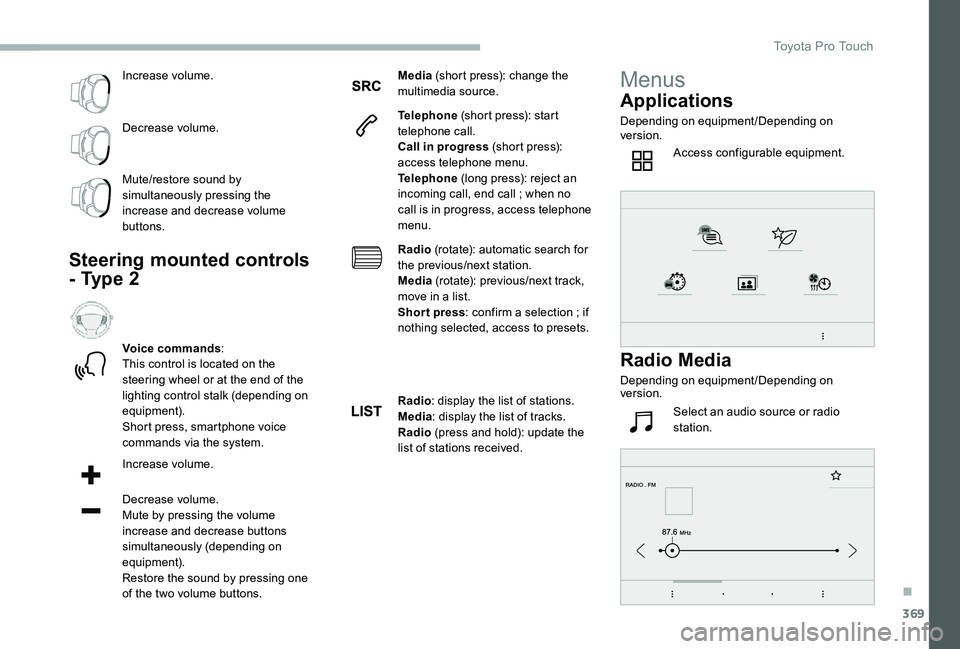
Increase volume.
Decrease volume.
Mute/restore sound by simultaneously pressing the increase and decrease volume buttons.
Steering mounted controls
- Type 2
Voice commands:This control is located on the steering wheel or at the end of the lighting control stalk (depending on equipment).Short press, smartphone voice commands via the system.
Increase volume.
Decrease volume.Mute by pressing the volume increase and decrease buttons
simultaneously (depending on equipment).Restore the sound by pressing one of the two volume buttons.
Media (short press): change the multimedia source.
Telephone (short press): start telephone call.Call in progress (short press): access telephone menu.Telephone (long press): reject an incoming call, end call ; when no call is in progress, access telephone menu.
Radio (rotate): automatic search for the previous/next station.Media (rotate): previous/next track, move in a list.Short press: confirm a selection ; if nothing selected, access to presets.
Radio: display the list of stations.Media: display the list of tracks.Radio (press and hold): update the list of stations received.
Menus
Applications
Depending on equipment/Depending on version.
Access configurable equipment.
Radio Media
Depending on equipment/Depending on version.
Select an audio source or radio station.
.
Toyota Pro Touch
Page 371 of 418
371
Applications
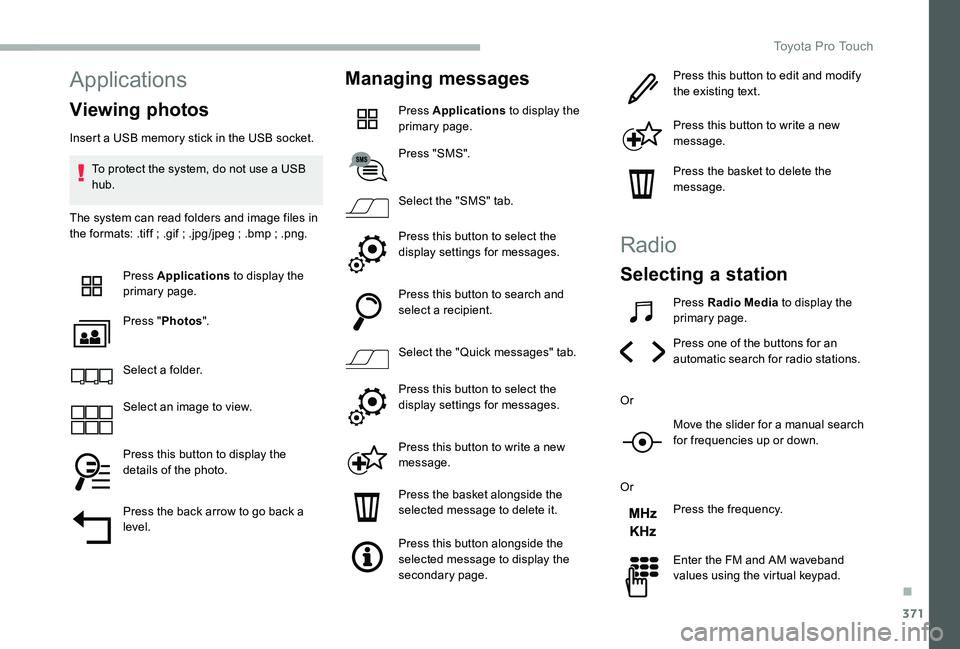
Viewing photos
Insert a USB memory stick in the USB socket.
To protect the system, do not use a USB hub.
The system can read folders and image files in the formats: .tiff ; .gif ; .jpg/jpeg ; .bmp ; .png.
Press Applications to display the primary page.
Press "Photos".
Select a folder.
Select an image to view.
Press this button to display the details of the photo.
Press the back arrow to go back a level.
Managing messages
Press Applications to display the primary page.
Press "SMS".
Select the "SMS" tab.
Press this button to select the display settings for messages.
Press this button to search and select a recipient.
Select the "Quick messages" tab.
Press this button to select the display settings for messages.
Press this button to write a new message.
Press the basket alongside the selected message to delete it.
Press this button alongside the selected message to display the secondary page.
Press this button to edit and modify the existing text.
Press this button to write a new message.
Press the basket to delete the message.
Radio
Selecting a station
Press Radio Media to display the primary page.
Press one of the buttons for an automatic search for radio stations.
Or
Move the slider for a manual search for frequencies up or down.
Or
Press the frequency.
Enter the FM and AM waveband values using the virtual keypad.
.
Toyota Pro Touch
Page 372 of 418

372
Press "OK" to confirm.
Radio reception may be affected by the use of electrical equipment not approved by the Brand, such as a USB charger connected to the 12 V socket.The exterior environment (hills, buildings, tunnels, basement car parks, etc.) may block reception, including in RDS mode. This behaviour is normal in the
propagation of radio waves and does not indicate any failure of the audio system.
Changing waveband
Press Radio Media to display the primary page.
Press the "OPTIONS" button to go to the secondary page.
Press "Band" to change waveband.
Press in the grey area to confirm.
Presetting a station
Select a radio station or frequency.
Make a short press on the star outline. If the star is solid, the radio station is already preset.
Or
Select a radio station or frequency.
Press "Preset".
Make a long press on one of the buttons to preset the station.
Activating/Deactivating RDS
Press Radio Media to display the primary page.
Press the "OPTIONS" button to go to the secondary page.
Activate/deactivate "RDS".
Press in the grey zone to confirm.
RDS, if activated, allows you to continue listening to the same station by automatically retuning to alternative frequencies. However, in certain conditions, coverage of an RDS station may not be assured throughout the entire country as radio stations do not cover 100% of the territory. This explains the loss of reception of the station during a j o u r n ey.
Displaying text information
The "Radio Text" function allows information transmitted by the radio station and related to the station or the song playing to be displayed.
Press Radio Media to display the primary page.
Press the "OPTIONS" button to go to the secondary page.
Activate/deactivate "INFO".
Press in the grey zone to confirm.
Toyota Pro Touch
Page 375 of 418
375
Bluetooth®streaming
Streaming allows you to listen to music from your smartphone.
The Bluetooth profile must be activated, first adjust the volume on the portable device (to a high level).Then adjust the volume of the system.
If play does not start automatically, it may be necessary to start the audio playback from the smartphone.
Control is from the portable device or by using the system's touch buttons.
Once connected in Streaming mode, the smartphone is considered to be a media source.
Connecting Apple® players
Connect the Apple® player to the USB socket using a suitable cable (not supplied).Play starts automatically.
Control is via the audio system.
The classifications available are those of the portable device connected (artists/albums/genres/playlists/audio books/podcasts). It is also possible to use a classification structured in the form of a library.The default classification used is by artist. To modify the classification used, return to the first level of the menu then select the desired classification (playlists for example) and confirm to go down through the menu to the desired track.
The version of software in the audio system may not be compatible with the generation of the Apple® player.To protect the system, do not use a USB hub.
The audio system will only play audio files with ".wav", ".wma", ".aac", ".ogg" and ".mp3" file extensions and with a bit rate of between 32 Kbps and 320 Kbps.It also supports VBR (Variable Bit Rate) mode.No other file types (".mp4", etc.) can be read.Files of the ".wma" type should be to the wma 9 standard.Sampling frequencies supported are 11, 22, 44
and 48 kHz.
Information and advice
The system supports USB mass storage devices, BlackBerry® devices or Apple® players via the USB sockets. The adapter cable is not supplied.Device management is via the audio system controls.Other devices, not recognised on connection, must be connected to the auxiliary socket using a Jack cable (not supplied) or via Bluetooth streaming, depending on compatibility.
.
Toyota Pro Touch