2020 TESLA MODEL 3 map
[x] Cancel search: mapPage 2 of 220
Contents
Overview............................................................. 2
Interior Overview.........................................................................2
Exterior Overview....................................................................... 3
Touchscreen Overview..............................................................4
Opening and Closing..................................... 9
Keys.................................................................................................. 9 Doors.............................................................................................. 15Windows....................................................................................... 18Rear Trunk.................................................................................... 19 Front Trunk...................................................................................21Interior Storage and Electronics.........................................24
Seating and Safety Restraints.................. 28 Front and Rear Seats.............................................................. 28Seat Belts...................................................................................... 31 Child Safety Seats.................................................................... 35Airbags.......................................................................................... 41
Driving.............................................................. 48 Driver Profiles ............................................................................ 48
Steering Wheel..........................................................................50 Mirrors........................................................................................... 52Starting and Powering Off.................................................... 54
Gears............................................................................................. 56 Lights............................................................................................ 58Car Status..................................................................................... 61 Wipers and Washers............................................................... 64Braking and Stopping............................................................. 65Traction Control........................................................................ 69Park Assist.................................................................................. 70Vehicle Hold................................................................................ 72 Track Mode.................................................................................. 73Getting Maximum Range.......................................................74Rear View Camera.................................................................... 75
Dashcam...................................................................................... 76
Pedestrian Warning System................................................. 79 Cold Weather Best Practices............................................... 80
Autopilot.......................................................... 84 About Autopilot........................................................................ 84Traffic-Aware Cruise Control................................................ 87
Autosteer..................................................................................... 93 Autopark.................................................................................... 100 Summon..................................................................................... 102Smart Summon........................................................................ 105Lane Assist................................................................................ 108Collision Avoidance Assist..................................................... 111 Speed Assist.............................................................................. 114
Using the Touchscreen............................... 116 Controls....................................................................................... 116Climate Controls...................................................................... 125 Maps and Navigation.............................................................130Media and Audio..................................................................... 136Phone...........................................................................................139 Calendar...................................................................................... 141Using Voice Commands....................................................... 142 Security Settings..................................................................... 143HomeLink
Page 9 of 220

9.The map displays on the touchscreen at all times (see Maps and Navigation on page 130).
Note: When you touch Controls, choose an app, or expand Media Player, the window displays
on top of the map. To close the Controls window, touch Controls again or touch the X in the
top corner of the window. To close an app, touch the X in the top corner of the window. To
close Media Player, drag it all the way down to the bottom of the touchscreen or touch the icon again.
The Tesla "T"
Touch the Tesla "T" at the top center of the touchscreen to display:
Page 117 of 220
Using the Touchscreen
Controls
Overview
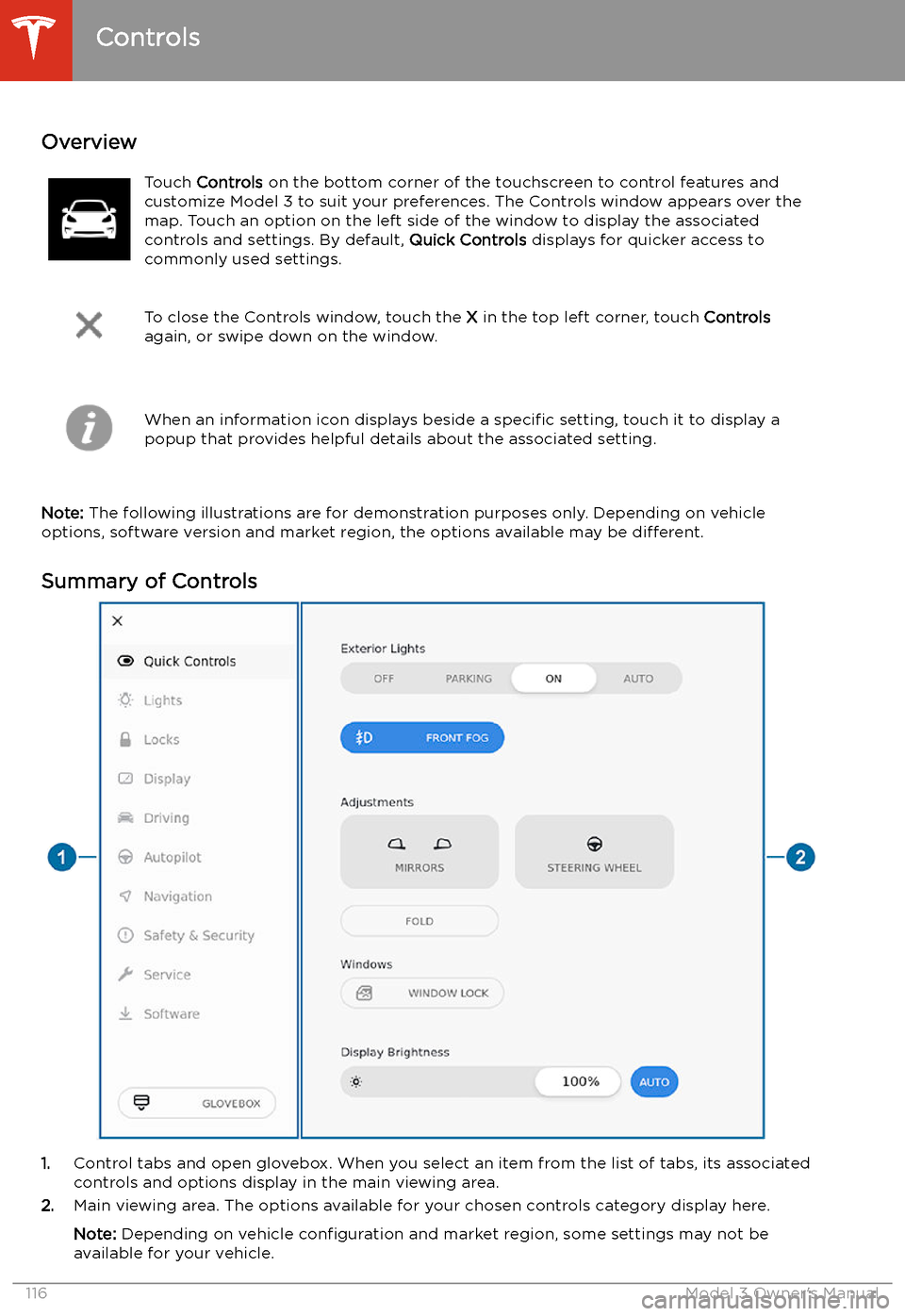
Touch Controls on the bottom corner of the touchscreen to control features and
customize Model 3 to suit your preferences. The Controls window appears over the map. Touch an option on the left side of the window to display the associated
controls and settings. By default, Quick Controls displays for quicker access to
commonly used settings.
To close the Controls window, touch the X in the top left corner, touch Controls
again, or swipe down on the window.When an information icon displays beside a specific setting, touch it to display a
popup that provides helpful details about the associated setting.
Note: The following illustrations are for demonstration purposes only. Depending on vehicle
options, software version and market region, the options available may be different.
Summary of Controls
1. Control tabs and open glovebox. When you select an item from the list of tabs, its associated
controls and options display in the main viewing area.
2. Main viewing area. The options available for your chosen controls category display here.
Note: Depending on vehicle configuration and market region, some settings may not be
available for your vehicle.
Controls
116Model 3 Owner
Page 131 of 220

Maps and Navigation
Overview
The touchscreen displays a map at all times.
To move the map in any direction, hold and
drag a finger. To rotate the map in any
direction, hold and turn two fingers.
To set the map
Page 133 of 220
If Navigate on Autopilot (if available in your
market region) is enabled, you can turn it on
for the navigation route by touching Navigate
on Autopilot in the turn-by-turn direction list.
Navigate on Autopilot is an extension of Autosteer that automatically changes lanesand steers Model 3 onto the appropriate
exit(s) when navigating on controlled access
roads (such as freeways). For details, see
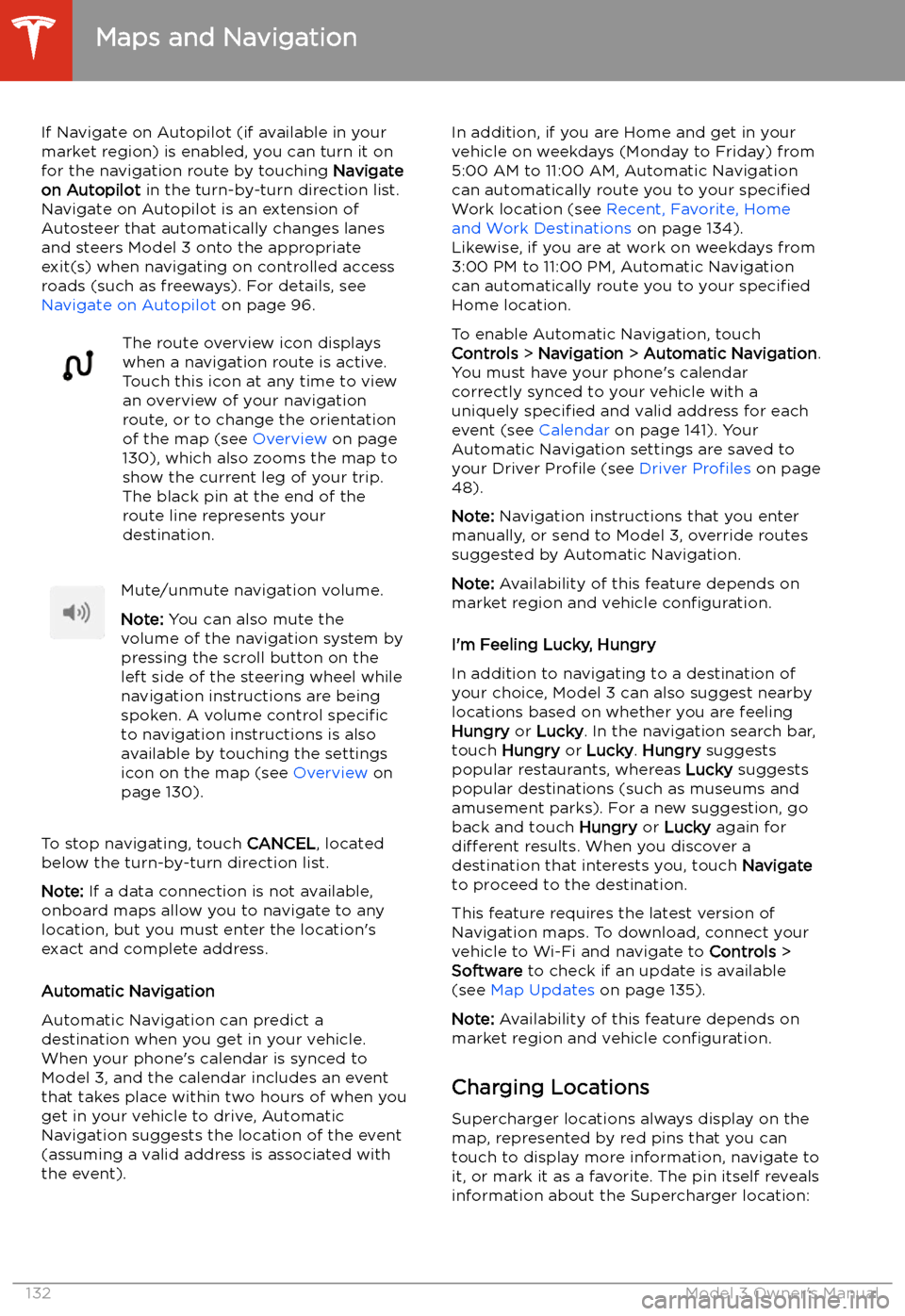
Navigate on Autopilot on page 96.The route overview icon displays
when a navigation route is active.
Touch this icon at any time to view
an overview of your navigation
route, or to change the orientation
of the map (see Overview on page
130), which also zooms the map to
show the current leg of your trip.
The black pin at the end of the
route line represents your
destination.Mute/unmute navigation volume.
Note: You can also mute the
volume of the navigation system by
pressing the scroll button on the
left side of the steering wheel while
navigation instructions are being
spoken. A volume control specific
to navigation instructions is also
available by touching the settings
icon on the map (see Overview on
page 130).
To stop navigating, touch CANCEL, located
below the turn-by-turn direction list.
Note: If a data connection is not available,
onboard maps allow you to navigate to any location, but you must enter the location
Page 134 of 220

The Supercharger location is
operational. At locations with
multiple Superchargers, a row of
bars displays above the icon, with
each bar representing a
Supercharger. If a Supercharger is
in use, the bar is filled in to provide
a quick visual that indicates how
many Superchargers are currently
being used at the location.
Note: A supercharger pin is colored
black if the supercharger is on your
current navigation route.The Supercharger location may be
out of operation or is operating at
a reduced capacity. Touch the pin
to display details.
When you touch the pin for a Supercharger
location, a popup displays information,
including the total number of Superchargers, the number of Superchargers available, the
address of the Supercharger location, and its
approximate distance from your current
location. The popup also displays amenities
that are available at the Supercharger location,
including restrooms, restaurants, lodging, shopping, and Wi-Fi.
Touch the map
Page 135 of 220

Trip PlannerTrip Planner (available in some market
regions) helps you take longer road trips with
confidence. If reaching your destination
requires charging, Trip Planner routes you
through the appropriate Supercharger
locations. Trip Planner selects a route and provides charging times to minimize the
amount of time you spend driving and charging. To enable Trip Planner, touch the
map
Page 136 of 220

For security reasons, if you sell Model 3, it is
recommended that you delete your Home and
Work Locations. You can delete these
individually or you can perform a factory reset to erase all personal data (see Erasing
Personal Data on page 124).
Map Updates
As updated maps become available, they are
automatically sent to Model 3 over Wi-Fi. To
ensure you receive them, periodically connect Model 3 to a Wi-Fi network (see Connecting
to Wi-Fi on page 150). The touchscreen
displays a message informing you when new
maps are installed.
Maps and Navigation
Using the Touchscreen135