2020 RAM CHASSIS CAB phone
[x] Cancel search: phonePage 83 of 516

GETTING TO KNOW YOUR VEHICLE81
Wireless Charging Pad — If Equipped
Wireless Charging Pad
Your vehicle may be equipped with a 15W 3A Qi
wireless charging pad located inside of the
center console just below the CD player (if
equipped). This charging pad is designed to wirelessly charge your Qi enabled mobile
phone. Qi is a standard that uses magnetic
induction to transfer power to your mobile
device.
Your mobile phone must be designed for Qi
wireless charging. If the phone is not equipped
with Qi wireless charging functionality, an after
-
market sleeve or a specialized back plate can
be purchased from your mobile phone provider
or an local electronics retailer. Please see your
phone’s owner’s manual for further informa -
tion.
The wireless charging pad is equipped with an
anti-slip mat, an adjustable cradle to hold your
mobile phone in place and an LED indicator
light.
Overhead Sunglass Storage
At the front of the overhead console, a compart -
ment is provided for the storage of one pair of
sunglasses.
From the closed position, push the door latch to
open the compartment.
Overhead Sunglass Door
The door will slowly rotate to the full open posi -
tion.WARNING!
To avoid serious injury or death:
Do not insert any objects into the recepta -
cles.
Do not touch with wet hands.
Close the lid when not in use.
If this outlet is mishandled, it may cause an
electric shock and failure.
CAUTION!
The key fob should not be placed on the
charging pad or within 15 cm (150 mm) of it.
Doing so can cause excessive heat buildup
and damage to the fob. Placing the fob in
close proximity of the charging pad blocks the
fob from being detected by the vehicle and
prevents the vehicle from starting.
2
2020_RAM_CHASSIS_CAB_OM_USA=GUID-6C67832B-7839-4CCF-BEFC-CDF988F949EA=1=en=.book Page 81
Page 98 of 516

96GETTING TO KNOW YOUR INSTRUMENT PANEL
Phone Call Status
When a call is incoming, a Phone Call Status
pop-up will display on the screen. The pop-up
will remain until the phone is answered or
ignored.
NOTE:
The call status will temporarily replace the
previous media source information displayed
on the screen. When the pop-up is no longer
displayed, the display will return to the last used
screen.
Stored Messages
Push and release the up or down arrow button
until the Messages Menu item is highlighted.
This feature shows the number of stored
warning messages. Push and release the right
or left arrow buttons to cycle through stored
messages.
Screen Setup Menu Item
Push and release the up or down arrow button
until the Screen Setup menu item is highlighted
in the instrument cluster display. Push and
release the right arrow button to enter the
Screen Setup submenu. The Screen Setup feature allows you to change what information
is displayed in the instrument cluster as well as
the location that information is displayed.
Current Gear
Off (Default Setting)
On
Odometer
Unit Without Decimal (Default Setting)
Unit With Decimal
Favorite Menu
Speedometer
Vehicle Info
Driver Assist (Show/Hide) — If Equipped
Fuel Economy (Show/Hide)
Trip Info (Show/Hide)
Trailer Tow (Show/Hide)
Audio (Show/Hide)
Messages
Screen Setup
Vehicle Settings — If Equipped
Commercial Settings — If Equipped
NOTE:
Menus with (Show/Hide) can push the Right
arrow button to choose whether to show or hide
this menu in the instrument cluster display.
Upper Left
None
Compass (Default Setting) — If Equipped
Outside Temp — If Equipped
Time
Range To Empty
Average MPG
Current MPG
Trip A Distance
Trip B Distance
Trailer Trip — If Equipped
Trailer Brake — If Equipped
Oil Pressure — If Equipped
2020_RAM_CHASSIS_CAB_OM_USA=GUID-6C67832B-7839-4CCF-BEFC-CDF988F949EA=1=en=.book Page 96
Page 417 of 516
MULTIMEDIA415
NOTE:
FCA US LLC or your dealer may contact you
directly regarding software updates.
To help further improve vehicle security and
minimize the potential risk of a security
breach, vehicle owners should:
Routinely check www.driveuconnect.com
(US Residents) or www.driveuconnect.ca
(Canadian Residents) to learn about
available Uconnect software updates.
Only connect and use trusted media devices (e.g. personal mobile phones,
USBs, CDs).
Privacy of any wireless and wired communica -
tions cannot be assured. Third parties may
unlawfully intercept information and private
communications without your consent. For
further information, refer to “Data Collection &
Privacy” in your Uconnect Owner’s Manual
Supplement or “Onboard Diagnostic System
(OBD II) Cybersecurity” in “Getting To Know Your
Instrument Panel”.
UCONNECT SETTINGS
The Uconnect system uses a combination of
buttons on the touchscreen and buttons on the
faceplate located on the center of the instru -
ment panel that allows you to access and
change the customer programmable features.
Many features can vary by vehicle.
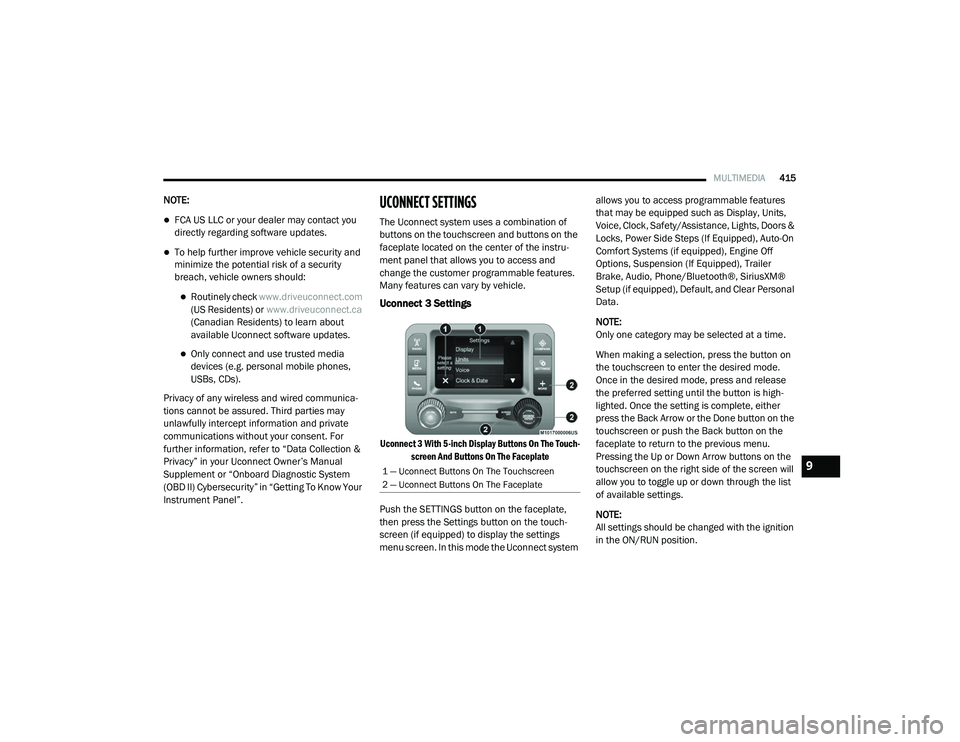
Uconnect 3 Settings
Uconnect 3 With 5-inch Display Buttons On The Touch -
screen And Buttons On The Faceplate
Push the SETTINGS button on the faceplate,
then press the Settings button on the touch -
screen (if equipped) to display the settings
menu screen. In this mode the Uconnect system allows you to access programmable features
that may be equipped such as Display, Units,
Voice, Clock, Safety/Assistance, Lights, Doors &
Locks, Power Side Steps (If Equipped), Auto-On
Comfort Systems (if equipped), Engine Off
Options, Suspension (If Equipped), Trailer
Brake, Audio, Phone/Bluetooth®, SiriusXM®
Setup (if equipped), Default, and Clear Personal
Data.
NOTE:
Only one category may be selected at a time.
When making a selection, press the button on
the touchscreen to enter the desired mode.
Once in the desired mode, press and release
the preferred setting until the button is high
-
lighted. Once the setting is complete, either
press the Back Arrow or the Done button on the
touchscreen or push the Back button on the
faceplate to return to the previous menu.
Pressing the Up or Down Arrow buttons on the
touchscreen on the right side of the screen will
allow you to toggle up or down through the list
of available settings.
NOTE:
All settings should be changed with the ignition
in the ON/RUN position.
1 — Uconnect Buttons On The Touchscreen
2 — Uconnect Buttons On The Faceplate9
2020_RAM_CHASSIS_CAB_OM_USA=GUID-6C67832B-7839-4CCF-BEFC-CDF988F949EA=1=en=.book Page 415
Page 429 of 516
MULTIMEDIA427
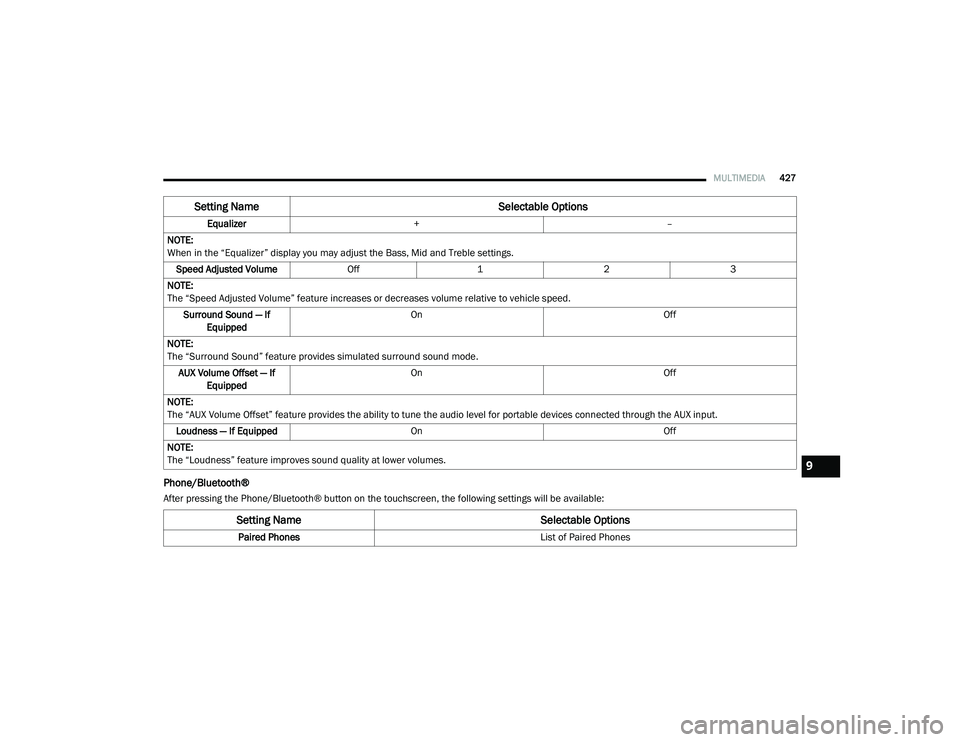
Phone/Bluetooth®
After pressing the Phone/Bluetooth® button on the touchscreen, the following settings will be available:Equalizer
+ –
NOTE:
When in the “Equalizer” display you may adjust the Bass, Mid and Treble settings. Speed Adjusted Volume Off123
NOTE:
The “Speed Adjusted Volume” feature increases or decreases volume relative to vehicle speed. Surround Sound — If Equipped On
Off
NOTE:
The “Surround Sound” feature provides simulated surround sound mode. AUX Volume Offset — If Equipped On
Off
NOTE:
The “AUX Volume Offset” feature provides the ability to tune the audio level for portable devices connected through the AUX input. Loudness — If Equipped On Off
NOTE:
The “Loudness” feature improves sound quality at lower volumes.
Setting Name Selectable Options
Setting NameSelectable Options
Paired Phones List of Paired Phones
9
2020_RAM_CHASSIS_CAB_OM_USA=GUID-6C67832B-7839-4CCF-BEFC-CDF988F949EA=1=en=.book Page 427
Page 430 of 516
428MULTIMEDIA
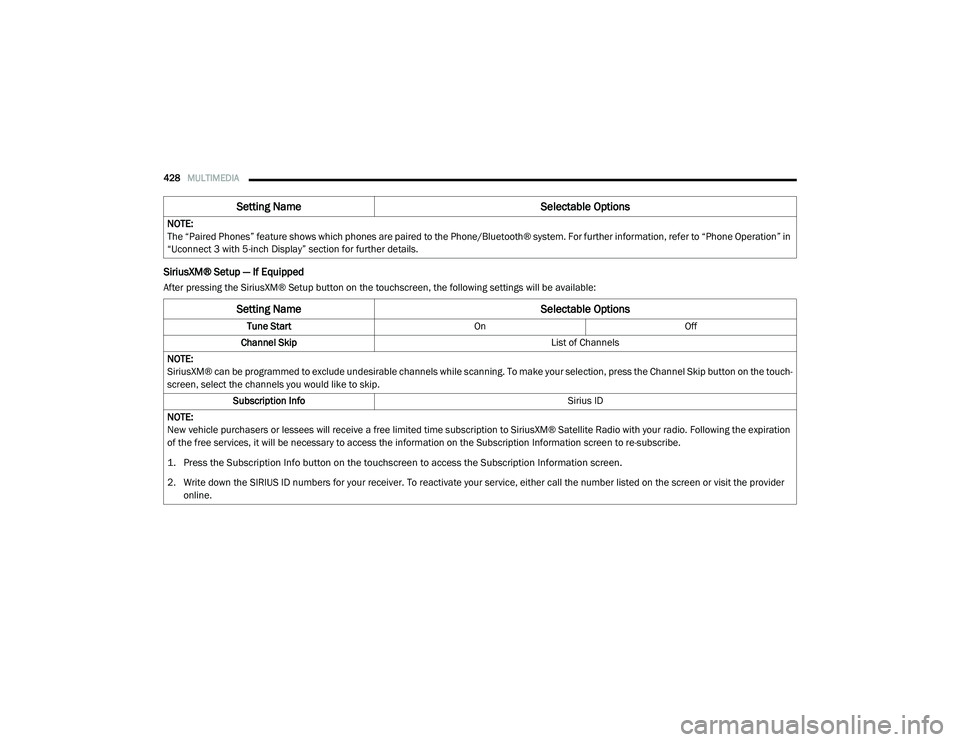
SiriusXM® Setup — If Equipped
After pressing the SiriusXM® Setup button on the touchscreen, the following settings will be available:NOTE:
The “Paired Phones” feature shows which phones are paired to the Phone/Bluetooth® system. For further information, refer to “Phone Operation” in
“Uconnect 3 with 5-inch Display” section for further details.
Setting Name
Selectable Options
Setting NameSelectable Options
Tune StartOnOff
Channel Skip List of Channels
NOTE:
SiriusXM® can be programmed to exclude undesirable channels while scanning. To make your selection, press the Channel Skip button on the touch -
screen, select the channels you would like to skip.
Subscription Info Sirius ID
NOTE:
New vehicle purchasers or lessees will receive a free limited time subscription to SiriusXM® Satellite Radio with your radio. Following the expiration
of the free services, it will be necessary to access the information on the Subscription Information screen to re-subscribe.
1. Press the Subscription Info button on the touchscreen to access the Subscription Information screen.
2. Write down the SIRIUS ID numbers for your receiver. To reactivate your service, either call the number listed on the screen or visit the provider online.
2020_RAM_CHASSIS_CAB_OM_USA=GUID-6C67832B-7839-4CCF-BEFC-CDF988F949EA=1=en=.book Page 428
Page 432 of 516

430MULTIMEDIA
Uconnect 4/4C/4C NAV Settings
Uconnect 4/4C/4C NAV With 8.4-inch Display Buttons
On The Touchscreen And Buttons On The Faceplate
Press the Apps button on the touchscreen then
press the Settings button on the touchscreen to
display the settings menu screen. In this mode
the Uconnect system allows you to access
programmable features that may be equipped
such as Language, Display, Units, Voice, Clock,
Camera, Safety & Driving Assistance, Mirrors &
Wipers, Lights, Doors & Locks, Power Side
Steps (if equipped), Seats & Comfort (if
equipped), Key Off Options, Air Suspension (if
equipped), Trailer, Audio, Phone/Bluetooth®
Settings, SiriusXM® Setup (if equipped), Reset,
Clear Personal Data, and System Information (if
equipped).
Press the Apps button on the touchscreen then
press the Settings button on the touchscreen to
display the settings menu screen. In this mode
the Uconnect system allows you to access
programmable features that may be equipped
such as Language, Display, Units, Voice, Clock,
Camera, Safety & Driving Assistance, Mirrors &
Wipers, Lights, Doors & Locks, Power Side
Steps (if equipped), Seats & Comfort (if
equipped), Key Off Options, Air Suspension (if
equipped), Trailer, Audio, Phone/Bluetooth®
Settings, Reset, Clear Personal Data, and
System Information (if equipped). NOTE:
Only one category may be selected at a time.
When making a selection, press the button on
the touchscreen to enter the desired mode.
Once in the desired mode, press and release
the preferred setting until a check-mark
appears next to the setting, showing that setting
has been selected. Once the setting is
complete, press the Back Arrow button on the
touchscreen to return to the previous menu or
press the X button on the touchscreen to close
out of the settings screen. Pressing the Up or
Down Arrow buttons on the touchscreen on the
right side of the screen will allow you to toggle
up or down through the list of available settings.
NOTE:
All settings should be changed with the ignition
in the ON/RUN position.
1 — Uconnect Buttons On The Touchscreen
2 — Uconnect Buttons On The Faceplate
2020_RAM_CHASSIS_CAB_OM_USA=GUID-6C67832B-7839-4CCF-BEFC-CDF988F949EA=1=en=.book Page 430
Page 434 of 516

432MULTIMEDIA
Units
After pressing the Units button on the touchscreen, you may select each unit of measure independently displayed in the instrument cluster display, and
navigation system (if equipped). The following selectable units of measure are listed below: Set Theme
Selectable Options
Touchscreen Beep OnOff
Controls Screen Timeout — If Equipped OnOff
Fuel Saver Display in Cluster — If Equipped OnOff
NOTE:
When selected, the system displays fuel saver mode in the instrument cluster. Navigation Next Turn-by-Turn Displayed — If Equipped On
Off
Phone Pop-ups Displayed in Cluster — If Equipped On
Off
Setting Name Selectable Options
Setting NameSelectable Options
UnitsUSMetric Custom
NOTE:
When the “Custom” setting is selected, units will appear according to your personally configured settings. To configure these settings, press the
Custom bar. The following settings will appear: Speed MPH km/h
Distance mi km
Fuel Consumption MPG (US)MPG (UK)L/100 km km/L
Pressure psikPa bar
2020_RAM_CHASSIS_CAB_OM_USA=GUID-6C67832B-7839-4CCF-BEFC-CDF988F949EA=1=en=.book Page 432
Page 443 of 516

MULTIMEDIA441
Key Off Options
After pressing the Key Off Options button on the touchscreen, the following settings will be available:
Setting Name Selectable Options
Key Off Power Delay–+
NOTE:
When the “Key Off Power Delay” feature is selected, the power window switches, radio, Uconnect phone system (if equipped), power sunroof (if
equipped), and power outlets will remain active for up to 10 minutes after the ignition is cycled to OFF. Opening either front door will cancel this
feature. Headlight Off Delay –+
NOTE:
When the “Headlight Off Delay” feature is selected, the driver can choose to have the headlights remain on for 0, 30, 60, or 90 seconds when exiting
the vehicle. Auto Entry/Exit — If Equipped OnOff
Easy Exit Seat — If Equipped OnOff
NOTE:
When the “Easy Exit Seat” feature is selected, the Driver’s seat will automatically move rearward once the engine is shut off.
9
2020_RAM_CHASSIS_CAB_OM_USA=GUID-6C67832B-7839-4CCF-BEFC-CDF988F949EA=1=en=.book Page 441