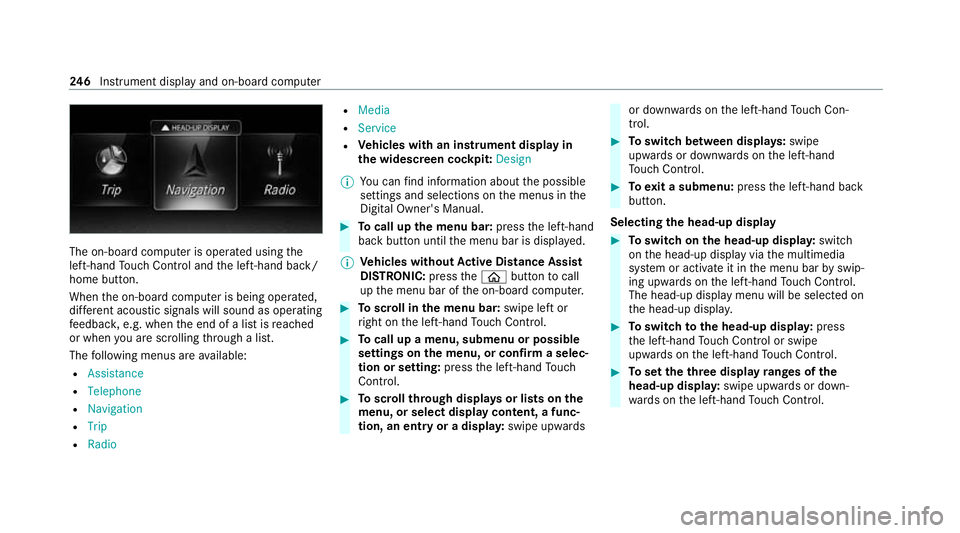
The on-board computer is operated using
the
left-hand Touch Control and the left-hand back/
home button.
When the on-board computer is being operated,
dif fere nt acoustic signals will sound as operating
fe edbac k,e.g. when the end of a list is reached
or when you are sc rolling thro ugh a list.
The following menus are available:
R Assistance
R Telephone
R Navigation
R Trip
R Radio R
Media
R Service
R Vehicles with an instrument display in
th e widescreen cockpit: Design
% You can find information about the possible
settings and selections on the menus in the
Digital Owner's Manual. #
Tocall up the menu bar: pressthe left-hand
back button until the menu bar is displa yed.
% Ve
hicles without Active Di stance Assist
DISTRO NIC:press theò button tocall
up the menu bar of the on-board computer. #
Toscroll in the menu bar: swipe left or
ri ght on the left-hand Touch Control. #
Tocall up a menu, submenu or possible
settings on the menu, or confirm a selec‐
tion or setting: pressthe left-hand Touch
Control. #
Toscroll through displa ysor lists on the
menu, or select display content, a func‐
tion, an entry or a displa y:swipe upwards or down
wards on the left-hand Touch Con‐
trol. #
Toswitch between displa ys:swipe
upwards or down wards on the left-hand
To uch Control. #
Toexit a submenu: pressthe left-hand back
button.
Selecting the head-up display #
Toswitch on the head-up displa y:switch
on the head-up display via the multimedia
sy stem or activate it in the menu bar byswip‐
ing upwards on the left-hand Touch Control.
The head-up displ aymenu will be selected on
th e head-up displa y. #
Toswitch tothe head-up displa y:press
th e left-hand Touch Control or swipe
upwards on the left-hand Touch Control. #
Toset theth ree display ranges of the
head-up displa y:swipe upwards or down‐
wa rds on the left-hand Touch Control. 246
Instrument display and on-board computer
&
WARNING Risk of becoming trapped
du ring adjustment of the driver's seat
af te r calling up a driver profile
Selecting a user profile may trigger an
adju stment of the driver's seat tothe posi‐
tion sa ved under the user profile. You or
ot her vehicle occupants could be injured in
th e process. #
Make sure that when the position of
driver's seat is being adjus ted using the
multimedia sy stem, no people or body
parts are in the seat's range of mo ve‐
ment.
If th ere is a risk of someone becoming trap‐
ped, stop the adjustment process immedi‐
ately: #
a)Tapth ewa rning message on the
media displa y.
or #
b) Press a memory position button or a
seat adjustment switch on the driver's
door.
The adjustment process will be stop‐
ped. The driver's seat is equipped with an access pre‐
ve nter.
If th e driver's door is open, the driver's seat will
not be set af ter calling up the driver's profile.
Profiles store your vehicle settings and settings
fo rth e multimedia sy stem. If theve hicle is used
by several drivers, the driver can select their
ow n profile wi thout changing thestored profile
settings of other drivers.
% Information on profiles from Mercedes me
connect can be found in the Digital Opera‐
to r's Manual.
Ve hicle settings are, forex ample, driver's seat,
st eering wheel and mir ror settings, clima tecon‐
trol and ambient lighting. Forth e settings of the
multimedia sy stem, you can select, forex ample,
ra dio stations, pr evious destinations as well as
th emes, suggestions and favo urites. Fo
rre cur ring driving situations, su chas long
drives on the mo torw ay,yo u can sa veyour pre‐
fe rred settings in a theme in theve hicle. In a
th eme you can sa vethe display of the digital
map, your prefer redra dio station and prefer red
drive prog ram, forex ample.
The vehicle can learn the habits of the driver. It
th en of fers suggestions forth e most probable
navigation destinations, media sources, radio
st ations or con tacts. The pre-requirements for
th at are the selection of a profile, your consent
to there cording of da taand suf ficient collected
da ta.
Fa vourites pr ovide quick access toapplications
th at are used of ten. You can select favo urites
from categories or add them directly toan appli‐
cation. MBUX multimedia sy
stem 257
Symbol
DesignationFunction
6/8 Play/PauseSelecttostart, stop or continue playbac k.
5 Brows eS electtochoose a category and then a radio
st ation. Depending on
the frequency band selected, dif‐
fe re nt functions are available to you.
Select the desired frequency band in thera dio
menu head runner. Calling up
TuneIn Radio Re
quirements:
R A Mercedes me account is available.
R The vehicle is connected with the Mercedes
me account.
R The TuneIn Radio service is activated in the
Mercedes me Portal.
R The data volume is available.
Depending on the count ry, data volume may
need tobe pur chased. R
Afast Internet connection for data transmis‐
sion free of inter fere nce.
% Data volume can be pur chased directly
from a mobile phone network pr ovider via
th e Mercedes me Portal.
% The functions and services are countr y-
dependent. For more information, consult a
Mercedes-Benz service centre.
Multimedia sy stem:
4 © 5
Radio #
Select TuneIn Radio.
The TuneIn menu appears. The la st station
set starts playing.
% The connection quality depends on the local
mobile phone reception. Sound settings
Overview of functions in the sound menu
The setting options and functions
available
depend on the sound sy stem fitted. You can find
out which sound sy stem is fitted in your vehicle
in the Digital Owner's Manual.
St andard sound sy stem and Advanced sound
sy stem
The following functions are available:
R Equaliser
- Treble, mid-range and bass
R Balance and fader
R Volume
- Automatic adju stment 290
MBUX multimedia sy stem