2020 LINCOLN CORSAIR lock
[x] Cancel search: lockPage 154 of 591
Maintaining Your Head Up Display
•
Do not place objects onto the transparent
cover, as they may block you from seeing
portions of the image. These objects
could also damage the cover and affect
the quality of the projected image.
• The system uses a special windshield
designed to provide the optimum image
quality. You must replace the windshield
in a vehicle with this system with a
certified original equipment
manufactured (OEM) head up display
windshield. Replacing this system's
windshield with a non-head up display
windshield causes a double image or
distorted image. Have an authorized
dealer or authorized repair facility replace
the windshield.
• Light conditions such as oncoming
headlamps, sunrise, sunset or reflections
off road surfaces can affect the driver's
ability to see the head up display image.
• Clean the windshield often for optimal
head up display performance. See
Cleaning the Windows and Wiper
Blades
(page 349).
151
Corsair (CTF) Canada/United States of America, enUSA, Edition date: 201906, Second-Printing Information Displays
Page 162 of 591
HEAD RESTRAINTS
WARNING: Fully adjust the head
restraint before you sit in or operate your
vehicle. This will help minimize the risk of
neck injury in the event of a crash. Do not
adjust the head restraint when your vehicle
is moving. WARNING:
The head restraint is a
safety device. Whenever possible it should
be installed and properly adjusted when
the seat is occupied. Failure to adjust the
head restraint properly could reduce its
effectiveness during certain impacts. WARNING: Adjust the head restraints
for all passengers before you drive your
vehicle. This will help minimize the risk of
neck injury in the event of a crash. Do not
adjust the head restraints when your
vehicle is moving. Note:
Adjust the seat backrest to an upright
driving position before adjusting the head
restraint. Adjust the head restraint so that
the top of it is level with the top of your head
and as far forward as possible. Make sure
that you remain comfortable. If you are
extremely tall, adjust the head restraint to
its highest position.
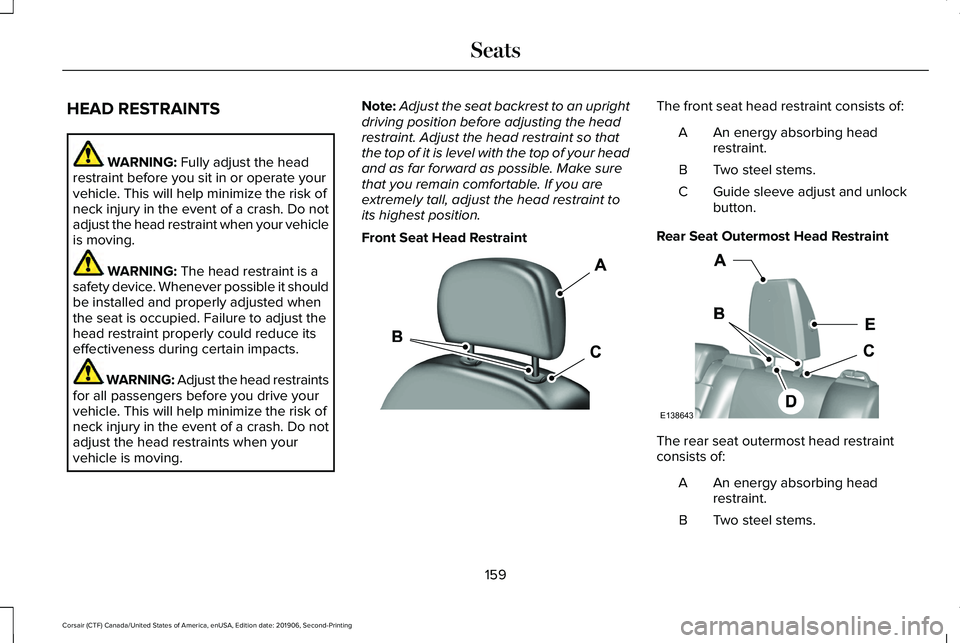
Front Seat Head Restraint The front seat head restraint consists of:
An energy absorbing head
restraint.
A
Two steel stems.
B
Guide sleeve adjust and unlock
button.
C
Rear Seat Outermost Head Restraint The rear seat outermost head restraint
consists of:
An energy absorbing head
restraint.
A
Two steel stems.
B
159
Corsair (CTF) Canada/United States of America, enUSA, Edition date: 201906, Second-Printing SeatsE308781 E138643
Page 163 of 591
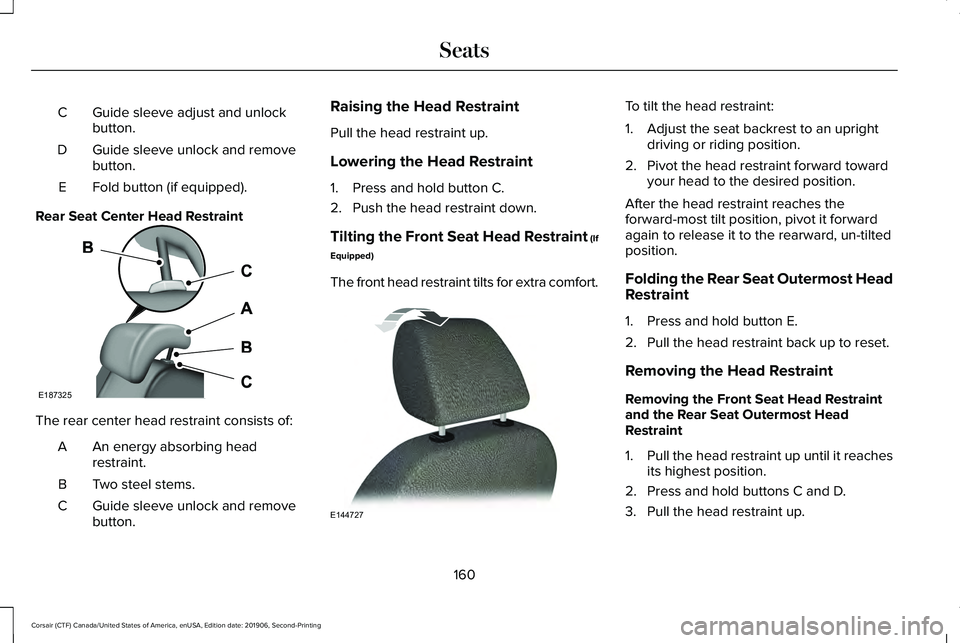
Guide sleeve adjust and unlock
button.
C
Guide sleeve unlock and remove
button.
D
Fold button (if equipped).
E
Rear Seat Center Head Restraint The rear center head restraint consists of:
An energy absorbing head
restraint.
A
Two steel stems.
B
Guide sleeve unlock and remove
button.
C Raising the Head Restraint
Pull the head restraint up.
Lowering the Head Restraint
1. Press and hold button C.
2. Push the head restraint down.
Tilting the Front Seat Head Restraint (If
Equipped)
The front head restraint tilts for extra comfort. To tilt the head restraint:
1. Adjust the seat backrest to an upright
driving or riding position.
2. Pivot the head restraint forward toward your head to the desired position.
After the head restraint reaches the
forward-most tilt position, pivot it forward
again to release it to the rearward, un-tilted
position.
Folding the Rear Seat Outermost Head
Restraint
1. Press and hold button E.
2. Pull the head restraint back up to reset.
Removing the Head Restraint
Removing the Front Seat Head Restraint
and the Rear Seat Outermost Head
Restraint
1. Pull the head restraint up until it reaches
its highest position.
2. Press and hold buttons C and D.
3. Pull the head restraint up.
160
Corsair (CTF) Canada/United States of America, enUSA, Edition date: 201906, Second-Printing SeatsE187325 E144727
Page 164 of 591
Removing the Rear Seat Center Head
Restraint
1.
Pull the head restraint up until it reaches
its highest position.
2. Press and hold buttons C.
3. Pull the head restraint up.
Installing the Head Restraint
Align the steel stems into the guide sleeves
and push the head restraint down until it
locks. POWER SEATS WARNING: Do not adjust the driver
seat or seat backrest when your vehicle is
moving. This may result in sudden seat
movement, causing the loss of control of
your vehicle. WARNING:
Do not place cargo or
any objects behind the seat backrest
before returning it to the original position.
Pull on the seat backrest to make sure that
it has fully latched after returning the seat
backrest to its original position. An
unlatched seat may become dangerous if
you stop suddenly or have a crash.
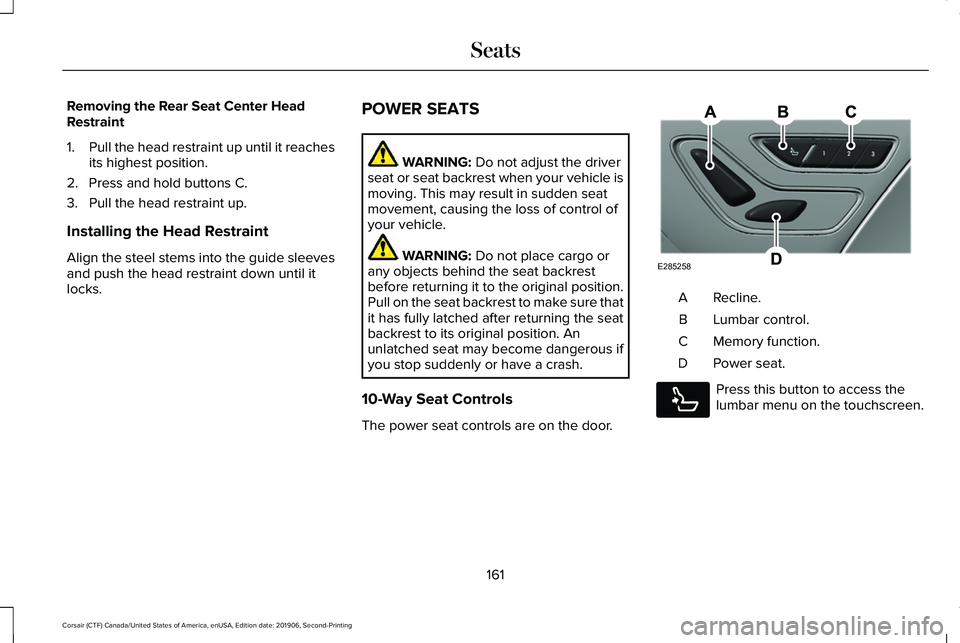
10-Way Seat Controls
The power seat controls are on the door. Recline.
A
Lumbar control.
B
Memory function.
C
Power seat.
D Press this button to access the
lumbar menu on the touchscreen.
161
Corsair (CTF) Canada/United States of America, enUSA, Edition date: 201906, Second-Printing SeatsE285258 E285278
Page 169 of 591

Recalling a PreSet Position
Press and release the preset button
associated with your preferred driving
position. The memory features move to the
position stored for that preset.
Note:
You can only recall a preset memory
position when the ignition is off, or when the
transmission is in park (P) or neutral (N) and
the ignition is on.
Note: Press any seat or mirror adjustment
switch, or any memory button during a
memory recall, to cancel the operation.
You can also recall a preset memory position
by:
• Pressing the unlock button on your
remote control if you linked it to a preset
position.
• Unlocking the driver door if a linked
remote control is present.
Note: Using a linked remote control to recall
your memory position when the ignition is
off moves the seat and steering column to
the Easy Entry position. Linking a PreSet Position to Your
Remote Control
For information on linking a preset position
to your remote control, see the Personal
Profiles section.
Easy Entry and Exit Feature
If you enable the easy entry and exit feature,
it moves the driver seat position rearward up
to 2 in (5 cm) when you switch the ignition
off. The driver seat returns to the previous
position when you switch the ignition on.
You can enable or disable this feature
through the information display.
See
Information Displays (page 123). Personal Profiles
This feature allows you to create multiple
personal profiles enabling users to
personalize vehicle
’s settings. You can
create one profile for each preset memory
seat button along with a guest profile. You
can recall a profile using the touchscreen or
the preset button you selected when you
created your profile. You can also link a
remote control and a mobile device to your
profile, which are used to recall it.
Creating a Personal Profile
Use the touchscreen to create a personal
profile.
1. Switch the ignition on and leave the vehicle in park (P).
2. Select the Personal Profiles button under
Settings.
3. Follow the instructions on the display.
166
Corsair (CTF) Canada/United States of America, enUSA, Edition date: 201906, Second-Printing Seats
Page 170 of 591
Linking a Personal Profile to Your Remote
Control or Mobile Device
You can save preset memory positions for
up to three remote controls by assigning a
remote control to a personal profile using
the touchscreen. You can assign three
additional remote controls set up as Phone
as a Key.
Use the touchscreen to link a remote control,
mobile device or both to a personal profile.
1. Switch the ignition on and leave the
vehicle in park (P).
2. Select the Personal Profiles button under
Settings.
3. Touch the arrow for the profile you wish to link to a remote control or mobile
device.
4. Select remote control, mobile device, or
both.
5. Follow the instructions on the display.
Note: To successfully link a mobile device,
the mobile device must be in your vehicle,
and must have previously been setup as a
remote control for your vehicle. Note:
If more than one linked remote control
is in range, the memory function moves to
the settings of the first key to initiate a
memory recall.
Note: The guest profile consists of existing
settings when there is no driver profile
created. After you create a driver profile, the
guest profile serves as an additional driver
profile.
Note: You cannot link a personalized name,
a memory seat button or a remote control
to a guest profile.
Personal Settings
Personal Profiles allow you to personalize
positional settings such as seats and mirrors,
as well as non-positional settings such as
radio, navigation, driver assist and system
settings. See SYNC™ 3 (page 430). You
cannot change the menu locations and
settings of those personalized features with
Personal Profiles.
Note: Non-positional settings save to the
active driver profile whenever you change
a setting. Note:
You can save positional settings if you
press and hold a memory seat button.
Recalling and Changing a Profile
You can recall a profile by:
• Using a remote control or mobile device
linked to a driver profile to access the
remote start feature, press an unlock
button or open the door with the exterior
door handle.
• Pressing a memory seat button linked to
a driver profile.
• Using the Personal Profiles menu on the
touchscreen.
Note: The recalled profile replaces the
previously active profile. If the active profile
is not your preferred profile, you can change
it using any of the three methods listed.
167
Corsair (CTF) Canada/United States of America, enUSA, Edition date: 201906, Second-Printing Seats
Page 171 of 591
When you switch on the Personal Profiles
feature:
•
Unlocking a door with a remote control
or mobile device that is not linked to a
driver profile recalls non-positional
settings from the guest profile. It does
not change the positional settings.
• Pressing a memory seat button that is
not linked to a driver profile or saved to
a preset setting recalls non-positional
settings from the guest profile. It does
not change the positional settings.
• Pressing a memory seat button that is
not linked to a driver profile but is saved
to a preset setting recalls non-positional
settings from the guest profile. It recalls
the positional settings that you saved to
that memory seat button.
See SYNC™ 3 (page 430). When you switch off a Personal Profiles
feature:
•
Unlocking a door with a remote control
or mobile device recalls non-positional
settings from the guest profile and still
recalls positional settings from the driver
profile which the remote control or
mobile device is linked to.
• Pressing a memory seat button that is
not linked to a driver profile or saved to
a preset setting recalls non-positional
settings from the guest profile. It does
not change the positional settings.
• Pressing a memory seat button that is
linked to a driver profile or has saved to
a preset setting recalls non-positional
settings from the guest profile. It recalls
the positional settings that you saved to
that memory seat button. REAR SEATS
Moving the Seats Backward and
Forward WARNING:
Make sure the seat fully
locks into place by rocking it backward and
forward.
168
Corsair (CTF) Canada/United States of America, enUSA, Edition date: 201906, Second-Printing Seats
Page 175 of 591

WARNING: Do not poke sharp
objects into the seat cushion or seat
backrest. This could damage the heated
seat element and cause it to overheat.
Failure to follow this instruction could result
in personal injury. WARNING:
Do not place anything on
the seat that blocks the heat, for example
a seat cover or a cushion. This could cause
the seat to overheat. Failure to follow this
instruction could result in personal injury.
Note: The heated seats switch on during a
remote start if they are enabled.
See
Remote Start (page 156).
Note: The heated seats may also switch on
when you start your vehicle if they were on
when you previously switched your vehicle
off.
Note: Do not do the following:
• Place heavy objects on the seat.
• Operate the seat heater if water or any
other liquid spills on the seat. Allow the
seat to dry thoroughly. Press this symbol to cycle through the
various heat settings and off. More indicator
lights indicate warmer settings.
Automatic Climate Controlled Seats
(If
Equipped)
When you switch the auto setting on, the
climate controlled seats switch between the
heated seats and ventilated seats to match
your climate control setting.
Ventilated Seats
Note: The ventilated seats switch on during
a remote start if they are enabled.
See
Remote Start (page 156). Note:
The ventilated seats may also switch
on when you start your vehicle if they were
on when you previously switched your
vehicle off.
Note: Do not do the following:
• Spill liquid on the front seats. This may
cause the air vent holes to become
blocked and not work properly.
• Place cargo or objects under the seats.
They may block the air intake causing
the air vents to not work properly.
The ventilated seats only function when the
engine is running. Press this symbol to cycle through the
various ventilation settings and off. More
indicator lights indicate higher fan speeds.
If the engine falls below 350 RPM while the
ventilated seats are on, the feature turns
itself off. You need to reactivate it.
172
Corsair (CTF) Canada/United States of America, enUSA, Edition date: 201906, Second-Printing SeatsE146322 E224689