2020 KIA NIRO PHEV driver
[x] Cancel search: driverPage 9 of 235
7
\335Warning
\225Driving while distracted can result in a loss of vehicle control
that may lead to an accident, severe bodily injury, or death.
The driver's primary responsibility is the safe and legal
operation of the vehicle, and the use of any vehicle systems,
including the touch screen and steering wheel controls, which
take the driver's eyes, attention, and focus away from the safe
operation of the vehicle, or which are not permissible by law,
should never be used during the operation of the vehicle.
\225Some functions may not be active while driving to ensure
safety. Those functions run only when the vehicle is stationary.
In order to use them, first stop the vehicle.
\225When the screen is not displayed, the volume is muted, or
other system failures occur, immediately stop using the
system. When you use the faulty system continuously, it may
cause fire, electric shock, or fatal system failure.
\334Caution
\225The system can be turned on even when the ignition switch is
in “ACC” or “ON.” However, when you use the system without
turning on the vehicle for a long time, it may cause battery
discharge. To use the system for a long time, be sure to turn
on the vehicle.
\225When you use the system with the vehicle turned off, the
battery warning message appears. The warning message
disappears as soon as you turn on the vehicle.
Turning the system on or off
Turning on the system
1 Turn on the vehicle.
2 When a safety warning message appears, read it
and touch Confirm.
0000
A
To change the display language, touch Language.
Turning off the system
To turn off the system while driving, press and hold
the Power button on the panel.
The screen and sound will be turned off.
0000
A
To use the system again, press the Power button.
0000
A
When a specified period of time elapses after turning off the
vehicle, the system automatically shuts down. When you open
the driver's door, the system immediately shuts down.
Page 11 of 235
9
services or their use in the vehicle. Travel Link Stocks displays
current price and daily delta of around 7,000 actively reported
securities traded on the NYSE
®, NASDAQ® and AMEX®. The
service is delayed approximately 20 minutes. SiriusXM satellite
service is available only to those at least 18 years of age in
the 48 contiguous USA, DC, and Puerto Rico (with coverage
limitations). SiriusXM Internet Radio service is available
throughout our satellite service area and in AK and HI. ©2018
SiriusXM Radio Inc.
000E Android Auto: Vehicle user interface is a product of Google
and its terms and privacy statements apply. Requires the
Android Auto app on Google Play and an Android compatible
smartphone running Android™ 5.0 Lollipop or higher. Data
plan rates apply.
000ENavigation: Distracted driving can result in a loss of vehicle
control. When operating a vehicle, never use a vehicle system
that takes your focus away from safe vehicle operation.
Navigation is for information purposes only, and Kia does not
make any warranties about the accuracy of the information.
Disclaimers
000EDriving while distracted is dangerous and should be avoided.
Drivers should remain attentive to driving and always exercise
caution when using the steering-wheelmounted controls
while driving.
000EDriving while distracted can result in a loss of vehicle control
that may lead to an accident, severe personal injury and
death. The driver’s primary responsibility is in the safe and
legal operation of a vehicle, and use of any handheld devices,
other equipment or vehicle systems which take the driver’s
eyes, attention and focus away from the safe operation of
a vehicle or that are not permissible by law should never be
used during operation of the vehicle.
000ESiriusXM®: SiriusXM Satellite Radio, SiriusXM Traffic and
SiriusXM Travel Link each require a subscription sold
separately, or as a package, by SiriusXM Radio Inc. If you
decide to continue your service at the end of your trial
subscription, the plan you choose will automatically renew
and bill at then-current rates until you call 1-866-635-2349
to cancel. See SiriusXM Customer Agreement for complete
terms at www.siriusxm.com. Other fees and taxes will apply.
All fees and programming are subject to change. Not all
vehicles or devices are capable of receiving all services offered
by SiriusXM. Data displays and individual product availability
vary by vehicle hardware. Current information and features
may not be available in all locations, or on all receivers.
Weather Forecast, Current Conditions may not be available in
all locations. Images above are for representative purposes
only and are not real products. For actual features and images
of real products, consult the vehicle manufacturer. SiriusXM
is not responsible for any errors or inaccuracies in the data
Page 18 of 235
6
Contents
01 System overview
Component names and functions 1-2
Control panel 1-2
Steering wheel remote control 1-3
Turning the system on or off 1-4
Turning on the system 1-4
Turning off the system 1-5
Using the touch screen 1-6
“Touch” gesture 1-7
“Touch and hold” gesture 1-7
“Slide” gesture 1-8
“Drag” gesture 1-8
“Swipe” gesture 1-9
“Spread/pinch” gesture 1-9
Using the Home screen 1-10
Home screen 1-10
Editing widgets on the Home screen 1-11
Editing icons on the Home screen 1-11
Seeing the all menus screen 1-12
Using the split screen 1-12
Opening the split screen 1-12
Editing the split screen 1-13
Closing the split screen 1-13
02 Useful functions
Using the phone projection function 2-2
Pairing to an Android smartphone via Android Auto 2-2
Pairing to an iPhone via Apple CarPlay 2-4
Using the driving assist display 2-6
Using the rear-view display 2-7
Surround View Monitor 2-9
Using the climate control system 2-11
Using the rear-seat climate control system 2-12
Using the Driver Talk mode in the rear seat 2-13
Using the Quiet mode in the rear seat 2-14
Using the sound mood lamp 2-14
Playing Sounds of Nature 2-15
Page 29 of 235
1-5
\335Warning
000EDriving while distracted can result in a loss of vehicle control
that may lead to an accident, severe bodily injury, or death.
The driver's primary responsibility is the safe and legal
operation of the vehicle, and the use of any vehicle systems,
including the touch screen and steering wheel controls, which
take the driver's eyes, attention, and focus away from the safe
operation of the vehicle, or which are not permissible by law,
should never be used during the operation of the vehicle.
000ESome functions may not be active while driving to ensure
safety. Those functions run only when the vehicle is stationary.
In order to use them, first stop the vehicle.
000EWhen the screen is not displayed, the volume is muted, or
other system failures occur, immediately stop using the
system. When you use the faulty system continuously, it may
cause fire, electric shock, or fatal system failure.
Turning off the system
To turn off the system while driving, press and hold
the Power button on the panel.
The screen and sound will be turned off.
0000
A
To use the system again, press the Power button.
0000
A
When a specified period of time elapses after turning off the
vehicle, the system automatically shuts down. When you open
the driver's door, the system immediately shuts down.
Page 39 of 235

Useful functions
Using the phone projection functionUsing the driving assist display
Using the climate control system
Using the rear-seat climate control system
Using the Driver Talk mode in the rear seat Using the Quiet mode in the rear seat Using the sound mood lampPlaying Sounds of NatureUsing the HD Radio Data
Seeing the driving information
Using the Plug-in Hybrid menu
02
Page 49 of 235
2-11
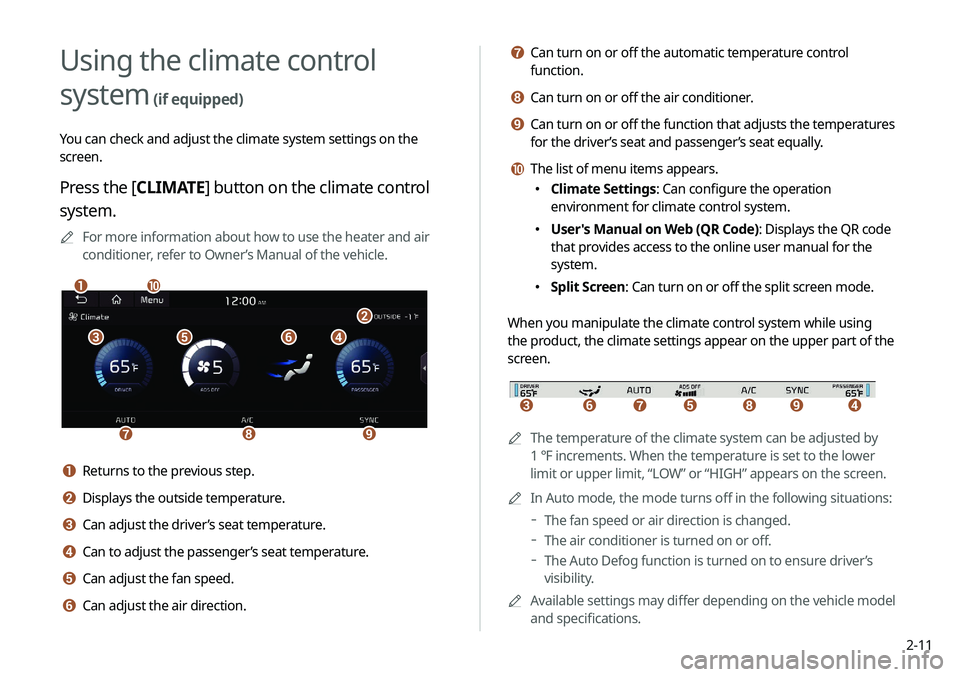
g Can turn on or off the automatic temperature control
function.
h Can turn on or off the air conditioner.
i Can turn on or off the function that adjusts the temperatures
for the driver’s seat and passenger’s seat equally.
j The list of menu items appears.
000EClimate Settings: Can configure the operation
environment for climate control system.
000EUser's Manual on Web (QR Code): Displays the QR code
that provides access to the online user manual for the
system.
000ESplit Screen: Can turn on or off the split screen mode.
When you manipulate the climate control system while using
the product, the climate settings appear on the upper part of the
screen.
icdefgh
0000A The temperature of the climate system can be adjusted by
1 ℉ increments. When the temperature is set to the lower
limit or upper limit, “LOW” or “HIGH” appears on the screen.
0000
A
In Auto mode, the mode turns off in the following situations:
000DThe fan speed or air direction is changed.
000DThe air conditioner is turned on or off.
000DThe Auto Defog function is turned on to ensure driver’s
visibility.
0000
A
Available settings may differ depending on the vehicle model
and specifications.
Using the climate control
system
(if equipped)
You can check and adjust the climate system settings on the
screen.
Press the [ CLIMATE] button on the climate control
system.
0000
A
For more information about how to use the heater and air
conditioner, refer to Owner’s Manual of the vehicle.
\037\036\035\034
\033
\032\031\030
\027\026
a Returns to the previous step.
b Displays the outside temperature.
c Can adjust the driver’s seat temperature.
d Can to adjust the passenger’s seat temperature.
e Can adjust the fan speed.
f Can adjust the air direction.
Page 51 of 235

2-13
2 Make conversation through the microphone of
the driver’s seat.
0000
A
To end the Driver Talk mode, touch End.
0000
A
When you move to another screen without touching End,
shortly press the End Call button on the steering wheel to
end the driver talk function.
0000
A
When the Driver Talk mode is active, the Radio/Media
functions are unavailable.
0000
A
To access the online user’s manual on the Driver Talk screen,
touch Menu >
User’s Manual on Web (QR Code) and then
scan the displayed QR code.
Using the Driver Talk mode in
the rear seat
(if equipped)
When the driver’s voice cannot be delivered well to the rear seat,
you can use the microphone of the driver’s seat for smooth
communication.
1 On the All Menus screen, touch Driver Talk.
The driver talk icon appears at the top right of the system
screen to display its status.
Page 71 of 235
3-3
\335Warning
Driving while distracted can result in a loss of vehicle control
that may lead to an accident, severe bodily injury, or death. The
driver's primary responsibility is the safe and legal operation of
the vehicle, and the use of any vehicle systems, including the
touch screen and steering wheel controls, which take the driver's
eyes, attention, and focus away from the safe operation of the
vehicle, or which are not permissible by law, should never be used
during the operation of the vehicle.
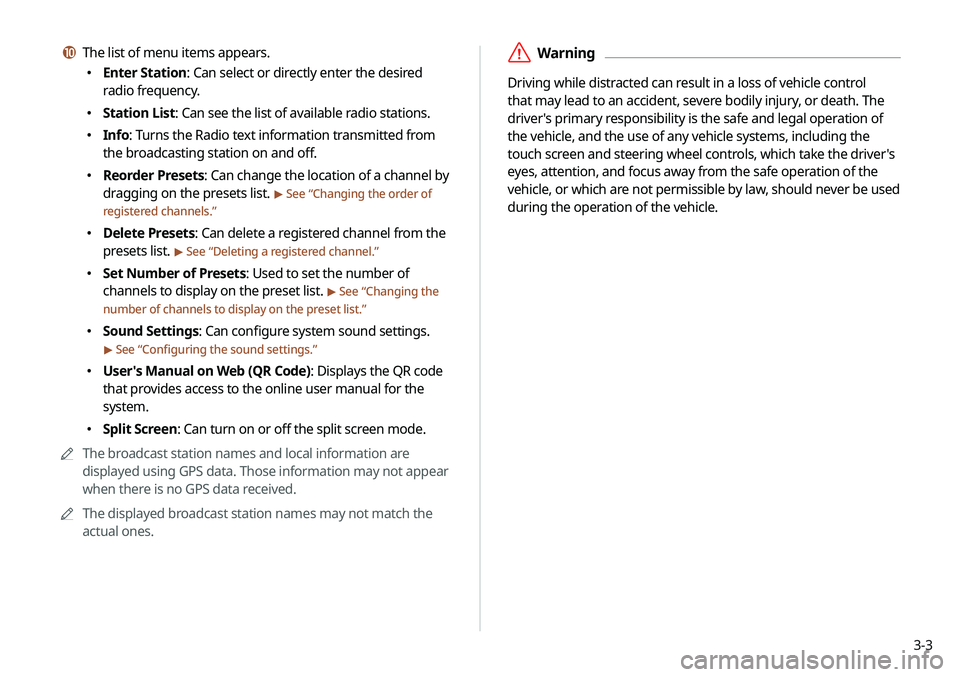
j The list of menu items appears.
000EEnter Station: Can select or directly enter the desired
radio frequency.
000EStation List: Can see the list of available radio stations.
000EInfo: Turns the Radio text information transmitted from
the broadcasting station on and off.
000EReorder Presets: Can change the location of a channel by
dragging on the presets list.
> See “
Changing the order of
registered channels.”
000E Delete Presets: Can delete a registered channel from the
presets list.
> See “
Deleting a registered channel.”
000E Set Number of Presets: Used to set the number of
channels to display on the preset list.
> See “
Changing the
number of channels to display on the preset list.”
000E Sound Settings: Can configure system sound settings.
> See “
Configuring the sound settings.”
000E User's Manual on Web (QR Code): Displays the QR code
that provides access to the online user manual for the
system.
000ESplit Screen: Can turn on or off the split screen mode.
0000
A
The broadcast station names and local information are
displayed using GPS data. Those information may not appear
when there is no GPS data received.
0000
A
The displayed broadcast station names may not match the
actual ones.