2020 GMC SIERRA front camera
[x] Cancel search: front cameraPage 260 of 502
GMC Sierra/Sierra Denali Owner Manual (GMNA-Localizing-U.S./Canada/
Mexico-13337776) - 2020 - CRC - 4/4/19
Driving and Operating 259
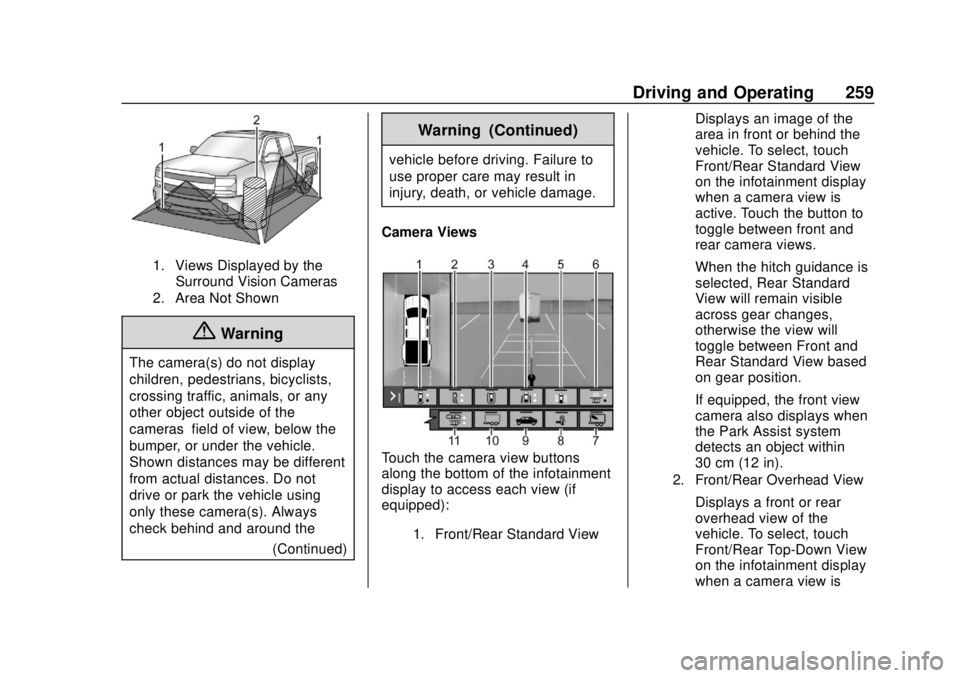
1. Views Displayed by theSurround Vision Cameras
2. Area Not Shown
{Warning
The camera(s) do not display
children, pedestrians, bicyclists,
crossing traffic, animals, or any
other object outside of the
cameras’ field of view, below the
bumper, or under the vehicle.
Shown distances may be different
from actual distances. Do not
drive or park the vehicle using
only these camera(s). Always
check behind and around the
(Continued)
Warning (Continued)
vehicle before driving. Failure to
use proper care may result in
injury, death, or vehicle damage.
Camera Views
Touch the camera view buttons
along the bottom of the infotainment
display to access each view (if
equipped):
1. Front/Rear Standard View
Displays an image of the
area in front or behind the
vehicle. To select, touch
Front/Rear Standard View
on the infotainment display
when a camera view is
active. Touch the button to
toggle between front and
rear camera views.
When the hitch guidance is
selected, Rear Standard
View will remain visible
across gear changes,
otherwise the view will
toggle between Front and
Rear Standard View based
on gear position.
If equipped, the front view
camera also displays when
the Park Assist system
detects an object within
30 cm (12 in).
2. Front/Rear Overhead View
Displays a front or rear
overhead view of the
vehicle. To select, touch
Front/Rear Top-Down View
on the infotainment display
when a camera view is
Page 261 of 502

GMC Sierra/Sierra Denali Owner Manual (GMNA-Localizing-U.S./Canada/
Mexico-13337776) - 2020 - CRC - 4/4/19
260 Driving and Operating
active. Touch the button to
toggle between front and
rear camera views.
3. Rear Bowl View
Displays a perspective view
of the vehicle from the front
looking rearward. To select,
touch Rear Bowl View on
the infotainment display
when a camera view is
active. Park Assist and
Rear Cross Traffic Alert
(RCTA) overlays are not
available when bowl view is
active.
4. Front/Rear side View
Displays a view that shows
objects next to the front or
rear sides of the vehicle. To
select, touch Front/Rear
Side View on the
infotainment display when a
camera view is active.
Touch the button to toggle
between front and rear
camera views. Park Assist
and RCTA overlays are not
available when Front/Rear
Side View is active.The Turn Signal Activated
View works with Rear Side
View to provide a rearward
view of the left or right side
of the vehicle and trailer.
Views are provided based
on turn signal activation
with the right-side view
being shown when the right
turn signal is active and the
left side view being shown
when the left turn signal is
active. The feature is
available when a trailer is
connected. The feature can
be enabled or disabled.
See
Vehicle Personalization
0 157. Touch X to exit.
5. Surround View
Displays an image of the
area surrounding the
vehicle. Surround View is
available as part of the
Front/Rear Standard Views,
the Front/Rear Top-Down
Views and the Front/Rear
Side Views. In these views
Surround View can be
enabled by touching Surround View on the
infotainment display when
the camera view is active.
6. Guidance Lines/Hitch
Guidance
Guidance Lines displays
available guidelines,
including Standard and
Hitch Guidance.
A grayed-out icon indicates
that guidelines are not
available. To enable, touch
Guidance Lines on the
infotainment display when a
camera view is active.
Touching the button
multiple times will toggle
through Standard
Guidelines, Hitch Guidance
and no guidelines.
Standard guidelines are
available in Front/Rear
Standard Views, Front/Rear
Top-Down Views and
Surround View.
Hitch Guidance displays a
single centered guideline
on the infotainment display
to assist with aligning the
Page 265 of 502
GMC Sierra/Sierra Denali Owner Manual (GMNA-Localizing-U.S./Canada/
Mexico-13337776) - 2020 - CRC - 4/4/19
264 Driving and Operating
display when a camera
view is active. Each
press of the button will
toggle through the Rear
Trailer View, Trailer Tow
mirror View and Combo
View. To access this
view when in a forward
gear above 12 km/h
(8 mph), touch
CAMERA on the
infotainment display and
touch the Rear Trailer
View/Rear Side View
with Available
Articulation
Functionality/
Picture-in-Picture Side
View icon. Touch X
to exit.
HD Surround Vision with Trailer
Camera Provisions
If equipped, this feature provides
additional views to aid in trailering/
towing. The system shows multiple
views in the infotainment display
using five cameras mounted around
the vehicle and up to two additional
accessory cameras that can be mounted on or in a trailer. The front
camera is in the grille under the
front emblem, the side cameras are
on the bottom of the outside mirrors,
the rear camera is in the tailgate
handle and the bed camera is
mounted on the rear of the cab.
Additionally, up to two accessory
cameras can be mounted to the rear
and/or interior of the trailer. See
your dealer for accessory trailer
cameras. To access, touch
CAMERA on the infotainment
display or shift to R (Reverse). To
return to the previous screen when
not in reverse, touch the Home or
Back buttons on the infotainment
display.
Available camera views:
.
Front/Rear Standard View
. Front/Rear Top-Down View
. Rear Bowl View
. Front/Rear Side View
. Hitch View
. Bed View
. Rear trailer View .
Rear Side view with a available
articulation functionality
. Picture-in-Picture Side View
. Interior Trailer View
. Transparent trailer View
. Surround View
. Guidance Lines
. Hitch Guidance
Surround Vision (360 Degrees)
If equipped, the Surround Vision
system can display various views
surrounding the vehicle in the
infotainment display using four
cameras mounted around the
vehicle. The front camera is in the
grille under the front emblem, the
side cameras are on the bottom of
the outside mirrors, and the rear
camera is in the tailgate handle.
The Surround Vision system can be
accessed by selecting CAMERA in
the infotainment display or when the
vehicle is shifted into R (Reverse).
To return to the previous screen
sooner, when not in R (Reverse),
press the Home or Back button on
Page 266 of 502
GMC Sierra/Sierra Denali Owner Manual (GMNA-Localizing-U.S./Canada/
Mexico-13337776) - 2020 - CRC - 4/4/19
Driving and Operating 265
the infotainment system, shift into
P (Park), or, while in D (Drive),
reach a vehicle speed of
approximately 12 km/h (8 mph).
Available camera views:
.Front/Rear Standard View
. Front/Rear Top-Down View
. Rear Bowl View
. Front/Rear Side View
. Hitch View
. Surround View
. Guidance Lines
. Hitch Guidance
Surround Vision
If equipped, this feature provides,
additional views to aid in trailering/
towing. The Front Vision Camera
and Surround Vision cameras are
not supported. The system can
show various views in the
infotainment display using cameras
mounted in and around the vehicle
and trailer. The rear camera is in the
tailgate handle and the cargo bed
camera is mounted on the rear of the cab. Up to two accessory
cameras can be mounted to the rear
and/or interior of the trailer. See
your dealer for these accessory
cameras.
The system can be accessed by
selecting CAMERA in the
infotainment display or when the
vehicle is shifted into R (Reverse).
To return to the previous screen
sooner, when not in R (Reverse),
press the Home or Back button on
the infotainment system or shift into
P (Park).
Available camera views:
.
Rear Standard View
. Hitch View
. Bed View
. Rear Trailer View
. Interior Trailer View
. Guidance Lines
. Hitch Guidance Troubleshooting
The Transparent Trailer calibration
may take longer than expected or
not calibrate if:
.
The vehicle is driven too fast
during calibration. Speed should
be maintained below 50 km/h
(31 mph).
. The vehicle is not driven straight
during calibration. Steering
should be maintained as straight
as possible, excessive steering
during calibration may extend
calibration time.
. The calibration is attempted in
low light. Calibration should be
attempted when there is enough
light.
. The calibration is attempted
during adverse weather
conditions. Calibration during
conditions such as snow or
heavy rain should be avoided.
. The road surface is not ideal for
calibration. Calibration should be
attempted on an alternate road
surface.
Page 267 of 502
GMC Sierra/Sierra Denali Owner Manual (GMNA-Localizing-U.S./Canada/
Mexico-13337776) - 2020 - CRC - 4/4/19
266 Driving and Operating
.The accessory trailer cameras
are swapped at the hitch
connector. Ensure that the
camera mounted to the rear of
the trailer is connected to the
rear trailer camera input.
. The accessory trailer camera is
mounted, angled or rotated
outside of the defined mounting
location (see camera installation
instructions).
Distortion may be observed in the
calibrated Transparent Trailer
View if:
. The accessory trailer camera is
mounted, angled or rotated
outside of the defined mounting
location (see camera installation
instructions).
The Transparent Trailer icon may
appear grayed out if:
. A compatible trailer profile is not
configured or a non-compatible
trailer profile is selected.
. The vehicle is in R (Reverse).
. The trailer is not connected. .
The accessory rear trailer
camera is not connected or
connected to the incorrect input.
The preview may not be provided or
the wrong preview may be
provided if:
. The accessory cameras are not
recognized. Ensure that the
accessory camera(s) are
connected and power cycle the
vehicle.
. The accessory trailer cameras
are swapped at the hitch
connector. Ensure that the
accessory camera(s) are
connected to the correct input.
. The accessory trailer camera(s)
are connected to the correct
camera input.
. The accessory trailer camera(s)
are not installed according to the
installation instructions.
A feature may be unavailable or not
activating as expected if:
. The customization is disabled.
Check the customization settings
where applicable. .
The accessory trailer cameras
are swapped at the hitch
connector. Ensure that the
accessory camera(s) are
connected to the correct camera
input.
A view may switch automatically if:
. The vehicle is shifted to
another gear.
Park Assist
With Front and Rear Park Assist, as
the vehicle moves at speeds of less
than 8 km/h (5 mph) the sensors on
the bumpers may detect objects up
to 1.2 m (4 ft) in front and 2.5 m (8 ft)
behind the vehicle within a zone
25 cm (10 in) high off the ground
and below bumper level. These
detection distances may be shorter
during warmer or humid weather.
Blocked sensors will not detect
objects and can also cause false
detections. Keep the sensors clean
of mud, dirt, snow, ice, and slush;
and clean sensors after a car wash
in freezing temperatures.
Page 269 of 502
GMC Sierra/Sierra Denali Owner Manual (GMNA-Localizing-U.S./Canada/
Mexico-13337776) - 2020 - CRC - 4/4/19
268 Driving and Operating
to the button comes on when the
features are on and turns off when
the features have been disabled.
Front and Rear Park Assist can be
turned Off, On, or On with Towbar.
See“Park Assist” underVehicle
Personalization 0157. If Park Assist
is turned off through vehicle
personalization, the Park Assist
button will be disabled. To turn Park
Assist on again, select On in vehicle
personalization. The On with Towbar
setting allows Park Assist to work
properly with a trailer hitch. Some
larger trailer hitches may not be
compatible.
Turn off Park Assist when towing a
trailer.
To turn the RPA symbols on or off,
see “Rear Camera Park Assist
Symbols” underVehicle
Personalization 0157.
Assistance Systems for
Driving
If equipped, when driving the
vehicle in a forward gear, Forward
Collision Alert (FCA), Lane Departure Warning (LDW), Lane
Keep Assist (LKA), Side Blind Zone
Alert (SBZA), Lane Change Alert
(LCA), Automatic Emergency
Braking (AEB), and/or the Front
Pedestrian Braking (FPB) System
can help to avoid a crash or reduce
crash damage.
Forward Collision Alert
(FCA) System
If equipped, the FCA system may
help to avoid or reduce the harm
caused by front-end crashes. When
approaching a vehicle ahead too
quickly, FCA provides a red flashing
alert on the windshield and rapidly
beeps or pulses the driver seat.
FCA also lights an amber visual
alert if following another vehicle
much too closely.
FCA detects vehicles within a
distance of approximately 60 m
(197 ft) and operates at speeds
above 8 km/h (5 mph).
{Warning
FCA is a warning system and
does not apply the brakes. When
approaching a slower-moving or
stopped vehicle ahead too rapidly,
or when following a vehicle too
closely, FCA may not provide a
warning with enough time to help
avoid a crash. It also may not
provide any warning at all. FCA
does not warn of pedestrians,
animals, signs, guardrails,
bridges, construction barrels,
or other objects. Be ready to take
action and apply the brakes. See
Defensive Driving
0187.
FCA can be disabled through
vehicle personalization. See
“Collision/Detection Systems” under
Vehicle Personalization 0157.
Page 314 of 502

GMC Sierra/Sierra Denali Owner Manual (GMNA-Localizing-U.S./Canada/
Mexico-13337776) - 2020 - CRC - 4/4/19
Driving and Operating 313
3. Activate the tool near the valvestem or adjust the air pressure
of this tire until the horn chirps
and all working vehicle and
trailer lights flash.
The process stops without
saving the sensor locations if
this step takes more than
two minutes.
4. Move to the next tire and repeat Step 3 for each sensor.
The horn chirps twice when all
sensors are completed.
5. Return to the vehicle to complete the setup.
Maintenance Reminders
To set up maintenance reminders,
touch the Trailer Maintenance icon.
Select Yes to set up the
maintenance reminders for the
Trailer Profile. Follow the on-screen
prompts. The maximum number of
reminders is 50. Select No to return
to the previous screen.
Towing Assistance
If the Transparent Trailer feature is
available, touch the Towing
Assistance icon to set up
transparent trailer.
Touch Yes to begin set up or touch
No to return to the previous screen.
Follow the on-screen instructions.
A rear trailer camera must be
mounted on the trailer and
electrically connected to the vehicle
before transparent trailer feature
can be used. See Assistance
Systems for Parking or Backing
0 257.
Trailer dimensions must be in range
and transparent trailer must be
calibrated prior to use.
Transparent Trailer Setup
To complete setup for transparent
trailer: 1. Select the number of axles on the trailer. 2. Enter trailer dimensions
.Trailer Length: 300 cm
(118.1 in) 970 cm (381.8
in). Measure from center of
coupler to furthest rear
point on the trailer.
. Trailer Width: 120 cm (47.2
in) 260 cm (102.3 in).
Measure from left edge to
right edge.
. Trailer Height: 1 cm
(.39 in) –450 cm (177.1 in).
Measure from ground to
tallest point.
. Hitching Point Length: 180
cm (70.8 in) –970
cm (381.8 in). Measure from
center of coupler to middle
of tires.
. Trailer Tongue Length: 50
cm (119.6 in) –220
cm (86.6 in). Measure from
center of coupler to trailer
front wall.
Page 366 of 502

GMC Sierra/Sierra Denali Owner Manual (GMNA-Localizing-U.S./Canada/
Mexico-13337776) - 2020 - CRC - 4/10/19
Vehicle Care 365
2. Lift up on the latch in themiddle of the wiper blade
where the wiper arm attaches.
3. With the latch open, pull the wiper blade down toward the
windshield far enough to
release it from the J-hooked
end of the wiper arm.
4. Remove the wiper blade.
5. Reverse Steps 1–3 for wiper blade replacement.
Windshield Replacement
HUD System
The windshield is part of the HUD
system. If the windshield must be
replaced, get one that is designed
for HUD or the HUD image may
look out of focus.
Driver Assistance Systems
If the windshield needs to be
replaced and the vehicle is
equipped with a front camera sensor
for the Driver Assistance Systems, a
GM replacement windshield is
recommended. The replacement
windshield must be installed
according to GM specifications for
proper alignment. If it is not, these
systems may not work properly, they
may display messages, or they may
not work at all. See your dealer for
proper windshield replacement.
Gas Strut(s)
This vehicle is equipped with gas
strut(s) to provide assistance in
lifting and holding open the hood/
trunk/liftgate system in full open
position.
{Warning
If the gas struts that hold open
the hood, trunk, and/or liftgate fail,
you or others could be seriously
injured. Take the vehicle to your
dealer for service immediately.
Visually inspect the gas struts for
signs of wear, cracks, or other
damage periodically. Check to
make sure the hood/trunk/liftgate
is held open with enough force.
If struts are failing to hold the
hood/trunk/liftgate, do not
operate. Have the vehicle
serviced.