2020 FORD TRANSIT radio
[x] Cancel search: radioPage 285 of 529

Protected Component
Fuse Rating
Item
Data link connector.
7.5 A
13 Steering column.
Instrument cluster.
Battery energy control module - MHEV.
15 A
14
SYNC 3 module.
15 A
15
Not used.
-
16
Not used.
7.5 A
17
Not used.
7.5 A
18
Not used.
5 A
19
Ignition switch.
5 A
20
Positive temperature coefficient heater control.
5 A
21
Pedestrian alert control module.
5 A
22
Not used.
30 A
23
Not used.
30 A
24
Not used.
20 A
25
Not used.
30 A
26
Not used.
30 A
27
Not used.
30 A
28
Not used.
15 A
29
Not used.
5 A
30
Data link connector.
10 A
31
Remote key receiver.
Radio.
20 A
32
Telematics module.
Not used.
-
33
Message center.
30 A
34 Positive temperature coefficient heater.
Direct current/Alternating current inverter.
Lane keeping system camera.
Parking aid.
Steering column.
282
2020 Transit (TTH) Canada/United States of America, LK3J 19A321 HA enUSA, Edition date: 201911, First-Printing Fuses
Page 323 of 529

Instrument Cluster Screens, LCD
Screens and Radio Screens
Note:
Do not use abrasives, alcoholic
solvents or chemical solvents to clean the
instrument cluster screens, LCD screens or
radio screens. These cleaning products can
damage the screens.
Clean the instrument panel and cluster
lens with a clean, damp and soft cloth,
then use a clean, dry and soft cloth to dry
these areas.
Do not spray any liquid directly onto the
screens.
Do not use a microfiber cloth to clean the
bezel around the display screens as it could
damage the surface.
Rear Windows
Note: Do not use any abrasive materials to
clean the interior of the rear windows.
Note: Do not install stickers or labels to the
interior of the rear windows.
Mirrors
Do not clean the housing or glass of any
mirror with harsh abrasives, fuel or other
petroleum or ammonia-based cleaning
products.
Storage Compartments, Cup
Holders and Ashtrays
To clean:
• Take out any removable inserts.
• Wipe the surface with a soft, damp
cloth and a mild soap and water
solution. Dry the area with a clean, soft
cloth. CLEANING THE INSTRUMENT
PANEL AND INSTRUMENT
CLUSTER LENS WARNING: Do not use chemical
solvents or strong detergents when
cleaning the steering wheel or
instrument panel to avoid contamination
of the airbag system.
Note: Follow the same procedure as
cleaning leather seats for cleaning leather
instrument panels and leather interior trim
surfaces.
Clean the instrument panel and cluster
lens with a clean, damp and soft cloth,
then use a clean, dry and soft cloth to dry
these areas.
• Avoid cleaners or polishes that increase
the gloss of the upper portion of the
instrument panel. The dull finish in this
area helps protect you from
undesirable windshield reflection.
• Do not use any household cleaning
products or glass cleaners as these
may damage the finish of the
instrument panel, interior trim and
cluster lens.
• Wash or wipe your hands clean if you
have been in contact with certain
products such as insect repellent and
suntan lotion to avoid possible damage
to the interior painted surfaces.
• Do not allow air fresheners and hand
sanitizers to spill onto interior surfaces.
If a spill occurs, wipe off immediately.
Your warranty may not cover these
damages.
If a staining liquid like coffee or juice has
been spilled on the instrument panel or on
interior trim surfaces:
1. Wipe up spilled liquid using a clean, soft cloth as quickly as possible.
320
2020 Transit (TTH) Canada/United States of America, LK3J 19A321 HA enUSA, Edition date: 201911, First-Printing Vehicle Care
Page 348 of 529

You must check the tire
pressures (including the spare
tire where applicable) every two
weeks when the tires are cold. See
Wheels and Tires (page 324). The tire
pressures are also on the tire inflation
pressure label (located on the edge of
driver door or the B-Pillar).
As a driver assistance feature your vehicle
has a tire pressure monitoring system. A
warning lamp will illuminate when one or
more of the tires are significantly
under-inflated. If the low tire pressure
warning lamp illuminates, you should stop
your vehicle as soon as it is safe to do so,
check the tires and inflate them to the
correct pressure.
Driving on under-inflated tires can:
• Cause them to overheat.
• Lead to tire failure.
• Reduce fuel efficiency.
• Reduce tire life.
• Affect vehicle handling or stopping
ability.
The system is not substitute for correct tire
maintenance.
You must maintain the correct tire
pressures, even if low tire pressure has not
illuminated the warning lamp.
The tire pressure monitoring system has a
system malfunction indicator to warn you
when the system is not operating correctly.
The malfunction indicator and low tire
pressure warning lamp have a combined
function. When the system detects a
malfunction, the warning lamp will flash
for approximately one minute and then
remain illuminated. This sequence will
occur every time you switch the ignition on
while the malfunction remains. The
system has detected a fault that requires
service. When the malfunction indicator is
illuminated, the system may not be able
to detect or signal low tire pressures. A
malfunction may occur for a variety of
reasons, including the installation of a
replacement tire or wheel that prevents
the system from functioning correctly.
Always check the tire pressure monitoring
system malfunction warning after
replacing one or more tires or wheels on
your vehicle. Make sure the replacement
tires or wheels allow the system to
continue to function correctly.
This device complies with Part 15 of the
FCC Rules and with Licence exempt RSS
Standards of Industry Canada. Operation
is subject to the following two conditions:
•
This device may not cause harmful
interference.
• This device must accept any
interference received, including
interference that may cause undesired
operation. WARNING:
Changes or
modifications not expressively approved
by the party responsible for compliance
could void the user's authority to operate
the equipment. The term "IC:" before the
radio certification number only signifies
that Industry Canada technical
specifications were met.
How Temperature Affects the Tire
Pressures
Under normal driving conditions tire
pressures may increase by up to
4 psi
(0.3 bar) from a cold start situation.
345
2020 Transit (TTH) Canada/United States of America, LK3J 19A321 HA enUSA, Edition date: 201911, First-Printing Wheels and Tires
Page 396 of 529

GENERAL INFORMATION
Radio Frequencies and Reception
Factors
AM and FM frequencies are established by
the Federal Communications Commission
(FCC) and the Canadian Radio and
Telecommunications Commission (CRTC).
Those frequencies are:
•
AM: 530-1710 kHz
• FM: 87.9-107.9 MHz
Note: Listening to loud audio for long
periods of time could damage your hearing. Radio Reception Factors
The further you travel from an AM or FM station, the
weaker the signal and the weaker the reception.
Distance and strength
Hills, mountains, tall buildings, bridges, tunnels, freeway
overpasses, parking garages, dense tree foliage and
thunderstorms can interfere with the reception.
Terrain
When you pass a ground-based broadcast repeating
tower, a stronger signal may overtake a weaker one and
result in the audio system muting.
Station overload
AUDIO UNIT - VEHICLES
WITHOUT: SYNC
Switching the Audio Unit On and
Off Adjusting the Volume
Selecting the Radio
Press the button to select radio
mode.
393
2020 Transit (TTH) Canada/United States of America, LK3J 19A321 HA enUSA, Edition date: 201911, First-Printing Audio System E248939
Page 397 of 529
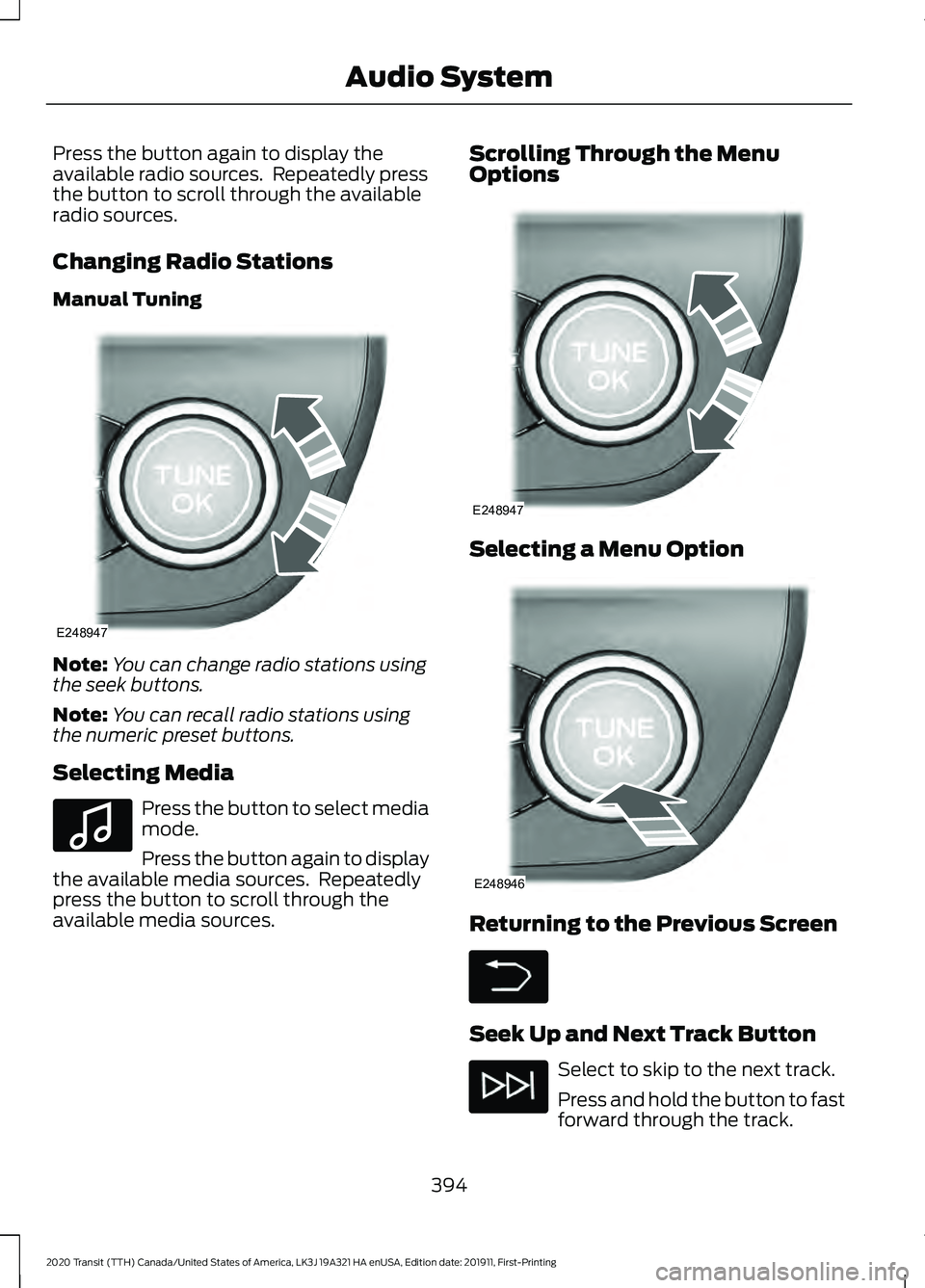
Press the button again to display the
available radio sources. Repeatedly press
the button to scroll through the available
radio sources.
Changing Radio Stations
Manual Tuning
Note:
You can change radio stations using
the seek buttons.
Note: You can recall radio stations using
the numeric preset buttons.
Selecting Media Press the button to select media
mode.
Press the button again to display
the available media sources. Repeatedly
press the button to scroll through the
available media sources. Scrolling Through the Menu
Options
Selecting a Menu Option
Returning to the Previous Screen
Seek Up and Next Track Button
Select to skip to the next track.
Press and hold the button to fast
forward through the track.
394
2020 Transit (TTH) Canada/United States of America, LK3J 19A321 HA enUSA, Edition date: 201911, First-Printing Audio SystemE248947 E100027 E248947 E248946
Page 398 of 529

Seek Down and Previous Track
Button
Select to return to the beginning
of a track.
Repeatedly press the button to
return to previous tracks.
Press and hold the button to fast rewind.
Pausing or Playing Media In media mode, press the button
to pause playback. Press the
button again to resume
playback.
In radio mode, press the button to mute
the radio. Press the button again to
unmute.
Switching the Screen On and Off System Settings
Sound Settings
Press the button to adjust the
sound settings. You can optimize
the sound for different seating
positions.
You can also activate and set the
sensitivity of the speed compensated
volume.
Using a Cell Phone You can make a call from a
recent call list, contact list or dial
a number. AUDIO UNIT - VEHICLES WITH:
SYNC 3
Switching the Audio Unit On and
Off
Adjusting the Volume
Changing Radio Stations
Manual Tuning
395
2020 Transit (TTH) Canada/United States of America, LK3J 19A321 HA enUSA, Edition date: 201911, First-Printing Audio System E142607 E248939 E270235
Page 399 of 529

Note:
You can change radio stations using
the seek buttons.
Note: You can recall radio stations using
the preset buttons on the touchscreen.
Seek Up and Next Track Button Select to skip to the next track.
Press and hold the button to fast
forward through the track.
Seek Down and Previous Track
Button Select to return to the beginning
of a track.
Repeatedly press the button to
return to previous tracks.
Press and hold the button to fast rewind.
Pausing or Playing Media Select to play a track. Press the
button again to pause the track.
In radio mode, press the button to mute
the radio. Press the button again to
unmute.
Switching the Screen On and Off Sound Settings
Press the button to adjust the
sound settings. You can optimize
the sound for different seating
positions.
You can also activate and set the
sensitivity of the speed compensated
volume. AM/FM RADIO - VEHICLES
WITHOUT: SYNC
Selecting a Radio Source Press the button to display the
available radio sources.
Repeatedly press the button to scroll to
the desired radio source.
Press the OK button.
Station Presets
To store a radio station, press and hold one
of the numeric preset buttons.
Note: Six presets can be stored for each
radio source.
Manually Changing Radio Stations Rotate the control to change the
frequency.
Automatically Changing Radio
Stations
Press to seek the next station up
the frequency band.
Press and hold to quickly seek
up the frequency band.
396
2020 Transit (TTH) Canada/United States of America, LK3J 19A321 HA enUSA, Edition date: 201911, First-Printing Audio System E248947
Page 405 of 529
USING SYNC™ WITH YOUR
PHONE
Hands-free calling is one of the main
features of SYNC. While the system
supports a variety of features, many are
dependent on your cellular phone's
functionality. At a minimum, most cellular
phones with Bluetooth wireless technology
support the following functions:
•
Answering an incoming call.
• Ending a call.
• Dialing a number.
• Redialing.
• Call waiting notification.
• Caller ID.
Other features, such as text messaging
using Bluetooth and automatic phonebook
download, are phone-dependent features.
Pairing a Phone
Wirelessly pairing your phone with SYNC
allows you to make and receive hands-free
calls.
Note: Make sure to switch on the ignition
and the radio. Shift the transmission into
park (P) for automatic transmission or first
gear for manual transmission.
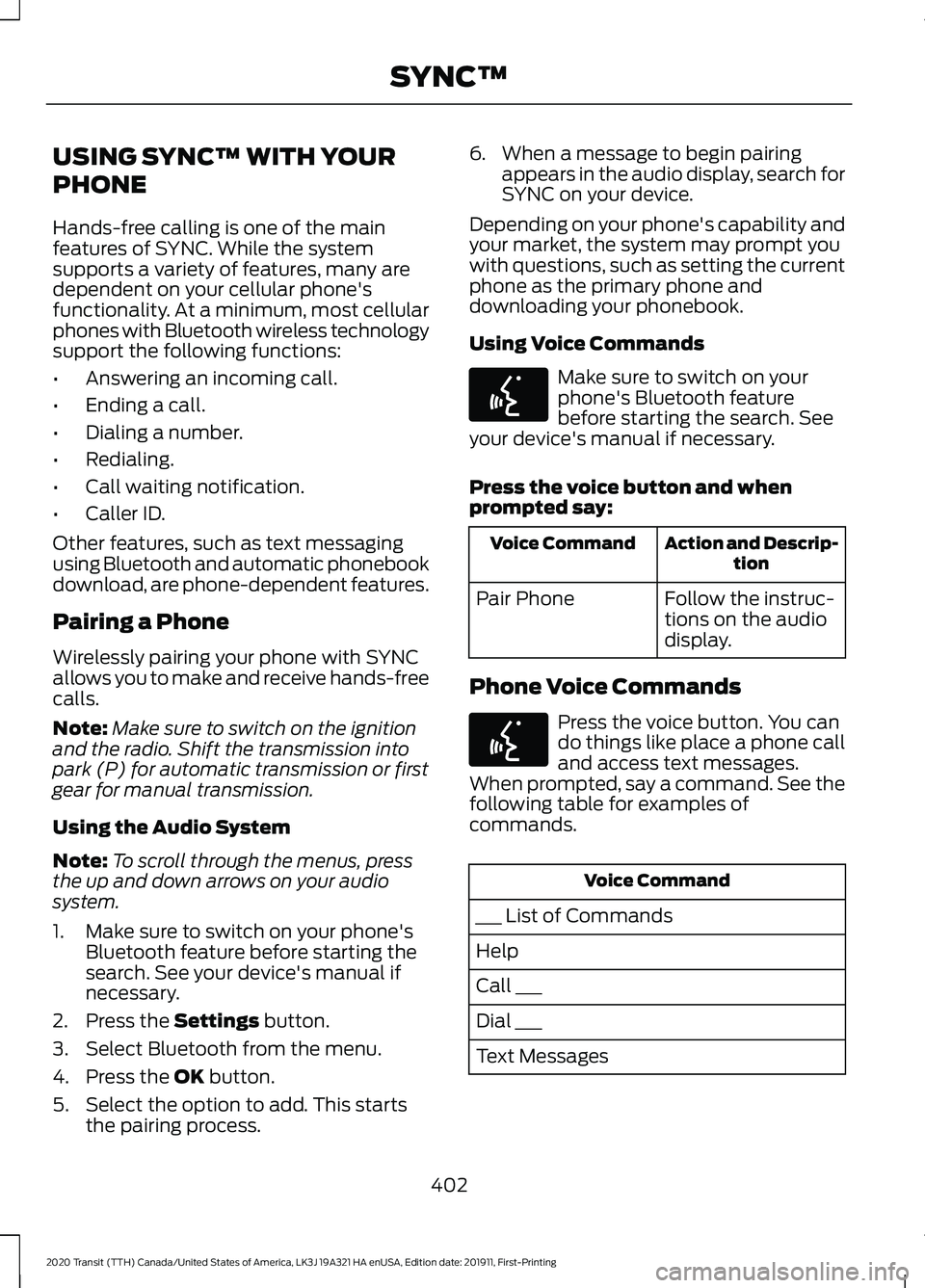
Using the Audio System
Note: To scroll through the menus, press
the up and down arrows on your audio
system.
1. Make sure to switch on your phone's Bluetooth feature before starting the
search. See your device's manual if
necessary.
2. Press the Settings button.
3. Select Bluetooth from the menu.
4. Press the
OK button.
5. Select the option to add. This starts the pairing process. 6. When a message to begin pairing
appears in the audio display, search for
SYNC on your device.
Depending on your phone's capability and
your market, the system may prompt you
with questions, such as setting the current
phone as the primary phone and
downloading your phonebook.
Using Voice Commands Make sure to switch on your
phone's Bluetooth feature
before starting the search. See
your device's manual if necessary.
Press the voice button and when
prompted say: Action and Descrip-
tion
Voice Command
Follow the instruc-
tions on the audio
display.
Pair Phone
Phone Voice Commands Press the voice button. You can
do things like place a phone call
and access text messages.
When prompted, say a command. See the
following table for examples of
commands. Voice Command
___ List of Commands
Help
Call ___
Dial ___
Text Messages
402
2020 Transit (TTH) Canada/United States of America, LK3J 19A321 HA enUSA, Edition date: 201911, First-Printing SYNC™E142599 E142599