2020 FORD EXPLORER key
[x] Cancel search: keyPage 80 of 555
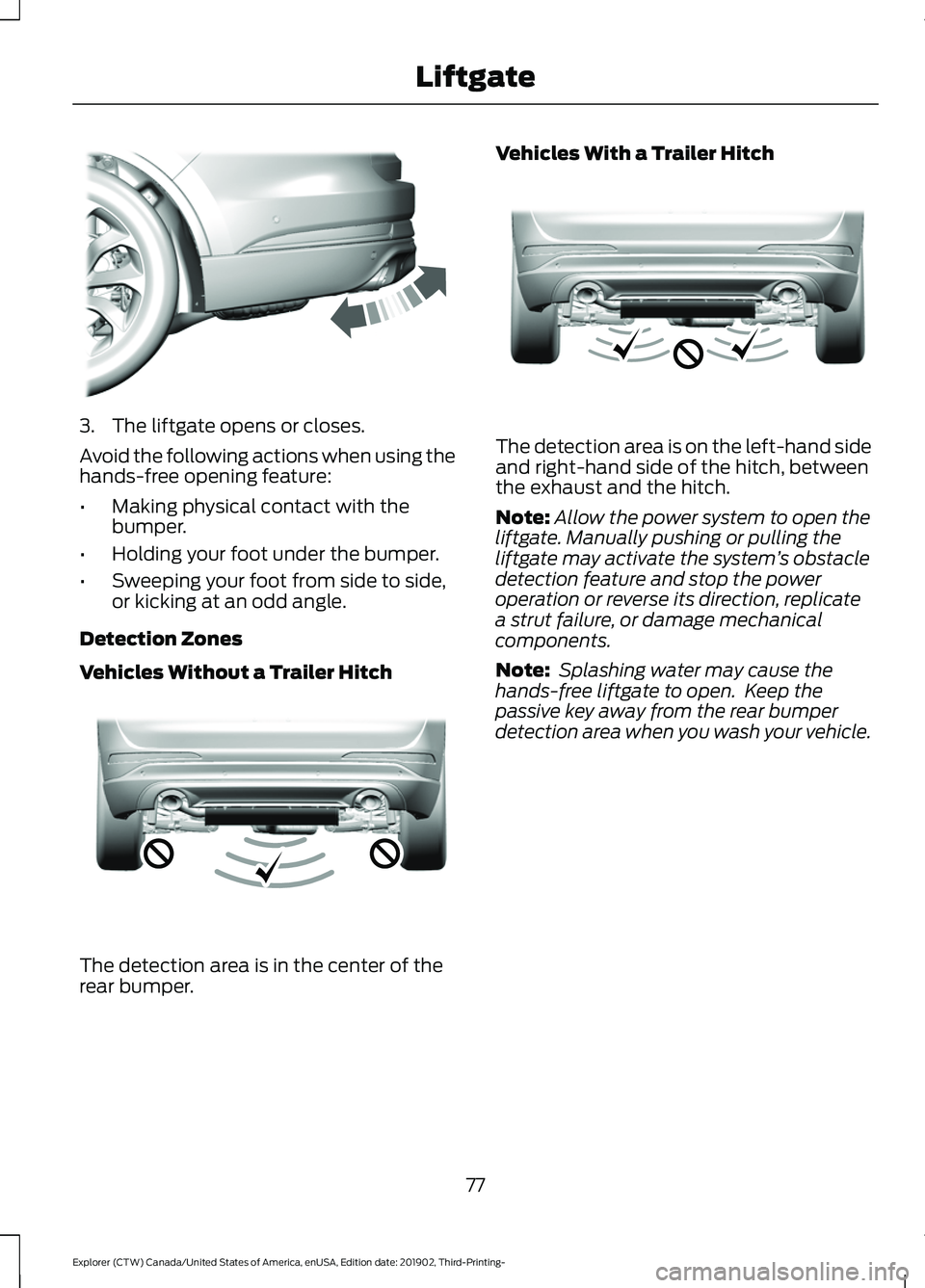
3. The liftgate opens or closes.
Avoid the following actions when using the
hands-free opening feature:
•
Making physical contact with the
bumper.
• Holding your foot under the bumper.
• Sweeping your foot from side to side,
or kicking at an odd angle.
Detection Zones
Vehicles Without a Trailer Hitch The detection area is in the center of the
rear bumper. Vehicles With a Trailer Hitch
The detection area is on the left-hand side
and right-hand side of the hitch, between
the exhaust and the hitch.
Note:
Allow the power system to open the
liftgate. Manually pushing or pulling the
liftgate may activate the system ’s obstacle
detection feature and stop the power
operation or reverse its direction, replicate
a strut failure, or damage mechanical
components.
Note: Splashing water may cause the
hands-free liftgate to open. Keep the
passive key away from the rear bumper
detection area when you wash your vehicle.
77
Explorer (CTW) Canada/United States of America, enUSA, Edition date: 201902, Third-Printing- LiftgateE300799 E310717 E310718
Page 81 of 555
PASSIVE ANTI-THEFT
SYSTEM
Note:
The system is not compatible with
non-Ford aftermarket remote start systems.
Use of these systems could result in vehicle
starting problems and a loss of security
protection.
Note: Metallic objects, electronic devices
or a second coded key on the same key
chain could cause vehicle starting problems
if they are too close to the key when starting
the engine. Prevent these objects from
touching the coded key while starting the
engine. Switch the ignition off, move all
objects on the key chain away from the
coded key and restart the engine if a
problem occurs.
Note: Do not leave a duplicate coded key
in the vehicle. Always take your keys and
lock all doors when leaving the vehicle.
SecuriLock®
The system is an engine immobilization
system. It helps to prevent anyone from
starting the engine without using a coded
key programmed to your vehicle. Using the
wrong key could prevent the engine from
starting. A message may appear in the
information display.
If you are unable to start the engine with a
correctly coded key, there is a problem with
the system and a message could appear
in the information display.
Automatic Arming
The vehicle arms immediately after you
switch the ignition off.
Automatic Disarming
Switching the ignition on with a coded key
disarms the vehicle. Replacement Keys
Note:
Your vehicle comes with two
integrated keyhead transmitters or two
intelligent access keys.
The integrated keyhead transmitter
functions as a programmed ignition key
that operates all the locks and starts the
vehicle, as well as a remote control.
The intelligent access key functions as a
programmed key that operates the driver
door lock and activates the intelligent
access with push button start system, as
well as a remote control.
If your programmed transmitters or
standard SecuriLock coded keys
(integrated keyhead transmitters only) are
lost or stolen and you do not have an extra
coded key, you will need to have your
vehicle towed to an authorized dealer. You
need to erase the key codes from your
vehicle and program new coded keys.
Store an extra programmed key away from
the vehicle in a safe place to help prevent
any inconveniences. See your authorized
dealer to purchase additional spare or
replacement keys.
Programming a Spare Intelligent
Access Key (If Equipped)
See your authorized dealer to have
additional keys programmed to your
vehicle.
ANTI-THEFT ALARM
(IF EQUIPPED)
The system will warn you of an
unauthorized entry to your vehicle. It will
be triggered if any door, the luggage
compartment or the hood is opened
without using the key, remote control or
keyless entry keypad.
The direction indicators will flash and the
horn will sound if unauthorized entry is
attempted while the alarm is armed.
78
Explorer (CTW) Canada/United States of America, enUSA, Edition date: 201902, Third-Printing- Security
Page 82 of 555

Take all remote controls to an authorized
dealer if there is any potential alarm
problem with your vehicle.
Arming the Alarm
The alarm is ready to arm when there is
not a key in your vehicle. Electronically lock
your vehicle to arm the alarm.
Disarming the Alarm
Disarm the alarm by any of the following
actions:
•
Unlock the doors or luggage
compartment with the remote control
or keyless entry keypad.
• Switch your vehicle on or start your
vehicle.
• Use a key in the driver door to unlock
your vehicle, then switch your vehicle
on within 12 seconds.
Note: Pressing the panic button on the
remote control will stop the horn and signal
indicators, but will not disarm the system.
79
Explorer (CTW) Canada/United States of America, enUSA, Edition date: 201902, Third-Printing- Security
Page 110 of 555

WARNING: Do not remove the
coolant reservoir cap when the engine is
on or the cooling system is hot. Wait 10
minutes for the cooling system to cool
down. Cover the coolant reservoir cap
with a thick cloth to prevent the
possibility of scalding and slowly remove
the cap. Failure to follow this instruction
could result in personal injury.
Fuel Gauge
The fuel gauge indicates about how much
fuel is in the fuel tank.
The arrow adjacent to the fuel pump
symbol indicates on which side of your
vehicle the fuel filler door is located.
Note: The fuel gauge may vary slightly
when your vehicle is moving or on a slope.
Low Fuel Reminder
A low fuel level reminder displays and
sounds when the distance to empty
reaches
75 mi (120 km) to empty for
MyKey, and at 50 mi (80 km), 25 mi
(40 km), 10 mi (20 km) and 0 mi (0 km)
for all vehicle keys.
Note: The low fuel reminder can appear at
different fuel gauge positions depending on
fuel economy conditions. This variation is
normal.
WARNING LAMPS AND
INDICATORS
The following warning lamps and
indicators alert you to a vehicle condition
that may become serious. Some lamps
illuminate when you start your vehicle to
make sure they work. If any lamps remain
on after starting your vehicle, refer to the
respective system warning lamp for further
information. Note:
Some warning indicators appear in
the information display and function the
same as a warning lamp, but do not display
when you start your vehicle.
Adaptive Cruise Control
(If Equipped) The cruise control system
indicator light changes color to
indicate what mode the system
is in. See
How Does Adaptive Cruise
Control With Stop and Go Work (page
246).
On (white light): Illuminates when you
switch on the adaptive cruise control
system. Turns off when you switch the
cruise control system off.
Engaged (green light): Illuminates when
you engage the adaptive cruise control
system. Turns off when you disengage the
cruise control system.
Anti-Lock Braking System If it illuminates when you are
driving, this indicates a system
error. You continue to have the
normal braking (without ABS) unless the
brake system warning lamp also
illuminates. Have the system checked by
an authorized dealer.
Automatic High Beam Control
(If
Equipped) Illuminates when this feature is
on. See
What Is Automatic
High Beam Control (page 95).
Auto Hold Active Illuminates when the system
holds your vehicle stationary.
107
Explorer (CTW) Canada/United States of America, enUSA, Edition date: 201902, Third-Printing- Instrument ClusterE144524 E197933 E322410
Page 114 of 555

AUDIBLE WARNINGS AND
INDICATORS
Key in Ignition Warning Chime
Sounds when you open the driver's door
and you have left the key in the ignition.
Keyless Warning Alert (If Equipped)
Sounds the horn twice when you exit your
vehicle with the intelligent access key, after
the last door is closed and your keyless
vehicle is in RUN, indicating your vehicle is
still on.
Headlamps On Warning Chime
Sounds when you remove the key from the
ignition and open the driver's door and you
have left the headlamps or parking lamps
on.
Parking Brake On Warning Chime
Sounds when you have left the parking
brake on and drive your vehicle. If the
warning chime remains on after you have
released the parking brake, have the
system checked by an authorized dealer
immediately.
111
Explorer (CTW) Canada/United States of America, enUSA, Edition date: 201902, Third-Printing- Instrument Cluster
Page 115 of 555
GENERAL INFORMATION
WARNING: Driving while distracted
can result in loss of vehicle control, crash
and injury. We strongly recommend that
you use extreme caution when using any
device that may take your focus off the
road. Your primary responsibility is the
safe operation of your vehicle. We
recommend against the use of any
hand-held device while driving and
encourage the use of voice-operated
systems when possible. Make sure you
are aware of all applicable local laws
that may affect the use of electronic
devices while driving.
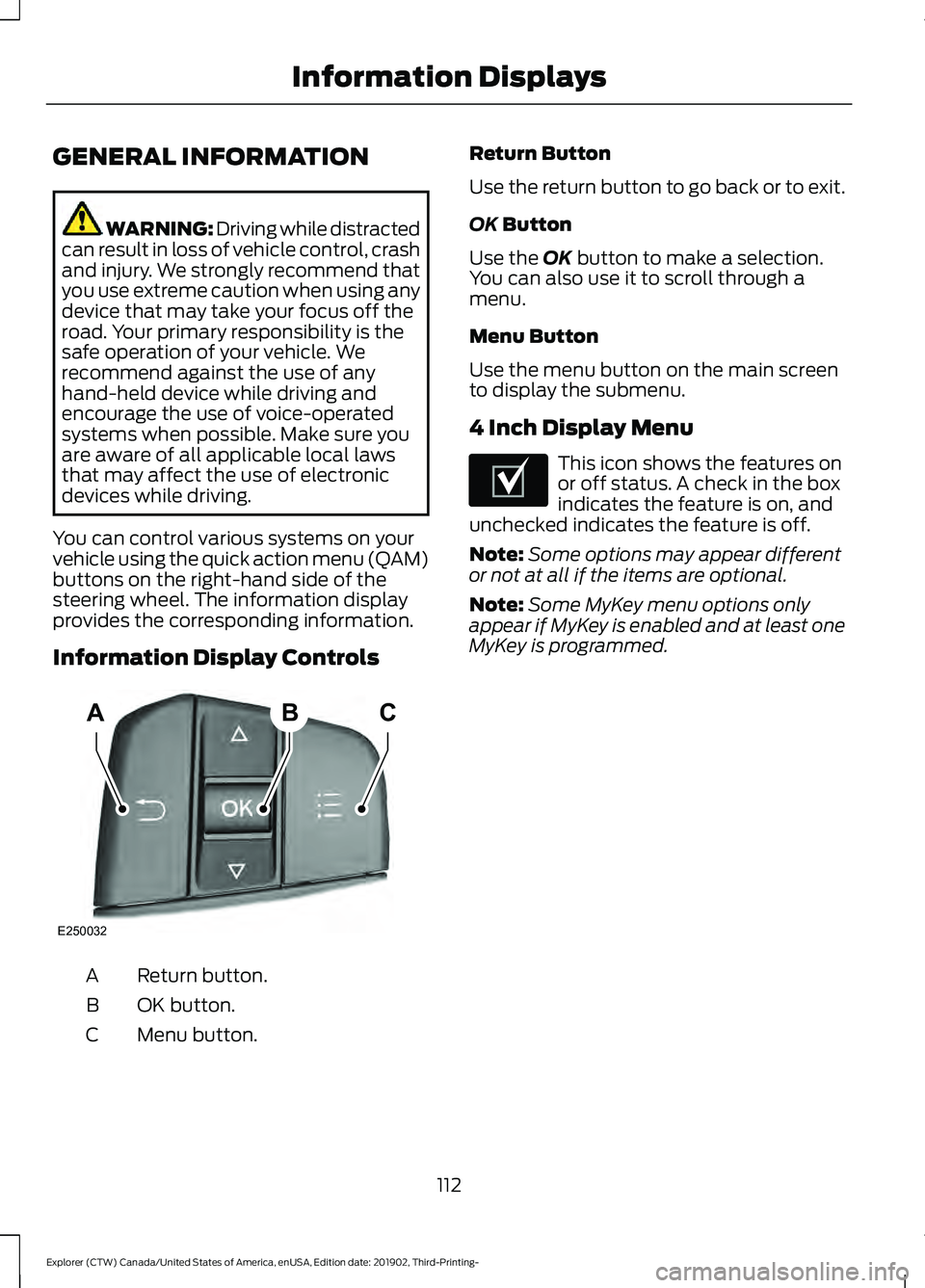
You can control various systems on your
vehicle using the quick action menu (QAM)
buttons on the right-hand side of the
steering wheel. The information display
provides the corresponding information.
Information Display Controls Return button.
A
OK button.
B
Menu button.
C Return Button
Use the return button to go back or to exit.
OK Button
Use the
OK button to make a selection.
You can also use it to scroll through a
menu.
Menu Button
Use the menu button on the main screen
to display the submenu.
4 Inch Display Menu This icon shows the features on
or off status. A check in the box
indicates the feature is on, and
unchecked indicates the feature is off.
Note: Some options may appear different
or not at all if the items are optional.
Note: Some MyKey menu options only
appear if MyKey is enabled and at least one
MyKey is programmed.
112
Explorer (CTW) Canada/United States of America, enUSA, Edition date: 201902, Third-Printing- Information DisplaysABC
E250032 E204495
Page 117 of 555

Navigation
Navigation
Menu options covered in the SYNC chapter. See Navigation (page 460).
Audio Audio
Menu options covered in the SYNC chapter. See
Settings (page 469).
Phone Phone
Menu options covered in the SYNC chapter. See
Phone (page 458).
Settings Settings
Contains vehicle status information.
Select Your Setting.
Information
Select Your Setting
Language
Display
Measure unit
Temperature unit
Tire Pressure
Select Your Setting
Driver Assistance
Select Your Setting
Oil Life
Vehicle Maintenance
Tire Pressure
MyKey Info
MyKey
Create MyKey
Note: Additional vehicle settings are
available through your touchscreen. See
Settings
(page 469).
114
Explorer (CTW) Canada/United States of America, enUSA, Edition date: 201902, Third-Printing- Information Displays
Page 118 of 555
6 Inch Display Menu
This icon shows the features on
or off status. A check in the box
indicates the feature is on, and
unchecked indicates the feature is off. Note:
Some options may appear different
or not at all if the items are optional.
Note: Some MyKey menu options only
appear if MyKey is enabled and at least one
MyKey is programmed.
Select Screens Select Screens
Menu options covered in personalized settings. See Personalized Settings (page 118).
Navigation Navigation
Menu options covered in the SYNC chapter. See
Navigation (page 460).
Audio Audio
Menu options covered in the SYNC chapter. See
Settings (page 469).
Phone Phone
Menu options covered in the SYNC chapter. See
Phone (page 458).
Settings Settings
Brake Coach Percent Oil Life Indication XXX%
Hold Ok to Reset
Oil Life
Hold Ok to Reset
Tire Monitor
Hold Ok to Initialize
Neutral Tow
115
Explorer (CTW) Canada/United States of America, enUSA, Edition date: 201902, Third-Printing- Information DisplaysE204495