2020 FORD EXPEDITION wheel
[x] Cancel search: wheelPage 254 of 542

If the sensors become blocked, a message
may appear in the information display. See
Information Messages (page 123). The
alert indicators remain illuminated but the
system does not alert you.
Blind Spot Information System
with Trailer Tow
(If Equipped) The system is designed to detect vehicles
that may have entered the blind spot zone
(A). The detection area is on both sides of
your vehicle and trailer, extending rearward
from the exterior mirrors to the end of your
trailer.
The system turns on when all of the
following occur:
•
You attach a trailer to your vehicle.
• You have set up the trailer to work with
the system through the information
display.
• You start your vehicle.
• You shift into drive (D).
• The vehicle speed is greater than
6 mph (10 km/h)
.
Note: If you switch the Blind Spot
Information System off, the Blind Spot
Information System with Trailer Tow
automatically turns off. Note:
If you connect a trailer to your vehicle
and do not set up the trailer through the
information display, the system turns off
and a warning message appears.
See
Information Messages (page 123).
Note: When towing a trailer, the extended
blind spot zone range decreases to a short
fixed or non-variable distance behind the
trailer. The extended blind spot zone range
returns to
59 ft (18 m) when the trailer is
disconnected.
Setting up a Trailer Trailer length
A
Trailer width
B
Trailer hitch ball
C
You can set-up a trailer to work with the
system through the information display.
See
General Information (page 114).
When setting up a trailer, a sequence of
screens appear asking for trailer
information.
• Select type of trailer screen -
Conventional, fifth wheel or gooseneck.
The system only supports conventional
trailers. If you select fifth wheel or
gooseneck, the system automatically turns
off.
• Do you want to set up BLIS with trailer
screen?
If no, the system turns off.
If yes, the menu goes to the next screen.
251
Expedition (TB8) Canada/United States of America, enUSA, Edition date: 201907, Third-Printing- Driving AidsE225007 E225008
Page 268 of 542
REAR UNDER FLOOR
STORAGE
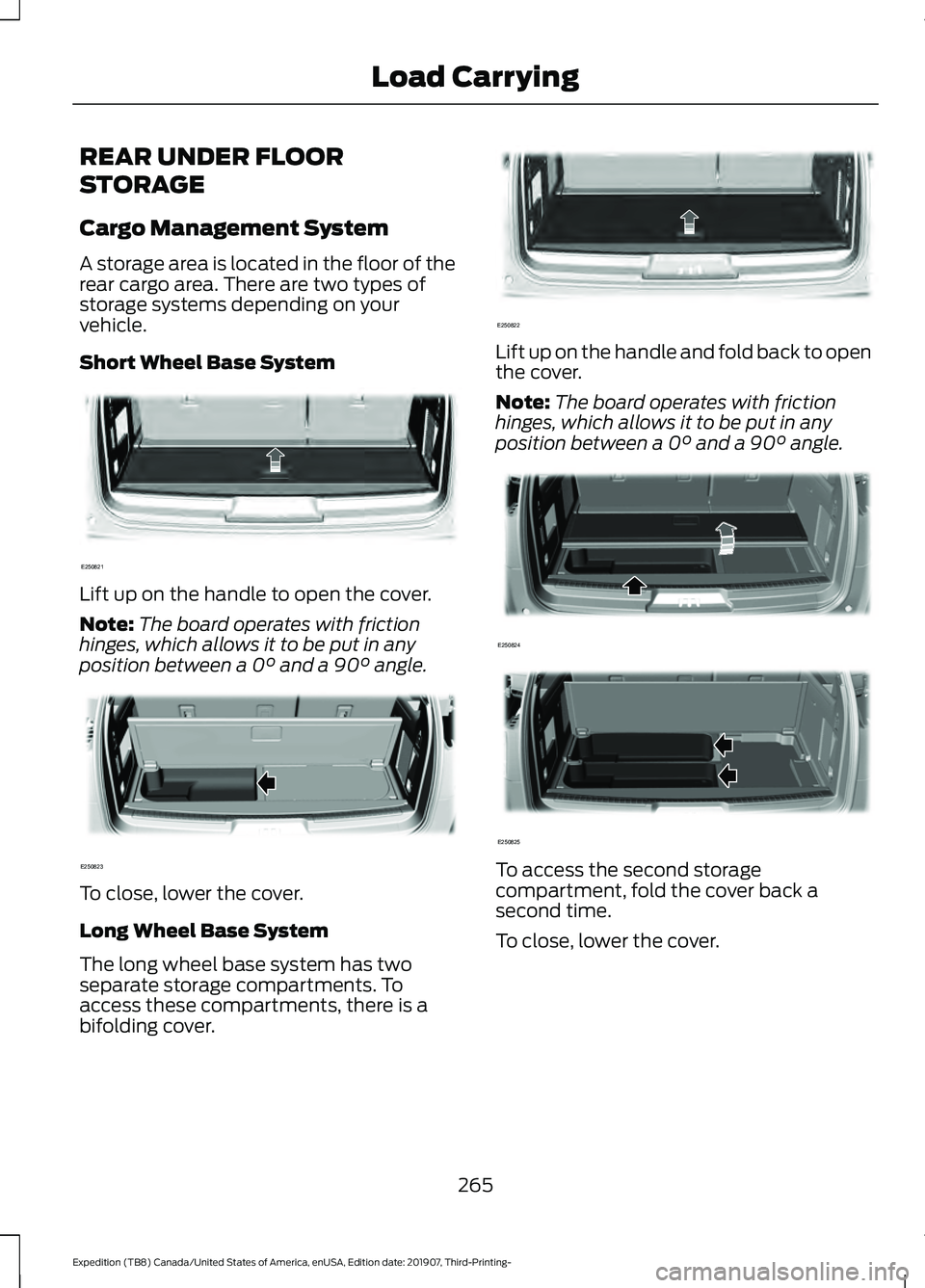
Cargo Management System
A storage area is located in the floor of the
rear cargo area. There are two types of
storage systems depending on your
vehicle.
Short Wheel Base System
Lift up on the handle to open the cover.
Note:
The board operates with friction
hinges, which allows it to be put in any
position between a 0° and a 90° angle. To close, lower the cover.
Long Wheel Base System
The long wheel base system has two
separate storage compartments. To
access these compartments, there is a
bifolding cover. Lift up on the handle and fold back to open
the cover.
Note:
The board operates with friction
hinges, which allows it to be put in any
position between a
0° and a 90° angle. To access the second storage
compartment, fold the cover back a
second time.
To close, lower the cover.
265
Expedition (TB8) Canada/United States of America, enUSA, Edition date: 201907, Third-Printing- Load CarryingE250821 E250823 E250822 E250824 E250825
Page 269 of 542
Advanced System: Forward
Divider, Cargo Shelf and Rear
Barrier (Bulkhead Position) (If
Equipped) WARNING: Do not load any objects
on the shelf that may obstruct your vision
or strike occupants of the vehicle in the
case of a sudden stop or collision. WARNING:
Do not place people or
pets on or under the parcel shelf.
The board moves to the same positions
for both the short wheel base and long
wheel base advanced systems.
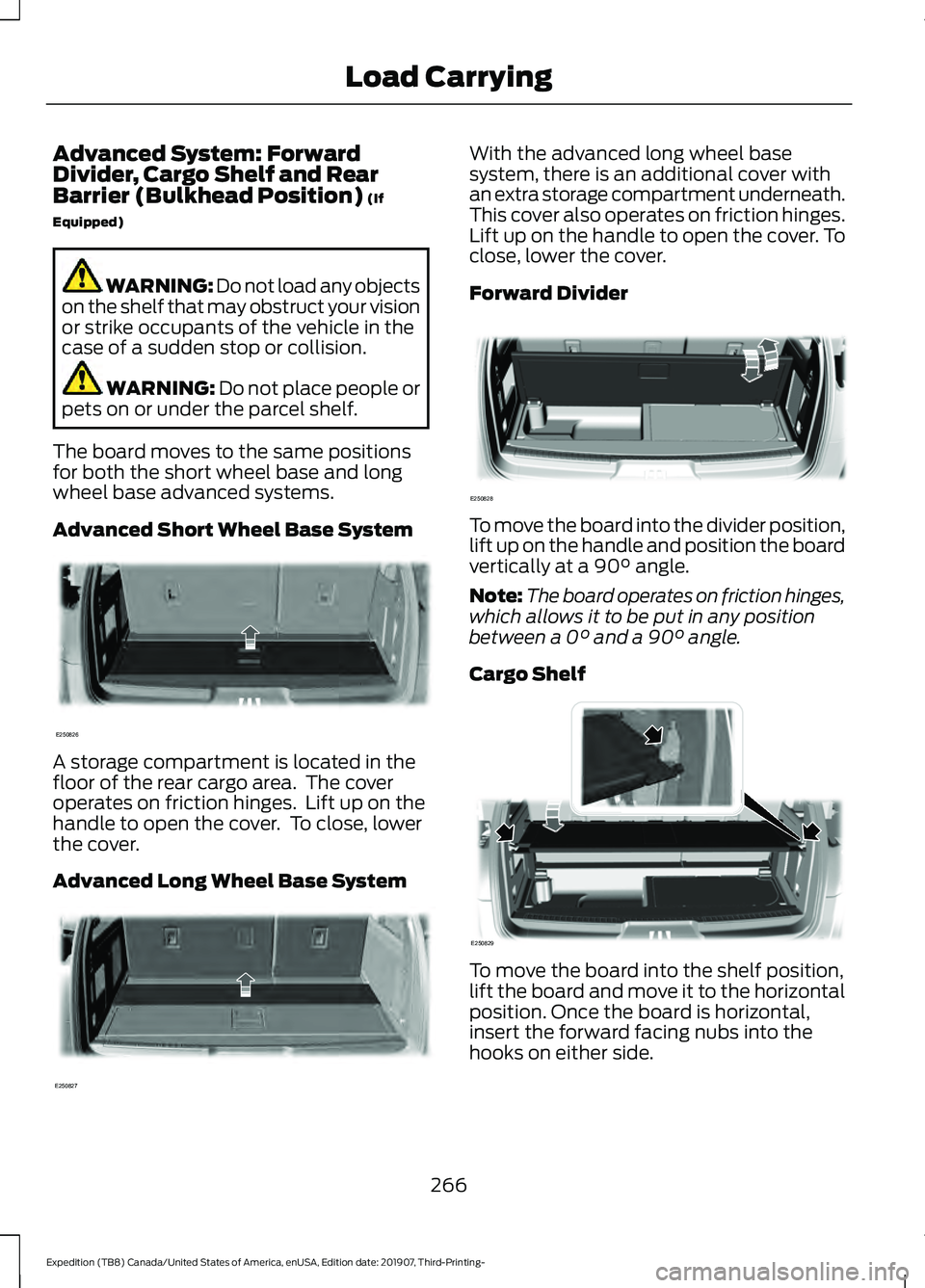
Advanced Short Wheel Base System A storage compartment is located in the
floor of the rear cargo area. The cover
operates on friction hinges. Lift up on the
handle to open the cover. To close, lower
the cover.
Advanced Long Wheel Base System With the advanced long wheel base
system, there is an additional cover with
an extra storage compartment underneath.
This cover also operates on friction hinges.
Lift up on the handle to open the cover. To
close, lower the cover.
Forward Divider
To move the board into the divider position,
lift up on the handle and position the board
vertically at a
90° angle.
Note: The board operates on friction hinges,
which allows it to be put in any position
between a
0° and a 90° angle.
Cargo Shelf To move the board into the shelf position,
lift the board and move it to the horizontal
position. Once the board is horizontal,
insert the forward facing nubs into the
hooks on either side.
266
Expedition (TB8) Canada/United States of America, enUSA, Edition date: 201907, Third-Printing- Load CarryingE250826 E250827 E250828 E250829
Page 270 of 542
For the short wheel base system, it is
necessary for the second panel located
toward the front of the vehicle to be raised
up when the seats are folded down.
For the long wheel base system, it is
necessary for the second panel located
toward the front of the vehicle to be raised
up.
Note:
Before moving the board into the
shelf position, you may need to flip down
the hooks.
Note: Do not put more than 50 lb (22 kg)
on shelf.
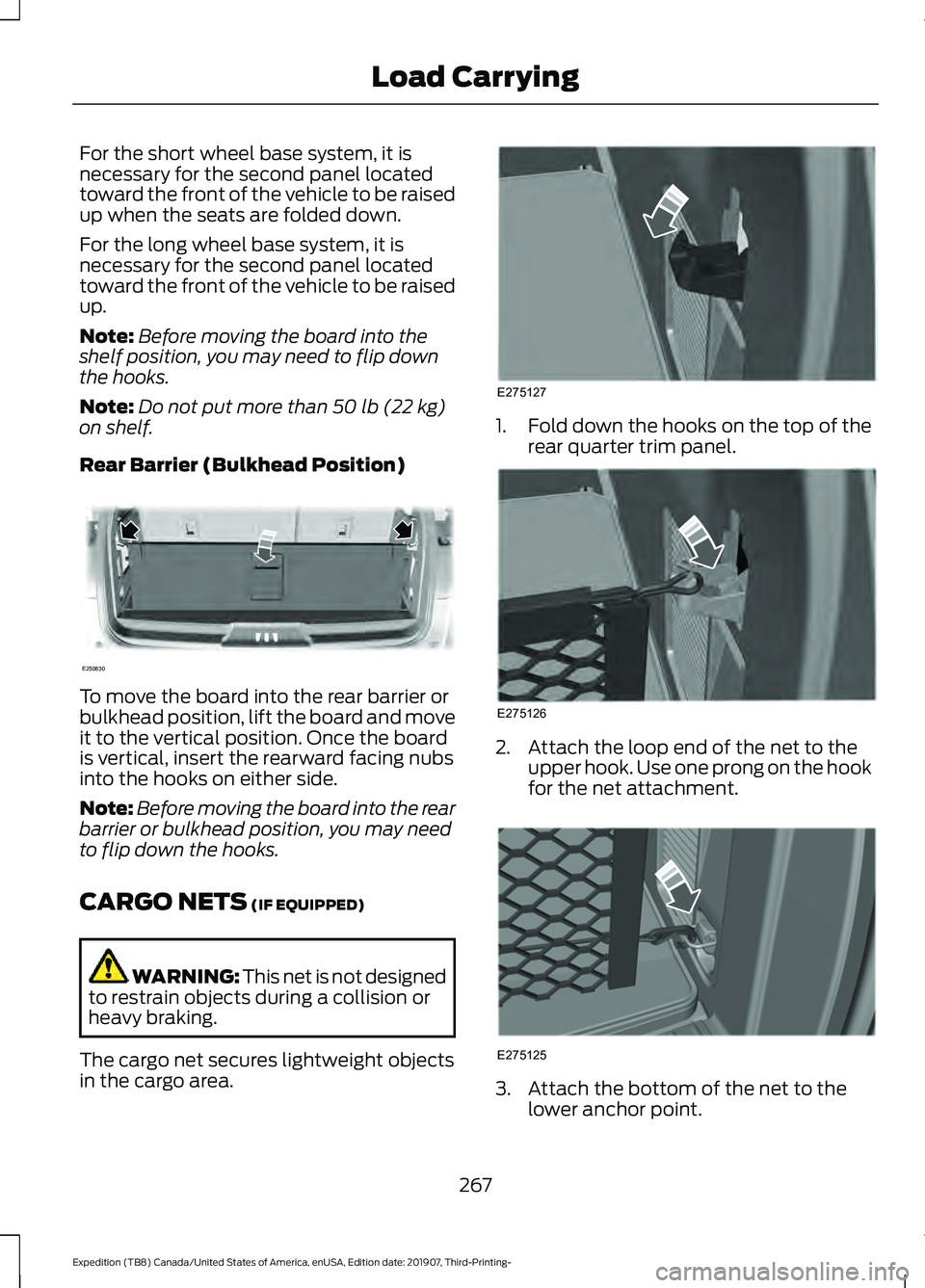
Rear Barrier (Bulkhead Position) To move the board into the rear barrier or
bulkhead position, lift the board and move
it to the vertical position. Once the board
is vertical, insert the rearward facing nubs
into the hooks on either side.
Note:
Before moving the board into the rear
barrier or bulkhead position, you may need
to flip down the hooks.
CARGO NETS
(IF EQUIPPED) WARNING:
This net is not designed
to restrain objects during a collision or
heavy braking.
The cargo net secures lightweight objects
in the cargo area. 1.
Fold down the hooks on the top of the
rear quarter trim panel. 2. Attach the loop end of the net to the
upper hook. Use one prong on the hook
for the net attachment. 3. Attach the bottom of the net to the
lower anchor point.
267
Expedition (TB8) Canada/United States of America, enUSA, Edition date: 201907, Third-Printing- Load CarryingE250830 E275127 E275126 E275125
Page 280 of 542
Step 1: Position your Vehicle and Trailer
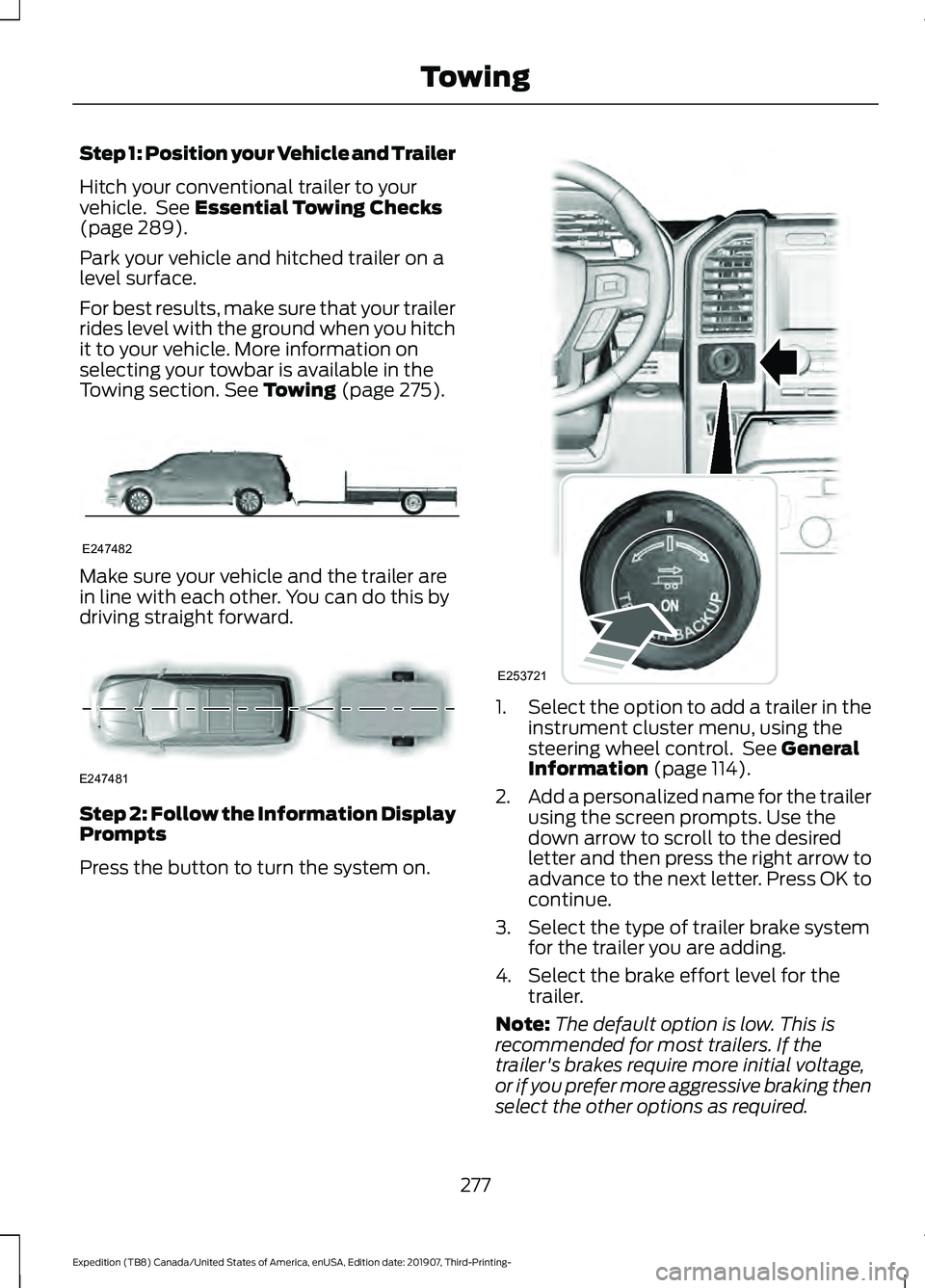
Hitch your conventional trailer to your
vehicle. See Essential Towing Checks
(page 289).
Park your vehicle and hitched trailer on a
level surface.
For best results, make sure that your trailer
rides level with the ground when you hitch
it to your vehicle. More information on
selecting your towbar is available in the
Towing section.
See Towing (page 275). Make sure your vehicle and the trailer are
in line with each other. You can do this by
driving straight forward.
Step 2: Follow the Information Display
Prompts
Press the button to turn the system on. 1.
Select the option to add a trailer in the
instrument cluster menu, using the
steering wheel control. See
General
Information (page 114).
2. Add a personalized name for the trailer
using the screen prompts. Use the
down arrow to scroll to the desired
letter and then press the right arrow to
advance to the next letter. Press OK to
continue.
3. Select the type of trailer brake system for the trailer you are adding.
4. Select the brake effort level for the trailer.
Note: The default option is low. This is
recommended for most trailers. If the
trailer's brakes require more initial voltage,
or if you prefer more aggressive braking then
select the other options as required.
277
Expedition (TB8) Canada/United States of America, enUSA, Edition date: 201907, Third-Printing- TowingE247482 E247481 E253721
Page 281 of 542
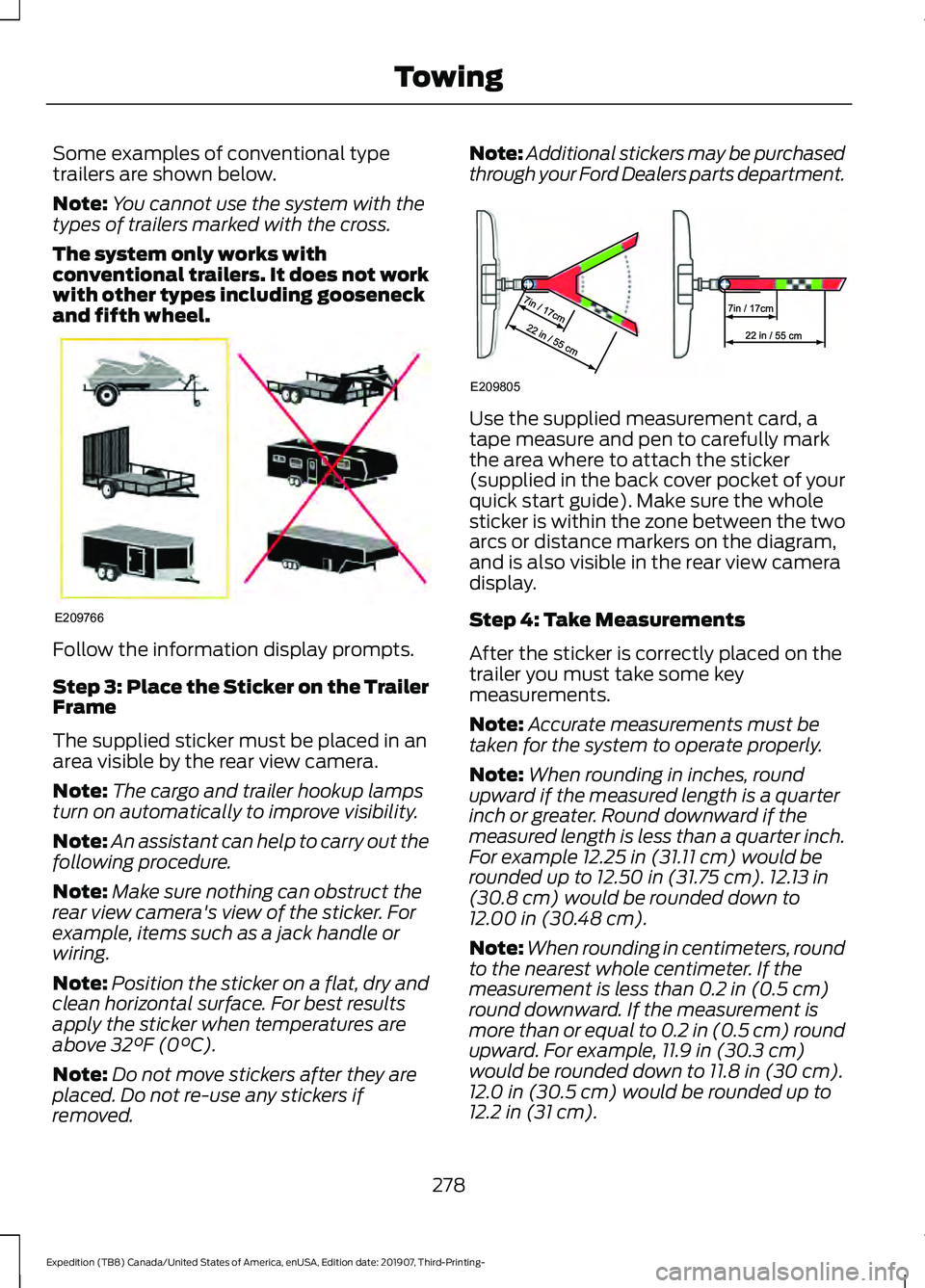
Some examples of conventional type
trailers are shown below.
Note:
You cannot use the system with the
types of trailers marked with the cross.
The system only works with
conventional trailers. It does not work
with other types including gooseneck
and fifth wheel. Follow the information display prompts.
Step 3: Place the Sticker on the Trailer
Frame
The supplied sticker must be placed in an
area visible by the rear view camera.
Note:
The cargo and trailer hookup lamps
turn on automatically to improve visibility.
Note: An assistant can help to carry out the
following procedure.
Note: Make sure nothing can obstruct the
rear view camera's view of the sticker. For
example, items such as a jack handle or
wiring.
Note: Position the sticker on a flat, dry and
clean horizontal surface. For best results
apply the sticker when temperatures are
above 32°F (0°C).
Note: Do not move stickers after they are
placed. Do not re-use any stickers if
removed. Note:
Additional stickers may be purchased
through your Ford Dealers parts department. Use the supplied measurement card, a
tape measure and pen to carefully mark
the area where to attach the sticker
(supplied in the back cover pocket of your
quick start guide). Make sure the whole
sticker is within the zone between the two
arcs or distance markers on the diagram,
and is also visible in the rear view camera
display.
Step 4: Take Measurements
After the sticker is correctly placed on the
trailer you must take some key
measurements.
Note:
Accurate measurements must be
taken for the system to operate properly.
Note: When rounding in inches, round
upward if the measured length is a quarter
inch or greater. Round downward if the
measured length is less than a quarter inch.
For example
12.25 in (31.11 cm) would be
rounded up to 12.50 in (31.75 cm). 12.13 in
(30.8 cm) would be rounded down to
12.00 in (30.48 cm).
Note: When rounding in centimeters, round
to the nearest whole centimeter. If the
measurement is less than
0.2 in (0.5 cm)
round downward. If the measurement is
more than or equal to 0.2 in (0.5 cm) round
upward. For example, 11.9 in (30.3 cm)
would be rounded down to
11.8 in (30 cm).
12.0 in (30.5 cm) would be rounded up to
12.2 in (31 cm).
278
Expedition (TB8) Canada/United States of America, enUSA, Edition date: 201907, Third-Printing- TowingE209766 E209805
Page 282 of 542
Note:
Use consistent metric or imperial
units as required by your country or vehicle.
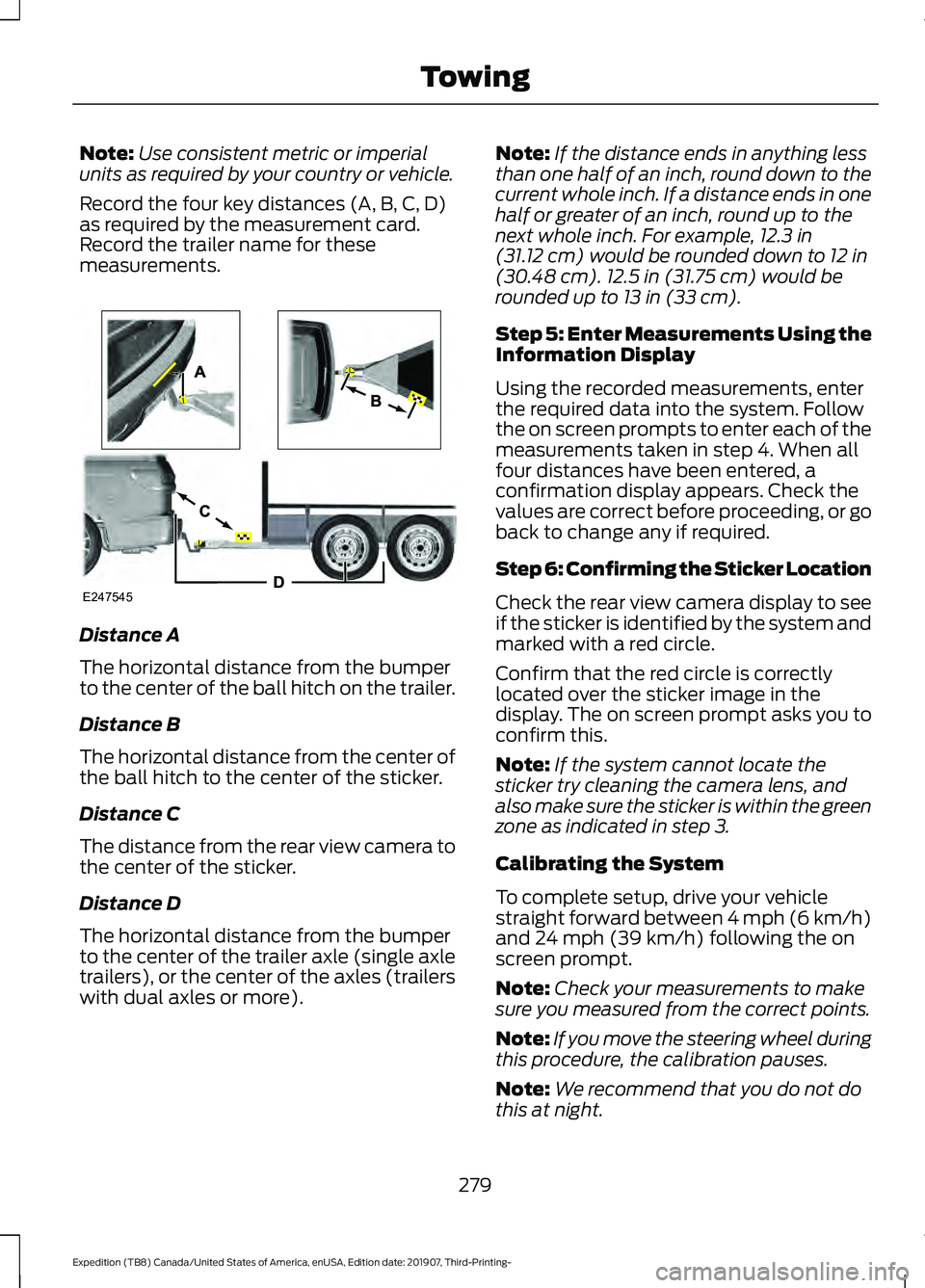
Record the four key distances (A, B, C, D)
as required by the measurement card.
Record the trailer name for these
measurements. Distance A
The horizontal distance from the bumper
to the center of the ball hitch on the trailer.
Distance B
The horizontal distance from the center of
the ball hitch to the center of the sticker.
Distance C
The distance from the rear view camera to
the center of the sticker.
Distance D
The horizontal distance from the bumper
to the center of the trailer axle (single axle
trailers), or the center of the axles (trailers
with dual axles or more). Note:
If the distance ends in anything less
than one half of an inch, round down to the
current whole inch. If a distance ends in one
half or greater of an inch, round up to the
next whole inch. For example, 12.3 in
(31.12 cm) would be rounded down to 12 in
(30.48 cm). 12.5 in (31.75 cm) would be
rounded up to 13 in (33 cm).
Step 5: Enter Measurements Using the
Information Display
Using the recorded measurements, enter
the required data into the system. Follow
the on screen prompts to enter each of the
measurements taken in step 4. When all
four distances have been entered, a
confirmation display appears. Check the
values are correct before proceeding, or go
back to change any if required.
Step 6: Confirming the Sticker Location
Check the rear view camera display to see
if the sticker is identified by the system and
marked with a red circle.
Confirm that the red circle is correctly
located over the sticker image in the
display. The on screen prompt asks you to
confirm this.
Note: If the system cannot locate the
sticker try cleaning the camera lens, and
also make sure the sticker is within the green
zone as indicated in step 3.
Calibrating the System
To complete setup, drive your vehicle
straight forward between 4 mph (6 km/h)
and
24 mph (39 km/h) following the on
screen prompt.
Note: Check your measurements to make
sure you measured from the correct points.
Note: If you move the steering wheel during
this procedure, the calibration pauses.
Note: We recommend that you do not do
this at night.
279
Expedition (TB8) Canada/United States of America, enUSA, Edition date: 201907, Third-Printing- TowingE247545
Page 283 of 542
A message displays during calibration and
after calibration is complete.
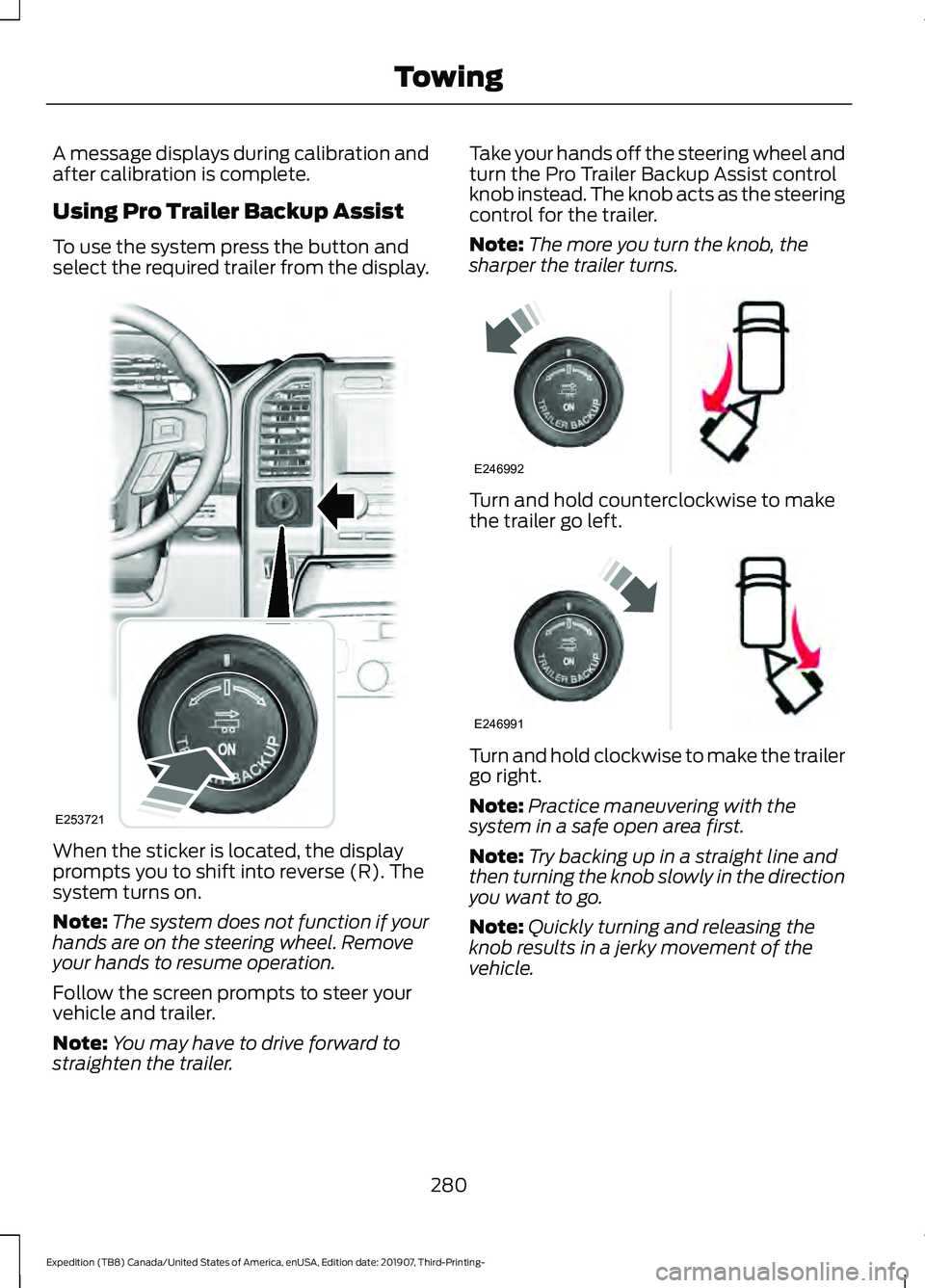
Using Pro Trailer Backup Assist
To use the system press the button and
select the required trailer from the display.
When the sticker is located, the display
prompts you to shift into reverse (R). The
system turns on.
Note:
The system does not function if your
hands are on the steering wheel. Remove
your hands to resume operation.
Follow the screen prompts to steer your
vehicle and trailer.
Note: You may have to drive forward to
straighten the trailer. Take your hands off the steering wheel and
turn the Pro Trailer Backup Assist control
knob instead. The knob acts as the steering
control for the trailer.
Note:
The more you turn the knob, the
sharper the trailer turns. Turn and hold counterclockwise to make
the trailer go left.
Turn and hold clockwise to make the trailer
go right.
Note:
Practice maneuvering with the
system in a safe open area first.
Note: Try backing up in a straight line and
then turning the knob slowly in the direction
you want to go.
Note: Quickly turning and releasing the
knob results in a jerky movement of the
vehicle.
280
Expedition (TB8) Canada/United States of America, enUSA, Edition date: 201907, Third-Printing- TowingE253721 E246992 E246991