2020 FORD EXPEDITION ECU
[x] Cancel search: ECUPage 332 of 542
Action and description
Message
If the instrument cluster
displays one of the following
messages, repeat the
process.
Not Reset
Reset Cancelled
CHANGING THE ENGINE AIR
FILTER WARNING: To reduce the risk of
vehicle damage and personal burn
injuries, do not start your engine with the
air cleaner removed and do not remove
it while the engine is running.
Note: Failure to use the correct air filter
element may result in severe engine
damage. Resulting component damage
may not be covered by the vehicle Warranty.
When changing the air filter element, use
only the air filter element listed. See
Motorcraft Parts
(page 380).
Change the air filter element at the correct
interval. See
Scheduled Maintenance
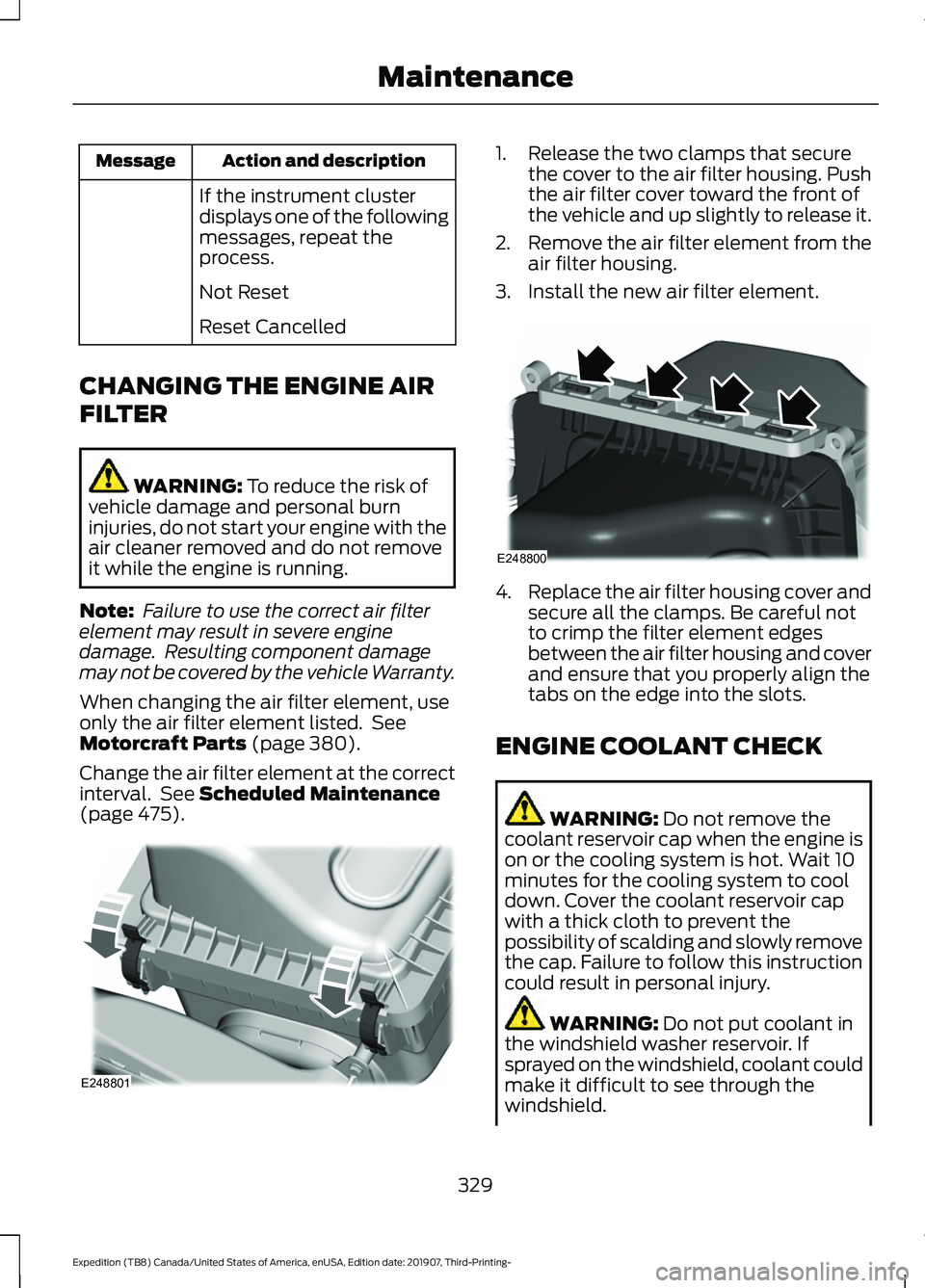
(page 475). 1. Release the two clamps that secure
the cover to the air filter housing. Push
the air filter cover toward the front of
the vehicle and up slightly to release it.
2. Remove the air filter element from the
air filter housing.
3. Install the new air filter element. 4.
Replace the air filter housing cover and
secure all the clamps. Be careful not
to crimp the filter element edges
between the air filter housing and cover
and ensure that you properly align the
tabs on the edge into the slots.
ENGINE COOLANT CHECK WARNING: Do not remove the
coolant reservoir cap when the engine is
on or the cooling system is hot. Wait 10
minutes for the cooling system to cool
down. Cover the coolant reservoir cap
with a thick cloth to prevent the
possibility of scalding and slowly remove
the cap. Failure to follow this instruction
could result in personal injury. WARNING:
Do not put coolant in
the windshield washer reservoir. If
sprayed on the windshield, coolant could
make it difficult to see through the
windshield.
329
Expedition (TB8) Canada/United States of America, enUSA, Edition date: 201907, Third-Printing- MaintenanceE248801 E248800
Page 371 of 542

Compliance Certification Label (on the
door hinge pillar, door latch post or the
door edge that meets the door latch
post, next to the driver seat), or Tire
Label on the B-Pillar or the edge of the
driver door. Failure to follow the tire
pressure recommendations can cause
uneven treadwear patterns and
adversely affect the way your vehicle
handles.
Note: The suspension insulation and
bumpers will help prevent vehicle damage.
Do not remove these components from your
vehicle when using snow tires and chains.
The tires on your vehicle have all-weather
treads to provide traction in rain and snow.
However, in some climates, you may need
to use snow tires and cables. If you need
to use cables, it is recommended that steel
wheels (of the same size and
specifications) be used, as cables may chip
aluminum wheels.
Follow these guidelines when using snow
tires and chains:
• If possible, avoid fully loading your
vehicle.
• Use only cable type chains or chains
offered by Ford/Lincoln as an
accessory or equivalent. Other
conventional link type chains may
contact and cause damage to the
vehicle's wheel house and/or body.
• Do not install chains on the front tires
as this may interfere with suspension
components.
• Only certain snow cables or chains
have been approved by Ford/Lincoln
as safe for use on your vehicle with the
following tires: 265/70R17 and
275/65R18.
• You should install snow cables or
chains that have been rated as SAE
Class S. •
Install chains securely, verifying that
the chains do not touch any wiring,
brake lines, or fuel lines.
• Do not exceed 31 mph (50 km/h) or
less if recommended by the chain
manufacturer while using snow chains.
• Drive cautiously. If you hear the chains
rub or bang against your vehicle, stop
and retighten the chains. If this does
not work, remove the chains to prevent
damage to your vehicle.
• Remove the tire chains when they are
no longer needed. Do not use tire
chains on dry roads.
• Purchase chains or cables from a
manufacturer that clearly labels body
to tire dimension restrictions. The snow
chains or cables must be mounted in
pairs on the rear tires only.
If you have any questions regarding snow
chains or cables, please contact your
authorized dealer.
TIRE PRESSURE MONITORING
SYSTEM WARNING:
The tire pressure
monitoring system is not a substitute for
manually checking tire pressures. You
should periodically check tire pressures
using a pressure gauge. Failure to
correctly maintain tire pressures could
increase the risk of tire failure, loss of
control, vehicle rollover and personal
injury.
Note: You should only use tire sealants in
roadside emergencies as they could cause
damage to the tire pressure monitoring
system sensor.
Note: If the tire pressure monitoring system
sensor becomes damaged, it will not
function.
368
Expedition (TB8) Canada/United States of America, enUSA, Edition date: 201907, Third-Printing- Wheels and Tires
Page 377 of 542

as possible. Use of any tire or wheel not
recommended by Ford can affect the
safety and performance of your vehicle,
which could result in an increased risk of
loss of vehicle control, vehicle rollover,
personal injury and death.
WARNING: To help prevent your
vehicle from moving when changing a
wheel, shift the transmission into park
(P), set the parking brake and use an
appropriate block or wheel chock to
secure the wheel diagonally opposite to
the wheel being changed. For example,
when changing the front left wheel,
place an appropriate block or wheel
chock on the right rear wheel. WARNING:
Do not attempt to
change a tire on the side of the vehicle
close to moving traffic. Pull far enough
off the road to avoid the danger of being
hit when operating the jack or changing
the wheel. WARNING:
Always use the jack
provided as original equipment with your
vehicle. If using a jack other than the one
provided, make sure the jack capacity is
adequate for the vehicle weight,
including any vehicle cargo or
modifications. If you are unsure if the jack
capacity is adequate, contact the
authorized dealer. WARNING:
Switch off the running
boards before jacking or placing any
object under your vehicle. Never place
your hand between the extended running
board and your vehicle. A moving running
board may cause injury. WARNING:
Only use the spare
wheel carrier to stow the wheel provided
with your vehicle. Other wheel sizes
could cause the spare wheel carrier to
fail if it does not fit securely or is too
heavy. 1. Park the vehicle on firm, level ground
and activate the hazard flashers.
2. Apply the parking brake, place the transmission in park (P) and switch the
ignition off.
3. Block the wheels diagonally opposite the flat tire, for example, if the left front
tire is flat, block the right rear wheel.
Removing the Jack and Tools
Note: Pay close attention to the orientation
of the jack and tool kit bag, because it needs
to be reinstalled after changing the tire.
1. Open the liftgate and lift the load floor
behind the third row seat. If your
vehicle has an access panel, you need
to then unlatch and remove this panel.
2. Remove the wing nut by turning it counterclockwise.
3. Remove the jack and tool kit bag from the bracket, loosen the straps and
remove the tool bag from the jack.
374
Expedition (TB8) Canada/United States of America, enUSA, Edition date: 201907, Third-Printing- Wheels and TiresE175447
Page 381 of 542

5. Carefully place all tools back into the
tool kit bag.
6. Reinstall the tool kit bag on the jack and tighten the straps.
7. Reinstall the jack properly on the bracket and secure with the wing nut. 8. Close the access hole with the rubber
plug.
9. If the vehicle has an access panel, reinstall.
10. Unblock the wheel.
TECHNICAL SPECIFICATIONS
Wheel Lug Nut Torque Specifications WARNING: When you install a wheel, always remove any corrosion, dirt or foreign
materials present on the mounting surfaces of the wheel or the surface of the wheel
hub, brake drum or brake disc that contacts the wheel. Make sure to secure any fasteners
that attach the rotor to the hub so they do not interfere with the mounting surfaces of
the wheel. Installing wheels without correct metal-to-metal contact at the wheel
mounting surfaces can cause the wheel nuts to loosen and the wheel to come off while
your vehicle is in motion, resulting in loss of vehicle control, personal injury or death. lb.ft (Nm)
1
Bolt Size
150 lb.ft (204 Nm)
M14 x 1.5
1 Torque specifications are for nut and bolt threads free of dirt and rust. Use only our
recommended replacement fasteners.
Retighten the lug nuts to the specified torque within 100 miles (160 kilometers) after any
wheel disturbance, such as tire rotation, changing a flat tire or wheel removal.
378
Expedition (TB8) Canada/United States of America, enUSA, Edition date: 201907, Third-Printing- Wheels and Tires
Page 397 of 542
CONNECTED VEHICLE
REQUIREMENTS
Connected service and related feature
functionality requires a compatible vehicle
network.
Some remote features require additional
service activation. Log in to your Ford
account for details. Some restrictions, third
party terms and message or data rates
may apply.
CONNECTED VEHICLE
LIMITATIONS
Evolving technology, cellular networks, or
regulations could affect functionality and
availability, or continued provision of some
features. These changes could even stop
some features from functioning.
CONNECTING THE VEHICLE TO
A MOBILE NETWORK
What Is the Modem
The modem allows access to a
range of features built into your
vehicle.
Enabling and Disabling the Modem
1. Press Settings. 2. Press
FordPass Connect.
3. Press
Connectivity Settings.
4. Switch connectivity features on or off.
Connecting FordPass to the
Modem
1. Make sure that the modem is enabled using the vehicle settings menu.
2. Open the FordPass app on your device
and log in.
3. Add your vehicle or select your vehicle if already added.
4. Select the option for vehicle details.
5. Select the option to activate your vehicle.
6. Make sure that the name on the screen
matches the name shown in your
FordPass account.
7. Confirm that FordPass account is connected to the modem.
CONNECTING THE VEHICLE TO
A WI-FI NETWORK
1. Press
Settings.
2. Press
Wi-Fi.
3. Switch
System Wi-Fi on.
4. Press
View Available Networks.
5. Select an available Wi-Fi network.
Note: Enter the network password to
connect to a secure network.
394
Expedition (TB8) Canada/United States of America, enUSA, Edition date: 201907, Third-Printing- Connected Vehicle
Page 400 of 542
CREATING A VEHICLE WI-FI
HOTSPOT
You can create a Wi-Fi hotspot in your
vehicle and allow devices to connect to it
for access to the Internet.
Press the button to enter the
settings menu.
1. Select Connectivity Features.
2. Select
Vehicle Hotspot.
Note: The vehicle hotspot default setting
is on.
3. Select
Settings.
4. Make sure that you have Wi-Fi visibility
switched on.
Note: The Wi-Fi Visibility default setting is
on.
Finding the Wi-Fi Hotspot Name
and Password Press the button to enter the
settings menu.
1. Select
Connectivity Features.
2. Select
Vehicle Hotspot.
3. Select
Settings.
Note: The SSID is the hotspot name.
4. Scroll to
Hide password.
5. Uncheck the box.
Connecting a Device to the Wi-Fi
Hotspot
1. On your device, turn on Wi-Fi and select
the hotspot from the list of available
Wi-Fi networks.
2. When prompted, enter the password.
Purchasing a Data Plan
1. Connect a device to the hotspot. Note:
The vehicle network carrier ’s portal
opens on your device.
2. If the portal does not open on your device, open a website and it redirects
to the vehicle network carrier ’s portal.
Note: Secure websites do not redirect.
Note: If you have an active plan, the system
does not redirect to the vehicle network
carrier ’s portal when you connect a device.
Visit the vehicle network carrier ’s website
to purchase more data.
Note: If data usage information is available
in the vehicle hotspot menu, it is
approximate.
Note: If you carry out a master reset, the
system does not remove your vehicle from
your vehicle network carrier ’s account. To
remove your vehicle from the account,
contact your vehicle network carrier.
Note: The vehicle network carrier provides
Vehicle Hotspot services, subject to your
vehicle network carrier agreement, coverage
and availability.
CHANGING THE VEHICLE WI-
FI HOTSPOT NAME OR
PASSWORD Press the button to enter the
settings menu.
1. Select
Connectivity Features.
2. Select
Vehicle Hotspot.
3. Select
Settings.
4. Select
SSID: ___.
5. Enter your required SSID.
6. Select
Done.
7. Select
Password: ___.
8. Enter your required password.
9. Select
Done.
397
Expedition (TB8) Canada/United States of America, enUSA, Edition date: 201907, Third-Printing- Vehicle Wi-Fi Hotspot
Page 416 of 542
__ is a dynamic listing, meaning that it
could be the name of anything, such as a
contact or phone number.
Phone Controls
Use the phone buttons on your steering
wheel to answer, reject, or hang up a call.
Accessing Features through the
Phone Menu
You can access your call history,
phonebook, sent text messages, as well
as access phone and system settings.
1. Press the PHONE button to enter the
phone menu.
2. Scroll through the menu to view contacts, text messages, and the
phone dialer.
SYNC™ APPLICATIONS AND
SERVICES
• 911 Assist: Can alert 911 in the event of
an emergency.
• SYNC AppLink: Allows you to connect
to and use certain applications (if your
phone is compatible).
These features may require activation.
Available AppLink enabled apps vary by
market.
911 Assist WARNING:
Unless the 911 Assist
setting is set on before a crash, the
system will not dial for help which could
delay response time, potentially
increasing the risk of serious injury or
death after a crash. WARNING:
Do not wait for 911
Assist to make an emergency call if you
can do it yourself. Dial emergency
services immediately to avoid delayed
response time which could increase the
risk of serious injury or death after a
crash. If you do not hear 911 Assist within
five seconds of the crash, the system or
phone may be damaged or
non-functional. WARNING:
Always place your
phone in a secure location in your vehicle
so it does not become a projectile or get
damaged in a crash. Failure to do so may
cause serious injury to someone or
damage the phone which could prevent
911 Assist from working properly.
Note: The SYNC 911 Assist feature must be
set on before the incident.
Note: The SYNC 911 Assist feature only
operates in the U.S., Canada or in a territory
in which 911 is the emergency number.
Note: Before setting this feature on, make
sure that you read the 911 Assist Privacy
Notice later in this section for important
information.
Note: If any user switches 911 Assist to on
or off, that setting applies for all paired
phones. If 911 Assist is switched off, either
a voice message plays or a display message
or an icon comes on when your vehicle is
started and after a previously paired phone
connects.
Note: Every phone operates differently.
While SYNC 911 Assist works with most
cellular phones, some may have trouble
using this feature.
413
Expedition (TB8) Canada/United States of America, enUSA, Edition date: 201907, Third-Printing- SYNC™
Page 422 of 542
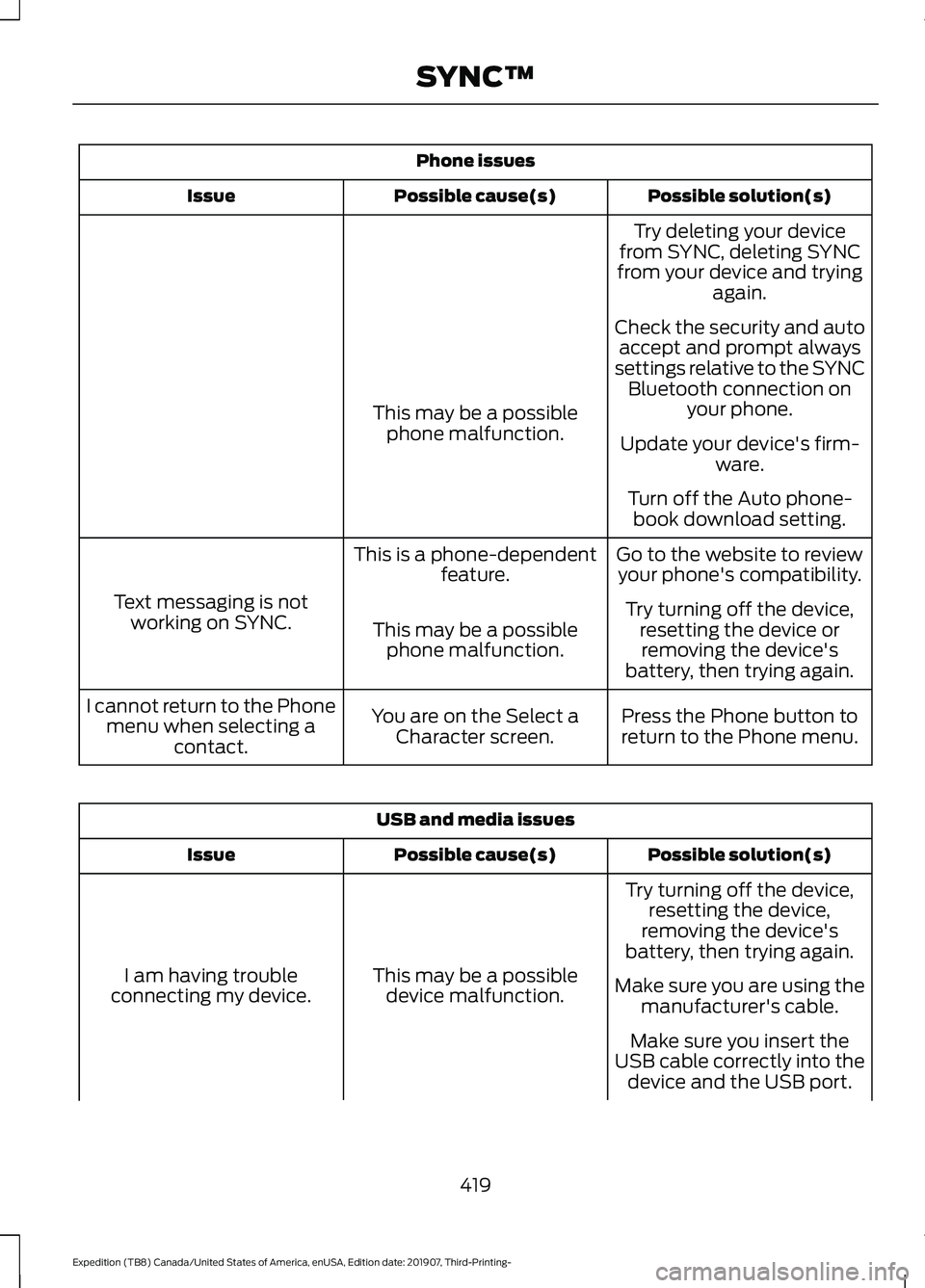
Phone issues
Possible solution(s)
Possible cause(s)
Issue
Try deleting your device
from SYNC, deleting SYNC
from your device and trying again.
Check the security and auto accept and prompt always
settings relative to the SYNC Bluetooth connection on your phone.
This may be a possible
phone malfunction. Update your device's firm-
ware.
Turn off the Auto phone- book download setting.
Go to the website to review your phone's compatibility.
This is a phone-dependent
feature.
Text messaging is not working on SYNC. Try turning off the device,
resetting the device orremoving the device's
battery, then trying again.
This may be a possible
phone malfunction.
Press the Phone button to
return to the Phone menu.
You are on the Select a
Character screen.
I cannot return to the Phone
menu when selecting a contact. USB and media issues
Possible solution(s)
Possible cause(s)
Issue
Try turning off the device,resetting the device,
removing the device's
battery, then trying again.
This may be a possible device malfunction.
I am having trouble
connecting my device. Make sure you are using the
manufacturer's cable.
Make sure you insert the
USB cable correctly into the device and the USB port.
419
Expedition (TB8) Canada/United States of America, enUSA, Edition date: 201907, Third-Printing- SYNC™