2020 DODGE GRAND CARAVAN clock
[x] Cancel search: clockPage 213 of 380

IN CASE OF EMERGENCY211
4. Using the winch T-handle, rotate the drive
nut to the right until the compact spare
tire/cover assembly is drawn into place
against the underside of the vehicle.
5. Continue to rotate the nut to the right until you hear the winch mechanism click three
times. It cannot be overtightened. Check
under the vehicle to ensure the compact
spare tire/cover assembly is positioned
correctly against the underside of the
vehicle.Road Tire Installation
Vehicles Equipped With Wheel Covers
1. Mount the road tire on the axle.
2. To ease the installation process for steel wheels with wheel covers, install two lug
nuts on the mounting studs which are on
each side of the valve stem. Install the lug
nuts with the cone shaped end of the nut
toward the wheel. Lightly tighten the lug
nuts.
Tire And Wheel Cover Or Center Cap
3. Align the valve notch in the wheel cover with
the valve stem on the wheel. Install the
cover by hand, snapping the cover over the
two lug nuts. Do not use a hammer or
excessive force to install the cover.
4. Install the remaining lug nuts with the cone shaped end of the nut toward the wheel.
Lightly tighten all the lug nuts until the
wheel sits flush onto the hub and there is no
play. The nuts will have to be fully tightened
once the vehicle is lowered. Tightening an
improperly seated wheel under vehicle load
can damage the threads, cause vibration,
and undermine safety.
5. Lower the vehicle to the ground by turning the jack handle counterclockwise.
CAUTION!
The winch mechanism is designed
specifically to stow a compact spare tire only.
Do not attempt to use the winch to stow the
full size deflated tire, or any other full-size
tire, as the tire may not be held securely.
Vehicle damage may result.
1 — Valve Stem
2 — Valve Notch
3 — Wheel Lug Nut
4 — Wheel Cover
5 — Mounting Stud
WARNING!
To avoid the risk of forcing the vehicle off the
jack, do not tighten the wheel nuts fully until
the vehicle has been lowered. Failure to
follow this warning may result in serious
injury.
6
20_RT_OM_EN_USC_t.book Page 211
Page 214 of 380

212IN CASE OF EMERGENCY
6. Finish tightening the lug nuts. Push down on
the wrench while at the end of the handle
for increased leverage. Tighten the lug nuts
in a star pattern until each nut has been
tightened twice. Refer to “Wheel And Tire
Torque Specifications” in “Technical
Specifications” for proper wheel lug nut
torque. If in doubt about the correct
tightness, have them checked with a torque
wrench by an authorized dealer or at a
service station.
7. After 25 miles (40 km) check the lug nut torque with a torque wrench to ensure that
all lug nuts are properly seated against the
wheel.
Vehicles Without Wheel Covers
1. Mount the road tire on the axle.
2. Install the remaining lug nuts with the cone shaped end of the nut toward the wheel.
Lightly tighten all the lug nuts until the
wheel sits flush onto the hub and there is no
play. The nuts will have to be fully tightened
once the vehicle is lowered. Tightening an
improperly seated wheel under vehicle load
can damage the threads, cause vibration,
and undermine safety. 3. Lower the vehicle to the ground by turning
the jack handle counterclockwise.
4. Finish tightening the lug nuts. Push down on the wrench while at the end of the handle
for increased leverage. Tighten the lug nuts
in a star pattern until each nut has been
tightened twice. Refer to “Wheel And Tire
Torque Specifications” in the “Technical
Specifications” section for proper wheel lug
nut torque. If in doubt about the correct
tightness, have them checked with a torque
wrench by an authorized dealer or at a
service station.
5. After 25 miles (40 km) check the lug nut torque with a torque wrench to ensure that
all lug nuts are properly seated against the
wheel.
TIRE SERVICE KIT — IF EQUIPPED
Your vehicle may be equipped with a Tire
Service Kit. Small punctures up to 1/4 inch
(6 mm) in the tire tread can be sealed with Tire
Service Kit. Foreign objects (e.g., screws or
nails) should not be removed from the tire. Tire
Service Kit can be used in outside temperatures
down to approximately -4°F (-20°C). This kit will
provide a temporary tire seal, allowing you to
drive your vehicle up to 100 miles (160 km)
with a maximum speed of 50 mph (80 km/h).
Tire Service Kit Storage
The Tire Service Kit is stowed behind the rear
left side trim panel in the rear cargo area.
Tire Service Kit Location
WARNING!
To avoid the risk of forcing the vehicle off the
jack, do not tighten the wheel nuts fully until
the vehicle has been lowered. Failure to
follow this warning may result in serious
injury.
20_RT_OM_EN_USC_t.book Page 212
Page 287 of 380

MULTIMEDIA285
Re-Subscribe To SiriusXM® Satellite Radio
New vehicle purchasers or lessees will receive a
free limited time subscription to SiriusXM®
Satellite Radio with your radio. Following
expiration of the free services, it will be
necessary to access the information on the
Subscription Information screen to
re-subscribe.
Press the Subscription button on the
touchscreen to access the Subscription
Information screen.
Write down the SiriusXM® ID numbers for your
receiver. To reactivate your service, either call
the number listed on the screen or visit the
provider online. NOTE:
SiriusXM® Travel Link is a separate
subscription only available on the
Radio 430 Nav.
Display Settings
Push the Menu button on the faceplate, and
press the Display Setting button on the
touchscreen to access the Display Settings
menu.
Select the Daytime Colors button to switch to
manual daytime mode and to adjust the
brightness of the display using daytime colors.
Select the Nighttime Colors button to switch to
manual nighttime mode and to adjust the
brightness of the display using nighttime colors.
Select the Auto Color button to switch to
automatic daytime/nighttime mode and to
control the brightness of the display using the
light switch of the vehicle.
Press the Up or Down arrows to adjust the
Brightness.
Press the Done button to save your settings and
to return to the AM/FM/SAT Menu.
Screen Off
To turn off the screen (so only the clock is
shown, and audio is still heard through the
vehicle’s speakers), push the Menu button on
the faceplate and press the Screen Off button
on the touchscreen.
Once the Screen Off is active, push any button
on the faceplate or press the touchscreen
display to deactivate it.
9
20_RT_OM_EN_USC_t.book Page 285
Page 328 of 380
326MULTIMEDIA
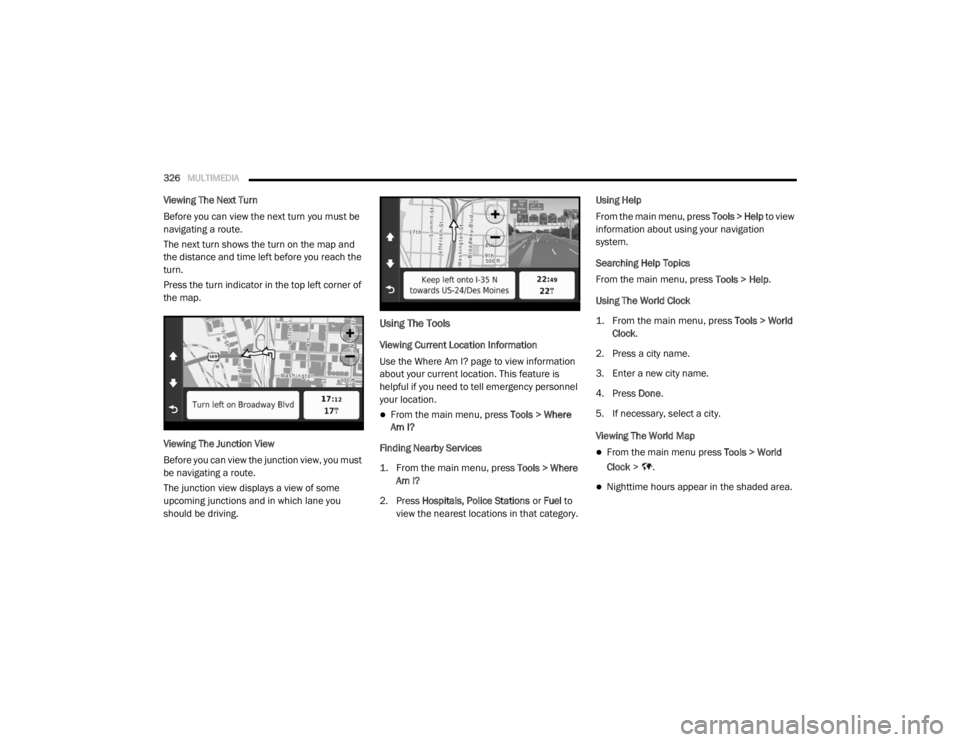
Viewing The Next Turn
Before you can view the next turn you must be
navigating a route.
The next turn shows the turn on the map and
the distance and time left before you reach the
turn.
Press the turn indicator in the top left corner of
the map.
Viewing The Junction View
Before you can view the junction view, you must
be navigating a route.
The junction view displays a view of some
upcoming junctions and in which lane you
should be driving.
Using The Tools
Viewing Current Location Information
Use the Where Am I? page to view information
about your current location. This feature is
helpful if you need to tell emergency personnel
your location.
From the main menu, press Tools > Where
Am I?
Finding Nearby Services
1. From the main menu, press
Tools > Where
Am I?
2. Press Hospitals, Police Stations or Fuel to
view the nearest locations in that category. Using Help
From the main menu, press
Tools > Help to view
information about using your navigation
system.
Searching Help Topics
From the main menu, press Tools > Help.
Using The World Clock
1. From the main menu, press
Tools > World
Clock
.
2. Press a city name.
3. Enter a new city name.
4. Press Done .
5. If necessary, select a city.
Viewing The World Map
From the main menu press Tools > World
Clock > .
Nighttime hours appear in the shaded area.
20_RT_OM_EN_USC_t.book Page 326
Page 342 of 380

340MULTIMEDIA
STEERING WHEEL AUDIO CONTROLS — IF
EQUIPPED
Remote Sound System Controls (Back View Of Steering
Wheel)
The remote sound system controls are located
on the rear surface of the steering wheel, at the
three and nine o'clock positions.
The right-hand rocker switch has a push-button
in the center, and controls the volume and
mode of the sound system. Pushing the top of
the rocker switch will increase the volume.
Pushing the bottom of the rocker switch will
decrease the volume. Pushing the center
button changes the operation of the radio from
AM to FM, or to CD mode. The left-hand rocker switch has a push-button in
the center. The function of the left-hand switch
is different, depending on which mode you are
in.
The following describes the left-hand rocker
switch operation in each mode.
Radio Operation
Pushing the top of the switch will Seek Up for
the next listenable station, and pushing the
bottom of the switch will Seek Down for the next
listenable station.
The button located in the center of the left-hand
switch will tune to the next preset station that
you have programmed in the radio preset
push-button.
CD Player
Pushing the top of the switch once will go to the
next track on the CD. Pushing the bottom of the
switch once will go to the beginning of the
current track, or to the beginning of the previous
track if it is within one second after the current
track begins to play.
If you push the switch up or down twice it plays
the second track; three times, it will play the
third, etc.The button in the center of the left-hand switch
has no function in this mode.
USB/MP3 CONTROL — IF EQUIPPED
This feature allows a external USB device to be
plugged into the USB port, located in the glove
compartment. If equipped, there may also be
two USB ports located on the lower trim piece
right behind the driver’s sliding door that are for
charging devices only.
iPod® control supports Mini, 4G, Photo, iPod®
nano, 5G iPod® and iPhone® devices. Some
iPod® software versions may not fully support
the iPod® control features. Please visit
Apple’s® website for software updates.
NOTE:
Connecting a consumer electronic audio device
to the AUX port located in the radio faceplate,
plays media, but does not use the MP3 control
feature to control the connected device.
20_RT_OM_EN_USC_t.book Page 340
Page 343 of 380

MULTIMEDIA341
Connecting The External USB Device
Use the connection cable to connect a external
USB device to the vehicle's USB connector port
which is located in the glove compartment.
USB Port
NOTE:
The glove compartment will have a position
where the consumer electronic audio device
cable can be routed through without damaging
the cable when closing the lid. This allows
routing of the cable without damaging it while
closing the lid. If a cut out is not available in the
glove compartment, route the cable away from
the lid latch and in a place that will allow the lid
to close without damaging the cable. Once the audio device is connected and
synchronized to the vehicle's USB/MP3 control
system (External USB device may take a few
minutes to connect), the audio device starts
charging and is ready for use by pushing radio
buttons.
NOTE:
If the audio device battery is completely
discharged, it may not communicate with the
USB/MP3 control system until a minimum
charge is attained. Leaving the audio device
connected to the USB/MP3 control system may
charge it to the required level.
Using This Feature
By using an external USB device to connect to
the USB port:
The audio device can be played on the
vehicle’s sound system, providing metadata
(artist, track title, album, etc.) information on
the radio display.
The audio device can be controlled using the
radio buttons to Play, Browse, and List the
audio device’s contents.
The audio device battery charges when
plugged into the USB connector (if supported
by the specific audio device).
Controlling The External USB Device Using
Radio Buttons
To enter the AUX/USB/MP3 control mode and
access a connected audio device, either push
the Aux button on the radio faceplate or push
the VR button and say "USB" or "Switch to USB."
Once in the AUX/USB/MP3 control mode, audio
tracks (if available from audio device) start
playing over the vehicle's audio system.
Play Mode
When switched to AUX/USB/MP3 control mode,
the external USB device automatically starts
Play mode. In Play mode, the following buttons
on the radio faceplate may be used to control
the external USB device and display data:
Use the TUNE control knob to select the next
or previous track.
Turning it clockwise (forward) by one
click, while playing a track, skips to the
next track or push the Voice Recognition
(VR) button and say "Next Track".
9
20_RT_OM_EN_USC_t.book Page 341
Page 344 of 380

342MULTIMEDIA
Turning it counterclockwise (backward)
by one click will jump to the previous
track in the list or push the VR button and
say "Previous Track".
Jump backward in the current track by
pushing and holding the << RW button.
Holding the << RW button long enough will
jump to the beginning of the current track.
Jump forward in the current track by pushing
and holding the FF >> button.
A single push backward << RW or forward FF
>> will jump backward or forward respec -
tively, for five seconds.
Use the << SEEK and SEEK >> buttons to
jump to the previous or next track. Pushing
the SEEK >> button during play mode will
jump to the next track in the list, or push the
VR button and say "Next or Previous Track."
While a track is playing, push the INFO button
to see the associated metadata (artist, track
title, album, etc.) for that track. Pushing the
INFO button again jumps to the next screen
of data for that track. Once all screens have
been viewed, the last INFO button push will
go back to the play mode screen on the radio.
Pushing the Repeat button will change the
audio device mode to repeat the current
playing track or push the VR button and say
"Repeat On" or "Repeat Off".
Push the Scan button to use AUX/USB/MP3
device scan mode, which will play the first 10
seconds of each track in the current list and
then forward to the next song. To stop Scan
mode and start playing the desired track,
when it is playing the track, push the Scan
button again. During Scan mode, pushing the
<< SEEK and SEEK >> buttons will select the
previous and next tracks.
RND button: Pushing this button toggles
between Shuffle ON and Shuffle OFF modes
for the external USB device, or push the VR
button and say "Shuffle On" or "Shuffle Off." If
the RND icon is showing on the radio display,
then the shuffle mode is On.
List Or Browse Mode
During Play mode, pushing any of the buttons
described below will bring up List mode. List
mode enables scrolling through the list of
menus and tracks on the audio device. Tune control knob: The Tune control knob
functions in a similar manner as the scroll
wheel on the audio device or external USB
device.
Turning it clockwise (forward) and counter-
clockwise (backward) scrolls through the
lists, displaying the track detail on the radio
display. Once the track to be played is high-
lighted on the radio display, push the Tune
control knob to select and start playing the
track. Turning the TUNE control knob fast will
scroll through the list faster. During fast
scroll, a slight delay in updating the informa
-
tion on the radio display may be noticeable.
In List mode, the radio Preset buttons are used
as shortcuts to the following lists on the
external USB device:
Preset 1 – Playlists
Preset 2 – Artists
Preset 3 – Albums
Preset 4 – Genres
Preset 5 – Audiobooks
Preset 6 – Podcasts
20_RT_OM_EN_USC_t.book Page 342