2020 DODGE DURANGO ignition
[x] Cancel search: ignitionPage 365 of 464
MULTIMEDIA363
CUSTOMER PROGRAMMABLE FEATURES
— U
CONNECT 4 SETTINGS
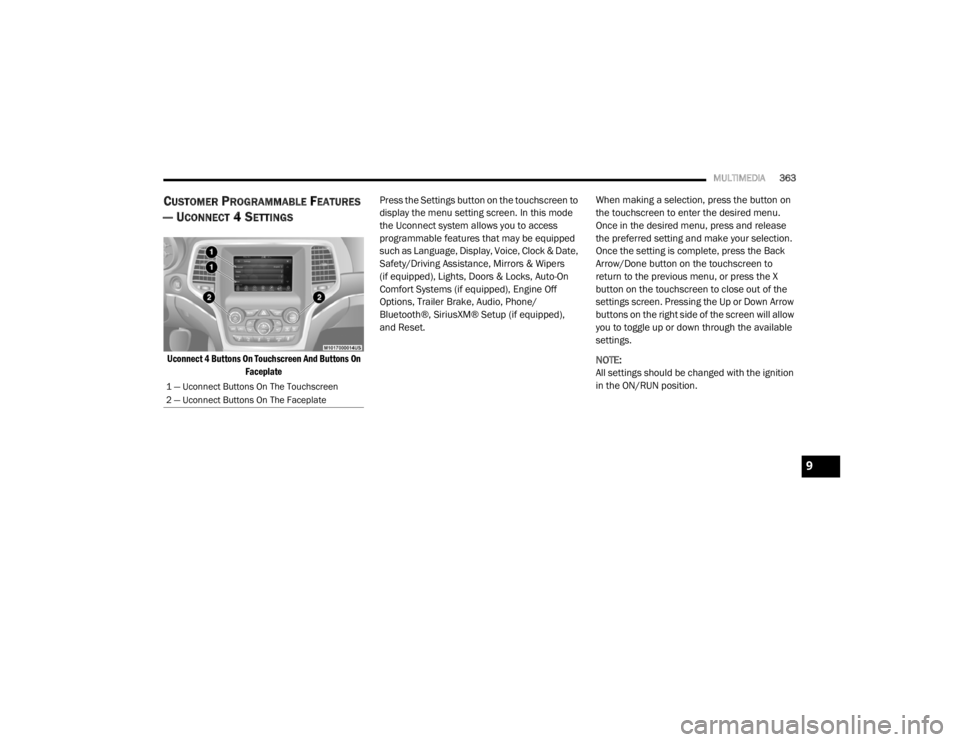
Uconnect 4 Buttons On Touchscreen And Buttons On
Faceplate
Press the Settings button on the touchscreen to
display the menu setting screen. In this mode
the Uconnect system allows you to access
programmable features that may be equipped
such as Language, Display, Voice, Clock & Date,
Safety/Driving Assistance, Mirrors & Wipers
(if equipped), Lights, Doors & Locks, Auto-On
Comfort Systems (if equipped), Engine Off
Options, Trailer Brake, Audio, Phone/
Bluetooth®, SiriusXM® Setup (if equipped),
and Reset.
When making a selection, press the button on
the touchscreen to enter the desired menu.
Once in the desired menu, press and release
the preferred setting and make your selection.
Once the setting is complete, press the Back
Arrow/Done button on the touchscreen to
return to the previous menu, or press the X
button on the touchscreen to close out of the
settings screen. Pressing the Up or Down Arrow
buttons on the right side of the screen will allow
you to toggle up or down through the available
settings.
NOTE:
All settings should be changed with the ignition
in the ON/RUN position.
1 — Uconnect Buttons On The Touchscreen
2 — Uconnect Buttons On The Faceplate
9
20_WD_OM_EN_USC_t.book Page 363
Page 368 of 464

366MULTIMEDIA
Safety/Driving Assistance
After pressing the Safety/Driving Assistance button on the touchscreen, the following settings will be available: Set Date
MonthDayYear
NOTE:
Within the “Set Date” setting, press the corresponding Arrow buttons on the touchscreen to adjust to the correct date.
Setting Name Selectable Options
Setting NameSelectable Options
ParkView Backup Camera DelayOn Off
NOTE:
The “ParkView Backup Camera Delay” setting determines whether or not the screen will display the rear view image with dynamic grid lines for up to
10 seconds after the vehicle is shifted out of REVERSE. This delay is canceled if the vehicle’s speed exceeds 8 mph (13 km/h), the transmission is
shifted into PARK, or the ignition is switched to the OFF position. ParkView Backup Camera Active Guide Lines On
Off
NOTE:
The “ParkView Backup Camera Active Guide Lines” feature overlays the Rear Backup Camera image with active, or dynamic, grid lines to help illustrate
the width of the vehicle and its projected backup path, based on the steering wheel position when the option is checked. A dashed center line overlay
indicates the center of the vehicle to assist with parking or aligning to a hitch/receiver.
20_WD_OM_EN_USC_t.book Page 366
Page 369 of 464

MULTIMEDIA367
Forward Collision Warning — If
Equipped Off
Warning Only Warning & Braking
NOTE:
Changing the FCW status to “Off” prevents the system from warning you of a possible collision with the vehicle in front of you.
The FCW system state is kept in memory from one ignition cycle to the next. If the system is turned OFF, it will remain off when the vehicle is restarted.
FCW includes Advanced Brake Assist (ABA). The ABA applies additional brake pressure when the driver requests insufficient brake pressure to avoid
a potential frontal collision. When the “Warning Only” option is selected, a chime sounds alerting you of a possible collision with the vehicle in front
of you and more brake pressure is needed. When the “Warning & Braking” option is selected, it applies the brakes to slow your vehicle in case of
potential forward collision and sounds an audible chime to alert you. Forward Collision Warning Sensitivity — If Equipped Far
Med Near
NOTE:
The “Forward Collision Warning Sensitivity” setting determines at what relative distance the vehicle directly in front of you needs to be at, based on
which option is selected. “Far” gives you the most amount of reaction time, whereas “Near” gives you the least amount of reaction time, based on
the distance between the two vehicles. ParkSense — If Equipped OffSound Only Sound & Display
NOTE:
The “ParkSense” system setting scans for objects behind the vehicle when the transmission gear selector is in REVERSE and the vehicle speed is less
than 7 mph (11 km/h), when enabled. It provides an alert (audible and/or visual) to indicate the proximity to other objects. The system can be enabled
with “Sound Only” or “Sound & Display”. Rear ParkSense Volume LowMedium High
Front ParkSense Volume LowMedium High
Setting Name Selectable Options
9
20_WD_OM_EN_USC_t.book Page 367
Page 374 of 464

372MULTIMEDIA
Auto-On Comfort Systems — If Equipped
After pressing the Auto-On Comfort Systems button on the touchscreen, the following setting will be available:
Engine Off Options
After pressing the Engine Off Options button on the touchscreen, the following settings will be available:
Setting Name Selectable Options
Auto-On Driver Heated/Ventilated
Seat & Steering Wheel With Vehicle Start — If Equipped Off
Remote Start All Starts
NOTE:
When this feature is selected, the driver’s heated seat and heated steering wheel will automatically turn on when temperatures are below 40°F
(4.4°C). When temperatures are above 80°F (26.7°C) the driver vented seat will turn on.
Setting Name Selectable Options
Engine Off Power Delay — If Equipped 0 sec
45 sec
5 min 10 min
NOTE:
When the “Engine Off Power Delay” feature is selected, the power window switches, radio, Uconnect phone system (if equipped), DVD video system
(if equipped), power sunroof (if equipped), and power outlets will remain active for up to 10 minutes after the ignition is cycled to OFF. Opening either
front door will cancel this feature.
Headlight Off Delay 0 sec
30 sec
60 sec 90 sec
NOTE:
When the “Headlight Off Delay” feature is selected, it allows the adjustment of the amount of time the headlights remain on after the engine is shut off.
20_WD_OM_EN_USC_t.book Page 372
Page 382 of 464

380MULTIMEDIA
Clock
After pressing the Clock button on the touchscreen, the following settings will be available:
Camera
After pressing the Camera button on the touchscreen, the following settings will be available:
Setting Name Selectable Options
Sync Time With GPS OnOff
Set Time Hours +-
NOTE:
The “Set Time Hours” feature allows you to adjust the hours. The Sync Time With GPS button on the touchscreen must be unchecked. Set Time Minutes +-
NOTE:
The “Set Time Minutes” feature allows you to adjust the minutes. The Sync Time With GPS button on the touchscreen must be unchecked.
Time Format 12 hrs
24 hrs
AM PM
Show Time in Status Bar — If Equipped OnOff
Setting Name Selectable Options
ParkView Backup Camera Delay OnOff
NOTE:
The “ParkView Backup Camera Delay” setting determines whether or not the screen will display the rear view image with dynamic grid lines for up to
10 seconds after the vehicle is shifted out of REVERSE. This delay will be canceled if the vehicle’s speed exceeds 8 mph (13 km/h), the transmission
is shifted into PARK, or the ignition is switched to the OFF position.
20_WD_OM_EN_USC_t.book Page 380
Page 383 of 464

MULTIMEDIA381
Safety & Driving Assistance
After pressing the Safety & Driving Assistance button on the touchscreen, the following settings will be available:Active ParkView Backup Camera Guidelines
OnOff
NOTE:
The “Active ParkView Backup Camera Guidelines” feature overlays the Rear Backup Camera image with active, or dynamic, grid lines to help illustrate
the width of the vehicle and its projected backup path, based on the steering wheel position when the option is checked. A dashed center line overlay
indicates the center of the vehicle to assist with parking or aligning to a hitch/receiver.
Setting Name Selectable Options
Setting NameSelectable Options
Automatic Emergency Braking — If
Equipped Selectable Options
NOTE:
“Forward Collision Warning” and “Forward Collision Warning Sensitivity” are selectable options when the “Automatic Emergency Braking” setting is
selected first. Forward Collision Warning — If Equipped Off
Warning Only Warning & Braking
NOTE:
Changing the FCW status to “Off” prevents the system from warning you of a possible collision with the vehicle in front of you.
The FCW system state is kept in memory from one ignition cycle to the next. If the system is turned Off, it will remain off when the vehicle is restarted.
FCW includes Advanced Brake Assist (ABA). The ABA applies additional brake pressure when the driver requests insufficient brake pressure to avoid
a potential frontal collision. When the “Warning Only” option is selected a chime sounds alerting you of a possible collision with the vehicle in front of
you and more brake pressure is needed. When the “Warning & Braking” option is selected, it applies the brakes to slow your vehicle in case of a
potential forward collision and sounds an audible chime to alert you.
9
20_WD_OM_EN_USC_t.book Page 381
Page 389 of 464

MULTIMEDIA387
Seats & Comfort — If Equipped
After pressing the Seats & Comfort button on the touchscreen, the following setting will be available:
Key Off Options
After pressing the Key Off Options button on the touchscreen, the following settings will be available:
Setting Name Selectable Options
Auto-On Driver Heated/Vented &
Steering Wheel With Vehicle Start — If Equipped Off
Remote Start All Starts
NOTE:
When this feature is selected, the driver’s heated seat and heated steering wheel will automatically turn On when temperatures are below 40°F
(4.4°C). When temperatures are above 80°F (26.7°C) the driver vented seat will turn On.
Setting Name Selectable Options
Key Off Power Delay — If Equipped 0 sec
45 sec
5 min 10 min
NOTE:
When the “Key Off Power Delay” feature is selected, the power window switches, radio, Uconnect phone system (if equipped), DVD video system (if
equipped), power sunroof (if equipped), and power outlets remains active for up to 10 minutes after the ignition is cycled to OFF. Opening either front
door cancels this feature.
9
20_WD_OM_EN_USC_t.book Page 387
Page 407 of 464

MULTIMEDIA405
Browse
Press the Browse button on the touchscreen to
display the browse window. The left side of the
browse window displays a list of ways you can
browse through the contents of the USB device/
iPod®. If supported by the device, you can
browse by Folders, Artists, Playlists, Albums,
Songs, etc. Press the desired button on the left
side of the screen. The center of the browse
window shows items and its sub-functions,
which can be scrolled by pressing the Up and
Down buttons to the right. The Tune/Scroll knob
can also be used to scroll.
Media Mode
Press the Media button on the touchscreen to
select the desired audio source: USB.
Repeat
Press the Repeat button on the touchscreen to
toggle the repeat functionality. The Repeat
button on the touchscreen is highlighted when
active. The Radio will continue to play the
current track, repeatedly, as long as the repeat
is active. Press the Repeat button on the
touchscreen a second time to turn this feature
off. Shuffle
Press the Shuffle button on the touchscreen to
play the selections on the USB/iPod® device in
random order to provide an interesting change
of pace. Press the Shuffle button on the
touchscreen a second time to turn this feature
off.
Info
Press the Info button on the touchscreen to
display the current track information. Press the
Info button on the touchscreen a second time to
cancel this feature.
Tracks
Press the Tracks button on the touchscreen to
display a pop-up with the Song List. The
currently playing song is indicated by an arrow
and lines above and below the song title. When
in the Tracks List screen, you can rotate the
Tune/Scroll knob to highlight a track (indicated
by the line above and below the track name)
and then push the Enter/Browse knob to start
playing that track.
Pressing the Tracks button on the touchscreen
while the pop-up is displayed will close the
pop-up.Audio
Refer to “Radio Mode” for adjusting the audio
settings.
AUX Mode
Overview
AUX (Auxiliary Mode) is entered by inserting an
AUX device using a cable with a 3.5 mm audio
jack into the AUX port or by pressing the AUX
button on the left side of the display.
Inserting Auxiliary Device
Gently insert the Auxiliary device cable into the
AUX Port. If you insert an Auxiliary device with
the ignition and the radio on, the unit will switch
to AUX mode and begin to play when you insert
the device cable.
Controlling The Auxiliary Device
The control of the auxiliary device (e.g.,
selecting playlists, play, fast forward, etc.)
cannot be provided by the radio; use the device
controls instead. Adjust the volume with the
Volume/Mute rotary knob, or with the volume of
the attached device.
9
20_WD_OM_EN_USC_t.book Page 405