2020 DODGE CHARGER USB
[x] Cancel search: USBPage 372 of 412
370MULTIMEDIA
NOTE:
Only temporarily pushing the VR button on the
steering wheel launches a built-in VR session,
not a Siri session, and it will not function with
Apple CarPlay®.
Apple CarPlay® Music
Apple CarPlay® allows you to access
all your artists, playlists, and music
from iTunes®. Using your iPhone’s®
data plan, you can also use select
third party audio apps including music, news,
sports, podcasts and more.
Apple CarPlay® Messages
Just like Phone, Apple CarPlay®
allows you to use Siri to send or reply
to text messages. Siri can also read
incoming text messages, but driver’s
will not be able to read messages, as everything
is done via voice.
Apple CarPlay® Maps
To use your Apple® Maps for
navigation on your Uconnect system,
launch Apple CarPlay®, and push and
hold the VR button on the steering
wheel to use Siri to set your desired destination. Alternatively, choose a nearby destination by
pressing Destinations and selecting a category,
by launching Siri from the destinations page, or
even by typing in a destination.
NOTE:
If the Voice Recognition (VR) button is not held,
and is only pushed, the built-in Uconnect VR
prompts you and any navigation command said
launches the built-in Uconnect navigation
system.
Apple CarPlay® Apps
To use a compatible app with Apple CarPlay®,
you must have the compatible app downloaded,
and you must be signed in to the app.
Refer to http://www.apple.com/ios/carplay/
(US Residents) or https://www.apple.com/ca/
ios/carplay/ (Canadian Residents) to see the
latest list of available apps for Apple CarPlay®. Android Auto™ And Apple CarPlay® Tips And
Tricks
AutoPlay
AutoPlay is a feature of the Uconnect system
that automatically begins playing music off of
the connected device, as soon as it is
connected. This feature can be turned on or off
in the Uconnect Settings, within the Audio
Settings category. Its default setting is on.
NOTE:
AutoPlay® is not supported by Android Auto™.
Android Auto™ Automatic Bluetooth® Pairing
After connecting to Android Auto™ for the first
time and undergoing the setup procedure, the
smartphone will automatically pair to the
Uconnect system via Bluetooth® without any
setup required every time it is within range, if
Bluetooth® is turned on.
NOTE:
Android Auto™ features cannot be used with
Bluetooth®, a USB connection is required for
its use. Android Auto™ uses both Bluetooth®
and
20_LD_OM_EN_USC_t.book Page 370
Page 373 of 412
MULTIMEDIA371
USB connections to function, and the
connected device will be unavailable to other
devices when connected using Android Auto™.
Multiple Devices Connecting To The Uconnect
System
It is possible to have multiple devices
connected to the Uconnect system. For
example, if using Android Auto™/Apple
CarPlay®, the connected device will be the one
that will be used to place hands-free phone calls
or send hands-free text messages. However,
another device can also be paired to the
Uconnect system, via Bluetooth®, as an audio
source, so the passenger can stream music.
NOTE:
If using a Samsung device, every time it is
connected to a media USB, and there is
another device plugged in, you will need to
manually change the configuration of the
USB connection in order for the Samsung
device to send data.
The Uconnect 4 built-in media functions will
be unavailable when Android Auto™/Apple
CarPlay® are in use.
PHONE MODE
Overview
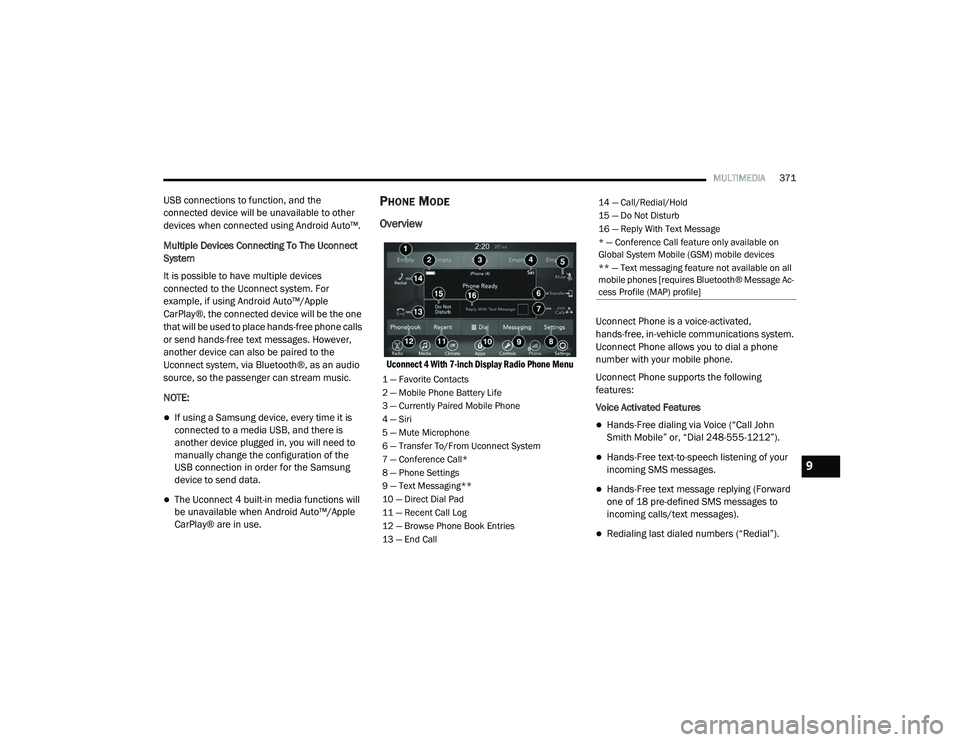
Uconnect 4 With 7-inch Display Radio Phone Menu
Uconnect Phone is a voice-activated,
hands-free, in-vehicle communications system.
Uconnect Phone allows you to dial a phone
number with your mobile phone.
Uconnect Phone supports the following
features:
Voice Activated Features
Hands-Free dialing via Voice (“Call John
Smith Mobile” or, “Dial 248-555-1212”).
Hands-Free text-to-speech listening of your
incoming SMS messages.
Hands-Free text message replying (Forward
one of 18 pre-defined SMS messages to
incoming calls/text messages).
Redialing last dialed numbers (“Redial”).
1 — Favorite Contacts
2 — Mobile Phone Battery Life
3 — Currently Paired Mobile Phone
4 — Siri
5 — Mute Microphone
6 — Transfer To/From Uconnect System
7 — Conference Call*
8 — Phone Settings
9 — Text Messaging**
10 — Direct Dial Pad
11 — Recent Call Log
12 — Browse Phone Book Entries
13 — End Call
14 — Call/Redial/Hold
15 — Do Not Disturb
16 — Reply With Text Message
* — Conference Call feature only available on
Global System Mobile (GSM) mobile devices
** — Text messaging feature not available on all
mobile phones [requires Bluetooth® Message Ac -
cess Profile (MAP) profile]
9
20_LD_OM_EN_USC_t.book Page 371
Page 384 of 412

382MULTIMEDIA
Fully Closed Windows
Dry Weather Conditions
Operation From The Driver's Seat
Performance such as audio clarity, echo, and
loudness to a large degree rely on the phone
and network, and not the Uconnect Phone.
Echo at the far end can sometimes be reduced
by lowering the in-vehicle audio volume.
Bluetooth® Communication Link
Mobile phones have been found to lose
connection to the Uconnect Phone. When this
happens, the connection can generally be
re-established by switching the mobile phone
OFF/ON. Your mobile phone is recommended to
remain in Bluetooth® ON mode.
Power-Up
After switching the ignition key from OFF to
either the ON/RUN or ACC position, or after a
language change, you must wait at least 15
seconds prior to using the system.
STEERING WHEEL AUDIO CONTROLS —
IF EQUIPPED
The remote sound system controls are located
on the rear surface of the steering wheel. Reach
behind the wheel to access the switches.
Steering Wheel Audio Controls (Back View Of Steering Wheel)
The right-hand control is a rocker-type switch
with a push button in the center and controls
the volume and mode of the sound system.
Pushing the top of the rocker switch will
increase the volume, and pushing the bottom of
the rocker switch will decrease the volume.
Pushing the center button will make the radio
switch between the various modes available
(AM/FM/SAT/AUX, etc.). The left-hand control is a rocker-type switch with
a push button in the center. The function of the
left-hand control is different depending on
which mode you are in.
The following describes the left-hand control
operation in each mode.
RADIO OPERATION
Pushing the top of the switch will “Seek” up for
the next listenable station and pushing the
bottom of the switch will “Seek” down for the
next listenable station.
The button located in the center of the left-hand
control will tune to the next preset station that
you have programmed in the radio preset button.
MEDIA MODE
Pushing the top of the switch once goes to the
next track on the selected media (AUX/USB/
Bluetooth®). Pushing the bottom of the switch
once goes to the beginning of the current track,
or to the beginning of the previous track if it is
within eight seconds after the current track
begins to play.
NOTE:
While In Media Mode, the center button on the
left rocker switch is nonfunctional.
20_LD_OM_EN_USC_t.book Page 382
Page 385 of 412
MULTIMEDIA383
AUX/USB/MP3 CONTROL
This feature allows an external USB device to be
plugged into the USB port.
Plugging in a smartphone device to a USB Port
may activate Android Auto™ or Apple CarPlay®
features, if equipped. For further information,
refer to “Android Auto™” or “Apple CarPlay®” in
the Owner’s Manual Supplement.
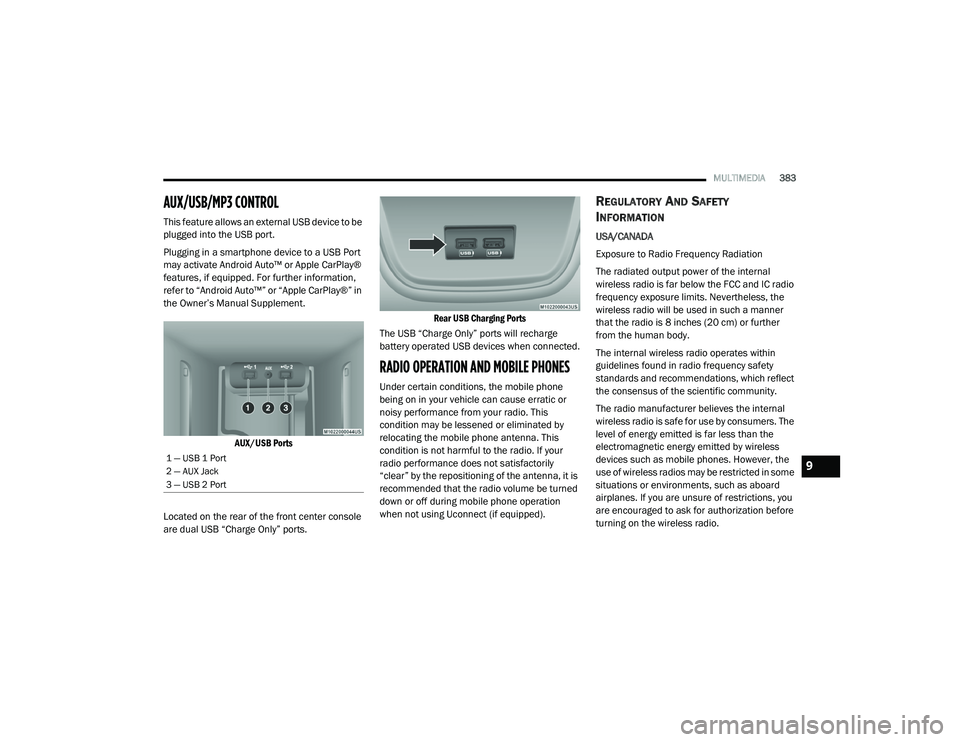
AUX/USB Ports
Located on the rear of the front center console
are dual USB “Charge Only” ports.
Rear USB Charging Ports
The USB “Charge Only” ports will recharge
battery operated USB devices when connected.
RADIO OPERATION AND MOBILE PHONES
Under certain conditions, the mobile phone
being on in your vehicle can cause erratic or
noisy performance from your radio. This
condition may be lessened or eliminated by
relocating the mobile phone antenna. This
condition is not harmful to the radio. If your
radio performance does not satisfactorily
“clear” by the repositioning of the antenna, it is
recommended that the radio volume be turned
down or off during mobile phone operation
when not using Uconnect (if equipped).
REGULATORY AND SAFETY
I
NFORMATION
USA/CANADA
Exposure to Radio Frequency Radiation
The radiated output power of the internal
wireless radio is far below the FCC and IC radio
frequency exposure limits. Nevertheless, the
wireless radio will be used in such a manner
that the radio is 8 inches (20 cm) or further
from the human body.
The internal wireless radio operates within
guidelines found in radio frequency safety
standards and recommendations, which reflect
the consensus of the scientific community.
The radio manufacturer believes the internal
wireless radio is safe for use by consumers. The
level of energy emitted is far less than the
electromagnetic energy emitted by wireless
devices such as mobile phones. However, the
use of wireless radios may be restricted in some
situations or environments, such as aboard
airplanes. If you are unsure of restrictions, you
are encouraged to ask for authorization before
turning on the wireless radio.
1 — USB 1 Port
2 — AUX Jack
3 — USB 2 Port9
20_LD_OM_EN_USC_t.book Page 383
Page 388 of 412
386MULTIMEDIA
Each time you give a Voice Command, you
must first push either the Voice Recognition
(VR) or Phone button, wait until after the
beep, then say your Voice Command.
You can interrupt the help message or
system prompts by pushing the VR or Phone
button and saying a Voice Command from
the current category.
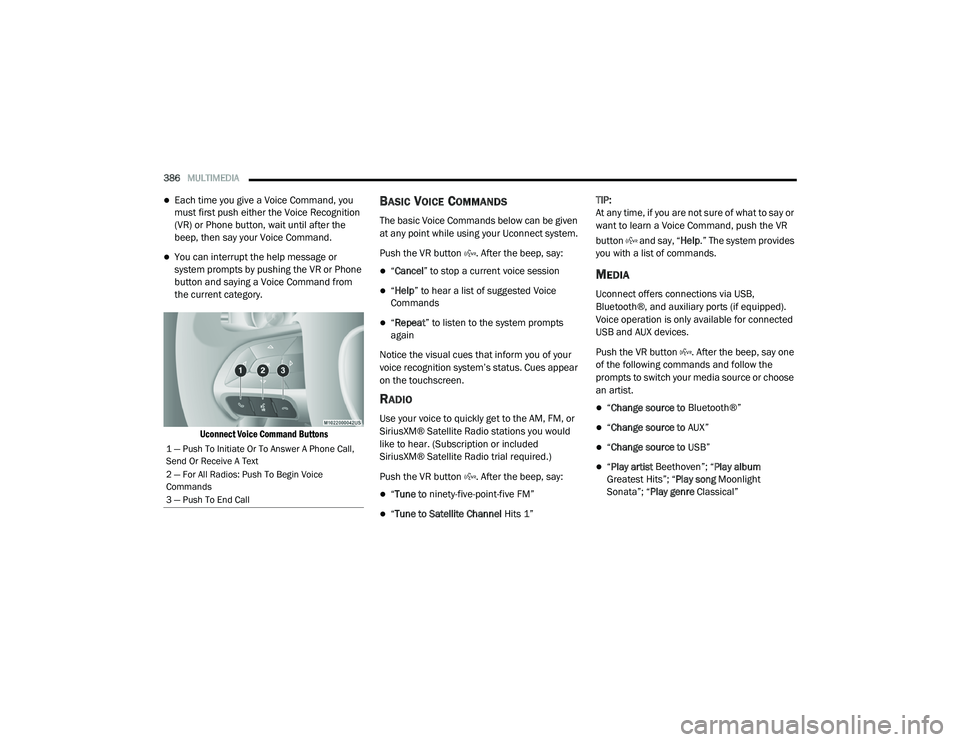
Uconnect Voice Command Buttons
BASIC VOICE COMMANDS
The basic Voice Commands below can be given
at any point while using your Uconnect system.
Push the VR button . After the beep, say:
“Cancel ” to stop a current voice session
“Help ” to hear a list of suggested Voice
Commands
“ Repeat ” to listen to the system prompts
again
Notice the visual cues that inform you of your
voice recognition system’s status. Cues appear
on the touchscreen.
RADIO
Use your voice to quickly get to the AM, FM, or
SiriusXM® Satellite Radio stations you would
like to hear. (Subscription or included
SiriusXM® Satellite Radio trial required.)
Push the VR button . After the beep, say:
“ Tune to ninety-five-point-five FM”
“Tune to Satellite Channel Hits 1”TIP:
At any time, if you are not sure of what to say or
want to learn a Voice Command, push the VR
button and say, “
Help.” The system provides
you with a list of commands.
MEDIA
Uconnect offers connections via USB,
Bluetooth®, and auxiliary ports (if equipped).
Voice operation is only available for connected
USB and AUX devices.
Push the VR button . After the beep, say one
of the following commands and follow the
prompts to switch your media source or choose
an artist.
“ Change source to Bluetooth®”
“Change source to AUX”
“Change source to USB”
“Play artist Beethoven”; “ Play album
Greatest Hits”; “ Play song Moonlight
Sonata”; “ Play genre Classical”
1 — Push To Initiate Or To Answer A Phone Call,
Send Or Receive A Text
2 — For All Radios: Push To Begin Voice
Commands
3 — Push To End Call
20_LD_OM_EN_USC_t.book Page 386
Page 389 of 412
MULTIMEDIA387
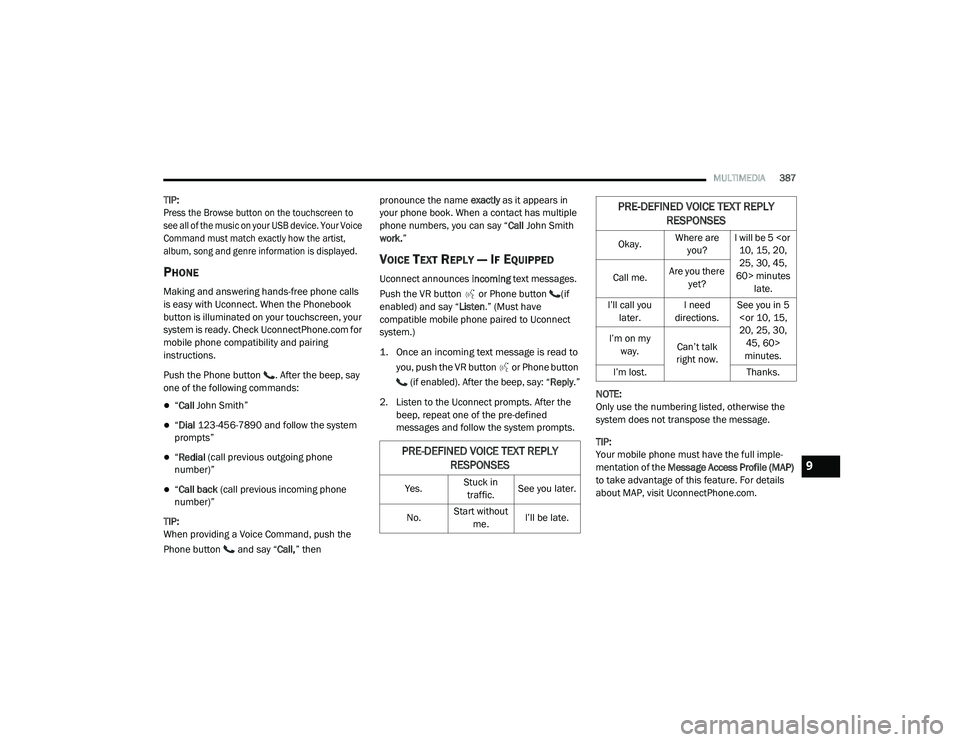
TIP:
Press the Browse button on the touchscreen to
see all of the music on your USB device. Your Voice
Command must match exactly how the artist,
album, song and genre information is displayed.
PHONE
Making and answering hands-free phone calls
is easy with Uconnect. When the Phonebook
button is illuminated on your touchscreen, your
system is ready. Check UconnectPhone.com for
mobile phone compatibility and pairing
instructions.
Push the Phone button . After the beep, say
one of the following commands:
“ Call John Smith”
“Dial 123-456-7890 and follow the system
prompts”
“ Redial (call previous outgoing phone
number)”
“ Call back (call previous incoming phone
number)”
TIP:
When providing a Voice Command, push the
Phone button and say “ Call,” then pronounce the name
exactly as it appears in
your phone book. When a contact has multiple
phone numbers, you can say “ Call John Smith
work.”
VOICE TEXT REPLY — IF EQUIPPED
Uconnect announces incoming text messages.
Push the VR button or Phone button (if
enabled) and say “ Listen.” (Must have
compatible mobile phone paired to Uconnect
system.)
1. Once an incoming text message is read to
you, push the VR button
or Phone button
(if enabled). After the beep, say: “ Reply
.”
2. Listen to the Uconnect prompts. After the beep, repeat one of the pre-defined
messages and follow the system prompts. NOTE:
Only use the numbering listed, otherwise the
system does not transpose the message.
TIP:
Your mobile phone must have the full imple
-
mentation of the Message Access Profile (MAP)
to take advantage of this feature. For details
about MAP, visit UconnectPhone.com.
PRE-DEFINED VOICE TEXT REPLY RESPONSES
Yes. Stuck in
traffic. See you later.
No. Start without
me. I’ll be late.
Okay. Where are
you? I will be 5
25, 30, 45,
60> minutes late.
Call me.
Are you there
yet?
I’ll call you later. I need
directions. See you in 5
minutes.
I’m on my
way. Can’t talk
right now.
I’m lost. Thanks.
PRE-DEFINED VOICE TEXT REPLY
RESPONSES
9
20_LD_OM_EN_USC_t.book Page 387
Page 391 of 412
MULTIMEDIA389
NOTE:
Reply with text message is not compatible
with iPhones®.
Auto reply with text message is only available
on phones that support Bluetooth® MAP.
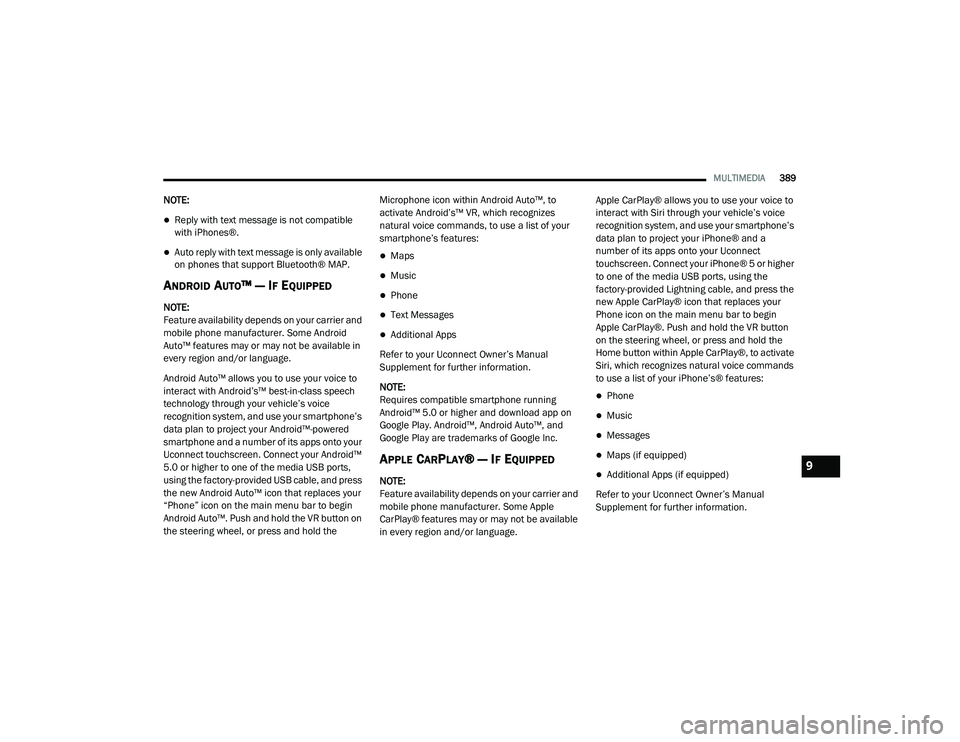
ANDROID AUTO™ — IF EQUIPPED
NOTE:
Feature availability depends on your carrier and
mobile phone manufacturer. Some Android
Auto™ features may or may not be available in
every region and/or language.
Android Auto™ allows you to use your voice to
interact with Android’s™ best-in-class speech
technology through your vehicle’s voice
recognition system, and use your smartphone’s
data plan to project your Android™-powered
smartphone and a number of its apps onto your
Uconnect touchscreen. Connect your Android™
5.0 or higher to one of the media USB ports,
using the factory-provided USB cable, and press
the new Android Auto™ icon that replaces your
“Phone” icon on the main menu bar to begin
Android Auto™. Push and hold the VR button on
the steering wheel, or press and hold the Microphone icon within Android Auto™, to
activate Android’s™ VR, which recognizes
natural voice commands, to use a list of your
smartphone’s features:
Maps
Music
Phone
Text Messages
Additional Apps
Refer to your Uconnect Owner’s Manual
Supplement for further information.
NOTE:
Requires compatible smartphone running
Android™ 5.0 or higher and download app on
Google Play. Android™, Android Auto™, and
Google Play are trademarks of Google Inc.
APPLE CARPLAY® — IF EQUIPPED
NOTE:
Feature availability depends on your carrier and
mobile phone manufacturer. Some Apple
CarPlay® features may or may not be available
in every region and/or language. Apple CarPlay® allows you to use your voice to
interact with Siri through your vehicle’s voice
recognition system, and use your smartphone’s
data plan to project your iPhone® and a
number of its apps onto your Uconnect
touchscreen. Connect your iPhone® 5 or higher
to one of the media USB ports, using the
factory-provided Lightning cable, and press the
new Apple CarPlay® icon that replaces your
Phone icon on the main menu bar to begin
Apple CarPlay®. Push and hold the VR button
on the steering wheel, or press and hold the
Home button within Apple CarPlay®, to activate
Siri, which recognizes natural voice commands
to use a list of your iPhone’s® features:
Phone
Music
Messages
Maps (if equipped)
Additional Apps (if equipped)
Refer to your Uconnect Owner’s Manual
Supplement for further information.9
20_LD_OM_EN_USC_t.book Page 389
Page 401 of 412

399
I
Ignition
............................................................ 18Switch......................................................... 18In Vehicle Help Vehicle User Guide...................................... 11Information Center, Vehicle............................. 86Inside Rearview Mirror..................... 41, 42, 212Instrument Cluster............................. 80, 82, 84Descriptions.............................................. 103Display................................................. 85, 88Instrument Panel Lens Cleaning.................... 306Interior Appearance Care............................... 306Interior Lights.................................................. 48Intermittent Wipers (Delay Wipers).................. 51Introduction....................................................... 8iPod/USB/MP3 Control................................. 364
J
Jack Location................................................. 230Jack Operation............................................... 286Jump Starting...................................... 240, 241
K
Key FobArm The System
.......................................... 24Panic Alarm................................................. 15Programming Additional Key Fobs....... 17, 23Unlatch The Trunk....................................... 14
Key Fob Battery Service (Remote
Keyless Entry).................................................... 15
Key Fob Programming (Remote
Keyless Entry).................................................. 17Key-In Reminder.............................................. 19Keyless Enter-N-Go.................................26, 162Enter The Trunk........................................... 14Passive Entry............................................... 26Passive Entry Programming......................... 26Keys................................................................. 12Replacement........................................ 17, 23
L
Lane Change And Turn Signals........................ 48Lane Change Assist......................................... 48LaneSense.................................................... 196Lap/Shoulder Belts....................................... 127Latches......................................................... 158Hood............................................................ 68Lead Free Gasoline....................................... 309Leaks, Fluid.................................................. 158Life Of Tires................................................... 296Light Bulbs........................................... 157, 217Lights............................................................ 157Air Bag...................................... 95, 134, 156Automatic Headlights.................................. 47Brake Assist Warning............................... 111Brake Warning....................................95, 308Bulb Replacement.................................... 217
Cruise.............................................. 102, 103Daytime Running.........................................45Dimmer Switch, Headlight.................... 45, 46Exterior.............................................. 45, 157Fog...............................................................48Hazard Warning Flasher........................... 212Headlight Switch..........................................45Headlights............................................ 45, 47Headlights On With Wipers..........................47High Beam...................................................46High Beam/Low Beam Select......................46Instrument Cluster.......................................45Intensity Control..........................................50Interior.........................................................48License..................................................... 220Lights On Reminder.....................................47Malfunction Indicator (Check Engine)..........98Park................................................... 47, 102Passing........................................................46Reading.......................................................49Seat Belt Reminder.....................................97Security Alarm.............................................98Service...................................................... 217Traction Control........................................ 111Turn Signals....................... 45, 48, 103, 157Vanity Mirror................................................44Warning Instrument Cluster Descriptions.................................. 97, 10311
20_LD_OM_EN_USC_t.book Page 399